
一个交互式可视化Python库——Bokeh
本篇为《Python数据可视化实战》第十篇文章,我们一起学习一个交互式可视化Python库——Bokeh。
Bokeh基础
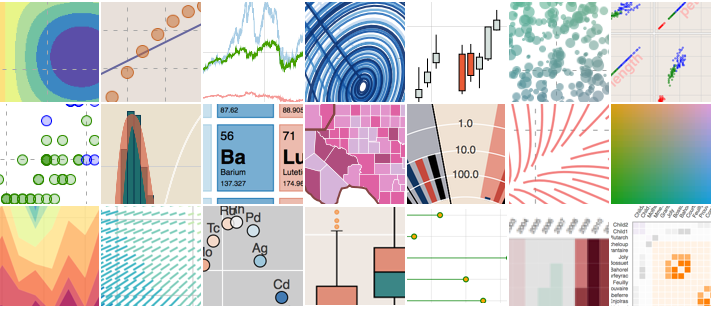
Bokeh是一个专门针对Web浏览器的呈现功能的交互式可视化Python库。这是Bokeh与其它可视化库最核心的区别。
Bokeh绘图步骤
①获取数据
②构建画布figure()
③添加图层,绘图line,circle,square,scatter,multi_line等;参数co
lor,legend
④自定义视觉属性
⑤选择性展示折线数据,建立复选框激活显示,复选框(checkbox)
导入库和数据
import numpy as np

import bokeh

from bokeh.layouts import gridplot

from bokeh.plotting import figure, output_file, show
图表实例
1.散点图
import numpy as np

import bokeh

from bokeh.layouts import gridplot

from bokeh.plotting import figure, output_file, show

# output_file("patch.html")  #输出网页形式

p = figure(plot_width=100, plot_height=100)

#数据

N=9

x=np.linspace(-2,2,N)

y=x**2

sizes=np.linspace(10,20,N)

xpts=np.array([-0.09,-0.12,0.0,0.12,0.09])

ypts=np.array([-0.1,0.02,0.1,0.02,-0.1])

p=figure(title="annular_wedge")

p.annular_wedge(x,y,10,20,0.3,4.1,color="#8888ee",inner_radius_units="screen",outer_radius_units="screen")

# Set to output the plot in the notebook

output_notebook()

show(p)
_20200316133935.png)
2.多分类的散点图
from bokeh.sampledata.iris import flowers

from bokeh.plotting import figure

from bokeh.io import show, output_notebook

#配色

colormap={'setosa':'red','versicolor':'green','virginica':'blue'}

colors=[colormap[x] for x in flowers['species']]

#画布

p=figure(title='Tris Morphology')

#绘图

#flowers['petal_length']为x,flowers['petal_width']为y,fill_alpha=0.3为填充透明度

p.circle(flowers['petal_length'],flowers['petal_width'],color=colors,fill_alpha=0.3,size=10)

#显示

output_notebook()

show(p)
_20200316133941.png)
3.数值大小以散点图大小来表示
import numpy as np

from bokeh.sampledata.iris import flowers

from bokeh.plotting import figure

from bokeh.io import show, output_notebook

x=[1,2,3,4]

y=[5,7,9,12]

sizes=np.array(y)+10  #气泡大小

p=figure(title='bubble chart')

p=figure(plot_width=300,plot_height=300)

p.scatter(x,y,marker="circle",size=sizes,color="navy")

output_notebook()

show(p)
_20200316134035.png)
4.折线图line
from bokeh.layouts import column, gridplot

from bokeh.models import BoxSelectTool, Div

from bokeh.plotting import figure

from bokeh.io import show, output_notebook

# 数据

x = [1, 2, 3, 4, 5, 6, 7]

y = [6, 7, 2, 4, 5, 10, 4]

# 画布:坐标轴标签,画布大小

p = figure(title="line example", x_axis_label='x', y_axis_label='y', width=400, height=400)

# 画图:数据、图例、线宽

p.line(x, y, legend="Temp.", line_width=2)  # 折线图

# 显示

output_notebook()

show(p)
_20200316134039.png)
5.同时展示不同函数,以散点和折线方式
# 数据,同时展示不同函数,以散点和折线方式

x = [0.1, 0.5, 1.0, 1.5, 2.0, 2.5, 3.0]

y0 = [i**2 for i in x]

y1 = [10**i for i in x]

y2 = [10**(i**2) for i in x]

# 创建画布

p = figure(

    tools="pan,box_zoom,reset,save",

    y_axis_type="log", title="log axis example",

    x_axis_label='sections', y_axis_label='particles',

    width=700, height=350)  # y轴类型:log指数或linear线性

# 增加图层,绘图

p.line(x, x, legend="y=x")

p.circle(x, x, legend="y=x", fill_color="white", size=8)

p.line(x, y0, legend="y=x^2", line_width=3)

p.line(x, y1, legend="y=10^x", line_color="red")

p.circle(x, y1, legend="y=10^x", fill_color="red", line_color="red", size=6)

p.line(x, y2, legend="y=10^x^2", line_color="orange", line_dash="4 4")

# 显示

output_notebook()

show(p)
_20200316134107.png)
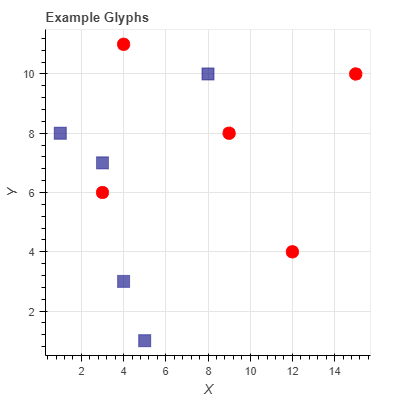
6.不同颜色不同形状表示不同类别的事物
# 数据,同时展示不同函数,以散点和折线方式

x = [0.1, 0.5, 1.0, 1.5, 2.0, 2.5, 3.0]

y0 = [i**2 for i in x]

y1 = [10**i for i in x]

y2 = [10**(i**2) for i in x]

# 创建画布

p = figure(

    tools="pan,box_zoom,reset,save",

    y_axis_type="log", title="log axis example",

    x_axis_label='sections', y_axis_label='particles',

    width=700, height=350)  # y轴类型:log指数或linear线性

# 增加图层,绘图

p.line(x, x, legend="y=x")

p.circle(x, x, legend="y=x", fill_color="white", size=8)

p.line(x, y0, legend="y=x^2", line_width=3)

p.line(x, y1, legend="y=10^x", line_color="red")

p.circle(x, y1, legend="y=10^x", fill_color="red", line_color="red", size=6)

p.line(x, y2, legend="y=10^x^2", line_color="orange", line_dash="4 4")

# 显示

output_notebook()

show(p)
7.不同函数设置创建复选框库选择性显示
x = np.linspace(0, 4 * np.pi, 100)

# 画布

p = figure()

# 折线属性

props = dict(line_width=4, line_alpha=0.7)

# 绘图3条函数序列

l0 = p.line(x, np.sin(x), color=Viridis3[0], legend="Line 0", **props)

l1 = p.line(x, 4 * np.cos(x), color=Viridis3[1], legend="Line 1", **props)

l2 = p.line(x, np.tan(x), color=Viridis3[2], legend="Line 2", **props)

# 复选框激活显示,复选框(checkbox),三个函数序列可选择性展示出来

checkbox = CheckboxGroup(labels=["Line 0", "Line 1", "Line 2"],

                         active=[0, 1, 2], width=100)

#

checkbox.callback = CustomJS(args=dict(l0=l0, l1=l1, l2=l2, checkbox=checkbox), code="""

l0.visible = 0 in checkbox.active;

l1.visible = 1 in checkbox.active;

l2.visible = 2 in checkbox.active;

""")

# 添加图层

layout = row(checkbox, p)

output_notebook()

# 显示

show(layout)
_20200316134133.png)
8.收盘价的时序图走势和散点图
import numpy as np

from bokeh.plotting import figure

from bokeh.io import show, output_notebook

from bokeh.layouts import row  #row()的作用是将多个图像以行的方式放到同一张图中

from bokeh.palettes import Viridis3

from bokeh.models import CheckboxGroup, CustomJS  #CheckboxGroup 创建复选框库

# 数据

aapl = np.array(AAPL['adj_close'])

aapl_dates = np.array(AAPL['date'], dtype=np.datetime64)

window_size = 30

window = np.ones(window_size)/float(window_size)

aapl_avg = np.convolve(aapl, window, 'same')

# 画布

p = figure(width=800, height=350, x_axis_type="datetime")

# 图层

p.circle(aapl_dates, aapl, size=4, color='darkgrey', alpha=0.2, legend='close') #散点图

p.line(aapl_dates, aapl_avg, color='red', legend='avg') #折线时序图

# 自定义视觉属性

p.title.text = "AAPL One-Month Average"

p.legend.location = "top_left"

p.grid.grid_line_alpha=0

p.xaxis.axis_label = 'Date'

p.yaxis.axis_label = 'Price'

p.ygrid.band_fill_color="gray"

p.ygrid.band_fill_alpha = 0.1

p.legend.click_policy="hide" # 点击图例显示隐藏数据

# 显示结果

output_notebook()

show(p)
_20200316134143.png)

一个交互式可视化Python库——Bokeh的更多相关文章
- 一文总结数据科学家常用的Python库(上)
概述 这篇文章中,我们挑选了24个用于数据科学的Python库. 这些库有着不同的数据科学功能,例如数据收集,数据清理,数据探索,建模等,接下来我们会分类介绍. 您觉得我们还应该包含哪些Python库 ...
- 总结数据科学家常用的Python库
概述 这篇文章中,我们挑选了24个用于数据科学的Python库. 这些库有着不同的数据科学功能,例如数据收集,数据清理,数据探索,建模等,接下来我们会分类介绍. 您觉得我们还应该包含哪些Python库 ...
- 数据处理一条龙!这15个Python库不可不知
如果你是一名数据科学家或数据分析师,或者只是对这一行业感兴趣,那下文中这些广受欢迎且非常实用的Python库你一定得知道. 从数据收集.清理转化,到数据可视化.图像识别和网页相关,这15个Python ...
- [资料搜集狂]D3.js数据可视化开发库
偶然看到一个强大的D3.js,存档之. D3.js 是近年来十分流行的一个数据可视化开发库. 采用BSD协议 源码:https://github.com/mbostock/d3 官网:http://d ...
- python库-Arrow处理时间
Arrow是一个处理时间的python库,能一键转换dates/times/timestamps等时间格式而不需要大量导致各种时间模块和格式转换函数,十分快捷方便 使用Arrow需要两步转换操作: 1 ...
- Bokeh 0.9.0dev 发布,交互式可视化库
快速使用Romanysoft LAB的技术实现 HTML 开发Mac OS App,并销售到苹果应用商店中. <HTML开发Mac OS App 视频教程> 土豆网同步更新:http: ...
- 基于Python的交互式可视化工具 [转]
前几天发现一个可视化工具Dash,当看到它的交互式效果后突然就觉得眼前一亮.早就想写出来分享给大家,今天利用睡前一点时间发出来,希望能给有需要的朋友带来一点帮助或者多一个参考. Dash介绍 在Pyt ...
- sopt:一个简单的python最优化库
引言 最近有些朋友总来问我有关遗传算法的东西,我是在大学搞数学建模的时候接触过一些最优化和进化算法方面的东西,以前也写过几篇博客记录过,比如遗传算法的C语言实现(一):以非线性函数求极值为例和 ...
- #华为云·寻找黑马程序员# 如何实现一个优雅的Python的Json序列化库
在Python的世界里,将一个对象以json格式进行序列化或反序列化一直是一个问题.Python标准库里面提供了json序列化的工具,我们可以简单的用json.dumps来将一个对象序列化.但是这种序 ...
随机推荐
- 3dmax2014卸载/安装失败/如何彻底卸载清除干净3dmax2014注册表和文件的方法
3dmax2014提示安装未完成,某些产品无法安装该怎样解决呢?一些朋友在win7或者win10系统下安装3dmax2014失败提示3dmax2014安装未完成,某些产品无法安装,也有时候想重新安装3 ...
- 简单php递归无限mysql记录
<?php header('content-type:text/html;charget=gb2312'); $d=''; get_title($d,0,'='); function g ...
- spring mvc +@Valid +@RequestBody 来做参数校验返回400,并且不显示具体message 如何解决
参考文档: https://www.oschina.net/question/115867_2282711 谢谢原作者
- Html 的生命周期
零.序言 vue 用多了,自然离不开生命周期.最近突发奇想,加上之前看过的文章中关于 script 标签中的 async 和 defer 的捣糨糊,决定整理一下,攻克这个模糊点. 当然,最多的还是与 ...
- react全家桶从0搭建一个完整的react项目(react-router4、redux、redux-saga)
react全家桶从0到1(最新) 本文从零开始,逐步讲解如何用react全家桶搭建一个完整的react项目.文中针对react.webpack.babel.react-route.redux.redu ...
- 吴裕雄--天生自然python学习笔记:Python3 MySQL 数据库连接 - PyMySQL 驱动
什么是 PyMySQL? PyMySQL 是在 Python3.x 版本中用于连接 MySQL 服务器的一个库,Python2中则使用mysqldb. PyMySQL 遵循 Python 数据库 AP ...
- 数据操作-apply函数族
R 作为一种向量化的编程语言,一大特征便是以向量计算替代了循环计算,使效率大大提升.apply函数族正是为解决数据循环处理问题而生的 -- 面向不同数据类型,生成不同返回值的包含8个相关函数的函数族. ...
- HTMLTestRunner测试报告
把测试报告写入文件中,设置报告生成的路径 测试报告名称上添加时间 HTMLTestRunner文件如下,复制即可用,把该文件放在Lib下即可 """ A TestRunn ...
- 修改 MyEclipse 编辑区域背景颜色
- js里的null 与undefined
null 表示一个值被定义了,定义为'空值': undefined 表示没有定义. 转换为数字时 Number(undefined) === NaN Number(null) === 0 在es6使用 ...