
python 无损压缩照片,支持批量压缩,支持保留照片信息
由于云盘空间有限,照片尺寸也是很大,所以写个Python程序压缩一下照片,腾出一些云盘空间
1、批量压缩照片
新建 photo_compress.py 代码如下
  1 # -*- coding: utf-8 -*-

  2

  3 """脚本功能说明:使用 tinypng api,一键批量压缩指定文件(夹)所有文件"""

  4

  5 import os

  6 import sys

  7 from concurrent.futures import ThreadPoolExecutor, ProcessPoolExecutor  # 线程池,进程池

  8 import json

  9 import random

 10 import requests

 11 from you_get import common

 12 from shutil import copyfile

 13

 14

 15 def get_file_dir(file):

 16     """获取文件目录通用函数"""

 17     fullpath = os.path.abspath(os.path.realpath(file))

 18     return os.path.dirname(fullpath)

 19

 20

 21 def check_suffix(file_path):

 22     """检查指定文件的后缀是否符合要求"""

 23     file_path_lower = file_path.lower()

 24     return (file_path_lower.endswith('.png')

 25             or file_path_lower.endswith('.jpg')

 26             or file_path_lower.endswith('.jpeg'))

 27

 28

 29 def download_tinypng(input_file, url, output_file):

 30     file_name = os.path.basename(input_file)

 31     arr = file_name.split('.')

 32     new_file_name = arr[len(arr) - 2] + '_compress'

 33     new_output_file = os.path.join(os.path.dirname(output_file), arr[len(arr) - 2] + '_compress.' + arr[len(arr) - 1])

 34     print(u'开始下载文件 :%s' % new_output_file)

 35     # print(os.path.splitext(os.path.basename(output_file))[0])

 36     sys.argv = ['you-get', '-o', os.path.dirname(

 37         output_file), '-O', new_file_name, url]

 38     common.main()

 39     old_size = os.path.getsize(input_file)

 40     new_size = os.path.getsize(new_output_file)

 41     print(u'文件保存地址:%s' % new_output_file)

 42     print(u'压缩后文件大小:%d KB' % (new_size / 1024))

 43     print(u'压缩比: %d%%' % ((old_size - new_size) * 100 / old_size))

 44

 45

 46 def compress_by_tinypng(input_file):

 47     if not check_suffix(input_file):

 48         print(u'只支持png\\jpg\\jepg格式文件:' + input_file)

 49         return

 50

 51     file_name = os.path.basename(input_file)

 52     arr = file_name.split('.')

 53     new_file_name = arr[len(arr) - 2] + '_compress.' + arr[len(arr) - 1]

 54     output_path = os.path.join(get_file_dir(input_file), 'compress_output')

 55     output_file = os.path.join(output_path, new_file_name)

 56     if not os.path.isdir(output_path):

 57         os.makedirs(output_path)

 58

 59     if (os.path.exists(output_file)):

 60         print("已存在,跳过压缩")

 61         return

 62

 63     try:

 64         old_size = os.path.getsize(input_file)

 65         print(u'压缩前文件名:%s文件大小:%d KB' % (input_file, old_size / 1024))

 66         if (old_size < 1024 * 1024):

 67             print("已跳过压缩,并直接拷贝文件")

 68             try:

 69                 copyfile(input_file, output_file)

 70             except IOError as e:

 71                 print("Unable to copy file. %s" % e)

 72             return

 73         print("开始压缩")

 74         shrink_image(input_file)

 75         print(u'文件压缩成功:%s' % input_file)

 76         # download_thread_pool.submit(download_tinypng, source, input_file, output_file)

 77     except Exception as e:

 78         print(u'报错了:%s' % e)

 79

 80

 81 def check_path(input_path):

 82     """如果输入的是文件则直接压缩,如果是文件夹则先遍历"""

 83     if os.path.isfile(input_path):

 84         compress_by_tinypng(input_path)

 85     elif os.path.isdir(input_path):

 86         dirlist = os.walk(input_path)

 87         for root, dirs, files in dirlist:

 88             if (not (root.endswith("\\compress_output") or root.endswith("/compress_output"))):

 89                 i = 0

 90                 for filename in files:

 91                     i = i + 1

 92                     process_pool.submit(compress_by_tinypng, os.path.join(

 93                         root, filename))

 94                     # compress_by_tinypng(os.path.join(root, filename))

 95     else:

 96         print(u'目标文件(夹)不存在,请确认后重试。')

 97

 98

 99 def list_images(path):

100     images = None

101     try:

102         if path:

103             os.chdir(path)

104         full_path = os.getcwd()

105         files = os.listdir(full_path)

106         images = []

107         for file in files:

108             ext = os.path.splitext(file)[1].lower()

109             if ext in ('.jpg', '.jpeg', '.png'):

110                 images.append(os.path.join(full_path, file))

111     except:

112         pass

113     return images

114

115

116 def shrink_image(file_path):

117     print(u'源文件地址:%s' % file_path)

118     result = shrink(file_path)

119     if result:

120         output_path = generate_output_path(file_path)

121         url = result['output']['url']

122         print(u'下载地址:%s' % url)

123         download_tinypng(file_path, url, output_path)

124         # download_thread_pool.submit(download_tinypng, file_path, url,  output_path)

125         # response = requests.get(url)

126         # with open(output_path, 'wb') as file:

127         #     file.write(response.content)

128         # print(u'文件保存地址:%s' % output_path)

129         # print('%s %d=>%d(%f)' % (

130         #     result['input']['type'],

131         #     result['input']['size'],

132         #     result['output']['size'],

133         #     result['output']['ratio']

134         #     ))

135     else:

136         print('压缩失败')

137

138

139 def shrink(file_path):

140     url = 'https://tinypng.com/web/shrink'

141     headers = {

142         'Cache-Control': 'no-cache',

143         'Content-Type': 'application/x-www-form-urlencoded',

144         'User-Agent': 'Mozilla/5.0 (Windows NT 10.0; Win64; x64) AppleWebKit/537.36 (KHTML, like Gecko) Chrome/85.0.4183.83 Safari/537.36 Edg/85.0.564.44',

145         'X-Forwarded-For': get_random_ip()

146     }

147     result = None

148     try:

149         file = open(file_path, 'rb')

150         response = requests.post(url, headers=headers, data=file)

151         result = json.loads(response.text)

152     except Exception as e:

153         print(u'报错了:%s' % e)

154         if file:

155             file.close()

156     if result and result['input'] and result['output']:

157         return result

158     else:

159         return None

160

161

162 def generate_output_path(file_path):

163     parent_path = os.path.abspath(os.path.dirname(file_path))

164     output_path = os.path.join(parent_path, 'compress_output')

165     if not os.path.isdir(output_path):

166         os.mkdir(output_path)

167     return os.path.join(output_path, os.path.basename(file_path))

168

169

170 def get_random_ip():

171     ip = []

172     for i in range(4):

173         ip.append(str(random.randint(0 if i in (2, 3) else 1, 254)))

174     return '.'.join(ip)

175

176

177 if __name__ == '__main__':

178     thread_pool = ThreadPoolExecutor(5)  # 定义5个线程执行此任务

179     download_thread_pool = ThreadPoolExecutor(10)  # 定义5个线程执行此任务

180     process_pool = ProcessPoolExecutor(8)  # 定义5个进程

181     len_param = len(sys.argv)

182     if len_param != 2 and len_param != 3:

183         print('请使用: %s [filepath]' % os.path.basename(sys.argv[0]))

184     else:

185         check_path(sys.argv[1])

186         input("Press <enter> 请耐心等待\n")
执行python .\photo_compress.py F:\\test
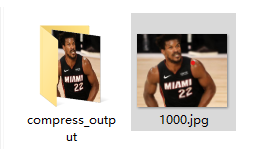
生成compress_output文件夹,里面就是压缩的文件,但此时的照片没有,拍摄时的时间、位置的信息,所以下面要复制文件信息
若要压缩的文件不全,可以再执行一次压缩(会自动过滤已压缩的照片)
2、批量拷贝照片信息
使用pyexiv2进行文件信息拷贝
pip install pyexiv2 -i https://pypi.tuna.tsinghua.edu.cn/simple
新建 copy_fileinfo.py 代码如下
  1 # -*- coding: utf-8 -*-

  2

  3 """脚本功能说明:使用 pyexiv2 api,一键批量拷贝指定文件(夹)所有文件信息"""

  4

  5 import os

  6 import sys

  7 from concurrent.futures import ThreadPoolExecutor, ProcessPoolExecutor  # 线程池,进程池

  8 from pyexiv2 import Image

  9

 10

 11 def get_file_dir(file):

 12     """获取文件目录通用函数"""

 13     fullpath = os.path.abspath(os.path.realpath(file))

 14     return os.path.dirname(fullpath)

 15

 16

 17 def check_suffix(file_path):

 18     """检查指定文件的后缀是否符合要求"""

 19     file_path_lower = file_path.lower()

 20     return (file_path_lower.endswith('.png')

 21             or file_path_lower.endswith('.jpg')

 22             or file_path_lower.endswith('.jpeg'))

 23

 24

 25 def copyinfo_by_pyexiv2(input_file):

 26     file_name = os.path.basename(input_file)

 27     arr = file_name.split('.')

 28     new_file_name = arr[len(arr) - 2] + '_compress.' + arr[len(arr) - 1]

 29     output_path = os.path.join(get_file_dir(input_file), 'compress_output')

 30     output_file = os.path.join(output_path, new_file_name)

 31     if not (check_suffix(input_file) or check_suffix(output_file)):

 32         print(u'只支持png\\jpg\\jepg格式文件:' + input_file)

 33         return

 34     if not (os.path.exists(output_file)):

 35         print(u'文件不存在:' + output_file)

 36         return

 37     old_size = os.path.getsize(input_file)

 38     if (old_size < 1024 * 1024):

 39         print(u"已跳过拷贝文件信息:", input_file)

 40         return

 41

 42     # if not os.path.isdir(output_path):

 43     #     os.makedirs(output_path)

 44     try:

 45         i = Image(input_file)    # 源图片路径

 46     except Exception:

 47         i = Image(input_file, "GB18030")

 48

 49     try:

 50         _exif_info = i.read_exif()

 51     except Exception:

 52         _exif_info = i.read_exif("GB18030")

 53

 54     # print(_exif_info)

 55     # _iptc_info = i.read_iptc()

 56     # print(_iptc_info)

 57     # _xmp_info = i.read_xmp()

 58     # print(_xmp_info)

 59     i.close()

 60

 61     try:

 62         i2 = Image(output_file)  # 拷贝信息图片路径

 63     except Exception:

 64         i2 = Image(output_file, "GB18030")

 65

 66     try:

 67         _exif_info2 = i2.read_exif()

 68     except Exception:

 69         _exif_info2 = i2.read_exif("GB18030")

 70

 71     # 方向不拷贝,防止图片旋转

 72     for item in _exif_info:

 73         if("Exif.Image.Orientation" != item):

 74             if (_exif_info2.get(item) != _exif_info.get(item)):

 75                 try:

 76                     i2.modify_exif({item: _exif_info[item]})

 77                 except Exception as e:

 78                     print(e)

 79                     try:

 80                         i2.modify_exif({item: _exif_info[item]}, "GB18030")

 81                     except Exception as e:

 82                         print(e)

 83

 84     i2.close()

 85

 86     print(u"拷贝信息完成:" + input_file)

 87

 88

 89 def check_path(input_path):

 90     """如果输入的是文件则直接压缩,如果是文件夹则先遍历"""

 91     if os.path.isfile(input_path):

 92         copyinfo_by_pyexiv2(input_path)

 93     elif os.path.isdir(input_path):

 94         dirlist = os.walk(input_path)

 95         for root, dirs, files in dirlist:

 96             if (not (root.endswith("\\compress_output") or root.endswith("/compress_output"))):

 97                 i = 0

 98                 for filename in files:

 99                     i = i + 1

100                     process_pool.submit(copyinfo_by_pyexiv2, os.path.join(

101                         root, filename))

102     else:

103         print(u'目标文件(夹)不存在,请确认后重试。')

104

105

106 if __name__ == '__main__':

107     # thread_pool = ThreadPoolExecutor(10)  # 定义5个线程执行此任务

108     process_pool = ProcessPoolExecutor(8)  # 定义5个进程

109     len_param = len(sys.argv)

110     if len_param != 2:

111         print('请使用: %s [filepath]' % os.path.basename(sys.argv[0]))

112     else:

113         check_path(sys.argv[1])

114         input("Press <enter> 请耐心等待\n")
执行python .\copy_fileinfo.py F:\\test
大功告成!图片压缩完毕,信息还没有丢失
python 无损压缩照片,支持批量压缩,支持保留照片信息的更多相关文章
- python监控文件实时批量压缩脚本
# coding:utf-8 from shutil import make_archive import os import time # 指定需要监测的文件夹 image_path = './im ...
- 10 行 Python 代码,批量压缩图片 500 张,简直太强大了
本文原创并首发于公众号[Python猫],未经授权,请勿转载. 原文地址:https://mp.weixin.qq.com/s/5hpFDgjCpfb0O1Jg-ycACw 熟悉 "Pyth ...
- Python实现邮件的批量发送
Python实现邮件的批量发送 1 发送文本信息 '''加密发送文本邮件''' def sendEmail(from_addr,password,to_addr,smtp_server): try: ...
- 使用Python轻松批量压缩图片
在互联网,图片的大小对一个网站的响应速度有着明显的影响,因此在提供用户预览的时候,图片往往是使用压缩后的.如果一个网站图片较多,一张张压缩显然很浪费时间.那么接下来,我就跟大家分享一个批量压缩图片的方 ...
- python模块:网络协议和支持
python模块:网络协议和支持 webbrowser 调用浏览器显示html文件 webbrowser.open('map.html') [webbrowser - Convenient Web-b ...
- [原创]开源跨平台大型网络端口扫描器K8PortScan(支持批量A段/B段/C段/IP列表)
0x000 K8PortScan Python版Cscan端口扫描器 Code: https://github.com/k8gege/K8PortScan K8portScan 1.0 Date: 2 ...
- oracle+ibatis 批量插入-支持序列自增
首先请先看我前面一篇帖子了解oracle批量插入的sql:[oracle 批量插入-支持序列自增] 我用的ibatis2.0,sqlMap文件引入的标签如下: <!DOCTYPE sqlMap ...
- oracle 批量插入-支持序列自增
1.创建表.序列 -- Create table create table test_batch ( id number not null, name ), account ) ) -- Create ...
- 解剖SQLSERVER 第十二篇 OrcaMDF 行压缩支持(译)
解剖SQLSERVER 第十二篇 OrcaMDF 行压缩支持(译) http://improve.dk/orcamdf-row-compression-support/ 在这两个月的断断续续的开发 ...
随机推荐
- python+selenium通过加载用户配置实现免登陆
1查看profile路径 在Chrome地址栏访问chrome://version,可以查看个人资料存储位置: 2 python代码如下: from selenium import webdriver ...
- jmeter多用户登录并发测试
在使用Jmeter进行性能测试时,我们通常会需要配置多个不同用户进行并发测试,这里简单介绍一下配置方法. 1.运行Jmeter.bat, 在打开的测试计划中右键添加一个线程组: 2.在线程组下添加录 ...
- Luogu P43916 图的遍历
我们把"u点能够到达的最大点"转化为反向图中能到达u点的所有点里的最大值,可知缩点后满足无后效性.val[i]的初值设为连通分量i中的最大点.反向存图,tarjan缩点,拓扑序dp ...
- dubbo起停之服务暴露
由上一节可知带上dubbo@Service注解的对象,在注册成为bean之后会进一步注册一个ServiceBean,服务暴露便是在这里 public void afterPropertiesSet() ...
- 【mq读书笔记】消息消费过程(钩子 失败重试 消费偏移记录)
在https://www.cnblogs.com/lccsblog/p/12249265.html中,PullMessageService负责对消息队列进行消息拉取,从远端服务器拉取消息后将消息存入P ...
- mfc 位图本地存储 本地位图读取显示
一.读取CImage //在绘图函数中直接使用参数pDC,无需定义 CDC* pDC = GetDC(): //读去位图路径,根据实际情况修改 CString loatImagePath = TEXT ...
- DjangoForm表单组件
Form组件的介绍: 我们之前在HTML页面中利用form表单向后端提交数据时,都会写一些获取用户输入的标签并且用form标签把它们包起来. 与此同时我们在好多场景下都需要对用户的输入做校验,比如校验 ...
- 教学之Treap
放在前面的话 本蒟蒻因为最近的题目总是搞点奇奇怪怪的平衡树,就去学了下\(Treap\) 现在来总结一下 由于本人是个蒟蒻,本文可能有部分错误,麻烦各位读者大佬在评论区提醒 什么是\(Treap\) ...
- 【NOIP2015模拟11.4】JZOJ2020年8月6日提高组T2 最优交换
[NOIP2015模拟11.4]JZOJ2020年8月6日提高组T2 最优交换 题目 题解 题意 有一个长度为\(n\)的正整数 最多可以进行\(k\)次操作 每次操作交换相邻两个位置上的数 问可以得 ...
- ES6简单理解基本使用
let const 原来的var声明标识符:可以重复声明,编译不报错. let,const声明标识符:不能重复声明,再声明编译报错. var声明的标识符作用域是当前函数,let和const是当前{块} ...