
基于Arduino的音乐动感节奏灯
1、音乐动感节奏灯是个什么东西?
前段时间听音乐觉得无聊,便想着音乐光听也没意思啊,能不能 “看见” 音乐呢?于是谷歌了一番,发现还真有人做了将音乐可视化的东西,那就是音乐节奏灯。说的简单点就是LED灯光颜色亮度等随着音乐的节奏而发生变化,看了下他们的实现方法有很多,不过大都比较复杂,而且灯只能够做节奏灯也比较浪费,于是我便动手做了一个既可以当作普通台灯使用,又可以随着音乐而闪烁的动感节奏灯,一举两得。
2、做这个东西需要准备哪些材料?
工欲善其事,必先利其器。那么做这样一个音乐动感节奏等需要准备哪些材料呢?
- Arduino UNO 开发板
- 声音传感器(最好买Arduino专用的)
- BLE蓝牙4.0模块
- WS2812B彩色灯带
- 灯罩
- 3D打印底座
- 电源线和杜邦线若干
以上材料可以在淘宝买到,灯罩和3D打印的底座可以按照自己的实际需求来进行自己选择,为了防止打广告的嫌疑我就不放购买链接了,可以自行设计打印~
3、做这个东西需该怎么做?
准备好上述的材料之后,我们就可以开始进行灯的制作啦~,节奏灯的主要结构如下图:
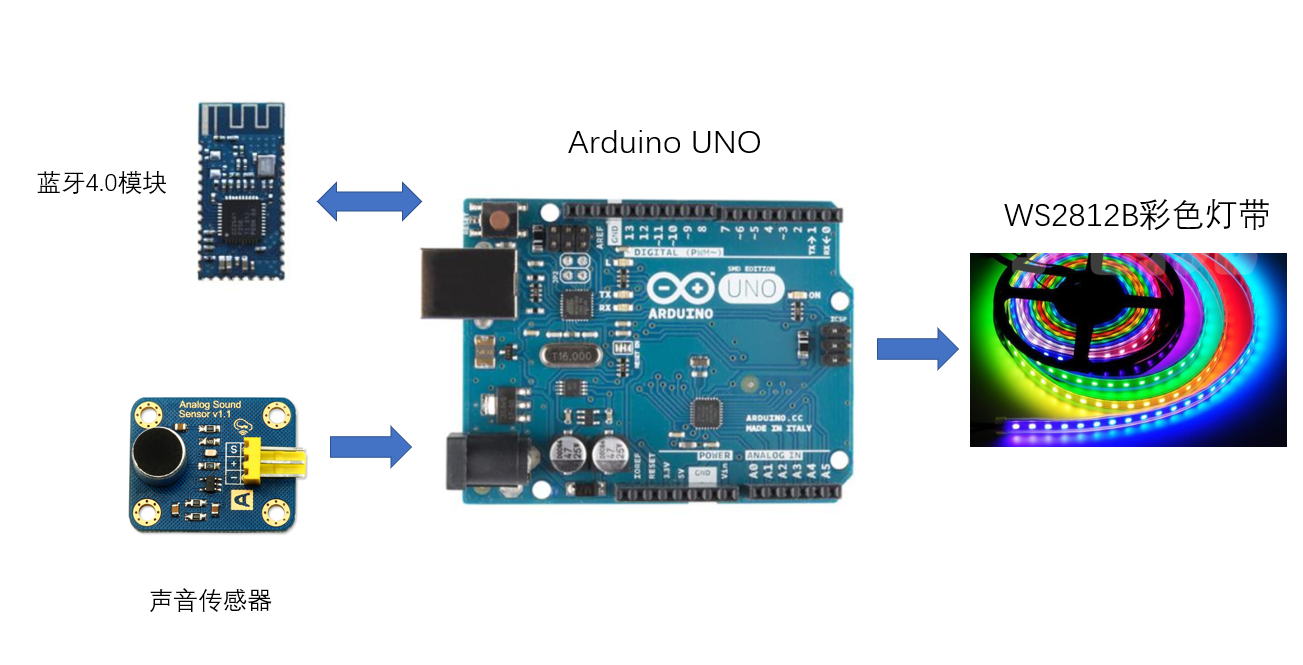
我们使用Arduino UNO作为主要的计算和处理模块,蓝牙4.0模块和手机进行通信,利用手机APP来选择模式(后续会讲),在节奏灯的模式下,通过声音传感器来采集声音,通过得到的声音来控制灯带的颜色和闪烁,在彩色灯的模式下,利用手机来控制灯的颜色,理论上的有160万可调颜色。接下来介绍下详细的步骤。
3.1 安装开发环境
Arduino UNO 开发的环境为Arduino IDE,软件下载地址为 https://www.arduino.cn/thread-5838-1-1.html ,默认安装为最新版即可。安装完IDE之后还需要安装第三方的库。
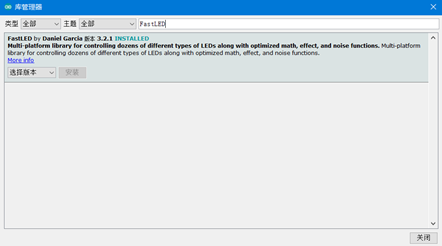
1) WS2812B的库 FastLED, 选择 项目->加载库->管理库,然后在输入栏输入FastLED,选择最新的版本安装,FastLED库的更多使用方法可以参考 http://www.taichi-maker.com/homepage/reference-index/arduino-library-index/fastled-library/
2) 物联网开发平台库 Blinker, 在Blinker 官网https://doc.blinker.app 页面下载最新的Blinker库,然后:
Window:将下载好的blinker库解压到 我的电脑>文档>Arduino>libraries 文件夹中
Mac OS:将下载好的blinker库解压到
文稿>Arduino>libraries 文件夹中
可以在文件->示例 查看库是否安装成功。
3.2 连接线路
具体的线路图由于时间原因没有画,所以直接按照后续的代码可以找到每个模块的连接方式,当然这些连接方式都可以自定义,然后在代码内做简单修改即可。需要注意的是蓝牙模块采用软串口连接,即RX,TX连接在ARDUINO UNO的2 和 3 号脚,而不是0和1 号脚,这个在BLINKER的网站上会说明,如果你代码烧录不了,查查是不是这个原因。
3.3 代码编写
 #define BLINKER_PRINT Serial

 #define BLINKER_BLE

 #include <FastLED.h>

 #include <Blinker.h>

 /** BASIC CONFIGURATION  **/

 //The amount of LEDs in the setup

 #define NUM_LEDS 100

 //The pin that controls the LEDs

 #define LED_PIN 6

 //The pin that we read sensor values form

 #define ANALOG_READ 0

 //Confirmed microphone low value, and max value

 #define MIC_LOW 0.0

 #define MIC_HIGH 300.0

 /** Other macros */

 //How many previous sensor values effects the operating average?

 #define AVGLEN 5

 //How many previous sensor values decides if we are on a peak/HIGH (e.g. in a song)

 #define LONG_SECTOR 20

 //Mneumonics

 #define HIGH 3

 #define NORMAL 2

 //How long do we keep the "current average" sound, before restarting the measuring

 #define CYCLES 30 * 1000

 float fscale( float originalMin, float originalMax, float newBegin, float newEnd, float inputValue, float curve);

 void insert(int val, int *avgs, int len);

 int compute_average(int *avgs, int len);

 void visualize_music();

 //How many LEDs to we display

 int curshow = NUM_LEDS;

 /*Not really used yet. Thought to be able to switch between sound reactive

 mode, and general gradient pulsing/static color*/

 int mode = ;

 //Showing different colors based on the mode.

 int songmode = NORMAL;

 //Average sound measurement the last CYCLES

 unsigned long song_avg;

 //The amount of iterations since the song_avg was reset

 int iter = ;

 //The speed the LEDs fade to black if not relit

 float fade_scale = 1.2;

 //Led array

 CRGB leds[NUM_LEDS];

 /*Short sound avg used to "normalize" the input values.

 We use the short average instead of using the sensor input directly */

 int avgs[AVGLEN] = {-};

 //Longer sound avg

 int long_avg[LONG_SECTOR] = {-};

 // LED Model 1/Music LED 2/Color LED

 int LED_Model = ;

 //Keeping track how often, and how long times we hit a certain mode

 struct time_keeping {

   unsigned long times_start;

   short times;

 };

 //How much to increment or decrement each color every cycle

 struct color {

   int r;

   int g;

   int b;

 };

 struct time_keeping high;

 struct color Color;

 // when you use the MusicLED as a Color LED

 CRGB LEDColor(,,);

 uint8_t Bright = ;

 // declare the button

 BlinkerRGB RGB1("RGBKey");

 BlinkerButton Button1("switch");

 // rgb1_callback

 void rgb1_callback(uint8_t r_value, uint8_t g_value, uint8_t b_value, uint8_t bright_value)

 {

   // change the color of strip by your set on Blinker

       LEDColor.r = r_value;

       LEDColor.g = g_value;

       LEDColor.b = b_value;

       Bright = bright_value;

       fill_solid(leds,NUM_LEDS,LEDColor);

   FastLED.show();

 }

 void button1_callback(const String & state) {

   if(LED_Model == )

   {

     LEDColor.r = ;

     LEDColor.g = ;

     LEDColor.b = ;

     Bright = ;

     fill_solid(leds,NUM_LEDS,LEDColor);

     BLINKER_LOG2("strip_state: ","OFF");

     LED_Model = ;

   }

   else if(LED_Model == )

   {

     LED_Model = ;

   }

   FastLED.show();

 }

 void setup() {

   Serial.begin();

   //Set all lights to make sure all are working as expected

   FastLED.addLeds<NEOPIXEL, LED_PIN>(leds, NUM_LEDS);

   for (int i = ; i < NUM_LEDS; i++)

     leds[i] = CRGB(, , );

   FastLED.show();

   delay();

   //bootstrap average with some low values

   for (int i = ; i < AVGLEN; i++) {

     insert(, avgs, AVGLEN);

   }

   //Initial values

   high.times = ;

   high.times_start = millis();

   Color.r = ;

   Color.g = ;

   Color.b = ;

     Blinker.begin();

     //attach the RGB1 SlidersRGB

     RGB1.attach(rgb1_callback);

     Button1.attach(button1_callback);

 }

 /*With this we can change the mode if we want to implement a general

 lamp feature, with for instance general pulsing. Maybe if the

 sound is low for a while? */

 void loop() {

   Blinker.run();

   if(LED_Model == )

     visualize_music();

   delay();       // delay in between reads for stability

 }

 /**Funtion to check if the lamp should either enter a HIGH mode,

 or revert to NORMAL if already in HIGH. If the sensors report values

 that are higher than 1.1 times the average values, and this has happened

 more than 30 times the last few milliseconds, it will enter HIGH mode.

 TODO: Not very well written, remove hardcoded values, and make it more

 reusable and configurable.  */

 void check_high(int avg) {

   if (avg > (song_avg/iter * 1.1))  {

     if (high.times != ) {

       if (millis() - high.times_start > 200.0) {

         high.times = ;

         songmode = NORMAL;

       } else {

         high.times_start = millis();

         high.times++;

       }

     } else {

       high.times++;

       high.times_start = millis();

     }

   }

   if (high.times >  && millis() - high.times_start < 50.0)

     songmode = HIGH;

   else if (millis() - high.times_start > ) {

     high.times = ;

     songmode = NORMAL;

   }

 }

 //Main function for visualizing the sounds in the lamp

 void visualize_music() {

   int sensor_value, mapped, avg, longavg;

   //Actual sensor value

   sensor_value = analogRead(ANALOG_READ);

   Serial.println(sensor_value);

   //If 0, discard immediately. Probably not right and save CPU.

   if (sensor_value == )

     return;

   //Discard readings that deviates too much from the past avg.

   mapped = (float)fscale(MIC_LOW, MIC_HIGH, MIC_LOW, (float)MIC_HIGH, (float)sensor_value, 2.0);

   avg = compute_average(avgs, AVGLEN);

   if (((avg - mapped) > avg*0.8)) //|| ((avg - mapped) < -avg*0.8))

     return;

   //Insert new avg. values

   insert(mapped, avgs, AVGLEN);

   insert(avg, long_avg, LONG_SECTOR);

   //Compute the "song average" sensor value

   song_avg += avg;

   iter++;

   if (iter > CYCLES) {

     song_avg = song_avg / iter;

     iter = ;

   }

   longavg = compute_average(long_avg, LONG_SECTOR);

   //Check if we enter HIGH mode

   check_high(longavg);

   if (songmode == HIGH) {

     fade_scale = ;

     Color.r = ;

     Color.g = ;

     Color.b = -;

   }

   else if (songmode == NORMAL) {

     fade_scale = ;

     Color.r = -;

     Color.b = ;

     Color.g = ;

   }

   //Decides how many of the LEDs will be lit

   curshow = fscale(MIC_LOW, MIC_HIGH, 0.0, (float)NUM_LEDS, (float)avg, -);

   /*Set the different leds. Control for too high and too low values.

           Fun thing to try: Dont account for overflow in one direction,

     some interesting light effects appear! */

   for (int i = ; i < NUM_LEDS; i++)

     //The leds we want to show

     if (i < curshow) {

       if (leds[i].r + Color.r > )

         leds[i].r = ;

       else if (leds[i].r + Color.r < )

         leds[i].r = ;

       else

         leds[i].r = leds[i].r + Color.r;

       if (leds[i].g + Color.g > )

         leds[i].g = ;

       else if (leds[i].g + Color.g < )

         leds[i].g = ;

       else

         leds[i].g = leds[i].g + Color.g;

       if (leds[i].b + Color.b > )

         leds[i].b = ;

       else if (leds[i].b + Color.b < )

         leds[i].b = ;

       else

         leds[i].b = leds[i].b + Color.b;

     //All the other LEDs begin their fading journey to eventual total darkness

     } else {

       leds[i] = CRGB(leds[i].r/fade_scale, leds[i].g/fade_scale, leds[i].b/fade_scale);

     }

   FastLED.show();

 }

 //Compute average of a int array, given the starting pointer and the length

 int compute_average(int *avgs, int len) {

   int sum = ;

   for (int i = ; i < len; i++)

     sum += avgs[i];

   return (int)(sum / len);

 }

 //Insert a value into an array, and shift it down removing

 //the first value if array already full

 void insert(int val, int *avgs, int len) {

   for (int i = ; i < len; i++) {

     if (avgs[i] == -) {

       avgs[i] = val;

       return;

     }

   }

   for (int i = ; i < len; i++) {

     avgs[i - ] = avgs[i];

   }

   avgs[len - ] = val;

 }

 //Function imported from the arduino website.

 //Basically map, but with a curve on the scale (can be non-uniform).

 float fscale( float originalMin, float originalMax, float newBegin, float

     newEnd, float inputValue, float curve){

   float OriginalRange = ;

   float NewRange = ;

   float zeroRefCurVal = ;

   float normalizedCurVal = ;

   float rangedValue = ;

   boolean invFlag = ;

   // condition curve parameter

   // limit range

   if (curve > ) curve = ;

   if (curve < -) curve = -;

   curve = (curve * -.) ; // - invert and scale - this seems more intuitive - postive numbers give more weight to high end on output

   curve = pow(, curve); // convert linear scale into lograthimic exponent for other pow function

   // Check for out of range inputValues

   if (inputValue < originalMin) {

     inputValue = originalMin;

   }

   if (inputValue > originalMax) {

     inputValue = originalMax;

   }

   // Zero Refference the values

   OriginalRange = originalMax - originalMin;

   if (newEnd > newBegin){

     NewRange = newEnd - newBegin;

   }

   else

   {

     NewRange = newBegin - newEnd;

     invFlag = ;

   }

   zeroRefCurVal = inputValue - originalMin;

   normalizedCurVal  =  zeroRefCurVal / OriginalRange;   // normalize to 0 - 1 float

   // Check for originalMin > originalMax  - the math for all other cases i.e. negative numbers seems to work out fine

   if (originalMin > originalMax ) {

     return ;

   }

   if (invFlag == ){

     rangedValue =  (pow(normalizedCurVal, curve) * NewRange) + newBegin;

   }

   else     // invert the ranges

   {

     rangedValue =  newBegin - (pow(normalizedCurVal, curve) * NewRange);

   }

   return rangedValue;

 }
上述代码编译无误后上传到Arduino UNO即可。
3.4 下载并使用Blinker软件连接
Blinker软件的安装包可以在官网上找到:

安装好之后注册账号,登陆,在主页面右上角选择-->添加设备-->Arduino-->蓝牙接入,然后会自动发现我们的蓝牙,连接上之后,如图。

上面表示是否已经连接,现在表示已连接。然后添加上面的两个组件,编辑组件参数如下:
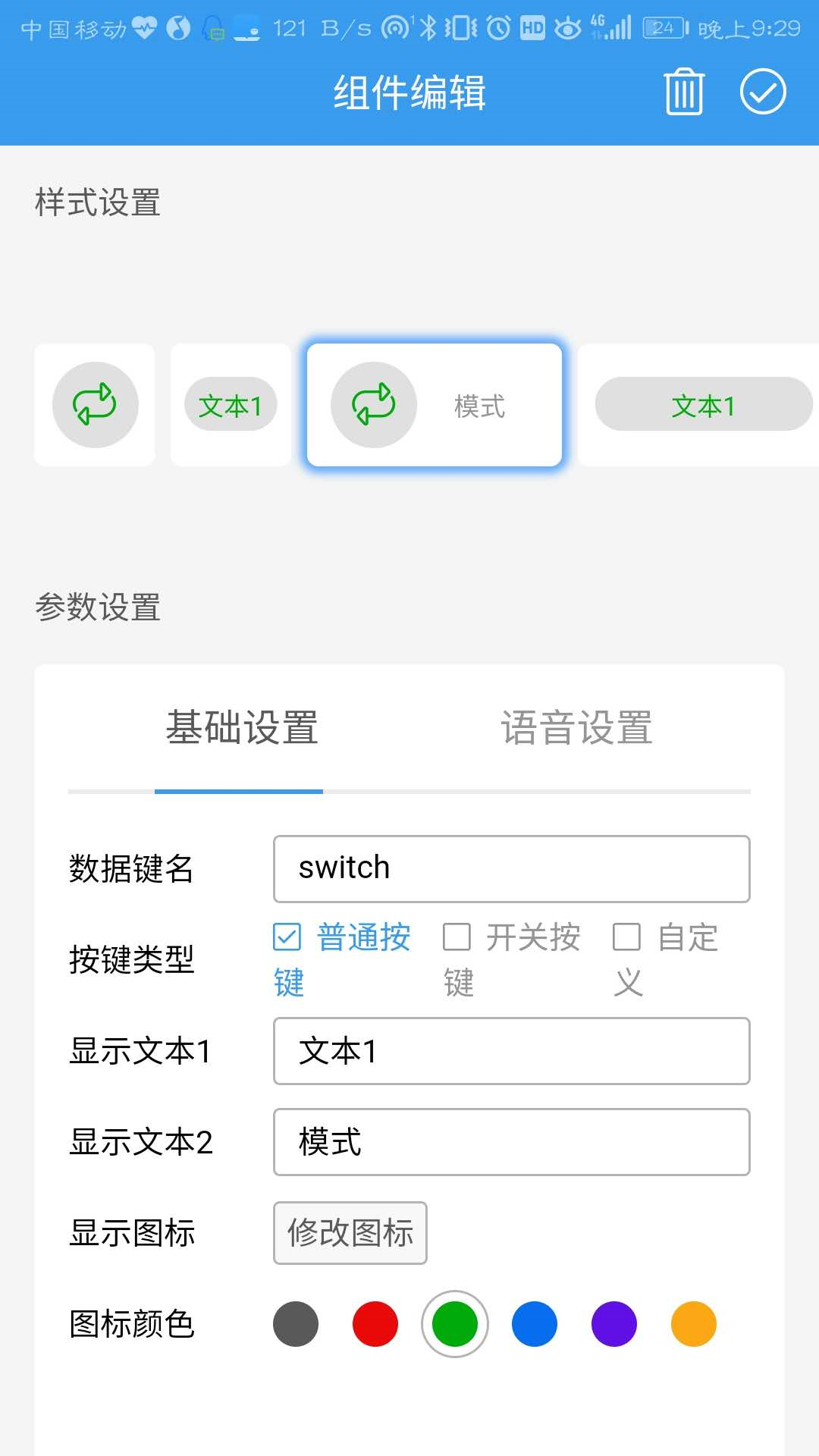

完成之后便可以通过RGB滑条来控制颜色,通过模式按钮来控制灯的模式。
3.5 灯的组装
我是自己在网上买的灯罩,然后根据自己的需求3D打印的底座,大家可以发挥自己的想象力来创作出不一样的外观~
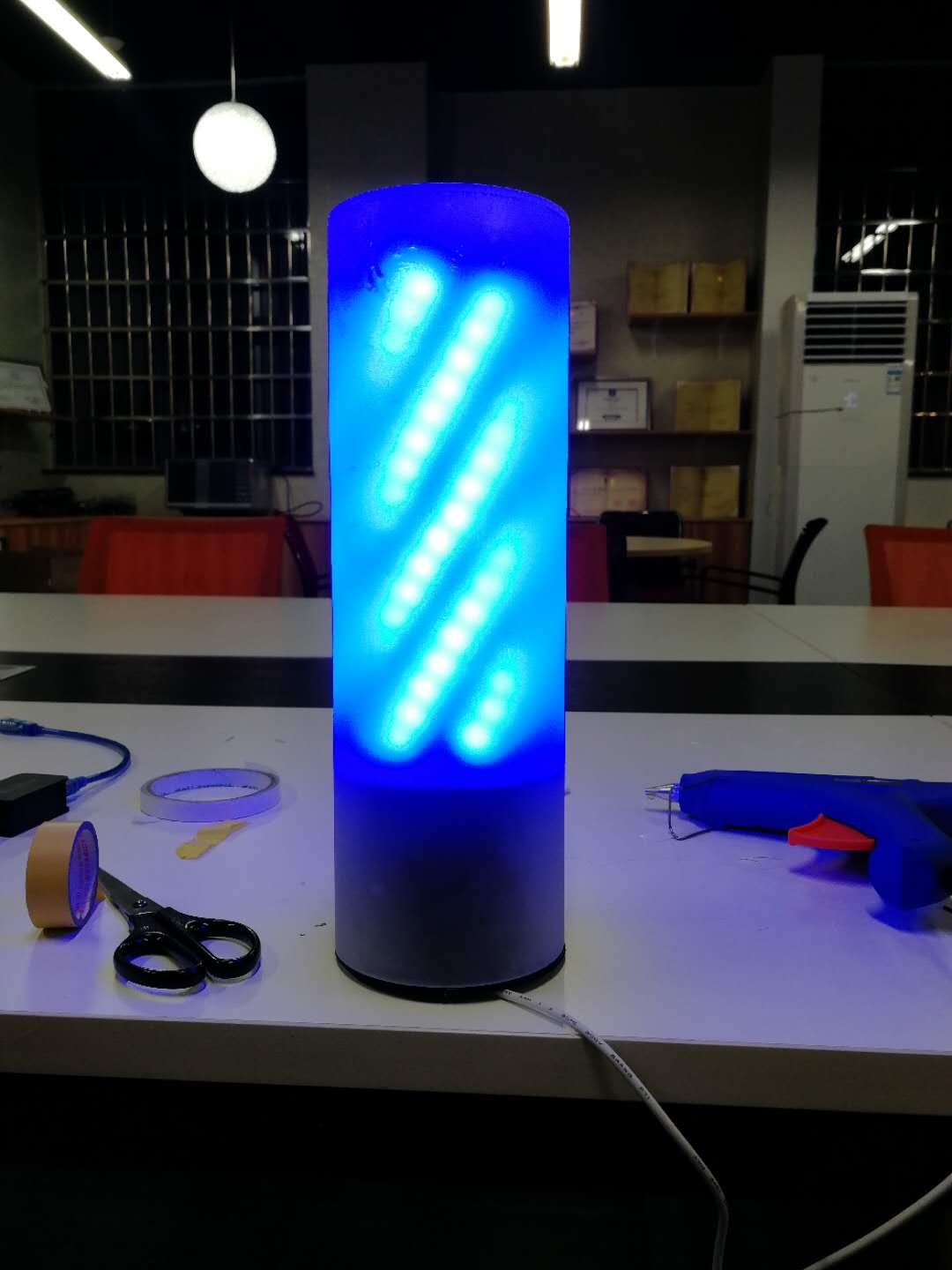
然后来一波安装完成的照片:
最后更新一波实测视频(由于不能同时录像和控制,所以只放了节奏灯效果):
地址:https://www.bilibili.com/video/av38471827/
基于Arduino的音乐动感节奏灯的更多相关文章
- arduino 蓝牙控制RGB LED灯
/* 日期:2016.9.2 功能:arduino 蓝牙控制RGB LED灯 元件: 跳线公公头 * 8 rgbled, 220欧电阻 蓝牙模块 接线: 蓝牙模块VCC,GND分别接5V,GND;TX ...
- Recommending music on Spotify with deep learning 采用深度学习算法为Spotify做基于内容的音乐推荐
本文参考http://blog.csdn.net/zdy0_2004/article/details/43896015译文以及原文file:///F:/%E6%9C%BA%E5%99%A8%E5%AD ...
- Android基于发展Service音乐播放器
这是一个基于Service组件的音乐播放器,程序的音乐将会由后台的Service组件负责播放,当后台的播放状态改变时,程序将会通过发送广播通知前台Activity更新界面:当用户单击前台Activit ...
- 基于jQuery虾米音乐播放器样式代码
分享一款基于jQuery虾米音乐播放器样式代码.这是一款基于jquery+html5实现的虾米音乐播放器源码下载.效果图如下: 在线预览 源码下载 实现的代码. html代码: <div c ...
- 基于 Arduino 开发板,这款插座是可编程且开源的
基于 Arduino 开发板,这款插座是可编程且开源的 https://www.oschina.net/news/74861/open-source-socket https://github.com ...
- 基于Arduino开发的智能蓝牙小车
基于Arduino的智能蓝牙小车 材料准备: Arduino开发板一块.四驱小车底板及相关配件一套.L298N驱动模块一个.HC-05/06蓝牙模块一块,九伏电源一块(用于主板供电).12V锂电池一块 ...
- 基于arduino的红外传感系统
一.作品背景 在这个科技飞速发展的时代,物联网已经成为了我们身边必不可少的技术模块,我这次课程设计做的是一个基于arduino+树莓派+OneNet的红外报警系统,它主要通过识别人或者动物的运动来判断 ...
- 基于arduino UNO R3+ESP8266控制LED灯的开关(无USB转TTL工具实现)
最近由于项目要求,需要开发物联网云平台,而本人对硬件和通信技术一窍不通,故而选择arduino这一简单单片机来实现学习掌握基础的硬件和通信技术. 下面就是本人通过查阅大佬资料做的一个整合版本的通过手机 ...
- 基于 Arduino 的 RFID 识别实验
http://www.it165.net/embed/html/201512/3287.html 2015年12月04日(周五) 上午 博士的智能卡实验--RFID识别实验,基于51单片机: 我们的 ...
随机推荐
- 在Linux上配置DRBD部署
drbd 工作原理DRBD是一种块设备,能够被用于高可用(HA)之中.它相似于一个网络RAID-1功能.当你将数据写入本地 文件系统时,数据还将会被发送到网络中还有一台主机上.以同样的形式记录在一个文 ...
- Elasticsearch安装中文分词插件ik
Elasticsearch默认提供的分词器,会把每一个汉字分开,而不是我们想要的依据关键词来分词.比如: curl -XPOST "http://localhost:9200/userinf ...
- Python:SMOTE算法——样本不均衡时候生成新样本的算法
Python:SMOTE算法 直接用python的库, imbalanced-learn imbalanced-learn is a python package offering a number ...
- Set的非重复判断是根据什么判断的
HashSet 首先来看下HashSet的add()这个方法的源代码: public boolean add(E e) { return map.put(e, PRESENT)==null; } 由此 ...
- JSP-Runoob:JSP 服务器响应
ylbtech-JSP-Runoob:JSP 服务器响应 1.返回顶部 1. JSP 服务器响应 Response响应对象主要将JSP容器处理后的结果传回到客户端.可以通过response变量设置HT ...
- javamail - 协议SMTP\IMAP\POP3设置
资料来自:https://www.tutorialspoint.com/javamail_api/index.htm [SMTP - Simple Mail Transfer Protocol] Na ...
- PCB WebAPI 接口测试工具与接口文档生成
我们自己写WebAPI或调用对方系统提供的WebAPI时,测试WebAPI接口工具用哪些工具呢. 这里将3种WebAPI常用到的工具使用说明.主要是讲对第3种WebApiTestClientWebAp ...
- 【TIDB】1、TiDb简介
一 TiDb简介 TiDB 是 PingCAP 公司受 Google Spanner / F1 论文启发而设计的开源分布式 HTAP (Hybrid Transactional and Analyti ...
- QT 制作串口调试小助手----(小白篇)
一.成品图展示 简介:因zigbee实验,制作一个相对简易版的上位机,接收来自zigbee无线传感采集的温湿度.光照等数据. 并且将数据部分描绘成实时动态折线统计图. 二.主要功能介绍 主要使用QT自 ...
- SQL SERVER中存储过程IN 参数条件的使用!!!
正常的传递 @SendStationID='''1'',''2''' 是无效,改用 @SendStationID='1,2,3,003,002' 调用以下的存储过程可以实现in 查询效果 USE [ ...