
Android 有用的快捷键
The powerful Android Studio
08 Jun 2016
Android Studio is the official tool for Android development these days. Being developed at the top of project IntelliJ IDEA, takes into advantage (almost in its entirety) features of edition, debugging, analysis, refactor among many other categories for developing in an effective way.
In the latest version (2.2 at the time of the writing), Android Studio includes a lot of improvements like the new UI editor, interaction with the newConstraintLayout viewgroup and much more.
This article doesn't put the focus on covering these new features. In this one, I would like to give importance to the role that plays IntelliJ IDEA overAndroid Studio besides a few more tips that I use every day.
Because of my last talk given at the amazing event Exfest'16, the intention of this article is to serve as media support (there weren't slides) of the talk, and of course, a new excuse to write a new article :),. Let's get started!
Disclaimer
All shorcuts shown in this article corresponds to the
Mac OS X 10.5+The green box which suggests the shotcut used at the bottom of the gifs is a nice plugin called Presentation Assistant, perfect for presentations and pair programming :).
Miscellaneous
Avoid show the logcat automatically
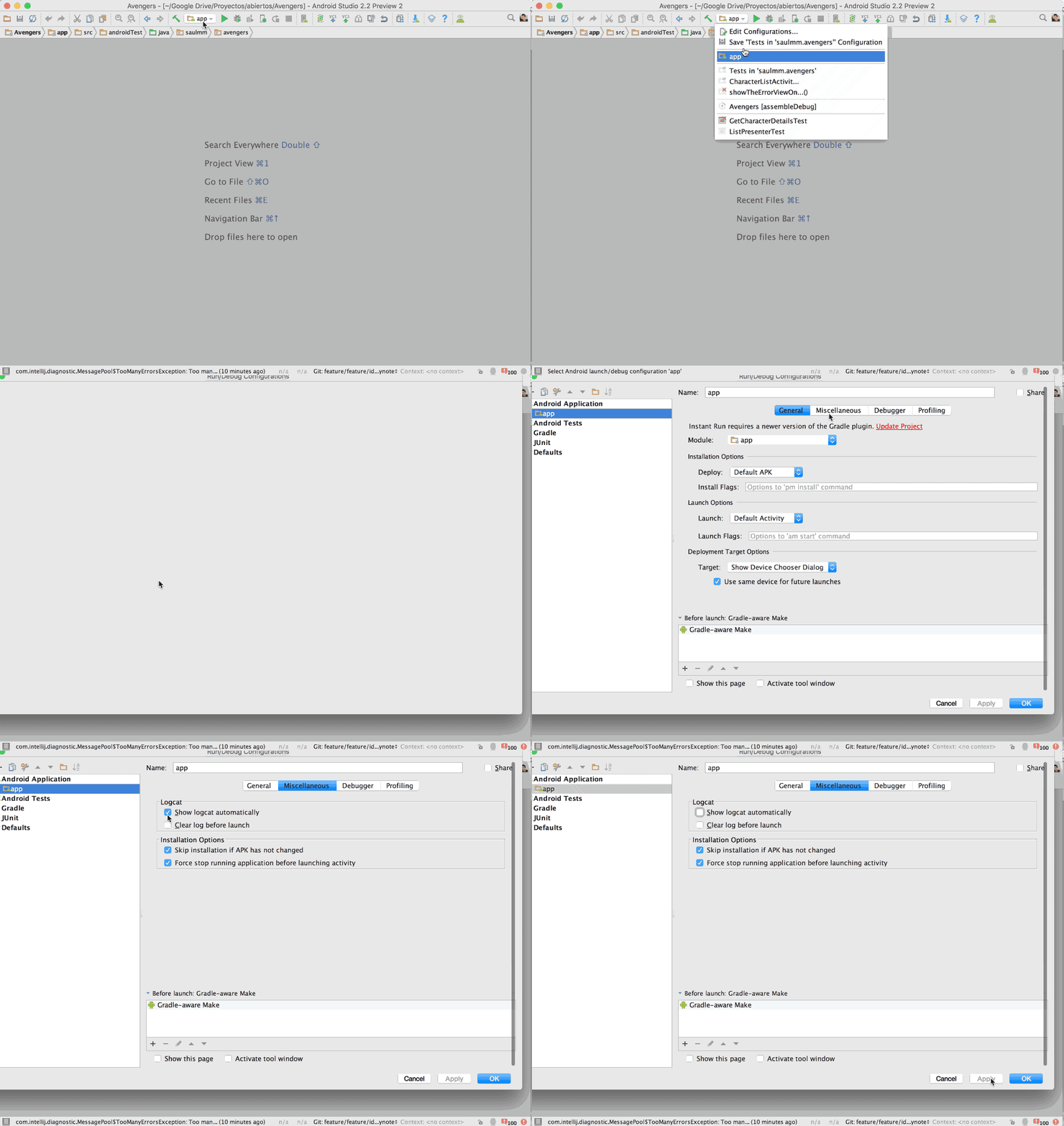
It could be interesting to disable the expansion of the window Android Monitor during every time when run our app (since the default behavior on a run configuration is to show it).
To achieve this, in the Run Configuration that we are using in our project just disable that tick at `Edit Configurations/Android Application/Miscellaneous.
No tabs
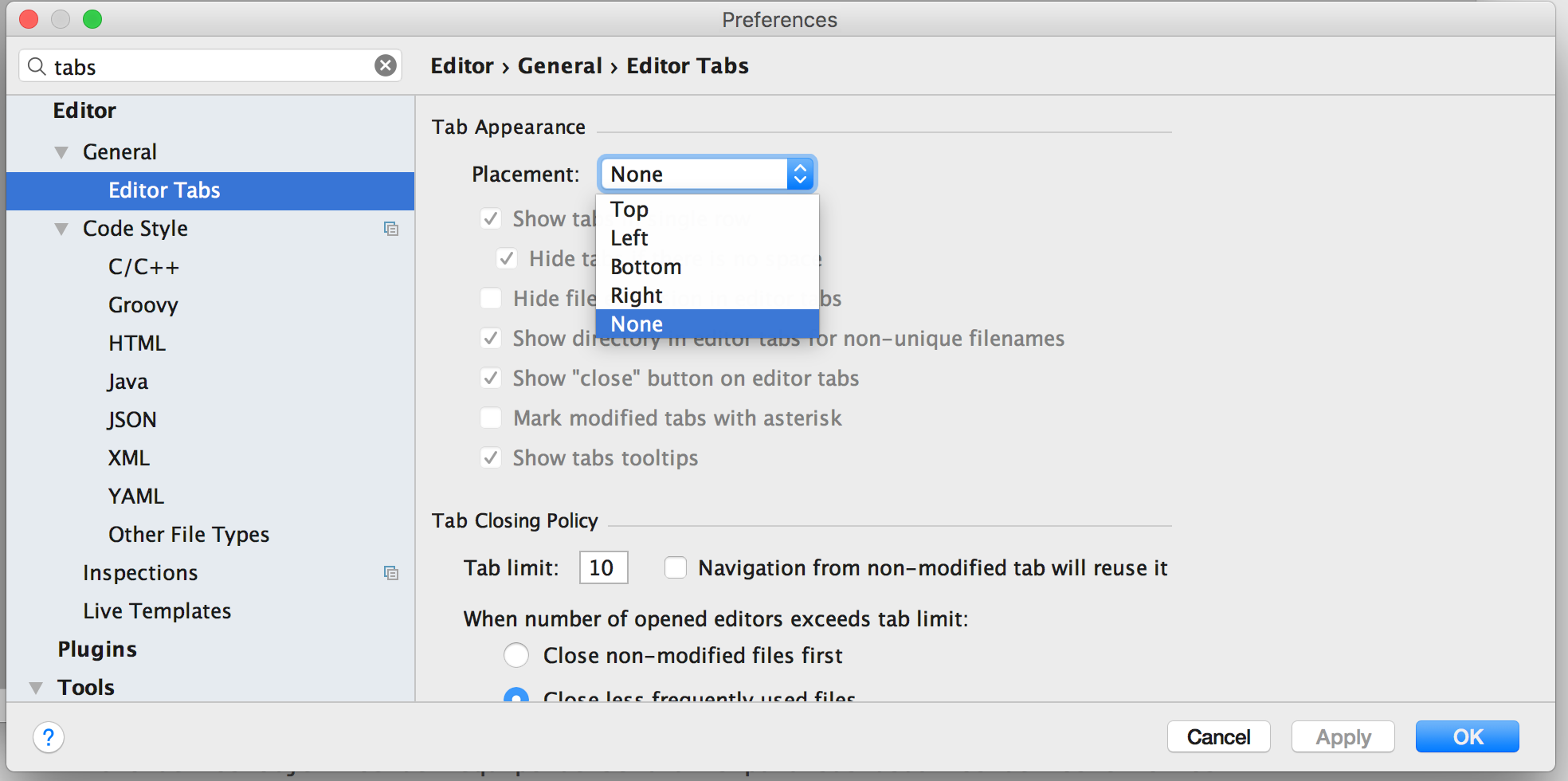
As Hadi Hadiri rightly says in his article, using tabs could result in the following hassles: loss of context, a valuable space in the editor consumed and the fact that also the interaction with tabs is used to require using the trackpad or the mouse.
If you believe that tabs don't offer any benefit to you, disable them undersettings/editor/tabs setting the Placement preference to None.
IntelliJ IDEA offers many ways to move effectively through the code without need tabs.
Navigation
One of the goals which the JetBrains team encourages to the users is that we have to use the mouse as less as possible. There are tons of actions and commands which allow working in a very effective way without leaving the hands from the keyboard gaining speed and accuracy.
Find classes, files, and actions
IntelliJ IDEA and, as the result, Android Studio offers solutions finding files, classes, actions.
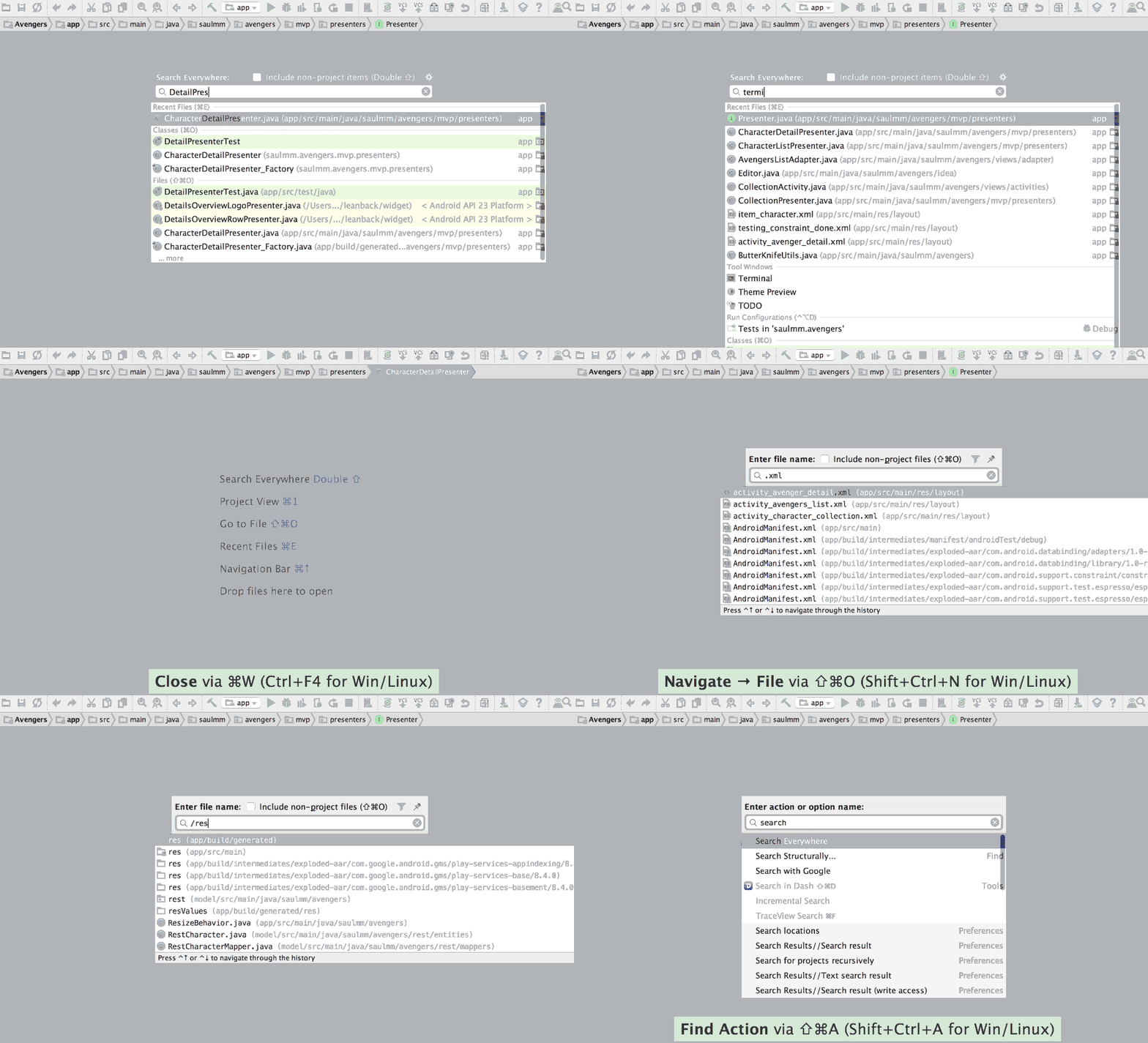
Search Everywhere - ⇧ + ⇧
It shows a dialog for search all types of elements: classes, files, actions, etc. It's recommended to avoid this action and use the specific ones since search everywhere could be slower and expensive in term of your machine resources.
Search types - ⌘ + O
It allows finding enumerations, classes, interfaces, etc fastly.
Search files - ⌘ + ⇧ + O
It allows finding every type of files, useful for XML files like layouts, resources, etc.
Search actions - ⇧ + ⌘ + o + A
It's possible to search and run actions from this feature, actions that live under menus, preferences, tool windows, etc, also suggests the shortcut of some actions, so, if you forget it you can fastly remind it searching for the action.
Bonus:
It's not necessary to write the full name of whatever we are looking for. If we are searching for a class called
CharacterDetailPresenter, we'll find it just typingCharacterPresenter.We can go to a specific line looking for classes (⌘ + O) writing a colon and the number of the line after the searched class name, for example:
CharacterDetailPresenter:50.If we type
/on the beginning of the text of the file that we are looking for, we'll find folders. For example, with/land, the dialog will suggest the folders related to landscape configurations.We can filter the folder which contains the searched file, for example,
values-es/strings.xmlorvalues/strings.
Project window - ⌘ + 1
For browsing through the project files, a nice solution is to use the project window which can be shown or hidden with the shortcut ⌘ + 1.

Bonus:
With ⌘ + ⇧ + ⟵ / ⟶, we can modify the size of the focused panel without using the mouse.
We can perform searches writing the name of the file or folder that we are looking for right in the browser, it will highlight the matches and will restrict the positions selected with the arrows for these matches.
Jump to navigation bar - ⌘ + ↑
The navigation bar is an interesting element to interact with. Using it, we can navigate through the project files as we usually do with the project window. The shortcut ⌘ + ↑ displays the bar and puts the focus into it even if it's disabled.

Bonus:
- We can perform some file operations inside the navigation bar context, like create new files ⌘ + N or delete them ⌫.
Show and hide windows
There are different ways to manipulate windows: show and hide a single one, jump to the last active window giving it focus, restore the focus back to the editor when we are using a panel, etc.
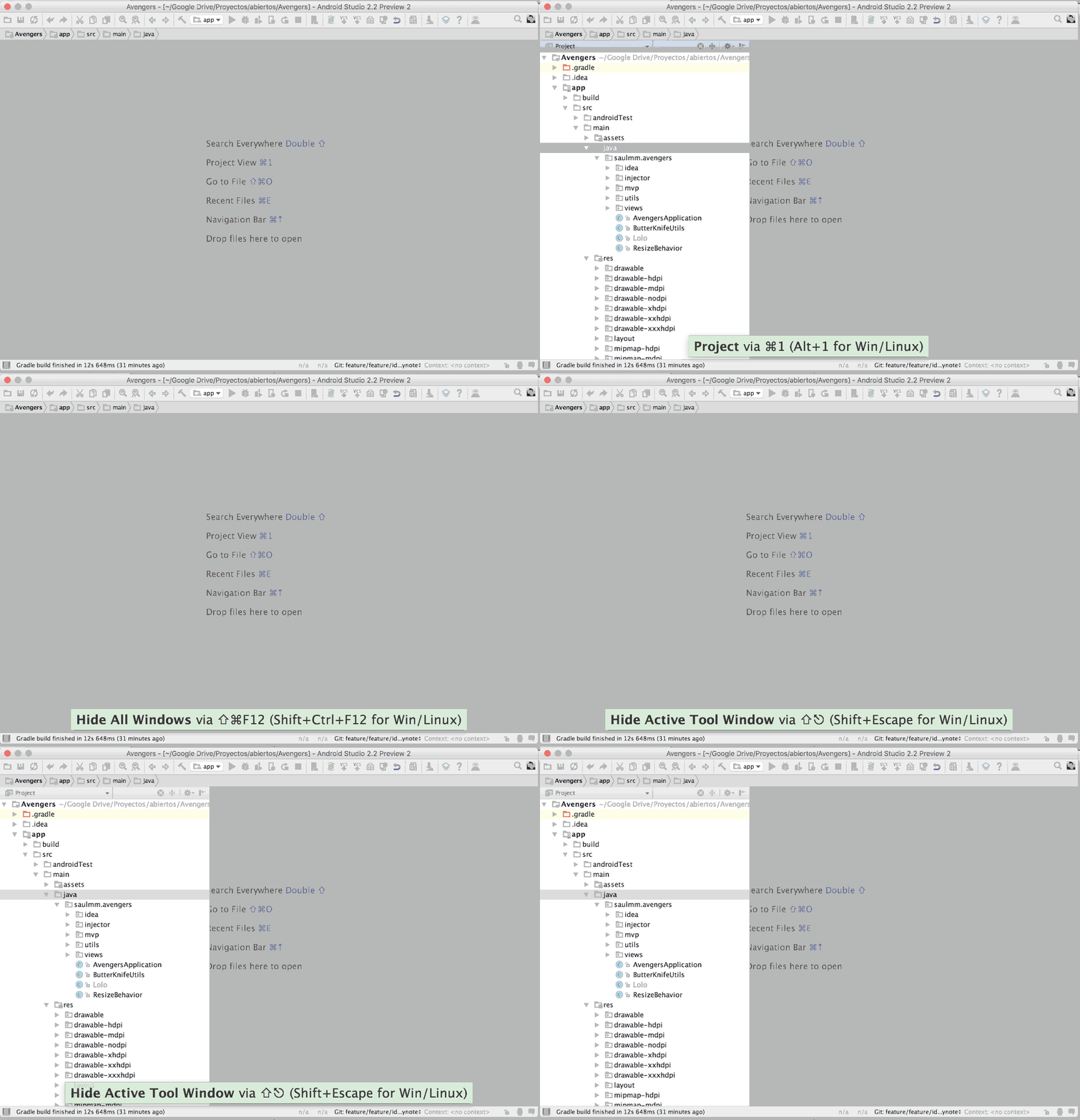
Hide / Restore all windows - ⇧ + ⌘ + F12
As its name indicates, it allows to hide and restore all visible windows.
Jump to Last Tool Window - F12
Restores the visibility of the last window used, also puts the focus into that tool.
Back to the editor
When we have the focus in a window, we can back to the editor without using the mouse with the key ⎋.
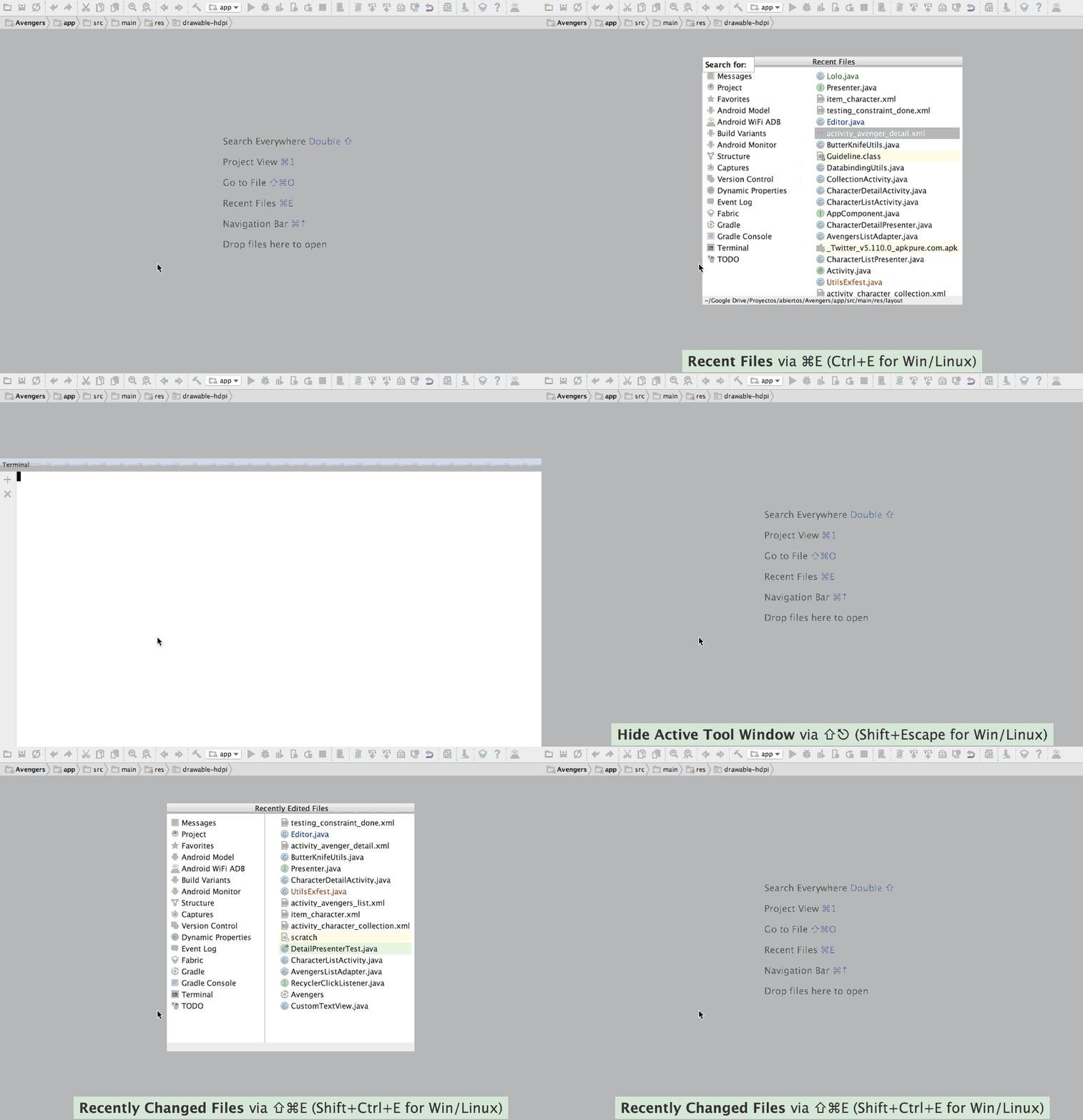
Recently files
These three actions can help us to save time when we are working with a group of files:
Recently Files - ⌘ + E
It shows files that have been opened recently.
Recently Changed Files - ⌘ + ⇧ + E
It shows files that have been opened and changed recently.
Structure of a file
A quick method to navigate through the different attributes and methods in a class is using the action file scructure, can be used with shortcut ⌘ + F12, or finding the action with ⌘ + A and typing file structure.
This feature, as many other, allows searching on it, allowing find quickly what we are looking for and place the caret accordingly.
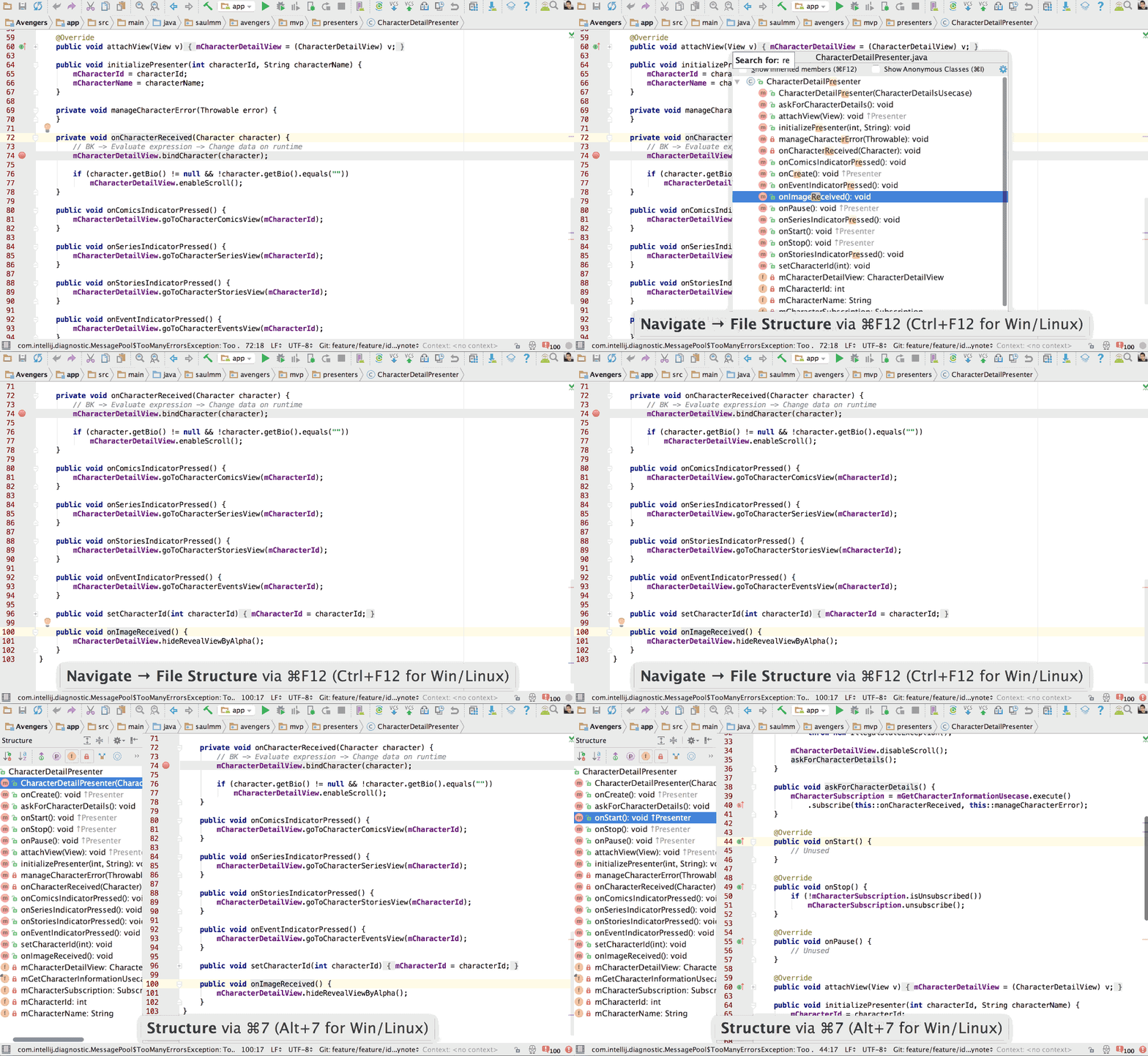
Similarly, the window structure (⌘ + 7), shows the same information but in a permanent way.
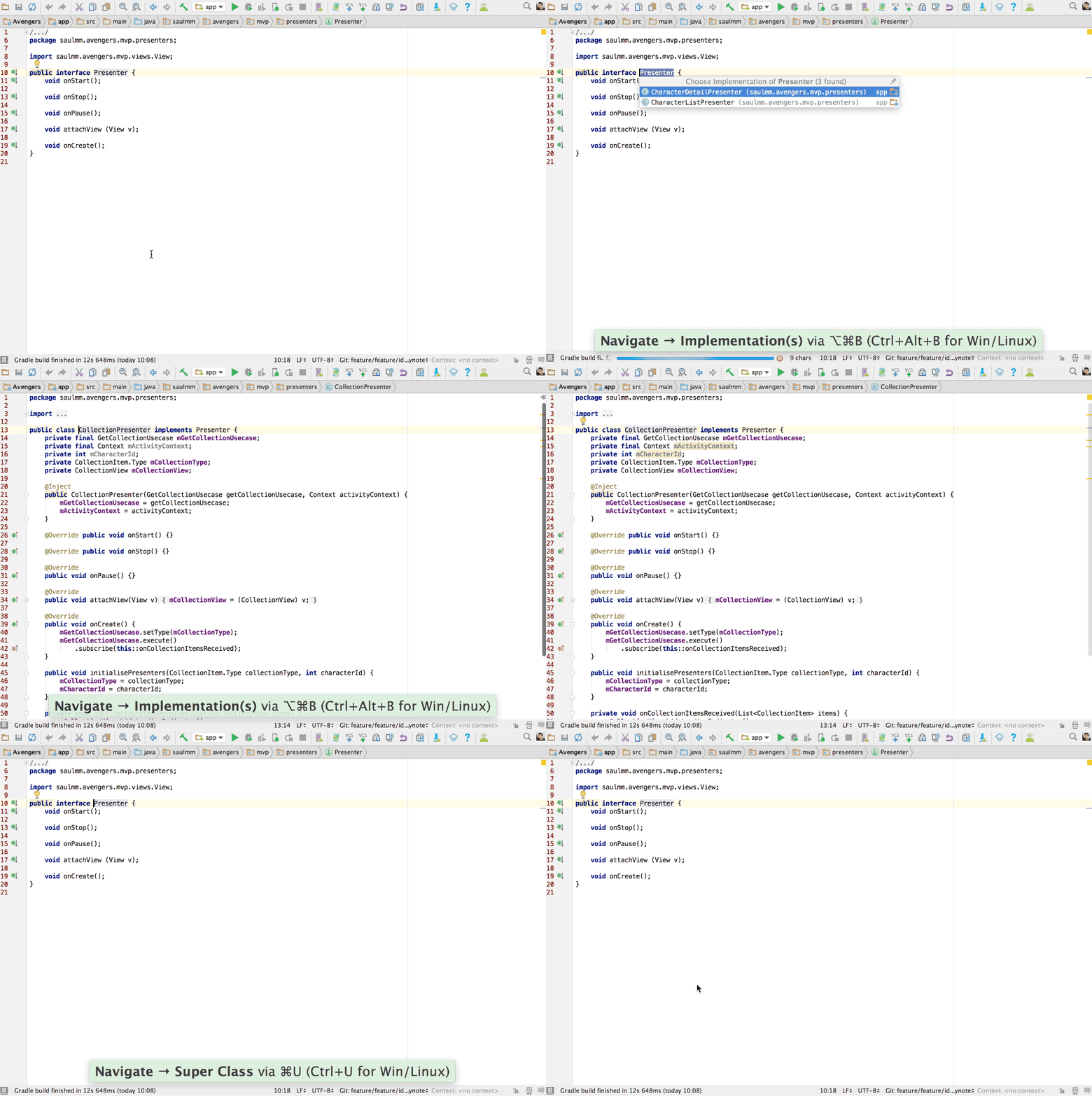
Show implementations and Super Method
It's useful, sometimes, to show the current implementations of a superclass, interface or a method. Using ⌘ + B in the name of the class or method selected, allows, in a glance, check the current implementations navigate to them pressing the ENTER key.
Similarly, with the shortcut ⌘ + U in an implementation, we can navigate to the method or class which is being implemented.
Next Highlighted Error - F2
When Android Studio highlights some compilation errors, usually we use the mouse to scroll until their location and fix them.
With IntelliJ IDEA, we can place the care right on the left of the erros using the feature Next Highlighted Error (F2), avoiding leave your hands from your amazing keyboard.
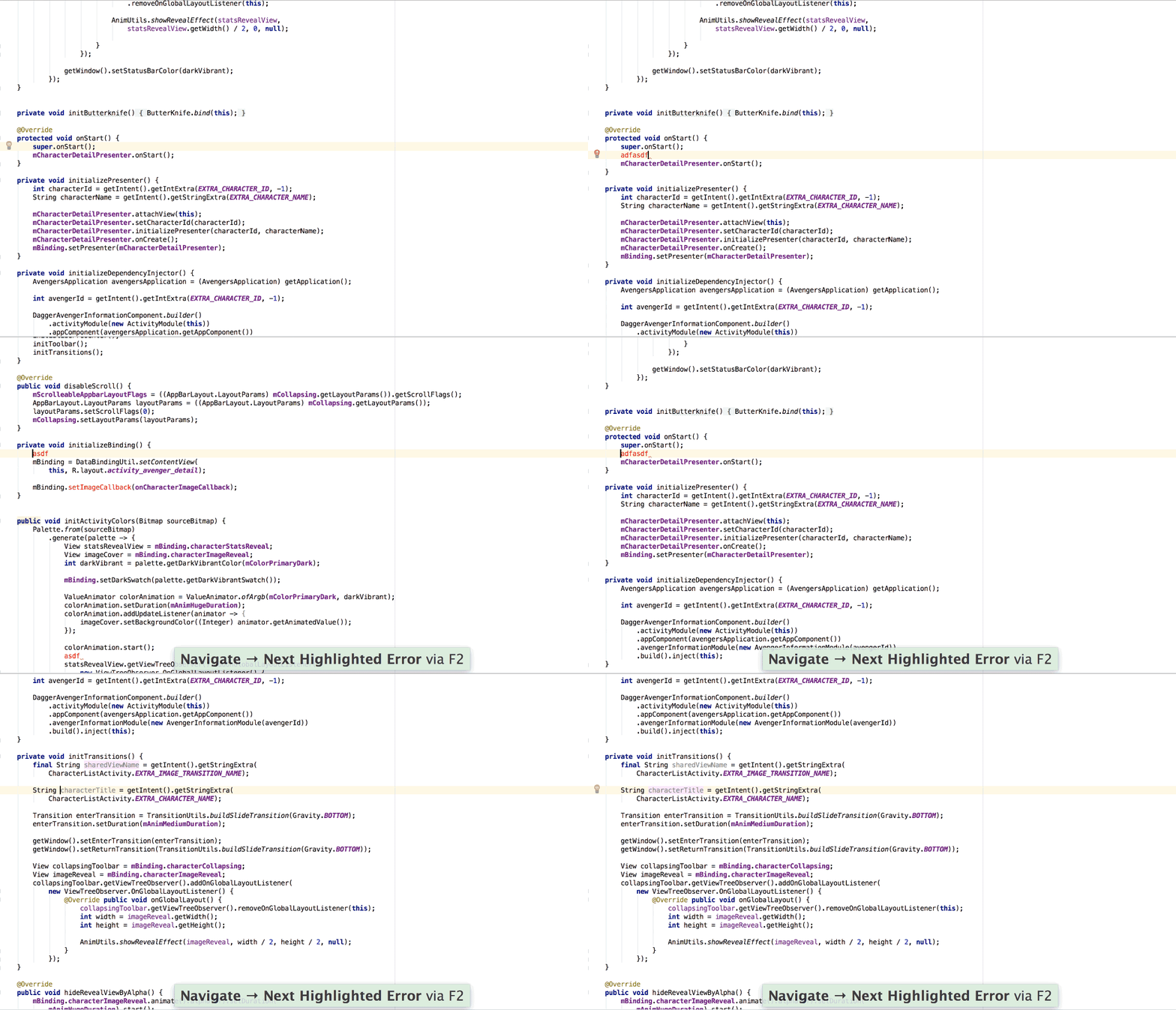
First, F2 will iterate the caret over all the errors. Once they are solved, the cursor will be placed left of the warnings according to the current inspection profile.
Las Edit Location - ⌘ + ⇧ + ⌫ - Last Edit Location
When we are changing the code in classes with a huge number of lines, we tend to edit different sections of the class. Put some declarations, edit the body of a method, etc.
It could be useful after add some declarations place the caret back to the previous edition without using your mouse.
The action Last Edit Location (⌘ + ⇧ + ⌫), does exactly that. Moves the caret to the previous edition location without changing the code.
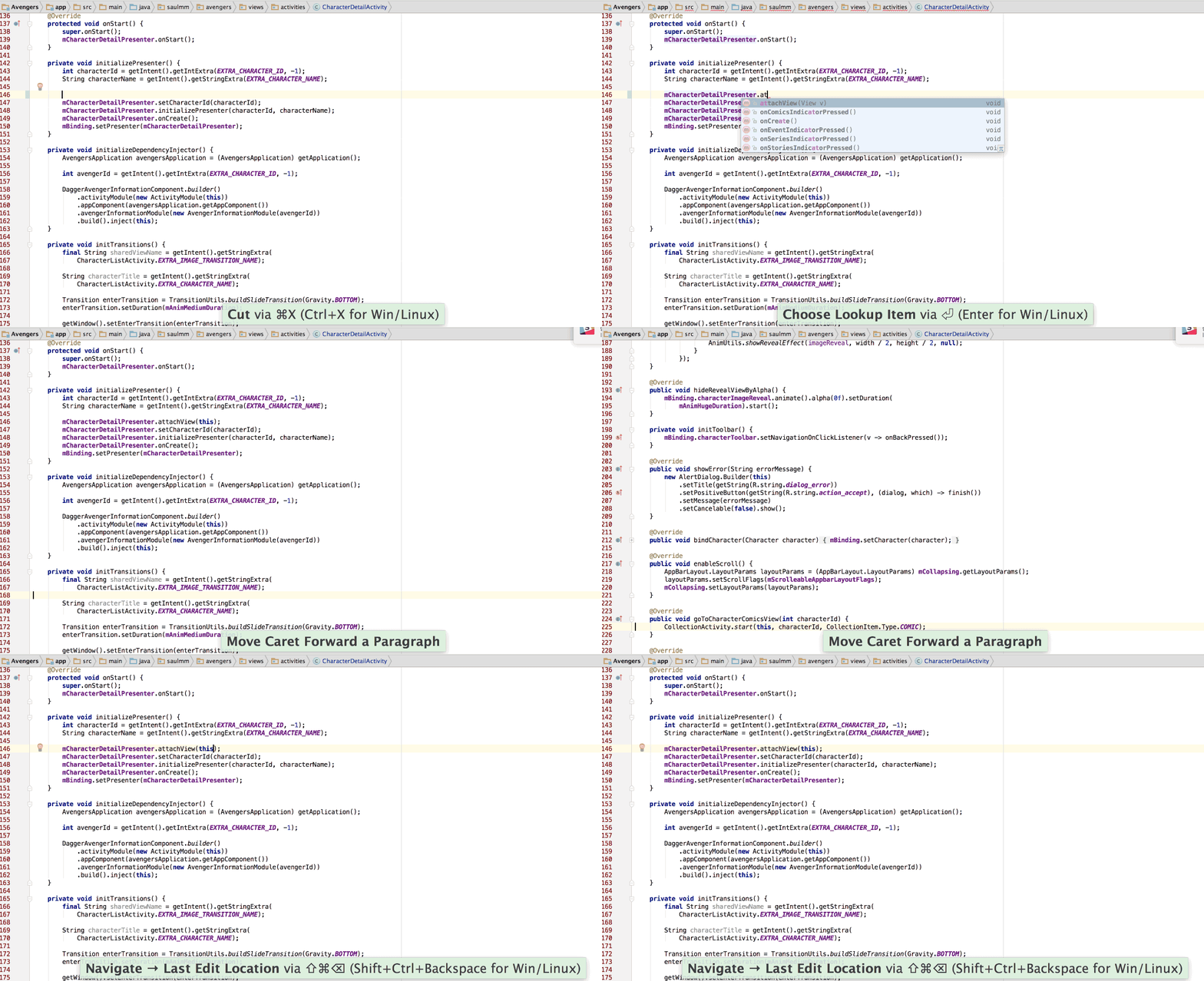
Even if the edition has been made in a different file, the editor will place the caret right in the file where the edition was made.
Edition
Replace instead append
When we are writing code, usually we use the completion dialog in order to add suggestions.
When we decide to add a suggestion pressing the ENTER key, the new sentence is added left of the old one, causing an error.
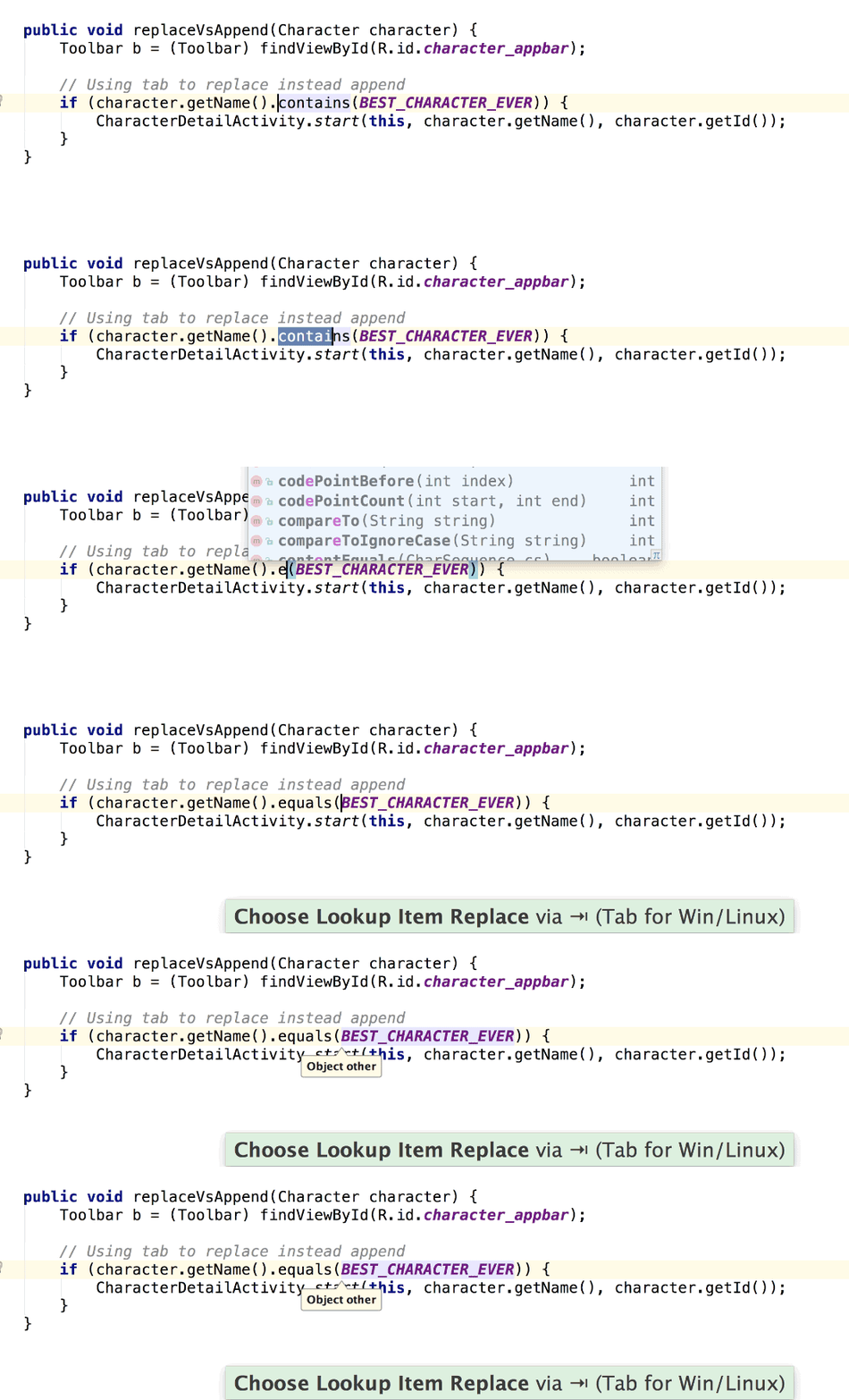
If instead ENTER we press TAB, and if desired method call has the same number of parameters, the new code will be automatically set with the old parameters.
Complete Current Statement - ⌘ + ⇧ + ENTER - Complete Current Statement
Using a powerful IDE like Android Studio, there is no need to worry about some syntactic elements like braces or semicolons.
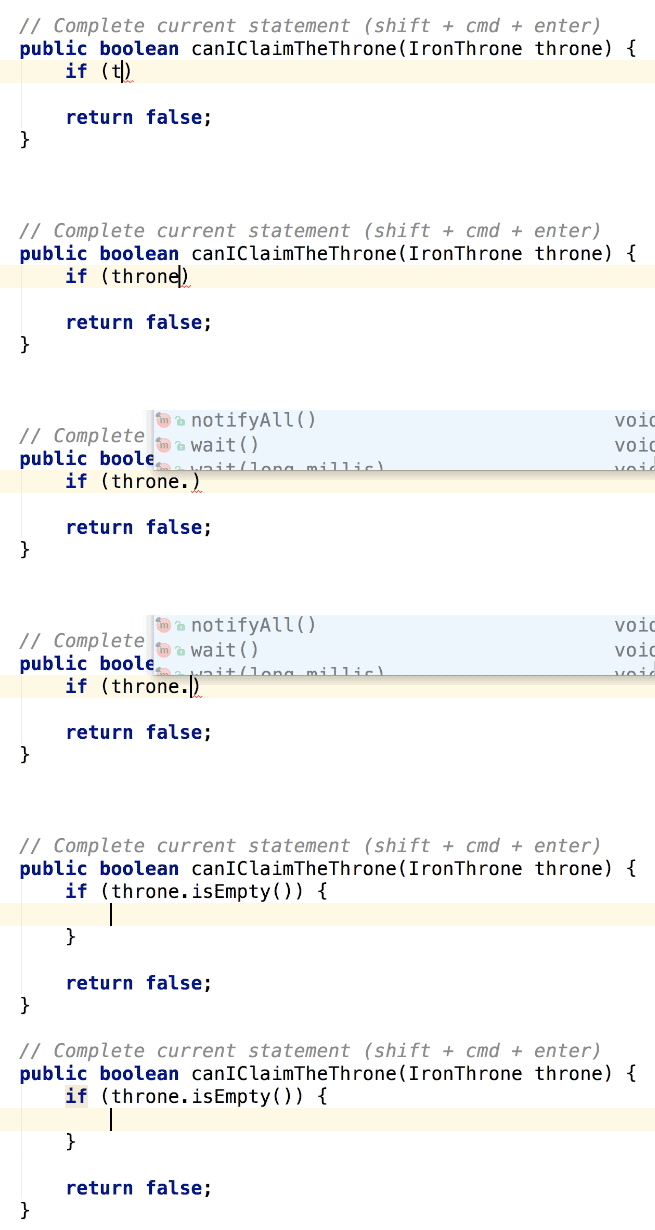
There is an action called Complete Current Statement which automatically add the necessary elements in some contexts.
Add Selection To The Next Ocurrence - ⌘ + G
In some situations, it could be very effective use multiple carets in order to change multiple sentences at the same time.
We can achieve it, with the feature Add Selection To The Next Ocurrence (⌘ + G), selecting the pattern where we want to add carets.
Android Studio and IntelliJ IDEA give us even some cool editing tools in this feature, like cut and paste fragments of code, selection tools, etc.
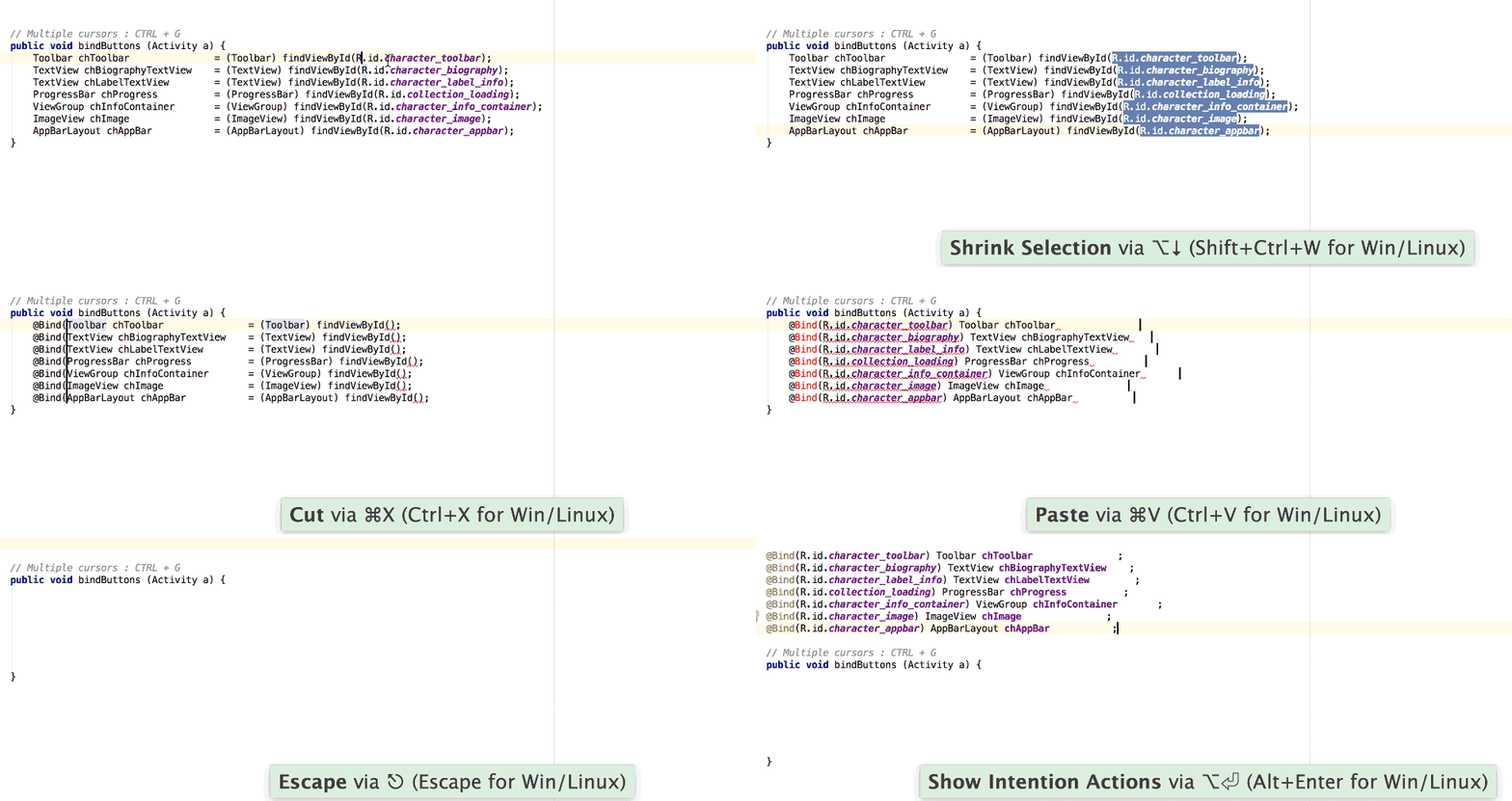
A practical use could be, for instance, changes the binding of our views in an activity or fragment to replace them by ButterKnife annotations.
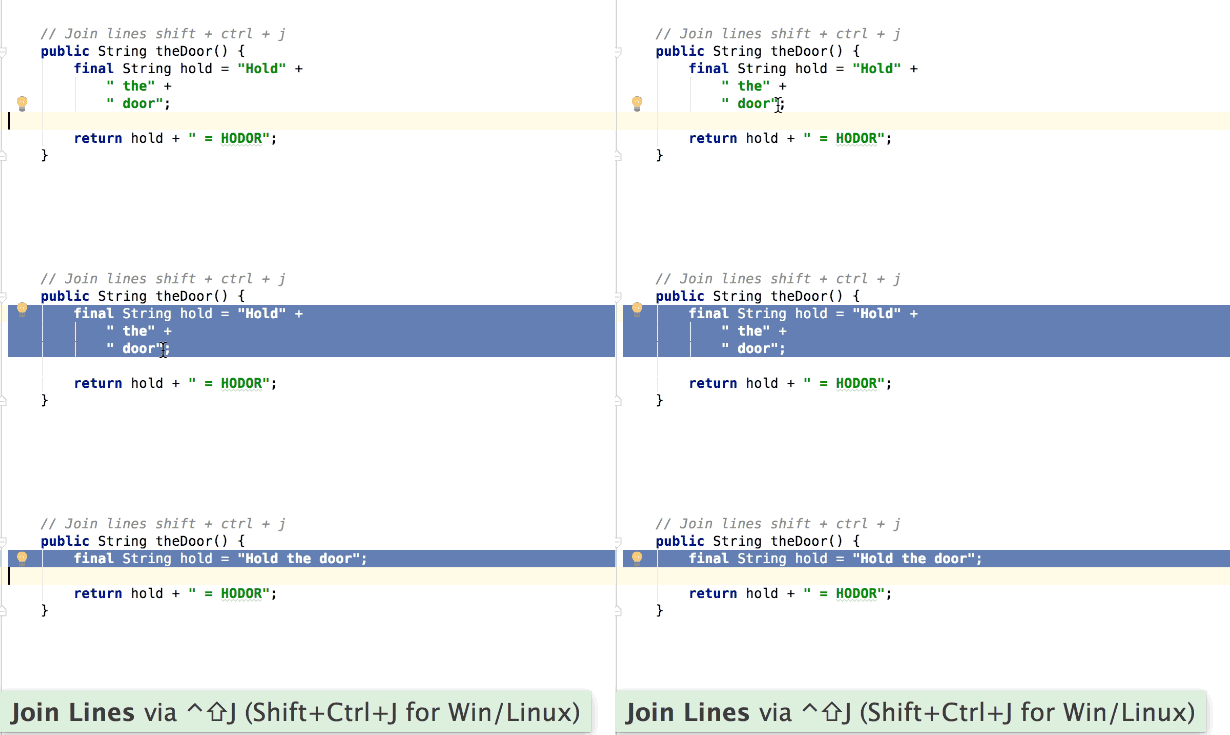
Join Lines - ⌘ + ⇧ + J
When there is a string concatenated multiple times in different lines, it could be useful to join those lines into a single one, with the action join lines we'll achieve a single sentence without having to worry about delete the concat operators.
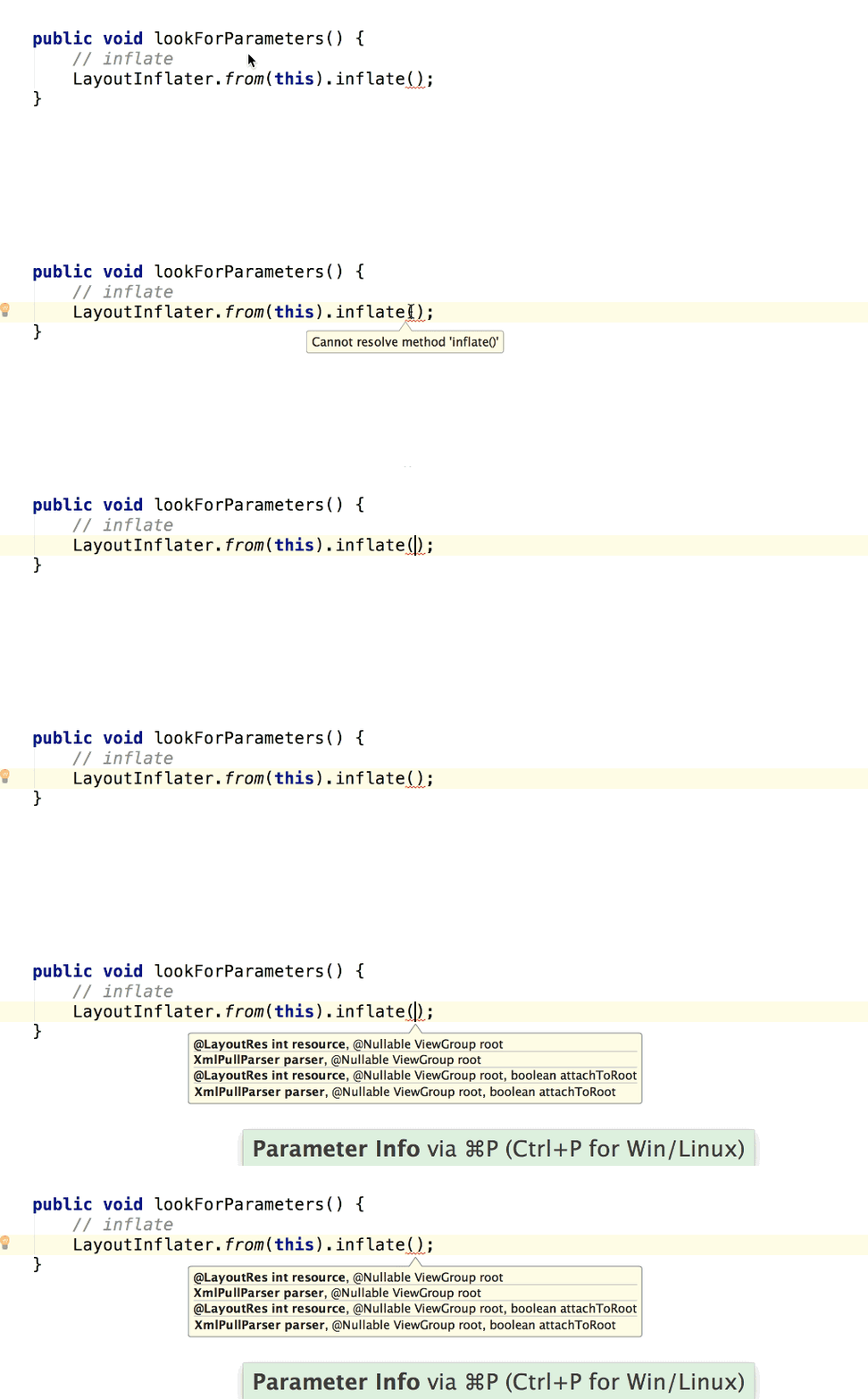
Check the parameters info - ⌘ + P
Using the completion for add a call to a method, Android Studio shows a popup with the required parameters, this popup hides after a few seconds.
Using the action Parameter Info with ⌘ + P, we can check what parameters are needed for the desired method call every time we want.
Surround With - ⌘ + T
Sometimes, it could be interesting to wrap certain code for evaluating it with a condition, iterate through it or capture an exception.
For that purpose, IntelliJ IDEA and in consequence, Android Studio, offers a tasty feature called surround with, operable with a dialog fired by the shortcut ⌘ + T.
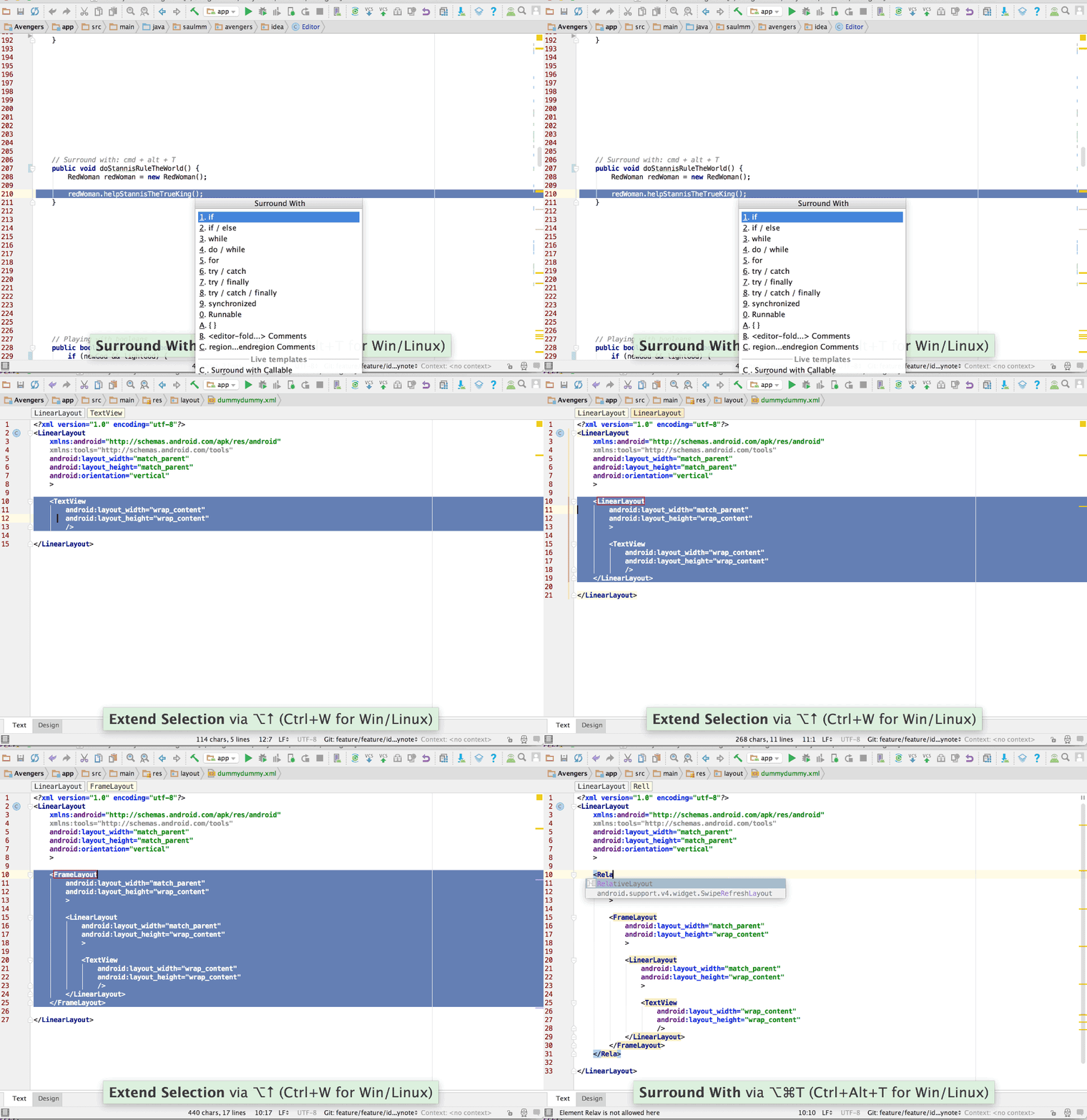
With that dialog we can choose among different actions: conditions, loops, exceptions, etc, even live templates.
Bonus:
If we fire that dialog in a XML context like a layout file, a few suggestions will be shown. With a bit of ingenuity and a live template we could, for example, wrap a view or viewgroup into another viewgroup, in a very easy way.
This is an example of a live template used with the surround with dialog to wrap views insider viewgroups.

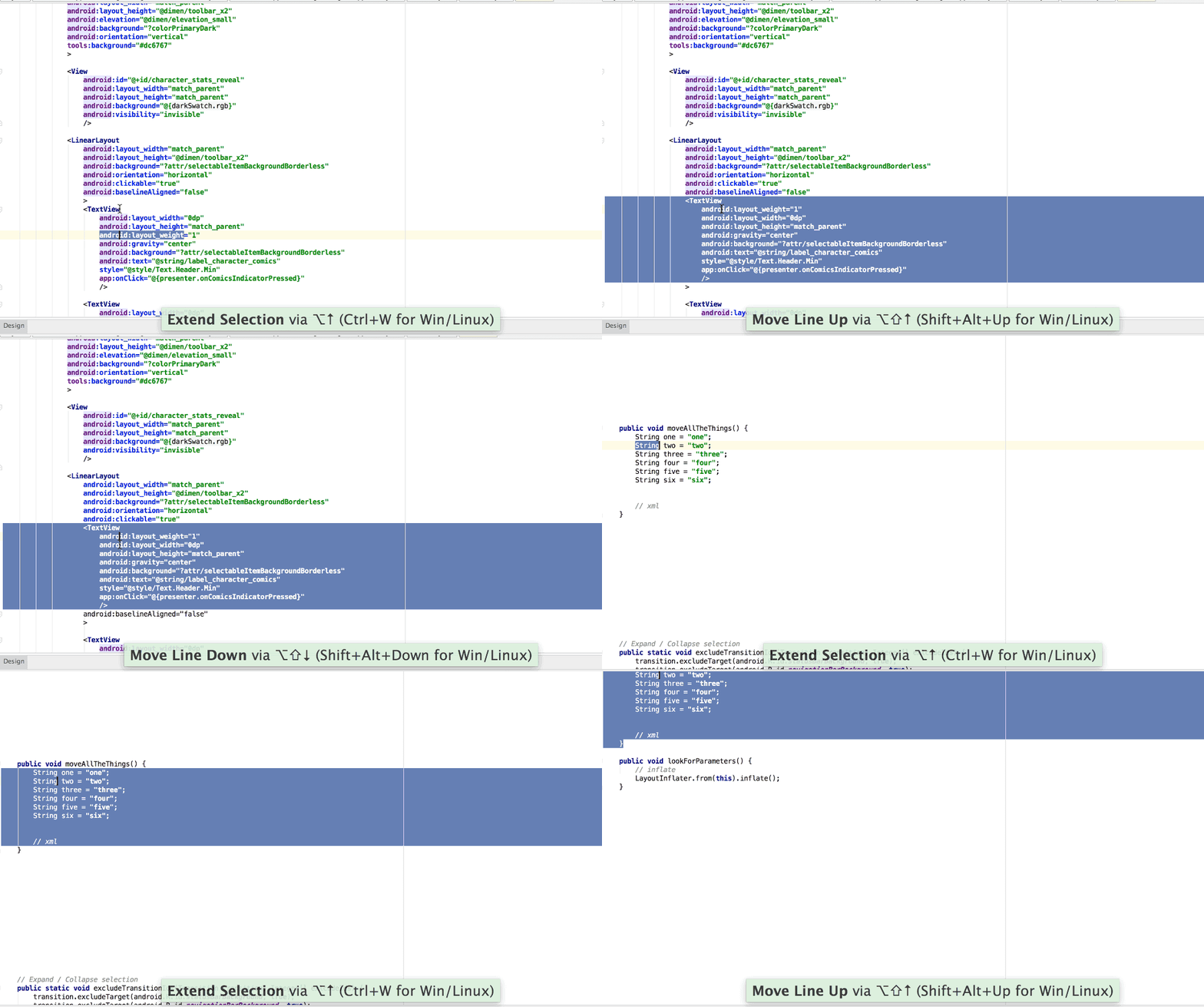
Move sentence up/down - ⌘ + ⇧ + ↑/↓
In order to move code is not needed to cut and paste sentences manually. The action Move Sentence Up/Down under the selection of a sentence of a group of ones, will be useful to move code in an effective way.
Bonus
This action could result useful editing layout files in XML. If we select a view, we could move it into an existing viewgroup in the same file.
Extend/Shrink selection - ⌥ + ↑/↓
Android Studio, thanks to IntelliJ IDEA inherits a mechanism really interesting whe we select code.
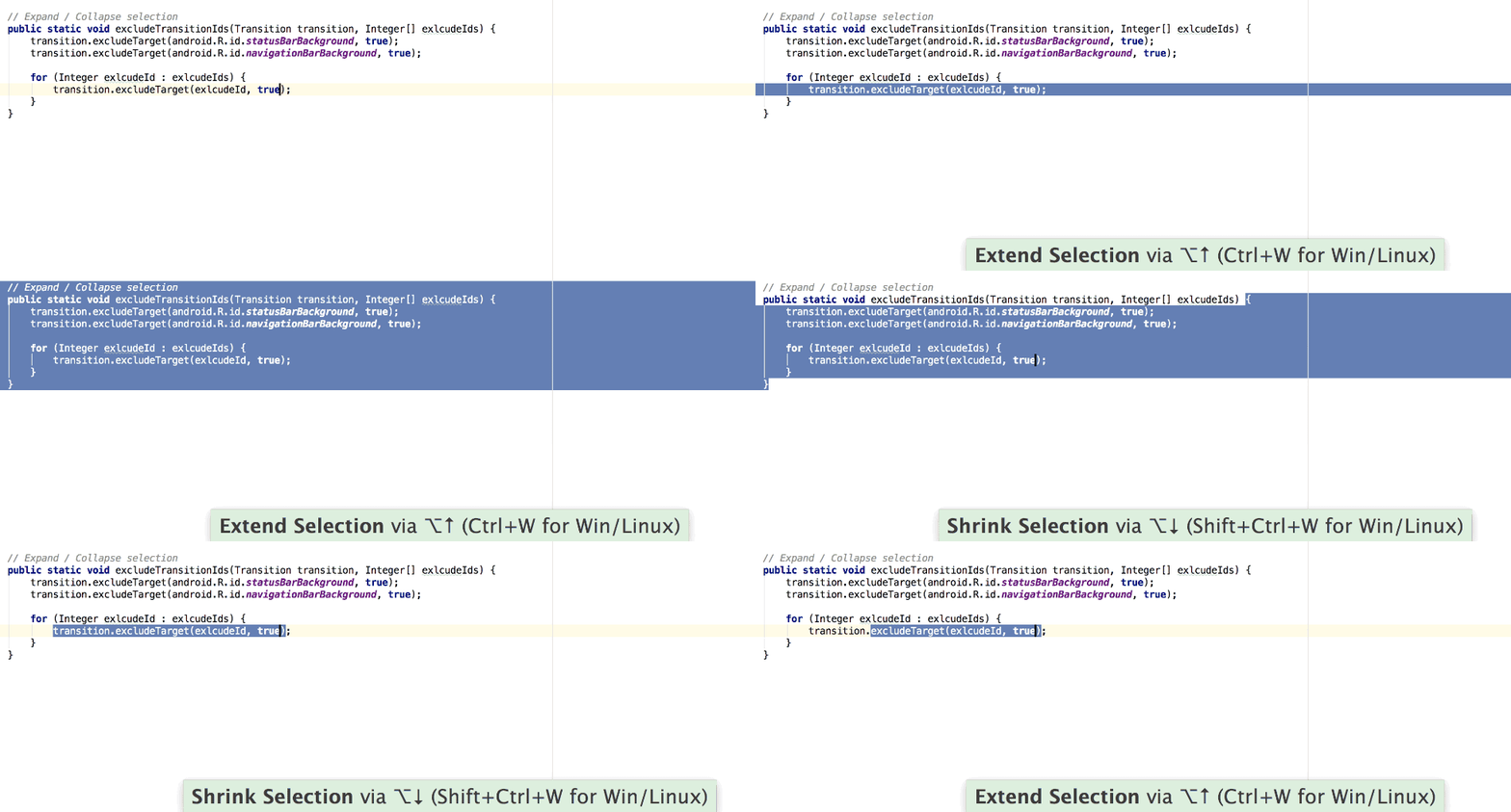
Using the shorcut ⌥ + ↑/↓ in a specific section of the code, will extend or collapse the selection until the next point regarding the nearest scope.
Completition
Live templates - ⌘ + J
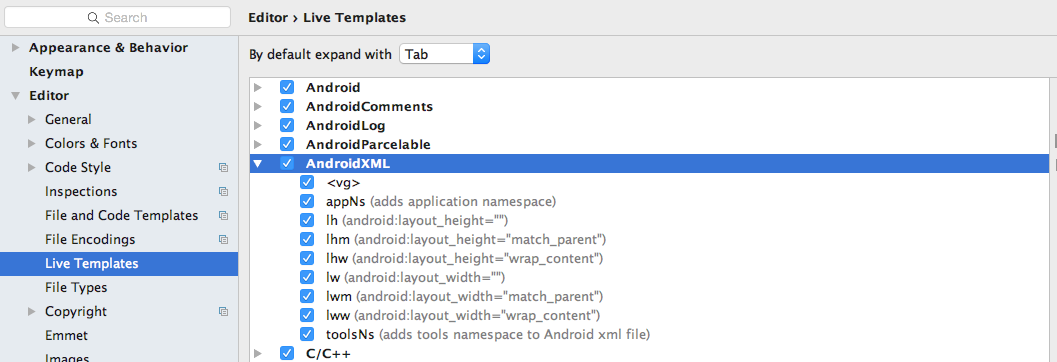
The live templates are a powerful mechanism to avoid to write boilerplate code. They can be customized with a lot of different options insettings/editor/live templates.
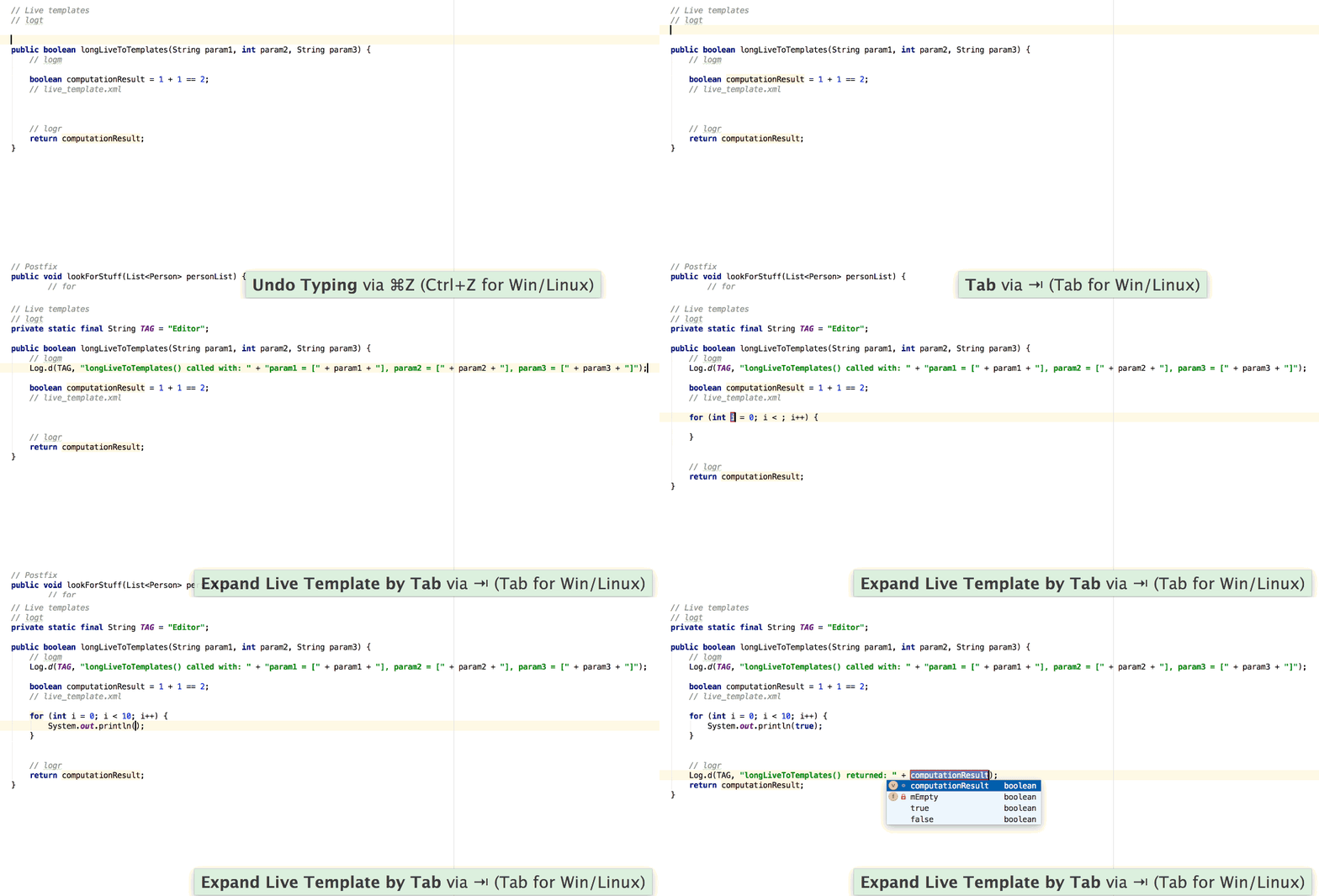
Android Studio, by default, has a lot of live templates ready to use, both for contexts like java and XML.

With the shortcut ⌘ + J we can show a dialog with the available live templates for the context where we are.
Debugging
Attach debugger to Android process
It could be interesting avoid to run a debug session from Android Studio, (⌃ D), because we have tons of breakpoints configured, we want to force a state before init the debug session, etc.
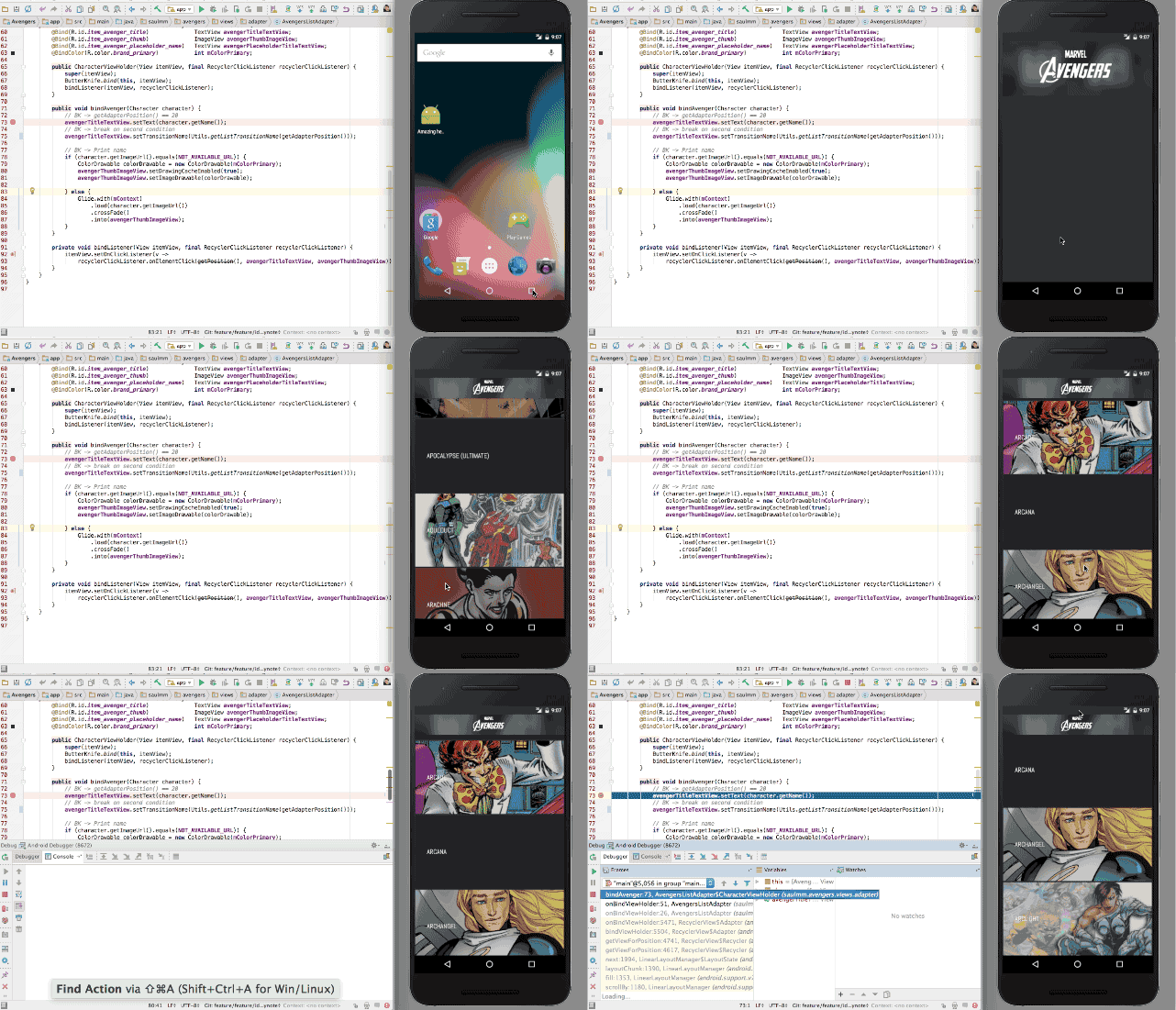
For that, Android Studio includes an action called Attach Debugger to Android Process.
Conditional breakpoints
In code which is called multiple times, it could be annoying if our breakpoint is called every time which is fire, and maybe, our purpose is to check that code in a specific situation.
We can configure the breakpoint for being fired only if a condition returns true, pressing the right click at the breakpoint.
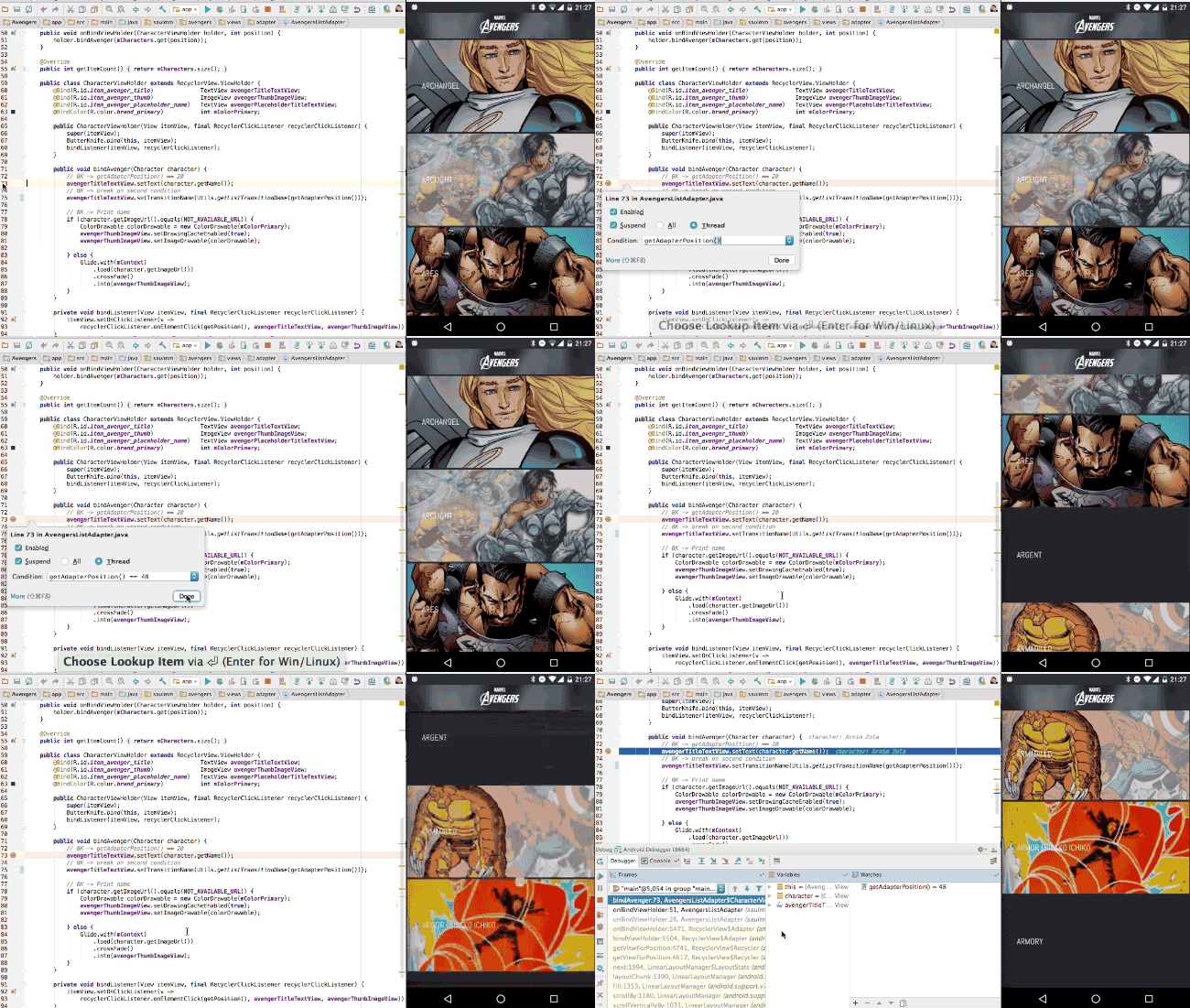
The input will open the completion dialog with the context of the breakpoint while typing.
Force an state
When a breakpoint is fired, we usually check the state of the execution. Instead just read we can also write and force the state to enable a certain condition of our code.
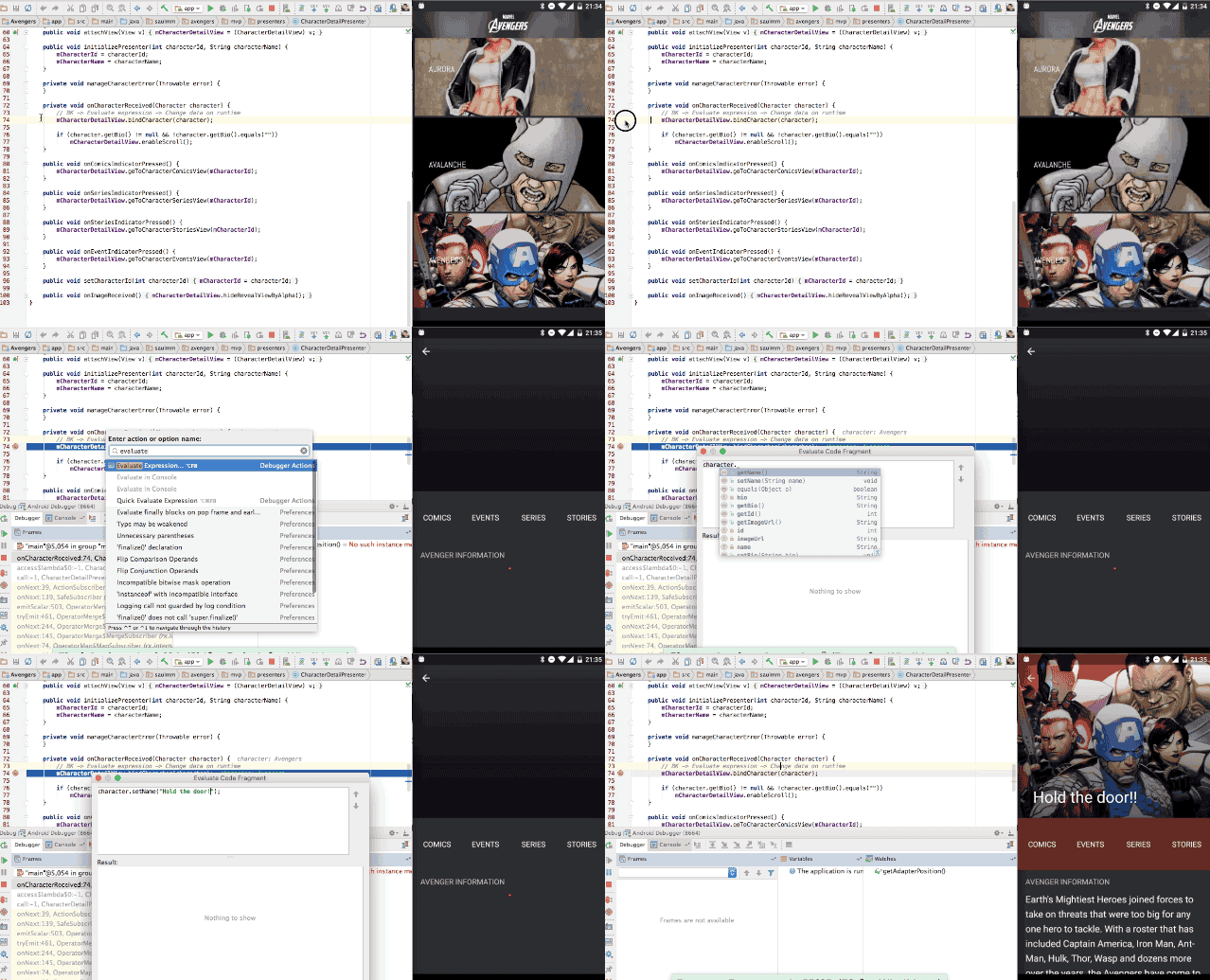
With the action evaulate expression (also from the watches window) in adition to check the states of certain variables we can also write the desired value on them.
Different types of breakpoints
Unsetting the button suspend tick in the breakpoint configuration dialog with a right click on a breakpoint, we could enable the option Log message to console.
Messages will be print under the tab console at the debug tool window (⌘ + 5).
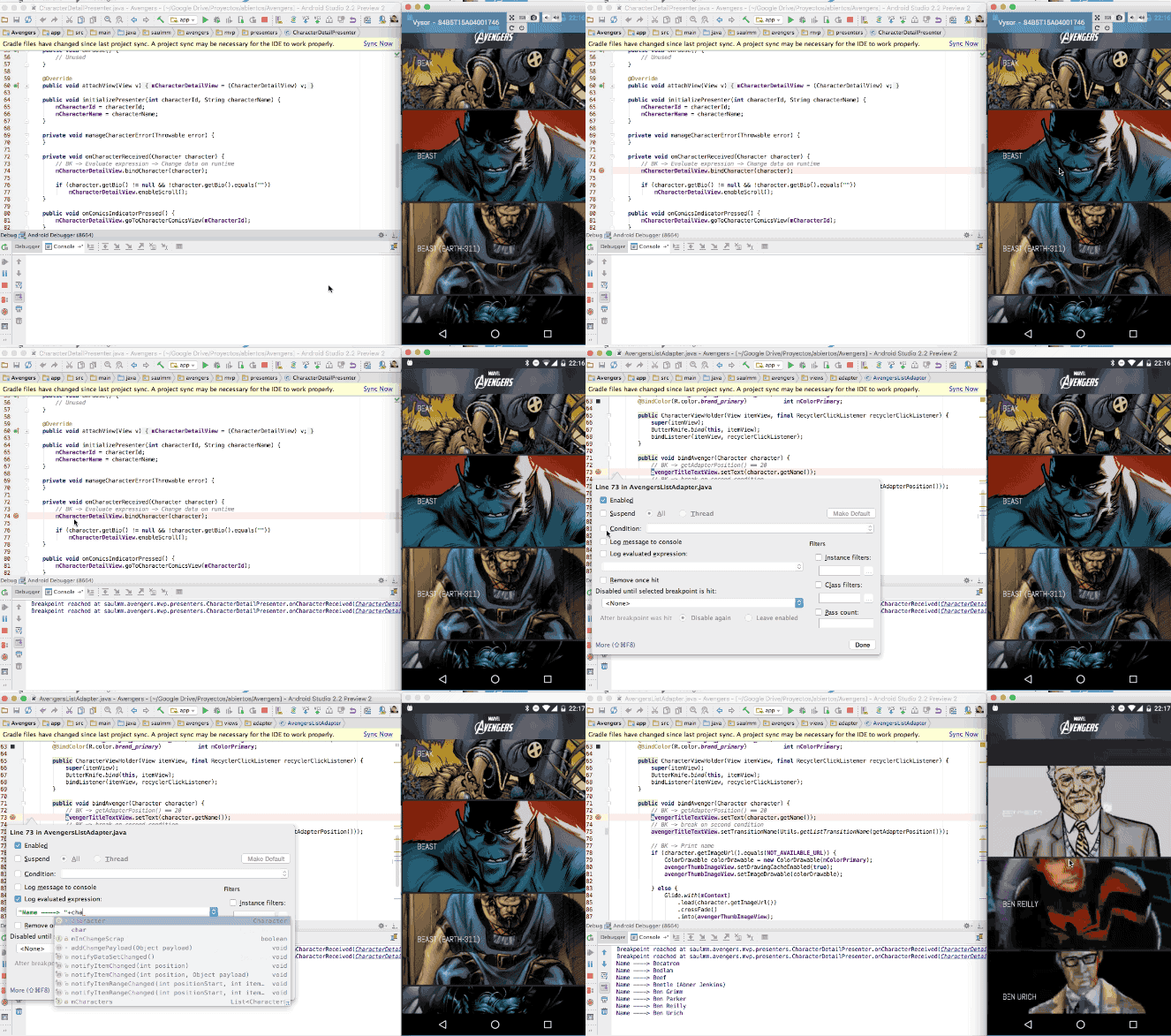
Besides, we could print logs with an specific expression, which can be set at the same dialog under the Log Evaluated Expression option. Once again it will suggest sentences of your context with the completion dialog while you are typing the expression.
Conclusion
Print the cheatsheet and hang it to your wall in order to have something to look during your gradle build times (You always could read your code btw! :D).
Android 有用的快捷键的更多相关文章
- Android Studio中有用的快捷键栏
Android Studio中有用的快捷键栏#1 Ahraewi线移动 Alt + Shift +向上/向下❖Alt + Shift +向上/向下 或上下移动在所选位置的行. 删除行 CMD + B ...
- Android Studio常用快捷键
Ctrl+U :如果你的光标在重写父类的一个方法内(如:Activity#onCreate()),这个将会跳到父类的实现上. 如果你的光标在类名上,它将会跳到父类. Ctrl+Alt+Home:它可以 ...
- Android Studio常用快捷键 - 转
Android Studio常用快捷键 1. Ctrl+D: 集合了复制和粘贴两个操作,如果有选中的部分就复制选中的部分,并在选中部分的后面粘贴出来,如果没有选中的部分,就复制光标所在的行,并在此行的 ...
- [Android Studio] Android Studio常用快捷键
[Android Studio] Android Studio常用快捷键 (会持续更新)这边讲的常用快捷键是指做完Keymap到Eclipse后的,不是纯Android Studio的,这边主要讲 ...
- Android Studio常用快捷键、Android Studio快捷键大全
Android Studio 是谷歌基于IntelliJ IDEA开发的安卓开发工具,有点类似 Eclipse ADT,Android Studio 提供了集成的 Android 开发工具用于开发和调 ...
- Android Stuido 常用快捷键
Android Stuido 常用快捷键 Ctrl + Z : 撤消 Ctrl + G : 定位行 Ctrl + / : 单行注释 Ctrl + Shift + Z : 恢复 Ctrl + J : 快 ...
- 【转】Eclipse快捷键 10个最有用的快捷键
转载地址:http://www.open-open.com/bbs/view/1320934157953 Eclipse中10个最有用的快捷键组合 一个Eclipse骨灰级开发者总结了他认为最有用但 ...
- 转:Eclipse快捷键 10个最有用的快捷键
Eclipse快捷键 10个最有用的快捷键 Eclipse中10个最有用的快捷键组合 一个Eclipse骨灰级开发者总结了他认为最有用但又不太为人所知的快捷键组合.通过这些组合可以更加容易的浏览源代 ...
- Eclipse中10个最有用的快捷键组合
Eclipse中10个最有用的快捷键组合 (转) 一个Eclipse骨灰级开发者总结了他认为最有用但又不太为人所知的快捷键组合.通过这些组合可以更加容易的浏览源代码,使得整体的开发效率和质量得到提升. ...
随机推荐
- perl6之'Hello World'
安装完perl6之后,当然是要写一下Hello World了. 因为perl6的脚本一般都很短小,所以用不着很笨重的IDE之类的东西,我们用VIM,sublime text这种小型的编辑器 来开始pe ...
- 不用不知道 apply()与call()的强大
在看关于javascript继承的时候 好多地方都用到了apply()和call() 之前在简单编程的时候根本没有遇到过 查阅资料后才发现这两个方法是如此的好用. 下面从几方面来看一下这两个方法: 1 ...
- 查文件大小列表 MySQL问题
du -sh /* | sort -nr 打开网站发现Too many connections The server quit without updating PID file (/usr/loca ...
- Mysql服务启动问题
mysql ERROR 2002 (HY000): Can't connect to local MySQL server through socket '/tmp/mysql.sock' (2) u ...
- Bone Collector II(HDU 2639 DP)
Bone Collector II Time Limit: 5000/2000 MS (Java/Others) Memory Limit: 32768/32768 K (Java/Others ...
- bat加载和分离VHD
VHD: vhd:虚拟磁盘格式 [详看 百科 ] 应用: 建立VHD文件,把系统装进VHD,然后从VHD启动. 优点: 因为系统在一个文件里,所以有可删,可移动,可快照的优点. VHD装系统方法: 请 ...
- scheme一页纸教程
这是一个大学教授写的,非常好,原文:http://classes.soe.ucsc.edu/cmps112/Spring03/languages/scheme/SchemeTutorialA.html ...
- log4cplus配置文件使用
简介 log4cplus是log4j的c++移植版,是c++中一个很好的打印日志的库.它与另外一个c++的log库log4cxx相比较,好处是不依赖于libapr和libaprutil,可以静态链接到 ...
- Unix/Linux环境C编程入门教程(37) shell常用命令演练
cat命令 cat命令可以用来查看文件内容. cat [参数] 文件名. grep-指定文件中搜索指定字符内容. Linux的目录或文件. -path '字串' 查找路径名匹配所给字串的所有文件 ...
- UESTC_基爷与加法等式 2015 UESTC Training for Search Algorithm & String<Problem C>
C - 基爷与加法等式 Time Limit: 3000/1000MS (Java/Others) Memory Limit: 65535/65535KB (Java/Others) Subm ...