
WPF 样式Style
一:样式基础
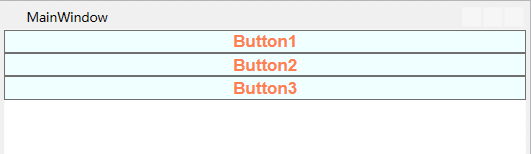
如果我们的程序有三个这样的按键,一般我们会这样写
    <StackPanel>

        <!--按键的背景色为Azure蔚蓝色背景色为Coral珊瑚色字体为Arial加粗字体大小为16-->

        <Button Content="Button1" Background="Azure" Foreground="Coral" FontFamily="Arial" FontWeight="Bold" FontSize="16" />

        <Button Content="Button2" Background="Azure" Foreground="Coral" FontFamily="Arial" FontWeight="Bold" FontSize="16" />

        <Button Content="Button3" Background="Azure" Foreground="Coral" FontFamily="Arial" FontWeight="Bold" FontSize="16" />

    </StackPanel>
但是如果我们的程序有很多这样的按键,每一个都设置一遍外观属性代码就会显得很冗余,有好奇心的小伙伴就会想有没有一种办法让代码变得简洁一些?答案是:Style
    <Window.Resources>

        <Style x:Key="ButtonStyle">

            <!--按键的背景色为Azure蔚蓝色背景色为Coral珊瑚色字体为Arial加粗字体大小为16-->

            <Setter Property="Control.FontFamily" Value="Arial"></Setter>

            <Setter Property="Control.Background" Value="Azure"></Setter>

            <Setter Property="Control.Foreground" Value="Coral"></Setter>

            <Setter Property="Control.FontWeight" Value="Bold"></Setter>

            <Setter Property="Control.FontSize" Value="16"></Setter>

        </Style>

    </Window.Resources>

    <StackPanel>

        <Button Content="Button1" Style="{StaticResource ButtonStyle}" />

        <Button Content="Button2" Style="{StaticResource ButtonStyle}" />

        <Button Content="Button3" Style="{StaticResource ButtonStyle}" />

    </StackPanel>
这样代码就会显得简洁一些,细心的小伙伴儿发现所有的按键都用Style="{StaticResource ButtonStyle}"来指定样式,感觉还是略有一点冗余,那我们还可以继续让代码简洁一些,把
<Style x:Key="ButtonStyle">样式里的键值换成目标类型TargetTpye="Button",
    <Window.Resources>

        <Style TargetType="Button">

            <!--按键的背景色为Azure蔚蓝色背景色为Coral珊瑚色字体为Arial加粗字体大小为16-->

            <Setter Property="Control.FontFamily" Value="Arial"></Setter>

            <Setter Property="Control.Background" Value="Azure"></Setter>

            <Setter Property="Control.Foreground" Value="Coral"></Setter>

            <Setter Property="Control.FontWeight" Value="Bold"></Setter>

            <Setter Property="Control.FontSize" Value="16"></Setter>

        </Style>

    </Window.Resources>

    <StackPanel>

        <Button Content="Button1"  />

        <Button Content="Button2"  />

        <Button Content="Button3"  />

    </StackPanel>
这样三个按键的代码就非常简洁了,但是有的小伙伴儿就想让第一个和第三个按键用上面的样式,第二个不用这样的样式,我们可以这样改
    <Window.Resources>

        <Style TargetType="Button">

            <!--按键的背景色为Azure蔚蓝色背景色为Coral珊瑚色字体为Arial加粗字体大小为16-->

            <Setter Property="Control.FontFamily" Value="Arial"></Setter>

            <Setter Property="Control.Background" Value="Azure"></Setter>

            <Setter Property="Control.Foreground" Value="Coral"></Setter>

            <Setter Property="Control.FontWeight" Value="Bold"></Setter>

            <Setter Property="Control.FontSize" Value="16"></Setter>

        </Style>

    </Window.Resources>

    <StackPanel>

        <Button Content="Button1"  />

        <Button Content="Button2" Style="{x:Null}" />

        <Button Content="Button3"  />

    </StackPanel>
效果如下

二:样式的事件
当我们想让鼠标经过按键时,前景色变为蓝色,鼠标离开时,前景色变为珊瑚色
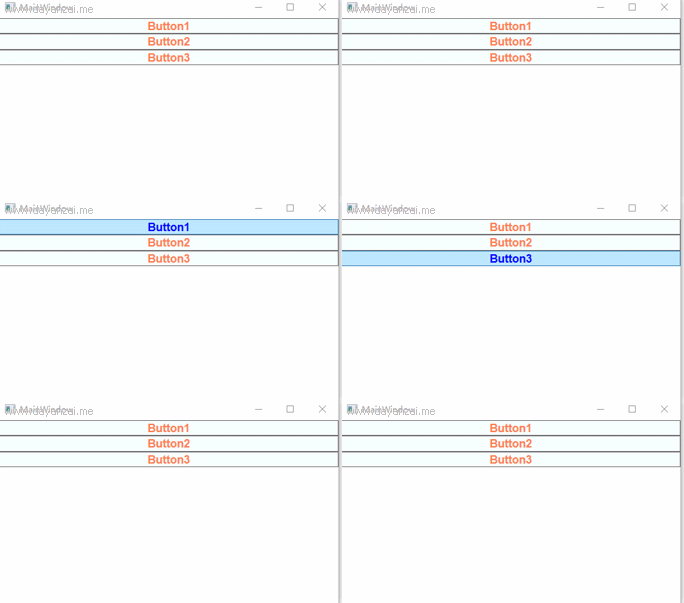
一般我们会这样写前端代码
    <Window.Resources>

        <Style TargetType="Button">

            <!--按键的背景色为Azure蔚蓝色背景色为Coral珊瑚色字体为Arial加粗字体大小为16-->

            <Setter Property="Control.FontFamily" Value="Arial"></Setter>

            <Setter Property="Control.Background" Value="Azure"></Setter>

            <Setter Property="Control.Foreground" Value="Coral"></Setter>

            <Setter Property="Control.FontWeight" Value="Bold"></Setter>

            <Setter Property="Control.FontSize" Value="16"></Setter>

        </Style>

    </Window.Resources>

    <StackPanel>

        <Button Content="Button1" MouseEnter="btnMouseEnter" MouseLeave="btnMouseLeave" />

        <Button Content="Button2" MouseEnter="btnMouseEnter" MouseLeave="btnMouseLeave" />

        <Button Content="Button3" MouseEnter="btnMouseEnter" MouseLeave="btnMouseLeave"/>

    </StackPanel>
然后为后台代码添加事件处理事件
        private void btnMouseEnter(object sender, MouseEventArgs e)

        {

            ((Button)sender).Foreground = new SolidColorBrush(Colors.Blue);//字体颜色改为蓝色

        }

        private void btnMouseLeave(object sender, MouseEventArgs e)

        {

            ((Button)sender).Foreground = new SolidColorBrush(Colors.Coral);//字体颜色改为珊瑚色

        }
这样每个按键都有一个鼠标进入事件和一个离开事件MouseEnter="btnMouseEnter" MouseLeave="btnMouseLeave"。聪明的小伙伴儿就会想样式可以简化控件的外观,那可以不可以简化控件的事件呢?答案是:EventSetter
    <Window.Resources>

        <Style TargetType="Button">

            <!--按键的背景色为Azure蔚蓝色背景色为Coral珊瑚色字体为Arial加粗字体大小为16-->

            <Setter Property="Control.FontFamily" Value="Arial"></Setter>

            <Setter Property="Control.Background" Value="Azure"></Setter>

            <Setter Property="Control.Foreground" Value="Coral"></Setter>

            <Setter Property="Control.FontWeight" Value="Bold"></Setter>

            <Setter Property="Control.FontSize" Value="16"></Setter>

            <EventSetter Event="FrameworkElement.MouseEnter" Handler="btnMouseEnter"></EventSetter>

            <EventSetter Event="FrameworkElement.MouseLeave" Handler="btnMouseLeave"></EventSetter>

        </Style>

    </Window.Resources>

    <StackPanel>

        <Button Content="Button1" />

        <Button Content="Button2" />

        <Button Content="Button3" />

    </StackPanel>
<EventSetter Event="FrameworkElement.MouseEnter" Handler="btnMouseEnter"></EventSetter>

EventSetter :设置样式的事件设置,Event:事件类型,Handler:事件处理程序btnMouseEnter就是我们刚才写的后台代码事件处理程序没有任何变化
        private void btnMouseEnter(object sender, MouseEventArgs e)

        {

            ((Button)sender).Foreground = new SolidColorBrush(Colors.Blue);//字体颜色改为蓝色

        }
这样写代码就会很简洁,也便于维护。
WPF 样式Style的更多相关文章
- Bootstrap WPF Style,Bootstrap风格的WPF样式
简介 GitHub地址:https://github.com/ptddqr/bootstrap-wpf-style 此样式基于bootstrap-3.3.0,样式文件里的源码行数都是指的这个版本.CS ...
- C#工具:Bootstrap WPF Style,Bootstrap风格的WPF样式
简介 GitHub地址:https://github.com/ptddqr/bootstrap-wpf-style 此样式基于bootstrap-3.3.0,样式文件里的源码行数都是指的这个版本.CS ...
- WPF样式(Style)入门
原文:WPF样式(Style)入门 版权声明:本文为博主原创文章,未经博主允许不得转载. https://blog.csdn.net/qq_34802416/article/details/78231 ...
- wpf 中关于Image中样式Style的一点总结
第一种写法: (1):定义样式 <Style x:Key="imgStyle" TargetType="Image"> : <!-- Tar ...
- 第十四章:样式(Style)和主题(Theme)
简介 Android的样式(Style)和主题(Theme)文件就好比WEB开发中的CSS一样,可以实现UI界面的风格统一管理,这和Windows平台的XAML格式(Silverlight.WPF)类 ...
- WPF 样式和行为
样式(style):组织和重用格式化选项的重要工具,将细节如边距.字体.字号等信息封装起来,然后再需要的地方通过属性来应用样式. 行为(behavior):封装一些通用的UI行为,如拖动,缩放元素的代 ...
- WPF 之 style文件的引用
总结一下WPF中Style样式的引用方法. 一.内联样式: 直接设置控件的Height.Width.Foreground.HorizontalAlignment.VerticalAlignment等属 ...
- 写自己的WPF样式 - 窗体
初试WPF样式,感觉还不错.上篇写完了按钮的样式下面写窗体,废话不多说直接上代码: (1)定义一个窗体样式"MyWpfWindow" <Style x:Key="M ...
- WPF的Style的TargetType不同写法的异同
原文:WPF的Style的TargetType不同写法的异同 <Style TargetType="TextBlock"> <Setter Property=&q ...
随机推荐
- 二十一:jinja2之模板继承
模板继承可以把有共性的一些代码抽出来放到父模板中,其他需要次特性的文件继承模板即可 在jinja2中,使用extends来继承定义好的模板,使用{% block 位置名%} {% endblock % ...
- swiper 的左右箭头放到轮播外面
<!-- 增加一个father的包裹 --> <div class="swiper-father"> <div class="swiper- ...
- django QueryDict 类型
如果没有值,返回默认值的写法 允许有多个同名的值,但是需要用getlist 访问. 如果用常规的访问只能访问到最后一个值.
- 从git上pull下的代码,执行时提示:ModuleNotFoundError: No module named '......',解决方法如下:
方法一: 如果没有安装,如下: 1.PyCharm : file-> setting->Project interpreter–>package2.右侧有个+ 点击3.进入后 搜索p ...
- php连接mysql,数据CRUD操作
插入数据 <?php $name = $_GET['username']; $sex = $_GET['sex']; $hobby = $_GET['hobby']; $address = $_ ...
- CPU 使用率低 but负载高
一.关于负载 什么是负载:负载就是cpu在一段时间内正在处理以及等待cpu处理的进程数之和的统计信息,也就是cpu使用队列的长度统计信息,这个数字越小越好(如果超过CPU核心*0.7就是不正常) 负载 ...
- CVPR2019 论文解读| BASNet:关注边界的显著性目标检测
作者 | 文永亮 学校 | 哈尔滨工业大学(深圳) 研究方向 | 目标检测 概要 这是一篇发表于CVPR2019的关于显著性目标检测的paper,<BASNet:Boundary-Aware ...
- Dialupass v3.20 汉化绿色版 显示查看拨号上网密码
Dialupass 显示查看拨号上网密码 拨号上网的密码不小心丢了怎么办?这个工具可以帮你!在紧要关头,它会让你体验到它的奇效!有备无患,快收藏这个小东东吧. 这是一款拯救忘记了拨号网络密码的使用者的 ...
- 20191209 Linux就该这么学(6)
6. 存储结构与磁盘划分 6.1 一切从"/"开始 Linux 系统中的一切文件都是从"根(/)"目录开始的,并按照文件系统层次化标准(FHS)采用树形结构来存 ...
- PostgreSQL INSERT ON CONFLICT不存在则插入,存在则更新
近期有一个需求,向一张数据库表插入数据,如果是新数据则执行插入动作,如果插入的字段和已有字段重复,则更新该行对应的部分字段 1. 创建测试表 create table meta_data ( id s ...