
微信小程序之豆瓣电影
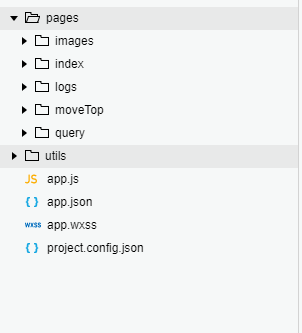
此文是学习小程序第二天做出的一个小demo,调用了豆瓣电影的api,但是需要填上自己appId,现在项目的 目录如下图:
效果图如下:
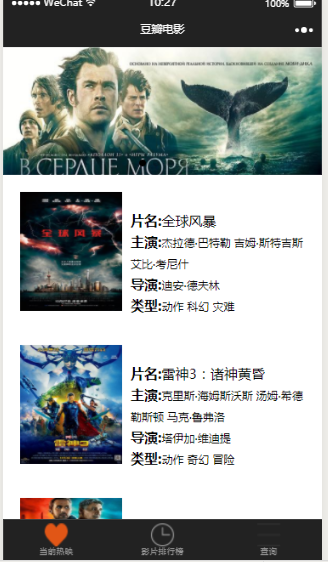
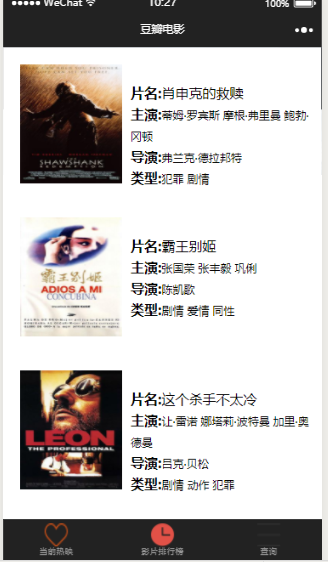
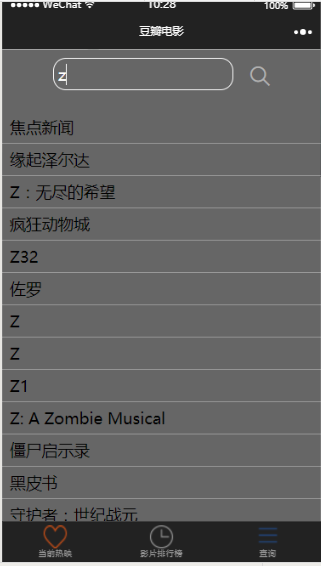
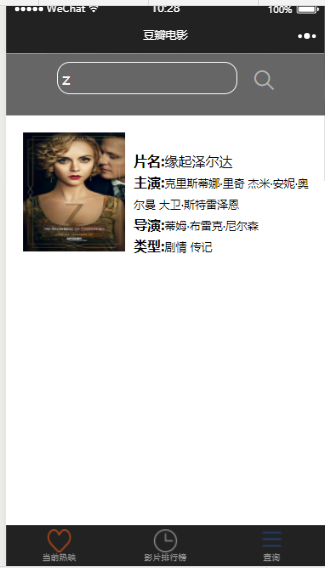
在这个demo里面,我更改了小程序的navigationBar,设置了最下方的三个tabBar,这是公共的设置需要在app.json里面设置,
 {

 "pages": [

 "pages/index/index",

 "pages/logs/logs",

 "pages/query/index",

 "pages/moveTop/index"

 ],

 "window": {

 "backgroundTextStyle": "light",

 "navigationBarBackgroundColor": "#222",

 "navigationBarTitleText": "豆瓣电影",

 "navigationBarTextStyle": "#fff"

 },

 "tabBar": {

 "backgroundColor": "#222",

 "list": [

 {

 "pagePath": "pages/index/index",

 "text": "当前热映",

 "iconPath": "pages/images/collection-o.png",

 "selectedIconPath": "pages/images/collection.png"

 },

 {

 "pagePath": "pages/moveTop/index",

 "text": "影片排行榜",

 "iconPath": "pages/images/examResult-time.png",

 "selectedIconPath": "pages/images/icon_clock.png"

 },

 {

 "pagePath": "pages/query/index",

 "text": "查询",

 "iconPath": "pages/images/nav_icon.png",

 "selectedIconPath": "pages/images/icon_nav_cell.png"

 }

 ]

 }

 }
 /**app.wxss**/

 .container {

 height: 100%;

 padding:;

 }

 .list_img {

 float: left;

 width: 120px;

 }

 image {

 width: 100%;

 height: 140px;

 padding: 20px 20px 0 20px;

 }

 .list_info {

 float: left;

 width: 210px;

 height: 140px;

 padding-left: 30px;

 padding-top: 40px;

 }

 .move-item_fontWeight {

 font-weight: bold;

 font-size: 16px;

 }

 .move-item_moveName{

 font-size: 16px;

 }

 .move-item_fontSize {

 font-size: 13px;

 }
 <!--index.wxml-->

 <view class="container">

   <!--轮播图-->

   <swiper indicator-dots="{{indicatorDots}}" autoplay="{{autoplay}}" interval="{{interval}}" duration="{{duration}}">

     <block wx:for="{{imgUrls}}" wx:key="{{item}}">

       <swiper-item>

         <image src="{{item}}" />

       </swiper-item>

     </block>

   </swiper>

   <!--热映列表展示-->

   <block wx:for="{{moves}}" wx:key="{{item}}">

     <view class="list">

       <view class="list_img">

         <image src="{{item.images.medium}}"></image>

       </view>

       <view class="list_info">

         <text class="move-item_fontWeight">片名:</text>

         <text class="move-item_moveName">{{item.title}}\n</text>

         <view>

           <text class="move-item_fontWeight">主演:</text>

           <block wx:for="{{item.casts}}" wx:key="{{index}}">

             <text class="move-item_fontSize">{{item.name}} </text>

           </block>

         </view>

         <view>

           <text class="move-item_fontWeight">导演:</text>

           <block wx:for="{{item.directors}}" wx:key="{{index}}">

             <text class="move-item_fontSize">{{item.name}} </text>

           </block>

         </view>

  <view>

           <text class="move-item_fontWeight">类型:</text>

           <block wx:for="{{item.genres}}" wx:key="{{index}}">

             <text class="move-item_fontSize">{{item}} </text>

           </block>

         </view>

       </view>

     </view>

   </block>

 </view>
 /**index.wxss**/

 swiper-item > image {

   width: 100%;

   height: 200px;

   padding: 0px;

 }
 //index.js

 //获取应用实例

 var app = getApp()

 Page({

   data: {

     motto: 'Hello World',

     imgUrls: [

       '/pages/images/swiper_01.jpg', '/pages/images/swiper_02.jpg', '/pages/images/swiper_03.jpg', '/pages/images/swiper_04.jpg',

     ],

     indicatorDots: true,

     autoplay: true,    // 轮播图自动播放

     circular: true,

     interval: 3000,

     duration: 1000,

     moves:[],   // 当前热映相关数据

   },

   onLoad: function () {

     this.moveList();

   },

   // 加载当前热映电影目录

   moveList() {

     wx.showToast({

       title: '正在加载',

       icon: 'loading',

       duration: 5000

     })

     let thisPage = this;

     wx.request({

       url: 'https://api.douban.com/v2/movie/in_theaters',

       method: 'GET',

       header: {

         "Content-Type": "json"

       },

       success: function (res) {

        thisPage.setData({

          moves:res.data.subjects,

          })

        console.log(res.data.subjects)

        wx.hideLoading();

       },

     })

   },

 })
影片排行榜部分的代码
 <!--index.wxml-->

 <view class="container">

   <!--影片排行榜列表展示-->

   <block wx:for="{{moves}}" wx:key="{{item}}">

     <view class="list">

       <view class="list_img">

         <image src="{{item.images.medium}}"></image>

       </view>

       <view class="list_info">

         <text class="move-item_fontWeight">片名:</text>

         <text class="move-item_moveName">{{item.title}}\n</text>

         <view>

           <text class="move-item_fontWeight">主演:</text>

           <block wx:for="{{item.casts}}" wx:key="{{index}}">

             <text class="move-item_fontSize">{{item.name}} </text>

           </block>

         </view>

         <view>

           <text class="move-item_fontWeight">导演:</text>

           <block wx:for="{{item.directors}}" wx:key="{{index}}">

             <text class="move-item_fontSize">{{item.name}} </text>

           </block>

         </view>

  <view>

           <text class="move-item_fontWeight">类型:</text>

           <block wx:for="{{item.genres}}" wx:key="{{index}}">

             <text class="move-item_fontSize">{{item}} </text>

           </block>

         </view>

       </view>

     </view>

   </block>

 </view>
 //index.js

 //获取应用实例

 var app = getApp()

 Page({

   data: {

     motto: 'Hello World',

     moves: [],   // 当前热映相关数据

   },

   onLoad: function () {

     this.moveList();

   },

   // 加载口碑榜电影目录

   moveList() {

     wx.showToast({

       title: '正在加载',

       icon: 'loading',

       duration: 5000

     })

     let thisPage = this;

     wx.request({

       url: 'https://api.douban.com/v2/movie/top250',

       method:'GET',

       header: {

         "Content-Type": "json"

       },

       success: function (res) {

         thisPage.setData({

           moves: res.data.subjects,

         })

         console.log(res.data.subjects)

         wx.hideLoading();

       },

     })

   },

 })
查询部分的代码
 <!--pages/query/index.wxml-->

 <!--查询-->

 <view class="container page_query">

   <view class="section">

     <input type="text" value="{{searchValue}}" class="searchMove" placeholder="查询片名" auto-focus bindfocus="focusSearch" bindinput="searchActiveChangeinput" />

     <icon type="search" />

   </view>

   <view class="movesList" wx:if="{{isShowQueryMoves}}">

     <block wx:for="{{searchMoves}}" wx:key="item">

       <view class="move-item">

         <text class="item-name" bindtap="showDetailInfo" data-info="{{item}}">{{item.title}}\n</text>

       </view>

     </block>

   </view>

   <view class="classname" wx:if="{{isShowDetailInfo}}">

     <view class="list_img">

       <image src="{{info.images.medium}}"></image>

     </view>

     <view class="list_info">

       <text class="move-item_fontWeight">片名:</text>

       <text class="move-item_moveName">{{info.title}}\n</text>

       <view>

         <text class="move-item_fontWeight">主演:</text>

         <block wx:for="{{info.casts}}" wx:key="{{index}}">

           <text class="move-item_fontSize">{{item.name}} </text>

         </block>

       </view>

       <view>

         <text class="move-item_fontWeight">导演:</text>

         <block wx:for="{{info.directors}}" wx:key="{{index}}">

           <text class="move-item_fontSize">{{item.name}} </text>

         </block>

       </view>

       <view>

         <text class="move-item_fontWeight">类型:</text>

         <block wx:for="{{info.genres}}" wx:key="{{index}}">

           <text class="move-item_fontSize">{{item}} </text>

         </block>

       </view>

     </view>

   </view>

 </view>
 // pages/query/index.js

 Page({

   data: {

     searchValue: '',    // 搜索框的文字

     showClearBtn: false,   // 清除按钮

     searchMoves: [],      // 搜索到的结果

     num: 0,

     info: null,              // 可供点击的查询出来的单个影片名

     isShowQueryMoves:false,    // 默认不显示查询出来的影片信息

     isShowDetailInfo:false,    // 默认不现实单个影片的详细信息

   },

   /**

    * 生命周期函数--监听页面加载

    */

   onLoad: function (options) {

   },

   focusSearch() {

     if (this.data.searchValue) {

       this.setData({

         showClearBtn: true

       })

     }

   },

   //对输入框输入的字符进行查询

   searchActiveChangeinput(e) {

     let thisPage = this;

     const val = e.detail.value;

     this.setData({

       // showClearBtn: val != '' ? true : false,

       searchValue: val,

       num: (this.data.num)++

     })

     if (this.data.num > 35) {

       return;

     }

     wx.request({

       url: 'https://api.douban.com/v2/movie/search',

       data: {

         q: thisPage.data.searchValue,

       },

       method: 'GET',

       header: {

         "Content-Type": "json"

       },

       success: function (res) {

         thisPage.setData({

           searchMoves: res.data.subjects,

           isShowQueryMoves: true,    // 显示查询出来的影片信息

         })

       }

     })

   },

   // 点击查询出来的影片名,显示影片的具体信息

   showDetailInfo(e) {

     this.setData({

       info: e.currentTarget.dataset.info,

       isShowQueryMoves:false,

       isShowDetailInfo:true,

     })

   }

 })
 /* pages/query/index.wxss */

 .page_query {

   min-height: 100%;

   background-color: #666;

 }

 .searchMove {

   width: 200px;

   margin: 10px 0px 20px 60px;

 }

 view>input {

   border: 1px solid #fff;

   border-radius: 15px;

   width: 250px;

   padding: 5px;

   margin: 10px;

   color: #fff;

   display: inline-block;

 }

 view>icon {

   float: right;

   margin: 20px 60px 0 0;

 }

 .move-item {

   border-bottom: 1px solid #999;

 }

 .item-name {

   line-height: 2rem;

   padding: 0.1rem 0.5rem;

 }
微信小程序之豆瓣电影的更多相关文章
- 微信小程序访问豆瓣电影api400错误解决方法
最近在跟着demo学习微信小程序,却卡在了第一步请求豆瓣电影api上,折腾了很久,代码如下: wx.request({ url : "https://api.douban.com/v2/mo ...
- 微信小程序开发豆瓣电影接口失效
豆瓣旧API接口停用,使用以下接口代替 .获取正在热映的电影:https://douban.uieee.com/v2/movie/in_theaters访问参数:start : 数据的开始项 coun ...
- 微信小程序访问豆瓣api403问题解决方发法
微信小程序访问豆瓣api403问题解决方法一览:通过豆瓣api可以获取很多电影.书籍等的数据信息.昨晚上用微信小程序请求豆瓣api,竟然被豆瓣拒绝了.(豆瓣设置了小程序的访问权限):下面就跟着小编一起 ...
- 微信小程序demo豆瓣图书
最近微信小程序被炒得很火热,本人也抱着试一试的态度下载了微信web开发者工具,开发工具比较简洁,功能相对比较少,个性化设置也没有.了解完开发工具之后,顺便看了一下小程序的官方开发文档,大概了解了小程序 ...
- 微信小程序 —— 仿制豆瓣(一)
先预览一下效果 欢迎扫码查看 码云地址:https://gitee.com/mk_23/little_chen_xu.git 预览完成,首先进入app.json文件中配置参数,主要就是配置我们要用的页 ...
- 微信小程序访问豆瓣api报403错误解决方法
通过豆瓣API可以获取很多电影.书籍的数据信息,今天在调用豆瓣正在上映电影接口的时候报403错误,原因是豆瓣设置了小程序的访问权限.如下: 解决方法是使用代理,将豆瓣API地址换成 https://d ...
- 如何用微信小程序模仿豆瓣首页
程序思路: 用微信自带组件swiper来实现轮播图 用豆瓣提供的api(这里使用的电影api)来获取最近的电影数据[豆瓣api地址] 获取数据用微信的request方法,只需要提供豆瓣api的url链 ...
- 微信小程序实现豆瓣读书
个人练习项目,使用了scss+webstorm watcher来处理样式.整体上没有什么难点. github:https://github.com/axel10/wx-douban-read
- 微信小程序开源项目库汇总
最近做了一个微信小程序开源项目库汇总,里面集合了OpenDigg 上的优质的微信小程序开源项目库,方便移动开发人员便捷的找到自己需要的项目工具等,感兴趣的可以到GitHub上给个star. UI组件 ...
随机推荐
- supersocket Silverlight 策略服务器
<?xml version="1.0"?> <configuration> <configSections> <section name= ...
- Fragment开发实战(一)
一. Fragment的特征: 1. Fragment总是Activity界面的组成部分.Fragment可调用getActivity()方法获取它所在的Activity,Activity可调用Fra ...
- 2019-9-2-给博客添加rss订阅
title author date CreateTime categories 给博客添加rss订阅 lindexi 2019-09-02 12:57:38 +0800 2018-2-13 17:23 ...
- java 创建线程方式
1.继承Thread类 子类覆写父类中的run方法,将线程运行的代码存放在run中. 建立子类对象的同时线程也被创建. 通过调用start方法开启线程. 2.实现Runnable接口 子类覆盖接口中的 ...
- Capistrano:自动完成多台服务器上新版本的同步更新,包括数据库的改变
https://baike.baidu.com/item/Capistrano/6844928?fr=aladdin Capistrano是一种在多台服务器上运行脚本的开源工具,它主要用于部署we ...
- linux scull 中的设备注册
在内部, scull 使用一个 struct scull_dev 类型的结构表示每个设备. 这个结构定义为: struct scull_dev { struct scull_qset *data; ...
- .net连接数据库
/* 连接数据库步骤-- 1.创建连接字符串 data source = ... 计算机名称 initial catalog = ... 数据库名称 integrated security = tru ...
- 【mac】Mac 终端如何切换成管理员用户
方法1.打开终端输入 sudo su 然后回车 Password: ------(输入root密码即可) sh-3.2# -------- (输入执行的命令即可,例如 npm i -g np ...
- 原生js实现响应式轮播图,支持电脑端点击切图,手机端滑动切图
轮播图的实现原理并不难,但是步骤有些繁琐.最近练习了一个轮播图,大部分是跟着网上的教程写的,然后自己做了一点兼容ie8的修改,加了点击切换图片的特效和手机端的滑动特效,让这个轮播图可以在响应式的网站中 ...
- ZR9.8普转提
ZR9.8普转提 A,B 打过的CF原题,不管了 C 确认过眼神,是我不会写的DP, 发现这个题目要求的过程类似与一个所有括号都不一样的括号匹配的过程 但是限制条件非常多,有点无从下手的感觉 我们设\ ...