
Windows系统使用Nginx部署Vue
Nginx是什么?
Nginx (engine x) 是一个高性能的HTTP和反向代理web服务器 ,同时也提供了IMAP/POP3/SMTP服务。Nginx是由伊戈尔·赛索耶夫为俄罗斯访问量第二的Rambler.ru站点开发的,因它的稳定性、丰富的功能集、简单的配置文件和低系统资源的消耗而闻名。
优点
- 速度更快、并发更高
- 配置简单,扩展性强
- 高可靠性
- 热部署
- 成本低、BSD许可证
安装
下载地址:http://nginx.org/en/download.html
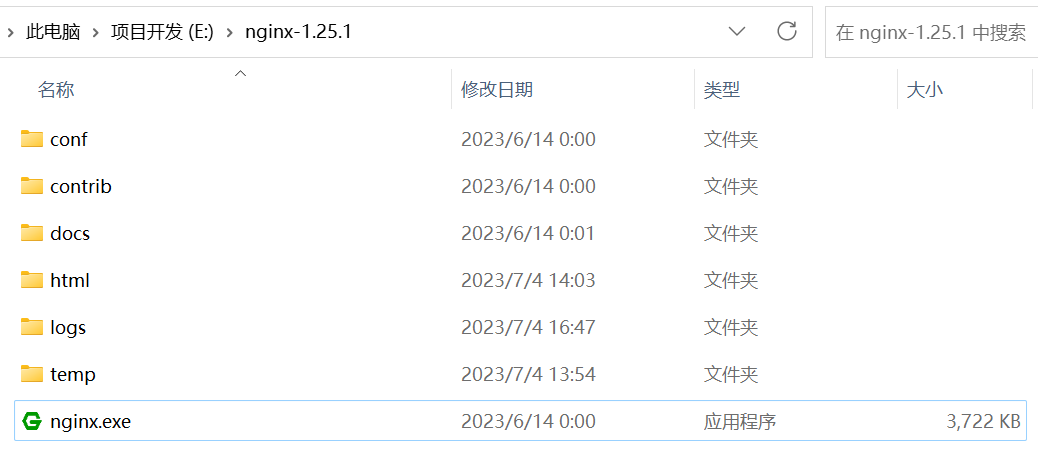
解压后目录如下:
启动
双击nginx.exe,会有黑窗闪过。
用cmd命令窗口,cd 到nginx解压目录,
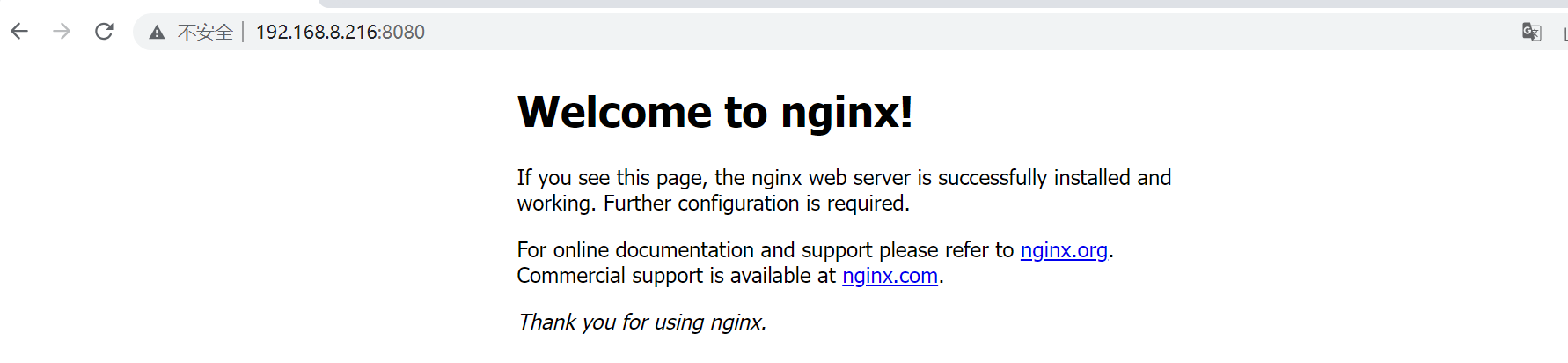
./nginx启动。在浏览器中访问
http://localhost:80,出现以下界面说明启动成功(由于笔者电脑80端口被占用,所以更改为8080,nginx默认为80端口)。
部署Vue项目
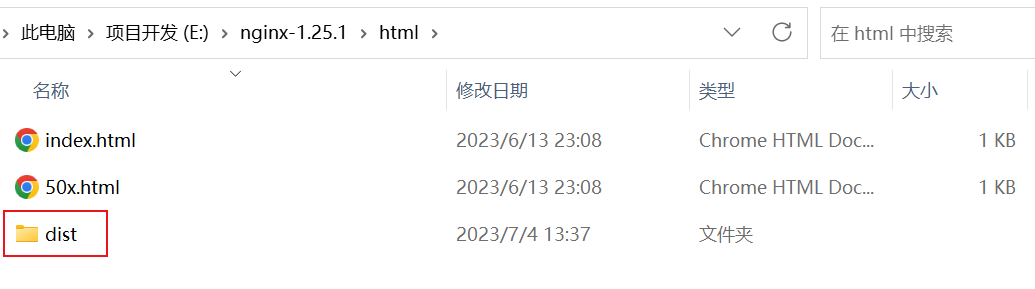
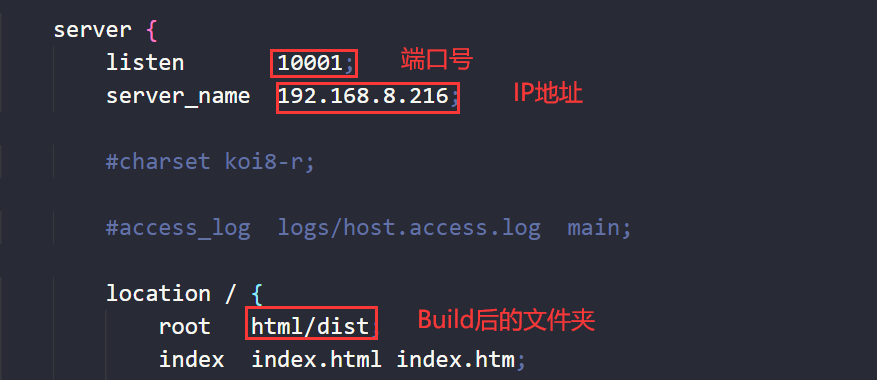
- 将build后的文件夹放到nginx目录下的html文件夹当中。
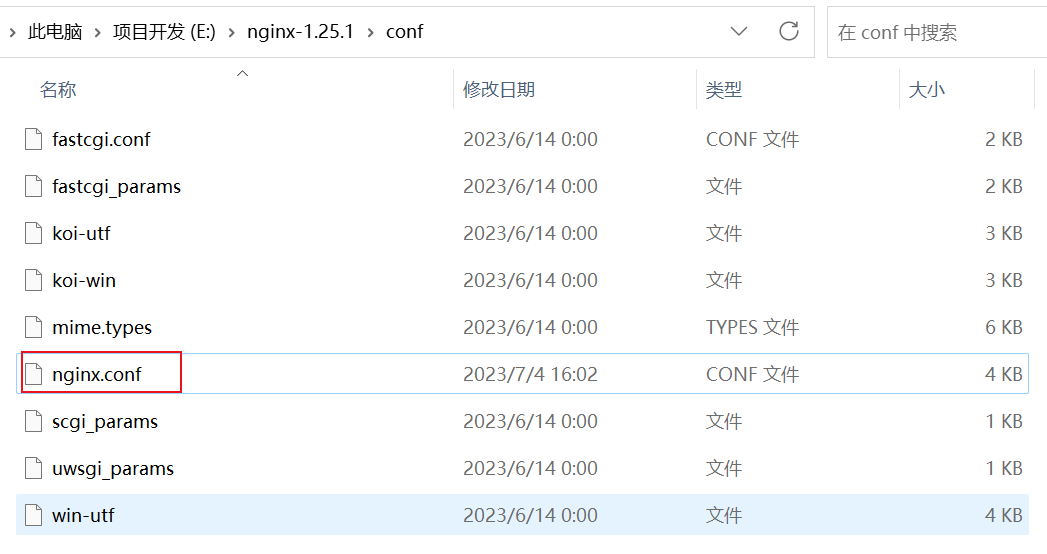
- 修改nginx.conf配置文件。
- 配置访问地址。
其他常用配置
跨域配置
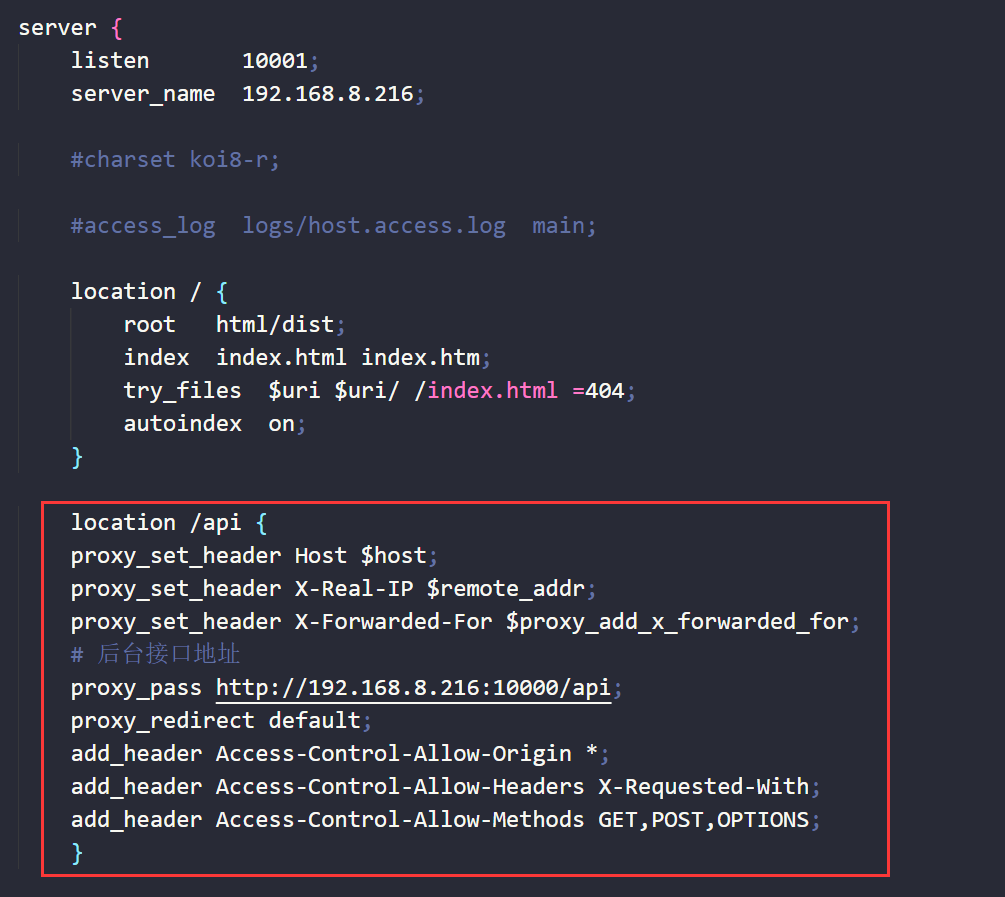
代码:
location /api {

		proxy_set_header Host $host;

		proxy_set_header X-Real-IP $remote_addr;

		proxy_set_header X-Forwarded-For $proxy_add_x_forwarded_for;

		# 后台接口地址

		proxy_pass http://192.168.8.216:10000/api;

		proxy_redirect default;

		add_header Access-Control-Allow-Origin *;

		add_header Access-Control-Allow-Headers X-Requested-With;

		add_header Access-Control-Allow-Methods GET,POST,OPTIONS;

		}
文件上传大小配置
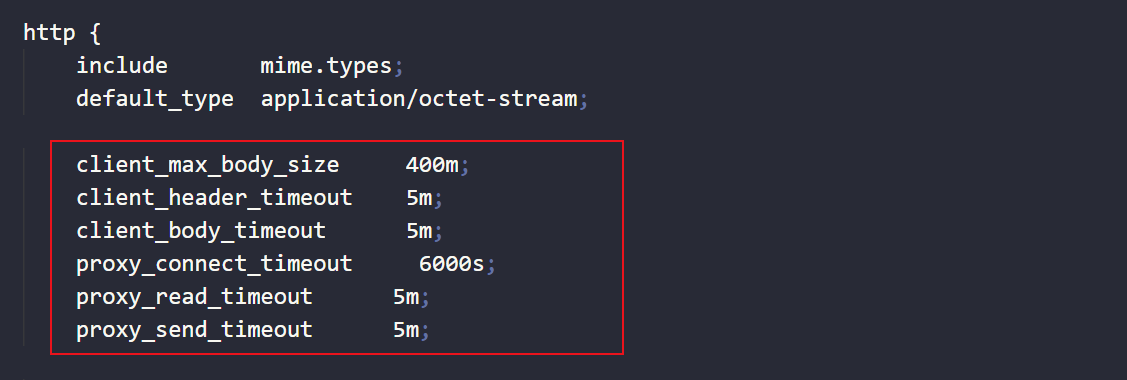
代码:
client_max_body_size     50m;  # 限制请求体的大小,若超过所设定的大小,返回413错误,默认1m

client_header_timeout    1m;  # 读取请求头的超时时间,若超过所设定的大小,返回408错误

client_body_timeout      1m; # 读取请求实体的超时时间,若超过所设定的大小,返回413错误

proxy_connect_timeout     60s; # http请求无法立即被容器(tomcat, netty等)处理,被放在nginx的待处理池中等待被处理。此参数为等待的最长时间,默认为60秒,官方推荐最长不要超过75秒

proxy_read_timeout      1m;  # http请求被容器(tomcat, netty等)处理后,nginx会等待处理结果,也就是容器返回的response。此参数即为服务器响应时间,默认60秒

proxy_send_timeout      1m; # http请求被服务器处理完后,把数据传返回给Nginx的用时,默认60秒
Nginx部署Vue项目刷新404问题

代码:
     location / {

            root   html/dist;

            index  index.html index.htm;

            try_files  $uri $uri/ /index.html =404;

            autoindex  on;

        }
常用命令
| 序号 | 命令 | 功能 |
|---|---|---|
| 1 | taskkill /im nginx.exe /f | 关闭所有nginx进程 |
| 2 | tasklist | find /i “nginx.exe” || exit | 查看nginx的进程使用情况 |
| 3 | taskkill /pid 1234 /f | 关闭指定进程 |
| 4 | ./nginx | 启动 |
| 5 | ./nginx-s stop | 停止 |
| 6 | ./nginx-s quit | 安全退出 |
| 7 | ./nginx-s reload | 重新加载配置文件 |
完整配置
#user  nobody;

worker_processes  1;

#error_log  logs/error.log;

#error_log  logs/error.log  notice;

#error_log  logs/error.log  info;

#pid        logs/nginx.pid;

events {

    worker_connections  1024;

}

http {

    include       mime.types;

    default_type  application/octet-stream;

	client_max_body_size     400m;

    client_header_timeout    5m;

    client_body_timeout      5m;

    proxy_connect_timeout     6000s;

    proxy_read_timeout      5m;

    proxy_send_timeout      5m;

    #log_format  main  '$remote_addr - $remote_user [$time_local] "$request" '

    #                  '$status $body_bytes_sent "$http_referer" '

    #                  '"$http_user_agent" "$http_x_forwarded_for"';

    #access_log  logs/access.log  main;

    sendfile        on;

    #tcp_nopush     on;

    #keepalive_timeout  0;

    keepalive_timeout  65;

    #gzip  on;

    server {

        listen       10001;

        server_name  192.168.8.216;

        #charset koi8-r;

        #access_log  logs/host.access.log  main;

        location / {

            root   html/dist;

            index  index.html index.htm;

            try_files  $uri $uri/ /index.html =404;

            autoindex  on;

        }

		location /api {

		proxy_set_header Host $host;

		proxy_set_header X-Real-IP $remote_addr;

		proxy_set_header X-Forwarded-For $proxy_add_x_forwarded_for;

		# 后台接口地址

		proxy_pass http://192.168.8.216:10000/api;

		proxy_redirect default;

		add_header Access-Control-Allow-Origin *;

		add_header Access-Control-Allow-Headers X-Requested-With;

		add_header Access-Control-Allow-Methods GET,POST,OPTIONS;

		}

        #error_page  404              /404.html;

        # redirect server error pages to the static page /50x.html

        #

        error_page   500 502 503 504  /50x.html;

        location = /50x.html {

            root   html;

        }

        # proxy the PHP scripts to Apache listening on 127.0.0.1:80

        #

        #location ~ \.php$ {

        #    proxy_pass   http://127.0.0.1;

        #}

        # pass the PHP scripts to FastCGI server listening on 127.0.0.1:9000

        #

        #location ~ \.php$ {

        #    root           html;

        #    fastcgi_pass   127.0.0.1:9000;

        #    fastcgi_index  index.php;

        #    fastcgi_param  SCRIPT_FILENAME  /scripts$fastcgi_script_name;

        #    include        fastcgi_params;

        #}

        # deny access to .htaccess files, if Apache's document root

        # concurs with nginx's one

        #

        #location ~ /\.ht {

        #    deny  all;

        #}

    }

    # another virtual host using mix of IP-, name-, and port-based configuration

    #

    #server {

    #    listen       8000;

    #    listen       somename:8080;

    #    server_name  somename  alias  another.alias;

    #    location / {

    #        root   html;

    #        index  index.html index.htm;

    #    }

    #}

    # HTTPS server

    #

    #server {

    #    listen       443 ssl;

    #    server_name  localhost;

    #    ssl_certificate      cert.pem;

    #    ssl_certificate_key  cert.key;

    #    ssl_session_cache    shared:SSL:1m;

    #    ssl_session_timeout  5m;

    #    ssl_ciphers  HIGH:!aNULL:!MD5;

    #    ssl_prefer_server_ciphers  on;

    #    location / {

    #        root   html;

    #        index  index.html index.htm;

    #    }

    #}

}
Nginx开机自启
原理
通过 Windows Service Wrapper 工具,将Nginx转换为Windows服务,Windows系统重启后会自动启动Nginx服务。
实现方法
下载
Windows Service Wrapper工具,地址:https://github.com/winsw/winsw/releases,根据系统版本下载对应工具。百度云:https://pan.baidu.com/s/1_olg0NN4lvhC5bmnZIoZ5w 提取码:polf
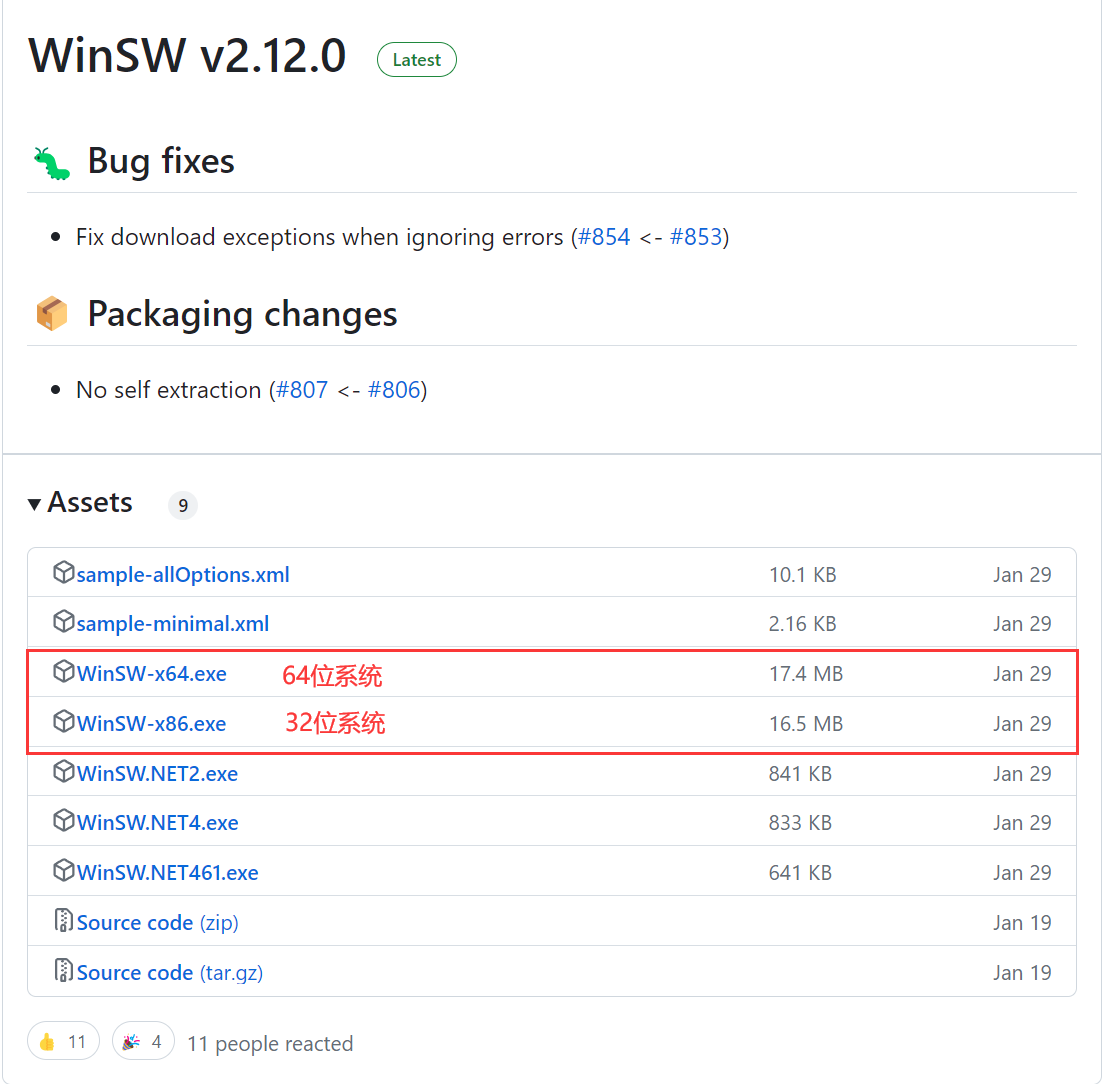
将工具放到Nginx安装目录并命名为
nginx-service.exe。在Nginx目录新建服务日志文件夹
server-logs文件夹。新建
nginx-service.xml文件,写入配置文件。整体目录如下:
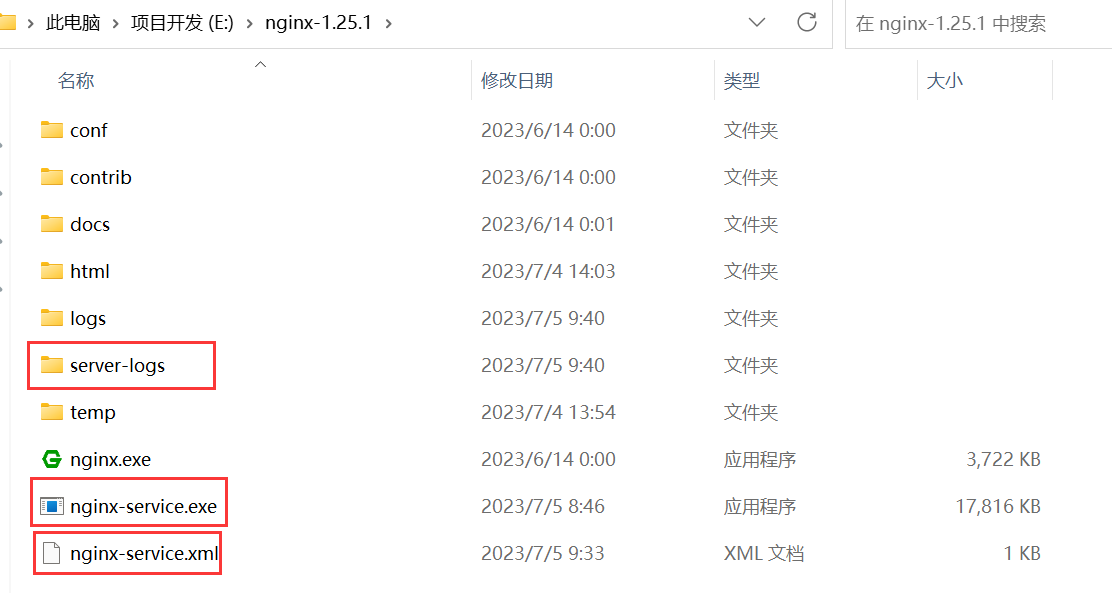
配置文件如下:主要包含日志位置、启动和关闭,目录根据自己安装位置调整(不要有中文)。
<!-- nginx-service.xml -->

<service>

	<id>nginx</id>

	<name>nginx</name>

	<description>nginx</description>

	<logpath>E:\nginx-1.25.1\server-logs\</logpath>

	<logmode>roll</logmode>

	<depend></depend>

	<executable>E:\nginx-1.25.1\nginx.exe</executable>

	<stopexecutable>E:\nginx-1.25.1\nginx.exe -s stop</stopexecutable>

</service>
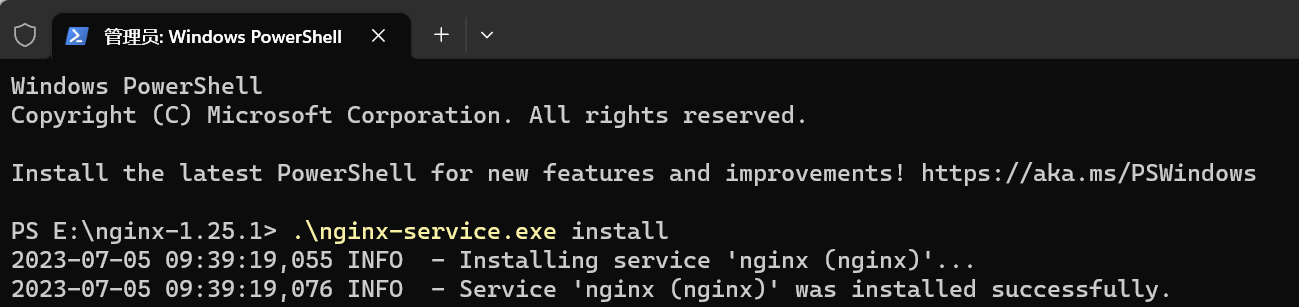
- 将nginx加载到Windows服务中。在nginx安装目录以管理员身份启用CMD输入:
.\nginx-service.exe install
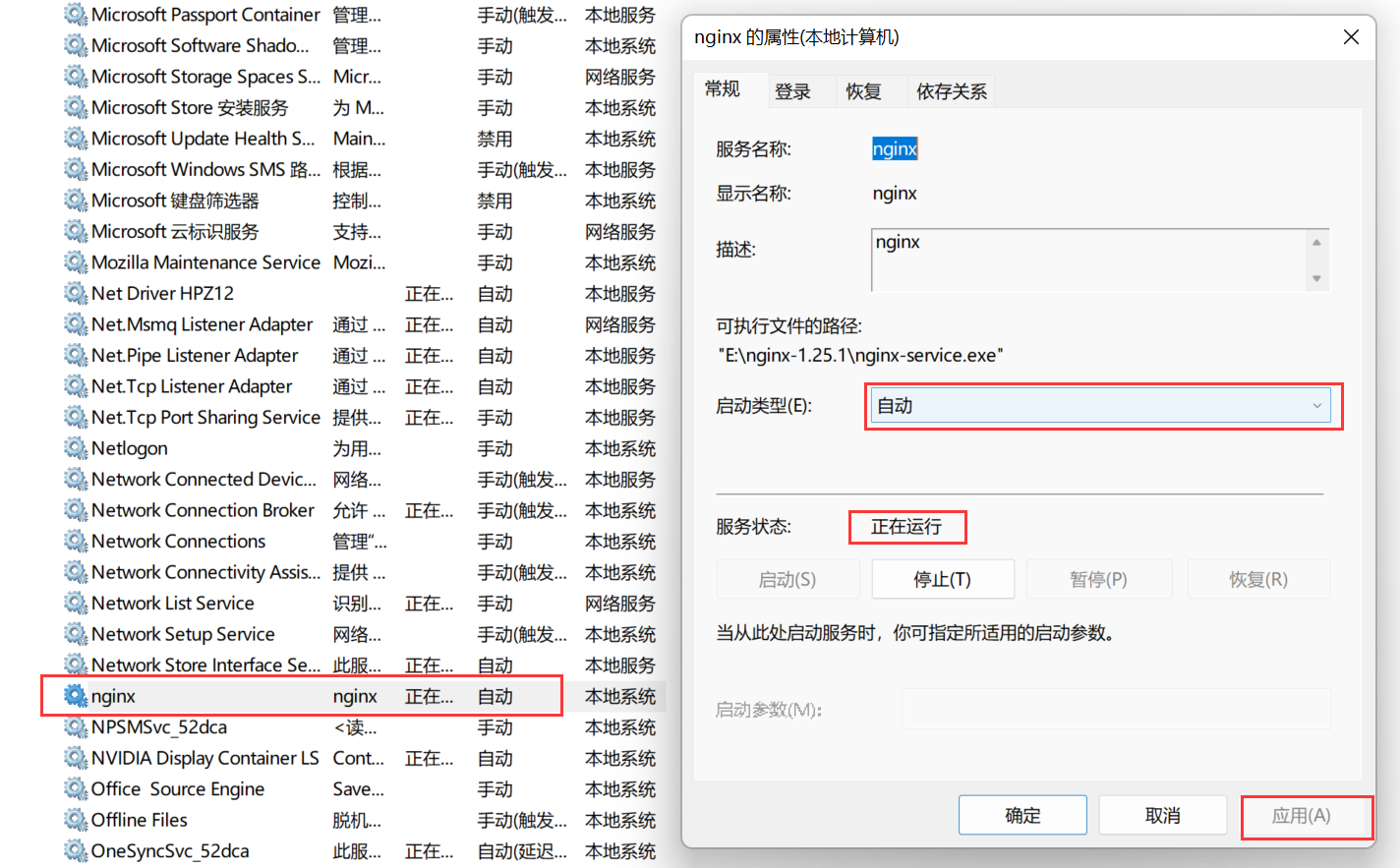
- 在Windows服务中找到nginx服务,将启动方式改成自动并将其启动。
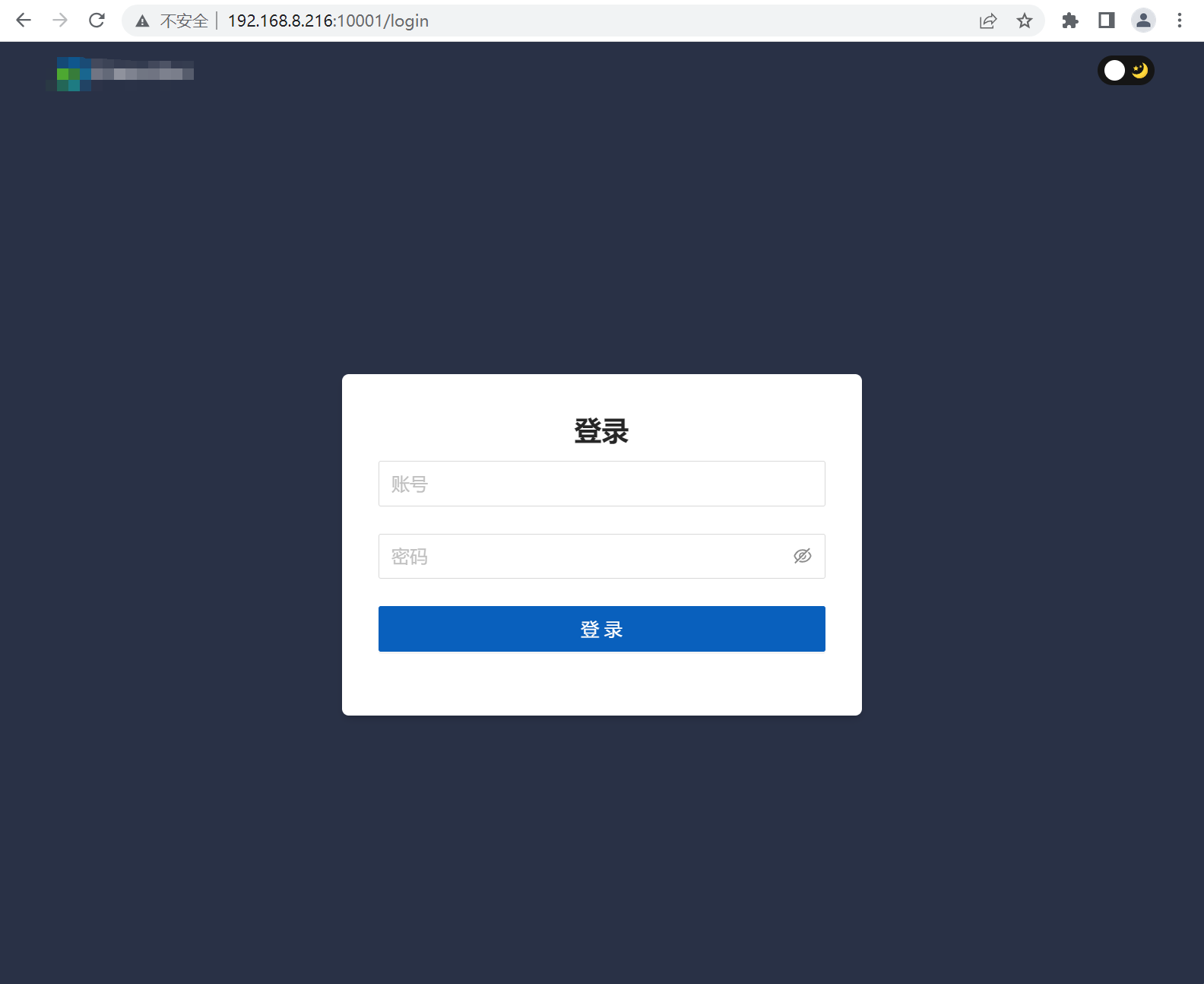
- 通过浏览器访问项目地址,检查是否启动成功。
Windows Service Wtapper 命令
| 命令 | 功能 |
|---|---|
| nginx-service.exe install | 注册系统服务 |
| nginx-service.exe uninstall | 删除已注册系统服务 |
| nginx-service.exe stop | 关闭服务 |
| nginx-service.exe start | 启动服务 |
Windows系统使用Nginx部署Vue的更多相关文章
- nginx部署vue项目
nginx是一个高性能的HTTP和反向代理服务器.因此常用来做静态资源服务器和后端的反向代理服务器.本文主要记录使用nginx去部署使用vue搭建的前端项目,项目基于vue官方的脚手架vue-cli构 ...
- windows系统dokuwiki安装部署设置 xampp环境配置
简单记录一次安装dokuwiki的过程 dokuwiki下载 dokuwiki下载地址 https://download.dokuwiki.org/ 下载前有一些可选项目,版本.语言.插件,可以按照需 ...
- 部署基于.netcore5.0的ABP框架后台Api服务端,以及使用Nginx部署Vue+Element前端应用
前面介绍了很多关于ABP框架的后台Web API 服务端,以及基于Vue+Element前端应用,本篇针对两者的联合部署,以及对部署中遇到的问题进行处理.ABP框架的后端是基于.net core5.0 ...
- Windows系统下Nginx的安装与配置
Nginx是lgor Sysoev在2004年的时候为俄罗斯访问量第二大的rambler.ru站点设计开发的,发布至今,凭借开源的力量,已经接近成熟与完善.其功能丰富,可作为HTTP服务器,也可作为反 ...
- CentOS7 安装nginx部署vue项目
简单描述:代码开发完了,需要环境来运行测试.服务器上没有nginx,搞起搞起. 在Centos下,yum源不提供nginx的安装,可以通过切换yum源的方法获取安装.也可以通过直接下载安装包的方法 ...
- Windows版:Nginx部署React项目并访问Spring Boot后台数据
一, 打包react项目 1,在工作空间目录下create-react-app test-arrange 创建项目test-arrange 2,在新建的项目中写好请求与页面 3,打包, 在项目目录下 ...
- Window 使用Nginx 部署 Vue 并把nginx设为windows服务开机自动启动
1.编译打包Vue项目 在终端输入 npm run build 进行打包编译.等待... 打包完成生成dist文件夹,这就是打包完成的文件. 我们先放着,进行下一步. 2下载Nginx 下载地址: h ...
- 吻逗死(windows)系统下自动部署脚本(for java spring*)及linux命令行工具
转载请注明出处:https://www.cnblogs.com/funnyzpc/p/10051647.html (^^)(^^)自動部署腳本原本在上個公司就在使用,由於近期同事需要手動部署一個Spr ...
- windows环境下Nginx部署及Https设置
一.Nginx安装部署及常用命令. 1.1.其实Nginx是免安装的.直接在官网下载zip包,解压即可,下载地址:http://nginx.org/en/download.html,因为我这边的开发服 ...
- Docker镜像+nginx 部署 vue 项目
一.打包vue项目 在开发完的vue项目输入如下命名,打包生成dist文件夹 yarn build / npm run build 此时根目录会多出一个文件夹:dist文件夹,里面就是我们要发布的东西 ...
随机推荐
- Springboot集成MongoDB存储文件、读取文件
一.前言和开发环境及配置 可以转载,但请注明出处. 之前自己写的SpringBoot整合MongoDB的聚合查询操作,感兴趣的可以点击查阅. https://www.cnblogs.com/zaoyu ...
- Golang一日一库之logrus
前言 之前一篇文章介绍了 日志库zap https://www.cnblogs.com/zichliang/p/17311480.html 毋庸置疑,zap库无论是Golang在项目中 还是生产中都极 ...
- SpringBoot自定义权限过滤注解详解
一.需求 我们在做项目的时候,通常会根据不同的账号登录进去,展示的菜单和列表不同,这是因为我们在后端根据定义的角色权限,来筛选不同的数据.我们来看看我们Before和After是如何做的. 二.Bef ...
- 「学习笔记」重修 FHQ-treap
无旋 treap 的操作方式使得它天生支持维护序列.可持久化等特性. 无旋 treap 又称分裂合并 treap.它仅有两种核心操作,即为 分裂 与 合并.通过这两种操作,在很多情况下可以比旋转 tr ...
- YOLO3论文中文版
文章目录 YOLO3论文中文版 摘要 1.引言 2. 解决方案 2.1 边界框预测 2.2 类预测 2.3 多尺度预测 2.4 特征提取器 2.5 训练 3.我们的做法 4. 失败的尝试 5.这一切意 ...
- php获取未解码之前的原始接口请求参数
前言 目前的几个项目,业务方基本都使用POST方式请求接口,我们本机磁盘会保留一份请求的原始参数用于请求分析和问题排查使用,一般有问题,也会基于seqid(请求唯一id)捞到日志,copy参数模拟请求 ...
- 利用css var函数让你的组件样式输出规范样式API,可定制性更高;
我们平时在使用Elementui Antdesing这些UI库时,难免会碰到使用deep强行侵入式去修改组件内部样式的情况: 比如下列代码,我们需要把ant的分页样式进行高度自定义,就得使用dee ...
- 【ATL】注册插件成功后自动设置浏览器允许弹出窗口注册表
STDAPI DllInstall(BOOL bInstall, LPCWSTR pszCmdLine) { HRESULT hr = E_FAIL; static const wchar_t szU ...
- #Python merge函数,pandas库数据查询功能,对标V-LOOKUP
日常办公中,我们经常会遇到需要匹配表,匹配对应数据的场景,在EXCEL中,我们习惯使用VLOOKUP函数或者是X-LOOKUP函数,今天学习的是Python,pandas库中的匹配功能. 首先导入所需 ...
- 2021-05-18:Nim博弈。给定一个正数数组arr,先手和后手每次可以选择在一个位置拿走若干值, 值要大于0,但是要小于该处的剩余。谁最先拿空arr,谁赢。根据arr,返回谁赢 。
2021-05-18:Nim博弈.给定一个正数数组arr,先手和后手每次可以选择在一个位置拿走若干值, 值要大于0,但是要小于该处的剩余.谁最先拿空arr,谁赢.根据arr,返回谁赢 . 福大大 答案 ...