
uni-app实现图片和视频上传功能
使用uni-app实现点击上传,既可以上传视频,有可以上传图片,图片预览,删除图片和视频功能,最终效果如下。uni-app里面没有提供同时上传视频和图片这个插件,只能靠自己手写,
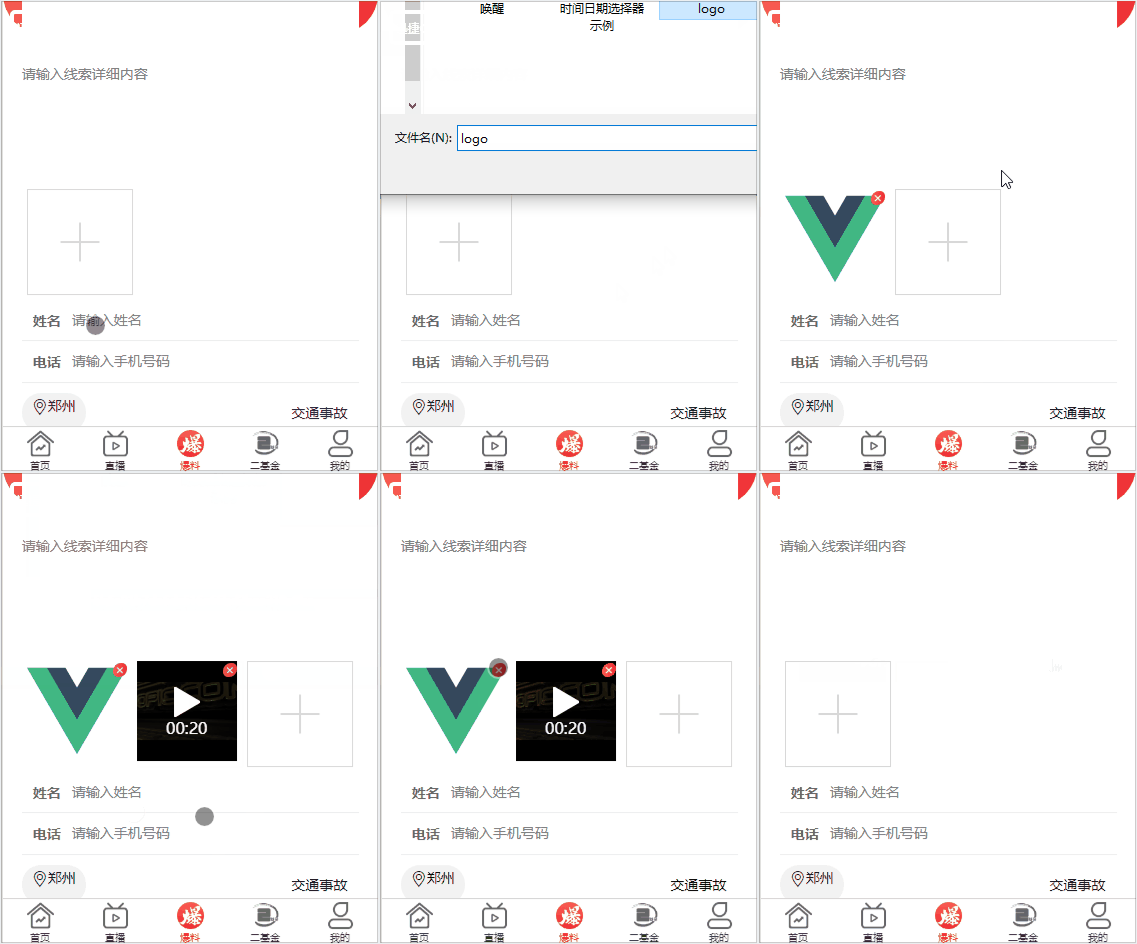
1.页面布局
通过uni-app提供的标签,进行页面布局,这里就不多讲了,uni-app提供的有这个案例,可以直接把他们的样式拷贝过来修改一下就行。
<view class="uni-uploader-body">

                        <view class="uni-uploader__files">

                            <!-- 图片 -->

                           <block v-for="(image,index) in imageList" :key="index">

                                <view class="uni-uploader__file">

                                    <view class="icon iconfont icon-cuo" @tap="delect(index)"></view>

                                    <image class="uni-uploader__img" :src="data:image" :data-src="data:image" @tap="previewImage"></image>

                                </view>

                            </block>

                            <!-- 视频 -->

                            <view class="uni-uploader__file" v-if="src">

                                <view class="uploader_video">

                                    <view class="icon iconfont icon-cuo" @tap="delectVideo"></view>

                                    <video :src="src" class="video"></video>

                                </view>

                            </view>

                            <view class="uni-uploader__input-box" v-if="VideoOfImagesShow">

                                <view class="uni-uploader__input" @tap="chooseVideoImage"></view>

                            </view>

                        </view>

                    </view>
1.在data定义一些变量
data() {

            return {

                imageList:[],//图片

                src:"",//视频存放

                sourceTypeIndex: ,

                sourceType: ['拍摄', '相册', '拍摄或相册'],
          VideoOfImagesShow:true,

                cameraList: [{

                        value: 'back',

                        name: '后置摄像头',

                        checked: 'true'

                    },

                    {

                        value: 'front',

                        name: '前置摄像头'

                    },

                ],

            }

        },
3.通过使用uni-app提供的api显示操作菜单,在methods写这个方法,通过判断来,选择的是图片还是视频,根据选择的tabindex选择,然后调用对应的方法即可
chooseVideoImage(){

                uni.showActionSheet({

                    title:"选择上传类型",

                    itemList: ['图片','视频'],

                    success: (res) => {

                        console.log(res)

                        if(res.tapIndex == ){

                            this.chooseImages()

                        } else {

                            this.chooseVideo()

                        }

                    }

                })

            },
4.上传图片功能,也是通过uni-app提供的chooseImages来实现
chooseImages(){

				// 上传图片

				uni.chooseImage({

					count: 4, //默认9

					// sizeType: ['original', 'compressed'], //可以指定是原图还是压缩图,默认二者都有

					sourceType: ['album','camera'], //从相册选择

					success:(res)=> {

						let igmFile = res.tempFilePaths;

						uni.uploadFile({

							url:this.config.fileUrl,

							method:"POST",

							header:{

								'Authorization':'bearer '+ uni.getStorageSync('token'),

								'Content-Type':'multipart/form-data'

							},

							filePath:igmFile[0],

							name:'file',

							success: (res) =>{

								// let imgUrls = JSON.parse(res.data); //微信和头条支持

								let imgUrls = res.data //百度支持

								this.imagesUrlPath = this.imagesUrlPath.concat(imgUrls.result.filePath);

								this.imageList = this.imageList.concat(imgUrls.result.filePath); //微信

								if(this.imageList.length>=4) {

									this.VideoOfImagesShow = false;

								} else {

									this.VideoOfImagesShow = true;

								}

							}

						})

						// this.imageList = this.imageList.concat(res.tempFilePaths)  //头条

					},

				});

			},
5.图片预览功能,urls必须要接受的是一个数组
previewImage: function(e) {

				//预览图片

				var current = e.target.dataset.src

				uni.previewImage({

					current: current,

					urls: this.imageList

				})

			},
6.点击图片删除功能,点击对应的图片,根据index索引值进行删除
delect(index){

                uni.showModal({

                    title: "提示",

                    content: "是否要删除该图片",

                    success: (res) => {

                        if (res.confirm) {

                            this.imageList.splice(index, )

                        }

                    }

                })

            },
7.实现视频上传功能
chooseVideo(){

                // 上传视频

                uni.chooseVideo({

                    maxDuration:,

                    count: ,

                    camera: this.cameraList[this.cameraIndex].value,

                    sourceType: ['album'],

                    success: (responent) => {

                        let videoFile = responent.tempFilePath;

                        uni.uploadFile({

                            url:this.config.fileUrl,

                            method:"POST",

                            header:{

                                'Authorization':'bearer '+ uni.getStorageSync('token')

                            },

                            filePath:videoFile,

                            name:'file',

                            success: (res) => {

                                // let videoUrls = JSON.parse(res.data) //微信和头条支持

                                let videoUrls = res.data //百度支持

                                this.imagesUrlPath = this.imagesUrlPath.concat(videoUrls.result.filePath);

                                this.src = videoUrls.result.filePath; //微信

                                if(this.src) {

                                    this.itemList = ['图片']

                                } else {

                                    this.itemList = ['图片','视频']

                                }

                            }

                        })

                        // this.src = responent.tempFilePath;  //头条

                    }

                })

            },
8.点击视频删除功能
delectVideo(){

                uni.showModal({

                    title:"提示",

                    content:"是否要删除此视频",

                    success:(res) =>{

                        if(res.confirm){

                            this.src = ''

                        }

                    }

                })

            },
最终代码
<template>

    <view class="burst-wrap">

        <view class="burst-wrap-bg">

            <view>

                <!-- 信息提交 -->

                <view class="burst-info">

                    <view class="uni-uploader-body">

                        <view class="uni-uploader__files">

                            <!-- 图片 -->

                           <block v-for="(image,index) in imageList" :key="index">

                                <view class="uni-uploader__file">

                                    <view class="icon iconfont icon-cuo" @tap="delect(index)"></view>

                                    <image class="uni-uploader__img" :src="data:image" :data-src="data:image" @tap="previewImage"></image>

                                </view>

                            </block>

                            <!-- 视频 -->

                            <view class="uni-uploader__file" v-if="src">

                                <view class="uploader_video">

                                    <view class="icon iconfont icon-cuo" @tap="delectVideo"></view>

                                    <video :src="src" class="video"></video>

                                </view>

                            </view>

                            <view class="uni-uploader__input-box" v-if="VideoOfImagesShow">

                                <view class="uni-uploader__input" @tap="chooseVideoImage"></view>

                            </view>

                        </view>

                    </view>

                </view>

            </view>

        </view>

    </view>

</template>

<script>

    var sourceType = [

            ['camera'],

            ['album'],

            ['camera', 'album']

        ]

    export default {

        data() {

            return {

                imageList:[],//图片

                src:"",//视频存放

                sourceTypeIndex: ,

                checkedValue:true,

                checkedIndex:,

                sourceType: ['拍摄', '相册', '拍摄或相册'],

                cameraList: [{

                        value: 'back',

                        name: '后置摄像头',

                        checked: 'true'

                    },

                    {

                        value: 'front',

                        name: '前置摄像头'

                    },

                ],

                cameraIndex: ,

                VideoOfImagesShow:true,

            }

        },

        onUnload() {

            this.src = '',

            this.sourceTypeIndex = ,

            this.sourceType = ['拍摄', '相册', '拍摄或相册'];

        },

        methods: {

            chooseVideoImage(){

                uni.showActionSheet({

                    title:"选择上传类型",

                    itemList: ['图片','视频'],

                    success: (res) => {

                        console.log(res)

                        if(res.tapIndex == ){

                            this.chooseImages()

                        } else {

                            this.chooseVideo()

                        }

                    }

                })

            },

            chooseImages(){

                // 上传图片

                uni.chooseImage({

                    count: , //默认9

                    // sizeType: ['original', 'compressed'], //可以指定是原图还是压缩图,默认二者都有

                    sourceType: ['album','camera'], //从相册选择

                    success:(res)=> {

                        let igmFile = res.tempFilePaths;

                        uni.uploadFile({

                            url:this.config.fileUrl,

                            method:"POST",

                            header:{

                                'Authorization':'bearer '+ uni.getStorageSync('token'),

                                'Content-Type':'multipart/form-data'

                            },

                            filePath:igmFile[],

                            name:'file',

                            success: (res) =>{

                                // let imgUrls = JSON.parse(res.data); //微信和头条支持

                                let imgUrls = res.data //百度支持

                                this.imagesUrlPath = this.imagesUrlPath.concat(imgUrls.result.filePath);

                                this.imageList = this.imageList.concat(imgUrls.result.filePath); //微信

                                if(this.imageList.length>=) {

                                    this.VideoOfImagesShow = false;

                                } else {

                                    this.VideoOfImagesShow = true;

                                }

                            }

                        })

                        // this.imageList = this.imageList.concat(res.tempFilePaths)  //头条

                    },

                });

            },

            chooseVideo(){

                // 上传视频

                uni.chooseVideo({

                    maxDuration:,

                    count: ,

                    camera: this.cameraList[this.cameraIndex].value,

                    sourceType: ['album'],

                    success: (responent) => {

                        let videoFile = responent.tempFilePath;

                        uni.uploadFile({

                            url:this.config.fileUrl,

                            method:"POST",

                            header:{

                                'Authorization':'bearer '+ uni.getStorageSync('token')

                            },

                            filePath:videoFile,

                            name:'file',

                            success: (res) => {

                                // let videoUrls = JSON.parse(res.data) //微信和头条支持

                                let videoUrls = res.data //百度支持

                                this.imagesUrlPath = this.imagesUrlPath.concat(videoUrls.result.filePath);

                                this.src = videoUrls.result.filePath; //微信

                                if(this.src) {

                                    this.itemList = ['图片']

                                } else {

                                    this.itemList = ['图片','视频']

                                }

                            }

                        })

                        // this.src = responent.tempFilePath;  //头条

                    }

                })

            },

            previewImage: function(e) {

                //预览图片

                var current = e.target.dataset.src

                uni.previewImage({

                    current: current,

                    urls: this.imageList

                })

            },

            delect(index){

                uni.showModal({

                    title: "提示",

                    content: "是否要删除该图片",

                    success: (res) => {

                        if (res.confirm) {

                            this.imageList.splice(index, )

                        }

                    }

                })

            },

            delectVideo(){

                uni.showModal({

                    title:"提示",

                    content:"是否要删除此视频",

                    success:(res) =>{

                        if(res.confirm){

                            this.src = ''

                        }

                    }

                })

            }

        }

    }

</script>

<style>

.burst-wrap{

    width: %;

    height: %;

}

/* .burst-wrap .burst-wrap-bg{

    position: relative;

    width: 100%;

    height: 320upx;

    background:linear-gradient(90deg,rgba(251,91,80,1) 0%,rgba(240,45,51,1) 100%);

    border-bottom-right-radius: 80upx;

    border-bottom-left-radius: 80upx;

} */

.burst-wrap .burst-wrap-bg>view{

    width: %;

    height: %;

    margin:  auto;

    position: absolute;

    top: 65upx;

    left: ;

    right: ;

}

.form-item{

    width: %;

}

.form-item textarea{

    display: block;

    height: 220upx;

    width: %;

    color: #AAAAAA;

    font-size: 28upx;

}

.uni-uploader__file,.uploader_video{

    position: relative;

    z-index: ;

    width: 200upx;

    height: 200upx;

}

.uni-uploader__img {

    width: 200upx;

    height: 200upx;

}

.icon-cuo {

    position: absolute;

    right: ;

    top: 5upx;

    background: linear-gradient(90deg,rgba(,,,) %,rgba(,,,) %);

    color: #FFFFFF;

    z-index: ;

    border-top-right-radius: 20upx;

    border-bottom-left-radius: 20upx;

}

.video{

    width: %;

    height: %;

}

.login-input-box{

    position: relative;

    border-bottom: 1upx solid #EEEEEE;

}

.login-input-box .forget,.login-input-box .phone{

    position: absolute;

    top: ;

    height: %;

    z-index: ;

}

.login-input-box .phone{

    width: 100upx;

    left: ;

    color: #;

    font-weight: bold;

}

.login-input-box .phone-input{

    padding-left: 100upx;

}

.address-wrap,.open-info{

    margin-top: 20upx;

}

.open-info>view:last-child{

    font-size: 28upx;

    color: #;

}

.address-wrap .address {

    background: #F2F2F2;

    border-radius: 40upx;

    padding:  20upx;

}

.user-set-btn{

    margin: 40upx;

    background: linear-gradient(90deg,rgba(,,,) %,rgba(,,,) %);

    color: #FFFFFF;

    text-align: center;

    height: 88upx;

    line-height: 88upx;

}

</style>
以上都是实现这个功能的所有代码。
uni-app实现图片和视频上传功能的更多相关文章
- FileReader与URL.createObjectURL实现图片、视频上传前预览
之前做图片.视频上传预览常用的方案是先把文件上传到服务器,等服务器返回文件的地址后,再把该地址字符串赋给img或video的src属性,这才实现所谓的文件预览.实际上这只是文件“上传后再预览”,这既浪 ...
- input实现图片或视频上传(样式+代码)
背景:vue/element.ui 1..html: <div v-show="recordForm.resourceType==1"> <el-form-ite ...
- iView + vue-quill-editor 实现一个富文本编辑器(包含图片,视频上传)
1. 引入插件(注意IE10以下不支持) npm install vue-quill-editor --savenpm install quill --save (Vue-Quill-Editor需要 ...
- (转)Android学习-使用Async-Http实现图片压缩并上传功能
(转)Android学习-使用Async-Http实现图片压缩并上传功能 文章转载自:作者:RyaneLee链接:http://www.jianshu.com/p/940fc7ba39e1 让我头疼一 ...
- JSP+SpringMVC框架使用WebUploader插件实现注册时候头像图片的异步上传功能
一.去官网下载webuploader文件上传插件 https://fex.baidu.com/webuploader/ 下载好后把它放到Javaweb项目的文件夹中(我放到了webcontent下面的 ...
- antdv的Upload组件实现前端压缩图片并自定义上传功能
Ant Design of Vue的Upload组件有几个重要的api属性: beforeUpload: 上传文件之前的钩子函数,支持返回一个Promise对象. customRequest: 覆盖组 ...
- android之使用GridView+仿微信图片上传功能
由于工作要求最近在使用GridView完成图片的批量上传功能,我的例子当中包含仿微信图片上传.拍照.本地选择.相片裁剪等功能,如果有需要的朋友可以看一下,希望我的实际经验能对您有所帮助. 直接上图,下 ...
- 【腾讯云的1001种玩法】 Laravel 整合微视频上传管理能力,轻松打造视频App后台
版权声明:本文由白宦成原创文章,转载请注明出处: 文章原文链接:https://www.qcloud.com/community/article/108597001488193402 来源:腾云阁 h ...
- Thinkphp5图片上传正常,音频和视频上传失败的原因及解决
Thinkphp5图片上传正常,音频和视频上传失败的原因及解决 一.总结 一句话总结:php中默认限制了上传文件的大小为2M,查找错误的时候百度,且根据错误提示来查找错误. 我的实际问题是: 我的表单 ...
随机推荐
- IDEA导入MySQL的jdbc驱动,并操作数据库
将MySQL的jdbc驱动,导入IDEA的方式,虽然也能连接并且操作数据库,但并不推荐这种方式,推荐使用Maven工程的方式:https://www.cnblogs.com/dadian/p/1193 ...
- 《手把手教你》系列练习篇之3-python+ selenium自动化测试(详细教程)
1. 简介 前面介绍了,XPath, id , class , link text, partial link text, tag name, name 七大元素定位方法,本文介绍webdriver ...
- WPF 因设置不期望的DataContext,导致的绑定异常
在MainWindow中,创建一个背景属性BrushTest,并将其绑定至界面 <Window x:Class="WpfApp8.MainWindow" xmlns=&quo ...
- java关键字 保留字
Java 关键字和保留字 Java 关键字列表 (依字母排序 共51组): abstract, assert,boolean, break, byte, case, catch, char, clas ...
- 关于小码哥kylin
技术格言: 用双手改变人生,用代码改变世界! 个人网站:http://www.isainttech.com QQ:56619556 Email:dragonsaint@qq.com 微信:kylin1 ...
- js的模糊查询
在项目中会用到模糊查询,之前在首页是用的element的tree显示的目录,会有用到搜索,但tree里边会有自带的模糊查询,用filter-node-method方法使用 但上次的项目中 又涉及到不试 ...
- 区块链学习笔记:DAY05 如何使用公有云区块链服务
这是最后一节课了,主要讲华为云在云区块链提供的服务,如何基于华为云BCS来构建应用 先来个简单的比喻: 1.有关BaaS的范围定义 包含物理主机.虚拟主机.容器服务.区块链.智能合约和服务 2.华为云 ...
- Selenium 4 Java的最佳测试框架
几十年来,Java一直是开发应用程序服务器端的首选编程语言.尽管JUnit一直在与开发人员一起帮助他们进行自动化的单元测试,但随着时间的推移和测试行业的发展,特别是伴随着自动化测试的兴起,已经开发了许 ...
- Mysql的查询语句的使用
1. 简单查询 查询所有字段: SELECT * FROM 表名 查询特定字段: SELECT 字段列表 FROM 表名 2. 查询显示行号 - 在字段列表中加入(@rownum := @rownum ...
- python数据挖掘第二篇-爬虫
python爬虫 urllib用法 eg1: from urllib import request data = request.urlopen(urlString).read() # data获取的 ...