
canvas学写一个字
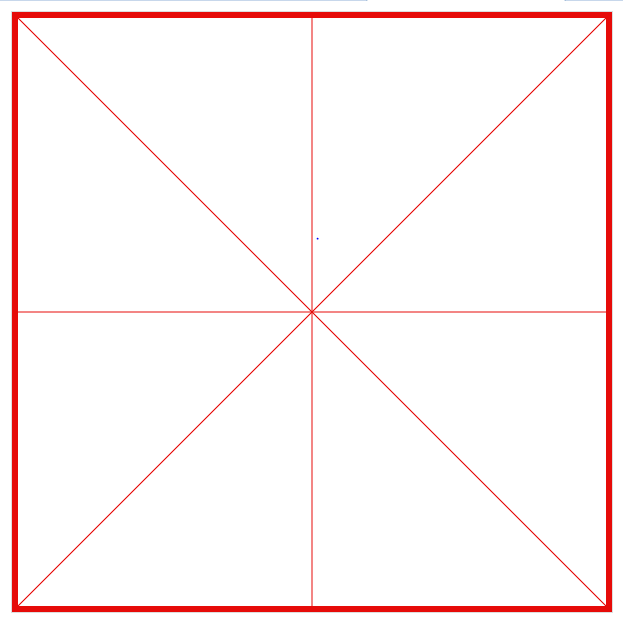
第一步:画一个米字格,先画一个矩形,再画中间的米字。
<script>

window.onload = function(){

  var canvas = document.getElementById('canvas');

  var context = canvas.getContext('2d');

  canvas.width = 600;

  canvas.height = canvas.width;

  var color ="black";

  //画出田字格

  drawGrid();

  //田字格

  function drawGrid(){

    context.save();

    context.strokeStyle = "rgb(230,11,9)";

    context.beginPath();

    context.moveTo(3,3);

    context.lineTo(canvas.width - 3,3);

    context.lineTo(canvas.width - 3,canvas.height -3);

    context.lineTo(3,canvas.height -3);

    context.closePath();

    context.lineWidth = 6;

    context.stroke();

    context.beginPath();

    context.moveTo(0,0);

    context.lineTo(canvas.width,canvas.height);

    context.moveTo(canvas.width,0);

    context.lineTo(0,canvas.height);

    context.moveTo(canvas.width/2,0);

    context.lineTo(canvas.width/2,canvas.height);

    context.moveTo(0,canvas.width/2);

    context.lineTo(canvas.width,canvas.height/2);

    context.lineWidth=1;

    context.stroke();

    context.restore();

  }

}
</script>
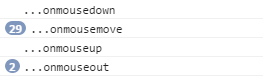
第二步.鼠标的四种状态:onmousedown、onmouseup、onmouseout、onmousemove。
根据分析写字的主要操作操作在onmousemove事件下进行的。鼠标onmouseup、onmouseout的时候应该停止写字。鼠标onmousedown触发写字。
所以需先判断鼠标是否按下,如果按下则onmousemove开始执行写字操作。否则不执行。
var isMouseDown = false; //初始化鼠标是否按下

canvas.onmousedown=function(e){//鼠标按下

      e.preventDefault();

      isMouseDown = true;

      console.log("...onmousedown");

}

canvas.onmouseup=function(e){//鼠标起来

      e.preventDefault();

      isMouseDown = false;

      console.log("...onmouseup");

}

canvas.onmouseout=function(e){//鼠标离开

      e.preventDefault();

      isMouseDown = false;

      console.log("...onmouseout");

}

canvas.onmousemove=function(e){//鼠标移动

     e.preventDefault();

         if(isMouseDown){

             console.log("...onmousemove");

         }

}
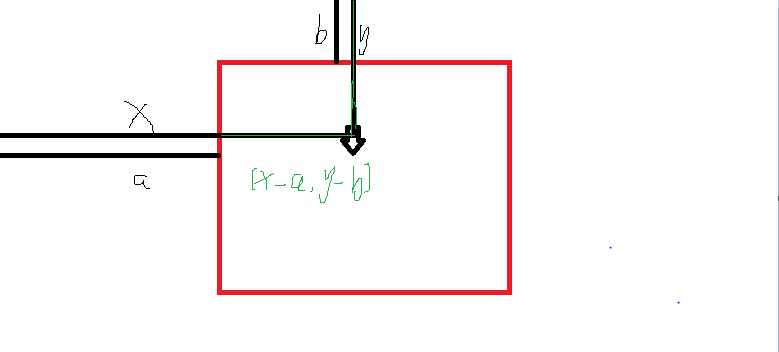
第三步:在canvas中写字,相当于鼠标移动的时候不停地画直线。那么问题来了,画直线就需要获得起始坐标。e.clientX,e.clientY只能获得当前屏幕的坐标,而我们需要的是canvas里面的坐标。
接下来我们需要想办法得到canvas的坐标了。在canvas中有一个方法getBoundingClientRect()可以获得canvas距离屏幕的距离。
我们可以通过获得光标屏幕坐标 - canvas距离屏幕的距离来得到光标在canvas中的坐标。
但是怎么确认哪个是起始位置,哪个是结束位置呢?所以一开始会初始化一个一开始的位置,lastLoc = {x:0,y:0};当鼠标落下,记录光标位置赋值给lastLoc。鼠标移动的时候获得当前坐标curLoc作为结束位置。
绘制结束后,将curLoc的值赋给lastLoc。所以每一次鼠标移动画直线的起始坐标为上一次的结束坐标,结束坐标为当前鼠标坐标。
var isMouseDown = false; //鼠标是否按下
var lastLoc = {x:0,y:0};//初始化鼠标上一次所在位置
canvas.onmousedown=function(e){
e.preventDefault();
isMouseDown = true;
lastLoc = windowToCanvas(e.clientX,e.clientY);//上一次的坐标
}
 canvas.onmousemove=function(e){

         e.preventDefault();

         if(isMouseDown){

                //draw

                var curLoc = windowToCanvas(e.clientX,e.clientY);//获得当前坐标

                var lineWidth = 5;

                context.lineWidth=lineWidth;

                context.beginPath();

                context.moveTo(lastLoc.x,lastLoc.y);//起始位置为鼠标落下的位置

                context.lineTo(curLoc.x,curLoc.y);//结束位置为当前位置

                context.strokeStyle=color;

                context.stroke();

                lastLoc = curLoc;//将当前坐标赋值给上一次坐标

                lastLineWidth = lineWidth;

          }

     }

     //获得canvas坐标

     function windowToCanvas(x,y){

            var bbox = canvas.getBoundingClientRect();

            return {x:Math.round(x-bbox.left),y:Math.round(y-bbox.top)};

     }
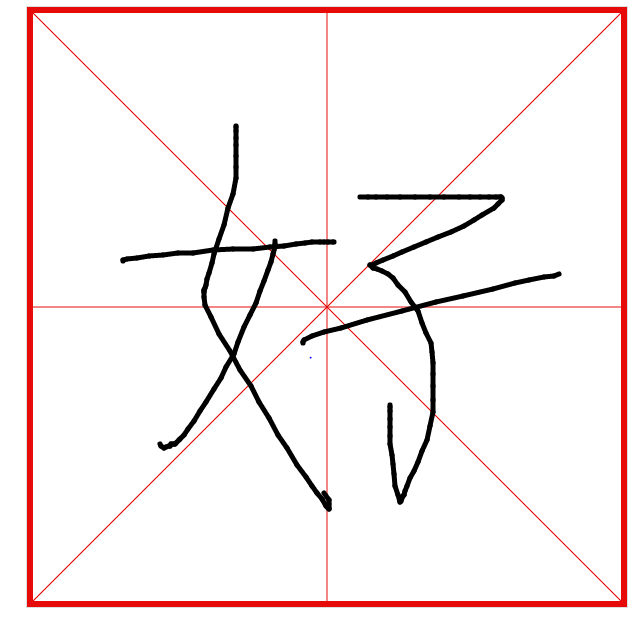
现在写字功能已经完成了,但是我们需要对他进行优化。
优化一:当把context.lineWidth改大一些的时候,我们会发现,写字功能变得很不光滑了。
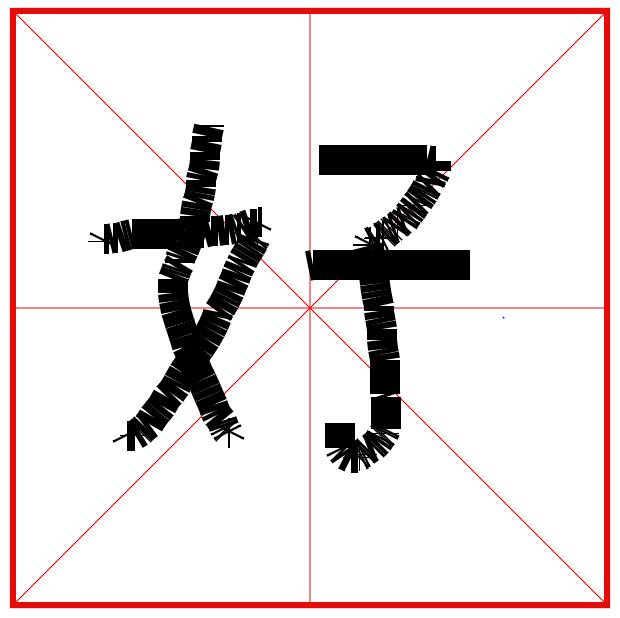
这是什么原因呢,我们可以尝试画两条宽度很大的直线看一下,两条直线之间确实是有缺口存在的,并且跟线的宽度有关。所以学写一个字会出现毛糙现象。
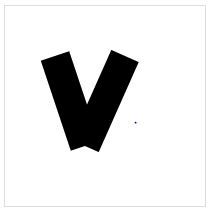
解决方法:设定线段端点的形状(线帽)
canvas.onmousemove=function(e){

            e.preventDefault();

            if(isMouseDown){

                //draw

                var curLoc = windowToCanvas(e.clientX,e.clientY);//获得当前坐标

                var lineWidth = 30;

                context.lineWidth=lineWidth;

                context.beginPath();

                context.moveTo(lastLoc.x,lastLoc.y);

                context.lineTo(curLoc.x,curLoc.y);

                context.strokeStyle=color;

                context.lineCap = "round"

                context.lineJoin = "round"

                context.stroke();

                lastLoc = curLoc;

                lastTimestamp = curTimestamp;

                lastLineWidth = lineWidth;

            }

        }
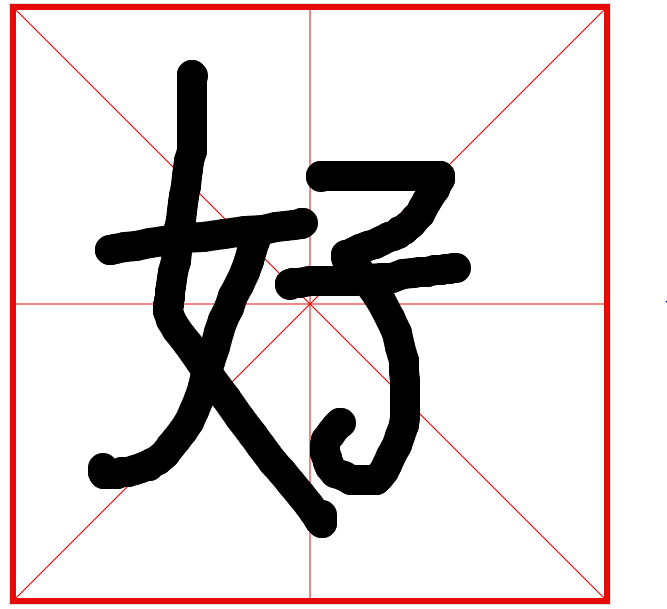
优化二:可以选择字的颜色,在页面上做一个色盘。
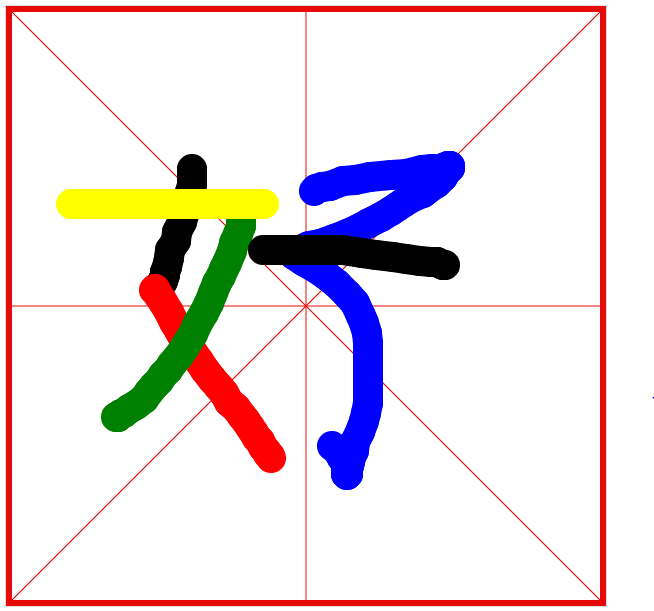
优化三:我们的字lineWidth是固定的,不能够向真正的毛笔字一样有粗细之分。
解决方法:通过运笔速度设置lineWidth的大小,运笔速度=距离 / 时间。时间可以通过时间戳获得。做法类似于lastLoc。
距离=当前坐标 - 上一次坐标。根据两点之间距离公式
设置一个做大lineWidth和一个最小的lineWidth,
var isMouseDown = false; //鼠标是否按下

var lastLoc = {x:0,y:0};//鼠标上一次所在位置

var lastTimestamp = 0;//时间戳

var lastLineWidth=-1;//上一次线条宽度

canvas.onmousemove=function(e){

      e.preventDefault();

      if(isMouseDown){

           //draw

           var curLoc = windowToCanvas(e.clientX,e.clientY);//获得当前坐标

           var curTimestamp = new Date().getTime();//当前时间

           var s = calcDistance(curLoc,lastLoc);//获得运笔距离

           var t = curTimestamp-lastTimestamp;//运笔时间

           var lineWidth = calcLineWidth(t,s);

           var lineWidth = 30;

           context.lineWidth=lineWidth;

           context.beginPath();

           context.moveTo(lastLoc.x,lastLoc.y);

           context.lineTo(curLoc.x,curLoc.y);

           context.strokeStyle=color;

           context.lineCap = "round"

           context.lineJoin = "round"

           context.stroke();

           lastLoc = curLoc;

           lastLineWidth = lineWidth;

       }

  }

  //获得canvas坐标

  function windowToCanvas(x,y){

       var bbox = canvas.getBoundingClientRect();

       return {x:Math.round(x-bbox.left),y:Math.round(y-bbox.top)};

  }

  //求两点之间距离

  function calcDistance(loc1,loc2){

       return Math.sqrt((loc1.x - loc2.x)*(loc1.x - loc2.x)+(loc1.y - loc2.y)*(loc1.y - loc2.y));

  }

  //求速度

  function calcLineWidth(t,s){

       var v = s/t;

       var resultLineWidth;

       if(v<=0.1){

           resultLineWidth=30;

       }else if(v>=10){

           resultLineWidth=1;

       }else{

           resultLineWidth=30-(v-0.1)/(10-0.1)*(30-1);

       }

       if(lastLineWidth==-1){

            return resultLineWidth;

       }

       return lastLineWidth*2/3+resultLineWidth*1/3;

  }
优化三:将项目改为移动端,touchstart,touchmove,touchend。函数封装,手机端跟pc端获得屏幕位置的方法不一样
//函数封装--开始

function beginStroke(point){

  isMouseDown = true

  //console.log("mouse down!")

  lastLoc = windowToCanvas(point.x, point.y)

  lastTimestamp = new Date().getTime();

}

function endStroke(){

  isMouseDown = false

}

function moveStroke(point){

  var curLoc = windowToCanvas(point.x , point.y);//获得当前坐标

  var curTimestamp = new Date().getTime();//当前时间

  var s = calcDistance(curLoc,lastLoc);//获得运笔距离

  var t = curTimestamp-lastTimestamp;//运笔时间

  var lineWidth = calcLineWidth(t,s);

  context.lineWidth=lineWidth;

  context.beginPath();

  context.moveTo(lastLoc.x,lastLoc.y);

  context.lineTo(curLoc.x,curLoc.y);

  context.strokeStyle=color;

  context.lineCap = "round"

  context.lineJoin = "round"

  context.stroke();

  lastLoc = curLoc;

  lastTimestamp = curTimestamp;

  lastLineWidth = lineWidth;

}

//手机端事件

canvas.addEventListener('touchstart',function(e){

    e.preventDefault()

    touch = e.touches[0] //获得坐标位置

    beginStroke( {x: touch.pageX , y: touch.pageY} )

});

canvas.addEventListener('touchmove',function(e){

    e.preventDefault()

    if( isMouseDown ){

         touch = e.touches[0]

         moveStroke({x: touch.pageX , y: touch.pageY})

    }

});

canvas.addEventListener('touchend',function(e){

     e.preventDefault()

     endStroke()

});
源码:
<!DOCTYPE html>

<html>

<head>

    <meta charset="utf-8">

    <title>学写一个字</title>

    <meta   name="viewport"

            content="height=device-height,

            width = device-width,

            initial-scale = 1.0,

            minimum-scale = 1.0,

            maxmum - scale = 1.0,

            user - scalable =no"/>

    <style>

        ul{

            overflow:hidden;

            cursor:pointer;

            width:400px;

            text-align:center;

            margin:20px auto;

        }

        ul li{

            float:left;

            width:40px;

            height:40px;

            border-radius:50%;

            margin-right:10px;

            border:4px solid transparent;

            list-style:none;

        }

        ul li:hover{

            border:4px solid violet;

        }

        .red{

            background-color:red;

        }

        .black{

            background-color:black;

        }

        .green{

            background-color:green;

        }

        .yellow{

            background-color:yellow;

        }

        .blue{

            background-color:blue;

        }

        button{

            width:90px;

            height:40px;

            line-height:40px;

            border:none;

            background:#ddd;

            margin-left:50px;

        }

        img{

            width:100px;

            margin-top:20px;

            text-align:left;

        }

    </style>

</head>

<body style="text-align:center;">

    <canvas id="canvas" style="border:1px solid #ddd;"></canvas>

    <!---取色盘---->

    <ul>

        <li class="red" name="red"></li>

        <li class="black" name="black"></li>

        <li class="green" name="green"></li>

        <li class="yellow" name="yellow"></li>

        <li class="blue" name="blue"></li>

    </ul>

    <div style="text-align: center;"><button class="save" >保存</button><button class="clear">清除</button></div>

    <div class="img"></div>

</body>

<script src="js/jquery-2.1.4.min.js"></script>

<script>

    window.onload = function(){

        var canvas = document.getElementById('canvas');

        var context = canvas.getContext('2d');

        var isMouseDown = false; //鼠标是否按下

        var lastLoc = {x:0,y:0};//鼠标上一次所在位置

        var lastTimestamp = 0;//时间戳

        var lastLineWidth=-1;//上一次线条宽度

        canvas.width = Math.min( 600 , window.innerWidth - 20 );

        canvas.height = canvas.width;

        var color ="black";

        //画出田字格

        drawGrid();

        //选择颜色

        $('ul').on('click','li',function(){

            color = $(this).attr('name');

        });

        //清除田字格的内容

        $('body').on('click','button.clear',function(){

            context.clearRect( 0 , 0 , canvas.width, canvas.height );

            drawGrid();

        });

        //将canvas保存成图片

        $('body').on('click','button.save',function(){

              var dataurl = canvas.toDataURL('image/png');

              var a = document.createElement('a');

              a.href = dataurl;

              a.download = "我的书法";

              a.click();

             $('.img').append('<img src="'+dataurl+'"/>');

        });

        //函数封装--开始

        function beginStroke(point){

            isMouseDown = true

            //console.log("mouse down!")

            lastLoc = windowToCanvas(point.x, point.y)

            lastTimestamp = new Date().getTime();

        }

        function endStroke(){

            isMouseDown = false

        }

        function moveStroke(point){

            var curLoc = windowToCanvas(point.x , point.y);//获得当前坐标

                var curTimestamp = new Date().getTime();//当前时间

                var s = calcDistance(curLoc,lastLoc);//获得运笔距离

                var t = curTimestamp-lastTimestamp;//运笔时间

                var lineWidth = calcLineWidth(t,s);

                context.lineWidth=lineWidth;

                context.beginPath();

                context.moveTo(lastLoc.x,lastLoc.y);

                context.lineTo(curLoc.x,curLoc.y);

                context.strokeStyle=color;

                context.lineCap = "round"

                context.lineJoin = "round"

                context.stroke();

                lastLoc = curLoc;

                lastTimestamp = curTimestamp;

                lastLineWidth = lineWidth;

        }

        //手机端事件

        canvas.addEventListener('touchstart',function(e){

            e.preventDefault()

            touch = e.touches[0] //获得坐标位置

            beginStroke( {x: touch.pageX , y: touch.pageY} )

        });

        canvas.addEventListener('touchmove',function(e){

            e.preventDefault()

            if( isMouseDown ){

                touch = e.touches[0]

                moveStroke({x: touch.pageX , y: touch.pageY})

            }

        });

        canvas.addEventListener('touchend',function(e){

            e.preventDefault()

            endStroke()

        });

        canvas.onmousedown=function(e){

            e.preventDefault();

            beginStroke( {x: e.clientX , y: e.clientY} )

        }

        canvas.onmouseup = function(e){

            e.preventDefault();

            endStroke();

        }

        canvas.onmouseout = function(e){

            e.preventDefault();

            endStroke();

        }

        canvas.onmousemove = function(e){

            e.preventDefault();

            if(isMouseDown){

                //draw

               var curLoc = windowToCanvas(e.clientX,e.clientY);//获得当前坐标

               moveStroke({x: e.clientX , y: e.clientY})

            }

        }

        //获得canvas坐标

        function windowToCanvas(x,y){

            var bbox = canvas.getBoundingClientRect();

            return {x:Math.round(x-bbox.left),y:Math.round(y-bbox.top)};

        }

        //求两点之间距离

        function calcDistance(loc1,loc2){

            return Math.sqrt((loc1.x - loc2.x)*(loc1.x - loc2.x)+(loc1.y - loc2.y)*(loc1.y - loc2.y));

        }

        //求速度

        function calcLineWidth(t,s){

            var v = s/t;

            var resultLineWidth;

            if(v<=0.1){

                resultLineWidth=30;

            }else if(v>=10){

                resultLineWidth=1;

            }else{

                resultLineWidth=30-(v-0.1)/(10-0.1)*(30-1);

            }

            if(lastLineWidth==-1){

                return resultLineWidth;

            }

            return lastLineWidth*2/3+resultLineWidth*1/3;

        }

        //田字格

        function drawGrid(){

            context.save();

            context.strokeStyle = "rgb(230,11,9)";

            context.beginPath();

            context.moveTo(3,3);

            context.lineTo(canvas.width - 3,3);

            context.lineTo(canvas.width - 3,canvas.height -3);

            context.lineTo(3,canvas.height -3);

            context.closePath();

            context.lineWidth = 6;

            context.stroke();

            context.beginPath();

            context.moveTo(0,0);

            context.lineTo(canvas.width,canvas.height);

            context.moveTo(canvas.width,0);

            context.lineTo(0,canvas.height);

            context.moveTo(canvas.width/2,0);

            context.lineTo(canvas.width/2,canvas.height);

            context.moveTo(0,canvas.width/2);

            context.lineTo(canvas.width,canvas.height/2);

            context.lineWidth=1;

            context.stroke();

            context.restore();

        }

    }

</script>

</html>
canvas学写一个字的更多相关文章
- canvas知识03:学写一个字案例
效果
- 跟我一起学写jQuery插件开发方法(转载)
jQuery如此流行,各式各样的jQuery插件也是满天飞.你有没有想过把自己的一些常用的JS功能也写成jQuery插件呢?如果你的答案是肯定的,那么来吧!和我一起学写jQuery插件吧! 很 ...
- [翻译] Canvas 不用写代码的动画
Canvas 不用写代码的动画 https://github.com/CanvasPod/Canvas Canvas is a project to simplify iOS development ...
- 一点一点学写Makefile(3)-增加第三方库和头文件
我们在写代码的时候不一定都是有自己来完成,一个工程中会大量使用一些比较优秀的动态库.静态库等,我们在使用这些库完成所有的代码后,需要在编译的时候将这些库使用的头文件添加到我们的工程上,将他的库文件也添 ...
- 一点一点学写Makefile-1
相信很多Linux开发者 都得自己来写Makefile,刚开始学习学写这个的时候都会碰到很多困难,我之前没有自己独立完成过Makefile,都是在公司已有的模板上添加.现在突然有一个很大的想法就是从零 ...
- 学写jQuery插件开发方法
jQuery如此流行,各式各样的jQuery插件也是满天飞.你有没有想过把自己的一些常用的JS功能也写成jQuery插件呢?如果你的答案是肯定的,那么来吧!和我一起学写jQuery插件吧! 很多公 ...
- 你必须学写 Python 装饰器的五个理由
你必须学写Python装饰器的五个理由 ----装饰器能对你所写的代码产生极大的正面作用 作者:Aaron Maxwell,2016年5月5日 Python装饰器是很容易使用的.任何一个会写Pytho ...
- 学写了一段LINQ
要写一段代码读入一个用空格分隔的几列的文件,程序中有多处类似的文件,所以想着有没有什么好点的办法. 井名 X坐标 Y坐标 深度 测试井1 634600 ...
- 跟着PHP100第一季学写一个CMS(1-10)
笔记: 这次用的方法是先跟着视频做一遍,隔一天或半天后独立再做一遍,能发现真正不会的地方记录下来. CMS0.1界面布局1.问题:分两个css来实现时basic.css+index.php出现定位不正 ...
随机推荐
- 【Intellij 】Intellij IDEA 添加jar包的三种方式
一.直接复制:(不推荐) 方法:直接将硬盘上的jar包复制粘贴到项目的lib目录下即可. 注意: 1.对于导入的eclipse项目,该方式添加的jar包没有任何反应,用make编译项目会报错 2.对于 ...
- SOJ 3300_Stockholm Coins
[题意]给n个数,求一个数,使这个数能且只能由(n个数每个至少出现一次)表示.输出满足条件的最小的数. [分析](完全背包)如果有满足条件的最小的数,那么这个数只能是这n个数的和total,通过记录每 ...
- Linux下重启加载命令
nginx -s reload
- java代码判断文件类型(判断文件后缀名)
1.两点需要注意 1.string.spilt("\\.")分割字符串成子字符串数组,以“.”分割,必须写成string.spilt("\\.")的方式,不能写 ...
- 什么是Wiki?
Wiki一词来源于夏威夷语的“wee kee wee kee”, 发音wiki, 原本是“快点快点”的意思,被译为“维基”或“维客”.一种多人协作的写作工具.Wiki站点可以有多人(甚至任何访问者)维 ...
- java STW stop the world 哈哈就是卡住了
java STW stop the world 哈哈就是卡住了 学习了:http://www.jb51.net/article/125400.htm
- [Maid] Write Tasks in Markdown with Maid
Maid enables you to write your tasks in Markdown. Create a maidfile.md or a README.mdthen add Header ...
- 初探FFT在数字图像处理中的应用(fft2函数的用法)
初探FFT在数字图像处理中的应用 一般FFT在通信等领域都做的一维变换就能够了.可是在图像处理方面,须要做二维变换,这个时候就须要用到FFT2. 在利用Octave(或者matlab)里面的fft2( ...
- C# .NET Visual Studio VS2008如何显示行号
工具-选项,然后勾选"显示所有设置",然后在文本编辑器下面找到所有语言,勾选"行号"即可.
- uva 439 Knight Moves 骑士移动
这道题曾经写过,bfs.用队列,不多说了,上代码: #include<stdio.h> #include<stdlib.h> #include<string.h> ...