
WPF ListBox
记录一些ListBox的用法
- 设置ListBox选中项的背景颜色
- 如何为标准的ListBox添加ItemClick事件
- 连续选择同一项时SelectionChanged 事件不响应的问题
1.设置ListBox选中项的背景颜色
- 采用模板
先看一下效果图:
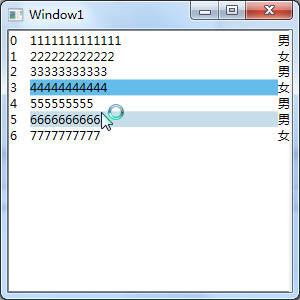
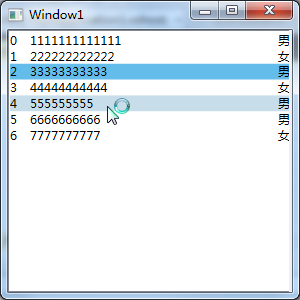
在设置listbox选中样式是遇到一个问题:选中项的背景设置不起作用
经过一段时间的挣扎后找到原因,模板里的控件要设置 Background="{TemplateBinding Background}" TextBlock.Foreground="{TemplateBinding Foreground}"否则背景是不会变化的。
<ListBox Name="list" ItemsSource="{Binding InfoList}">

            <ListBox.ItemContainerStyle>

                <Style TargetType="ListBoxItem">

                    <!-- 设置控件模板 -->

                    <Setter Property="Template">

                        <Setter.Value>

                            <ControlTemplate TargetType="ListBoxItem">

                               <Grid>

                                    <Grid.ColumnDefinitions>

                                        <ColumnDefinition Width=""/>

                                        <ColumnDefinition Width="*"/>

                                        <ColumnDefinition Width="auto"/>

                                    </Grid.ColumnDefinitions>

                                    <TextBlock Text="{Binding Num}" Grid.Column=""/>

                                    <TextBlock Text="{Binding Name}" Grid.Column="" Background="{TemplateBinding Background}" TextBlock.Foreground="{TemplateBinding Foreground}"/>

                                    <TextBlock Text="{Binding Sex}" Grid.Column=""/>

                                </Grid>

                            </ControlTemplate>

                        </Setter.Value>

                    </Setter>

                    <!-- 设置触发器 -->

                    <Style.Triggers>

                        <Trigger Property="IsSelected" Value="true">

                            <Setter Property="Background" Value="#64BCEA"/>

                        </Trigger>

                        <Trigger Property="IsMouseOver" Value="true">

                            <Setter Property="Background" Value="#C7DEEA"/>

                            <!--<Setter Property="Foreground" Value="Red"/>-->

                        </Trigger>

                    </Style.Triggers>

                </Style>

            </ListBox.ItemContainerStyle>

        </ListBox>
设置中间列有效果
<ListBox Name="list" ItemsSource="{Binding InfoList}">

            <ListBox.ItemContainerStyle>

                <Style TargetType="ListBoxItem">

                    <!-- 设置控件模板 -->

                    <Setter Property="Template">

                        <Setter.Value>

                            <ControlTemplate TargetType="ListBoxItem">

                                <Grid Background="{TemplateBinding Background}" TextBlock.Foreground="{TemplateBinding Foreground}">

                                    <Grid.ColumnDefinitions>

                                        <ColumnDefinition Width=""/>

                                        <ColumnDefinition Width="*"/>

                                        <ColumnDefinition Width="auto"/>

                                    </Grid.ColumnDefinitions>

                                    <TextBlock Text="{Binding Num}" Grid.Column=""/>

                                    <TextBlock Text="{Binding Name}" Grid.Column=""/>

                                    <TextBlock Text="{Binding Sex}" Grid.Column=""/>

                                </Grid>

                            </ControlTemplate>

                        </Setter.Value>

                    </Setter>

                    <!-- 设置触发器 -->

                    <Style.Triggers>

                        <Trigger Property="IsSelected" Value="true">

                            <Setter Property="Background" Value="#64BCEA"/>

                        </Trigger>

                        <Trigger Property="IsMouseOver" Value="true">

                            <Setter Property="Background" Value="#C7DEEA"/>

                            <!--<Setter Property="Foreground" Value="Red"/>-->

                        </Trigger>

                    </Style.Triggers>

                </Style>

            </ListBox.ItemContainerStyle>

        </ListBox>
设置整个ListBoxItem有效果
里面我用到的布局控件为“Grid”简单点的还可以用“Border”等控件。
- 自定义SystemColors类的参数
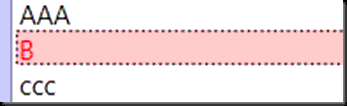
SystemColors的HighlightBrushKey和HighlightTextBrushKey分别代表ListBoxItem被选中时文字和背景颜色,没有Highlight的BrushKey代表ListBox没有焦点时的选中项文字和背景颜色。
效果图:
<ListBox>

            <ListBox.Resources>

                <Style TargetType="ListBoxItem">

                    <Style.Resources>

                        <SolidColorBrush x:Key="{x:Static SystemColors.HighlightBrushKey}" Color="Pink"/>

                        <SolidColorBrush x:Key="{x:Static SystemColors.ControlBrushKey}" Color="Gray"/>

                        <SolidColorBrush x:Key="{x:Static SystemColors.HighlightTextBrushKey}" Color="Red"/>

                        <SolidColorBrush x:Key="{x:Static SystemColors.ControlTextBrushKey}" Color="Green"/>

                    </Style.Resources>

                </Style>

            </ListBox.Resources>

            <ListBoxItem>AAA</ListBoxItem>

            <ListBoxItem>B</ListBoxItem>

            <ListBoxItem>ccc</ListBoxItem>

 </ListBox>
代码示例
这是在网上其他人的博客里看到的,我没有详细去做。
2.如何为标准的ListBox添加ItemClick事件
 public class MyListBox:ListBox

    {

        private static readonly object EventItemClick = new object();

        public event EventHandler<ListBoxItemEventArgs> ItemClick

        {

            add

            {

                Events.AddHandler(EventItemClick, value);

            }

            remove

            {

                Events.RemoveHandler(EventItemClick, value);

            }

        }

        protected virtual void OnItemClick(ListBoxItemEventArgs e)

        {

            EventHandler<ListBoxItemEventArgs> handler = (EventHandler<ListBoxItemEventArgs>)this.Events[EventItemClick];

            if (handler != null)

            {

                handler(this, e);

            }

        }

        protected override void OnClick(EventArgs e)

        {

            base.OnClick(e);

            for (int i = ; i < this.Items.Count; i++)

            {

                bool flag = this.GetItemRectangle(i).Contains(this.PointToClient(Control.MousePosition));

                if (flag)

                {

                    ListBoxItemEventArgs args = new ListBoxItemEventArgs(i);

                    OnItemClick(args);

                    break;

                }

            }

        }

    }

    public class ListBoxItemEventArgs : EventArgs

    {

        private int _listBoxItem;

        public ListBoxItemEventArgs(int listBoxItem)

        {

            _listBoxItem = listBoxItem;

        }

        public int ListBoxItem

        {

            get

            {

                return _listBoxItem;

            }

        }

    }
3.连续选择同一项时SelectionChanged 事件不响应的问题
- 简单点的方式
处理SelectionChanged当操作结束后把SelectedIndex设为-1;
private void lBox_SelectionChanged(object sender, SelectionChangedEventArgs e)

{

    if (lBox.SelectedIndex == -)

    {

        return;

    }

    // 这里填写所需要处理的代码

    lBox.SelectedIndex = -;

}
- 复杂点就是重载OnSelect()
这不局限与ListBox,TreeView等都可以参考
public class myListBox : System.Windows.Controls.ListBox

    {

        protected override DependencyObject GetContainerForItemOverride()

        {

            return new myListBoxItem();

        }

    }

    public class myListBoxItem : System.Windows.Controls.ListBoxItem

    {

        protected override void OnSelected(System.Windows.RoutedEventArgs e)

        {

            DependencyObject dep = (DependencyObject)e.OriginalSource;

            while ((dep != null) && !(dep is ListBoxItem))

            {

                dep = VisualTreeHelper.GetParent(dep);

            }

            if (dep == null)

                return;

            ListBoxItem item = (ListBoxItem)dep;

            if (item.IsSelected)

            {

                item.IsSelected = !item.IsSelected;

                //e.Handled = true;

            }

            base.OnSelected(e);

        }

    }
这是我在一个博客上转载的,不过当时放在有道云笔记中,作者的地址已经丢失,在此对这位博主表示歉意。
WPF ListBox的更多相关文章
- 自定义WPF ListBox的选中项样式
首先介绍一种简单地方法:就是通过自定义SystemColors类的参数来自定义WPF ListBox选择颜色的,SystemColors的HighlightBrushKey和HighlightText ...
- WPF ListBox数据绑定
本文来源 http://wshoufeng1989.blog.163.com/blog/static/202047033201282911633670/ 风随影动的博客 使用数据库AllData , ...
- WPF : ListBox的几种Template属性
原文:WPF : ListBox的几种Template属性 属性名 属性的类名 功能 示例 Template ControlTemplate 定义控件自身的外观.其子元素的布局可以自定义,也可以由It ...
- 自定义WPF ListBox的选择样式
(下图:进行多项选择的ListBox) 首先介绍一种简单地方法:就是通过自定义SystemColors类的参数来自定义WPF ListBox选择颜色的,SystemColors的HighlightBr ...
- wpf listbox 选中项 上移下移
原文:wpf listbox 选中项 上移下移 private void MoveUp_Click(object sender, RoutedEventArgs e) { ...
- WPF ListBox 横向排列
WPF ListBox 横向排列 如果只是单纯的让ListBox可以横向配列,这样很简单,只需要更改ListBox的ItemsPanel模板就可以,例如: <ListBox><L ...
- Wpf ListBox数据绑定实例1--绑定字典集合
1.使用ListBox绑定Dictionary字典数据 ListBox常用事件SelectionChanged private void bindListBox() { Dictionary<s ...
- WPF ListBox/ListView/DataGrid 虚拟化时的滚动方式
ListBox的滚动方式 分为像素滚动和列表项滚动 通过ListBox的附加属性ScrollViewer.CanContentScroll来设置.因此ListBox的默认模板中,含有ScrollVie ...
- WPF ListBox ItemContainerStyle 设置BackGround 和 BorderBrush 无效
今天更改ListBox,用到ItemContainerStyle设置样式,设置Style.Triggers时,BackGround和BorderBrush均无效,其他效果正常. 翻看WPF编程宝典,发 ...
随机推荐
- BZOJ 1799 同类分布
一开始没想出来..一看题解 我艹直接枚举数位的和啊.....怪不得给50s. 还是太蠢. #include<iostream> #include<cstdio> #includ ...
- HDU2544 最短路dij
纯最短路. ///HDU 2544堆优化的最短路 #include <cstdio> #include <iostream> #include <sstream> ...
- Javascript、CSS和IMG之网页执行探索
测试环境:windows/chrome 实例1:页面中仅有图片 <html xmlns="http://www.w3.org/1999/xhtml"> <head ...
- JAVA(1)
java开发第一步就是学习相关知识,打牢基础是关键,下面就和小编我一起从java基础学起吧,一起加油! java方向主要包括三大块: java se 桌面开发 java ee web开发 java m ...
- 传智播客JavaWeb day10-jdbc操作mysql、连接数据库六大步骤
第十天主要讲了jdbc操作mysql数据库,包括连接数据库六大步骤(注册数据库驱动.获得连接对象connetion.生成传输器stament.执行查询获得ResultSet.遍历结果集.关闭资源).介 ...
- win7 64位安装pygame
需要的工具包 Python安装包 Pip安装包(版本无要求) Pygame安装包(版本需要与python匹配) http://jingyan.baidu.com/article/425e69e6ed3 ...
- 折腾Ubuntu下的android studio
ps:网速很慢,耗时一天多.先吐槽一下搭建很麻烦,毕竟现在在ubuntu上用as的人还不太多,很多步骤最好先自备梯子. 测试环境: ubuntu 14.04 LTS 64bit 安装的东西无非就是an ...
- 和efast对接
(1) efast加入白名单 (2) 外网环境对接外网环境 内网环境对接内网环境 (3) 使用拉取的数据下单 才能同步到efast 4 档案同步 数据库 sys_ishop_sync ...
- iOS后台挂起程序 当程序到后台后,继续完成Long-Running Task 任务
我们知道,到我们程序从前台退到后台(安home)键后,将执行程序的委托方法. // 当应用程序掉到后台时,执行该方法 - (void)applicationDidEnterBackground:(UI ...
- Hive自定义函数的学习笔记(1)
前言: hive本身提供了丰富的函数集, 有普通函数(求平方sqrt), 聚合函数(求和sum), 以及表生成函数(explode, json_tuple)等等. 但不是所有的业务需求都能涉及和覆盖到 ...