
centos7.2下caffe的安装及编译
1、前期准备
安装依赖
sudo yum install protobuf-devel leveldb-devel snappy-devel opencv-devel boost-devel hdf5-devel
sudo yum install gflags-devel glog-devel lmdb-devel
sudo yum atlas-devel cmake glibc-devel gcc-gfortran autoconf automake gcc gcc-c++ git libtool make pkgconfig zlib-devel SDL* yasm* python-devel cmake* git ncurses* *freetype2 nasm nasm*
安装Boost
安装glog
安装protobuf
安装lmdb
安装leveldb
安装gflags
安装hdf5
***切记,上述依赖需要安装到/usr/local下面的目录,否则编译时会提示找不到相关库文件。
安装ffmpeg
安装opencv
安装cuda
查看cuda版本:cat /usr/local/cuda/version.txt
安装cudnn
如果将来要采用python调用caffe的话,必须将numpy提前装好:
pip install numpy

pip install pandas

pip install ipython
2、使用安Makefile.config装及编译caffe
下载caffe并移动到想存放的路径:
修改Makefile.config文件:
进入caffe目录

cp Makefile.config.example Makefile.config

vim Makefile.config
文件的修改需要根据自己的具体情况,下面是一个示例:
## Refer to http://caffe.berkeleyvision.org/installation.html

# Contributions simplifying and improving our build system are welcome!

# cuDNN acceleration switch (uncomment to build with cuDNN).

# USE_CUDNN := 1

"CuDNN是NVIDIA专门针对Deep Learning框架设计的一套GPU计算加速库,用于实现高性能的并行计算,在有GPU并且安装CuDNN的情况下可以打开即将注释去掉。"

# CPU-only switch (uncomment to build without GPU support).

#CPU_ONLY := 1

"表示是否用GPU,如果只有CPU这里要打开"

# uncomment to disable IO dependencies and corresponding data layers

USE_OPENCV := 1

"因为要用到OpenCV库所以要打开,下面这两个选项表示是选择Caffe的数据管理第三方库,两者都不打开 Caffe默认用的是LMDB,这两者均是嵌入式数据库管理系统编程库。"

# USE_LEVELDB := 0

# USE_LMDB := 0

# uncomment to allow MDB_NOLOCK when reading LMDB files (only if necessary)

#   You should not set this flag if you will be reading LMDBs with any

#   possibility of simultaneous read and write

# ALLOW_LMDB_NOLOCK := 1

"当需要读取LMDB文件时可以取消注释,默认不打开。"

# Uncomment if you're using OpenCV 3

OPENCV_VERSION := 2.4.10

"用pkg-config --modversion opencv命令查看opencv版本"

# To customize your choice of compiler, uncomment and set the following.

# N.B. the default for Linux is g++ and the default for OSX is clang++

# CUSTOM_CXX := g++

"linux系统默认使用g++编译器,OSX则是clang++。"

# CUDA directory contains bin/ and lib/ directories that we need.

CUDA_DIR := /usr/local/cuda

"CUDA的安装目录"

# On Ubuntu 14.04, if cuda tools are installed via

# "sudo apt-get install nvidia-cuda-toolkit" then use this instead:

# CUDA_DIR := /usr

# CUDA architecture setting: going with all of them.

# For CUDA < 6.0, comment the *_50 lines for compatibility.

CUDA_ARCH := -gencode arch=compute_20,code=sm_20 \

        -gencode arch=compute_20,code=sm_21 \

        -gencode arch=compute_30,code=sm_30 \

        -gencode arch=compute_35,code=sm_35 \

        -gencode arch=compute_50,code=sm_50 \

        -gencode arch=compute_50,code=compute_50

"这些参数需要根据GPU的计算能力

(http://blog.csdn.net/jiajunlee/article/details/52067962)来进行设置,6.0以下的版本不支持×_50的计算能力。"

# BLAS choice:

# atlas for ATLAS (default)

# mkl for MKL

# open for OpenBlas

BLAS := open

"如果用的是ATLAS计算库则赋值atlas,MKL计算库则用mkl赋值,OpenBlas则赋值open。"

# Custom (MKL/ATLAS/OpenBLAS) include and lib directories.

# Leave commented to accept the defaults for your choice of BLAS

# (which should work)!

BLAS_INCLUDE := /usr/local/OpenBlas/include

BLAS_LIB := /usr/local/OpenBlas/lib

"blas库安装目录"

# Homebrew puts openblas in a directory that is not on the standard search path

# BLAS_INCLUDE := $(shell brew --prefix openblas)/include

# BLAS_LIB := $(shell brew --prefix openblas)/lib

"如果不是安装在标准路径则要指明"

# This is required only if you will compile the matlab interface.

# MATLAB directory should contain the mex binary in /bin.

# MATLAB_DIR := /usr/local

# MATLAB_DIR := /Applications/MATLAB_R2012b.app

"matlab安装库的目录"

# NOTE: this is required only if you will compile the python interface.

# We need to be able to find Python.h and numpy/arrayobject.h.

# 这里特别要注意,使用python -c "import numpy; print numpy.__file__"查看numpy的路径

PYTHON_INCLUDE := /usr/include/python2.7 \

        /usr/lib64/python2.7/site-packages/numpy/core/include

#		/usr/lib/python2.7/dist-packages/numpy/core/include

"python安装目录"

# Anaconda Python distribution is quite popular. Include path:

# Verify anaconda location, sometimes it's in root.

# ANACONDA_HOME := $(HOME)/anaconda

# PYTHON_INCLUDE := $(ANACONDA_HOME)/include \

        # $(ANACONDA_HOME)/include/python2.7 \

        # $(ANACONDA_HOME)/lib/python2.7/site-packages/numpy/core/include \

# Uncomment to use Python 3 (default is Python 2)

# PYTHON_LIBRARIES := boost_python3 python3.5m

# PYTHON_INCLUDE := /usr/include/python3.5m \

#                 /usr/lib/python3.5/dist-packages/numpy/core/include

# We need to be able to find libpythonX.X.so or .dylib.

PYTHON_LIB := /usr/lib

<font color="green">python库位置</font>

# PYTHON_LIB := $(ANACONDA_HOME)/lib

# Homebrew installs numpy in a non standard path (keg only)

# PYTHON_INCLUDE += $(dir $(shell python -c 'import numpy.core; print(numpy.core.__file__)'))/include

# PYTHON_LIB += $(shell brew --prefix numpy)/lib

# Uncomment to support layers written in Python (will link against Python libs)

WITH_PYTHON_LAYER := 1

# Whatever else you find you need goes here.

INCLUDE_DIRS := $(PYTHON_INCLUDE) /usr/local/include

LIBRARY_DIRS := $(PYTHON_LIB) /usr/local/lib /usr/lib

# If Homebrew is installed at a non standard location (for example your home directory) and you use it for general dependencies

# INCLUDE_DIRS += $(shell brew --prefix)/include

# LIBRARY_DIRS += $(shell brew --prefix)/lib

# Uncomment to use `pkg-config` to specify OpenCV library paths.

# (Usually not necessary -- OpenCV libraries are normally installed in one of the above $LIBRARY_DIRS.)

# USE_PKG_CONFIG := 1

# N.B. both build and distribute dirs are cleared on `make clean`

BUILD_DIR := build

DISTRIBUTE_DIR := distribute

# Uncomment for debugging. Does not work on OSX due to https://github.com/BVLC/caffe/issues/171

# DEBUG := 1

# The ID of the GPU that 'make runtest' will use to run unit tests.

TEST_GPUID := 0

"所用的GPU的ID编号"

# enable pretty build (comment to see full commands)

Q ?= @
编译:
make clean #如果是第一次编译,则不需要执行这一步骤

make all -j16 #-j16表示开16个线程并行编译,可以大大减少编译时间,但是线程数不要超过cpu核数

make test -j16

make runtest
编译pycaffe:
#编译

make pycaffe -j16

#添加环境变量

vim ~/.bashrc

将export PYTHONPATH=/home/wanghh/caffe/python:$PYTHONPATH添加到文件中。

source ~/.bashrc 使更改生效。

这样,在其他地方打开python,也可以import caffe了。
3、使用cmake安装及编译caffe
(1)进入caffe根目录:cd xxx/xxx/caffe
(2)创建build文件夹并配置
mkdir build

cd build

cmake ..
cmake ..如果报错,则使用cmake -D xxx=xxxxxx ..来修改参数(例如:cmake -D BLAS=open ..)
(3)编译
make -j32 # -j后面为cpu核数,可小于或等于实际cpu核数
4、测试
进入caffe目录

sh data/mnist/get_mnist.sh

sh examples/mnist/create_mnist.sh

sh examples/mnist/train_lenet.sh
出现下图所示结果:
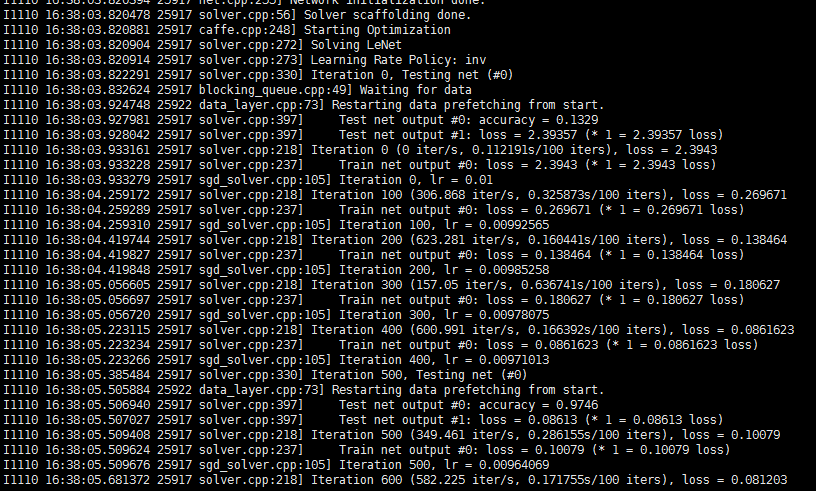
至此,caffe安装成功
5、可能出现的问题
python/caffe/_caffe.cpp:10:31: fatal error: numpy/arrayobject.h: No such file or directory(make pycaffe -j16 时)
原因:numpy路径设置错误。
解决方案:使用python -c "import numpy; print numpy.__file__"查看numpy的路径,修改Makefile.config,如示例:
PYTHON_INCLUDE := /usr/include/python2.7 \

        /usr/lib64/python2.7/site-packages/numpy/core/include

#		/usr/lib/python2.7/dist-packages/numpy/core/include
./build/tools/caffe: error while loading shared libraries: libcudart.so.8.0: cannot open shared object file: No such file or directory(./examples/mnist/train_lenet.sh时)
原因:
解决方案:
sudo cp /usr/local/cuda-8.0/lib64/libcudart.so.8.0 /usr/local/lib/libcudart.so.8.0 && sudo ldconfig

sudo cp /usr/local/cuda-8.0/lib64/libcublas.so.8.0 /usr/local/lib/libcublas.so.8.0 && sudo ldconfig

sudo cp /usr/local/cuda-8.0/lib64/libcurand.so.8.0 /usr/local/lib/libcurand.so.8.0 && sudo ldconfig
make -j24时 :
/usr/bin/ld: /usr/local/lib/libpython2.7.a(object.o): relocation R_X86_64_32 against `.rodata.str1.1' can not be used when making a shared object; recompile with -fPIC
或:
/usr/bin/ld: /usr/local/lib/libpython2.7.a(abstract.o): relocation R_X86_64_32S against `_Py_NotImplementedStruct' can not be used when making a shared object; recompile with -fPIC
/usr/local/lib/libpython2.7.a: could not read symbols: Bad value
原因:
解决方案:
make all -j16时:
error -- unsupported GNU version! gcc versions later than 5 are not supported!
原因:
解决方案:
centos7.2下caffe的安装及编译的更多相关文章
- [转]Centos7下caffe的安装
Centos7下caffe的安装 原文地址:http://blog.csdn.net/s2392735818/article/details/49796017 版权声明:本文为博主原创文章,未经博 ...
- [转]linux14.04下caffe的安装步骤
linux14.04下caffe的安装步骤 原文地址:http://blog.csdn.net/xiaoyang19910623/article/details/52997481?locatio ...
- 在ConoHa上Centos7环境下源码安装部署LNMP
本文记录了从源码,在Centos 7上手动部署LNMP环境的过程,为了方便以后对nginx和mariadb进行升级,这里采用yum的方式进行安装. 1.建立运行网站和数据库的用户和组 groupadd ...
- nginx在Centos7.5下源码安装和配置
安装nginx 安装nginx依赖包 yum install -y pcre-devel zlib-devel openssl-devel wget gcc tree vim 进入目录/root/se ...
- CentOS7系统下GitLab的安装、汉化、修改默认端口、开启发送邮箱
一.centos7.4 下安装及汉化 =============================================== 2017/11/12_第6次修改 ...
- centos7环境下apache2.2.34的编译安装
.获取apache2..34的源码包 http://archive.apache.org/dist/httpd/httpd-2.2.34.tar.gz .获取apache的编译参数 apache的编译 ...
- CentOS7环境下在/离线安装GCC与GCC-C++
前几天在准备CentOS7下的编译环境,在线安装GCC和GCC-C++非常简单,只要机器是联网的在Terminal窗口中按顺序分别输入 yum install gcc yum install gcc- ...
- CAFFE(三):Ubuntu下Caffe框架安装(仅仅Caffe框架安装)
步骤一. 从github上下载(克隆)安装包 1.1 在你要安装的路径下 clone 此处我直接安装到home目录,执行: ~$ cd ~ 2 :~$ git clone https://github ...
- MSW下wxWidgets的安装与编译
教程摘自网上各大博客.贴吧.论坛,结合自己的实践做了一些实质性的修改. 一.安装 首先从http://sourceforge.net/projects/wxwindows/files/2.8.12/w ...
随机推荐
- 【Asp.net入门15】第一个Asp.net应用程序-输入验证
前言 所谓输入验证,顾名思义就是验证用户输入符不符合要求.前面我们已经完成了这个简单的应用程序,但还有一个问题需要解决:用户可以在Default.aspx窗体中 提交任何数据,甚至可以提交根本不包含任 ...
- Hadoop生态圈-phoenix(HBase)的索引配置
Hadoop生态圈-phoenix(HBase)的索引配置 作者:尹正杰 版权声明:原创作品,谢绝转载!否则将追究法律责任. 创建索引是为了优化查询,我们可以在phoenix上配置索引方式. 一.修改 ...
- hbase系列之:独立模式部署hbase
一.概述 在上一篇博文中,我简要介绍了hbase的部分基础概念,如果想初步了解hbase的理论,可以参看上一篇博文 hbase系列之:初识hbase .本博文主要介绍独立模式下部署hbase及hbas ...
- Java入门系列(四)内部类
为什么需要内部类? 真正的原因是这样的,java中的内部类和接口加在一起,可以的解决常被C++程序员抱怨java中存在的一个问题没有多继承.实际上,C++的多继承设计起来很复杂,而java通过内部类加 ...
- kdissert:linux下的自由脑图软件
----------------------------------------------------作者: 吉庆 email: jiqingwu@gmail.commainpage: http ...
- 20155235 2016-2017-2 《Java程序设计》第六周学习总结
20155235 2016-2017-2 <Java程序设计>第六周学习总结 教材学习内容总结 第十章 InputStream与OutputStreaam 串流设计的概念 串流继承架构 川 ...
- JS 数组 foreach 和 map
本文地址:http://www.cnblogs.com/veinyin/p/8794677.html foreach 和 map 都是数组的迭代方法,对数组的每一项执行给定函数,不会改变原数组. 两 ...
- zedboard 初使用 -- 工具篇
<一> 安装ISE和Vivada: <二> 安装USB转UART驱动 <三> 安装USB转JTAG驱动插件 http://blog.sina.com.cn/s/bl ...
- python基础——python解析yaml类型文件
一.yaml介绍 yaml全称Yet Another Markup Language(另一种标记语言).采用yaml作为配置文件,文件看起来直观.简洁.方便理解.yaml文件可以解析字典.列表和一些基 ...
- 基于Vue + Vuex + Vue-router + Webpack 2.0打造微信界面
一.项目简介 基于Vue + Vuex + Vue-router + Webpack 2.0打造微信界面,实现了微信聊天.搜索.点赞.通讯录(快速导航).个人中心.模拟对话.朋友圈.设置等功能. 二. ...