
[转]Using Browser Link in Visual Studio 2013
本文转自:https://docs.microsoft.com/en-us/aspnet/visual-studio/overview/2013/using-browser-link
Browser Link is a new feature in Visual Studio 2013 that creates a communication channel between the development environment and one or more web browsers. You can use Browser Link to refresh your web application in several browsers at once, which is useful for cross-browser testing.
- Browser Refresh
- Viewing the Browser Link Dashboard
- Enabling Browser Link for Static HTML Files
- Disabling Browser Link
- How Does It Work?
Browser Refresh
With Browser Refresh, you can refresh multiple browsers that are connected to Visual Studio through Browser Link.
To use Browser Refresh, first create an ASP.NET application, using any of the project templates. Debug the application by pressing F5 or clicking the arrow icon in the toolbar:

You can also use the dropdown to select a specific browser for debugging.
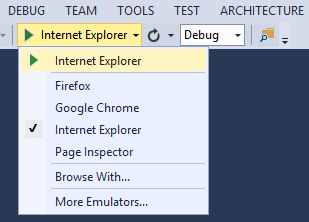
To debug with multiple browsers, select Browse With. In the Browse With dialog, hold down the CTRL key to select more than one browser. Click Browse to debug with the selected browsers. Browser Link also works if you launch a browser from outside Visual Studio and navigate to the application URL.

The Browser Link controls are located in the dropdown with the circular arrow icon. The arrow icon is the Refresh button.

To see which browsers are connected, hover the mouse over the Refresh button while debugging. The connected browsers are shown in a ToolTip window.

To refresh the connected browsers, click the Refresh button or press CTRL+ALT+ENTER. For example, the following screenshot shows an ASP.NET project, which I created using the MVC 5 project template. You can see the application running in two browsers at the top. At the bottom, the project is open in Visual Studio.
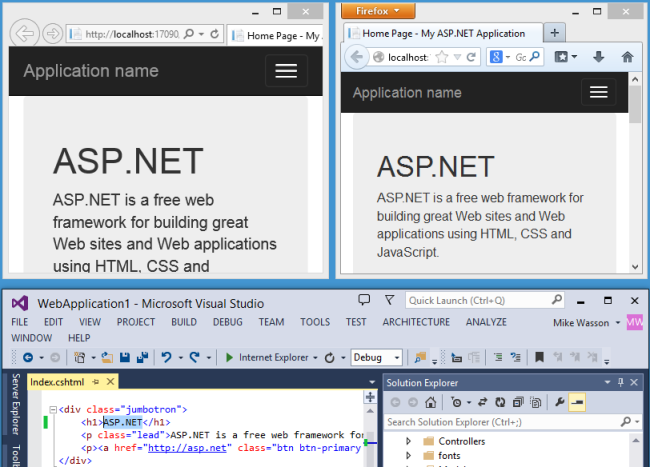
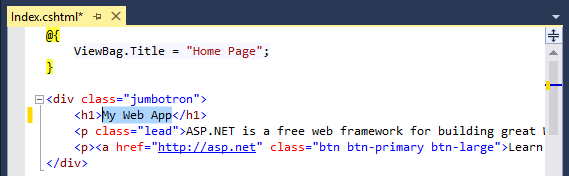
In Visual Studio, I changed the <h1> heading for the home page:
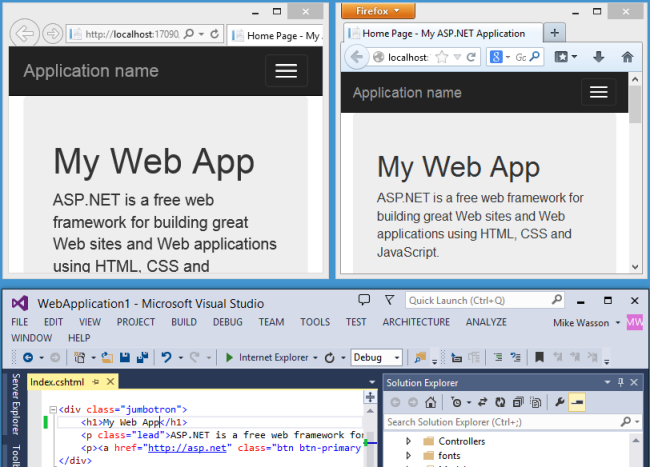
When I clicked the Refresh button, the change appeared in both browser windows:
Notes
- To enable Browser Link, set
debug=truein the <compilation> element in the project's Web.config file. - The application must be running on localhost.
- The application must target .NET 4.0 or later.
Viewing the Browser Link Dashboard
The Browser Link dashboard shows information about the Browser Link connections. To view the dashboard, select the Browser Link dropdown menu (the small arrow next to the Refresh button). Then click Browser Link Dashboard.

The dashboard lists the connected Browsers and the URL to which each browser has navigated.
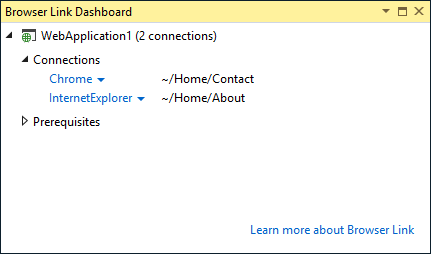
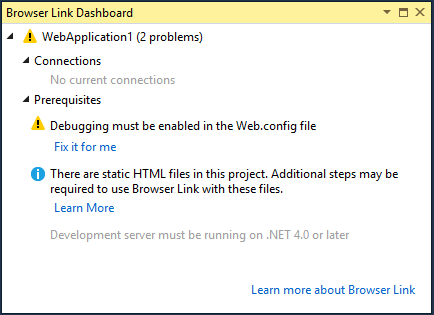
The Prerequisites section shows any steps needed to enable Browser Link for that project. For example, the following screenshot shows a project where "debug" is set to false in the Web.config file.
Enabling Browser Link for Static HTML Files
To enable Browser Link for static HTML files, add the following to your Web.config file.
<configuration>

  <system.webServer>

    <handlers>

      <add name="Browser Link for HTML" path="*.html" verb="*"

           type="System.Web.StaticFileHandler, System.Web, Version=4.0.0.0, Culture=neutral, PublicKeyToken=b03f5f7f11d50a3a"

           resourceType="File" preCondition="integratedMode" />

    </handlers>

  </system.webServer>

</configuration>
For performance reasons, remove this setting when you publish your project.
Disabling Browser Link
Browser Link is enabled by default. There are several ways to disable it:
In the Browser Link dropdown menu, uncheck Enable Browser Link.

In the Web.config file, add a key named "vs:EnableBrowserLink" with the value "false" in the appSettings section.
XMLCopy<appSettings>
<add key="vs:EnableBrowserLink" value="false"/>
</appSettings>
In the Web.config file, set debug to false.
XMLCopy<system.web>
<compilation debug="false" targetFramework="4.5" />
</system.web>
How Does It Work?
Browser Link uses SignalR to create a communication channel between Visual Studio and the browser. When Browser Link is enabled, Visual Studio acts as a SignalR server that multiple clients (browsers) can connect to. Browser Link also registers an HTTP module with ASP.NET. This module injects special <script> references into every page request from the server. You can see the script references by selecting "View source" in the browser.

Your source files are not modified. The HTTP module injects the script references dynamically.
Because the browser-side code is all JavaScript, it works on all browsers that SignalR supports, without requiring any browser plug-in.
[转]Using Browser Link in Visual Studio 2013的更多相关文章
- Using Browser Link in Visual Studio 2013
题记:Browser Link是VS 2013开始引入的一个强大功能,让前端代码(比如AngularJS的代码)在VS中的修改更加轻而易举. 前 端代码是运行在浏览器中,而Visual Studio通 ...
- Microsoft Visual Studio 2013 Update 5 direct download link for full ISO
From:http://www.nickdu.com/?p=604 Visual Studio 2013 Update 5 is now released and maybe you are also ...
- Visual Studio 2013中因SignalR的Browser Link引起的Javascript错误一则
众所周知Visual Studio 2013中有一个由SignalR机制实现的Browser Link功能,意思是开发人员可以同时使用多个浏览器进行调试,当按下IDE中的Browser Link按钮后 ...
- 关闭 Visual Studio 2013 的 Browser Link 功能
最近公司弄新项目需要用 MVC,就把 IDE 升级到了 Visual Studio 2013,在开发的时候发现有好多请求一个本地49925的端口 . 很奇怪,一开始以为是 Visual Studio ...
- Visual Studio 2013 Web开发、新增功能:“Browser Link”
微软正式发布Visual Studio 2013 RTM版,微软还发布了Visual Studio 2013的最终版本..NET 4.5.1以及Team Foundation Server 2013. ...
- Visual Studio 2013 Web开发、新增功能:“Browser Link”
微软正式发布Visual Studio 2013 RTM版,微软还发布了Visual Studio 2013的最终版本..NET 4.5.1以及Team Foundation Server 2013. ...
- 禁用Visual Studio 2013的Browser Link功能
禁用Visual Studio 2013的Browser Link功能 GET http://localhost:37478/7fd25f8af33f443494e765be19be6240/brow ...
- Visual Studio 2013 的 Browser Link 功能
Visual Studio 2013 的 Browser Link 功能 最近公司弄新项目需要用 MVC,就把 IDE 升级到了 Visual Studio 2013,在开发的时候发现有好多请求一个本 ...
- Visual Studio 2013中的“Browser Link”
前几天,参加了,VS13的新特性的讲座,回来便试了一下, 默认Html会引用如下脚本: <!-- Visual Studio Browser Link --> <script typ ...
随机推荐
- mysql恢复备份错误:Got a packet bigger than 'max_allowed_packet' bytes
最近恢复mysql数据库备份时,出现了一个错误:Got a packet bigger than 'max_allowed_packet' bytes 该问题主要是由于mysql的my.ini文件中设 ...
- 博客迁址 xpeng.scorpionstudio.com
这里不再更新!现在博客的正式地址是: http://xpeng.scorpionstudio.com
- C#通过rdp账密直接打开远程桌面
思路是首先新建一个vbs脚本,再创建一个bat脚本,再创建rdp文件,运行顺序是vbs->bat->rdp.rdp文件里面包含远程电脑的账密和其它信息,这样就可以不用再输入账密,而在程序里 ...
- js string 和 json 互转
var o = JSON.parse('{"a": 8}'); JSON. stringify(o);
- input 下拉框 的实践
有一个需求 需要做一个input 框 点击出现列表 于是想到了 datalist控件 <input type="text" list="itemlist&qu ...
- 读Lock-Free论文实践
论文地址:implementing Lock-Free Queue 论文大体讲的意思是:Lock-Base的程序的performance不好,并且a process inside the critic ...
- 2019年北航OO第一次博客总结
一.基于度量对程序结构的分析 1. 第一次作业 1.1 基于类的分析的度量 首先,基于类的属性个数,方法个数,每个方法的规模,每个方法的控制分支数目,类总代码规模等特征对本次作业的结构进行分析. 1. ...
- Maven国内阿里镜像(Maven下载慢的解决方法)
Maven是当前流行的项目管理工具,但官方的库在国外经常连不上,连上也下载速度很慢.国内oschina的maven服务器很早之前就关了.今天发现阿里云的一个中央仓库,亲测可用. <mirror& ...
- ubuntu编译安装ruby1.9.3,从p551降级到p484
在升级redmine的时候遇到ruby版本适配的问题.找了些资料. ruby安装包除了官方网站,可以参考 http://ftp.ruby-lang.org/pub/ruby/1.9/ 需要从1.9.3 ...
- 搭建互联网架构学习--006--duboo准备之zk集群部署安装
dubbo集群部署安装依赖于zookeeper,所以先安装zookeeper集群. 1.准备三台机器做集群 2.配置 配置java环境 ,2,修改操作系统的/etc/hosts文件,添加IP与主机名 ...