
[SDK2.2]Windows Azure Storage (15) 使用WCF服务,将本地图片上传至Azure Storage (上) 服务器端代码
《Windows Azure Platform 系列文章目录》
这几天工作上的内容,把项目文件和源代码拿出来给大家分享下。
我们在写WEB服务的时候,经常需要把本地的文件上传至服务器端进行保存,类似于上传附件的功能。
在本章中,我们将新建WCF服务并上传至Azure云端,实现把本地的图片通过WCF保存至Azure Storage。
本章需要掌握的技术点:
1.WCF服务
2.Azure Storage
本章将首先介绍服务器端程序代码。
1.首先我们用管理员身份,运行VS2013。
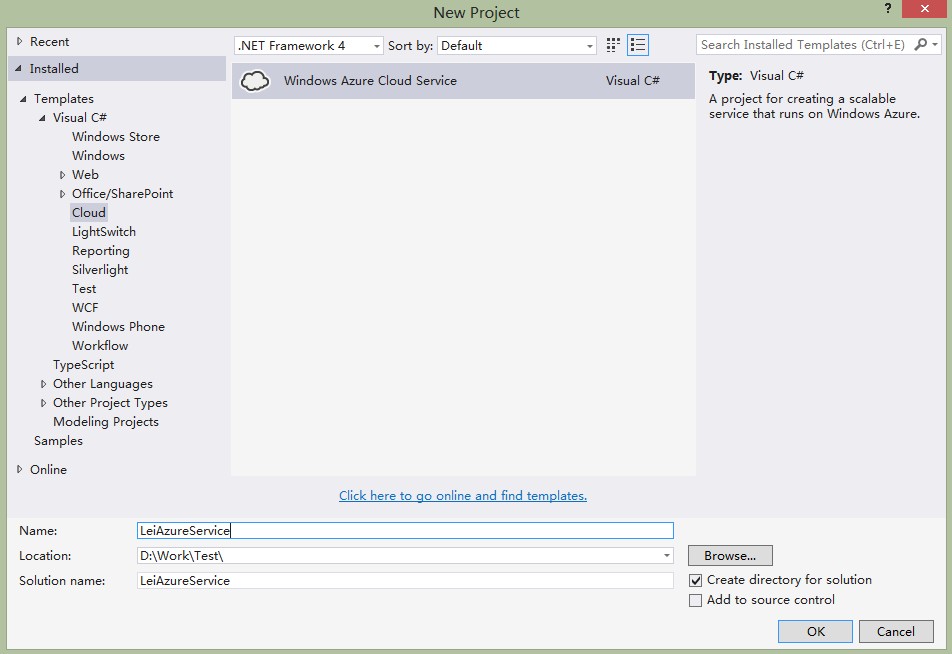
2.新建Windows Azure Cloud Project,并命名为LeiAzureService
3.添加"WCF Service Web Role",并重命名为LeiWCFService。

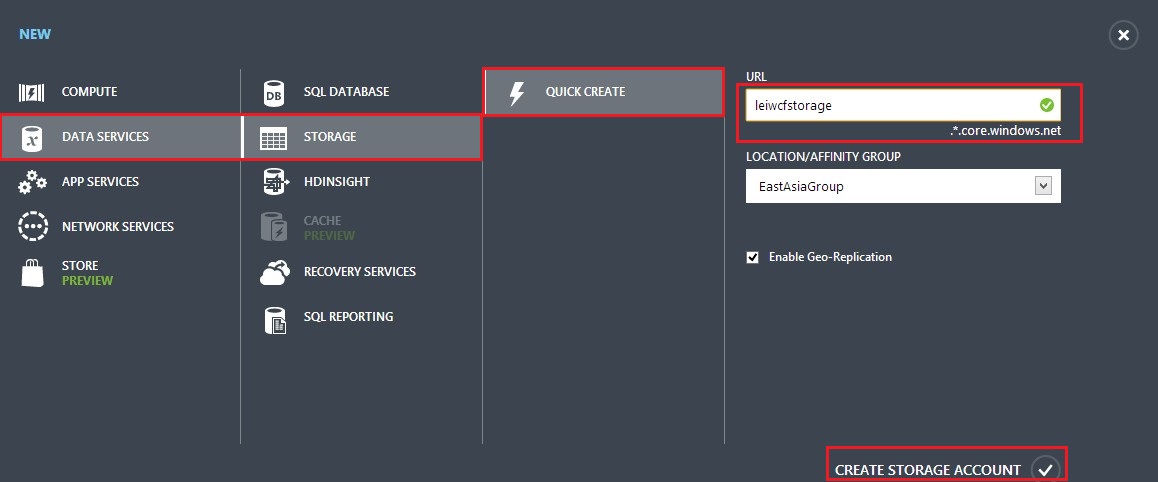
4.打开IE浏览器,登录http://manage.windowsazure.com,在Storage栏,新建storage name为leiwcfstorage
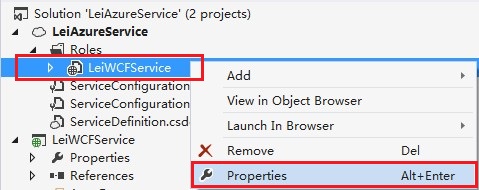
5.我们回到VS2013,选择Project LeiAzureService,展开Roles->LeiWCFService,右键属性
6.在弹出的窗口里,Configuration栏,将Instance count设置成2, VM Size选择Small
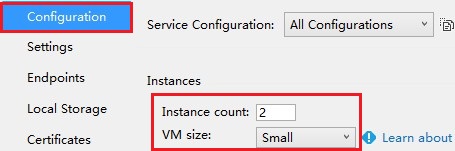
这样,就同时有2台 small size(1core/1.75GB)的Cloud Service自动做负载均衡了。
7.在Settings栏,选择Add Setting,设置Name为StorageConnectionString,Type选择Connection String,然后点击Value栏的按钮
在Create Storage Connection String中,选择Account Name为我们在步骤4中创建的leiwcfstorage

8.再次点击Add Setting,设置Name为ContainerName,Type选择String,Value设置为photos。切记Value的值必须是小写

9.在Project LeiWCFService中,修改IService1.cs
using System;

using System.Collections.Generic;

using System.IO;

using System.Linq;

using System.Runtime.Serialization;

using System.ServiceModel;

using System.ServiceModel.Web;

using System.Text;

namespace LeiWCFService

{

    // NOTE: You can use the "Rename" command on the "Refactor" menu to change the interface name "IService1" in both code and config file together.

    [ServiceContract]

    public interface IService1

    {

        [OperationContract]

        [WebInvoke(Method = "POST", UriTemplate = "/UploadPic", RequestFormat = WebMessageFormat.Json, ResponseFormat = WebMessageFormat.Json)]

        string UploadPic(Stream ImageStream);

    }

}
10.修改Service1.svc
这个类的主要功能是读取Azure配置文件cscfg的节点信息,并根据storage connection string,创建Container,并将本地的图片文件名重命名为GUID,并保存至Container
项目中需要添加相关的引用,笔者就不详述了。
using Microsoft.WindowsAzure;

using Microsoft.WindowsAzure.Storage;

using Microsoft.WindowsAzure.Storage.Blob;

using System;

using System.Collections.Generic;

using System.IO;

using System.Linq;

using System.Runtime.Serialization;

using System.ServiceModel;

using System.ServiceModel.Activation;

using System.ServiceModel.Web;

using System.Text;

namespace LeiWCFService

{

    // NOTE: You can use the "Rename" command on the "Refactor" menu to change the class name "Service1" in code, svc and config file together.

    // NOTE: In order to launch WCF Test Client for testing this service, please select Service1.svc or Service1.svc.cs at the Solution Explorer and start debugging.

    [AspNetCompatibilityRequirements(RequirementsMode = AspNetCompatibilityRequirementsMode.Allowed)]

    public class Service1 : IService1

    {

        public string UploadPic(Stream ImageStream)

        {

            try

            {

                //获取ServiceConfiguration.cscfg配置文件的信息

                var account = CloudStorageAccount.Parse(

                    CloudConfigurationManager.GetSetting("StorageConnectionString"));

                var client = account.CreateCloudBlobClient();

                //获得BlobContainer对象

                CloudBlobContainer blobContainer

                    = client.GetContainerReference(CloudConfigurationManager.GetSetting("ContainerName"));

                if (!blobContainer.Exists())

                {

                    // 检查container是否被创建,如果没有,创建container

                    blobContainer.CreateIfNotExists();

                    var permissions = blobContainer.GetPermissions();

                    //对Storage的访问权限是可以浏览Container

                    permissions.PublicAccess = BlobContainerPublicAccessType.Container;

                    blobContainer.SetPermissions(permissions);

                }

                Guid guid = Guid.NewGuid();

                CloudBlockBlob blob = blobContainer.GetBlockBlobReference(guid.ToString() + ".jpg");

                blob.Properties.ContentType = "image/jpeg";

                //request.Content.Headers.ContentType.MediaType

                //blob.UploadFromByteArray(content, 0, content.Length);

                blob.UploadFromStream(ImageStream);

                blob.SetProperties();

                return guid.ToString();

            }

            catch (Exception ex)

            {

                return ex.InnerException.ToString();

            }

        }

    }

}
以上代码和配置,实现了以下功能点:
1.在Windows Azure Storage里创建名为photos的Container,并且设置Storage的访问权限
2.设置上传的BlockbName为GUID
3.通过UploadFromStream,将客户端POST的Stream保存到Azure Storage里
11.修改Web.config的 <system.serviceModel>节点。设置WCF的相关配置。
  <system.serviceModel>

    <bindings>

      <!--<webHttpBinding></webHttpBinding>-->

      <webHttpBinding>

        <binding name="WCFServiceBinding"

                 maxReceivedMessageSize="10485760"

                 maxBufferSize="10485760"

                 closeTimeout="00:01:00" openTimeout="00:01:00"

                 receiveTimeout="00:10:00" sendTimeout="00:01:00">

          <security mode="None"/>

        </binding>

      </webHttpBinding>

    </bindings>

    <services>

      <service name="LeiWCFService.Service1" behaviorConfiguration="ServiceBehaviour">

        <endpoint address="" binding="webHttpBinding" behaviorConfiguration="web" contract="LeiWCFService.IService1"></endpoint>

      </service>

    </services>

    <behaviors>

      <endpointBehaviors>

        <behavior name="web">

          <webHttp helpEnabled="true" />

        </behavior>

      </endpointBehaviors>

      <serviceBehaviors>

        <behavior name="ServiceBehaviour">

          <serviceMetadata httpGetEnabled="true" />

          <serviceDebug includeExceptionDetailInFaults="false" />

        </behavior>

        <behavior name="">

          <serviceMetadata httpGetEnabled="true" />

          <serviceDebug includeExceptionDetailInFaults="false" />

        </behavior>

      </serviceBehaviors>

    </behaviors>

    <serviceHostingEnvironment multipleSiteBindingsEnabled="true" />

  </system.serviceModel>
12.在VS2013离,点击Save All,并将项目发布至Windows Azure。
DNS我们设置为LeiAzureService
13.等待项目发布结束后,在IE浏览器中输入http://leiazureservice.cloudapp.net/service1.svc/help,看到如下的图片,就证明发布成功了

[SDK2.2]Windows Azure Storage (15) 使用WCF服务,将本地图片上传至Azure Storage (上) 服务器端代码的更多相关文章
- [SDK2.2]Windows Azure Storage (16) 使用WCF服务,将本地图片上传至Azure Storage (上) 客户端代码
<Windows Azure Platform 系列文章目录> 前一章我们完成了服务器端的代码,并且已经发布到了Windows Azure云端. 本章我们将实现客户端的代码,客户端这里我们 ...
- [New Portal]Windows Azure Virtual Machine (15) 在本地制作数据文件VHD并上传至Azure(2)
<Windows Azure Platform 系列文章目录> 在上一章内容里,我们已经将包含有OFFICE2013 ISO安装文件的VHD上传至Azure Blob Storage中了. ...
- [New Portal]Windows Azure Virtual Machine (11) 在本地使用Hyper-V制作虚拟机模板,并上传至Azure (1)
<Windows Azure Platform 系列文章目录> 本章介绍的内容是将本地Hyper-V的VHD,上传到Azure数据中心,作为自定义的虚拟机模板. 注意:因为在制作VHD的最 ...
- [New Portal]Windows Azure Virtual Machine (12) 在本地使用Hyper-V制作虚拟机模板,并上传至Azure (2)
<Windows Azure Platform 系列文章目录> 本章介绍的内容是将本地Hyper-V的VHD,上传到Azure数据中心,作为自定义的虚拟机模板. 注意:因为在制作VHD的最 ...
- [New Portal]Windows Azure Virtual Machine (13) 在本地使用Hyper-V制作虚拟机模板,并上传至Azure (3)
<Windows Azure Platform 系列文章目录> 本章介绍的内容是将本地Hyper-V的VHD,上传到Azure数据中心,作为自定义的虚拟机模板. 注意:因为在制作VHD的最 ...
- [New Portal]Windows Azure Virtual Machine (14) 在本地制作数据文件VHD并上传至Azure(1)
<Windows Azure Platform 系列文章目录> 之前的内容里,我介绍了如何将本地的Server 2012中文版 VHD上传至Windows Azure,并创建基于该Serv ...
- Azure开发者任务之七:在Azure托管服务中托管WCF服务角色
在一个托管服务中托管一个WCF服务角色和托管一个ASP.Net Web Role基本类似. 在上一篇文章中,我们学习了如何使用WCF Service Web Role. 在本文中,我会对上一篇文章进行 ...
- 准备好要上传到 Azure 的 Windows VHD 或 VHDX
在将 Windows 虚拟机 (VM) 从本地上传到 Azure 之前,必须准备好虚拟硬盘(VHD 或 VHDX). Azure 仅支持采用 VHD 文件格式且具有固定大小磁盘的第 1 代 VM. V ...
- 超大文件上传到Azure Linux虚拟机最佳实践
客户在实际进行迁移的时候,往往碰到需要将本地数据中心的超大文件,比如单个200GB的文件,或者总共1TB的无数文件上传到Azure上的情况,尤其是传到Azure的Linux虚拟机的场景,这种场景包括: ...
随机推荐
- HashMap源码阅读笔记(基于jdk1.8)
1.HashMap概述: HashMap是基于Map接口的一个非同步实现,此实现提供key-value形式的数据映射,支持null值. HashMap的常量和重要变量如下: DEFAULT_INITI ...
- 虚拟机下CentOS 配置IP地址的三种方法
1.自动获取IP地址(我不是用的这种方法,不做过多介绍) 虚拟机使用桥接模式,相当于连接到物理机的网络里,物理机网络有DHCP服务器自动分配IP地址. #dhclient 自动获取ip地址命令 #if ...
- Makefile笔记之一 ------ 变量的引用及赋值
1.变量的引用方式: "$(变量名)"或者"¥{变量名}" 例如: ${Objs}就是取变量Objs的值 注意: 当变量名为单字符是可以采用:"$a& ...
- 【CentOS】LNMP
本文为博主JerryChan所有,如需转载,请联系博主747618706@qq.com,并附上博客链接/////////////////目录//////////////////一.LNMP的安装 1. ...
- tp中使用分页技术
1 public function showList() { $m_ld = D ( 'guangxi_ld' ); $page = I ( 'get.p', 1 ); // 在配置中获取分页值 $p ...
- Linux 利用lsof命令恢复删除的文件
lsof命令 lsof命令用于查看你进程开打的文件,打开文件的进程,进程打开的端口(TCP.UDP).找回/恢复删除的文件.是十分方便的系统监视工具,因为lsof命令需要访问核心内存和各种文件,所以需 ...
- 浅谈CSS hack(浏览器兼容)
今天简单写一点关于浏览器兼容的处理方法,虽然百度上已经有很多,但是我还是要写! 先看一个图 这个图描述了2016年1月至8月网民们所使用的浏览器市场份额(来源:http://tongji.baidu. ...
- Linux内核补丁批量自动下载工具
Linux kernel官网cgit工具不支持按变更代码进行补丁搜索,想到个办法就是把补丁都抓下来,这样可以在本地搜索.花了2个小时写了个小工具,话不多说,直接看效果: E:\docs\TOOLS\p ...
- Web API Get Started First
注:此博客是自官网修剪而来,博主IT新手 一.web api与web service的不同: web api是基于Http协议,而web service是基于soap协议.两协议的区别小子看了很多,但 ...
- Total Commander解压位置
TC解压到当前文件夹下 TC也是用了一段时间,现在勉强也算用习惯了,今天在解压文件的时候感觉步骤麻烦,之前解压都是解压到另一个窗口,所以一直是ALT+8同步窗口,然后解压文件.但一般解压文件都是解压到 ...