
[转帖]使用Grafana和Telegraf监视VMware ESXi的方法
使用Grafana和Telegraf监视VMware ESXi的方法
https://ywnz.com/linuxyffq/4660.html

坐着很牛B  我比较傻逼.. 照葫芦画瓢之
|
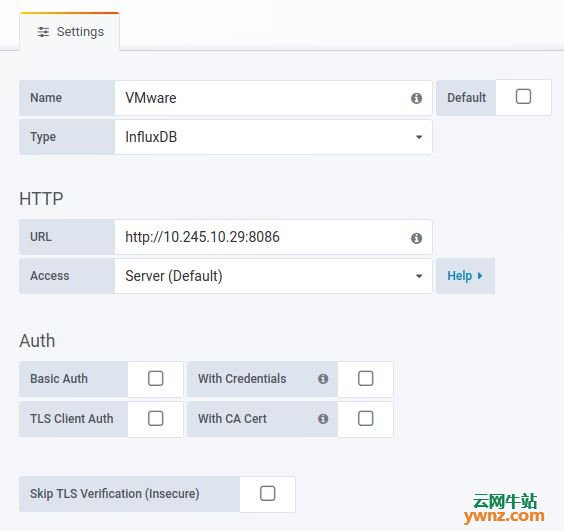
本文介绍使用Grafana和Telegraf监视VMware ESXi的方法,设置非常简单,使用Telegraf的官方vSphere插件从vCenter中提取指标,这包括在vSphere虚拟机管理程序上运行的vSphere主机计算(RAM和CPU),网络,数据存储和虚拟机的度量标准。 一、安装InfluxDB和Grafana参考文章 所有收集的指标都存储在InfluxDB数据库中,Grafana将连接到InfluxDB,以在其仪表板上查询和显示指标。参考以下文章: 在Ubuntu 18.04/Debian 9系统上安装InfluxDB的方法。 在RHEL 8/CentOS 8上安装InfluxDB的方法。 在Ubuntu 18.04系统中安装Grafana 6的方法。 一旦安装了InfluxDB和Grafana,继续安装和配置Telegraf。 二、安装和配置Telegraf 如果你使用步骤一中的链接来安装InfluxDB,则会添加Telegraf安装所需的存储库,只需使用以下命令安装Telegraf即可。 CentOS系统运行: sudo yum -y install telegraf Ubuntu系统运行: sudo apt-get -y install telegraf 安装后,我们需要配置Telegraf以从vCenter中提取监控指标,编辑Telegraf主配置文件: sudo vim /etc/telegraf/telegraf.conf 1、添加InfluxDB输出存储后端,以存储指标: # Configuration for sending metrics to InfluxDB [[outputs.influxdb]] urls = ["http://10.10.1.20:8086"] database = "vmware" timeout = "0s" username = "monitoring" password = "DBPassword" 将10.10.1.20替换为InfluxDB服务器IP地址,如果你没有在InfluxDB上启用身份验证,则可以安全地删除配置中的用户名和密码行。 2、为Telegraf配置vsphere输入插件,完整配置应该类似以下内容: # Read metrics from VMware vCenter [[inputs.vsphere]] ## List of vCenter URLs to be monitored. These three lines must be uncommented ## and edited for the plugin to work. vcenters = [ "https://10.10.1.2/sdk" ] username = "administrator@vsphere.local" password = "AdminPassword" # ## VMs ## Typical VM metrics (if omitted or empty, all metrics are collected) vm_metric_include = [ "cpu.demand.average", "cpu.idle.summation", "cpu.latency.average", "cpu.readiness.average", "cpu.ready.summation", "cpu.run.summation", "cpu.usagemhz.average", "cpu.used.summation", "cpu.wait.summation", "mem.active.average", "mem.granted.average", "mem.latency.average", "mem.swapin.average", "mem.swapinRate.average", "mem.swapout.average", "mem.swapoutRate.average", "mem.usage.average", "mem.vmmemctl.average", "net.bytesRx.average", "net.bytesTx.average", "net.droppedRx.summation", "net.droppedTx.summation", "net.usage.average", "power.power.average", "virtualDisk.numberReadAveraged.average", "virtualDisk.numberWriteAveraged.average", "virtualDisk.read.average", "virtualDisk.readOIO.latest", "virtualDisk.throughput.usage.average", "virtualDisk.totalReadLatency.average", "virtualDisk.totalWriteLatency.average", "virtualDisk.write.average", "virtualDisk.writeOIO.latest", "sys.uptime.latest", ] # vm_metric_exclude = [] ## Nothing is excluded by default # vm_instances = true ## true by default # ## Hosts ## Typical host metrics (if omitted or empty, all metrics are collected) host_metric_include = [ "cpu.coreUtilization.average", "cpu.costop.summation", "cpu.demand.average", "cpu.idle.summation", "cpu.latency.average", "cpu.readiness.average", "cpu.ready.summation", "cpu.swapwait.summation", "cpu.usage.average", "cpu.usagemhz.average", "cpu.used.summation", "cpu.utilization.average", "cpu.wait.summation", "disk.deviceReadLatency.average", "disk.deviceWriteLatency.average", "disk.kernelReadLatency.average", "disk.kernelWriteLatency.average", "disk.numberReadAveraged.average", "disk.numberWriteAveraged.average", "disk.read.average", "disk.totalReadLatency.average", "disk.totalWriteLatency.average", "disk.write.average", "mem.active.average", "mem.latency.average", "mem.state.latest", "mem.swapin.average", "mem.swapinRate.average", "mem.swapout.average", "mem.swapoutRate.average", "mem.totalCapacity.average", "mem.usage.average", "mem.vmmemctl.average", "net.bytesRx.average", "net.bytesTx.average", "net.droppedRx.summation", "net.droppedTx.summation", "net.errorsRx.summation", "net.errorsTx.summation", "net.usage.average", "power.power.average", "storageAdapter.numberReadAveraged.average", "storageAdapter.numberWriteAveraged.average", "storageAdapter.read.average", "storageAdapter.write.average", "sys.uptime.latest", ] # host_metric_exclude = [] ## Nothing excluded by default # host_instances = true ## true by default # ## Clusters cluster_metric_include = [] ## if omitted or empty, all metrics are collected # cluster_metric_exclude = [] ## Nothing excluded by default # cluster_instances = false ## false by default # ## Datastores datastore_metric_include = [] ## if omitted or empty, all metrics are collected # datastore_metric_exclude = [] ## Nothing excluded by default # datastore_instances = false ## false by default for Datastores only # ## Datacenters datacenter_metric_include = [] ## if omitted or empty, all metrics are collected datacenter_metric_exclude = [ "*" ] ## Datacenters are not collected by default. # datacenter_instances = false ## false by default for Datastores only # ## Plugin Settings ## separator character to use for measurement and field names (default: "_") # separator = "_" # ## number of objects to retreive per query for realtime resources (vms and hosts) ## set to 64 for vCenter 5.5 and 6.0 (default: 256) # max_query_objects = 256 # ## number of metrics to retreive per query for non-realtime resources (clusters and datastores) ## set to 64 for vCenter 5.5 and 6.0 (default: 256) # max_query_metrics = 256 # ## number of go routines to use for collection and discovery of objects and metrics # collect_concurrency = 1 # discover_concurrency = 1 # ## whether or not to force discovery of new objects on initial gather call before collecting metrics ## when true for large environments this may cause errors for time elapsed while collecting metrics ## when false (default) the first collection cycle may result in no or limited metrics while objects are discovered # force_discover_on_init = false # ## the interval before (re)discovering objects subject to metrics collection (default: 300s) # object_discovery_interval = "300s" # ## timeout applies to any of the api request made to vcenter # timeout = "60s" # ## Optional SSL Config # ssl_ca = "/path/to/cafile" # ssl_cert = "/path/to/certfile" # ssl_key = "/path/to/keyfile" ## Use SSL but skip chain & host verification insecure_skip_verify = true 要改变的变量是: 1]、10.10.1.2应替换为vCenter IP地址。 2]、administrator@vsphere.local应与你的vCenter用户帐户匹配。 3]、带有密码的AdminPassword用于进行身份验证。 如果vCenter Server具有自签名证书,请确保将insecure_skip_verify标志设置为true: insecure_skip_verify = true 进行更改后启动并启用Telegraf服务: sudo systemctl restart telegraf sudo systemctl enable telegraf 三、检查InfluxDB指标 我们需要确认我们的指标被推送到InfluxDB并且可以看到它们。 1、打开InfluxDB shell 使用身份验证: $ influx -username 'username' -password 'StrongPassword' Connected to http://localhost:8086 version 1.6.4 InfluxDB shell version: 1.6.4 1]、 'username' - InfluxDB身份验证用户名。 2]、'StrongPassword' - InfluxDB密码。 没有认证: $ influx Connected to http://localhost:8086 version 1.6.4 InfluxDB shell version: 1.6.4 切换到我们在telegraf上配置的vmware数据库: > USE vmware Using database vmware 检查时间序列指标是否inflow: > SHOW MEASUREMENTS name: measurements name ---- cpu disk diskio kernel mem processes swap system vsphere_cluster_clusterServices vsphere_cluster_mem vsphere_cluster_vmop vsphere_datacenter_vmop vsphere_datastore_datastore vsphere_datastore_disk vsphere_host_cpu vsphere_host_disk vsphere_host_mem vsphere_host_net vsphere_host_power vsphere_host_storageAdapter vsphere_host_sys vsphere_vm_cpu vsphere_vm_mem vsphere_vm_net vsphere_vm_power vsphere_vm_sys vsphere_vm_virtualDisk > 四、将InfluxDB数据源添加到Grafana 登录Grafana并添加InfluxDB数据源,指定服务器IP、数据库名称和身份验证帐户:
给它命名,选择类型,指定服务器IP:
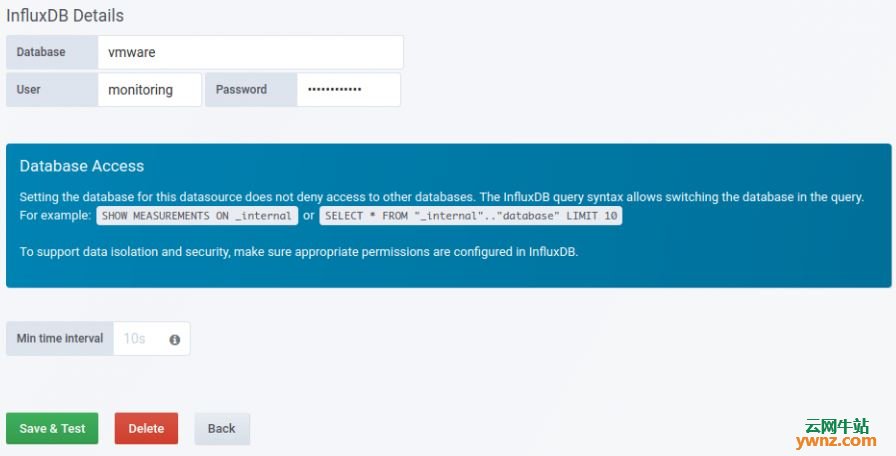
提供数据库名称和身份验证帐户:
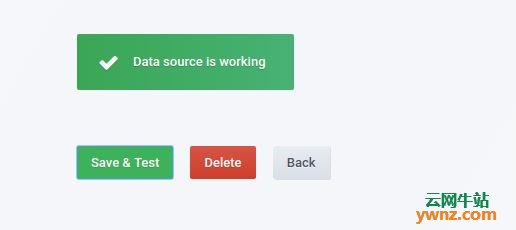
保存并测试设置:
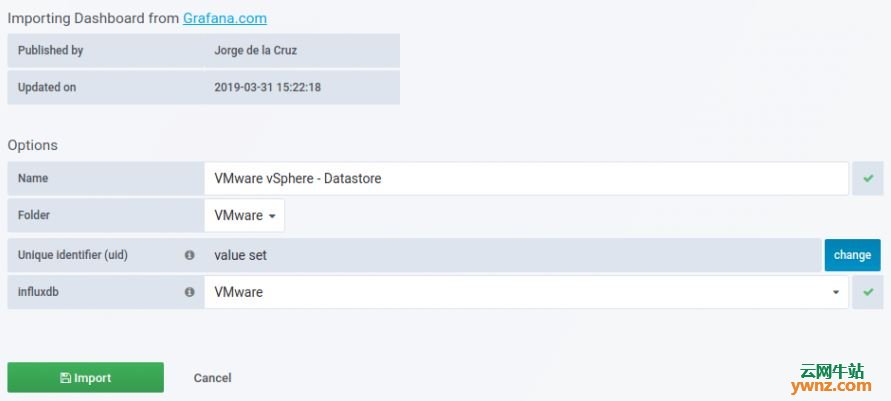
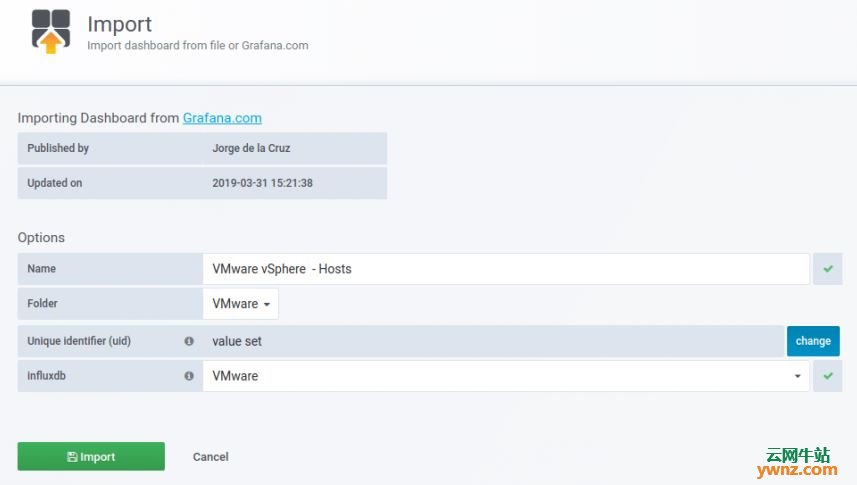
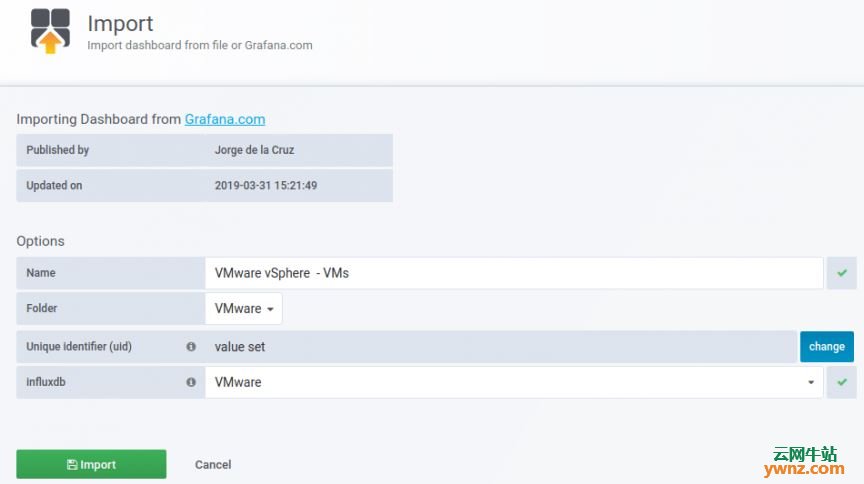
五、导入Grafana仪表板 我们已将所有依赖项和测试配置好,最后一项操作是创建或导入将显示vSphere指标的Grafana仪表板。 登录你的Grafana并导航到Dashboard导入部分,使用仪表板ID导入,链接如下: https://grafana.com/dashboards/8159 https://grafana.com/dashboards/8162 https://grafana.com/dashboards/8165 https://grafana.com/dashboards/8168 操作截图如下:
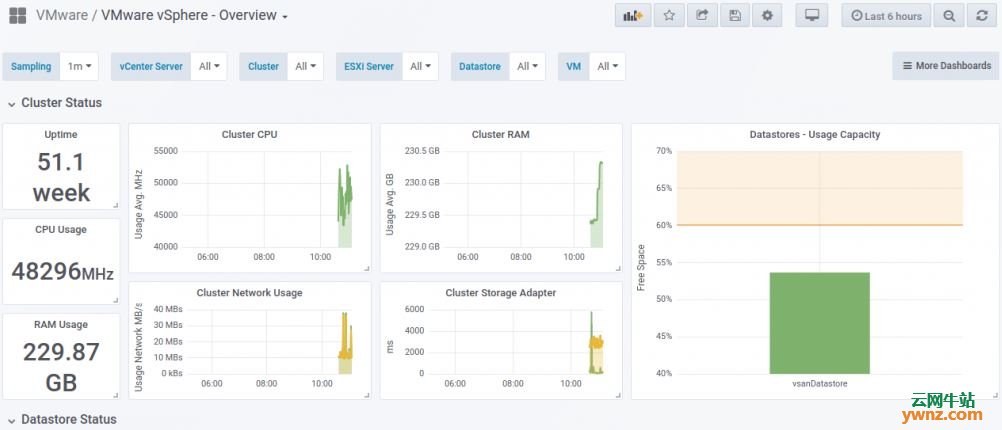
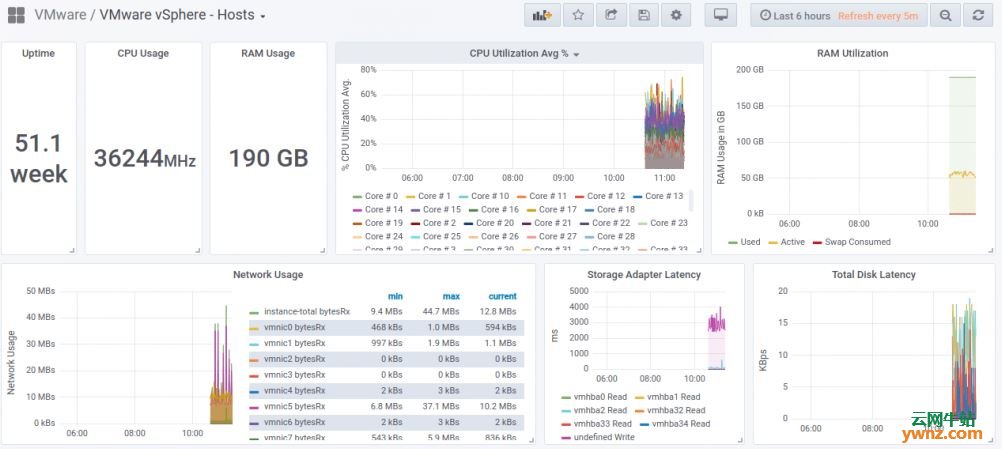
成功导入后,应该能看到仪表板上显示的数据了,如下图所示:
看到如上图,表明导入Grafana全部成功了。 相关主题 |



[转帖]使用Grafana和Telegraf监视VMware ESXi的方法的更多相关文章
- grafana + influxdb + telegraf
grafana + influxdb + telegraf , 构建性能监控平台http://www.cnblogs.com/Scissors/p/5977670.html https://docs. ...
- Grafana+Influxdb+Telegraf监控mysql
Grafana+Influxdb+Telegraf监控mysql 一.安装 1.1安装Grafana+influxdb+telegraf 1.2启动服务,添加开机启动 1.3查看grafana界面 二 ...
- vmware esxi 找不到网卡驱动,硬盘的解决方法
解决方法就是把ESXi无法识别的硬件的驱动定制进安装镜像文件中. ESXi 5.5 U2: VMware-VMvisor-Installer-5.5.0.update02-2068190.x86_64 ...
- RHEL 6.5 PXE 安装调试 VMWARE ESXi 5.1 安装
测试环境:win10/vmware workstation 12 pro 操作系统:RHEL 6.5(PXE服务器) [2016.11.30] [遗留问题] 1.ks.cfg通过本地文件方式加载不成功 ...
- Hyper-V架构与VMware ESXi的差异
微软的Hyper-V与VMware的ESXi在架构上有众多不同,然而很多虚拟化管理员并未意识到这些差异.而且很多管理员同样对Hyper-V是在主机操作系统上运行感到困惑. 有关微软Hyper-V的一个 ...
- VMware ESXi客户端连接控制台时提示"VMRC控制台连接已断开...正在尝试重新连接"的解决方法
通过vSphere Client连接到安装VMware ESXi虚拟环境的主机时,当启动操作系统,选中控制台时控制台上方提示一行"VMRC控制台的连接已断开...正在尝试重新连接" ...
- 物理主机win 7系统迁移至VMware ESXI服务器
一.实验环境如下图所示: 二.实验要求(如上图所示) 通过 计算机B (IP:10.8.9.18) 将 计算机A (IP:10.8.9.155) 迁移到 服务器(IP:10.8.9.161) 三.实 ...
- [转载]在Vmware ESXI中安装群晖Synology DSM 5.0 (4528)
转载 在Vmware ESXI中安装群晖Synology DSM 5.0 (4528) 文件准备 Vmware ESXi用户安装需要的文件 NB_x64_5032_DSM_50-4528_Xpenol ...
- VMware ESXi 5.5创建虚拟机
1.用鼠标右键单击连接到的IP地址,在弹出的快捷菜单中选择“新建虚拟机”选项,或者按“Ctrl+N”热键. 2.选择自定义 3.自定义服务器名称,并且名称最好是英文而且名称需要是唯一的. 4.选择本地 ...
随机推荐
- HZOJ 20190818 NOIP模拟24题解
T1 字符串: 裸的卡特兰数题,考拉学长讲过的原题,就是bzoj3907网格那题,而且这题更简单,连高精都不用 结论$C_{n+m}^{n}-C_{n+m}^{n+1}$ 考场上10min切掉 #in ...
- spring boot+idea实现程序热部署
pring为开发者提供了一个名为spring-boot-devtools的模块来使Spring Boot应用支持热部署,提高开发者的开发效率,无需手动重启Spring Boot应用. devtools ...
- Transformer的PyTorch实现--转载
转载自 https://blog.csdn.net/stupid_3/article/details/83184691
- CodeForces 755D PolandBall and Polygon ——(xjbg)
每次连线,起点和终点之间,每一个被点亮的点,这些点都能连出去两条线,因此可以增加的块数+2(1这个点除外,因为只有连出的点没有连进的点),计算起点和终点之间有几个点被点亮即可,然后1这个点特判一下.感 ...
- 年视图,选择月份 ---bootstrap datepicker
$.fn.datepicker.dates['cn'] = { //切换为中文显示 days: ["周日", "周一", "周二", &qu ...
- Nginx访问非常慢
由于域名绑定服务器IP,而服务器上部署了多个应用,想都通过域名访问,故弄了个Nginx转发. 加了Nginx以后,服务访问明显卡顿. 查看配置: location / { proxy_pass htt ...
- docker部署TX-LCN5.0.2
主要是在配置tx-lcn.manager.host时需要特别注意下,应该安装如下配置进行 tx-lcn: manager: host: 0.0.0.0 port: 8070 heart-time: 1 ...
- QT程序拷贝 转移 改变运行环境
qt程序 在windows平台下怎么运行? 以前开发环境是VS2008编译 +qt-win-opensource-4.7.4-vs2008框架 +QtCreator编辑界面(以前的例子,win7下成功 ...
- Laravel 代码开发最佳实践
我们这里要讨论的并不是 Laravel 版的 SOLID 原则(想要了解更多 SOLID 原则细节查看这篇文章)亦或是设计模式,而是 Laravel 实际开发中容易被忽略的最佳实践. 内容概览 单一职 ...
- 简易总结react-hook三大基础
react-hook的最重要的三大基础 import { useEffect, useState, useContext } from 'react' 1.每一个简单的一句话总结 useEffect ...