
How to Add Columns to a DataGrid through Binding and Map Its Cell Values
How to Add Columns to a DataGrid through Binding and Map Its Cell Values



Introduction
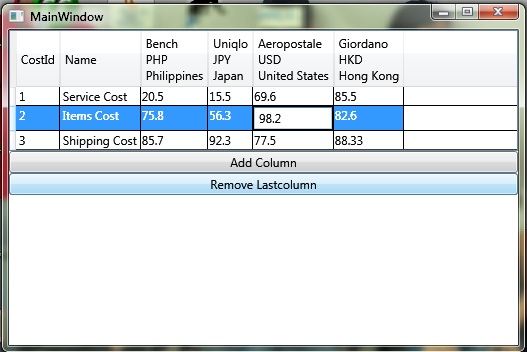
There are some ways on how you can dynamically bind to the columns of a DataGrid. In this article, I'll discuss a solution on how bind a collection to the DataGrid's column and display a mapped value to the cell using the row and column's binding.
Background
In my current project, I was tasked to create a datagrid that can have additional columns through binding. Thanks to Paul Stovell, I got an idea on how to implement a CustomBoundColumn. But I still have another problem, how can I get the cell value based on the Column and Row binding? Another problem is where should I bind the values of the new cells?
Normally, we can create a cell template and the binding of the row will apply to that template. But since we have a dynamic column, we should match the column's binding to the row binding in order for the data in the cell to make sense.
The main idea here is to get the Column's binding and the Row's binding then with that information, we can generate a sensible data for the cell. Then, we need a way to manage those new cell values though data binding.
Using the Code
I created a behavior for my DataGrid with the following attached properties:
AttachedColumnsProperty- This should be bound to anObservableCollectionof ViewModels for the additional columns.MappedValuesProperty- This should be bound to anObservableCollectionofMappedValues. I created aMappedValueclass that contains the binding source of the column header, the binding source of the view and the value that will be placed in the cell.HeaderTemplateProperty- The column header template.AttachedCellTemplateProperty- The cell template of the cell under the attached columns. This should be the template of those newly generated cells because of the attached columns.
    public class AttachedColumnBehavior

    {

        public static readonly DependencyProperty AttachedColumnsProperty =

                DependencyProperty.RegisterAttached("AttachedColumns",

                typeof(IEnumerable),

                typeof(AttachedColumnBehavior),

                new UIPropertyMetadata(null, OnAttachedColumnsPropertyChanged));

        public static readonly DependencyProperty MappedValuesProperty =

                DependencyProperty.RegisterAttached("MappedValues",

                typeof(MappedValueCollection),

                typeof(AttachedColumnBehavior),

                new UIPropertyMetadata(null, OnMappedValuesPropertyChanged));

        public static readonly DependencyProperty HeaderTemplateProperty =

                DependencyProperty.RegisterAttached("HeaderTemplate",

                typeof(DataTemplate),

                typeof(AttachedColumnBehavior),

                new UIPropertyMetadata(null, OnHeaderTemplatePropertyChanged));

        public static readonly DependencyProperty AttachedCellTemplateProperty =

                DependencyProperty.RegisterAttached("AttachedCellTemplate",

                typeof(DataTemplate),

                typeof(AttachedColumnBehavior),

                new UIPropertyMetadata(null, OnCellTemplatePropertyChanged));

        public static readonly DependencyProperty AttachedCellEditingTemplateProperty =

        DependencyProperty.RegisterAttached("AttachedCellEditingTemplate",

        typeof(DataTemplate),

        typeof(DataGrid),

        new UIPropertyMetadata(null, OnCellEditingTemplatePropertyChanged));

        private static void OnAttachedColumnsPropertyChanged

        (DependencyObject dependencyObject, DependencyPropertyChangedEventArgs e)

        {

            var dataGrid = dependencyObject as DataGrid;

            if (dataGrid == null) return;

            var columns = e.NewValue as INotifyCollectionChanged;

            if (columns != null)

            {

                columns.CollectionChanged += (sender, args) =>

                    {

                        if (args.Action == NotifyCollectionChangedAction.Remove)

                            RemoveColumns(dataGrid, args.OldItems);

                        else if(args.Action == NotifyCollectionChangedAction.Add)

                            AddColumns(dataGrid, args.NewItems);

                    };

                dataGrid.Loaded += (sender, args) => AddColumns(dataGrid, GetAttachedColumns(dataGrid));

                var items = dataGrid.ItemsSource as INotifyCollectionChanged;

                if (items != null)

                    items.CollectionChanged += (sender, args) =>

                        {

                            if (args.Action == NotifyCollectionChangedAction.Remove)

                                RemoveMappingByRow(dataGrid, args.NewItems);

                        };

            }

        }

        private static void AddColumns(DataGrid dataGrid, IEnumerable columns)

        {

            foreach (var column in columns)

            {

                CustomBoundColumn customBoundColumn = new CustomBoundColumn()

                {

                    Header = column,

                    HeaderTemplate = GetHeaderTemplate(dataGrid),

                    CellTemplate = GetAttachedCellTemplate(dataGrid),

                    CellEditingTemplate = GetAttachedCellEditingTemplate(dataGrid),

                    MappedValueCollection = GetMappedValues(dataGrid)

                };

                dataGrid.Columns.Add(customBoundColumn);

            }

        }

        private static void RemoveColumns(DataGrid dataGrid, IEnumerable columns)

        {

            foreach (var column in columns)

            {

                DataGridColumn col = dataGrid.Columns.Where(x => x.Header == column).Single();

                GetMappedValues(dataGrid).RemoveByColumn(column);

                dataGrid.Columns.Remove(col);

            }

        }

        private static void RemoveMappingByRow(DataGrid dataGrid, IEnumerable rows)

        {

            foreach (var row in rows)

            {

                GetMappedValues(dataGrid).RemoveByRow(row);

            }

        }

        #region OnChange handlers

        private static void OnCellTemplatePropertyChanged

        (DependencyObject depObj, DependencyPropertyChangedEventArgs e)

        {

        }

        private static void OnHeaderTemplatePropertyChanged

        (DependencyObject depObj, DependencyPropertyChangedEventArgs e)

        {

        }

        private static void OnCellEditingTemplatePropertyChanged

        (DependencyObject depObj, DependencyPropertyChangedEventArgs e)

        {

        }

        private static void OnMappedValuesPropertyChanged

        (DependencyObject d, DependencyPropertyChangedEventArgs e)

        {

        }

        #endregion

        public static IEnumerable GetAttachedColumns(DependencyObject dataGrid)

        {

            return (IEnumerable)dataGrid.GetValue(AttachedColumnsProperty);

        }

        public static void SetAttachedColumns(DependencyObject dataGrid, IEnumerable value)

        {

            dataGrid.SetValue(AttachedColumnsProperty, value);

        }

        public static MappedValueCollection GetMappedValues(DependencyObject dataGrid)

        {

            return (MappedValueCollection)dataGrid.GetValue(MappedValuesProperty);

        }

        public static void SetMappedValues(DependencyObject dataGrid, MappedValueCollection value)

        {

            dataGrid.SetValue(MappedValuesProperty, value);

        }

        public static DataTemplate GetHeaderTemplate(DependencyObject dataGrid)

        {

            return (DataTemplate)dataGrid.GetValue(HeaderTemplateProperty);

        }

        public static void SetHeaderTemplate(DependencyObject dataGrid, DataTemplate value)

        {

            dataGrid.SetValue(HeaderTemplateProperty, value);

        }

        public static DataTemplate GetAttachedCellTemplate(DependencyObject dataGrid)

        {

            return (DataTemplate)dataGrid.GetValue(AttachedCellTemplateProperty);

        }

        public static void SetAttachedCellTemplate(DependencyObject dataGrid, DataTemplate value)

        {

            dataGrid.SetValue(AttachedCellTemplateProperty, value);

        }

        public static DataTemplate GetAttachedCellEditingTemplate(DependencyObject dataGrid)

        {

            return (DataTemplate)dataGrid.GetValue(AttachedCellEditingTemplateProperty);

        }

        public static void SetAttachedCellEditingTemplate(DependencyObject dataGrid, DataTemplate value)

        {

            dataGrid.SetValue(AttachedCellEditingTemplateProperty, value);

        }

    }
Now here's the CustomBoundColumn, this is an extension of the DataGridTemplateColumn. Here, we will combine the binding source of the column and the row and this will be the binding of our cell template. With RowBindingand ColumnBinding, we can add MappedValue to the MappedValueCollection.
public class CustomBoundColumn : DataGridTemplateColumn//DataGridBoundColumn

{

    public DataTemplate CellTemplate { get; set; }

    public DataTemplate CellEditingTemplate { get; set; }

    public MappedValueCollection MappedValueCollection { get; set; }

    protected override FrameworkElement GenerateElement(DataGridCell cell, object dataItem)

    {

        var content = new ContentControl();

        MappedValue context = MappedValueCollection.ReturnIfExistAddIfNot(cell.Column.Header, dataItem);

        var binding = new Binding() { Source = context };

        content.ContentTemplate = cell.IsEditing ? CellEditingTemplate : CellTemplate;

        content.SetBinding(ContentControl.ContentProperty, binding);

        return content;

    }

    protected override FrameworkElement GenerateEditingElement(DataGridCell cell, object dataItem)

    {

        return GenerateElement(cell, dataItem);

    }

}
The MappedValueCollection is just an ObservableCollection of MappedValues. I created it to easily manipulate the mapped values.
public class MappedValueCollection : ObservableCollection<MappedValue>

{

    public MappedValueCollection()

    {

    }

    public bool Exist(object ColumnBinding, object RowBinding)

    {

        return this.Count(x => x.RowBinding == RowBinding &&

        	x.ColumnBinding == ColumnBinding) > 0;

    }

    public MappedValue ReturnIfExistAddIfNot(object ColumnBinding, object RowBinding)

    {

        MappedValue value = null;

        if (Exist(ColumnBinding, RowBinding))

        {

            return this.Where(x => x.RowBinding == RowBinding &&

                                   x.ColumnBinding == ColumnBinding).Single();

        }

        else

        {

            value = new MappedValue();

            value.ColumnBinding = ColumnBinding;

            value.RowBinding = RowBinding;

            this.Add(value);

        }

        return value;

    }

    public void RemoveByColumn(object ColumnBinding)

    {

        foreach (var item in this.Where(x => x.ColumnBinding == ColumnBinding).ToList())

            this.Remove(item);

    }

    public void RemoveByRow(object RowBinding)

    {

        foreach (var item in this.Where(x => x.RowBinding == RowBinding).ToList())

            this.Remove(item);

    }

}
The MappedValue is where we bind the value of the new cells generated by newly attached columns.
public class MappedValue : ViewModelBase, IMappedValue

{

    object value;

    public object ColumnBinding { get; set; }

    public object RowBinding { get; set; }

    public object Value

    {

        get

        {

            return value;

        }

        set

        {

            if (this.value != value)

            {

                this.value = value;

                base.RaisePropertyChanged(() => Value);

            }

        }

    }

}
In the ViewModel example, here we have three Collections, the CostingCollectionwhich will be the ItemsSourceof the DataGrid, the Suppliers which will be the additional columns to the grid and the SupplierCostValueswhich is the mapped value for the cells under the attached columns.
public class MainWindowViewModel : ViewModelBase

{

    ObservableCollection<CostViewModel> costingCollection;

    ObservableCollection<SupplierViewModel> suppliers;

    MappedValueCollection supplierCostValues;

    public MappedValueCollection SupplierCostValues

    {

        get { return supplierCostValues; }

        set

        {

            if (supplierCostValues != value)

            {

                supplierCostValues = value;

                base.RaisePropertyChanged(() => this.SupplierCostValues);

            }

        }

    }

    public ObservableCollection<SupplierViewModel> Suppliers

    {

        get { return suppliers; }

        set

        {

            if (suppliers != value)

            {

                suppliers = value;

                base.RaisePropertyChanged(() => this.Suppliers);

            }

        }

    }

    public ObservableCollection<CostViewModel> CostingCollection

    {

        get { return costingCollection; }

        set

        {

            if (costingCollection != value)

            {

                costingCollection = value;

                base.RaisePropertyChanged(() => this.CostingCollection);

            }

        }

    }

    public MainWindowViewModel()

    {

        SupplierCostValues = new MappedValueCollection();

        this.Suppliers = new ObservableCollection<SupplierViewModel>();

        this.CostingCollection = new ObservableCollection<CostViewModel>();

        this.Suppliers.Add(new SupplierViewModel(new Supplier() { SupplierId = 1,

          Currency = "PHP",

          Location = "Philippines", SupplierName = "Bench" }));

        this.Suppliers.Add(new SupplierViewModel(new Supplier() { SupplierId = 2,

          Currency = "JPY",

          Location = "Japan", SupplierName = "Uniqlo" }));

        this.Suppliers.Add(new SupplierViewModel(new Supplier() { SupplierId = 3,

          Currency = "USD",

          Location = "United States", SupplierName = "Aeropostale" }));

        this.Suppliers.Add(new SupplierViewModel(new Supplier() { SupplierId = 4,

          Currency = "HKD",

          Location = "Hong Kong", SupplierName = "Giordano" }));

        CostingCollection.Add(new CostViewModel(new Cost()

        { CostId = 1, Name = "Service Cost" }));

        CostingCollection.Add(new CostViewModel(new Cost()

        { CostId = 2, Name = "Items Cost" }));

        CostingCollection.Add(new CostViewModel(new Cost()

        { CostId = 3, Name = "Shipping Cost" }));

    }

    public ICommand RemoveCommand

    {

        get

        {

            return new RelayCommand(() =>

            {

                this.Suppliers.RemoveAt(this.Suppliers.Count - 1);

            });

        }

    }

    public ICommand AddCommand

    {

        get

        {

            return new RelayCommand(() =>

            {

                this.Suppliers.Add(new SupplierViewModel(new Supplier() { SupplierId = 1,

                  Currency = "PHP",

                  Location = "Philippines", SupplierName = "Bench" }));

            });

        }

    }

}
The HeaderTemplate's binding would be a SupplierViewModel, the Row's binding will be CostViewModel and the CellTemplate's binding is a MappedValue.
<Window x:Class="BindableColumn.MainWindow"

        xmlns="http://schemas.microsoft.com/winfx/2006/xaml/presentation"

        xmlns:x="http://schemas.microsoft.com/winfx/2006/xaml"

        xmlns:loc="clr-namespace:BindableColumn"

        xmlns:vm="clr-namespace:BindableColumn.ViewModel"

        Title="MainWindow" Height="350" Width="525">

    <Window.DataContext>

        <vm:MainWindowViewModel />

    </Window.DataContext>

    <Grid>

        <Grid.RowDefinitions>

            <RowDefinition />

            <RowDefinition />

        </Grid.RowDefinitions>

        <StackPanel Grid.Row="0">

            <StackPanel.Resources>

                <DataTemplate x:Key="headerTemplate">

                    <StackPanel>

                        <TextBlock Text="{Binding SupplierName}" />

                        <TextBlock Text="{Binding Currency}" />

                        <TextBlock Text="{Binding Location}" />

                    </StackPanel>

                </DataTemplate>

                <DataTemplate x:Key="cellTemplate">

                    <DataTemplate.Resources>

                        <loc:RowAndColumnMultiValueConverter x:Key="Converter"/>

                    </DataTemplate.Resources>

                    <StackPanel>

                        <TextBlock Text="{Binding Value}" />

                    </StackPanel>

                </DataTemplate>

                <DataTemplate x:Key="cellEditingTemplate">

                    <DataTemplate.Resources>

                        <loc:RowAndColumnMultiValueConverter x:Key="Converter" />

                    </DataTemplate.Resources>

                    <StackPanel>

                        <TextBox Text="{Binding Value}"/>

                    </StackPanel>

                </DataTemplate>

            </StackPanel.Resources>

            <DataGrid ItemsSource="{Binding CostingCollection}" x:Name="myGrid"

                      loc:AttachedColumnBehavior.HeaderTemplate="{StaticResource headerTemplate}"

                      loc:AttachedColumnBehavior.AttachedCellTemplate="{StaticResource cellTemplate}"

                      loc:AttachedColumnBehavior.AttachedColumns="{Binding Suppliers}"

                      loc:AttachedColumnBehavior.AttachedCellEditingTemplate=

                      	"{StaticResource cellEditingTemplate}"

                      loc:AttachedColumnBehavior.MappedValues="{Binding SupplierCostValues}"

                      AutoGenerateColumns="False">

                <DataGrid.Columns>

                    <DataGridTextColumn Header="CostId" Binding="{Binding CostId}"/>

                    <DataGridTextColumn Header="Name" Binding="{Binding Name}" />

                </DataGrid.Columns>

            </DataGrid>

            <Button Content="Add Column" Command="{Binding AddCommand}"/>

            <Button Content="Remove Lastcolumn" Command="{Binding RemoveCommand}" />

        </StackPanel>

    </Grid>

</Window>
Conclusion
Using the AttachedColumns property, we can bind an observable collection, then collection changes (add/remove) will reflect to the UI. We can now add/remove a column without having to mess up with the code behind. Aside from binding to the AttachedColumns, we can always add columns via the XAML, that makes it more flexible to use.
Allowing dynamic columns gives more complexity since there will be some new cells because of the attached columns. Using the MappedValueCollection, we can play around with the values of the newly generated cells with reference to the Row and Column of the cell. Again, no code behind involved, it can be done in the ViewModel.
Practically, this is my way of implementing a dynamic DataGrid columns using the MVVM pattern. I hope this solution helps in your development.
Further Improvement
In this solution, I only used one type of view model for all the attached columns. I think we can use different type of viewmodels for each attached column by utilizing the HeaderTemplateSelector.
References
http://www.codeproject.com/Tips/676530/How-to-Add-Columns-to-a-DataGri
How to Add Columns to a DataGrid through Binding and Map Its Cell Values的更多相关文章
- Spark 2.x不支持ALTER TABLE ADD COLUMNS,没关系,我们改进下
SparkSQL从2.0开始已经不再支持ALTER TABLE table_name ADD COLUMNS (col_name data_type [COMMENT col_comment], .. ...
- 自己动手为Spark 2.x添加ALTER TABLE ADD COLUMNS语法支持
SparkSQL从2.0开始已经不再支持ALTER TABLE table_name ADD COLUMNS (col_name data_type [COMMENT col_comment], .. ...
- Add Columns to the Web Sessions List
To add custom columns to the Web Sessions List, add rules using FiddlerScript. The BindUIColumn Attr ...
- R12: How to add Microsoft Excel as Type to the Create Template List of Values in BI Publisher (Doc ID 1343225.1)
Modified: 27-Oct-2013 Type: HOWTO In this Document Goal Solution References APPLIES TO: BI Publisher ...
- WPF 4 DataGrid 控件(基本功能篇)
原文:WPF 4 DataGrid 控件(基本功能篇) 提到DataGrid 不管是网页还是应用程序开发都会频繁使用.通过它我们可以灵活的在行与列间显示各种数据.本篇将详细介绍WPF 4 中 ...
- [No0000123]WPF DataGrid Columns Visibility的绑定
场景:根据配置文件显示DataGrid中的某些列. 问题:Columns集合只是DataGrid的一个属性,这个集合在逻辑树或视觉树中是看不到的,也不会继承DataContext属性. 方法一:对Da ...
- MVVM框架下,WPF实现Datagrid里的全选和选择
最近的一个项目是用MVVM实现,在实现功能的时候,就会有一些东西,和以前有很大的区别,项目中就用到了常用的序号,就是在Datagrid里的一个字段,用checkbox来实现. 既然是MVVM,就要用到 ...
- 如何用easyui+JAVA 实现动态拼凑datagrid表格
先给大家看一看效果,最近一段时间都在研究这个东西. 如果我把日期间隔选宽呢?比如5月日到5月5日?下面给大家看看效果,不用担心哦 看到了吧,哈哈,这个日期都是动态生成的,下面就来跟大家分享一下这个的实 ...
- Jquery easy ui datagrid動態加載列問題
1.如下图效果是当选择不同的日期范围时datagrid则会加载出对应的列数
随机推荐
- 介绍call和apply
function add(a, b) { alert(a + b); } function sub(a, b) { alert(a - b); } add.call(sub, 1,3); //4 传 ...
- 201521123118《java程序与设计》第七次作业
1. 本周学习总结 以你喜欢的方式(思维导图或其他)归纳总结集合相关内容. 2. 书面作业 1. ArrayList代码分析 1.1 解释ArrayList的contains源代码 public bo ...
- 201521123020《java程序设计》第1周学习总结
1.本周学习总结 1.对JAVA的历史发展的了解 2.了解Java与C/C++的区别,Java语言所写程序较为繁琐,C/C++较为简洁. 3.安装java和jdk 2.书面作业 Q1.为什么java程 ...
- 201521123002《Java程序设计》第14周学习总结
本次作业参考文件 1. 本周学习总结 1.1 以你喜欢的方式(思维导图或其他)归纳总结多数据库相关内容. MySql数据库简单操作: 库操作: 显示所有数据库: show databases; 创建数 ...
- Eclipse rap 富客户端开发总结(5): RAP国际化之路
Eclipse RCP 中的plugin.xml国际化实现 1. 在工程的根目录下面建立一个plugin.properties资源文件:在此资源文件中写入需要国际化的内容(键/值对),举例如下: h ...
- 2017年9月19日 JavaScript语法操作
关于JavaScript个人还是觉得比较有意思的 {在</html>后面写或者在</body>前面写(必须紧贴</body>)} <script> va ...
- eclipse复制到IDEA中文不匹配,编译失败
今天使用把eclipse的包复制到Intellij Idea下,结果在编译的时候,它说我的数据是GBK,而Idea默认的数据是UTF-8,因此出错了... 解决:在项目中直接把对象的encoding. ...
- apache-beanutil工具类的使用
BeanUtil工具类是apache commons中的项目 使用BeanUtil除了需要 commons-beanutils-1.8.3.jar 外,可能需要记录错误日志信息,再加入 commons ...
- Spring4 customEditors
Spring4.0版本以后customEditors属性为Map<Class<?>, Class<? extends PropertyEditor>>,所以用key ...
- Apache Spark 2.2.0 中文文档 - Spark RDD(Resilient Distributed Datasets)论文 | ApacheCN
Spark RDD(Resilient Distributed Datasets)论文 概要 1: 介绍 2: Resilient Distributed Datasets(RDDs) 2.1 RDD ...