
圆形进度条的模仿3-DrawArc,DrawCircle,DrawText,自定义属性实例讲解
前面两篇中已经讲过如何使用drawARC,等,画其他的图形的方法的使用也是一样的,只是参数不同,
同时也讲了如何通过xml进行自定义属性,接下来这篇便是通过实例讲解如何实地应用起来,
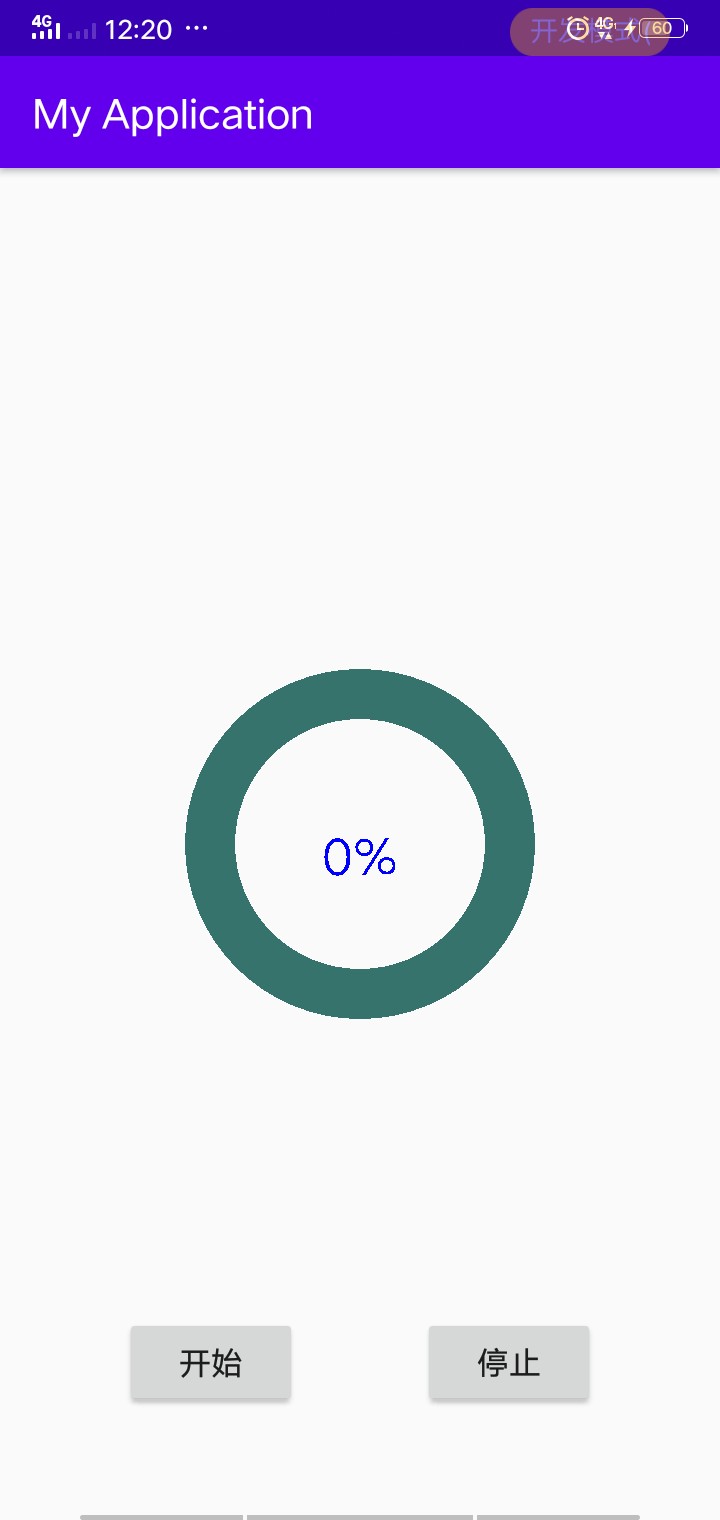
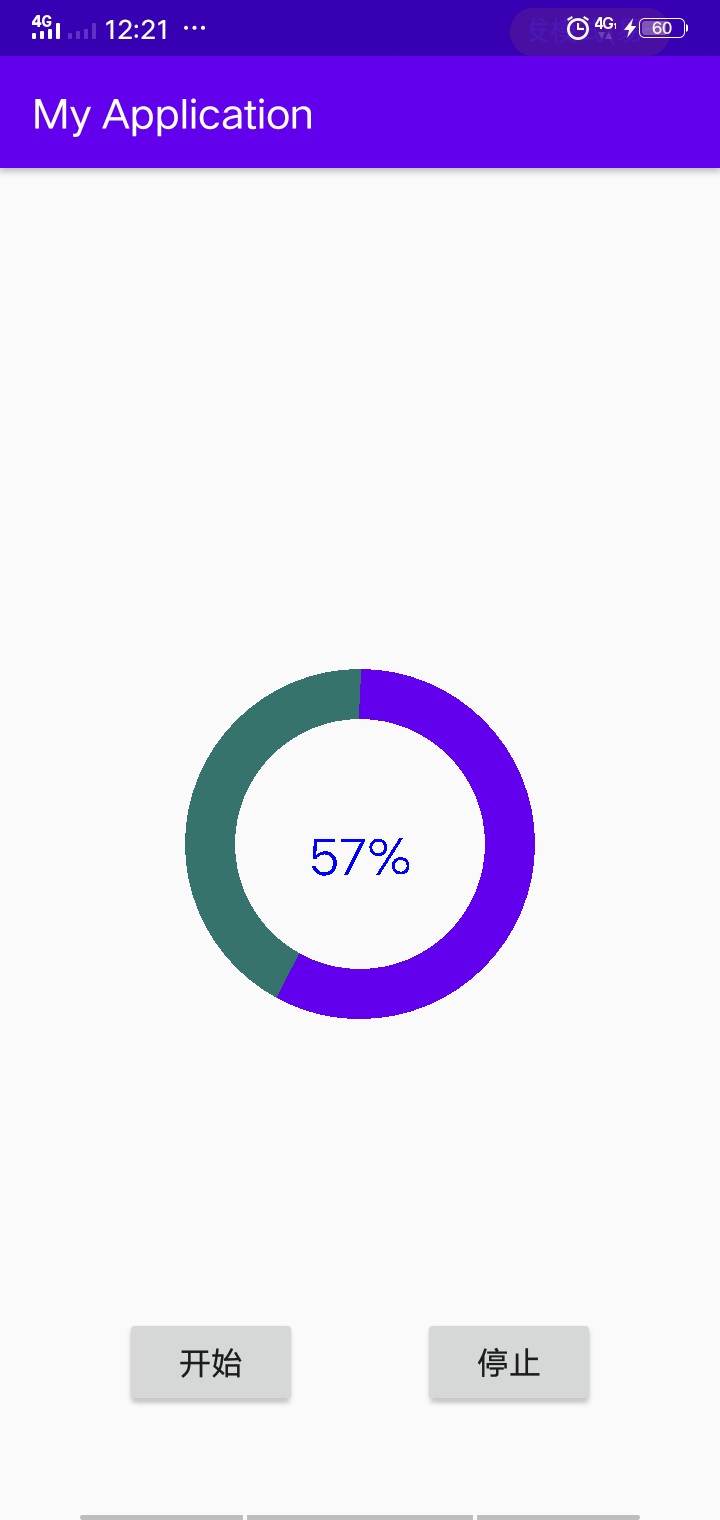
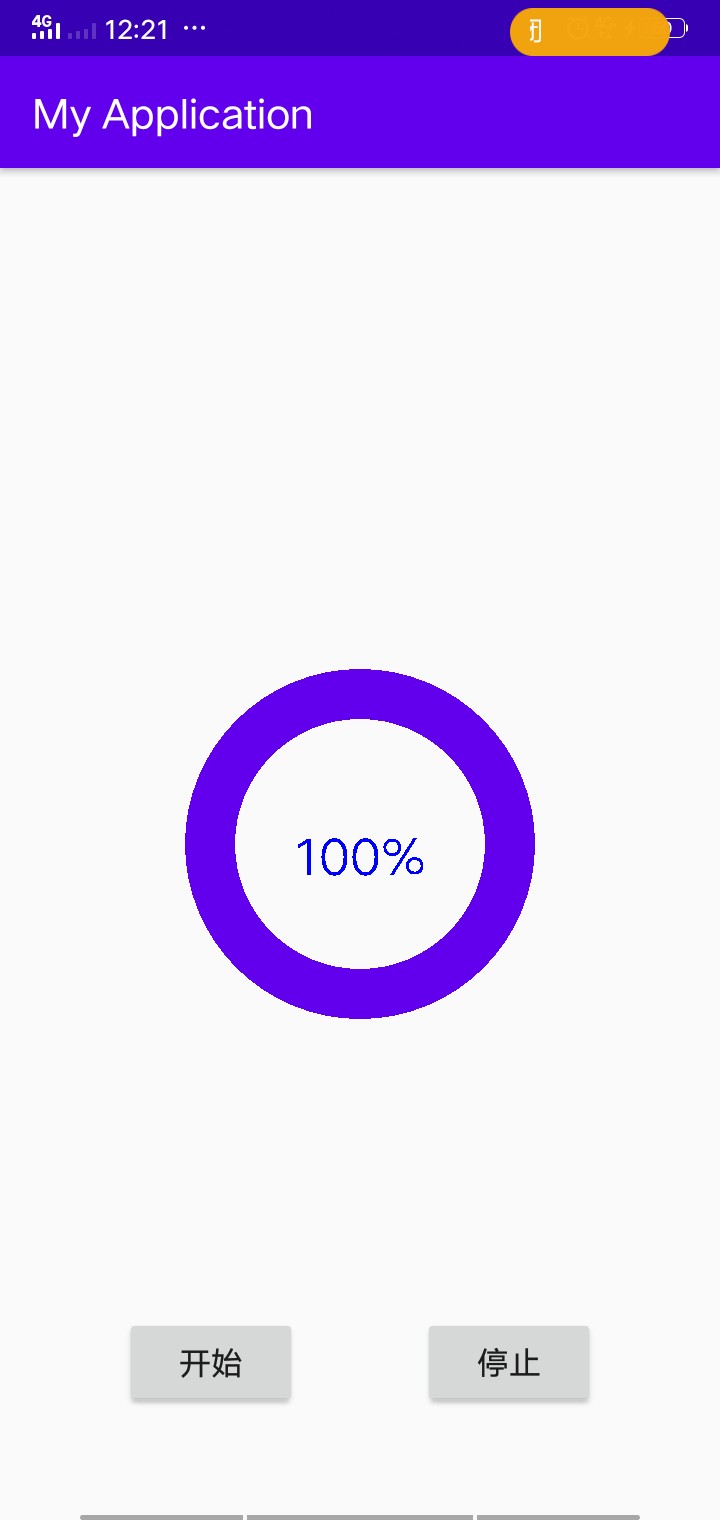
效果如下,点击开始时,进度条会开始转动,点击停止时会停在转动的位置,若在次点击开始时,会从停止
的位置开始转动。
1:这个控件我们是自定义的,所以定义一个类继承于view类,必须要写的两个构造方法,

2:将要添加的属性在values下面的xml文件中写好(方法看上一篇):
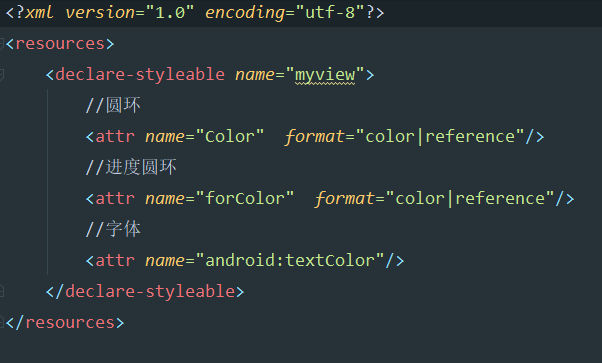
3:在layout中将属性用起来(方法看上篇)
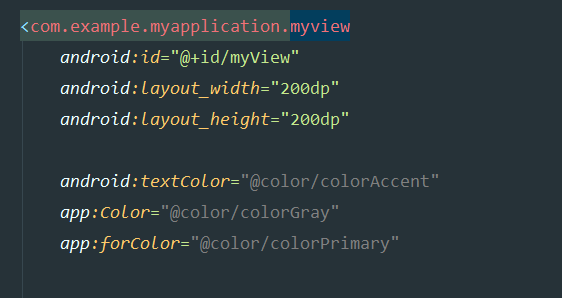
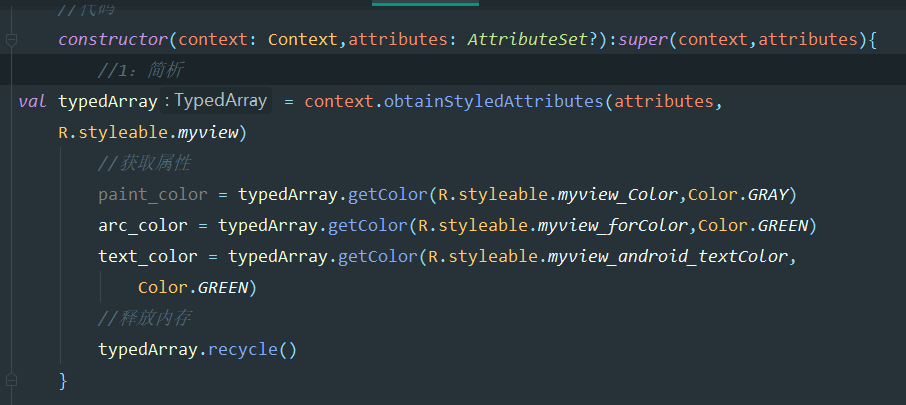
4:回到代码中,在xml构造方法中,将自定义的属性解析出来,(里面的参数及其理解看上篇,),
5:重写ondraw方法,绘画的部分是在该方法里面实现的,

6:在ondraw方法中画出自己要画的图形,我这里画的是一个圆,一个圆弧,以及一个文本
canvas?.drawCircle(cx,cy,radious,paint)
//画弧
canvas?.drawArc(mstrokewidth,mstrokewidth,width-mstrokewidth,height-mstrokewidth,
    -90f,360f*arc_chang,false,arc_paint)

//画文本
canvas?.drawText("${text.toInt()}%",width/2f,height/2f+textMove,text_paint)

进度条本身是一个圆环,我是通过设置画圆的画笔来实现画圆环的:通过设置它的填充方式为Stroke,以及
画笔的宽度宽一点,那么画出来就是一个圆环
//圆的画笔
private val paint = Paint().apply {
    color = Color.BLUE
    style = Paint.Style.STROKE
    strokeWidth = mstrokewidth
}

而我们画的并不是一个死的东西,是一个在变化的东西,那么我们就可以设置它的动画因子,如画弧的弧度,就可以通过
设置弧度变化的动画因子来实现,它是从-90度,转360度转一圈,那么我们可以设置一个动画因子为arc_chang,它的
变化范围我0到1,在乘以360,就是0到360的范围变化了,
 //圆弧的动画因子
val valueAnimator = ValueAnimator.ofFloat(0f,1f).apply {
    duration = 2000
    addUpdateListener {
        myView.arc_chang = it.animatedValue as Float
        myView.text = (it.animatedValue as Float)*100
    }
}

同理画文本也可以这样做,把数字改一下就好了,在启动动画
start.setOnClickListener {
    if (valueAnimator.isPaused) {
        valueAnimator.resume()
    }else{
    valueAnimator.start()
       }
}
stop.setOnClickListener {
    valueAnimator.pause()

}

GitHub连接:https://github.com/luofangli/Circle_progress_bar

整体的代码
1:values文件中的:
<?xml version="1.0" encoding="utf-8"?>
<resources>
    <declare-styleable name="myview">
        //圆环
        <attr name="Color"  format="color|reference"/>
        //进度圆环
        <attr name="forColor"  format="color|reference"/>
        //字体
        <attr name="android:textColor"/>
    </declare-styleable>
</resources>

2:layout中
<?xml version="1.0" encoding="utf-8"?>
<androidx.constraintlayout.widget.ConstraintLayout xmlns:android="http://schemas.android.com/apk/res/android"
    xmlns:app="http://schemas.android.com/apk/res-auto"
    xmlns:tools="http://schemas.android.com/tools"
    android:layout_width="match_parent"
    android:layout_height="match_parent"
    tools:context=".MainActivity">

    <com.example.myapplication.myview
        android:id="@+id/myView"
        android:layout_width="200dp"
        android:layout_height="200dp"

        android:textColor="@color/colorAccent"
        app:Color="@color/colorGray"
        app:forColor="@color/colorPrimary"

        app:layout_constraintBottom_toBottomOf="parent"
        app:layout_constraintEnd_toEndOf="parent"
        app:layout_constraintStart_toStartOf="parent"
        app:layout_constraintTop_toTopOf="parent" />

    <Button
        android:id="@+id/start"
        android:layout_width="wrap_content"
        android:layout_height="wrap_content"
        android:layout_marginTop="80dp"
        android:text="开始"
        app:layout_constraintBottom_toBottomOf="parent"
        app:layout_constraintEnd_toStartOf="@+id/stop"
        app:layout_constraintHorizontal_bias="0.5"
        app:layout_constraintStart_toStartOf="parent"
        app:layout_constraintTop_toBottomOf="@+id/myView" />

    <Button
        android:id="@+id/stop"
        android:layout_width="wrap_content"
        android:layout_height="wrap_content"
        android:text="停止"
        app:layout_constraintEnd_toEndOf="parent"
        app:layout_constraintHorizontal_bias="0.5"
        app:layout_constraintStart_toEndOf="@+id/start"
        app:layout_constraintTop_toTopOf="@+id/start" />

</androidx.constraintlayout.widget.ConstraintLayout>

3:自定义view类中
package com.example.myapplication

import android.content.Context
import android.content.res.TypedArray
import android.graphics.Canvas
import android.graphics.Color
import android.graphics.Paint
import android.util.AttributeSet
import android.view.View
import java.util.jar.Attributes

class myview:View {
    //圆的圆心
    private var cx= 0f
    private var cy = 0f
    //半径
    private var radious = 0f
    //画笔的粗细
    private val mstrokewidth = 50f
    //圆中心的文本
    var text = 0f
    set(value) {
        field = value
        invalidate()
    }
    //圆弧的动画因子
    var arc_chang = 0.00f
    set(value) {
        field = value
        invalidate()
    }

    //圆的画笔
    private val paint = Paint().apply {
        color = Color.BLUE
        style = Paint.Style.STROKE
        strokeWidth = mstrokewidth
    }
    //圆弧的画笔
    private val arc_paint = Paint().apply {
        color = Color.BLUE
        style = Paint.Style.STROKE
        strokeWidth = mstrokewidth
    }
    //画笔向下移动的距离
    private var textMove = 0f
    //文本的画笔
    private val text_paint = Paint().apply {
        color = Color.BLUE
        style = Paint.Style.FILL
        textSize = 50f
        textAlign = Paint.Align.CENTER
        textMove = (descent()-ascent())/2f
    }

    //画笔的颜色
var paint_color = Color.BLUE
    set(value) {
        field = value
        paint.color = value
    }
    //画圆弧的颜色
    var arc_color = Color.GREEN
    set(value) {
        field = value
        arc_paint.color = value
    }
    //字体颜色
    var text_color = Color.GREEN

    constructor(context: Context):super(context){}
    //代码
    constructor(context: Context,attributes: AttributeSet?):super(context,attributes){
        //1:简析
val typedArray = context.obtainStyledAttributes(attributes,
    R.styleable.myview)
        //获取属性
        paint_color = typedArray.getColor(R.styleable.myview_Color,Color.GRAY)
        arc_color = typedArray.getColor(R.styleable.myview_forColor,Color.GREEN)
        text_color = typedArray.getColor(R.styleable.myview_android_textColor,
            Color.GREEN)

        //释放内存
        typedArray.recycle()
    }

    override fun onSizeChanged(w: Int, h: Int, oldw: Int, oldh: Int) {
        super.onSizeChanged(w, h, oldw, oldh)
        cx = width/2f
        cy = height/2f
        radious = Math.min(width,height)/2f - mstrokewidth
    }
    override fun onDraw(canvas: Canvas?) {
        canvas?.drawCircle(cx,cy,radious,paint)
        //画弧
        canvas?.drawArc(mstrokewidth,mstrokewidth,width-mstrokewidth,height-mstrokewidth,
            -90f,360f*arc_chang,false,arc_paint)

        //画文本
        canvas?.drawText("${text.toInt()}%",width/2f,height/2f+textMove,text_paint)

    }
}

4:mainActivity类中
package com.example.myapplication

import android.animation.Animator
import android.animation.ValueAnimator
import androidx.appcompat.app.AppCompatActivity
import android.os.Bundle
import android.util.Log
import kotlinx.android.synthetic.main.activity_main.*
import java.io.ObjectInputValidation

class MainActivity : AppCompatActivity() {
    override fun onCreate(savedInstanceState: Bundle?) {
        super.onCreate(savedInstanceState)
        setContentView(R.layout.activity_main)
        //圆弧的动画因子
       val valueAnimator = ValueAnimator.ofFloat(0f,1f).apply {
           duration = 2000
           addUpdateListener {
               myView.arc_chang = it.animatedValue as Float
               myView.text = (it.animatedValue as Float)*100
           }
       }
        start.setOnClickListener {
            if (valueAnimator.isPaused) {
                valueAnimator.resume()
            }else{
            valueAnimator.start()
               }
        }
        stop.setOnClickListener {
            valueAnimator.pause()

        }

}
}
圆形进度条的模仿3-DrawArc,DrawCircle,DrawText,自定义属性实例讲解的更多相关文章
- 圆形进度条的模仿1-DrawArc,DrawCircle,DrawText讲解
1:画弧 canvas.drawArc(oval,startAngle,sweepAngle,useCenter,paint) 第一个参数:绘制的区域,oval可以是被定好了的一个区域,也可以将ova ...
- Android 高手进阶之自定义View,自定义属性(带进度的圆形进度条)
Android 高手进阶(21) 版权声明:本文为博主原创文章,未经博主允许不得转载. 转载请注明地址:http://blog.csdn.net/xiaanming/article/detail ...
- Android 带进度的圆形进度条
最近项目有个需求,做带进度从下到上的圆形进度条. 网上查了一下资料,发现这篇博客写得不错http://blog.csdn.net/xiaanming/article/details/10298163 ...
- 自定义VIew——漂亮的圆形进度条
package com.example.firstapp; import java.text.DecimalFormat; import android.annotation.SuppressLint ...
- Android 高手进阶,自己定义圆形进度条
背景介绍 在Android 开发中,我们常常遇到各种各样绚丽的控件,所以,依靠我们Android本身所带的控件是远远不够的,许多时候须要我们自定义控件,在开发的过程中.我们公司遇到了一种须要自己写的一 ...
- Android自定义控件系列之应用篇——圆形进度条
一.概述 在上一篇博文中,我们给大家介绍了Android自定义控件系列的基础篇.链接:http://www.cnblogs.com/jerehedu/p/4360066.html 这一篇博文中,我们将 ...
- 【Android 应用开发】 自定义 圆形进度条 组件
转载著名出处 : http://blog.csdn.net/shulianghan/article/details/40351487 代码下载 : -- CSDN 下载地址 : http://down ...
- 微信小程序动画之圆形进度条
微信小程序动画之圆形进度条 上图: js: //获取应用实例 var app = getApp() var interval; var varName; var ctx = wx.createCanv ...
- Android 自定义 View 圆形进度条总结
Android 自定义圆形进度条总结 版权声明:本文为博主原创文章,未经博主允许不得转载. 微博:厉圣杰 微信公众号:牙锅子 源码:CircleProgress 文中如有纰漏,欢迎大家留言指出. 最近 ...
随机推荐
- Mysql实战(1):创建用户
此文为个人实操汇总. 创建用户设置权限 create user 'user'@'%' identified by 'password'; #创建用户设置密码 grant all privileges ...
- adrci清理日志
adrci> show home adrci> set home diag/rdbms/mesp/MESP adrci> help purge adrci> purge -ag ...
- 【Linux常用命令①】程序员必须掌握的Linux命令
目录 man:帮助命令 echo:输出 date:时间 reboot:重启 poweroff:关闭系统 wget:下载 ps:查看进程状态 top:任务管理器 pidof:查询某个指定进程的PID值 ...
- 《Java从入门到失业》第四章:类和对象(4.5):包
4.5包 前面我们已经听过包(package)这个概念了,比如String类在java.lang包下,Arrays类在java.util包下.那么为什么要引入包的概念呢?我们思考一个问题:java类库 ...
- matplotlib设置颜色、标记、线条,让你的图像更加丰富
今天是数据处理专题的第11篇文章,我们继续来介绍matplotlib这个包的使用方法. 在上一篇文章当中我们介绍了matplotlib当中subplot的概念以及用法,今天我们将会来介绍matplot ...
- 利用glog打印日志
glog出自互联网豪门google,质量有保证,轻量级,入门简单,功能较全,线程安全.有关glog的打印细节本篇文章不再赘述,网上一大堆的资料,参考:glog日志库使用笔记. glog的托管地址:gi ...
- log4net 纯代码配置
当需要输出的日志很多的时候,每次修改config都很麻烦,于是想可不可以动态生成. 网上找的案例都是获取单个appender/logger的,此处例子是任意logger,appender相同 log4 ...
- Python-如何在一个for循环中迭代多个可迭代对象?
案例: 某班学生期末考试成绩,语文.数学.英语分别存储在3个列表中,同时迭代三个列表.,计算每个学生的总分(并行) 某年级有4个班,某次英语成绩分别记录在4个列表中,依次迭代每个列表,统计全年级高于9 ...
- 基于Intel x86 Android的RAD游戏开发
zip文件还包含编译的"MonkeyGame-debug".可以在模拟器中运行的二进制文件.在"game.build"文件夹中有一个HTML5 build.在C ...
- fio硬盘测速windows+linux
一.FIO工具简介 Fio工具的介绍网上有很多,都是可以通用的,这里就不做太多个人描述了,直接借鉴一下 fio是一种I / O工具,用于基准测试和压力/硬件验证.它支持19种不同类型的I / O引擎( ...