
Create a Qt Widget Based Application—Windows
This turtorial describes how to use Qt Creator to create a small Qt application, Text Finder. It is a simplified version of the Qt UI Tools Text Finder Example. The application user interface is constructed from Qt widgets by using Qt Designer. The application logic is written in C++ by using the code editor.

Creating the Text Finder Project
1. Select File > New File or Project > Application > Qt Widgets Application > Choose.

The Introduction and Project Location dialog opens.

2. In the Name field, type TextFinder.
3. In the Create in field, enter the path for the project files. For example, C:\Users\John\Documents, and then click Next .
The Kit Selection dialog opens.

4. Select build and run kits for your project, and click Next .
Note: If only one kit is specified in Tools > Options > Build & Run > Kits.
The Class Information dialog opens.

5. In the Class name field, type TextFinder as the class name.
6. In the Base class list, select QWidget as the base class type.
Note: The Header file, Source file and Form file fields are automatically updated to match the name of the class.
7. Click Next.
The Project Management dialog opens.

8. Review the project settings, and click Finish to create the project.
Note: The project opens in the Edit mode, and these instructions are hidden. To return to these instructions, open the Help mode.
The TextFinder project now contains the following files:
> textfinder.h
> textfinder.cpp
> main.cpp
> textfinder.ui
> textfinder.pro

The .h and .cpp files come with the necessary boilerplate code. The .pro file is complete.
Filling in the Missing Pieces
Begin by designing the user interface and then move on to filling in the missing code. Finally, add the finde functionality.
Designing the User Interface
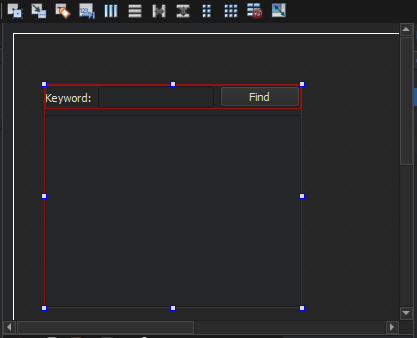
1. In the Edit mode, double-click the textfinder.ui file in the Projects view to launch the integrated Qt Designer.
2. Drag and drop the following widgets to the form.
> Label (QLabel)
> Line Edit (QLineEdit)
> Push Button (QPushButton)
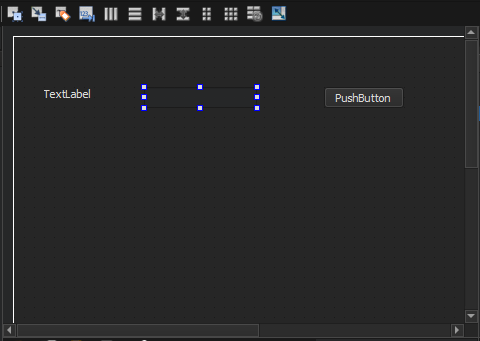
Note: To easily locate the widgets, use the search box at the top of the Sidebar. For example, to finde the Label widget, start typing the word label.

3. Double-click the Label widget and enter the text Keyword.
4. Double-click the Push Button widget and enter the text Find.
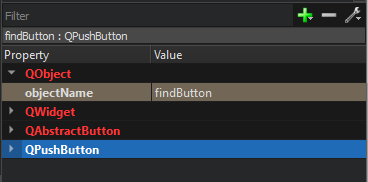
5. In the Properties pane, change the objectName to findButton.
6. Press Ctrl+A (or Cmd+A) to select the widgets and click Lay out Horizontally (or press Ctrl+H on Windows) to apply a horizontal layout (QHBoxLayout).

7. Drag and drop a Text Edit widget (QTextEdit) to the form.
8. Select the screen area and click Lay out Vertically (or press Ctrl-L) to apply a vertical layout (QVBoxLayout).
Applying the horizontal and vertical layouts ensures that the application UI scales to different screen sizes.
9. To call a find function when users press the Finde button, you use the Qt signals and slots mechanism. A signal is emitted when a particular event occurs and a slot is a function that is called in response to a particular signal. Qt widgets have predefined signals and slots that you can use directly from Qt Designer. To add a slot for the find function:
> Right-click the Find button to open a context-menu.
> Select Go to Slot > clicked(), and then select OK.
A private slot, on_findButton_clicked(), is added to the header files, textfinder.h and a private function, TextFinder:: on_finderButton_clicked(), is added to the source file, textfinder.cpp.
10. Press Ctrl+S to save your changes.
Completing the Header File
The textfinder.h file already has the necessary #includes, a constructor, a destructor, and the Ui object. You need to add a private function, loadTextFile(), to read and display the contents of the input text file in the QTextEdit.
1. In the Projects pane in the Edit view, double-click the textfinder.h file to open it for editing.
2. Add a private function to the private section, after the Ui::Textfinder pointer, as illustrated by the following code snippet:
private
slots: void on_findButton_clicked(); private: Ui::TextFinder *ui; void loadTextFile();
Completing the Source File
Now that the header file is complete, move on to the source file, textfinder.cpp.
1. In the Project pane in the Edit view, double-click the textfinder.cpp file to open it for editing.
2. Add code to load a text file using QFile, read it with QTextStream, and then display it on textEdit with QTextEdit:: setPlainText().
This is illustrated by the following code snippet:
void TextFinder::loadTextFile()

{

    QFile inputFile(":/input.txt");

    inputFile.open(QIODevice::ReadOnly);

    QTextStream in(&inputFile);

    QString line = in.readAll();

    inputFile.close();

    ui->textEdit->setPlainText(line);

    QTextCursor cursor = ui->textEdit->textCursor();

    cursor.movePosition(QTextCursor::Start, QTextCursor::MoveAnchor, );

}
3. To use QFile and QTextStream, add the following #includes to textfinder.cpp:
#include <QFile>

#include <QTextStream>
4. For the on_findButton_clicked() slot, add code to extract the searching string and use the QTextEdit::find() function to look for the search string within the text file. This is illustrated by the following code snippet:
void TextFinder::on_findButton_clicked()

{

    QString searchString = ui->lineEdit->text();

    ui->textEdit->find(searchString, QTextDocument::FindWholeWords);

}
5. Once both of these functions are complete, add a line to call loadTextFile() in the constructor, as illustrated by the following code snippet:
TextFinder::TextFinder(QWidget *parent)

    : QWidget(parent), ui(new Ui::TextFinder)

{

    ui->setupUi(this);

    loadTextFile();

}
The on_findButton_clicked() slot is called automatically in the uic generated ui_textfinder.h file by this line of code:
QMetaObject::connectSlotsByName(TextFinder);
Creating a Resource File
You need a resource file (.qrc) wihin which you embed the input text file. The input file can be any .txt file wih a paragraph of text. Create a text file called input.txt and store it in the textfinder folder.
To add a resource file:
1. Select File > New File or Project > Qt > Qt Resource File > Choose.

The Choose the Location dialog opens.

2. In the Name field, enter textfinder.
3. In the Path field, enter C:\User\John\Documents\TextFinder, and click Next.
The Project Management dialog opens.

4. In the Add to project field, select TextFinder.pro and click Finish or Done to open the file in the code editor.
5. Select Add > Add Prefix.
6. In the Prefix field, replace the default prefix with a slash(/).
7. Select Add > Add Files, to locate and add input.txt.

Compiling and Running Your Program
Now that you have all the necessary files, click the  button to compile and run your program.
Ref:http://doc.qt.io/qtcreator/creator-writing-program.html
Create a Qt Widget Based Application—Windows的更多相关文章
- Compile Graphics Magick, Boost, Botan and QT with MinGW64 under Windows 7 64
Compile Graphics Magick, Boost, Botan and QT with MinGW64 under Windows 7 64 Sun, 01/01/2012 - 15:43 ...
- [转]application windows are expected to have a root view controller错误
转载地址:http://blog.sina.com.cn/s/blog_6784e6ea01017jfy.html 最新更正:这个提示几乎不影响编译和运行,可以不用设置. 产生这个提示的操作: ...
- application windows are expected to have a root view controller错误
产生这个提示的操作:在xcode4.6中创建一个名字为appTest空工程,create一个ios-application-empty application,直接编译运行 错误提示:虽然编译通过,也 ...
- [转]simple sample to create and use widget for nopcommerce
本文转自:http://badpaybad.info/simple-sample-to-create-and-use-widget-for-nopcommerce Here is very simpl ...
- qt widget设置Qt::FramelessWindowHint和Qt::WA_TranslucentBackground, 会出现一个bug: 在最小化后还原时界面停止刷新
qt widget设置Qt::FramelessWindowHint和Qt::WA_TranslucentBackground, 会出现一个bug: 在最小化后还原时界面停止刷新 Widget wit ...
- QT + OpenCV + MinGW 在windows下配置开发环境
由于研究项目需要,最近开始接触C++界面设计,关于“QT + OpenCV + MinGW在windows下配置开发环境”着实让人头疼,单次配置时间相当长,也十分不容易,本人第一次配置成 ...
- Application windows are expected to have a root view controller at the end of application launch
今天把Xcode升级了,模拟器 用的12.1的系统,运行时发现项目总是崩溃,采用9.3系统的测试机发现错误日志如下: Application windows are expected to have ...
- Qt开发程序在Windows 10应用须要管理员执行的解决思路
Qt开发程序在Windows 10应用须要管理员执行的解决思路 过了非常长的时间没有公布博客了.可是我依旧努力地开发Qt程序.眼下呢.我发现开发Qt程序在Windows 10上有一个怪现象--有些程序 ...
- Qt::WindowFlags枚举类型(Qt::Widget是独立窗口和子窗口两用的,Qt::Window会有标题栏)
Qt::Widget : QWidget构造函数的默认值,如新的窗口部件没有父窗口部件,则它是一个独立的窗口,否则就是一个子窗口部件. Qt::Window : 无论是否有父窗口部件,新窗口部件都是一 ...
随机推荐
- SSRS报表参数设置
一.日期时间类型的参数注意事项: 关于数据类型的选择:(只有数据类型设置为日期/时间格式,在查询的时候才会显示日期控件,提示信息一般改成汉字) 指定默认值:指定开始日期为前10天,
- POJ 1062 ( dijkstra )
http://poj.org/problem?id=1062 一个中文题,一个多月之前我做过,当时我是用搜索写的,不过苦于卡在无法确定等级关系,所以就错了. 看了别人的博客后,我还是不是很理解所谓的枚 ...
- Linux安装字体
用惯了Win7的字体,感觉雅黑看着很舒服,就动手在Linux安装下,简单描述下: 第一步:百度一下,找到微软雅黑字体(.ttf)下载 第二步:把下载的字体放到cd /usr/share/fonts/z ...
- DNS基础及域名系统架构
本文出自 http://blog.csdn.net/shuangde800 ------------------------------------------------------------ ...
- 9.nodejs权威指南--Socket.IO
1. Socket.IO 1.1 服务器 var http = require('http'); var sio = require('socket.io'); var fs = require('f ...
- 17. javacript高级程序设计-错误处理与调试
1. 错误处理与调试 l 在可能发生错误的地方使用try-catch方法,可以对错误进行及时的相应 l 使用window.onerror事件处理程序,这种方式可以接受try-catch不能处理的所有错 ...
- webpack学习笔记一
主要参考: https://blog.madewithlove.be/post/webpack-your-bags/ 起因: 作为运维狗, 对前端一窍不通但心向往之, 最近做一个Dashboard, ...
- 迷宫问题_BFS_挑战程序设计竞赛p34
给定一个N*M的迷宫,求从起点到终点的最小步数. N,M<100: 输入: 10 10#S######.#......#..#.#.##.##.#.#........##.##.####.... ...
- 打开Genesis设置单位为mm
打开Genesis界面: 点击Configuration: 可看到只要设置get_def_units的值即可: 打开C:\genesis\sys\config配置文件,在最后一行加入:get_def_ ...
- 对于类的双重调用的demo
代码如下: package cao.com.duixiang; public class TestCCircle { public static void main(String[] args) { ...