
Use XSLT in wix
Following content is directly reprinted from https://installpac.wordpress.com/2012/05/07/conflict-management-in-wix/ and it is only meant for knowledge sharing, please go to the original website for more information.
Conflict Management in WiX
So if you haven’t already read my post on conflict management it might be worth reading up on this first.
https://installpac.wordpress.com/2008/04/21/wise-software-mangler-distribution
The documentation on WiX is somewhat obfuscated to the normal reader and not many people have made an attempt to clear up that documentation to well.
There is some pretty good detail here on WiX in general but it doesn’t go too deep into anything if your serious about SDLC packaging.
So here I will attempt to detail some of the more important aspects of application packaging, particularly when using WiX to generate MSI packages from a Continuous Integration (CI) build.
These days I typically use Continuous Integration (CI) and Continuous Delivery (CD) for most packaging and deployment activities. Often the CD will be delivered into a Platform As A Service (PAAS) cloud. In most instances I will deliver into a VMWare cloud architecture but that is getting a little off topic.
So back to the original post of CMDB within an SDLC packaging setup.
So as many of you will know component rules but here is an excerpt of component rules from the god father himself http://robmensching.com/blog/posts/2003/10/18/Component-Rules-101
So what Rob states is good information but rarely does he go into detail on how to achieve some of this with his uber geek toolset WiX.
So there is two parts to this puzzle.
1. Creating component guids
2. Naming components
So the first part is actually pretty easy but its probably the least documented and as such is probably the one that is done incorrectly more often than not.
So using the following command line in heat you get the following .wxs file generated.
heat dir .\<path to gac files> -gg -dr INSTALLDIR -out .\testSample.wxs -sfrag -sreg

The important part of this call to note is the -gg option. This tells heat to generate component guids immediately. This option is actually not the best choice, my preference is to use the -ag option for components.
heat dir .\<path to gac files> -ag -dr INSTALLDIR -out .\testSample.wxs -sfrag
The -ag option doesn’t appear to be all that much different but the results are actually significantly different.
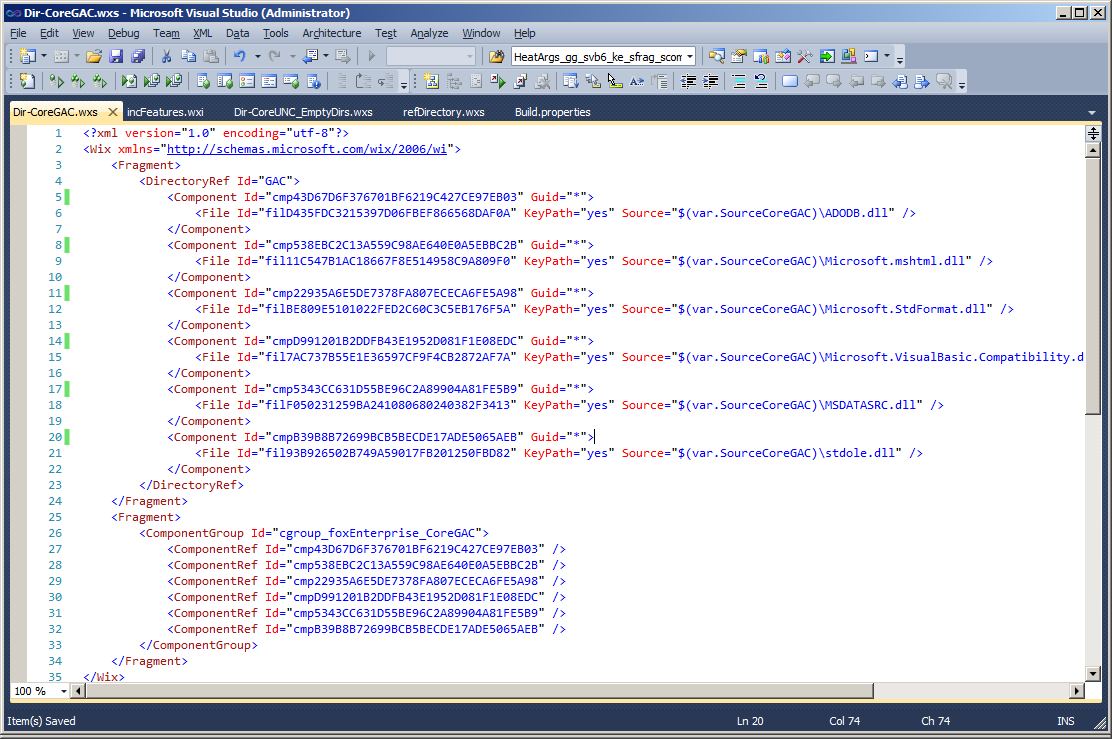
Here you can see the component guid attributes are all tagged with “*” . This is actually very good because the result of such an action tells the linker to deterministically create the component codes at link time.
What is actually happening here is very important to understand because it is based on the entire premise conflict management was built on (go figure, I love your work Rob). So what is actually happening here is that during link time the target path of the files is being resolved and then the component codes are generated based on the resolved target path.
This in effect means that a file deliver to path xxx will always generate component code xxx.
For example.
If you have a file targetted to c:\windows\system32\file_xxxx.dll then the component code will be generated exactly the same for every heat call you make that delivers a file to that same path. The end result is that if you compiled 20 different applications that all delivered the file c:\windows\system32\file_xxxx.dll then all 20 packages would have the same component code for that target path.
For those of you who are familiar with standard guid generation this would typically never ever happen. So you might think this is a strange thing to do but this is actually very very smart. Because the entire premise Windows Installer was built on is that files delivered to the same path should use the same component code to ensure reference counting is put into effect.
For those of you that don’t have a full grasp on Windows Installer Conflict Management the long and the short of this result is that if you do this you will not have issues with applications that share files in common areas. The term “Reference Count” ensure applications that share content do not break other shared applications during uninstallation of your products.
So this is a very very good thing to be doing. Unfortunately hardly anyone actually does it correctly or for that matter is even aware of the issue in the first place. Now this is actually only half of the puzzle. For those of you familiar with Wise Package Studio and Installshield this is a pretty big improvement on how these tools handle conflict management. Interestingly enough its a pretty simple mod to their code to fix as well. (so one wonders why they both fail to deliver such a simple technique into setup capture toolsets).
So the next part is somewhat more difficult and requires you have a grasp on some relatively simple XSLT and a little more heat command line action.
So we now need to call an XSLT to transform the output of heat into something a little more useful. The technique I use here is to turn off unique ID’s using the heat -suid option.
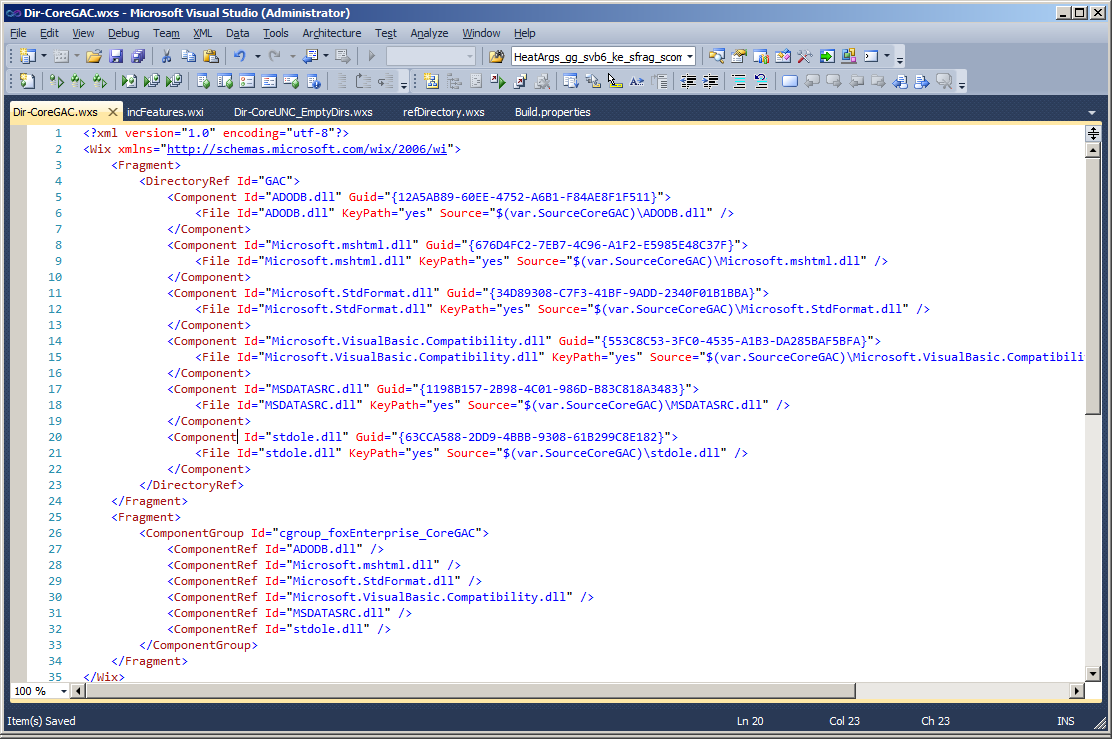
So the effect of using non-unique names causes the componentId and fileId to use the name of the file that has just been harvested (as shown above). Now in an application which is not too complicated this is actually a simple fix. The however does become an issue when you have the same filename in multiple WiX harvested fragments.
For example if you have;
DirectoryA with FileA.dll within it.
DirectoryB with FileA.dll within it.
and each harvest is called from a separate heat call the above method creates a problem of duplicate ComponentId and FileId attributes within your harvest WiX fragments. Obviously this is bad and causes the compiler to create exceptions. So this fix alone is not enough. This is where the XSLT comes into play allowing you to correct this issue.
So using an XSLT I prefix my heat call with the name of the harvested content in the case shown above the results would be as below.
DirectoryA_FileA.dll
DirectoryB_FileA.dll
So my XSLT code looks like this and I use this as a base XSLT for every heat call I make.

To call the XSLT you simply add the -t option to your heat call.
heat dir .\<path to gac files> -ag -dr INSTALLDIR -out .\testSample.wxs -sfrag -t <path to xslt file>
The result of adding the XSLT call to your heat call is each non unique filename is prefixed with the name of the heat call used.
Components will get a prefix of
Comp_CoreGAC_
Files will get a prefix of
File_CoreGAC_
This naming convention makes it very simple to identify files / components from each harvest (it looks pretty particularly when looking from referencing tables).
The end result is this.

So there you have it, this is how to conflict manage WiX installations. This is also a pre-requisite phase to patching which I might follow up sometime later.
ps, please keep commenting and I will keep up the posting.
------------------------------
here's the whole content of xslt :
<?xml version="1.0" encoding="UTF-8"?>

<xsl:stylesheet version="1.0"

            xmlns:xsl="http://www.w3.org/1999/XSL/Transform"

            xmlns:wix="http://schemas.microsoft.com/wix/2006/wi">

  <xsl:output method="xml" indent="yes" />

  <xsl:template match="@*|node()">

    <xsl:copy>

      <xsl:apply-templates select="@*|node()"/>

    </xsl:copy>

  </xsl:template>

  <xsl:template match="wix:Component">

    <xsl:copy>

      <xsl:apply-templates select="@*"/>

      <xsl:attribute name="Id">

        <xsl:text>comp_CoreGAC_</xsl:text>

        <xsl:value-of select="@Id"/>

      </xsl:attribute>

      <xsl:apply-templates select="node()" />

    </xsl:copy>

  </xsl:template>

  <xsl:template match="wix:ComponentRef">

    <xsl:copy>

      <xsl:apply-templates select="@*"/>

      <xsl:attribute name="Id">

        <xsl:text>comp_CoreGAC_</xsl:text>

        <xsl:value-of select="@Id"/>

      </xsl:attribute>

      <xsl:apply-templates select="node()"/>

    </xsl:copy>

  </xsl:template>

  <xsl:template match="wix:Directory">

    <xsl:copy>

      <xsl:apply-templates select="@*"/>

      <xsl:attribute name="Id">

        <xsl:text>dir_CoreGAC_</xsl:text>

        <xsl:value-of select="@Id"/>

      </xsl:attribute>

      <xsl:apply-templates select="node()"/>

    </xsl:copy>

  </xsl:template>

  <xsl:template match="wix:File">

    <xsl:copy>

      <xsl:apply-templates select="@*"/>

      <xsl:attribute name="Id">

        <xsl:text>file_CoreGAC_</xsl:text>

        <xsl:value-of select="@Id"/>

      </xsl:attribute>

      <xsl:apply-templates select="node()"/>

    </xsl:copy>

  </xsl:template>

</xsl:stylesheet>
Use XSLT in wix的更多相关文章
- wix xslt for adding node
Using xslt to add new node item to wix source code. Original wix code: <Fragment> <Director ...
- wix在使用heat自动生成wxs时添加windows服务组件
最近需要给安装包增加一个windows服务组件,按照我的理解,我以为只需要Product.wxs加一段如下的标签就可以了 <Componet Id="myservice"&g ...
- 初试WIX加SQL LocalDB
最近有个项目需要生成一个自动打包安装App和数据库的MSI文件,经同事推荐WIX,于是乎就试了一试.遇到了一些问题觉得有分享的价值,所以写篇博客记录一下 :) 使用感觉: WIX特点:功能很强大,用X ...
- WiX Toolset 教程索引页
注意:虽然WiX Toolset功能强大,但其学习曲线相对较高.请慎重选择: 若没有足够时间.没心思搞的请绕行至inno setup.installshield.nisi.setupfactory.. ...
- XSL学习笔记4 XSLT模式匹配的语法
模板规则通过使用模式来匹配文档树的节点.模式指定一组条件,用于选择要处理的节点. 模式匹配的语法不光可以在<xsl:template>元素的match属性中使用,还可以在<xsl ...
- XSLT简介
什么是? http://www.w3school.com.cn/xsl/xsl_intro.asp XSLT 是一种用于将 XML 文档转换为 XHTML 文档或其他 XML 文档的语言. XPath ...
- XSLT函数集合:数值函数、字符串函、节点集函数和布尔函数
任何的编程语言或者是SQL语句都有内置的函数或方法,而强大灵活的xslt技术也是如此.熟练掌握XSLT的常用函数的用法,XSLT的应用将变得如此轻松,你会发现XSLT比想象中还要牛!以下是xslt数值 ...
- Xslt 1.0中使用Array
XSLT Variable Arrays I recently answered a question on a popular programmers forum about how to stor ...
- 安装文件制作工具Wix概念快速入门
前言 Wix==Windows installer XML 顾名思议. 用于制作WINDOWS安装文件的XML格式的描述文件. 因为其实现方式为基于声明的方式,而非命令的方式. 特整理一下其相关的概念 ...
随机推荐
- oc-25- @property @synthesize
s.h #import <Foundation/Foundation.h> @interface Student : NSObject { @public NSString *_name; ...
- C#中String和string有什么区别
在C#中,string 是 System.String 的别名,所以基本上在使用时是没有差别的. 习惯上,我们把字符串当作对象时(有值的对象实体),我们用string.而我们把它当类时(需要字符串类中 ...
- php连接数据库时候的字符集设置
最好的办法:设置mysql服务器的字符集,当然也可以通过mysql提供的api来设置运行时的字符集 Ideally a proper character set will be set at the ...
- 关于解决Permission is only granted to system apps
一句话,clean一下这个Project!就OK了…… 不要被假象迷惑!
- js正则表达式验证账号手机号电话邮箱
1.账号 规则:字母.数字.下划线组成,字母开头,4-16位. 表达式:/^[a-zA-z]\w{3,15}$/: 2.手机号 规则:11位数字,以1开头 表达式:/^1\d{10}$/ 3.电话号码 ...
- XACML-<Target> 元素的结构与相关的评估
本文由@呆代待殆原创,转载请注明出处. 一.<Target>元素的结构 <Target>元素标识的父元素被用于评估决定请求.<Target>元素即可以做为<P ...
- 怒刷DP之 HDU 1257
最少拦截系统 Time Limit:1000MS Memory Limit:32768KB 64bit IO Format:%I64d & %I64u Submit Statu ...
- 剑指Offer27 数组中超过一半的数
/************************************************************************* > File Name: 27_MoreTh ...
- Slickflow.NET 开源工作流引擎基础介绍(二) -- 引擎组件和业务模块的交互
集成流程引擎的必要性 业务过程的变化是在BPM系统中常见的现象,企业管理层需要不断优化组织架构,改造业务流程,不可避免地带来了业务流程的变化,企业信息系统就会随之面临重构的可能性.一种直接的方式是改造 ...
- @@Error使用简单小结
使用中经常用到@@Error来判断上一个语句是否执行成功,对此小结一下,可能有些不准确,欢迎指出. 1.1 介绍 SQL SERVER 中@@表示系统全局变量 (1) 返回执行的上一个 Tran ...