
C#编写Windows服务程序图文教程
安装服务程序
C:\WINDOWS\Microsoft.NET\Framework\v4.0.30319\InstallUtil.exe 要安装的服务程序路径(如F:\***.exe)
卸载服务程序
C:\WINDOWS\Microsoft.NET\Framework\v4.0.30319\InstallUtil.exe /u 要安装的服务程序路径(如F:\***.exe)
Windows Service这一块并不复杂,但是注意事项太多了,网上资料也很凌乱,偶尔自己写也会丢三落四的。所以本文也就产生了,本文不会写复杂的东西,完全以基础应用的需求来写,所以不会对Windows Service写很深入。
本文介绍了如何用C#创建、安装、启动、监控、卸载简单的Windows Service 的内容步骤和注意事项。
一、创建一个Windows Service
1)创建Windows Service项目
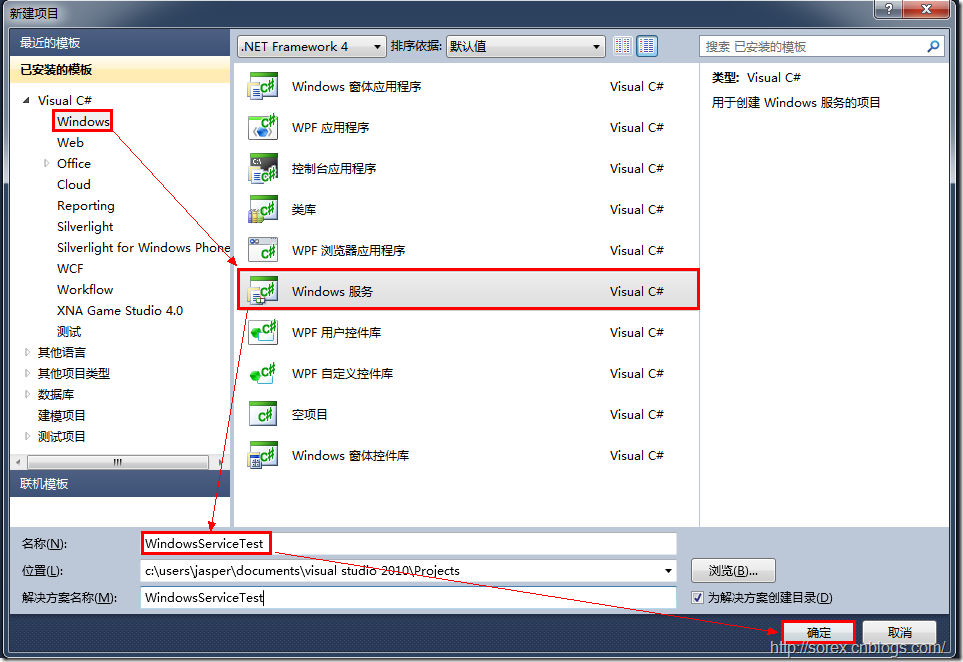
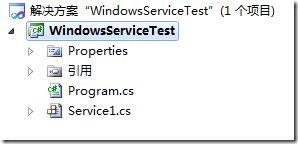
2)对Service重命名
将Service1重命名为你服务名称,这里我们命名为ServiceTest。
二、创建服务安装程序
1)添加安装程序
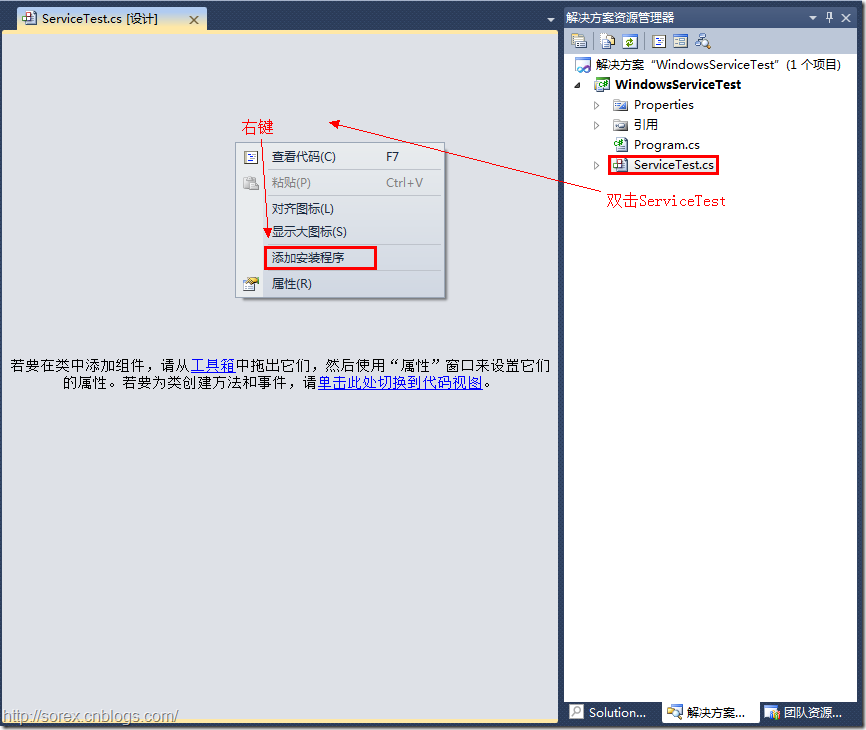
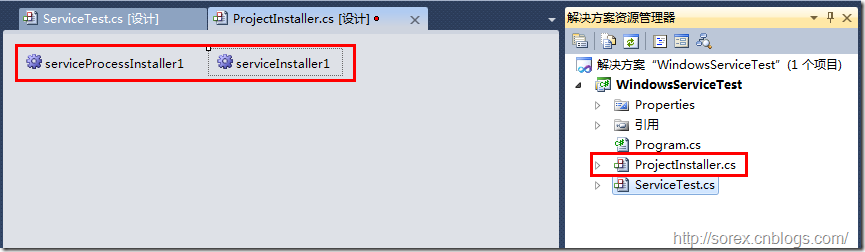
之后我们可以看到上图,自动为我们创建了ProjectInstaller.cs以及2个安装的组件。
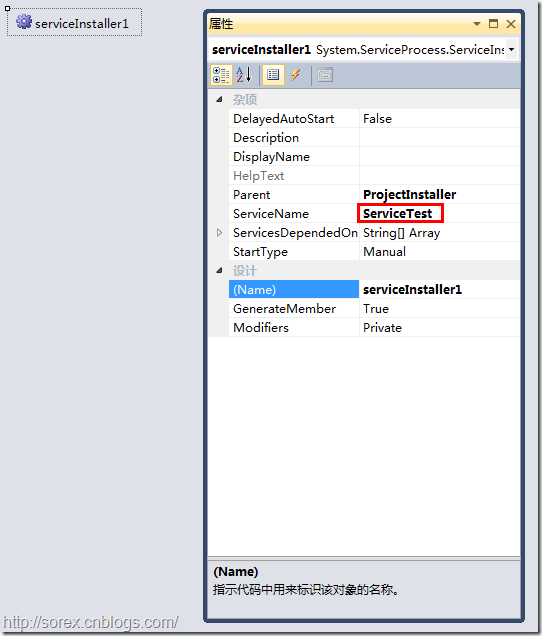
2)修改安装服务名
右键serviceInsraller1,选择属性,将ServiceName的值改为ServiceTest。
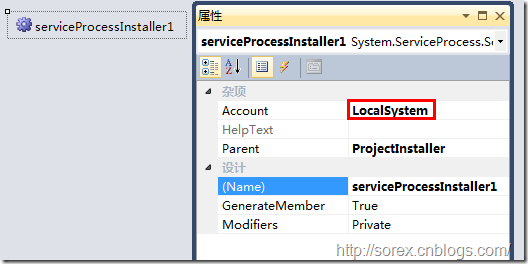
3)修改安装权限
右键serviceProcessInsraller1,选择属性,将Account的值改为LocalSystem。
三、写入服务代码
1)打开ServiceTest代码
右键ServiceTest,选择查看代码。
2)写入Service逻辑
添加如下代码:
using System;

using System.Collections.Generic;

using System.ComponentModel;

using System.Data;

using System.Diagnostics;

using System.Linq;

using System.ServiceProcess;

using System.Text;

namespace WindowsServiceTest

{

	public partial class ServiceTest : ServiceBase

	{

		public ServiceTest()

		{

			InitializeComponent();

		}

		protected override void OnStart(string[] args)

		{

			using (System.IO.StreamWriter sw = new System.IO.StreamWriter("C:\\log.txt", true))

			{

				sw.WriteLine(DateTime.Now.ToString("yyyy-MM-dd HH:mm:ss ") + "Start.");

			}

		}

		protected override void OnStop()

		{

			using (System.IO.StreamWriter sw = new System.IO.StreamWriter("C:\\log.txt", true))

			{

				sw.WriteLine(DateTime.Now.ToString("yyyy-MM-dd HH:mm:ss ") + "Stop.");

			}

		}

	}

}
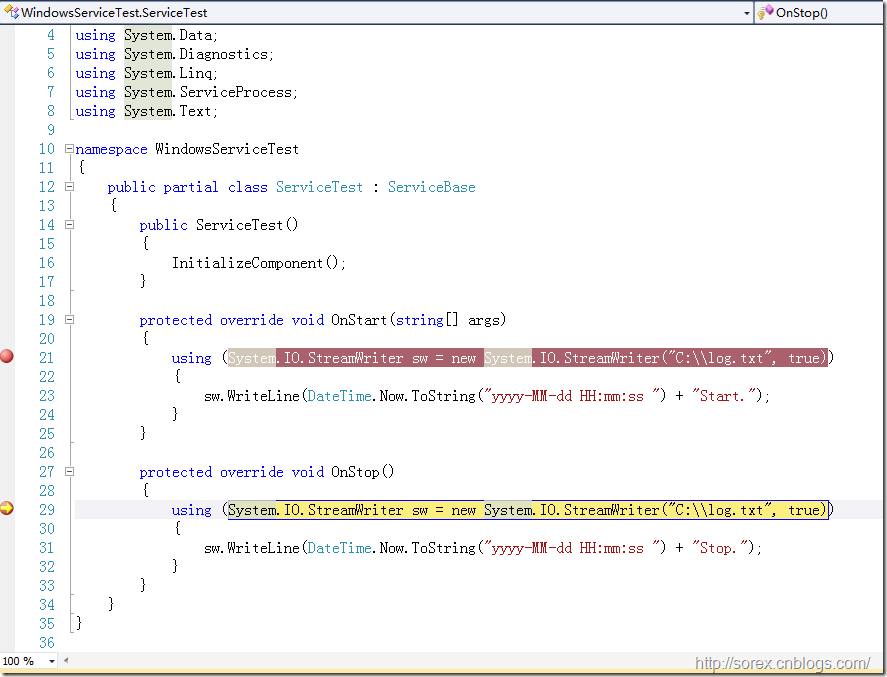
这里我们的逻辑很简单,启动服务的时候写个日志,关闭的时候再写个日志。
四、创建安装脚本
在项目中添加2个文件如下(必须是ANSI或者UTF-8无BOM格式):
1)安装脚本Install.bat
%SystemRoot%\Microsoft.NET\Framework\v4.0.30319\installutil.exe WindowsServiceTest.exe

Net Start ServiceTest

sc config ServiceTest start= auto
2)卸载脚本Uninstall.bat
%SystemRoot%\Microsoft.NET\Framework\v4.0.30319\installutil.exe /u WindowsServiceTest.exe
3)安装脚本说明
第二行为启动服务。
第三行为设置服务为自动运行。
这2行视服务形式自行选择。
4)脚本调试
如果需要查看脚本运行状况,在脚本最后一行加入pause
五、在C#中对服务进行控制
0)配置目录结构
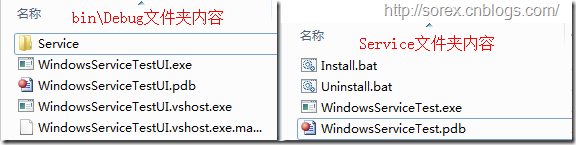
简历一个新WPF项目,叫WindowsServiceTestUI,添加对System.ServiceProcess的引用。
在WindowsServiceTestUI的bin\Debug目录下建立Service目录。
将WindowsServiceTest的生成目录设置为上面创建的Service目录。
生成后目录结构如下图
1)安装
安装时会产生目录问题,所以安装代码如下:
string CurrentDirectory = System.Environment.CurrentDirectory;

System.Environment.CurrentDirectory = CurrentDirectory + "\\Service";

Process process = new Process();

process.StartInfo.UseShellExecute = false;

process.StartInfo.FileName = "Install.bat";

process.StartInfo.CreateNoWindow = true;

process.Start();

System.Environment.CurrentDirectory = CurrentDirectory;
2)卸载
卸载时也会产生目录问题,所以卸载代码如下:
string CurrentDirectory = System.Environment.CurrentDirectory;

System.Environment.CurrentDirectory = CurrentDirectory + "\\Service";

Process process = new Process();

process.StartInfo.UseShellExecute = false;

process.StartInfo.FileName = "Uninstall.bat";

process.StartInfo.CreateNoWindow = true;

process.Start();

System.Environment.CurrentDirectory = CurrentDirectory;
3)启动
代码如下:
using System.ServiceProcess;

ServiceController serviceController = new ServiceController("ServiceTest");

serviceController.Start();
4)停止
ServiceController serviceController = new ServiceController("ServiceTest");

if (serviceController.CanStop)

	serviceController.Stop();
5)暂停/继续
ServiceController serviceController = new ServiceController("ServiceTest");

if (serviceController.CanPauseAndContinue)

{

	if (serviceController.Status == ServiceControllerStatus.Running)

		serviceController.Pause();

	else if (serviceController.Status == ServiceControllerStatus.Paused)

		serviceController.Continue();

}
6)检查状态
ServiceController serviceController = new ServiceController("ServiceTest");

string Status = serviceController.Status.ToString();
六、调试Windows Service
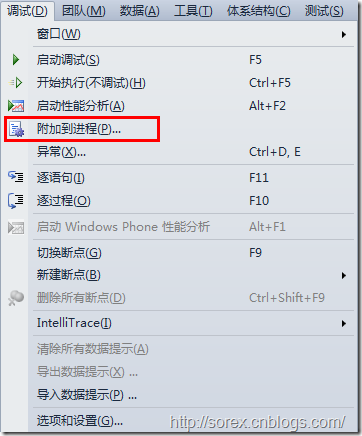
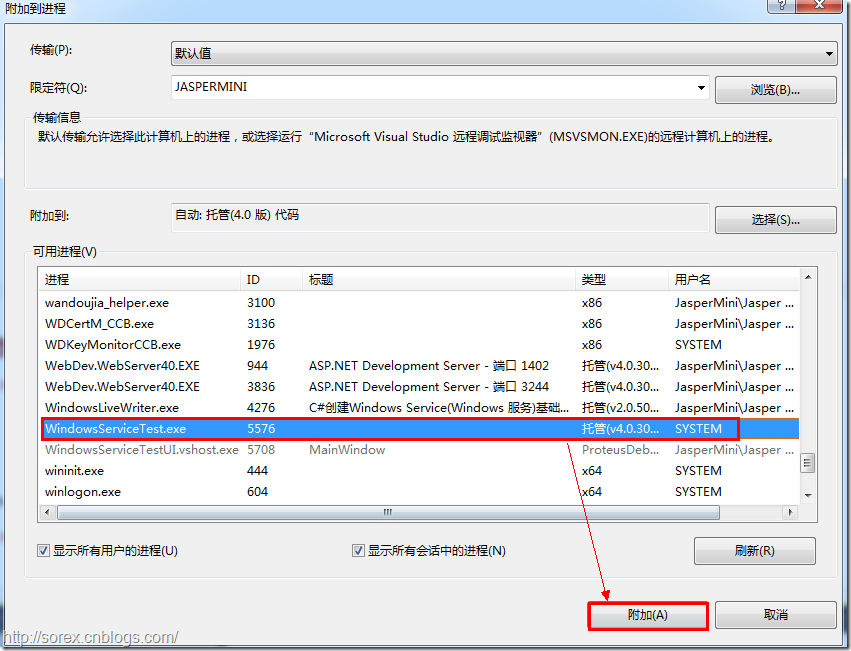
1)安装并运行服务
2)附加进程
3)在代码中加入断点进行调试
七、总结
本文对Windows service的上述配置都未做详细解释,但是按上述步骤就可以制作可运行的Windows Service,从而达到了工作的需求。
C#编写Windows服务程序图文教程的更多相关文章
- C#编写Windows服务程序图文教程(转载)
Windows Service这一块并不复杂,但是注意事项太多了,网上资料也很凌乱,偶尔自己写也会丢三落四的.所以本文也就产生了,本文不会写复杂的东西,完全以基础应用的需求来写,所以不会对Window ...
- C语言编写Windows服务程序
原文:C语言编写Windows服务程序 #include <Windows.h> #include <stdio.h> #define SLEEP_TIME 5000 // 间 ...
- Github for Windows使用图文教程_西西软件资讯
body{ font-family: "Microsoft YaHei UI","Microsoft YaHei",SimSun,"Segoe UI& ...
- 编写windows服务程序
2012-11-02 08:54 (分类:计算机程序) windows服务是一个运行在后台并实现勿需用户交互的任务的控制台程序,对于隐藏程序有很大帮助. 用了几天时间概括了编写windows服务程序的 ...
- 用 C 语言编写 Windows 服务程序的五个步骤
Windows 服务被设计用于需要在后台运行的应用程序以及实现没有用户交互的任务.为了学习这种控制台应用程序的基础知识,C(不是C++)是最佳选择.本文将建立并实现一个简单的服务程序,其功能是查询系统 ...
- 用C语言编写Windows服务程序的五个步骤
Windows 服务被设计用于需要在后台运行的应用程序以及实现没有用户交互的任务.为了学习这种控制台应用程序的基础知识,C(不是C++)是最佳选择.本文将建立并实现一个简单的服务程序,其功能是查询系统 ...
- Python3编写Windows服务程序
最近做了公司签到的小工具,有同事要求做成Windows服务,开机自启.先说下怎么用Python写Windows服务程序. #encoding=utf-8 import win32serviceutil ...
- C#编写Windows服务程序 (服务端),client使用 消息队列 实现淘宝 订单全链路效果
需求: 针对 淘宝提出的 订单全链路 产品接入 .http://open.taobao.com/doc/detail.htm?id=102423&qq-pf-to=pcqq.group oms ...
- Github for Windows使用图文教程
原文:http://www.cr173.com/html/15618_1.html Git已经变得非常流行,连Codeplex现在也已经主推Git.Github上更是充斥着各种高质量的开源项目,比如r ...
随机推荐
- oracle Database Link
1 Database Link 的创建: 有两个数据库服务器A/B, 其中A的IP地址为172.20.36.245, 服务器B为本机.服务器B上的数据库实例名为ORCL,在本机上的服务监听配置上有服务 ...
- HDU 5823 color II
dp[i]表示i子图的最小染色数目. dp[i]=min( dp[i], dp[j]+1 ), j是i的子集,并且j图内的点没有边相连. 高效率枚举i子集的方法:for(int j=i;j;j=(j- ...
- js实现url链接encode加密
function urlencode(clearString) { var output = ''; var x = 0; clearString = utf16to8(clearString.toS ...
- iosOC/C不可变数组排序
//1.回顾C数组排序 int a[6] = {1,4,3,5,6,2}; //选择 for (int i =0; i<6-1; i++) { for (int j = i+1; j<6; ...
- 如何使用SecureCRT连接ubuntu
1. 首先要明白什么是ssh? 可以把ssh看做是telnet的加强版,telnet的密码和信息都是不加密的,而ssh则加密. .2. 开启ubuntu上的ssh功能 先安装,安装后就自动开启了. s ...
- jQuery第二章
一.jQuery选择器 jQuery的行为规则都必须在获取到元素后才能生效.来看一个简单的例子: <p class = “demo”>jQuery Demo</p> <s ...
- LeetCode OJ 98. Validate Binary Search Tree
Given a binary tree, determine if it is a valid binary search tree (BST). Assume a BST is defined as ...
- ios layer 动画
#import "ViewController.h" @interface ViewController (){ CALayer *_l1;//定义能够全局使用 CAL ...
- SQL Server不能通过外部IP访问,解决方法
SQL Server不能通过外部IP访问,解决方法 版本:SQL server 2008 express with tools 打开配置管理器,开启 TCP,右键属性设置TCP端口: 设置 ...
- JSP内置对象--pageContent,request,response,session,application,config,out,page,exception