
201871010133-赵永军《面向对象程序设计(java)》第十四周学习总结
201871010133-赵永军《面向对象程序设计(java)》第十四周学习总结
| 项目 | 内容 |
| 这个作业属于哪个课程 | https://www.cnblogs.com/nwnu-daizh/ |
| 这个作业的要求在哪里 | https://www.cnblogs.com/nwnu-daizh/p/11953993.html |
| 作业学习目标 |
(1)掌握GUI布局管理器用法; (2)掌握Java Swing文本输入组件用途及常用API; (3)掌握Java Swing选择输入组件用途及常用API。 |
一、理论部分
1.Layout Manager(布局管理器):布局管理器是一组类,实现 java.awt.LayoutManager 接口,决定容器中组件的位置和大小。
每个容器都有与之相关的默认布局管理器。
五种布局管理器:
(1)FlowLayout: 流布局(Applet和Panel的默认布局管理器):从左到右,从上到下逐行摆放。
(2)BorderLayout:边框布局( Window、Frame和Dialog的默认布局管理器):分上下左右中五个方位
(3)GridLayout: 网格布局
(4)GridBagLayout: 网格组布局:容许组件扩展到多行、多列。
(5)CardLayout :卡片布局:把组件象一系列卡片一样叠放,一个时刻只能看到最上面的。
通过setLayout( )方法为容器设置新的布局。格式 :容器组件名.setLayout( 布局类对象名)
a.FlowLayout (流布局管理器)
– FlowLayout( ):生成一个默认的流式布局对象
– FlowLayout(int align): 设定每一行组件的对齐方式(FlowLayout.LEFT, FlowLayout.CENTER, FlowLayout.RIGHT)
– FlowLayout(int align,int hgap,int vgap):可以设定组件间的水平和垂直距离(缺省时组件之间没有空隙)
b.边框布局管理器是每个JFrame的内容窗格的默认布局管理器
向容器中加入组件时,若使用两个参数的add()方法,第二个参数必须说明加入组件在容器中的放置位置;
位置参数是BorderLayout 类的常量:CENTER、NORTH、SOUTH、EAST、 WEST.
c.网格布局按行列排列所有的组件;在网格布局对象的构造器中,需要指定行数和列数:panel.setLayout(new GridLayout(6,10));
放置组件的每个单元具有相同的尺寸。
添加组件,从第一行和第一列开始,然后是第一行的第二列。以此类推
d.GridLayout的构造函数如下:
(1)GridLayout():生成一个单行单列的网格布局
(2)GridLayout(int rows,int cols):生成一个设定行数和列数的网格布局
(3)GridLayout(int rows,int columns,int hgap,int vgap):可以设置组件之间的水平和垂直间隔
2.文本域(JTextField) : 用于获取单行文本输入。
用于文本输入的组件继承于JTextComponent抽象类
3.文本区(JTextArea)组件可让用户输入多行文本。生成JTextArea组件对象时,可以指定文本区的行数和列数:textArea = new JTextArea(8, 40);
4.文本区与文本域的异同:
相同之处:
文本域和文本区组件都可用于获取文本输入。
不同之处:
文本域只能接受单行文本的输入;
文本区能够接受多行文本的输入
5.标签是容纳文本的组件。它们没有任何修饰(如没有边界 ),也不响应用户输入。
标签的常用用途之一就是标识组件.
6.密码域是一种特殊类型的文本域。每个输入的字符都用回显字符实现,典型的回显字符是 *。
7.Swing中文本区没有滚动条,若需要滚动条。将文本区放入一个滚动窗格中即可.
8.复选框构造器
(1)bold = new JCheckBox("Bold");复选框自动地带有表示标签。
(2)JCheckBox(String label,Icon icon);构造带有标签与图标的复选框,默认初始未被选择。
(3)JCheckBox(String label,boolean state);用指定的标签和初始化选
9.单选按钮的构造器:
(1)JRadioButton(String label,Icon icon);创建一个带标签和图标的单选按钮
(2)JRadioButton(String label,boolean state);用指定的标签和初始化状态构造单选按钮
10.菜单是GUI编程中经常用到的一种组件。位于窗口顶部的菜单栏(menu bar)中包括下拉菜单的名字。点击一个名字就可以打开包含菜单项(menuitems)和子菜单(submenus)的菜单.
11.单选按钮菜单项与普通单选按钮的工作方式一样,必须将它们加入的按钮组中。当按钮组中的一个按钮被选中时,其它按钮就自动变为选择项。
12.弹出菜单:创建一个弹出菜单与创建一个常规菜单的方法类似 ,但是弹出菜单没有标题。
13.布局管理器应用总结:
FlowLayout是 Applet 和面板的缺省布局管理器。组件从左上角到右下角进行排列。
BorderLayout 按北、南、东、西、中的不同区域划分将组件排列于容器中。
GridLayout 将组件按行和列排列。所有组件大小相同。
GridBagLayout 能将组件放置在最精确的位置。各组件的大小可以不同。
对话框是一种大小不能变化、不能有菜单的容器窗口;
对话框不能作为一个应用程序的主框架,而必须包含在其它容器。
二、实验部分
1、实验目的与要求
(1)掌握GUI布局管理器用法;
(2)掌握Java Swing文本输入组件用途及常用API;
(3)掌握Java Swing选择输入组件用途及常用API;
2、实验内容和步骤
实验1: 导入第12章示例程序,测试程序并进行组内讨论。
测试程序1
※在elipse IDE中运行教材479页程序12-1,结合运行结果理解程序;
※掌握布局管理器的用法;
※理解GUI界面中事件处理技术的用途。
※在布局管理应用代码处添加注释;
实验程序如下:
 import java.awt.*;

 import javax.swing.*;

 /**

  * @version 1.34 2015-06-12

  * @author Cay Horstmann

  */

 public class Calculator

 {

    public static void main(String[] args)

    {

       EventQueue.invokeLater(() -> {

          CalculatorFrame frame = new CalculatorFrame();

          frame.setTitle("Calculator");

          frame.setDefaultCloseOperation(JFrame.EXIT_ON_CLOSE);

          frame.setVisible(true);

       });

    }

 }
 import javax.swing.*;

 /**

  * A frame with a calculator panel.

  */

 public class CalculatorFrame extends JFrame

 {

    public CalculatorFrame()

    {

       add(new CalculatorPanel());

       pack();

    }

 }
 import java.awt.*;

 import java.awt.event.*;

 import javax.swing.*;

 /**

  * A panel with calculator buttons and a result display.

  */

 public class CalculatorPanel extends JPanel

 {

    private JButton display;//定义显示Button组件对象

    private JPanel panel;

    private double result;//定义基本数据对象

    private String lastCommand;

    private boolean start;//布尔型:开始启动为ture

    public CalculatorPanel()//构造器

    {

       setLayout(new BorderLayout());//边框布局管理器

       result = 0;

       lastCommand = "=";

       start = true;

       // 添加显示

       display = new JButton("0");

       display.setEnabled(false);

       add(display, BorderLayout.NORTH);//显示在窗口上方

       ActionListener insert = new InsertAction();

       ActionListener command = new CommandAction();

       //在一个4×4的网格中添加按钮

       panel = new JPanel();

       panel.setLayout(new GridLayout(4, 4));//网格布局管理器:4行4列

       addButton("7", insert);

       addButton("8", insert);

       addButton("9", insert);

       addButton("/", command);

       addButton("4", insert);

       addButton("5", insert);

       addButton("6", insert);

       addButton("*", command);

       addButton("1", insert);

       addButton("2", insert);

       addButton("3", insert);

       addButton("-", command);

       addButton("0", insert);

       addButton(".", insert);

       addButton("=", command);

       addButton("+", command);

       add(panel, BorderLayout.CENTER);//显示在窗口中心位置

    }

    /**

     * Adds a button to the center panel.

     * @param label the button label

     * @param listener the button listener

     */

    private void addButton(String label, ActionListener listener)//普通方法

    {

       JButton button = new JButton(label);

       button.addActionListener(listener);

       panel.add(button);

    }

    /**

     * 此操作将按钮操作字符串插入到显示文本的末尾.

     */

    private class InsertAction implements ActionListener//

    {

       public void actionPerformed(ActionEvent event)

       {

          String input = event.getActionCommand();

          if (start)

          {

             display.setText("");

             start = false;

          }

          display.setText(display.getText() + input);

       }

    }

    /**

     * 该操作执行按钮操作字符串表示的命令.

     */

    private class CommandAction implements ActionListener

    {

       public void actionPerformed(ActionEvent event)

       {

          String command = event.getActionCommand();

          if (start)

          {

             if (command.equals("-"))

             {

                display.setText(command);

                start = false;

             }

             else lastCommand = command;

          }

          else

          {

             calculate(Double.parseDouble(display.getText()));

             lastCommand = command;

             start = true;

          }

       }

    }

    /**

     * Carries out the pending calculation.

     * @param x the value to be accumulated with the prior result.

     */

    public void calculate(double x)//普通方法:计算数值

    {

       if (lastCommand.equals("+")) result += x;

       else if (lastCommand.equals("-")) result -= x;

       else if (lastCommand.equals("*")) result *= x;

       else if (lastCommand.equals("/")) result /= x;

       else if (lastCommand.equals("=")) result = x;

       display.setText("" + result);

    }

 }
实验结果如下:
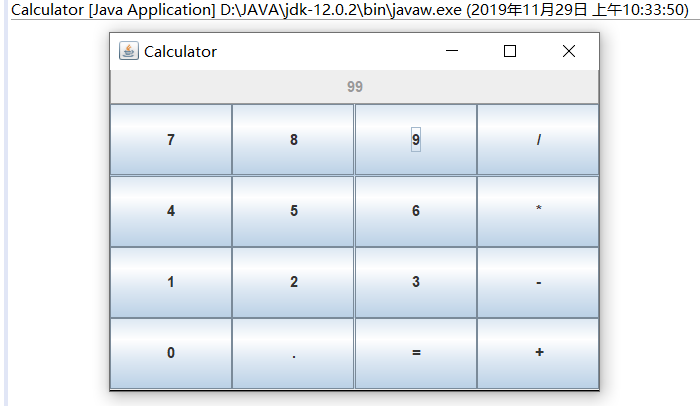
测试程序2
※在elipse IDE中调试运行教材486页程序12-2,结合运行结果理解程序;
※掌握文本组件的用法;
※记录示例代码阅读理解中存在的问题与疑惑。
实验程序如下:
 import java.awt.*;

 import javax.swing.*;

 /**

  * @version 1.41 2015-06-12

  * @author Cay Horstmann

  */

 public class TextComponentTest

 {

    public static void main(String[] args)

    {

       EventQueue.invokeLater(() -> {

          JFrame frame = new TextComponentFrame();

          frame.setTitle("TextComponentTest");

          frame.setDefaultCloseOperation(JFrame.EXIT_ON_CLOSE);

          frame.setVisible(true);

       });

    }

 }
 import java.awt.BorderLayout;

 import java.awt.GridLayout;

 import javax.swing.JButton;

 import javax.swing.JFrame;

 import javax.swing.JLabel;

 import javax.swing.JPanel;

 import javax.swing.JPasswordField;

 import javax.swing.JScrollPane;

 import javax.swing.JTextArea;

 import javax.swing.JTextField;

 import javax.swing.SwingConstants;

 /**

  * A frame with sample text components.

  */

 public class TextComponentFrame extends JFrame

 {

    public static final int TEXTAREA_ROWS = 8;//定义行

    public static final int TEXTAREA_COLUMNS = 20;//定义列

    public TextComponentFrame()//构造器

    {

       JTextField textField = new JTextField();

       JPasswordField passwordField = new JPasswordField();

       JPanel northPanel = new JPanel();

       northPanel.setLayout(new GridLayout(2, 2));//网格布局管理器:2行2列

       northPanel.add(new JLabel("User name: ", SwingConstants.RIGHT));

       northPanel.add(textField);//将文本域添加到窗口

       northPanel.add(new JLabel("Password: ", SwingConstants.RIGHT));

       northPanel.add(passwordField);//将密码输入框添加到窗口

       add(northPanel, BorderLayout.NORTH);//显示在窗口的上方

       JTextArea textArea = new JTextArea(TEXTAREA_ROWS, TEXTAREA_COLUMNS);

       JScrollPane scrollPane = new JScrollPane(textArea);

       add(scrollPane, BorderLayout.CENTER);//显示在窗口中心

       // 添加按钮,将文本追加到文本区域

       JPanel southPanel = new JPanel();

       JButton insertButton = new JButton("Insert");//定义Button按钮:insert

       southPanel.add(insertButton);//添加insert按钮

       insertButton.addActionListener(event ->

          textArea.append("User name: " + textField.getText() + " Password: "

             + new String(passwordField.getPassword()) + "\n"));

       add(southPanel, BorderLayout.SOUTH);//显示在窗口下方

       pack();

    }

 }
实验结果如下:
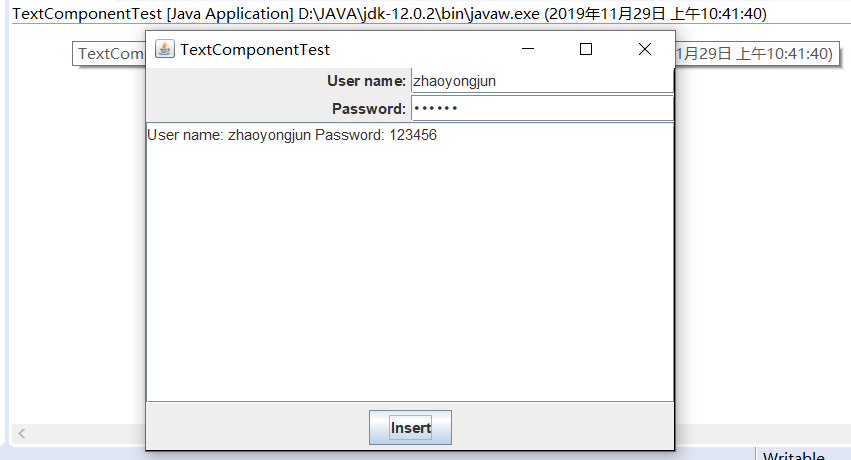
我的问题是在文本框输入姓名和密码后,如果输入过长,会显示不了,只能将文本框放大。能不能设置为根据窗口大小自动换行来显示。
测试程序3
※在elipse IDE中调试运行教材489页程序12-3,结合运行结果理解程序;
※掌握复选框组件的用法;
※记录示例代码阅读理解中存在的问题与疑惑。
实验程序如下:
 import java.awt.*;

 import javax.swing.*;

 /**

  * @version 1.34 2015-06-12

  * @author Cay Horstmann

  */

 public class CheckBoxTest

 {

    public static void main(String[] args)

    {

       EventQueue.invokeLater(() -> {

          JFrame frame = new CheckBoxFrame();

          frame.setTitle("CheckBoxTest");

          frame.setDefaultCloseOperation(JFrame.EXIT_ON_CLOSE);

          frame.setVisible(true);

       });

    }

 }
 import java.awt.*;

 import java.awt.event.*;

 import javax.swing.*;

 /**

  * A frame with a sample text label and check boxes for selecting font

  * attributes.

  */

 public class CheckBoxFrame extends JFrame

 {

    private JLabel label;//文本

    private JCheckBox bold;//定义一个标签

    private JCheckBox italic;//斜体字

    private static final int FONTSIZE = 24;

    public CheckBoxFrame()//构造器

    {

       // add the sample text label

       label = new JLabel("The quick brown fox jumps over the lazy dog.");

       label.setFont(new Font("Serif", Font.BOLD, FONTSIZE));

       add(label, BorderLayout.CENTER);//边框布局管理器:显示在窗口中心位置

       // this listener sets the font attribute of

       // the label to the check box state

       ActionListener listener = event -> {//设置字体为常规、加粗或斜体等

          int mode = 0;

          if (bold.isSelected()) mode += Font.BOLD;

          if (italic.isSelected()) mode += Font.ITALIC;

          label.setFont(new Font("Serif", mode, FONTSIZE));

       };

       //添加复选框

       JPanel buttonPanel = new JPanel();

       bold = new JCheckBox("Bold");

       bold.addActionListener(listener);

       bold.setSelected(true);

       buttonPanel.add(bold);

       italic = new JCheckBox("Italic");

       italic.addActionListener(listener);

       buttonPanel.add(italic);

       add(buttonPanel, BorderLayout.SOUTH);

       pack();

    }

 }
实验结果如下:
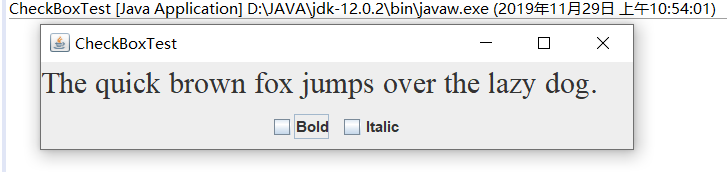
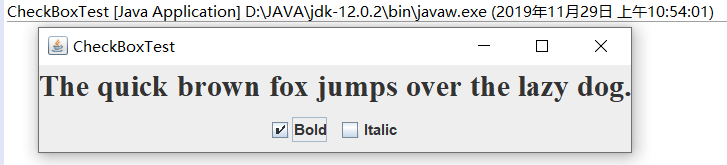
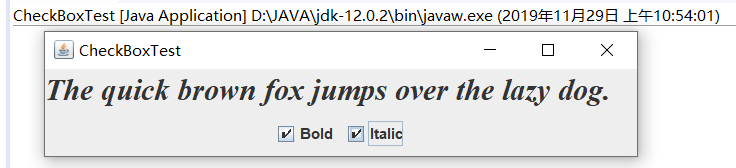
问题:对设置字体那部分的代码不是太理解。
测试程序4
※在elipse IDE中调试运行教材491页程序12-4,运行结果理解程序;
※掌握单选按钮组件的用法;
※记录示例代码阅读理解中存在的问题与疑惑。
实验程序如下:
 import java.awt.*;

 import javax.swing.*;

 /**

  * @version 1.34 2015-06-12

  * @author Cay Horstmann

  */

 public class RadioButtonTest

 {

    public static void main(String[] args)

    {

       EventQueue.invokeLater(() -> {

          JFrame frame = new RadioButtonFrame();

          frame.setTitle("RadioButtonTest");

          frame.setDefaultCloseOperation(JFrame.EXIT_ON_CLOSE);

          frame.setVisible(true);

       });

    }
 import java.awt.*;

 import java.awt.event.*;

 import javax.swing.*;

 /**

  * 带有示例文本标签和用于选择字体大小的单选按钮的框架.

  */

 public class RadioButtonFrame extends JFrame

 {

    private JPanel buttonPanel;

    private ButtonGroup group;//定义一个ButtonGroup对象

    private JLabel label;

    private static final int DEFAULT_SIZE = 36;

    public RadioButtonFrame()//构造器

    {

       // add the sample text label

       label = new JLabel("The quick brown fox jumps over the lazy dog.");

       label.setFont(new Font("Serif", Font.PLAIN, DEFAULT_SIZE));

       add(label, BorderLayout.CENTER);//边框布局管理器:显示在窗口中心

       // 添加单选按钮

       buttonPanel = new JPanel();

       group = new ButtonGroup();

       addRadioButton("Small", 8);

       addRadioButton("Medium", 12);

       addRadioButton("Large", 18);

       addRadioButton("Extra large", 36);

       add(buttonPanel, BorderLayout.SOUTH);//四个按钮显示在窗口下方

       pack();

    }

    /**

     * 添加一个单选按钮,用于设置示例文本的字体大小.

     * @param name the string to appear on the button

     * @param size the font size that this button sets

     */

    public void addRadioButton(String name, int size)

    {

       boolean selected = size == DEFAULT_SIZE;

       JRadioButton button = new JRadioButton(name, selected);

       group.add(button);

       buttonPanel.add(button);

       // 这个监听器设置标签字体大小

       ActionListener listener = event -> label.setFont(new Font("Serif", Font.PLAIN, size));

       button.addActionListener(listener);

    }

 }
实验结果如下:
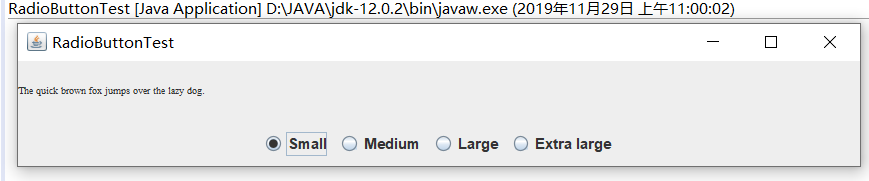
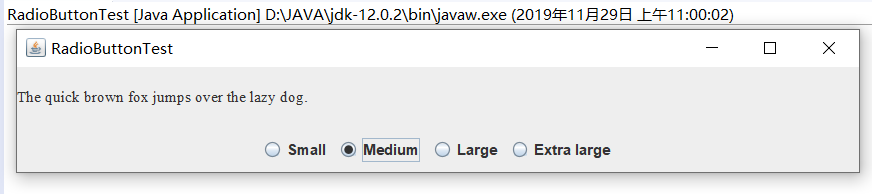
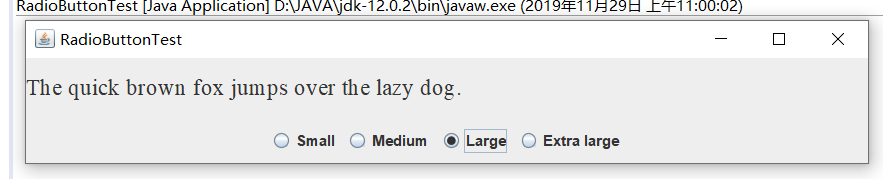

测试程序5
※在elipse IDE中调试运行教材494页程序12-5,结合运行结果理解程序;
※掌握边框的用法;
※记录示例代码阅读理解中存在的问题与疑惑。
实验程序如下:
 import java.awt.*;

 import javax.swing.*;

 /**

  * @version 1.34 2015-06-13

  * @author Cay Horstmann

  */

 public class BorderTest

 {

    public static void main(String[] args)

    {

       EventQueue.invokeLater(() -> {

          JFrame frame = new BorderFrame();

          frame.setTitle("BorderTest");

          frame.setDefaultCloseOperation(JFrame.EXIT_ON_CLOSE);

          frame.setVisible(true);

       });

    }

 }

 BorderTest
 import java.awt.*;

 import javax.swing.*;

 import javax.swing.border.*;

 /**

  * A frame with radio buttons to pick a border style.

  */

 public class BorderFrame extends JFrame

 {

    private JPanel demoPanel;

    private JPanel buttonPanel;

    private ButtonGroup group;

    public BorderFrame()

    {

       demoPanel = new JPanel();

       buttonPanel = new JPanel();

       group = new ButtonGroup();

       //设置不同的边框类型按钮,共六种(提供标准 Border 对象的工厂类)

       addRadioButton("Lowered bevel", BorderFactory.createLoweredBevelBorder());

       addRadioButton("Raised bevel", BorderFactory.createRaisedBevelBorder());

       addRadioButton("Etched", BorderFactory.createEtchedBorder());

       addRadioButton("Line", BorderFactory.createLineBorder(Color.BLUE));

       addRadioButton("Matte", BorderFactory.createMatteBorder(10, 10, 10, 10, Color.BLUE));

       addRadioButton("Empty", BorderFactory.createEmptyBorder());

       Border etched = BorderFactory.createEtchedBorder();

       Border titled = BorderFactory.createTitledBorder(etched, "Border types");

       buttonPanel.setBorder(titled);

       setLayout(new GridLayout(2, 1));

       add(buttonPanel);

       add(demoPanel);

       pack();

    }

    public void addRadioButton(String buttonName, Border b)

    {

       JRadioButton button = new JRadioButton(buttonName);

       button.addActionListener(event -> demoPanel.setBorder(b));

       group.add(button);

       buttonPanel.add(button);

    }

 }

 BorderFrame
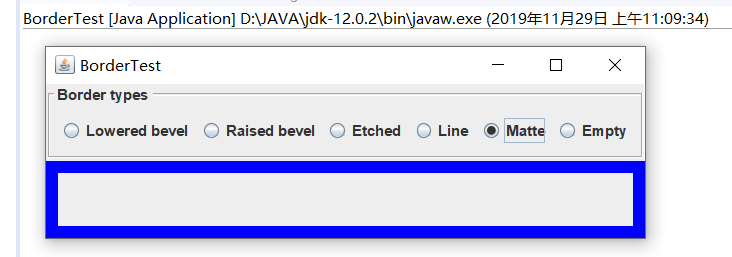
实验结果如下:
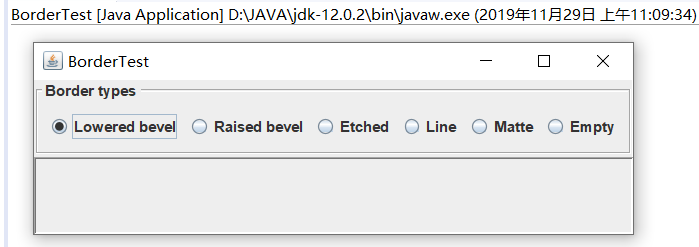
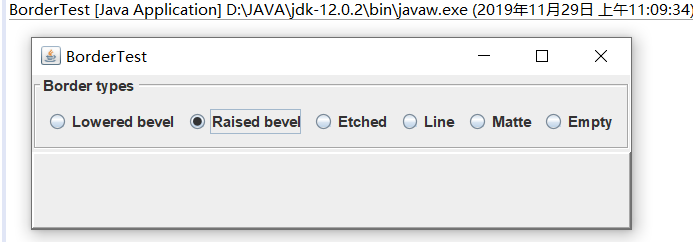
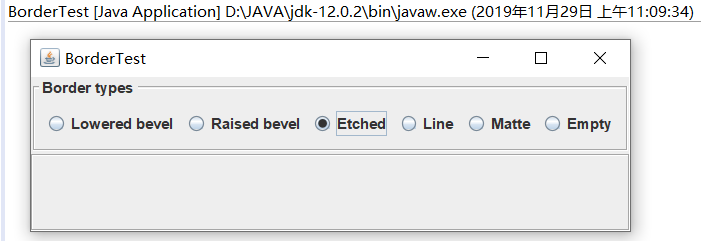
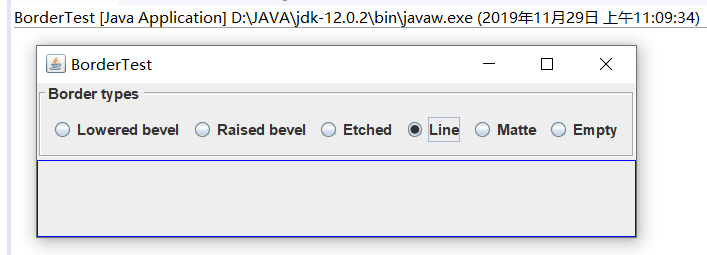

测试程序6
※在elipse IDE中调试运行教材498页程序12-6,结合运行结果理解程序;
※掌握组合框组件的用法;
※记录示例代码阅读理解中存在的问题与疑惑。
实验程序如下:
 import java.awt.*;

 import javax.swing.*;

 /**

  * @version 1.35 2015-06-12

  * @author Cay Horstmann

  */

 public class ComboBoxTest

 {

    public static void main(String[] args)

    {

       //lambda表达式

       EventQueue.invokeLater(() -> {

          //构造frame框架对象

          JFrame frame = new ComboBoxFrame();

          //设置标题

          frame.setTitle("ComboBoxTest");

          //设置用户在此窗体上发起 "close" 时默认执行的操作。

          frame.setDefaultCloseOperation(JFrame.EXIT_ON_CLOSE);

          //设置框架是否可见

          frame.setVisible(true);

       });

    }

 }
 import java.awt.BorderLayout;

 import java.awt.Font;

 import javax.swing.JComboBox;

 import javax.swing.JFrame;

 import javax.swing.JLabel;

 import javax.swing.JPanel;

 /**

  * 具有示例文本标签和用于选择字体外观的组合框的框架。

  * 组合框:将按钮或可编辑字段与下拉列表组合的组件。

  * 用户可以从下拉列表中选择值,下拉列表在用户请求时显示。

  * 如果使组合框处于可编辑状态,则组合框将包括用户可在其中键入值的可编辑字段。

  */

 //ComboBoxFrame继承于JFrame类

 public class ComboBoxFrame extends JFrame

 {

    //设置ComboBoxFrame的私有属性

    private JComboBox<String> faceCombo;

    private JLabel label;

    private static final int DEFAULT_SIZE = 24;

    public ComboBoxFrame()

    {

       // 添加示例文本标签

       label = new JLabel("The quick brown fox jumps over the lazy dog.");

       //设置字体

       label.setFont(new Font("Serif", Font.PLAIN, DEFAULT_SIZE));

       //添加到边框布局管理器的中间

       add(label, BorderLayout.CENTER);

       // 创建一个组合框对象并添加项目名称

       faceCombo = new JComboBox<>();

       //把一个选项添加到选项列表中,共五种选项

       faceCombo.addItem("Serif");

       faceCombo.addItem("SansSerif");

       faceCombo.addItem("Monospaced");

       faceCombo.addItem("Dialog");

       faceCombo.addItem("DialogInput");

       // 组合框监听器将标签字体更改为所选的名称(添加监听器,使用lambda表达式)

       faceCombo.addActionListener(event ->

       //设置标签的字体

          label.setFont(

             //getItemAt用于返回指定索引处的列表项;getSelectedIndex用于返回当前选择的选项

             new Font(faceCombo.getItemAt(faceCombo.getSelectedIndex()),

                Font.PLAIN, DEFAULT_SIZE)));

       // 将组合框添加到框架南部边界的面板

       JPanel comboPanel = new JPanel();

       comboPanel.add(faceCombo);

       add(comboPanel, BorderLayout.SOUTH);

       pack();

    }

 }
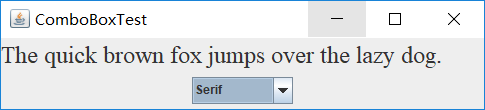
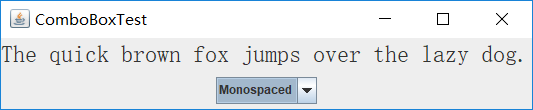
实验结果如下:



实验2:结对编程练习
利用所掌握的GUI技术,设计一个用户信息采集程序,要求如下:
(1) 用户信息输入界面如下图所示:
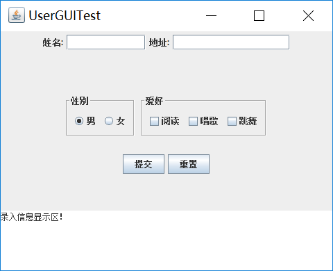
(2) 用户点击提交按钮时,用户输入信息显示在录入信息显示区,格式如下:
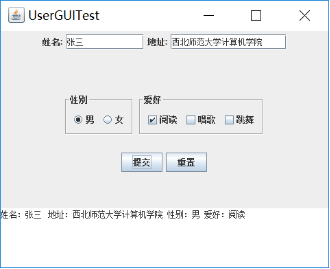
(3)用户点击重置按钮后,清空用户已输入信息;
(4) 点击窗口关闭,程序退出。
结对编程练习包含以下4部分:
1) 程序设计思路简述;
运用GridLayout布局,北边放JTextField(用以处理姓名和地址)以及JLabel,还有性别按钮(此为单选按钮用以处理性别选择)和爱好按钮(此为复选按钮用以处理爱好选择),南边放一个JTextArea(用以打印提交后的信息显示),总归就是把前几个示例代码糅合在一起写出来的。
2) 程序代码;
 import java.awt.BorderLayout;

 import java.awt.FlowLayout;

 import java.awt.GridLayout;

 import javax.swing.BorderFactory;

 import javax.swing.ButtonGroup;

 import javax.swing.JButton;

 import javax.swing.JCheckBox;

 import javax.swing.JFrame;

 import javax.swing.JLabel;

 import javax.swing.JPanel;

 import javax.swing.JRadioButton;

 import javax.swing.JScrollPane;

 import javax.swing.JTextArea;

 import javax.swing.JTextField;

 import javax.swing.border.Border;

 public class GUIFrame extends JFrame{

     public GUIFrame() {

         setSize(500,380);

         JPanel northPanel = new JPanel();                    //北面

         add(northPanel,BorderLayout.NORTH);

         //northPanel.setLayout(new GridLayout(1,4));

         JLabel nameLabel = new JLabel("姓名:",JLabel.RIGHT);

         JTextField nameText = new JTextField(8);

         JLabel adressLabel = new JLabel("地址:",JLabel.RIGHT);

         JTextField adressText = new JTextField(15);

         northPanel.add(nameLabel);

         northPanel.add(nameText);

         northPanel.add(adressLabel);

         northPanel.add(adressText);

         JPanel centerPanel = new JPanel();

         centerPanel.setLayout(new GridLayout(3,1));

         add(centerPanel,BorderLayout.CENTER);

         JPanel blankPanel = new JPanel();

         centerPanel.add(blankPanel);

         JPanel choosePanel = new JPanel();

         choosePanel.setLayout(new FlowLayout());

         centerPanel.add(choosePanel);

         choosePanel.setSize(100,100);

         JPanel sexPanel = new JPanel();                                //性别按钮

         choosePanel.add(sexPanel);

         Border etched = BorderFactory.createEtchedBorder();

         Border titled1 = BorderFactory.createTitledBorder(etched,"性别");

         sexPanel.setBorder(titled1);

         ButtonGroup sexGroup = new ButtonGroup();

         JRadioButton manButton = new JRadioButton("男",true);

         sexGroup.add(manButton);

         JRadioButton womenButton = new JRadioButton("女",false);

         sexGroup.add(womenButton);

         sexPanel.add(manButton);

         sexPanel.add(womenButton);

         JPanel hobbyPanel = new JPanel();                            //爱好按钮

         choosePanel.add(hobbyPanel);

         Border titled2 = BorderFactory.createTitledBorder(etched,"爱好");

         hobbyPanel.setBorder(titled2);

         JCheckBox read = new JCheckBox("阅读");

         JCheckBox sing = new JCheckBox("唱歌");

         JCheckBox dance = new JCheckBox("跳舞");

         hobbyPanel.add(read);

         hobbyPanel.add(sing);

         hobbyPanel.add(dance);

         JPanel ButtonPanel = new JPanel();

         centerPanel.add(ButtonPanel);

         JButton submit = new JButton("提交");

         JButton reset = new JButton("重置");

         ButtonPanel.add(submit);

         ButtonPanel.add(reset);

         JTextArea southText = new JTextArea("录入信息显示区!",6,10);    //南面

         JScrollPane scrollPane = new JScrollPane(southText);         //滚动

         southText.setLineWrap(true);

         add(scrollPane,BorderLayout.SOUTH);

         submit.addActionListener(event->{                        //按钮监听器

             String hobby="";

             if(read.isSelected())

                 hobby=hobby+"阅读 ";

             if(sing.isSelected())

                 hobby=hobby+"唱歌 ";

             if(dance.isSelected())

                 hobby=hobby+"跳舞 ";

             String sex="";

             if(manButton.isSelected())

                 sex="男";

             else

                 sex="女";

             if(southText.getText().equals("录入信息显示区!"))            //清空默认值

                 southText.setText("");

             southText.append("姓名:"+nameText.getText()+" 地址:"+adressText.getText()+" 性别:"+sex+" 爱好:"+hobby+"\n");

         });

         reset.addActionListener(event->{

             southText.setText("");

             nameText.setText("");

             adressText.setText("");

         });

     }

 }

 GUIFrame
 import java.awt.EventQueue;

 import javax.swing.JFrame;

 public class Test {

     public static void main(String[] args)

        {

           EventQueue.invokeLater(() -> {

              JFrame frame = new GUIFrame();

              frame.setTitle("UserGUITest");

              frame.setDefaultCloseOperation(JFrame.EXIT_ON_CLOSE);

              frame.setVisible(true);

           });

        }

 }

 main
3) 程序运行功能界面截图;
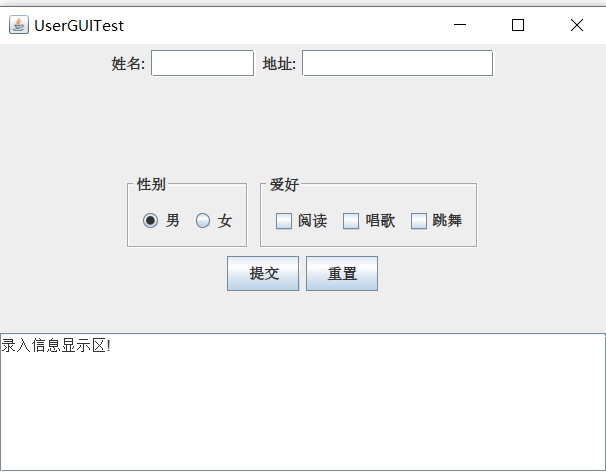
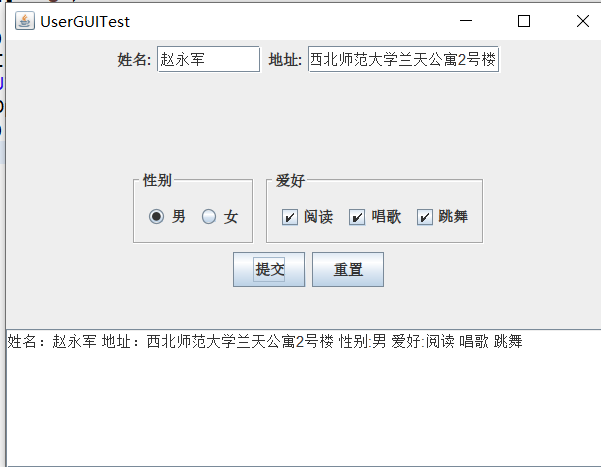
4) 结对过程描述及结对照片(非摆拍)。

三:实验总结。
这一周学习了Swing用户界面组件以及GUI相关组件。在学习过程中,自己对理论知识的学习学的比较混乱,混淆了这几部分的学习内容。另外,对于本周的实验,实验都有很多相同和类似的地方,在实验过程中任然没有理解的太清楚。在查了课本上的内容之后,稍微有了掌握。此外,通过小组协作进行实验,结合两个人对实验的理解,相比独自完成试验,在互相学习中有了更好的理解和掌握。
201871010133-赵永军《面向对象程序设计(java)》第十四周学习总结的更多相关文章
- 201521123061 《Java程序设计》第十四周学习总结
201521123061 <Java程序设计>第十四周学习总结 1. 本周学习总结 1.1 以你喜欢的方式(思维导图或其他)归纳总结多数据库相关内容. 2. 书面作业 1. MySQL数据 ...
- 201521123072《java程序设计》第十四周学习总结
201521123072<java程序设计>第十四周学习总结 1. 本周学习总结 1.1 以你喜欢的方式(思维导图或其他)归纳总结多数据库相关内容. 2. 书面作业 1. MySQL数据库 ...
- 201521123038 《Java程序设计》 第十四周学习总结
201521123038 <Java程序设计> 第十四周学习总结 1. 本周学习总结 1.1 以你喜欢的方式(思维导图或其他)归纳总结多数据库相关内容. 接口: DriverManager ...
- 201521123122 《java程序设计》第十四周学习总结
## 201521123122 <java程序设计>第十四周实验总结 ## 1. 本周学习总结 1.1 以你喜欢的方式(思维导图或其他)归纳总结多数据库相关内容. 2. 书面作业 1. M ...
- 201771010134杨其菊《面向对象程序设计java》第九周学习总结
第九周学习总结 第一部分:理论知识 异常.断言和调试.日志 1.捕获 ...
- 201777010217-金云馨《面向对象程序设计Java》第四周总结学习
2019面向对象程序设计(Java)第4周学习指导及要求 项目 内容 这个作业属于哪个课程 <任课教师博客主页链接>https://www.cnblogs.com/nwnu-daizh/ ...
- 汪慧和201771010123《面向对象程序设计JAVA》第四周实验总结
第一部分:理论知识学习部分 1.类 类(class)是具有相同属性和行为的一组对象的集合,是构造程序的基本单元,是构造对象的模板或蓝图. 2.对象 对象:即数据,对象有三个特性——1.行为 2.状态 ...
- 201871010132-张潇潇《面向对象程序设计(java)》第一周学习总结
面向对象程序设计(Java) 博文正文开头 项目 内容 这个作业属于哪个课程 https://www.cnblogs.com/nwnu-daizh/ 这个作业的要求在哪里 https://www.cn ...
- 扎西平措 201571030332《面向对象程序设计 Java 》第一周学习总结
<面向对象程序设计(java)>第一周学习总结 正文开头: 项目 内容 这个作业属于哪个课程 https://www.cnblogs.com/nwnu-daizh/ 这个作业的要求在哪里 ...
- 201621123040《Java程序设计》第十四周学习总结
1.本周学习总结 1.1以你喜欢的方式(思维导图或其他)归纳总结与数据库相关内容. 显示所有数据库: show databases; 创建数据库: create database test; 删除数据 ...
随机推荐
- scala java 混合编译配置
参考:https://www.jianshu.com/p/f20550cd1067 pom.xml 配置 <build> <plugins> <plugin> &l ...
- InvalidProgramException
InvalidProgramException 这tmd是个什么错,我现在都想不起这个exception是怎么触发的了. 后来google了一下,发现是.net 2.0的编译器的bug,和内存或堆栈使 ...
- Nginx 负载均衡算法
Nginx 负载均衡算法 1.轮询(默认) 每个请求按时间顺序逐一分配到不同的后端服务,如果后端某台服务器死机,自动剔除故障系统,使用户访问不受影响. upstream tomcat_server { ...
- Codeforces Round #596 (Div. 2, based on Technocup 2020 Elimination Round 2) F. Tree Factory 构造题
F. Tree Factory Bytelandian Tree Factory produces trees for all kinds of industrial applications. Yo ...
- SQL 错误: ORA-65096: 公用用户名或角色名无效 65096. 00000 - "invalid common user or role name" *Cause: An attempt was made to create a common user or role with a name
在Oracle SQL Developer中,试图创建RD用户时,出现了如下的错误: 在行: 上开始执行命令时出错 - 错误报告 - SQL 错误: ORA: 公用用户名或角色名无效 . - &quo ...
- kafka_2.12-2.2.1 集群搭建
一.zookeeper集群搭建 kafka集群依赖于zookeeper的集群,搭建zookeeper集群的步骤参考我之前写过的,Solr集群搭建详细教程(一)中的第二步 二.下载解压 去官网下载htt ...
- 与某军工背景软件企业分享Azure DevOps Server的经验
DevOps 是英文单词Development和Operations的组合词,是一种用于促进软件开发.运维实施和质量保障部门之间协同工作的过程和方法. 结合软件开发管理规范,应用自动化的构建.测试和发 ...
- 集成Azure DevOps Server(TFS) 与微软Teams
1.概述 Microsoft Teams是Office 365中团队协作的中心.将团队的所有聊天.会议.文件和应用程序放在一个位置.软件开发团队可以在一个专门的协作中心中即时访问他们所需的所有内容,T ...
- 【Oracle】rman基于时间点恢复
rman基于时间点恢复 场景: 由于某研究的误操作,导致财务模块的数据丢失,如何使用rman基于时间点恢复数据. 思路 1.克隆数据库的虚拟机,直接对数据库的数据进行恢复 RMAN> shutd ...
- springboot 1.4 CXF配置
启动类: package com.eshore.main; import org.apache.catalina.connector.Connector; import org.apache.coyo ...