
Xcode5编译ffmpeg
命令行安装FFmpeg:git clone git://source.ffmpeg.org/ffmpeg.git ffmpeg(或:到https://github.com/gabriel/ffmpeg-iphone-build下载ffmpeg-iphone-build)
安装命令行工具(Command Line Tools)
打开终端,输入命令:xcode-select --install

选择“安装”,然后同意安装协议。


下载gas-preprocessor:https://github.com/mansr/gas-preprocessor, 先将gas-preprocessor.pl拷贝到/usr/sbin/目录中。
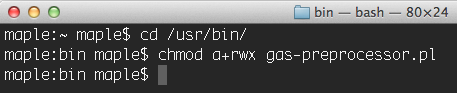
然后修改gas-preprocessor.pl文件的权限。注:需要有读,写和执行的权限。具体操作为,首先在命令行下进入/usr/bin目录,然后执行chmod命令,如下图所示:
运行build-ffmpeg.sh文件:
1、cd /build-ffmpeg.sh 脚本的所在目录下
2、sh build-ffmpeg.sh
1234567891011121314151617181920212223242526272829303132333435363738394041424344454647484950515253545556575859606162636465666768697071727374757677787980818283#!/bin/bash############################################################################ Choose your ffmpeg version and your currently-installed iOS SDK version:#VERSION="2.0.2"SDKVERSION="7.0"############################################################################### Don't change anything underthisline!############################################################################# No need to changethissince xcode build will only compileinthe# necessary bits from the libraries we createARCHS="armv7 armv7s i386"DEVELOPER=`xcode-select -print-path`cd"`dirname \"$0\"`"REPOROOT=$(pwd)# Where we'll end up storing thingsinthe endOUTPUTDIR="${REPOROOT}/dependencies"mkdir -p ${OUTPUTDIR}/includemkdir -p ${OUTPUTDIR}/libmkdir -p ${OUTPUTDIR}/binBUILDDIR="${REPOROOT}/build"mkdir -p $BUILDDIR# where we will keep our sources and build from.SRCDIR="${BUILDDIR}/src"mkdir -p $SRCDIR# where we will store intermediary buildsINTERDIR="${BUILDDIR}/built"mkdir -p $INTERDIR########################################cd $SRCDIR# Exit the scriptifan error happensset-eif[ ! -e"${SRCDIR}/ffmpeg-${VERSION}.tar.bz2"]; thenecho"Downloading ffmpeg-${VERSION}.tar.bz2"curl -LO http://ffmpeg.org/releases/ffmpeg-${VERSION}.tar.bz2elseecho"Using ffmpeg-${VERSION}.tar.bz2"fitar jxf ffmpeg-${VERSION}.tar.bz2 -C $SRCDIRcd"${SRCDIR}/ffmpeg-${VERSION}"set+e # don't bail out of bash script if ccache doesn't existCCACHE=`which ccache`if[ $? =="0"]; thenecho"Building with ccache: $CCACHE"CCACHE="${CCACHE} "elseecho"Building without ccache"CCACHE=""fiset-e # back to regular"bail out on error"modeforARCHin${ARCHS}doif["${ARCH}"=="i386"];thenPLATFORM="iPhoneSimulator"EXTRA_CONFIG="--arch=i386 --disable-asm --enable-cross-compile --target-os=darwin --cpu=i386"EXTRA_CFLAGS="-arch i386"EXTRA_LDFLAGS="-I${DEVELOPER}/Platforms/${PLATFORM}.platform/Developer/SDKs/${PLATFORM}${SDKVERSION}.sdk/usr/lib -mfpu=neon"elsePLATFORM="iPhoneOS"EXTRA_CONFIG="--arch=arm --target-os=darwin --enable-cross-compile --cpu=cortex-a9 --disable-armv5te"EXTRA_CFLAGS="-w -arch ${ARCH} -mfpu=neon"EXTRA_LDFLAGS="-mfpu=neon"fimkdir -p"${INTERDIR}/${ARCH}"./configure --prefix="${INTERDIR}/${ARCH}"--disable-ffmpeg --disable-ffplay --disable-ffprobe --disable-ffserver --disable-iconv --disable-bzlib --enable-avresample --sysroot="${DEVELOPER}/Platforms/${PLATFORM}.platform/Developer/SDKs/${PLATFORM}${SDKVERSION}.sdk"--cc="${DEVELOPER}/Toolchains/XcodeDefault.xctoolchain/usr/bin/clang"--as='/usr/local/bin/gas-preprocessor.pl'--extra-cflags="${EXTRA_CFLAGS} -miphoneos-version-min=${SDKVERSION} -I${OUTPUTDIR}/include"--extra-ldflags="-arch ${ARCH} ${EXTRA_LDFLAGS} -isysroot /Applications/Xcode.app/Contents/Developer/Platforms/${PLATFORM}.platform/Developer/SDKs/${PLATFORM}${SDKVERSION}.sdk -miphoneos-version-min=${SDKVERSION} -L${OUTPUTDIR}/lib"${EXTRA_CONFIG} --enable-pic --extra-cxxflags="$CPPFLAGS -I${OUTPUTDIR}/include -isysroot ${DEVELOPER}/Platforms/${PLATFORM}.platform/Developer/SDKs/${PLATFORM}${SDKVERSION}.sdk"make && make install && make cleandonemkdir -p"${INTERDIR}/universal/lib"cd"${INTERDIR}/armv7/lib"forfilein*.adocd ${INTERDIR}xcrun -sdk iphoneos lipo -output universal/lib/$file -create -arch armv7 armv7/lib/$file -arch armv7s armv7s/lib/$file -arch i386 i386/lib/$fileecho"Universal $file created."donecp -r ${INTERDIR}/armv7/include${INTERDIR}/universal/echo"Done."把/build/built/universal目录下的 lib 和 include 文件导入工程,并在header search path 配置 include文件 路径。
本文出自 “追逐风飞的花” 博客,请务必保留此出处http://metoo.blog.51cto.com/7809119/1382158
Xcode5编译ffmpeg的更多相关文章
- XCode5 编译ffmpeg流程
今天想在Mac10.9 XCode5的环境下把ffmpeg编译出来,本来以为很好搞定,结果版本一升级,以前的命令行不通了,出各种错误.折腾了三四个小时,最后终于成功了. 编译流程: 1.ffmpeg官 ...
- Xcode5 编译ffmpeg,arm64版本;H264
编译选项:./configure —-cc=/Applications/Xcode.app/Contents/Developer/Toolchains/XcodeDefault.xctoolchai ...
- Xcode编译ffmpeg(2)
iOS: FFmpeg编译和使用问题总结 折磨了我近一周多时间的FFmpeg库编译问题终于解决了,必须得把这一段时间来遇到过的坑全写出来.如果急着解决问题,编译最新版本的FFmpeg库请直接看第二部分 ...
- iOS编译FFmpeg、kxmovie实现视频播放 (转载)
由于FFmpeg开源框架的功能非常强大,可以播放的视频种类很多,同时添加第三方库kxmovie,实现视频播放,真的是爽爆了,因此今天来说一下关于FFmpeg在iOS手机上的一些配置过程,配置工具,还有 ...
- 编译FFmpeg成一个SO库<转>
转帖地址:http://www.ihubin.com/blog/android-ffmpeg-demo-3/ ============================================= ...
- Linux下NDK编译FFMPEG包含neon参数
FFMPEG编译成Android库已经有很多案例了,编译优化neon的也很多,以下是我通过实践成功的案例,这里主要讲编译的配置文件,其他设置可结合Linux下使用NDK编译FFMPEG(libstag ...
- [原]如何用Android NDK编译FFmpeg
我们知道在Ubuntu下直接编译FFmpeg是很简单的,主要是先执行./configure,接着执行make命令来编译,完了紧接着执行make install执行安装.那么如何使用Android的ND ...
- 在Windows下利用MinGW编译FFmpeg
目录 [隐藏] 1 环境与软件 2 第一步:安装MinGW 3 第二步:配置编译环境 4 第三步:配置SDL 5 第四步:编译 5.1 编译faac 5.2 编译fdk-aac 5.3 编译x264 ...
- 开源项目:windows下使用MinGW+msys编译ffmpeg
本文参考了网络上的不少文章,但由于版本环境的问题参考文章并不能直接指导编译,本文吸收多方经验,并在自己多次编译实验的基础上写成,欢迎转载,请注名出处. FFmpeg是在Linux平台下开发的,但 ...
随机推荐
- 2015/12/29 Java语言概述 操作中注意事项
java语言概述 ①版本分类:JavaSE 标准版 桌面开发 JavaEE 企业版 网络开发 JavaME 移动版 嵌入式开发(塞班系统 ...
- [Codeforces Round 486A] Fair
[题目链接] https://codeforces.com/contest/986/problem/A [算法] 用dist(i,j)表示第i种食物运到第j个城市需要的最小代价 将所有特产为第i中食物 ...
- 【Unity3D】Unity3D SkinnedMeshRenderer换装系统
转载请注明出处:http://www.cnblogs.com/shamoyuu/p/6505561.html 一.换装原理 游戏角色换装分为以下几步: 1.替换蒙皮网格 2.刷新骨骼 3.替换材质 上 ...
- JS判断字符串中是否存在某个字符
用String类中的indexOf函数,例如:String str="we find out sth";if(str.indexOf("o")==-1){ // ...
- 浙江省CIO协会钱塘江论坛近日在网易云创沙龙宣布成立
本文来自网易云社区 9月19日,由网易云与浙江省首席信息官协会共同主办的“网易云创CIO沙龙”在杭州举行,本次活动以“瞩目钱塘,赋能企业数字化创新”为主题,网易云企业服务部总经理岳峥辉,浙江省首席信息 ...
- E20170616-hm
transaction n. 交易,业务,事务; 办理,处理; (一笔) 交易,(一项)事务; (学会等的) 会议记录,学报; isolation n. 隔离; 孤独; 隔离状态; 孤立状 ...
- bzoj 1707: [Usaco2007 Nov]tanning分配防晒霜【贪心||最大流(?)】
洛谷上能过的最大流bzoj上T了--但是贪心做法明明在洛谷上比最大流要慢啊--如果是最大流的话就是裸题了吧 说一下贪心,就按照防晒霜排序,然后对每一个防晒霜选一头可以使用的且r最小的牛 就,没了. 贪 ...
- SQL 索引篇
索引介绍: 1.索引是对数据库表中一列或多列的值进行排序的一种结构,使用索引可快速访问数据库表中的特定信息. 数据库索引好比是一本书前面的目录, SQL Server的B树结构 2.加快数据库的查询速 ...
- python程序展现图片遇到的坑
使用cv2展示图片的时候遇到了问题,提示:TypeError: Required argument 'mat' (pos 2) not found 给定的图片路径是没得问题的,代码如下: 使用open ...
- [转]ASP.NET MVC中实现多个按钮提交的几种方法
本文转自:http://www.cnblogs.com/wuchang/archive/2010/01/29/1658916.html 有时候会遇到这种情况:在一个表单上需要多个按钮来完成不同的功能, ...