
wordpress博客系统
wordpress博客系统
LNMP:Linux+nginx+mysql+php
一个操作系统+web网站+一个数据库存放数据+后端编程语言
基于红帽操作系统来搭建
1.需要一个本地yum仓库
[root@server yum.repos.d]# vim local.repo

[local]

name=local

baseurl=file:///media

enabled=1

gpgcheck=0

[root@server yum.repos.d]# yum clean all

Loaded plugins: langpacks, product-id, search-disabled-repos, subscription-manager

This system is not registered to Red Hat Subscription Management. You can use subscription-manager to register.

Cleaning repos: local

Cleaning up everything

[root@server yum.repos.d]# yum repolist

Loaded plugins: langpacks, product-id, search-disabled-repos, subscription-manager

This system is not registered to Red Hat Subscription Management. You can use subscription-manager to register.

local                                                                                                    | 4.1 kB  00:00:00

(1/2): local/group_gz                                                                                    | 136 kB  00:00:00

(2/2): local/primary_db                                                                                  | 3.9 MB  00:00:00

repo id                                                       repo name                                                   status

local                                                         local                                                       4,751

repolist: 4,751

[root@server yum.repos.d]#
2.安装需要软件包,windows的软件包拖入需要进行解压
[root@server ~]# ls

anaconda-ks.cfg  initial-setup-ks.cfg  lnmp.zip  tlsweb.csr  wordpress-4.7.3-zh_CN.zip

[root@server ~]# unzip lnmp.zip

Archive:  lnmp.zip

   creating: lnmp/

   creating: lnmp/lnmp/

  inflating: lnmp/lnmp/alsa-lib-1.1.8-1.el7.x86_64.rpm

  inflating: lnmp/lnmp/apr-1.4.8-5.el7.x86_64.rpm

  inflating: lnmp/lnmp/apr-util-1.5.2-6.el7.x86_64.rpm

  inflating: lnmp/lnmp/atk-2.28.1-1.el7.x86_64.rpm

  inflating: lnmp/lnmp/autoconf-2.69-11.el7.noarch.rpm

  inflating: lnmp/lnmp/automake-1.13.4-3.el7.noarch.rpm

  inflating: lnmp/lnmp/avahi-libs-0.6.31-19.el7.x86_64.rpm

  inflating: lnmp/lnmp/boost-filesystem-1.53.0-25.el7.x86_64.rpm

  ......

  inflating: lnmp/lnmp/xorg-x11-fonts-Type1-7.5-9.el7.noarch.rpm

  inflating: lnmp/lnmp/yaml-cpp-0.5.1-6.el7.x86_64.rpm

[root@server ~]#
3.基于软件包新建一个yum本地仓库
[root@server yum.repos.d]# vim lnmp

[lnmp]

name=lnmp

baseurl=file://root/lnmp/lnmp

gpgcheck=0

enabled=1

[root@server yum.repos.d]# yum clean all

Loaded plugins: langpacks, product-id, search-disabled-repos, subscription-manager

This system is not registered to Red Hat Subscription Management. You can use subscription-manager to register.

Cleaning repos: local

Cleaning up everything

[root@server yum.repos.d]# yum repolist

Loaded plugins: langpacks, product-id, search-disabled-repos, subscription-manager

This system is not registered to Red Hat Subscription Management. You can use subscription-manager to register.

local                                                                                                    | 4.1 kB  00:00:00

(1/2): local/group_gz                                                                                    | 136 kB  00:00:00

(2/2): local/primary_db                                                                                  | 3.9 MB  00:00:00

repo id                                                       repo name                                                   status

local                                                         local                                                       4,751

repolist: 4,751
4.安装软件
yum -y install nginx mariadb-server php php-mysql php-fpm
5.解压wordpress.zip
[root@server ~]# unzip wordpress-4.7.3-zh_CN.zip
6.配置nginx
[root@server html]# cat /etc/nginx/conf.d/default.conf

server {

    listen       80;

    server_name  localhost;

    #charset koi8-r;

    #access_log  /var/log/nginx/host.access.log  main;

    location / {

        root   /usr/share/nginx/html;

        index  index.php index.html index.htm;

    }

    #error_page  404              /404.html;

    # redirect server error pages to the static page /50x.html

    #

    error_page   500 502 503 504  /50x.html;

    location = /50x.html {

        root   /usr/share/nginx/html;

    }

    # proxy the PHP scripts to Apache listening on 127.0.0.1:80

    #

    #location ~ \.php$ {

    #    proxy_pass   http://127.0.0.1;

    #}

    # pass the PHP scripts to FastCGI server listening on 127.0.0.1:9000

    #

    location ~ \.php$ {

        root           /usr/share/nginx/html;

        fastcgi_pass   127.0.0.1:9000;

        fastcgi_index  index.php;

        fastcgi_param  SCRIPT_FILENAME  $document_root$fastcgi_script_name;

        include        fastcgi_params;

    }

    # deny access to .htaccess files, if Apache's document root

    # concurs with nginx's one

    #

    #location ~ /\.ht {

    #    deny  all;

    #}

}
7.配置数据库初始化
[root@server html]# systemctl  start mariadb

[root@server html]# mysql_secure_installation

NOTE: RUNNING ALL PARTS OF THIS SCRIPT IS RECOMMENDED FOR ALL MariaDB

      SERVERS IN PRODUCTION USE!  PLEASE READ EACH STEP CAREFULLY!

In order to log into MariaDB to secure it, we'll need the current

password for the root user.  If you've just installed MariaDB, and

you haven't set the root password yet, the password will be blank,

so you should just press enter here.

Enter current password for root (enter for none):

OK, successfully used password, moving on...

Setting the root password ensures that nobody can log into the MariaDB

root user without the proper authorisation.

Set root password? [Y/n] y

New password:

Re-enter new password:

Password updated successfully!

Reloading privilege tables..

 ... Success!

By default, a MariaDB installation has an anonymous user, allowing anyone

to log into MariaDB without having to have a user account created for

them.  This is intended only for testing, and to make the installation

go a bit smoother.  You should remove them before moving into a

production environment.

Remove anonymous users? [Y/n] y

 ... Success!

Normally, root should only be allowed to connect from 'localhost'.  This

ensures that someone cannot guess at the root password from the network.

Disallow root login remotely? [Y/n] n

 ... skipping.

By default, MariaDB comes with a database named 'test' that anyone can

access.  This is also intended only for testing, and should be removed

before moving into a production environment.

Remove test database and access to it? [Y/n] y

 - Dropping test database...

 ... Success!

 - Removing privileges on test database...

 ... Success!

Reloading the privilege tables will ensure that all changes made so far

will take effect immediately.

Reload privilege tables now? [Y/n] y

 ... Success!

Cleaning up...

All done!  If you've completed all of the above steps, your MariaDB

installation should now be secure.

Thanks for using MariaDB!

mysql  -uroot -p000000

->  create  database  wordpress;

->  show databases;

->  exit

#进入数据库,创建一个WordPress的数据库
8.将wordpress的页面文件导入
 [root@server html]#semanage fcontext -a -t httpd_sys_content_t '/root/wordpress/(/.*)?'

[root@server html]#  mv /root/wordpress/*  .

[root@server html]# ll -Z

-rwxrwxrwx. root root system_u:object_r:httpd_sys_content_t:s0 50x.html

-rwxrwxrwx. root root system_u:object_r:httpd_sys_content_t:s0 index.html

-rw-r--r--. root root system_u:object_r:httpd_sys_content_t:s0 index.php

-rw-r--r--. root root system_u:object_r:httpd_sys_content_t:s0 license.txt

-rw-r--r--. root root system_u:object_r:httpd_sys_content_t:s0 readme.html

-rw-r--r--. root root system_u:object_r:httpd_sys_content_t:s0 wp-activate.php

drwxr-xr-x. root root system_u:object_r:httpd_sys_content_t:s0 wp-admin

-rw-r--r--. root root system_u:object_r:httpd_sys_content_t:s0 wp-blog-header.php

-rw-r--r--. root root system_u:object_r:httpd_sys_content_t:s0 wp-comments-post.php

-rw-r--r--. root root system_u:object_r:httpd_sys_content_t:s0 wp-config-sample.php

drwxr-xr-x. root root system_u:object_r:httpd_sys_content_t:s0 wp-content

-rw-r--r--. root root system_u:object_r:httpd_sys_content_t:s0 wp-cron.php

drwxr-xr-x. root root system_u:object_r:httpd_sys_content_t:s0 wp-includes

-rw-r--r--. root root system_u:object_r:httpd_sys_content_t:s0 wp-links-opml.php

-rw-r--r--. root root system_u:object_r:httpd_sys_content_t:s0 wp-load.php

-rw-r--r--. root root system_u:object_r:httpd_sys_content_t:s0 wp-login.php

-rw-r--r--. root root system_u:object_r:httpd_sys_content_t:s0 wp-mail.php

-rw-r--r--. root root system_u:object_r:httpd_sys_content_t:s0 wp-settings.php

-rw-r--r--. root root system_u:object_r:httpd_sys_content_t:s0 wp-signup.php

-rw-r--r--. root root system_u:object_r:httpd_sys_content_t:s0 wp-trackback.php

-rw-r--r--. root root system_u:object_r:httpd_sys_content_t:s0 xmlrpc.php

[root@server html]# chmod -R 777 .

[root@server html]# ll

total 192

-rwxrwxrwx.  1 root root   494 Aug 13  2019 50x.html

-rwxrwxrwx.  1 root root   612 Aug 13  2019 index.html

-rwxrwxrwx.  1 root root   418 Sep 25  2013 index.php

-rwxrwxrwx.  1 root root 19935 Jan  3  2017 license.txt

-rwxrwxrwx.  1 root root  6956 Mar  7  2017 readme.html

-rwxrwxrwx.  1 root root  5447 Sep 28  2016 wp-activate.php

drwxrwxrwx.  9 root root  4096 Mar  7  2017 wp-admin

-rwxrwxrwx.  1 root root   364 Dec 19  2015 wp-blog-header.php

-rwxrwxrwx.  1 root root  1627 Aug 29  2016 wp-comments-post.php

-rwxrwxrwx.  1 root root  2930 Mar  7  2017 wp-config-sample.php

drwxrwxrwx.  5 root root    69 Mar  7  2017 wp-content

-rwxrwxrwx.  1 root root  3286 May 25  2015 wp-cron.php

drwxrwxrwx. 18 root root  8192 Mar  7  2017 wp-includes

-rwxrwxrwx.  1 root root  2422 Nov 21  2016 wp-links-opml.php

-rwxrwxrwx.  1 root root  3301 Oct 25  2016 wp-load.php

-rwxrwxrwx.  1 root root 33939 Nov 21  2016 wp-login.php

-rwxrwxrwx.  1 root root  8048 Jan 11  2017 wp-mail.php

-rwxrwxrwx.  1 root root 16250 Nov 29  2016 wp-settings.php

-rwxrwxrwx.  1 root root 29896 Oct 19  2016 wp-signup.php

-rwxrwxrwx.  1 root root  4513 Oct 15  2016 wp-trackback.php

-rwxrwxrwx.  1 root root  3065 Sep  1  2016 xmlrpc.php

[root@server html]#
10.配置权限(三步)
(1)文件权限
chmod -R 777 ./
(2)防火墙权限
  firewall-cmd  --permanent  --add-service=http

  firewall-cmd  --permanent  --add-service=mysql

 firewall-cmd  --reload
(3)selinux文件的上下文
semanage fcontext -a -t httpd_sys_content_t '/usr/share/nginx/html/(/.*)?'

  restorecon -RFv .
11.开启服务并设置开机自启
  systemctl enable php-fpm

  systemctl enable mariadb.service

  systemctl enable nginx

    systemctl start php-fpm

  systemctl start mariadb.service

  systemctl start nginx
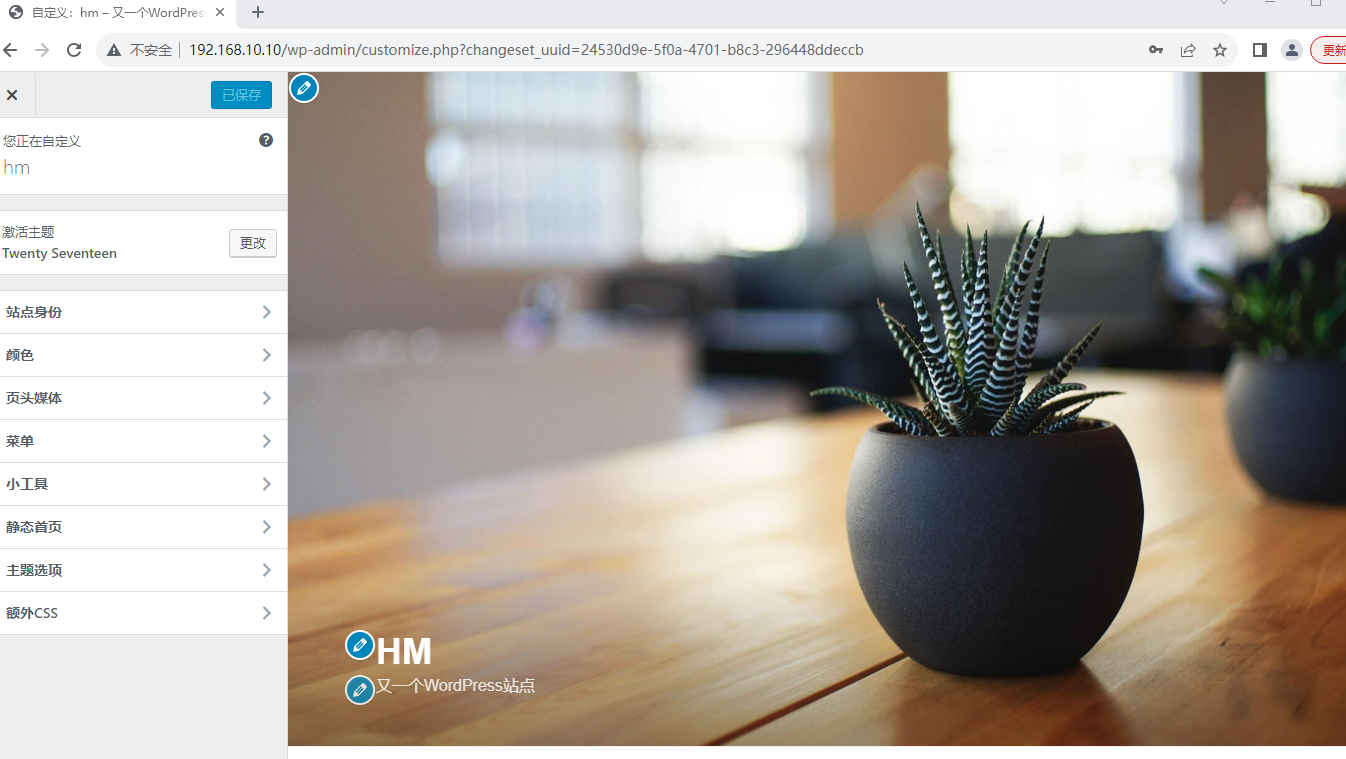
12.访问http://192.168.10.10
wordpress博客系统的更多相关文章
- 使用docker部署WordPress博客系统(win10企业版)
docker介绍: docker 是一个开源的应用容器引擎,让开发者可以打包他们的应用以及依赖包到一个可移植的容器中,然后发布到任何流行的Linux机器上,也可以实现虚拟化,容器是完全使用沙箱机制,相 ...
- Centos 7使用docker部署LAMP搭建wordpress博客系统
0.简要概述 LAMP是目前比较流行的web框架,即Linux+Apache+Mysql+PHP的网站架构方案.docker是目前非常流行的虚拟化应用容器,可以为任何应用创建一个轻量级.可移植的容器. ...
- 巨杉Tech | 十分钟快速搭建 Wordpress 博客系统
介绍 很多互联网应用程序开发人员第一个接触到的网站项目就是博客系统.而全球使用最广的Wordpress常常被用户用来快速搭建个人博客网站.默认情况下,Wordpress一般在后台使用MySQL关系型数 ...
- 在centOS上搭建wordpress博客系统
一.主要内容 1.安装LAMP服务器系统(Linux.Apache.MySQL.PHP ); 2.安装wordpress: 二.具体步骤 一.LAMP环境设置 1.安装LAMP系统,在centOS上可 ...
- WordPress博客系统搜索引擎优化seo全攻略方法
WordPress的文章.评论等很多数据都是存放在数据库的,所以搭建wordpress网站的时间,网站的空间不需要多大,而数据库一定要充足,而在WordPress数据库中主要使用 wp_posts 表 ...
- 使用阿里云 ECS 快速部署 WordPress 博客系统
今天在 阿里云 ECS上 部署了一套 Lamp 系统,建了一个WordPress的网站,把操作过程记录下来,文中所列脚本可以直接应用. 废话不多说直接开动,ECS云服务购买可以点击 阿里云ECS 云主 ...
- k8s_使用k8s部署wordpress博客系统(一)
系统部署流程 使⽤kubernetes部署wordpress+MySQL, 并利⽤NFS去保存我们容器的源代码以及DB数据.搭建好nfs后任意node上的Pod访问db或者业务代码都会有相同的效果,数 ...
- docker 搭建一个wordpress 博客系统(4)
安装lnmp ()下载镜像 [root@server ~]# docker pull mysql:latest #下载mysql镜像 [root@server ~]# docker pull rich ...
- docker部署LAMP架构并部署上线wordpress博客系统
第一步:直接在镜像仓库拉取LAMP镜像 [root@ken-node3 ken]# docker pull tutum/lamp 第二步:查看已经获取到的镜像 [root@ken-node3 ken] ...
- 用Docker-Compose一分钟搭建Wordpress博客系统
环境: CentOS 7.5 Docker 20.10.2 Docker-Compose 1.25.5 [root@localhost ~]# cat /etc/redhat-release Cent ...
随机推荐
- WPF随笔收录-RestSharp下载文件406问题
一.前言 在项目开发过程中,涉及到通过http下载文件的需求,最近遇到一个406问题,由于第一次接触这个问题,也被问题卡了好久,在网上风暴了很久才找到解决办法: 二.解决方法 解决的办法就是在requ ...
- MUI-拿到版本名称和版本code
场景: 一般App发布了新版本之后,都会提示用户去更新.这就需要我们获取App的当前版本号与后台存储的版本号做对比来判断是否需要更新. 获取版本名称和版本code: 打开manifest.json文件 ...
- 【oracle】想要得到一个与输入顺序相同的结果
[oracle]想要得到一个与输入顺序相同的结果 在Oracle中,输出结果顺序好像是个rowid相同的,也就是经常使用的rownum序列的值,所以可以通过对rownum进行order by来让输出结 ...
- 阿里本地生活全域日志平台 Xlog 的思考与实践
简介: 作者:王宇(御田).当你踏进了编程的领域,代码和日志将是你最重要的伙伴".基于日志的问题排查是研发效能领域的重要部分,阿里集团本地生活在支撑多生态公司.多技术栈的背景下,逐渐沉淀了一 ...
- 如何合理使用 CPU 管理策略,提升容器性能?
简介:CPU Burst.拓扑感知调度是阿里云容器服务 ACK 提升应用性能的两大利器,它们解决了不同场景下的 CPU 资源管理,可以共同使用.点击下文,查看详情! 作者:张佐玮(佑祎) 前言 在云 ...
- Java编程技巧之样板代码
简介: 在日常编码的过程中,可以总结出很多"样板代码",就像"活字印刷术中的"活字"一样.当我们编写新的代码时,需要用到这些"活字" ...
- 【ClickHouse 技术系列】- 在 ClickHouse 中处理实时更新
简介:本文翻译自 Altinity 针对 ClickHouse 的系列技术文章.面向联机分析处理(OLAP)的开源分析引擎 ClickHouse,因其优良的查询性能,PB级的数据规模,简单的架构,被 ...
- [ML] Google colab GPU 免费使用, 可挂载 Google drive
colab 的文本行就相当于命令行,命令统一都在前面加 ! . 开启 GPU 加速,通过菜单栏的 "修改" 菜单,选择 "笔记本设置". 挂载 Google d ...
- cs61a回顾
从1月25开始到2.20,完成第一个项目hog. 总结让自己进度慢的主观因素: 妄图一次阅读掌握所有知识:违反了<为什么学生不喜欢上学>中大脑不是用来思考的,它的真正作用在于使你避免思考的 ...
- dotnet 7 已知问题 WPF 的 TreeView 开启虚拟化之后只显示首项
本文记录 WPF 在 dotnet 7 的一个已知问题,此问题当前已修复,只需更新 SDK 或运行时即可.使用 TreeView 在开启虚拟化之后只显示首项,其他项不显示.本文将告诉大家此问题的原因和 ...