
WPF之DataContext(转)
WPF之DataContext(转)
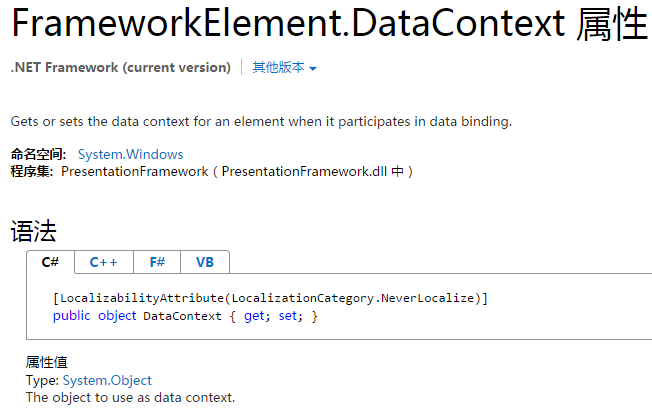
What is this “DataContext” you speak of?
I frequently see new WPF users confused about what the DataContext is, and how it is used. Hopefully, this can help clarify what the DataContext is, and how it is used.
What is the DataContext?
In WPF, there are two layers to an application: the UI layer and the Data layer.
The Data layer for an application starts out as null, and you can set it using the DataContext property. All UI objects will inherit their DataContext from their parent unless you specify otherwise.
When using the Model-View-ViewModel (MVVM) Design Pattern, the DataContext (Data Layer) is your application, while UI objects, like Buttons, Labels, DataGrids, and even Windows, are all just user-friendly items that allow a user to easily interact with the DataContext, which is your actual application and is typically comprised of ViewModels and Models.
How is it used
Whenever you do a basic binding in WPF, you are binding to the DataContext.
For example, when you write
<Label Name="myLabel" Content="{Binding Path=Name}" /> |
you are binding to myLabel.DataContext.Name, and not to myLabel.Name.
Other binding properties, such as ElementName or RelativeSource, can be used to tell the binding to lookup the property in something other than the current DataContext.
An Example
Lets start with a regular Window. Without setting the DataContext, the window still displays but there is no data behind it.
<Window x:Name="MyWindow" ...> ...</Window> |
Now suppose we set the DataContext to an object of type ClassA in the code-behind when this Window initializes:
public partial class MyWindow: Window{ public MyWindow() { InitializeComponent(); this.DataContext = new ClassA(); }} |
Now the data layer behind that the Window is an object of type ClassA.
If ClassA has a property called Name, I could add a Label to the window and bind it to Name property of the DataContext, and whatever value is stored in ClassA.Name would get displayed.
<Window x:Name="MyWindow" ...> <Label Content="{Binding Name}" /></Window> |
Now, suppose ClassA has a property called ClassB, and both classes have a property called Name. Here is a block of XAML which illustrates how the DataContext works. It also includes an example of how a control would refer to a property not in its own DataContext.
<!-- DataContext set to ClassA in initialization code --><Window x:Name="MyWindow"> <!-- DataContext here is not specified, so it's inherited from its parent's DataContext, which is ClassA --> <StackPanel> <!-- DataContext inherited from parent, which is ClassA, so this will display ClassA.Name --> <Label Content="{Binding Name}" /> <!-- DataContext is still ClassA, however we are setting it to ClassA.ClassB with a binding --> <StackPanel DataContext="{Binding ClassB}"> <!-- DataContext inherited from parent, which is ClassB, so this will display ClassB.Name --> <Label Content="{Binding Name}" /> <!-- DataContext is still ClassB, but we are binding to the Window's DataContext.Name, which is ClassA.Name --> <Label Content="{Binding ElementName=MyWindow, Path=DataContext.Name}" /> </StackPanel> <!-- We've left the StackPanel with its DataContext bound to ClassB, so this Label's DataContext is ClassA (inherited from parent StackPanel), and we are binding to ClassA.ClassB.Name --> <Label Content="{Binding ClassB.Name}" /> </StackPanel></Window> |
As you can see, all the basic bindings look for their value in the data layer (DataContext) of the UI object
Summary
So to summarize, WPF applications have two layers: the UI layer and the Data layer. The data layer for an application starts out as null, and can be set using the DataContext property. UI objects without a DataContext set will inherit their data layer from their parent object. Bindings are used to look up values in the data layer, and display them in the UI layer.
When using the MVVM design pattern, the data layer is your application, while the UI layer just provides a user-friendly way to access the Data layer.
What is this “DataContext” you speak of?
I frequently see new WPF users confused about what the DataContext is, and how it is used. Hopefully, this can help clarify what the DataContext is, and how it is used.
What is the DataContext?
In WPF, there are two layers to an application: the UI layer and the Data layer.
The Data layer for an application starts out as null, and you can set it using the DataContext property. All UI objects will inherit their DataContext from their parent unless you specify otherwise.
When using the Model-View-ViewModel (MVVM) Design Pattern, the DataContext (Data Layer) is your application, while UI objects, like Buttons, Labels, DataGrids, and even Windows, are all just user-friendly items that allow a user to easily interact with the DataContext, which is your actual application and is typically comprised of ViewModels and Models.
How is it used
Whenever you do a basic binding in WPF, you are binding to the DataContext.
For example, when you write
<Label Name="myLabel" Content="{Binding Path=Name}" /> |
you are binding to myLabel.DataContext.Name, and not to myLabel.Name.
Other binding properties, such as ElementName or RelativeSource, can be used to tell the binding to lookup the property in something other than the current DataContext.
An Example
Lets start with a regular Window. Without setting the DataContext, the window still displays but there is no data behind it.
<Window x:Name="MyWindow" ...> ...</Window> |
Now suppose we set the DataContext to an object of type ClassA in the code-behind when this Window initializes:
public partial class MyWindow: Window{ public MyWindow() { InitializeComponent(); this.DataContext = new ClassA(); }} |
Now the data layer behind that the Window is an object of type ClassA.
If ClassA has a property called Name, I could add a Label to the window and bind it to Name property of the DataContext, and whatever value is stored in ClassA.Name would get displayed.
<Window x:Name="MyWindow" ...> <Label Content="{Binding Name}" /></Window> |
Now, suppose ClassA has a property called ClassB, and both classes have a property called Name. Here is a block of XAML which illustrates how the DataContext works. It also includes an example of how a control would refer to a property not in its own DataContext.
<!-- DataContext set to ClassA in initialization code --><Window x:Name="MyWindow"> <!-- DataContext here is not specified, so it's inherited from its parent's DataContext, which is ClassA --> <StackPanel> <!-- DataContext inherited from parent, which is ClassA, so this will display ClassA.Name --> <Label Content="{Binding Name}" /> <!-- DataContext is still ClassA, however we are setting it to ClassA.ClassB with a binding --> <StackPanel DataContext="{Binding ClassB}"> <!-- DataContext inherited from parent, which is ClassB, so this will display ClassB.Name --> <Label Content="{Binding Name}" /> <!-- DataContext is still ClassB, but we are binding to the Window's DataContext.Name, which is ClassA.Name --> <Label Content="{Binding ElementName=MyWindow, Path=DataContext.Name}" /> </StackPanel> <!-- We've left the StackPanel with its DataContext bound to ClassB, so this Label's DataContext is ClassA (inherited from parent StackPanel), and we are binding to ClassA.ClassB.Name --> <Label Content="{Binding ClassB.Name}" /> </StackPanel></Window> |
As you can see, all the basic bindings look for their value in the data layer (DataContext) of the UI object
Summary
So to summarize, WPF applications have two layers: the UI layer and the Data layer. The data layer for an application starts out as null, and can be set using the DataContext property. UI objects without a DataContext set will inherit their data layer from their parent object. Bindings are used to look up values in the data layer, and display them in the UI layer.
When using the MVVM design pattern, the data layer is your application, while the UI layer just provides a user-friendly way to access the Data layer.
WPF之DataContext(转)的更多相关文章
- WPF之DataContext
1. 继承属性: DataContext is a property on FrameworkElement (base class for all WPF Controls) and is impl ...
- [WPF] How to bind to data when the datacontext is not inherited
原文:[WPF] How to bind to data when the datacontext is not inherited 原文地址:http://www.thomaslevesque.co ...
- WPF入门(1)——DataContext
在WPF中,应用程序有两层:UI层和Data层.这里新建一个项目说明哪些是UI层,哪些是数据层. UI层很明显,就是用户看到的界面.但是数据层并不是下图所示: 上图中是UI层view的后台代码.当然, ...
- 【我们一起写框架】MVVM的WPF框架(二)—绑定
MVVM的特点之一是实现数据同步,即,前台页面修改了数据,后台的数据会同步更新. 上一篇我们已经一起编写了框架的基础结构,并且实现了ViewModel反向控制Xaml窗体. 那么现在就要开始实现数据同 ...
- [No000012E]WPF(6/7):概念绑定
WPF 的体系结构,标记扩展,依赖属性,逻辑树/可视化树,布局,转换等.今天,我们将讨论 WPF 最重要的一部分——绑定.WPF 带来了优秀的数据绑定方式,可以让我们绑定数据对象,这样每次对象发生更改 ...
- 关于WPF中ItemsControl系列控件中Item不能继承父级的DataContext的解决办法
WPF中所有的集合类控件,子项都不能继承父级的DataContext,需要手动将绑定的数据源指向到父级控件才可以. <DataGridTemplateColumn Header="操作 ...
- WPF设置Window的数据上下文(DataContext)为自身
WPF设置Window的数据上下文(DataContext)为自身的XAML: DataContext="{Binding RelativeSource={RelativeSource Se ...
- WPF中 ItemsSource 和DataContext不同点
此段为原文翻译而来,原文地址 WPF 中 数据绑定 ItemSource和 DataContext的不同点: 1.DataContext 一般是一个非集合性质的对象,而ItemSource 更期望数据 ...
- WPF学习笔记——DataContext 与 ItemSource
作为一个WPF新手,在ListBox控件里,我分不清 DataContext 与 ItemSource的区别. 在实践中,似乎: <ListBox x:Name="Lst" ...
随机推荐
- Rsync(远程同步): linux中Rsync命令的实际示例
rsync的 ( 远程同步 )为在Linux / Unix系统局部 拷贝和同步文件和目录远程以及一个最常用的命令. 随着rsync命令的帮助,您可以复制并在目录中远程和本地同步数据,在磁盘和网络,进行 ...
- [转]【C#】分享一个弹出浮动层,像右键菜单那样召即来挥则去
适用于:.net2.0+ Winform项目 背景: 有时候我们需要开一个简单的窗口来做一些事,例如输入一些东西.点选一个item之类的,可能像这样: 完了返回原窗体并获取刚刚的输入,这样做并没有什么 ...
- Java集合中的Map接口
jdk1.8.0_144 Map是Java三种集合中的一种位于java.util包中,Map作为一个接口存在定义了这种数据结构的一些基础操作,它的最终实现类有很多:HashMap.TreeMap.So ...
- C#实现七牛云存储
云存储,就是把本地的资源文件存放至网络上,可以公网访问.相当于网盘功能,感觉非常方便. 这里介绍的是七牛云存储.有兴趣的可以去官方网站详看 根据官网的介绍,本身是提供SDK的,下载地址,大家可以根据自 ...
- Mysql给某一台主机授权访问,修改root密码
ubuntu上用的是phpstudy,安装好之后,敲mysql,提示没有,需要安装mysql的客户端. 安装好之后直接敲mysql,敲 mysql 再敲use mysql 再敲mysql -uroot ...
- Centos下_MysqL5.7在使用mysqldump命令备份数据库报错:mysqldump: [Warning] Using a password on the command line interface can be insecure.
在阿里云服务器增加一个shell脚本定时备份数据库脚本执行任务时,测试性的执行了备份命令,如下 [root@iZ2ze503xw2q1fftv5rhboZ mysql_bak]# /usr/local ...
- 如何使用 window api 转换字符集?
//宽字符转多字节 std::string W2A(const std::wstring& utf8) { int buffSize = WideCharToMultiByte(CP_ACP, ...
- Linux下用户和组管理
用户与组之间的关系是,组下面有若干个用户,每个用户必须从属于唯一一个组.组可以理解为权限的集合.用户管理的命令有:useradd, userdel, usermod, passwd, chsh, ch ...
- python中 字符 字典 列表之间的转换
1 字典 转 字符 定义一个字典:dict = {'name': 'python', 'age': 7}字典转字符 可以使用str强制转换 如: str(dict) 此时dict的类型就是字符型了 2 ...
- Python开发入门14天集训营-第一章
python第一章 python变量 变量的作用 存数据 被程序调用和操作 标记数据 声明变量 name = "Ydh" 变量名 = 变量值 变量定义规范: 变量名只能是 字母.数 ...