
创建自己的Code Snippet(代码模板)
一、名词解释
Code Snippet,代码模板,是一种快速生成代码的快捷方式,使用它可以有效地提高编程效率。
编程中可以使用Visual Studio提供的预先设置好的Code Snippet,也可以根据需要创建自己的Code Snippet。
二、使用方法演示
使用code snippet创建属性:
1. 输入prop,出现下图所示的提示:
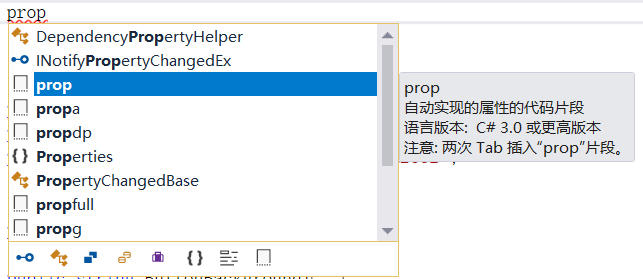
2. 连按两下Tab键,得到如下代码:

3. 按一下Tab键,可以在橙色背景色的可更改字段之间来回跳转,编辑后得到自定义的属性:
public string FirstName { get; set; }
三、创建自己的Code Snippet
以创建具有通知功能的属性为例,该种属性是基于Caliburn.Micro框架的,写在ViewModel中,可与View界面上的控件进行绑定。
在Visual Studio的Tools菜单里,找到Code Snippets Manager,
在Language下拉框中选择Visual C#,
在Location下面的很多文件夹中,找到Visual C#文件夹,可以看到很多code snippet文件,根据路径打开该文件夹,
将propfull.snippet文件复制出来,我们将基于它修改得到自己的code snippet,重命名为propcn.snippet,cn是Caliburn.Micro和Notification的缩写,
打开propcn.snippet,开始修改,
修改<Header>中的代码为:
<Title>propcn</Title>

<Shortcut>propcn</Shortcut>

<Description>Code snippet for Notification property in Caliburn.Micro</Description>
修改<Code>中的代码为:
<Code Language="csharp">

     <![CDATA[private $type$ $field$;

     public $type$ $property$

     {

        get { return $field$;}

        set

      {

         $field$ = value;

         NotifyOfPropertyChange(() => $property$);

       }

    }

    $end$]]>

</Code>
7. 保存propcn.snippet,并将该新的code snippet文件剪切到Visual C#文件夹下,至此就创建好了自己的code snippet,试试打开Visual Studio使用它:
输入propcn,连按两下Tab键,得到如下代码片段,修改为自己需要的属性即可啦。
private string _firstName;

public string FirstName

{

      get { return _firstName; }

      set

      {

            _firstName = value;

            NotifyOfPropertyChange(() => FirstName);

       }

}
四、常用的Code Snippet
ctor → 构造函数
for → for循环
prop → 简化类型的属性
propfull → 完整属性
propdp → 依赖属性
五、添加XAML code snippet
主要步骤同上,找到XAML code snippet的文件夹,将新建的代码模板文件放入,在XAML中编程时输入缩写再敲击两下Tab键。
例如,2行2列的Grid模板:
<?xml version="1.0" encoding="utf-8"?>

<CodeSnippet Format="1.0.0" xmlns="http://schemas.microsoft.com/VisualStudio/2005/CodeSnippet">

  <Header>

    <SnippetTypes>

      <SnippetType>Expansion</SnippetType>

    </SnippetTypes>

    <Title>2X2 Grid</Title>

    <Author>Microsoft Corporation</Author>

    <Description>XAML snippet for a 2X2 Grid</Description>

    <HelpUrl></HelpUrl>

    <Shortcut>2by2Grid</Shortcut>

  </Header>

  <Snippet>

    <Declarations>

      <Literal Editable="true">

        <ID>Height1</ID>

        <ToolTip>Height of row 0</ToolTip>

        <Default>*</Default>

        <Function>

        </Function>

      </Literal>

      <Literal Editable="true">

        <ID>Height2</ID>

        <ToolTip>Height of row 1</ToolTip>

        <Default>*</Default>

        <Function>

        </Function>

      </Literal>

      <Literal Editable="true">

        <ID>Width1</ID>

        <ToolTip>Width of column 0</ToolTip>

        <Default>*</Default>

        <Function>

        </Function>

      </Literal>

      <Literal Editable="true">

        <ID>Width2</ID>

        <ToolTip>Width of column 1</ToolTip>

        <Default>*</Default>

        <Function>

        </Function>

      </Literal>

    </Declarations>

    <Code Language="XAML">

      <![CDATA[

          <Grid>

              <Grid.ColumnDefinitions>

                  <ColumnDefinition Width="$Width1$"/>

                  <ColumnDefinition Width="$Width2$"/>

              </Grid.ColumnDefinitions>

              <Grid.RowDefinitions>

                  <RowDefinition Height="$Height1$"/>

                  <RowDefinition Height="$Height2$"/>

              </Grid.RowDefinitions>

          </Grid>

              ]]>

    </Code>

  </Snippet>

</CodeSnippet>
也可以下载一些现成的模板文件,例如CodePlex Archive 的XAML snippets:https://archive.codeplex.com/?p=xamlsnippets
创建自己的Code Snippet(代码模板)的更多相关文章
- 如何创建 Code Snippet
比如有一行自定义代码段: @property (nonatomic,copy) NSString *<#string#>; 需要添加到 Code Snippet 上,以帮助开发人员开发更便 ...
- 善用VS中的Code Snippet来提高开发效率
http://www.cnblogs.com/anderslly/archive/2009/02/16/vs2008-code-snippets.html http://www.cnblogs.com ...
- 善用VS中的Code Snippet来提高开发效率 分类: C# 2015-01-22 11:06 69人阅读 评论(0) 收藏
前言 在谈谈VS中的模板中,我介绍了如何创建项目/项模板,这种方式可以在创建项目时省却不少重复性的工作,从而提高开发效率.在创建好了项目和文件后,就得开始具体的编码了,这时又有了新的重复性工作,就是 ...
- wpf Route Event Code Snippet
将下面内容保存为snippet后缀文件,通过vs的代码片段管理工具导入即可,快捷键请按需修改: <?xml version="1.0" encoding="utf- ...
- iOS programming Code Snippet Library
iOS programming Code Snippet Library The freebie code comes from the code snippet library. 代码来自cod ...
- 关于VS2015中的code snippet无法使用的问题
什么是code snippet? Code snippets are small blocks of reusable code that can be inserted in a code file ...
- VS自定义代码块Code Snippet
一 .简述 我们在开发当中,避免不了一些重复的开发工作,在你漫长的开发以及学习当中,你会发现有这么一部分代码是你时常会使用到的.我想这个工具也是针对这个原因出来的吧,它就是预先把你需要的这部分代码的 ...
- VS里的 代码片段(Code snippet)很有用,制作也很简单
工欲善其事必先利其器,而 Visual Studio 就是我们的开发利器. 上一篇文章,介绍了一个很棒的快捷键,如果你还没用过这个快捷键,看完之后应该会豁然开朗.如果你已经熟练的应用它,也会温故而知新 ...
- 使用 Code Snippet 简化 Coding
在开发的项目的时候,你是否经常遇到需要重复编写一些类似的代码,比如是否经常会使用 for.foreach ? 在编写这两个循环语句的时候,你是一个字符一个字符敲还是使用 Visual Studio 提 ...
随机推荐
- ECMAScript5新特性之isSealed、seal
封闭对象后: 1 不能增加属性. 2 不能删除属性. 3 可以修改属性.(赋值) 4 不能修改属性描述符.(抛异常) var fruit = { name : '苹果', desc : '红富士' } ...
- TZOJ 5280 搜索引擎(模拟字符串)
描述 谷歌.百度等搜索引擎已经成为了互连网中不可或缺的一部分.在本题中,你的任务也是设计一个搜索论文的搜索引擎,当然,本题的要求比起实际的需求要少了许多. 本题的输入将首先给出一系列的论文,对于每篇论 ...
- IBM MQ + WebSphere + Spring JMS配置方法
IBM MQ + WebSphere + Spring JMS配置方法 首先要在WAS里面配置IBM MQ作为JMS消息的提供者,在WAS管理控制台: Resources->JMS Provi ...
- js Array Map and Set
Array slice slice()就是对应String的substring()版本,它截取Array的部分元素,然后返回一个新的Array: var arr = ['A', 'B', 'C', ' ...
- Golang实现一个密码生成器
小地鼠防止有人偷他的果实,在家里上了一把锁.这个锁怎么来的呢?请往下看.. package main import ( "flag" "fmt" "m ...
- rpmdb open failed的解决办法
错误信息如下: “错误:无法从 /var/lib/rpm 打开软件包数据库 CRITICAL:yum.main: Error: rpmdb open failed” ...
- ubuntu下常用操作
屏幕截图: 可以用ubuntu自带的截图软件:gnome-screenshot. 该工具截图区域并且复制到剪切板命令为 gnome-screenshot -c -a,可以给该命令添加快捷方式,alt ...
- 22条常用JavaScript开发小技巧
1.使用var声明变量 如果给一个没有声明的变量赋值,默认会作为一个全局变量(即使在函数内赋值).要尽量避免不必要的全局变量. 2.行尾使用分号 虽然JavaScript允许省略行尾的分号,但是有时不 ...
- sigint sigterm 有什么区别啊
SIGHUP 终止进程 终端线路挂断SIGINT 终止进程 中断进程SIGQUIT 建立CORE文件终止进程,并且生成core文件SIGILL 建立CORE文件 ...
- 自然语言处理--中文文本向量化counterVectorizer()
1.载入文档 #!/usr/bin/python # -*- coding: utf-8 -*- import pandas as pd import re import jieba from skl ...