
WPF自定义FixedColumnGrid布局控件
按照上一节所讲,我已经对布局系统又所了解。接下来我就实现一个布局控件FixedColumnGrid。
1.基础版
布局控件机制如下,FixedColumnGrid将子控件按照水平排列,每行满两列后换行。每个控件大小相同,高度固定为50。
第一步,先重载测量和排列方法
protected override Size MeasureOverride(Size constraint)

{

    //base.MeasureOverride(constraint);

    return constraint;

}

protected override Size ArrangeOverride(Size arrangeBounds)

{

    //base.ArrangeOverride(arrangeBounds);

    return arrangeBounds;

}
根据机制,我们需要自己决定子控件尺寸,也就是需要自己测量和排列子控件。所以我们就不需要祖先的递归了,将由我们自己手动递归,所有注释掉base调用。
第二步,测量子控件
虽然我们可以直接把constraint传过去,但我们根据布局机制,尽可能的少传递可用空间给子控件。所以我们接下来在MeasureOverride添加如下测量代码。
//base.MeasureOverride(constraint);

for (int i = 0; i < this.VisualChildrenCount; i++)

{

    UIElement child = (UIElement)this.GetVisualChild(i);

    if (child!=null)

    {

        child.Measure(new Size(constraint.Width / 2, 50));

    }

}

return constraint;
第三步,测量子控件后,根据其期望尺寸,排列子控件,因此,接下来在ArrangeOverride中添加排列代码。
//base.ArrangeOverride(arrangeBounds);

for (int i = 0; i < this.VisualChildrenCount; i++)

{

    UIElement child = (UIElement)this.GetVisualChild(i);

    if (child!=null)

    {

        if (i % 2 == 0)

        {

            child.Arrange(new Rect(new Point(0, Math.Floor(i / 2d) * 50), child.DesiredSize));

        }

        else

        {

            child.Arrange(new Rect(new Point(arrangeBounds.Width / 2, i / 2 * 50), child.DesiredSize));

        }

    }

}

return arrangeBounds;
现在,我们已经可以试着看看效果了。先生成一下项目,再到mainWindow.xaml中添加一个FixedColumnGrid控件
    <Border Background="Blue">

        <local:FixedColumnGrid>

            <Button Content="btn" Width="500" Height="100" HorizontalAlignment="Center" VerticalAlignment="Center"/>

            <Button Content="btn" Width="500" Height="100"/>

            <Button Content="btn" Width="500" Height="100"/>

            <Button Content="btn"/>

        </local:FixedColumnGrid>

    </Border>
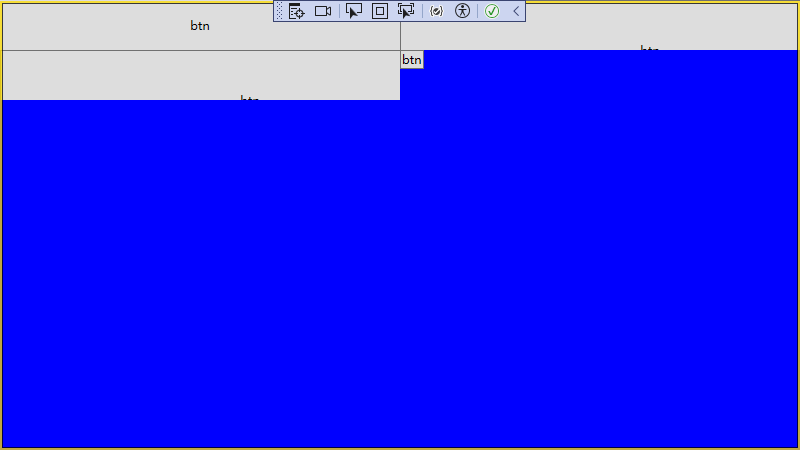
可以看到一些问题。第一个button是手动居中的,第二个就没有居中了。这时因为第二个button期望的控件大于FixedColumnGrid理应给他的控件,所以尽管他的期望尺寸被限制在了FixedColumnGrid所给的尺寸(400,50),但其真是大小却要大些,所以看起来第二个button的内容就没有居中了。
第4个button没有设置尺寸,又太小了。这时因为我们排列button时,使用的时其期望大小,而button没有手动指定width和height时,其期望大小是根据内容定的。
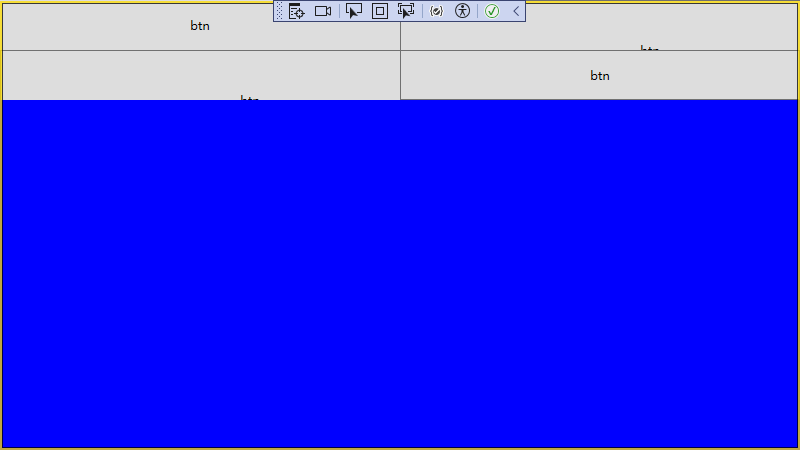
因此我改进了下排列,不根据子控件期望尺寸排列,而是根据我们根据布局机制规定的尺寸排列,现在得到了想要的效果。
if (i % 2 == 0)

{

    child.Arrange(new Rect(new Point(0, i/2 * 50), new Size(arrangeBounds.Width / 2, 50)));

}

else

{

    child.Arrange(new Rect(new Point(arrangeBounds.Width / 2, Math.Floor(i / 2d) * 50), new Size(arrangeBounds.Width / 2, 50)));

}
2.可扩展列数版
既然我们可以排两列,哪能不能排1列,2列,3列呢。我决定继续进行增强。
首先,我们要能定义列数,于是我增加了一个依赖属性Columns。
public int Columns

{

    get { return (int)GetValue(ColumnsProperty); }

    set { SetValue(ColumnsProperty, value); }

}

public static readonly DependencyProperty ColumnsProperty =

    DependencyProperty.Register("Columns", typeof(int), typeof(FixedColumnGrid), new FrameworkPropertyMetadata(default(int),FrameworkPropertyMetadataOptions.AffectsArrange));
为了在更改列数时能重新排列,所以还增加了AffectsArrange
对MeasureOverride和ArrangeOverride稍作修改
protected override Size MeasureOverride(Size constraint)

{

    //base.MeasureOverride(constraint);
  double columnWidth = constraint.Width / this.Columns;//列宽


    for (int i = 0; i < this.VisualChildrenCount; i++)

    {

        UIElement child = (UIElement)this.GetVisualChild(i);

        if (child!=null)

        {

            child.Measure(new Size(constraint.Width / columnWidth, 50));

        }

    }

    return constraint;

}

protected override Size ArrangeOverride(Size arrangeBounds)

{

    //base.ArrangeOverride(arrangeBounds);

    for (int i = 0; i < this.VisualChildrenCount; i++)

    {

        UIElement child = (UIElement)this.GetVisualChild(i);

        if (child!=null)

        {

            if (this.Columns == default(int))

            {

                if (i % 2 == 0)

                {

                    child.Arrange(new Rect(new Point(0, i / 2 * 50), new Size(arrangeBounds.Width / 2, 50)));

                }

                else

                {

                    child.Arrange(new Rect(new Point(arrangeBounds.Width / 2, Math.Floor(i / 2d) * 50), new Size(arrangeBounds.Width / 2, 50)));

                }

            }

            else

            {

                double columnWidth = arrangeBounds.Width / this.Columns;//列宽

                int offsetColumn = i % this.Columns;//当前单元格处于哪一列

                child.Arrange(new Rect(new Point(offsetColumn * columnWidth, Math.Floor((double)i / this.Columns) * 50), new Size(columnWidth, 50)));

            }

        }

    }

    return arrangeBounds;

}
然后就可以在xaml中定义列数
<Border Background="Blue">

    <local:FixedColumnGrid Columns="1">

        <Button Content="btn" Width="500" Height="100" HorizontalAlignment="Center" VerticalAlignment="Center"/>

        <Button Content="btn" Width="500" Height="100"/>

        <Button Content="btn" Width="500" Height="100" HorizontalAlignment="Left"/>

        <Button Content="btn"/>

    </local:FixedColumnGrid>

</Border>
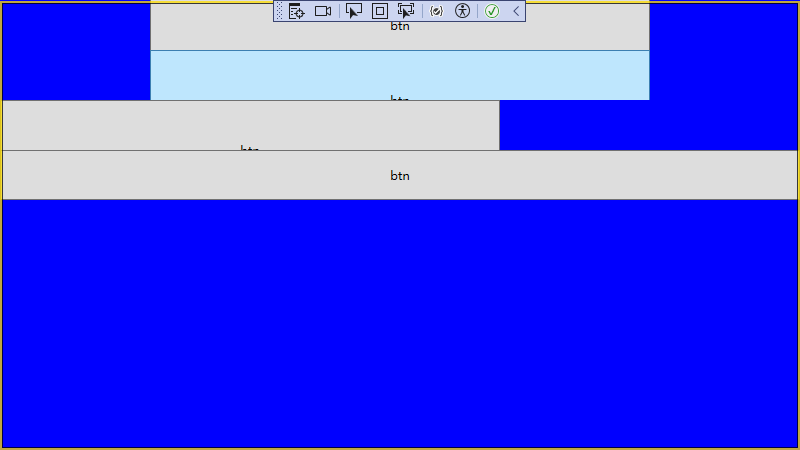
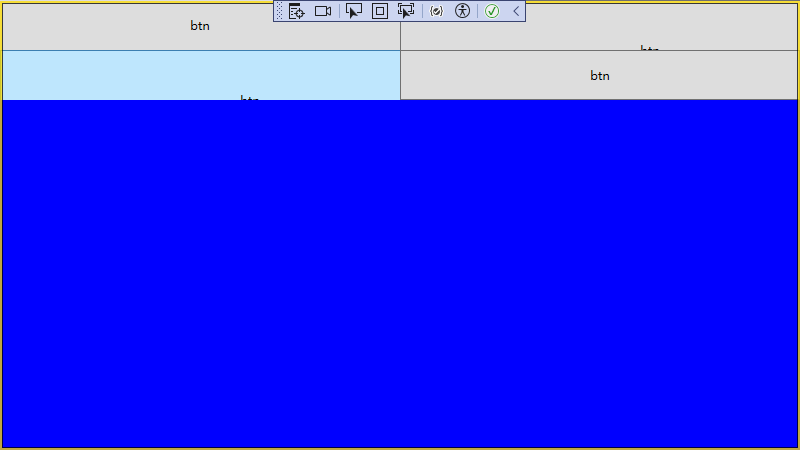
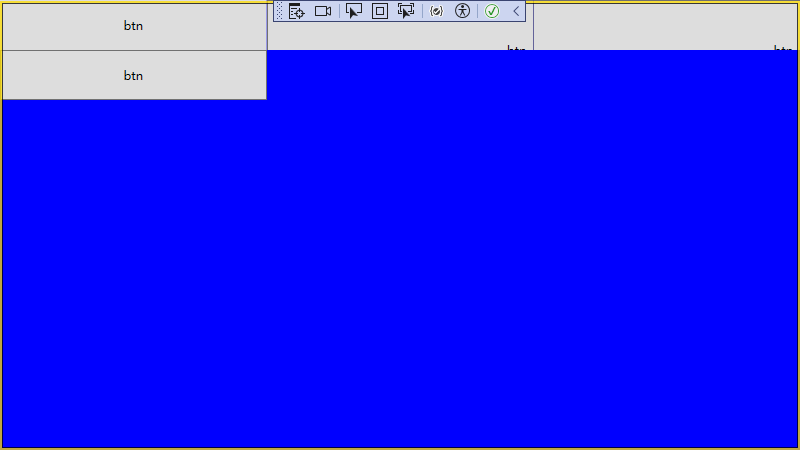
这里没有居中的原因button自身HorizontalAlignment属性会影响到排列
3.可自定义高度版
列数都能调整了,哪每行高度也能否调整呢,这倒是简单,只是增加一个RowHeight依赖属性罢了。
public int RowHeight

{

    get { return (int)GetValue(RowHeightProperty); }

    set { SetValue(RowHeightProperty, value); }

}

// Using a DependencyProperty as the backing store for ColumnHeight.  This enables animation, styling, binding, etc...

public static readonly DependencyProperty RowHeightProperty =

    DependencyProperty.Register("RowHeight", typeof(int), typeof(FixedColumnGrid), new FrameworkPropertyMetadata(50,FrameworkPropertyMetadataOptions.AffectsMeasure));
同时载将测量和排列重载中的50换成高度
child.Measure(new Size(constraint.Width / 2, this.RowHeight));

...

child.Arrange(new Rect(new Point(0, i / 2 * this.RowHeight), new Size(arrangeBounds.Width / 2, this.RowHeight)));

...

child.Arrange(new Rect(new Point(arrangeBounds.Width / 2, Math.Floor(i / 2d) * this.RowHeight), new Size(arrangeBounds.Width / 2, this.RowHeight)));

...

child.Arrange(new Rect(new Point(offsetColumn * columnWidth, Math.Floor((double)i / this.Columns) * this.RowHeight), new Size(columnWidth, this.RowHeight)));
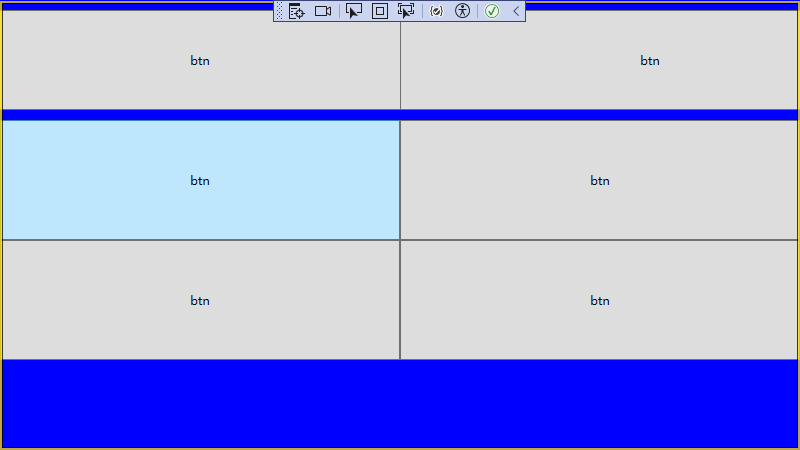
现在就可以在xaml中使用自定义高度了
<Border Background="Blue">

    <local:FixedColumnGrid Columns="2" RowHeight="120">

        <Button Content="btn" Width="500" Height="100" HorizontalAlignment="Center" VerticalAlignment="Center"/>

        <Button Content="btn" Width="500" Height="100"/>

        <Button Content="btn"/>

        <Button Content="btn"/>

        <Button Content="btn"/>

        <Button Content="btn"/>

    </local:FixedColumnGrid>

</Border>
FixedColumnGrid完整代码


 1 public partial class FixedColumnGrid : Panel

 2 {

 3     public FixedColumnGrid()

 4     {

 5         InitializeComponent();

 6     }

 7

 8     protected override Size MeasureOverride(Size constraint)

 9     {

10         //base.MeasureOverride(constraint);

11         double columnWidth = constraint.Width / this.Columns;//列宽

12         for (int i = 0; i < this.VisualChildrenCount; i++)

13         {

14             UIElement child = (UIElement)this.GetVisualChild(i);

15             if (child!=null)

16             {

17                 child.Measure(new Size(constraint.Width / columnWidth, this.RowHeight));

18             }

19         }

20         return constraint;

21     }

22

23     protected override Size ArrangeOverride(Size arrangeBounds)

24     {

25         //base.ArrangeOverride(arrangeBounds);

26         for (int i = 0; i < this.VisualChildrenCount; i++)

27         {

28             UIElement child = (UIElement)this.GetVisualChild(i);

29             if (child!=null)

30             {

31                 if (this.Columns == default(int))

32                 {

33                     if (i % 2 == 0)

34                     {

35                         child.Arrange(new Rect(new Point(0, i / 2 * this.RowHeight), new Size(arrangeBounds.Width / 2, this.RowHeight)));

36                     }

37                     else

38                     {

39                         child.Arrange(new Rect(new Point(arrangeBounds.Width / 2, Math.Floor(i / 2d) * this.RowHeight), new Size(arrangeBounds.Width / 2, this.RowHeight)));

40                     }

41                 }

42                 else

43                 {

44                     double columnWidth = arrangeBounds.Width / this.Columns;//列宽

45                     int offsetColumn = i % this.Columns;//当前单元格处于哪一列

46                     child.Arrange(new Rect(new Point(offsetColumn * columnWidth, Math.Floor((double)i / this.Columns) * this.RowHeight), new Size(columnWidth, this.RowHeight)));

47                 }

48             }

49         }

50         return arrangeBounds;

51     }

52

53

54

55     public int Columns

56     {

57         get { return (int)GetValue(ColumnsProperty); }

58         set { SetValue(ColumnsProperty, value); }

59     }

60

61     public static readonly DependencyProperty ColumnsProperty =

62         DependencyProperty.Register("Columns", typeof(int), typeof(FixedColumnGrid), new FrameworkPropertyMetadata(default(int),FrameworkPropertyMetadataOptions.AffectsArrange));

63

64

65

66     public int RowHeight

67     {

68         get { return (int)GetValue(RowHeightProperty); }

69         set { SetValue(RowHeightProperty, value); }

70     }

71

72     // Using a DependencyProperty as the backing store for ColumnHeight.  This enables animation, styling, binding, etc...

73     public static readonly DependencyProperty RowHeightProperty =

74         DependencyProperty.Register("RowHeight", typeof(int), typeof(FixedColumnGrid), new FrameworkPropertyMetadata(50,FrameworkPropertyMetadataOptions.AffectsMeasure));

75

76

77 }
WPF自定义FixedColumnGrid布局控件的更多相关文章
- WPF自定义选择年月控件详解
本文实例为大家分享了WPF自定义选择年月控件的具体代码,供大家参考,具体内容如下 封装了一个选择年月的控件,XAML代码: 1 2 3 4 5 6 7 8 9 10 11 12 13 14 15 16 ...
- WPF中的布局控件(转)
WPF中使用Panel进行页面布局,Panel是一个抽象类,它作为所有Panel面板控件的基类.Panel并不是继承自Control类,而是直接从FrameworkElement继承.看Panel的继 ...
- WPF 自定义DateControl DateTime控件
自定义日期控件,月份选择.如下是日期的一些效果图. 具体的样式.颜色可以根据下面的代码,自己调节即可 1.日期控件的界面 <UserControl x:Class="WpfApp ...
- WPF 自定义DateControl DateTime控件(转)
自定义日期控件,月份选择.如下是日期的一些效果图. 具体的样式.颜色可以根据下面的代码,自己调节即可 1.日期控件的界面 <UserControl x:Class="WpfApp ...
- WPF自定义DataGrid分页控件
新建Custom Control,名:PagingDataGrid 打开工程下面的Themes\Generic.xaml xaml里面代码替换如下 <Style x:Key="{x:T ...
- WPF自定义数字输入框控件
要求:只能输入数字和小数点,可以设置最大值,最小值,小数点前长度,小数点后长度(支持绑定设置): 代码如下: using System; using System.Collections.Generi ...
- WPF自定义轮播控件
闲得蛋疼做了一个WPF制作轮播动画(随机动画),勉强可以看,写个随笔留个脚印. 效果图:
- WPF自定义下拉控件
可以搜索的下拉条 using System; using System.Collections; using System.Collections.Generic; using System.Coll ...
- wpf布局控件总结
首先要认识到wpf所有的布局控件都继承自Panel类,Panel类又继承自其他类.继承关系如下: 一.StackPanel布局面板 1.该面板在单行或者单列中以堆栈的形式放置其子元素. 默认情况下,S ...
- [WPF自定义控件库]简单的表单布局控件
1. WPF布局一个表单 <Grid Width="400" HorizontalAlignment="Center" VerticalAlignment ...
随机推荐
- JDK11的新特性:新的HTTP API
目录 简介 使用HTTP Client请求的基本流程 创建HTTP Client 创建HTTP Request 发送HTTP请求 异步HTTP请求 总结 JDK11的新特性:新的HTTP API 简介 ...
- OpenHarmony应用HAP包签名
背景 OpenAtom OpenHarmony(以下简称"OpenHarmony")应用如果需要对外发布就必须要通过应用签名,DevEco Studio已提供自动签名功能加速应用开 ...
- SQL 中的 MIN 和 MAX 以及常见函数详解及示例演示
SQL MIN() 和 MAX() 函数 SQL中的MIN()函数和MAX()函数用于查找所选列的最小值和最大值,分别.以下是它们的用法和示例: MIN() 函数 MIN()函数返回所选列的最小值. ...
- 2020东京奥运会奖牌榜可视化分析(Pyechart)
数据获取和处理 从网页中获取各国的奖牌数量和排名以及奖牌类型(json格式). #奖牌榜数据 url = 'https://app-sc.miguvideo.com/vms-livedata/olym ...
- 【Kotlin】类和对象
1 前言 Kotlin 是面向对象编程语言,与 Java 语言类似,都有类.对象.属性.构造函数.成员函数,都有封装.继承.多态三大特性,不同点如下. Java 有静态(static)代码块,Ko ...
- 携手HMS Core分析服务,以数据助力游戏高效增长
HMS Core分析服务,以数据助力游戏高效增长,覆盖玩家全生命周期运营场景,与华为应用市场强强联合,玩转智能运营. 了解更多: https://developer.huawei.com/consum ...
- 动态库 DLL 封装五:dll中弹出一个dialog窗口
操作步骤: 1.在dll项目中,点击 资源,新建一个 dialog 2.cpp文件 CDialog dlg(IDD_STA); // 显示窗口 dlg.Create(IDD_STA, 0); dlg. ...
- java excel关联导入数据格式为一对多
java excel关联导入数据格式为一对多 java 表格读取时一行一行的读取 将每行数据放入list 根据 list.stream().filter(m->m.getCode().equa ...
- 2、androidStudio调用Unity方法
1.导入Unity的Classes.jar文件 (1).首先找到这个包在哪 Unity版本为5.0之前时,classes.jar的路径: unity的安装路径\Editor\Data\Playback ...
- Windows Server 2008 R2修复永恒之蓝漏洞
一.情况描述 服务器安装的Windows Server 2008 R2 standard系统,通过扫描发现系统存在永恒之蓝漏洞MS17-010(CVE-2017-0143.CVE-2017-0144. ...