
Android Debug Bridge
Android Debug Bridge
Introduction
- A client, which sends commands. The client runs on your development machine. You can invoke a client from a shell by issuing an adb command. Other Android tools such as DDMS also create adb clients.
- A daemon, which runs commands on a device. The daemon runs as a background process on each emulator or device instance.
- A server, which manages communication between the client and the daemon. The server runs as a background process on your development machine.
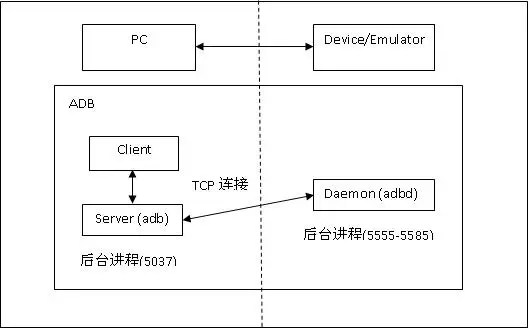
How adb Works
Emulator 1, console: 5554
Emulator 1, adb: 5555
Emulator 2, console: 5556
Emulator 2, adb: 5557
and so on...
Enabling adb Debugging
Note: When you connect a device running Android 4.2.2 or higher to your computer, the system shows a dialog asking whether to accept an RSA key that allows debugging through this computer. This security mechanism protects user devices because it ensures that USB debugging and other adb commands cannot be executed unless you're able to unlock the device and acknowledge the dialog. This requires that you have adb version 1.0.31 (available with SDK Platform-tools r16.0.1 and higher) in order to debug on a device running Android 4.2.2 or higher.
Syntax
adb [-d|-e|-s <serialNumber>] <command>
Commands
| Category | Command | Description | Comments |
|
Target
Device
|
-d | Direct an adb command to the only attached USB device. | Returns an error if more than one USB device is attached. |
| -e | Direct an adb command to the only running emulator instance. | Returns an error if more than one emulator instance is running. | |
| -s <serialNumber> | Direct an adb command a specific emulator/device instance, referred to by its adb-assigned serial number (such as "emulator-5556"). | See Directing Commands to a Specific Emulator/Device Instance. | |
| General | devices | Prints a list of all attached emulator/device instances. | See Querying for Emulator/Device Instances for more information. |
| help | Prints a list of supported adb commands. | ||
| version | Prints the adb version number. | ||
| Debug | logcat [option] [filter-specs] | Prints log data to the screen. | |
| bugreport | Prints dumpsys, dumpstate, and logcat data to the screen, for the purposes of bug reporting. | ||
| jdwp | Prints a list of available JDWP processes on a given device. | You can use the forward jdwp:<pid> port-forwarding specification to connect to a specific JDWP process. For example: adb forward tcp:8000 jdwp:472 |
|
| Data | install <path-to-apk> | Pushes an Android application (specified as a full path to an .apk file) to an emulator/device. | |
| pull <remote> <local> | Copies a specified file from an emulator/device instance to your development computer. | ||
| push <local> <remote> | Copies a specified file from your development computer to an emulator/device instance. | ||
| Ports and Networking |
forward <local> <remote> | Forwards socket connections from a specified local port to a specified remote port on the emulator/device instance. | Port specifications can use these schemes:
|
| ppp <tty> [parm]... | Run PPP over USB.
Note that you should not automatically start a PPP connection. |
||
| Scripting | get-serialno | Prints the adb instance serial number string. | See Querying for Emulator/Device Instances for more information. |
| get-state | Prints the adb state of an emulator/device instance. | ||
| wait-for-device | Blocks execution until the device is online — that is, until the instance state is device. | You can prepend this command to other adb commands, in which case adb will wait until the emulator/device instance is connected before issuing the other commands. Here's an example:adb wait-for-device shell getprop Note that this command does not cause adb to wait until the entire system is fully booted. For that reason, you should not prepend it to other commands that require a fully booted system. As an example, the install requires the Android package manager, which is available only after the system is fully booted. A command such as adb wait-for-device install <app>.apk would issue the install command as soon as the emulator or device instance connected to the adb server, but before the Android system was fully booted, so it would result in an error. |
|
| Server | start-server | Checks whether the adb server process is running and starts it, if not. | |
| kill-server | Terminates the adb server process. | ||
| Shell | shell | Starts a remote shell in the target emulator/device instance. | See ADB Shell Commands for more information. |
| shell [shellCommand] | Issues a shell command in the target emulator/device instance and then exits the remote shell. |
Querying for Emulator/Device Instances
adb devices
- Serial number — A string created by adb to uniquely identify an emulator/device instance by its console port number. The format of the serial number is <type>-<consolePort>. Here's an example serial number: emulator-5554
- State — The connection state of the instance may be one of the following:
- offline — the instance is not connected to adb or is not responding.
- device — the instance is now connected to the adb server. Note that this state does not imply that the Android system is fully booted and operational, since the instance connects to adb while the system is still booting. However, after boot-up, this is the normal operational state of an emulator/device instance.
- no device — there is no emulator/device connected.
[serialNumber] [state]
adb devices
List of devices attached
emulator-5554 device
emulator-5556 device
emulator-5558 device
Directing Commands to a Specific Emulator/Device Instance
adb -s <serialNumber> <command>
adb -s emulator-5556 install helloWorld.apk
Installing an Application
adb install <path_to_apk>
Forwarding Ports
adb forward tcp:6100 tcp:7100
adb forward tcp:6100 local:logd
Copying Files to or from an Emulator/Device Instance
adb pull <remote> <local>
adb push <local> <remote>
adb push foo.txt /sdcard/foo.txt
Stopping the adb Server
参考
Android Debug Bridge的更多相关文章
- [ADB]ADB(Android Debug Bridge)简介及基础(不包含命令)
"Android Debug Bridge (adb) is a versatile command line tool that lets you communicate with an ...
- 用ADB(Android Debug Bridge)实时监测Android程序的运行
监控Android设备上程序的运行,需要ADB的配合,具体ADB工具的介绍以及命令选项可见博客: http://blog.csdn.net/mliubing2532/article/details ...
- adb ( Android Debug Bridge)
adb ( Android Debug Bridge) 是一个通用命令行工具,其允许您与模拟器实例或连接的 Android 设备进行通信.它可为各种设备操作提供便利,如安装和调试应用. adb工具的工 ...
- Android Debug Bridge命令介绍[转]
Android Debug Bridge命令介绍 Android Debug Bridge的一些基本命令.这个工具直译过来就是Android调试桥的意思.它提供了强大的特性,例如复制文件到设备或从设备 ...
- adb(android debug bridge)命令
adb(android debug bridge) adb devices --查看当前连接的模拟器/设备 adb remount --模拟器/设备重新启动,保证能用 adb push src des ...
- adb(Android Debug Bridge)(一)
上一篇介绍的am,pm命令都是基于adb shell下的命令.这节来详细介绍下adb命令. Android Debug Bridge(adb)是一个让你跟模拟器或者android设备通信的多功能命令. ...
- [ADB Shell]Android Debug Bridge常用命令
ADB用法 *:first-child { margin-top: 0 !important; } body>*:last-child { margin-bottom: 0 !important ...
- adb(Android Debug Bridge)安装使用教程
一.说明 adb的db是debug bridge而不是和gdb一样指debug,这意思是说adb不能像gdb那样能一步步调试代码,但可以启到一些类似调试的功能. 下面就针对这些功能进行介绍,本文根据官 ...
- Android 官方命令深入分析之Android Debug Bridge(adb)
作者:宋志辉 Android Debug Brideg(adb)是一个多用途的命令行工具.可以与Android虚拟机进行通信或连接真机.它同样提供了访问设备shell的高级命令行操作的权限.它是一个包 ...
随机推荐
- Python tkinter调整元件在窗口中的位置与几何布局管理
Tkinter中的GUI总是有一个root窗口,不管你是主动或者别动获得.主窗口就是你的程序开始运行的时候创建的,在主窗口中你通常是放置了你主要的部件.另外,Tkinter脚本可以依据需要创建很多独立 ...
- 部署LAMP+NFS实现双Web服务器负载均衡
一.需求分析 1.前端需支持更大的访问量,单台Web服务器已无法满足需求了,则需扩容Web服务器: 2.虽然动态内容可交由后端的PHP服务器执行,但静态页面还需要Web服务器自己解析,那是否意味着多台 ...
- FormView控件下DropDownList是否可以绑定
在网站下,FormView控件下是可以通过绑定DropDownList的SelectedValue属性来绑定字段来显示 举例: 1 <asp:DropDownList ID="cboU ...
- SQL Server数据转MySql
正好用到SQL Server数据转MySql的知识,就分享一下, 准备:需要用到 Navicat Premium 百度上下载就好 1.打开连接MySQL数据库,新建数据库,双击数据库点击导入 2.导 ...
- wpf C# 数据库 c/s 个人信息管理 wpf局域网通信
系统功能基本要求 wpf局域网通信 WPF跨线程访问线程安全的数据如解决该类型的CollectionView不支持从调度程序线程以外的线程对其SourceCollection 读取信息null 读取发 ...
- ubuntu tftp-server 服务器安装与配置
第一步:安装tftp服务sudo apt-get install tftpd tftp openbsd-inetd第二步:目录配置vi /etc/inetd.conf修改文件夹为根目录下的tftpbo ...
- WAMPServer配置修改及问题汇总
备忘录 软件版本wampserver2.5-Apache-2.4.9-Mysql-5.6.17-php5.5.12-64b -------------------------------------- ...
- KindEditor文件上传成功前端显示上传失败
一.使用kindeditor 上传图片 ,根据kindeditor 要求返回了相应的数据, 但是kindeditor 插件显示上传失败!!! 解决方法: 各个版本位置可能不同!!! 1.修改kinde ...
- chromium 34以后中文字体粗体渲染问题
估计不少人更新后都遇到这个情况了吧,粗体渲染如然变得很模糊,很奇怪,Google下说是字体实现方式变了,国内一些网站用的中文字体都是宋体,但是宋体本身没有粗体,Win下的粗体是微软自己通过某种方式实现 ...
- Fedora 下 Google-Chrome 经常出现僵尸进程的权宜办法
对于Chrome_ProcessL 和Chrome_FileThre这两僵尸进程,估计遇到过的人都对其各种无奈吧,放任不管吧,越来越多,然后卡死,只能另开个X环境或者在其他的TTY里干掉他俩再切回去, ...