
xamarin android布局
xamarin android布局练习(1)
xamarin android布局练习,基础非常重要,首先要学习的就是android的布局练习,xamarin也一样,做了几个xamarin android的布局例子,多练习几遍就能学会这个布局,当然有写css的学习这个android的布局很容易入门。
当你看到这篇文章的时候,你应该知道字体图标,下面很多图标都是直接从上面下载的,非常的牛逼,这个字体图标有必要科普一下,这个链接
首先来看看要做成什么样子的

主要的关键点就是:gravity对其方式,relative布局, linear布局,width,height,orientation方向
代码:
<?xml version="1.0" encoding="utf-8"?>

<RelativeLayout xmlns:android="http://schemas.android.com/apk/res/android"

    android:layout_width="match_parent"

    android:layout_height="match_parent"

    android:background="#dedede"

    android:id="@+id/relativeLayout">

    <LinearLayout

        android:id="@+id/linear1"

        android:layout_width="match_parent"

        android:layout_height="wrap_content"

        android:background="#c6c6c6"

        android:gravity="center">

        <TextView

            android:layout_width="match_parent"

            android:layout_height="wrap_content"

            android:text="请登录"

            android:textSize="20sp"

            android:gravity="center"

            android:layout_marginTop="20dp"

            android:layout_marginBottom="20dp"

            android:textColor="#808080" />

    </LinearLayout>

    <LinearLayout

        android:layout_width="match_parent"

        android:layout_height="wrap_content"

        android:layout_below="@+id/linear1"

        android:orientation="vertical"

        android:id="@+id/linear2">

    <!--相对布局-->

        <LinearLayout

            android:layout_width="match_parent"

            android:layout_height="wrap_content"

            android:orientation="horizontal"

            android:clickable="true"

            android:id="@+id/linear3">

            <ImageView

                android:layout_width="wrap_content"

                android:layout_height="wrap_content"

                android:src="@drawable/xiaoxi"

                android:layout_gravity="center"

                android:layout_marginLeft="10dp" />

            <TextView

                android:layout_width="match_parent"

                android:layout_height="wrap_content"

                android:text="@string/xiaoxi"

                android:textColor="@color/test_bg"

                android:gravity="center"

                android:textSize="30sp"

                android:layout_marginTop="10dp"

                android:layout_marginBottom="10dp" />

        </LinearLayout>

        <View

            android:layout_width="match_parent"

            android:layout_height="1dp"

            android:background="#999999" />

    </LinearLayout>

    <LinearLayout

        android:layout_width="fill_parent"

        android:layout_height="wrap_content"

        android:layout_below="@+id/linear2"

        android:id="@+id/linear4"

        android:orientation="vertical"

        android:clickable="true">

        <LinearLayout

            android:layout_width="match_parent"

            android:layout_height="wrap_content"

            android:orientation="horizontal">

            <ImageView

                android:layout_width="wrap_content"

                android:layout_height="wrap_content"

                android:src="@drawable/school"

                android:layout_gravity="center"

                android:layout_marginLeft="10dp" />

            <TextView

                android:layout_width="match_parent"

                android:layout_height="wrap_content"

                android:text="校园活动"

                android:textSize="30sp"

                android:textColor="#808080"

                android:gravity="center"

                android:layout_marginTop="10dp"

                android:layout_marginBottom="10dp" />

        </LinearLayout>

        <View

            android:layout_height="1dp"

            android:layout_width="match_parent"

            android:background="#999999" />

    </LinearLayout>

    <LinearLayout

        android:orientation="vertical"

        android:layout_width="match_parent"

        android:layout_height="wrap_content"

        android:layout_below="@+id/linear4"

        android:clickable="true">

        <LinearLayout

            android:orientation="horizontal"

            android:layout_width="match_parent"

            android:layout_height="wrap_content">

            <ImageView

                android:id="@+id/img1"

                android:src="@drawable/taobao"

                android:layout_gravity="center"

                android:layout_height="wrap_content"

                android:layout_width="wrap_content"

                android:layout_marginLeft="10dp" />

            <TextView

                android:text="@string/taobao"

                android:textColor="@color/test_bg"

                android:textSize="30sp"

                android:layout_height="wrap_content"

                android:layout_width="match_parent"

                android:layout_marginTop="10dp"

                android:layout_marginBottom="10dp"

                android:gravity="center" />

        </LinearLayout>

    </LinearLayout>

</RelativeLayout>
xamarin android布局练习(2)
看看效果图2

代码如下:
<?xml version="1.0" encoding="utf-8"?>

<LinearLayout xmlns:android="http://schemas.android.com/apk/res/android"

    android:layout_height="match_parent"

    android:layout_width="match_parent"

    android:id="@+id/linear1"

    android:orientation="vertical">

    <LinearLayout

        android:layout_height="wrap_content"

        android:layout_width="match_parent"

        android:id="@+id/linear2"

        android:orientation="vertical"

        android:background="#dedede">

        <TextView

            android:layout_height="wrap_content"

            android:layout_width="match_parent"

            android:textColor="#808080"

            android:textSize="20dp"

            android:text="如何使用xamarin布局练习"

            android:layout_marginTop="10dp"

            android:layout_marginBottom="10dp" />

        <RelativeLayout

            android:layout_height="wrap_content"

            android:layout_width="match_parent"

            android:id="@+id/relative1">

            <ImageView

                android:id="@+id/imgCenter"

                android:layout_height="100dp"

                android:layout_width="100dp"

                android:layout_centerInParent="true"

                android:src="@drawable/taobao" />

            <ImageView

                android:id="@+id/imgLeft"

                android:layout_alignParentLeft="true"

                android:layout_height="100dp"

                android:layout_width="100dp"

                android:src="@drawable/taobao1" />

            <ImageView

                android:id="@+id/imgRight"

                android:layout_alignParentRight="true"

                android:layout_height="100dp"

                android:layout_width="100dp"

                android:src="@drawable/taobao1" />

        </RelativeLayout>

        <LinearLayout

            android:layout_height="wrap_content"

            android:layout_marginTop="10dp"

            android:layout_width="match_parent"

            android:orientation="horizontal"

            android:id="@+id/relative2">

            <TextView

                android:textColor="#999999"

                android:textSize="15dp"

                android:text="手机腾讯网"

                android:id="@+id/txt1"

                android:layout_height="wrap_content"

                android:layout_width="wrap_content" />

            <TextView

                android:textColor="#999999"

                android:textSize="15dp"

                android:text="评论  89"

                android:layout_height="wrap_content"

                android:layout_width="wrap_content"

                android:layout_gravity="right" />

        </LinearLayout>

        <View

            android:layout_height="1dp"

            android:layout_width="match_parent"

            android:background="#808080" />

    </LinearLayout>

    <LinearLayout

        android:layout_height="wrap_content"

        android:layout_width="match_parent"

        android:id="@+id/linear21"

        android:orientation="vertical"

        android:background="#dedede"

        android:layout_marginTop="10dp">

        <TextView

            android:layout_height="wrap_content"

            android:layout_width="match_parent"

            android:textColor="#808080"

            android:textSize="20dp"

            android:text="如何使用xamarin布局练习2"

            android:layout_marginTop="10dp"

            android:layout_marginBottom="10dp" />

        <RelativeLayout

            android:layout_height="wrap_content"

            android:layout_width="match_parent"

            android:id="@+id/relative11">

            <ImageView

                android:id="@+id/imgCenter1"

                android:layout_height="100dp"

                android:layout_width="100dp"

                android:layout_centerInParent="true"

                android:src="@drawable/taobao" />

            <ImageView

                android:id="@+id/imgLeft1"

                android:layout_alignParentLeft="true"

                android:layout_height="100dp"

                android:layout_width="100dp"

                android:src="@drawable/taobao1" />

            <ImageView

                android:id="@+id/imgRight1"

                android:layout_alignParentRight="true"

                android:layout_height="100dp"

                android:layout_width="100dp"

                android:src="@drawable/taobao1" />

        </RelativeLayout>

        <LinearLayout

            android:layout_height="wrap_content"

            android:layout_marginTop="10dp"

            android:layout_width="match_parent"

            android:orientation="horizontal"

            android:id="@+id/relative21">

            <TextView

                android:textColor="#999999"

                android:textSize="15dp"

                android:text="手机腾讯网"

                android:id="@+id/txt11"

                android:layout_height="wrap_content"

                android:layout_width="wrap_content" />

            <TextView

                android:textColor="#999999"

                android:textSize="15dp"

                android:text="评论  89"

                android:layout_height="wrap_content"

                android:layout_width="wrap_content"

                android:layout_gravity="right" />

        </LinearLayout>

    </LinearLayout>

</LinearLayout>
主要的关键点在于:relative布局,
android:layout_alignParentLeft="true"
这个属性非常重要,在父容器中的对其方式,bool类型的。layout_alignParentLeft="true"在父容器中左对齐
xamarin android布局练习(3)
效果图:
代码如下:
<?xml version="1.0" encoding="utf-8"?>

<RelativeLayout xmlns:android="http://schemas.android.com/apk/res/android"

    android:layout_height="match_parent"

    android:layout_width="match_parent"

    android:id="@+id/relative"

    android:background="#dedede">

    <ImageView

        android:layout_height="64dp"

        android:layout_width="64dp"

        android:id="@+id/imgCenter"

        android:src="@drawable/taobao"

        android:layout_centerInParent="true" />

    <ImageView

        android:layout_height="64dp"

        android:layout_width="64dp"

        android:id="@+id/imgTop"

        android:src="@drawable/wangwang"

        android:layout_above="@+id/imgCenter"

        android:layout_centerHorizontal="true" />

    <ImageView

        android:layout_height="64dp"

        android:layout_width="64dp"

        android:id="@+id/imgRight"

        android:src="@drawable/suning"

        android:layout_toRightOf="@+id/imgCenter"

        android:layout_centerVertical="true" />

    <ImageView

        android:layout_height="64dp"

        android:layout_width="64dp"

        android:id="@+id/imgLeft"

        android:src="@drawable/suning"

        android:layout_toLeftOf="@+id/imgCenter"

        android:layout_centerVertical="true" />

    <ImageView

        android:layout_height="64dp"

        android:layout_width="64dp"

        android:id="@+id/imgBottom"

        android:src="@drawable/jingsong"

        android:layout_below="@+id/imgCenter"

        android:layout_centerHorizontal="true" />

</RelativeLayout>
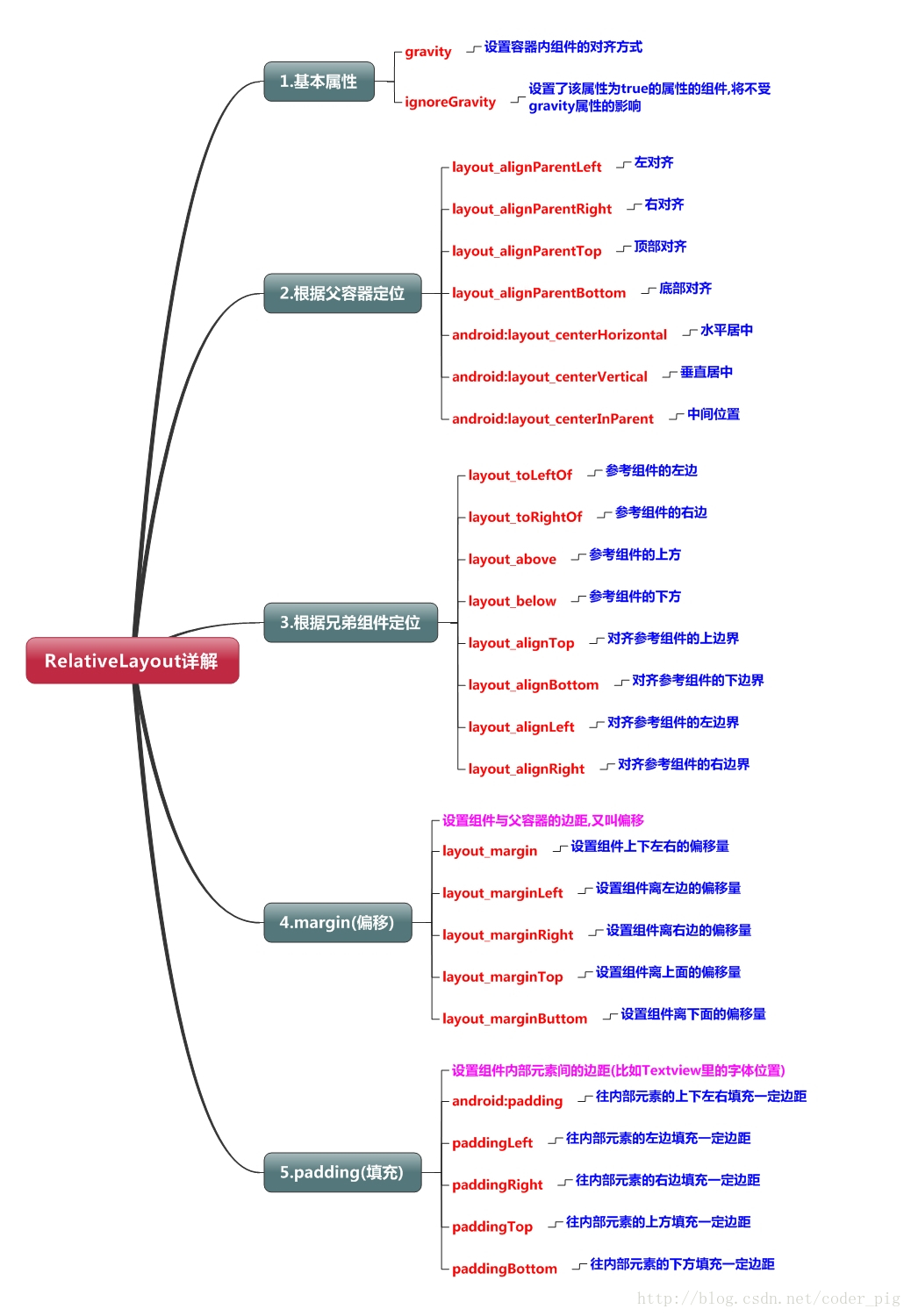
关键点在于如何使用relative的各种对其方式

xamarin android布局练习简单的登录(4)
<?xml version="1.0" encoding="utf-8"?>

<LinearLayout xmlns:android="http://schemas.android.com/apk/res/android"

    android:orientation="vertical"

    android:layout_width="match_parent"

    android:layout_height="match_parent"

    android:background="@color/loginBgColor">

    <LinearLayout

        android:layout_height="wrap_content"

        android:layout_width="match_parent"

        android:id="@+id/linear1"

        android:orientation="vertical">

        <TextView

            android:id="@+id/txt"

            android:layout_height="wrap_content"

            android:layout_width="wrap_content"

            android:layout_marginTop="30dp"

            android:layout_marginBottom="30dp"

            android:layout_marginRight="30dp"

            android:layout_gravity="right"

            android:text="设备登录"

            android:textColor="@color/whiteColor"

            android:textSize="20dp" />

    </LinearLayout>

    <LinearLayout

        android:id="@+id/linear2"

        android:layout_height="wrap_content"

        android:layout_width="match_parent"

        android:orientation="vertical">

        <TextView

            android:id="@+id/txt2"

            android:layout_height="wrap_content"

            android:layout_width="wrap_content"

            android:textSize="30dp"

            android:textColor="@color/whiteColor"

            android:layout_gravity="center"

            android:text="LOGO"

            android:layout_marginTop="20dp"

            android:layout_marginBottom="20dp" />

    </LinearLayout>

    <LinearLayout

        android:id="@+id/linear3"

        android:layout_height="wrap_content"

        android:layout_width="match_parent"

        android:orientation="vertical"

        android:layout_marginLeft="20dp"

        android:layout_marginRight="20dp">

        <EditText

            android:id="@+id/txtUserName"

            android:background="@color/whiteColor"

            android:hint="请输入用户名"

            android:focusable="true"

            android:layout_width="match_parent"

            android:layout_height="50dp"

            android:textSize="20dp"

            android:textColor="#000000"

            android:paddingLeft="10dp"

            android:textCursorDrawable="@null" />

        <View

            android:layout_width="match_parent"

            android:layout_height="1dp"

            android:background="#dedede" />

        <EditText

            android:id="@+id/txtPassword"

          android:background="@color/whiteColor"

            android:hint="请输入密码1"

            android:textCursorDrawable="@null"

            android:inputType="textPassword"

            android:layout_width="match_parent"

            android:layout_height="50dp"

            android:textSize="20dp"

            android:paddingLeft="10dp"

            android:textColor="#000000" />

        <Button

            android:id="@+id/btnLogin"

            android:text="登录"

            android:layout_height="50dp"

            android:layout_width="match_parent"

            android:textColor="@color/whiteColor"

            android:background="#2894FF"

            android:textSize="20dp"

            android:paddingTop="5dp"

            android:paddingBottom="5dp"

            android:layout_marginTop="20dp" />

    </LinearLayout>

    <LinearLayout

        android:layout_height="wrap_content"

        android:layout_width="match_parent"

        android:orientation="horizontal"

        android:layout_marginLeft="20dp"

        android:layout_marginTop="10dp"

        android:id="@+id/linear5">

        <CheckBox

            android:id="@+id/checkbox_remeberUser"

            android:layout_height="30dp"

            android:layout_width="30dp"

            android:textColor="#336699"

            android:textColorHighlight="#336699" />

        <TextView

            android:id="@+id/remeberUser"

            android:layout_height="wrap_content"

            android:layout_width="wrap_content"

            android:text="记住该用户"

            android:textColor="#FFFFFF"

            android:textSize="16dp" />

    </LinearLayout>

</LinearLayout>
xamarin android布局的更多相关文章
- Xamarin Android布局文件没有智能提示
Xamarin Android布局文件没有智能提示 在Visual Studio 2015中,Android项目的Main.axml文件没有智能提示,不便于布局文件的编写.解决办法:(1)从Xamar ...
- [置顶]
xamarin android 布局尺寸了解
为了使UI界面在不同大小的移动端显示器上能够正常显示,大家可能都知道使用sp作为字体大小的单位,dp作为其他元素长度的单位. 前几天看了一篇文章关于 App设计规范的,文章用心写的非常好,这里是链接 ...
- Xamarin.Android之简单的抽屉布局
0x01 前言 相信对于用过Android版QQ的,应该都不会陌生它那个向右滑动的菜单(虽说我用的是Lumia) 今天就用Xamarin.Android实现个比较简单的抽屉布局.下面直接进正题. 0x ...
- Xamarin.Android之布局文件智能提示问题
一.前言 看到有人问关于xamarin.android的布局没智能提示问题(VS 2015),当然,写布局这东西没提示这是一件相对痛苦的事 ,所以这里就提供一个解决的方案! 二.解决方案 想要智能提示 ...
- Xamarin Android 之起始篇
序言: 在博客园注册了已经有2年多了,快三年了.从开始学习这一行开始就在博客园注册了这个账号.至今也还没有写过一篇随笔,大多时候都是在园子里头潜水,看大牛写的文章,学习. 写博客不为啥,就是自己对自己 ...
- [译]:Xamarin.Android开发入门——Hello,Android Multiscreen深入理解
原文链接:Hello, Android Multiscreen_DeepDive. 译文链接:Xamarin.Android开发入门--Hello,Android Multiscreen深入理解. 本 ...
- [译]:Xamarin.Android开发入门——Hello,Android Multiscreen快速上手
原文链接:Hello, Android Multiscreen Quickstart. 译文链接:Hello,Android Multiscreen快速上手 本部分介绍利用Xamarin.Androi ...
- [译]:Xamarin.Android开发入门——Hello,Android深入理解
返回索引目录 原文链接:Hello, Android_DeepDive. 译文链接:Xamarin.Android开发入门--Hello,Android深入理解 本部分介绍利用Xamarin开发And ...
- Xamarin.Android之引导页的简单制作
0x01 前言 对于现在大部分的APP,第一次打开刚安装或更新安装的APP都会有几个引导界面,通常这几个引导页是告诉用户 APP有些什么功能或者修改了什么bug.新增了什么功能等等等. 下面就用Xam ...
随机推荐
- 学习MySQL(上)
具体实例 1.PHP 服务器组件 对于初学者建议使用集成的服务器组件,它已经包含了 PHP.Apache.Mysql 等服务,免去了开发人员将时间花费在繁琐的配置环境过程. Window 系统可以使用 ...
- Jenkins与网站代码上线解决方案
1.1 前言 Jenkins是一个用Java编写的开源的持续集成工具.在与Oracle发生争执后,项目从Hudson项目独立. Jenkins提供了软件开发的持续集成服务.它运行在Servlet容器中 ...
- Python学习一
安装时遇到的问题 安装anaconda3.0到D盘之后,配置好两个环境变量:D:\anaconda和D:\anaconda\Scripts.发现在命令行中执行python指令可以,但conda指令却是 ...
- 关于java' web杂谈(其实是课后作业1)1 网站系统开发需要掌握的技术
1 网站系统开发需要掌握的技术:(借鉴度娘)https://zhidao.baidu.com/question/1701850648247880220.html 需要掌握的有:Java(JavaEE) ...
- ubuntu debain下好用的编辑器
geany: 轻量级的IDE apt-get install geany 用来写shell脚本和python十分方便.特别写python脚本时,它有丰富的提示和自动补全功能.查看代码也很方便
- MySQL服务找不到了,navicat打不开数据库连接
今天打开Navicat看看连接名,突然发现连接不上了,打开服务发现MySQL服务不见了,所以手动安装了遍MySQL服务. 详细步骤如下: 1.管理员身份打开cmd,切换到MySQL安装目录下的bin目 ...
- 企业级分布式监控系统-Zabbix基础
1.基础分部 1.1Zabbix简介 Zabbix 是一个企业级的分布式开源监控方案. 1.2监控系统架构 C/S架构 客户端/服务器端,这种架构适合规模较小,处于同一地域的环境 C/P/S 客户端/ ...
- hdu 3183 A Magic Lamp RMQ ST 坐标最小值
hdu 3183 A Magic Lamp RMQ ST 坐标最小值 题目链接:http://acm.hdu.edu.cn/showproblem.php?pid=3183 题目大意: 从给定的串中挑 ...
- CCF-201409-3-字符串匹配
问题描述 试题编号: 201409-3 试题名称: 字符串匹配 时间限制: 1.0s 内存限制: 256.0MB 问题描述: 问题描述 给出一个字符串和多行文字,在这些文字中找到字符串出现的那些行.你 ...
- Stern-Brocot Tree
在<具体数学>4.5中看到了SB-Tree,觉得非常有趣,就去研究了一下. 首先介绍一下Stern-Brocot Tree.Stern-Brocot Tree是一种能将所有的最简分数都表示 ...