
第八章 nginx基础介绍
一、nginx概述
nginx是一个开源且高性能、可靠的http web服务、代理服务。
开源:直接获取源代码
高性能:支持海量并发
可靠:服务稳定
二、nginx特点
1.高性能高并发
性能高,支持海量并发,当并发特别高的时候,nginx比其他的web服务响应速度快
2.轻量且高扩展性
功能模块多,但仅需要保留必要的模块
需要哪个模块添加哪个模块,可以兼容第三方模块
3.高可靠性
很多web服务跑一段时间后需要重启,nginx不需要nginx支持宕机时间级别为9999、99999
4.支持热部署
nginx可以在开机情况下进行升级和重启
5.互联网公司使用nginx
nginx技术成熟,可以做负载,web,缓存
6.nginx支持epool网络类型
1)epool:当用户发起请求,直接对请求的内容进行处理
Epool: 当用户发起请求,epool模型会直接进行处理,效率高效,并无连接限制。
2)select:当用户发起请求,先遍历扫描数据,然后对请求的内容进行处理
Select: 当用户发起一次请求,select模型就会进行一次遍历扫描,从而导致性能低下。
三、其他的web服务
1.apache:最早使用的web服务,难以掌握,性能不高
2.nginx
1)Tengine:淘宝根据nginx进一步开发得到的服务
2)openresty:是一个基于 Nginx 与 Lua 的高性能 Web 平台
3.lighttpd:消耗的内存和cpu较低
4.IIS:windows的web服务
5.GWS:Google web server
6.BWS:baidu web server
四、nginx的应用场景
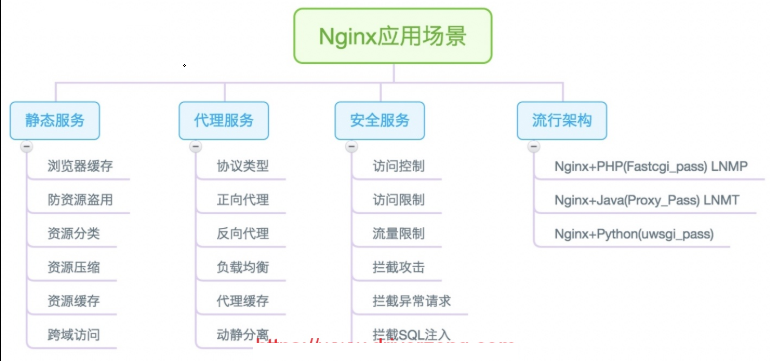
五、nginx安装
1.epel源安装
[root@web01 ~]# yum install -y nginx
2.官方源安装
1.配置官方源
[root@web02 ~]# vim /etc/yum.repos.d/nginx.repo
[nginx-stable]
name=nginx stable repo
baseurl=http://nginx.org/packages/centos/7/$basearch/
gpgcheck=1
enabled=1
gpgkey=https://nginx.org/keys/nginx_signing.key
module_hotfixes=true
2.安装依赖
[root@web02 ~]# yum install -y gcc gcc-c++ autoconf pcre pcre-devel make automake wget httpd-tools vim tree
3.安装nginx
[root@web02 ~]# yum install -y nginx
4.启动服务
[root@web02 ~]# systemctl start nginx
#或者
[root@web02 ~]# nginx
5.检验启动
#方式一:
[root@web02 ~]# ps -ef | grep nginx
#方式二:
[root@web02 ~]# netstat -lntp | grep 80
#方式三:
访问页面 10.0.0.8:80
#方式四:
#查看版本
[root@web02 ~]# nginx -v
#查看安装模块
[root@web02 ~]# nginx -V
3.nginx常用命令
1.启动命令
[root@web02 ~]# systemctl start nginx
#或者
[root@web02 ~]# nginx
#注意,使用哪种方式启动就用哪种方式关闭
2.关闭命令
[root@web02 ~]# systemctl stop nginx
#或者
[root@web02 ~]# nginx -s stop
3.nginx重启
[root@web02 ~]# systemctl restart nginx
4.nginx重载配置文件
[root@web02 ~]# systemctl reload nginx
#或者
[root@web02 ~]# nginx -s reload
5.检查nginx配置
[root@web01 ~]# nginx -t
nginx: the configuration file /etc/nginx/nginx.conf syntax is ok
nginx: configuration file /etc/nginx/nginx.conf test is successful
6.加入开机自启
[root@web01 ~]# systemctl enable nginx
Created symlink from /etc/systemd/system/multi-user.target.wants/nginx.service to /usr/lib/systemd/system/nginx.service.
7.CentOS6操作
#启动
[root@web01 ~]# nginx
[root@web01 ~]# /etc/init.d/nginx start
[root@web01 ~]# service nginx start
#配置开机自启
[root@web01 ~]# chkconfig nginx on
4.源码包安装
1.安装依赖
[root@web03 ~]# yum install -y gcc gcc-c++ autoconf pcre pcre-devel make automake wget httpd-tools vim tree
2.下载或上传源码包
[root@web03 ~]# wget http://nginx.org/download/nginx-1.18.0.tar.gz
#或者
[root@web03 ~]# rz nginx-1.18.0.tar.gz
3.解压
[root@web03 ~]# tar xf nginx-1.18.0.tar.gz
4.创建用户
[root@web03 ~]# groupadd www -g 666
[root@web03 ~]# useradd www -u 666 -g 666
5.生成编译文件
[root@web03 ~]# cd nginx-1.18.0/
[root@web03 ~/nginx-1.18.0]# ./configure --prefix=/usr/local/nginx-1.18.0 --user=www --group=www --with-http_addition_module --with-http_auth_request_module --without-http_gzip_module
6.编译安装
[root@web03 ~/nginx-1.18.0]# make && make install
7.配置system管理
[root@web03 ~]# vim /etc/systemd/system/nginx.service
[Unit]
Description=nginx - high performance web server
After=network.target remote-fs.target nss-lookup.target
[Service]
Type=forking
ExecStart=/usr/local/nginx/sbin/nginx -c /usr/local/nginx/conf/nginx.conf
ExecReload=/usr/local/nginx/sbin/nginx -s reload
ExecStop=/usr/local/nginx/sbin/nginx -s stop
[Install]
WantedBy=multi-user.target
8.做软连接
[root@web03 ~]# ln -s /usr/local/nginx-1.18.0 /usr/local/nginx
#配置环境变量
[root@web03 ~]# cat /etc/profile.d/nginx.sh
export PATH=/usr/local/nginx/sbin/:$PATH
#软连接的作用:
1)配置环境变量可以不加版本号
2)配置system启动可以不加版本号
3)升级直接切换软连接的链接文件即可
9.启动
[root@web03 ~]# systemctl daemon-reload
[root@web03 ~]# systemctl start nginx
#配置开机自启
[root@web03 ~]# systemctl enable nginx
六、nginx搭建上传作业平台
1.需求
1.使用两种方式安装方式安装nginx
2.搭建交作业页面
2.环境准备
| 主机 | 角色 | IP |
|---|---|---|
| web02 | web服务器 | 10.0.0.8 |
| web01 | web服务器 | 10.0.0.7 |
3.web01使用epol源配置nginx
1.关闭防火墙
[root@web01 ~]# systemctl stop firewalld
[root@web01 ~]# systemctl disable firewalld
2.关闭selinux
[root@web01 ~]# setenforce 0
[root@web01 ~]# vim /etc/selinux/config
SELINUX=disabled
3.安装nginx服务
[root@web01 ~]# yum -y install nginx
4.启动nginx服务并验证服务
[root@web01 ~]# systemctl start nginx
[root@web01 ~]# netstat -lntp
Active Internet connections (only servers)
Proto Recv-Q Send-Q Local Address Foreign Address State PID/Program name
tcp 0 0 0.0.0.0:111 0.0.0.0:* LISTEN 6125/rpcbind
tcp 0 0 0.0.0.0:80 0.0.0.0:* LISTEN 8752/nginx: master
tcp 0 0 0.0.0.0:22 0.0.0.0:* LISTEN 7108/sshd
tcp 0 0 127.0.0.1:25 0.0.0.0:* LISTEN 7249/master
tcp6 0 0 :::111 :::* LISTEN 6125/rpcbind
tcp6 0 0 :::80 :::* LISTEN 8752/nginx: master
tcp6 0 0 :::22 :::* LISTEN 7108/sshd
tcp6 0 0 ::1:25 :::* LISTEN 7249/master
[root@web01 ~]#
5.设置开机自启
[root@web01 ~]# systemctl enable nginx
Created symlink from /etc/systemd/system/multi-user.target.wants/nginx.service to /usr/lib/systemd/system/nginx.serv
6.上传交作业平台压缩包
[root@web01 ~]# rz -bye
[root@web01 ~]# ll
total 36
-rw-------. 1 root root 1350 2020-06-09 21:42 anaconda-ks.cfg
-rw-r--r--. 1 root root 497 2020-08-05 16:53 hostname_ip.sh
-rw-r--r-- 1 root root 26995 2020-08-13 16:42 kaoshi.zip
7.修改nginx配置文件
[root@web01 ~]# vim /etc/nginx/conf.d/zuoye.conf
server {
listen 80;
server_name 10.0.0.7;
location / {
root /zuoye/www;
index index.html index.htm;
}
# access_log logs/www_access.log main;
}
8.修改nginx主配置文件
[root@web01 ~]# vim /etc/nginx/nginx.conf
# For more information on configuration, see:
# * Official English Documentation: http://nginx.org/en/docs/
# * Official Russian Documentation: http://nginx.org/ru/docs/
worker_processes 1;
events {
worker_connections 1024;
}
#error_log logs/error.log error;
http {
include mime.types;
default_type application/octet-stream;
sendfile on;
keepalive_timeout 65;
log_format main '$remote_addr - $remote_user [$time_local] "$request"'
'$status $body_bytes_sent "$http_referer" '
'"$http_user_agent" "$http_x_forwarded_for"';
include conf.d/zuoye.conf;
}
~
9.创建目录
[root@web01 ~]# mkdir -p /zuoye/www
10.解压交作业平台压缩包到指定目录
[root@web01 ~]# unzip kaoshi.zip -d /zuoye/www/
Archive: kaoshi.zip
inflating: /zuoye/www/info.php
inflating: /zuoye/www/bg.jpg
inflating: /zuoye/www/index.html
inflating: /zuoye/www/upload_file.php
11.重启服务
[root@web01 ~]# systemctl restart nginx
4.web02使用官方源配置nginx
1.关闭防火墙
[root@web02 ~]# systemctl stop firewalld
[root@web02 ~]# systemctl disable firewalld
2.关闭selinux
[root@web02 ~]# setenforce 0
[root@web02 ~]# vim /etc/selinux/config
SELINUX=disabled
3.配置官方源
[root@web02 ~]# vim /etc/yum.repos.d/nginx.repo
[nginx-stable]
name=nginx stable repo
baseurl=http://nginx.org/packages/centos/7/$basearch/
gpgcheck=1
enabled=1
gpgkey=https://nginx.org/keys/nginx_signing.key
module_hotfixes=true
4.安装依赖
[root@web02 ~]# yum install -y gcc gcc-c++ autoconf pcre pcre-devel make automake wget httpd-tools vim tree
5.安装nginx
[root@web02 ~]# yum install -y nginx
6.启动nginx服务并验证
[root@web02 ~]# systemctl start nginx
[root@web02 ~]# netstat -lntp
Active Internet connections (only servers)
Proto Recv-Q Send-Q Local Address Foreign Address State PID/Program name
tcp 0 0 0.0.0.0:111 0.0.0.0:* LISTEN 6131/rpcbind
tcp 0 0 0.0.0.0:80 0.0.0.0:* LISTEN 8929/nginx: master
tcp 0 0 0.0.0.0:22 0.0.0.0:* LISTEN 7144/sshd
tcp 0 0 127.0.0.1:25 0.0.0.0:* LISTEN 7283/master
tcp6 0 0 :::111 :::* LISTEN 6131/rpcbind
tcp6 0 0 :::22 :::* LISTEN 7144/sshd
tcp6 0 0 ::1:25 :::* LISTEN 7283/master
7.设置开机自启
[root@web02 ~]# systemctl enable nginx
Created symlink from /etc/systemd/system/multi-user.target.wants/nginx.service to /usr/lib/systemd/system/nginx.serv
8.上传交作业平台压缩包
[root@web02 ~]# rz -bye
[root@web02 ~]# ll
total 36
-rw-------. 1 root root 1350 2020-06-09 21:42 anaconda-ks.cfg
-rw-r--r--. 1 root root 497 2020-08-05 16:53 hostname_ip.sh
-rw-r--r-- 1 root root 26995 2020-08-13 16:42 kaoshi.zip
9.配置nginx服务文件
[root@web02 ~]# vim /etc/nginx/conf.d/zuoye.conf
server {
listen 80;
server_name 10.0.0.8;
location / {
. /zuoye/www;
index index.html index.htm;
}
# access_log logs/www_access.log main;
}
10.创建目录
[root@web02 ~]# mkdir -p /zuoye/www
11.解压交作业平台压缩包到指定目录
[root@web02 ~]# unzip kaoshi.zip -d /zuoye/www/
Archive: kaoshi.zip
inflating: /zuoye/www/info.php
inflating: /zuoye/www/bg.jpg
inflating: /zuoye/www/index.html
inflating: /zu/www/upload_file.php
12.重启服务
[root@web02 ~]# systemctl restart nginx
5.测试
web01能正常访问上传作业平台
web02能正常访问上传作业平台
第八章 nginx基础介绍的更多相关文章
- Nginx基础知识介绍
Nginx基础知识介绍 作者:尹正杰 版权声明:原创作品,谢绝转载!否则将追究法律责任. 一.Nginx概述 Nginx是免费的.开源的.高性能的HTTP和正向/反向代理服务器.邮件代理服务器.以及T ...
- Nginx的介绍和安装详解
[介绍+安装]Nginx的介绍和安装详解 == 介绍和安装 == Nginx是一个自由.开源.高性能及轻量级的HTTP服务器及反转代理服务器, 其性能与IMAP/POP3代理服务器相当.Nginx ...
- Nginx 基础知识学习
资料 基础 掘金-前端开发者必备的Nginx知识 介绍的比较综合,正向代理反向代理的区别.负载均衡等知识,都有介绍 静默虚空-Nginx 简易教程 博客园上的一篇推荐文章 简书-全面了解Nginx到底 ...
- Linux - nginx基础及常用操作
目录 Linux - nginx基础及常用操作 Tengine淘宝nginx安装流程 nginx的主配置文件nginx.conf 基于域名的多虚拟主机实战 nginx的访问日志功能 网站的404页面优 ...
- Web服务基础介绍
Web服务基础介绍 作者:尹正杰 版权声明:原创作品,谢绝转载!否则将追究法律责任. 一.正常情况下的单次web服务访问流程 博主推荐阅读: https://www.cnblogs.com/yinzh ...
- Nginx基础详细讲解
Nginx基础详细讲解 链接:https://pan.baidu.com/s/1xB20bnuanh0Avs4kwRpSXQ 提取码:migq 复制这段内容后打开百度网盘手机App,操作更方便哦 1. ...
- nginx基础概念
nginx基础概念(100%) connection¶ 在nginx中connection就是对tcp连接的封装,其中包括连接的socket,读事件,写事件.利用nginx封装的connection, ...
- Nginx-->基础-->理论-->002:Nginx进程介绍
一.Nginx进程介绍
- Nginx-->基础-->理论-->001:Nginx基本介绍
一.nginx基本介绍 传统上基于进程或者线程模型架构的web服务通过每进程或者每线程处理并发连接请求,这势必毁在网络和I/O操作时产生阻塞,其另外一个必然结果则是对内存和CPU的利用率低下,产生一个 ...
随机推荐
- 学习 | css3基本动画之demo篇
移动端使用的框架是zepto,但是zepto的内置对象没有传统的animate这个方法,效果都是需要css3来实现的,zepto也不支持fadeIn和fadeOut等一些基本的动画,基于这一现状,我自 ...
- Dell服务器R710修改iDRAC密码
此方法需重启,重启之前记住保存 重要数据,停止服务器相关服务.所以此操作最好在还未装系统前先设置好. 开机(重启)持续按CTRL+E进入iDRAC设置界面,选择意思为恢复默认的选项,风扇会非常的响,之 ...
- POI和EasyExcel的使用
1.POI使用 1.1 什么是POI POI简介(Apache POI),Apache POI是Apache软件基金会的开放源码函式库,POI提供API给Java程序对Microsoft Office ...
- hystrix源码之插件
HystrixPlugins 获取并发相关类(HystrixConcurrencyStrategy).事件通知类(HystrixEventNotifier).度量信息类(HystrixMetricsP ...
- Mybatis的几种传参方式,你了解吗?
持续原创输出,点击上方蓝字关注我 目录 前言 单个参数 多个参数 使用索引[不推荐] 使用@Param 使用Map POJO[推荐] List传参 数组传参 总结 前言 前几天恰好面试一个应届生,问了 ...
- Redis中有序列表(ZSet)相关命令
redis语序集合和集合set是一样内部value为string类型的集合,有序不允许重复元素 但是,zset的每个元素有一个double类型的分数(score).redis正是靠这个分数对元素从小到 ...
- Shiro框架--将Shrio的session改成HTTPSession数据
重写 FormAuthenticationFilter类 的 onLoginSuccess()方法即可 import javax.servlet.ServletRequest; import java ...
- 使用koa-log4管理nodeJs日志笔记
前言 对于后端程序应用来说,日志是必不可少的,在nodeJs当中并没有自带的日志模块.最近正好使用koa框架来做后端服务,需要对日志进行分割处理,特记录下分享给大家. 一.后端代码目录结构 ├── b ...
- UltraEdit文字编辑器菜单热键推荐
键盘映射和自定义菜单热键 任何使用过UltraEdit / UEStudio一段时间的人都可能会告诉您,他们如此喜欢它的原因之一是"几乎所有东西都是可定制的".看一下产品鉴定,您会 ...
- 决策树防止过拟合(预剪枝(Pre-Pruning))
预剪枝(Pre-Pruning):预剪枝就是在构造决策树的过程中,先对每个结点在划分前进行估计,若果当前结点的划分不能带来决策树模型泛华性能的提升,则不对当前结点进行划分并且将当前结点标记为叶结点.