
python写12306抢票
#!/usr/bin/env python
# -*- coding: utf-8 -*-
'''
利用splinter写的一个手动过验证及自动抢票的例子,
大家可以自己扩展或者弄错窗体、web端。
本例子只做参考。
本代码发布于2018.12.18(如果报错请查看官网是否改动)
'''
import re
from splinter.browser import Browser
from time import sleep
import sys
import httplib2
from urllib import parse
import smtplib
from email.mime.text import MIMEText class BrushTicket(object):
"""买票类及实现方法""" def __init__(self,train_date, user_name, password, passengers, from_time, from_station, to_station, seat_type, receiver_mobile, receiver_email,isHave=False,):
"""定义实例属性,初始化"""
# 有票就行
self.isHave = isHave
# 1206账号密码
self.user_name = user_name
self.password = password
# 乘客姓名
self.passengers = passengers
# 起始站和终点站
self.from_station = from_station
self.to_station = to_station
# 乘车日期
self.from_time = from_time
#发车时间
self.train_date=train_date
# 座位类型所在td位置
if seat_type == '商务座特等座':
seat_type_index = 1
seat_type_value = 9
elif seat_type == '一等座':
seat_type_index = 2
seat_type_value = 'M'
elif seat_type == '二等座':
seat_type_index = 3
seat_type_value = 0
elif seat_type == '高级软卧':
seat_type_index = 4
seat_type_value = 6
elif seat_type == '软卧':
seat_type_index = 5
seat_type_value = 4
elif seat_type == '动卧':
seat_type_index = 6
seat_type_value = 'F'
elif seat_type == '硬卧':
seat_type_index = 7
seat_type_value = 3
elif seat_type == '软座':
seat_type_index = 8
seat_type_value = 2
elif seat_type == '硬座':
seat_type_index = 9
seat_type_value = 1
elif seat_type == '无座':
seat_type_index = 10
seat_type_value = 1
elif seat_type == '其他':
seat_type_index = 11
seat_type_value = 1
else:
seat_type_index = 7
seat_type_value = 3
self.seat_type_index = seat_type_index
self.seat_type_value = seat_type_value
# 通知信息
self.receiver_mobile = receiver_mobile
self.receiver_email = receiver_email
# 主要页面网址
self.login_url = 'https://kyfw.12306.cn/otn/login/init'
self.init_my_url = 'https://kyfw.12306.cn/otn/view/index.html'
self.ticket_url = 'https://kyfw.12306.cn/otn/leftTicket/init'
# 浏览器驱动信息,驱动下载页:https://sites.google.com/a/chromium.org/chromedriver/downloads
self.driver_name = 'chrome'
#驱动的位置
self.executable_path = 'C:/Program Files (x86)/Google/Chrome/Application/chromedriver.exe' def do_login(self):
"""登录功能实现,手动识别验证码进行登录"""
self.driver.visit(self.login_url)
sleep(1)
self.driver.fill('loginUserDTO.user_name', self.user_name)
self.driver.fill('userDTO.password', self.password)
print('请输入验证码……')
while True:
if self.driver.url != self.init_my_url:
sleep(1)
else:
break def start_brush(self):
"""买票功能实现"""
self.driver = Browser(driver_name=self.driver_name,executable_path=self.executable_path)
# 浏览器窗口的大小
# self.driver.driver.set_window_size(900, 700)
self.do_login()
self.driver.visit(self.ticket_url)
try:
print('开始刷票……')
# 加载车票查询信息
self.driver.cookies.add({"_jc_save_fromStation": self.from_station})#出发位置
self.driver.cookies.add({"_jc_save_toStation": self.to_station})#目的地
self.driver.cookies.add({"_jc_save_fromDate": self.from_time})#出发时间
self.driver.reload()
count = 0
while self.driver.url.split('?')[0] == self.ticket_url:
try:
self.wait_time('query_ticket')
elemt= self.driver.find_by_xpath('//select[@id="cc_start_time"]//option[@value="'+str(self.train_date)+'"]',).first
elemt.click()
sleep(1)
self.driver.find_by_text('查询').click()
self.wait_time('train_type_btn_all')
count += 1
print('第%d次点击查询……' % count) elems = self.driver.find_by_id('queryLeftTable')[0].find_by_xpath('//tr[starts-with(@id,"ticket_")]')
while len(elems)==0:
sleep(0.5)
elems = self.driver.find_by_id('queryLeftTable')[0].find_by_xpath('//tr[starts-with(@id,"ticket_")]')
#是不是有票就行
if(self.isHave):
for current_tr in elems:
if(current_tr.text==''):
print('没票')
continue
# 下标索引
if current_tr.find_by_tag('td')[self.seat_type_index].text == '--' or current_tr.find_by_tag('td')[self.seat_type_index].text == '无':
print('无此座位类型出售!')
continue
else:
# 有票,尝试预订
print('刷到票了(余票数:' + str(current_tr.find_by_tag('td')[self.seat_type_index].text) + '),开始尝试预订……')
current_tr.find_by_css('td.no-br>a')[0].click()
key_value = 1
# 等待页面加载完毕
self.wait_time('normalPassenger_' +str(int(key_value-1))) for p in self.passengers:
# 选择用户
print('开始选择用户……')
self.driver.find_by_text(p).last.click()
# 选择座位类型
print('开始选择席别……')
if self.seat_type_value != 0:
sleep(1)
seat_select = self.driver.find_by_id("seatType_" + str(key_value))[0]
seat_select.find_by_xpath("//option[@value='" + str(self.seat_type_value) + "']")[0].click()
key_value += 1
if p[-1] == ')':
self.driver.find_by_id('dialog_xsertcj_ok').click()
print('正在提交订单……')
self.driver.find_by_id('submitOrder_id').click()
self.wait_time('content_checkticketinfo_id')
# 查看返回结果是否正常
submit_false_info = self.driver.find_by_id('orderResultInfo_id')[0].text
if submit_false_info != '':
print(submit_false_info)
self.driver.find_by_id('qr_closeTranforDialog_id').click()
self.driver.find_by_id('preStep_id').click()
continue
print('正在确认订单……')
# 等待加载完毕
self.wait_time('qr_submit_id')
self.driver.find_by_id('qr_submit_id').click()
print('预订成功,请及时前往支付……')
# 发送通知信息
self.send_mail(self.receiver_email, '恭喜您,抢到票了,请及时前往12306支付订单!')
self.send_sms(self.receiver_mobile, '恭喜您,抢到票了,请及时前往12306支付订单!')
else:
for current_tr in elems:
if(current_tr.text==''):
print('没票')
continue
else:
# 下标索引
print('判断车票是否存在')
if current_tr.find_by_tag('td')[self.seat_type_index].text == '--' or current_tr.find_by_tag('td')[self.seat_type_index].text == '无':
print('无此座位类型出售!')
continue
else:
# 有票,尝试预订
print('刷到票了(余票数:' + str(current_tr.find_by_tag('td')[self.seat_type_index].text) + '),开始尝试预订……')
current_tr.find_by_css('td.no-br>a')[0].click()
key_value = 1
# 等待页面加载完毕
self.wait_time('normalPassenger_' +str(int(key_value-1))) for p in self.passengers:
# 选择用户
print('开始选择用户……')
self.driver.find_by_text(p).last.click()
# 选择座位类型
print('开始选择席别……')
if self.seat_type_value != 0:
seat_select = self.driver.find_by_id("seatType_" + str(key_value))[0]
seat_select.find_by_xpath("//option[@value='" + str(self.seat_type_value) + "']")[0].click()
key_value += 1
if p[-1] == ')':
self.driver.find_by_id('dialog_xsertcj_ok').click()
print('正在提交订单……')
self.driver.find_by_id('submitOrder_id').click()
self.wait_time('content_checkticketinfo_id')
# 查看返回结果是否正常
submit_false_info = self.driver.find_by_id('orderResultInfo_id')[0].text
if submit_false_info != '':
print(submit_false_info)
self.driver.find_by_id('qr_closeTranforDialog_id').click()
self.driver.find_by_id('preStep_id').click()
continue
print('正在确认订单……')
# 等待加载完毕
self.wait_time('qr_submit_id')
self.driver.find_by_id('qr_submit_id').click()
print('预订成功,请及时前往支付……')
# 发送通知信息
self.send_mail(self.receiver_email, '恭喜您,抢到票了,请及时前往12306支付订单!')
self.send_sms(self.receiver_mobile, '恭喜您,抢到票了,请及时前往12306支付订单!') # self.driver.quit()
return
except Exception as error_info:
print(error_info)
except Exception as error_info:
print(error_info) def wait_time(self, name):
while self.driver.is_element_present_by_id(name) == False:
sleep(1) def send_sms(self, mobile, sms_info):
"""发送手机通知短信,用的是-互亿无线-的测试短信"""
host = "106.ihuyi.com"
sms_send_uri = "/webservice/sms.php?method=Submit"
account = "C59782899"
pass_word = "19d4d9c0796532c7328e8b82e2812655"
params = parse.urlencode(
{'account': account, 'password': pass_word,
'content': sms_info, 'mobile': mobile, 'format': 'json'}
)
headers = {"Content-type": "application/x-www-form-urlencoded",
"Accept": "text/plain"}
conn = httplib2.HTTPConnectionWithTimeout(host, port=80, timeout=30)
conn.request("POST", sms_send_uri, params, headers)
response = conn.getresponse()
response_str = response.read()
conn.close()
return response_str def send_mail(self, receiver_address, content):
"""发送邮件通知"""
# 连接邮箱服务器信息
host = 'smtp.qq.com' #QQ
sender = '673615750@qq.com' # 你的发件邮箱号码
pwd = '授权码' # 不是登陆密码,是客户端授权密码
# 发件信息
receiver = receiver_address
body = '<h2>温馨提醒:</h2><p>' + content + '</p>'
msg = MIMEText(body, 'html', _charset="utf-8")
msg['subject'] = '抢票成功通知!'
msg['from'] = sender
msg['to'] = receiver
s = smtplib.SMTP(host, port=465, timeout=30)
# 开始登陆邮箱,并发送邮件
s.login(sender, pwd)
s.sendmail(sender, receiver, msg.as_string())
s.close() if __name__ == '__main__':
# 12306用户名
user_name = 'XXXXX'
# 12306登陆密码
password = 'XXXXX'
# 乘客姓名
passengers = '张三'
# 乘车日期
from_time = '2018-12-21' #发车时间
train_date={
'00:00--24:00':'',
'00:00--06:00':'',
'06:00--12:00':'',
'12:00--18:00':'',
'18:00--24:00':'',
} # 城市cookie字典
city_list = {'成都': '%u6210%u90FD%2CCDW',
'重庆': '%u91CD%u5E86%2CCQW',
'北京': '%u5317%u4EAC%2CBJP',
'广州': '%u5E7F%u5DDE%2CGZQ',
'杭州': '%u676D%u5DDE%2CHZH',
'宜昌': '%u5B9C%u660C%2CYCN',
'郑州': '%u90D1%u5DDE%2CZZF',
'深圳': '%u6DF1%u5733%2CSZQ',
'西安': '%u897F%u5B89%2CXAY',
'大连': '%u5927%u8FDE%2CDLT',
'武汉': '%u6B66%u6C49%2CWHN',
'上海': '%u4E0A%u6D77%2CSHH',
'南京': '%u5357%u4EAC%2CNJH',
'合肥': '%u5408%u80A5%2CHFH'}
# 出发站
from_station = city_list['广州']
# 终点站
to_station = city_list['武汉']
# 座位类型
seat_type = '二等座'
# 抢票成功,通知该手机号码
receiver_mobile = 'xxxxxx'
#抢票成功,通知该邮件
receiver_email = 'xxx@qq.com'
# 开始抢票
ticket = BrushTicket(train_date['18:00--24:00'],user_name, password, passengers.split(","), from_time, from_station,
to_station, seat_type, receiver_mobile, receiver_email,True)
ticket.start_brush()
代码
环境:python3,chromedriver(请下载对应的版本的浏览器驱动)
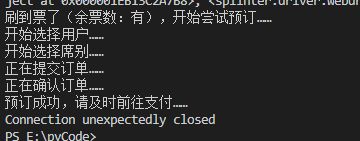
效果图:

python写12306抢票的更多相关文章
- Python操作12306抢票脚本
有一段时间没有使用Python了,前几天经朋友提起一篇关于用Python实现抢火车票的文章,百度了实现抢火车票的技术细节,网上却有不少资料,也不是新鲜的东西.在了解了一些技术手段,阅读了一些大神的博文 ...
- Python 实现的 12306抢票脚本
Python12306抢票脚本 本脚本使用一个类来实现所有代码,大体上分为以下几个模块及其步骤:- 初始化对象属性(在抢票前进行的属性初始化,包括初始化浏览器模拟对象,个人信息等).- 建立模拟浏览器 ...
- 四、基于HTTPS协议的12306抢票软件设计与实现--水平DNS并发查询分享
一.基于HTTPS协议的12306抢票软件设计与实现--实现效果 二.基于HTTPS协议的12306抢票软件设计与实现--相关接口以及数据格式 三.基于HTTPS协议的12306抢票软件设计与实现-- ...
- 12306抢票带来的启示:看我如何用Go实现百万QPS的秒杀系统
本文为开源实验性工程:“github.com/GuoZhaoran/spikeSystem”的配套文章,原作者:“绘你一世倾城”,现为:猎豹移动php开发工程师,感谢原作者的技术分享. 1.引言 Go ...
- 12306抢票算法居然被曝光了!!!居然是redis实现的
导读 相信大家应该都有抢火车票的经验,每年年底,这都是一场盛宴.然而你有没有想过抢火车票这个算法是怎么实现的呢? 应该没有吧,咱们今天就来一一探讨.其实并没有你想的那么难 bitmap与位运算 red ...
- 「今日 GitHub 趋势」让全世界程序员体会中国的 12306 抢票狂潮
[2018年1月7日 GitHub 趋势] No.1:yyx990803 / build-your-own-mint 单日 714 星 使用 Plaid,Google 表格和 CircleCI 构建您 ...
- 12306 抢票项目霸榜 GitHub,标星即将破万
十一将至,你买到回家的火车票了吗?如果没有,你可以试着打开 GitHub,在搜索栏键入 12306 的关键词,我相信你会发现一个新大陆.没错,这里有 1572 个抢票项目.它们大多用 Python.J ...
- python3.7之12306抢票脚本实现
悲催的12306,彻底沦为各路抢票软件的服务提供方.元旦伊始,纯粹12306官网及APP抢票,愈一周的时间,仅到手一张凌晨3:55回家的站票.为远离脑残,无奈选择抢票软件,预购年后返沪车票.BTW,研 ...
- 马后炮之12306抢票工具(四)--抢票Demo,2014年1月9日终结版
时隔一年多,终于朋友的忽悠下吧抢票Demo的最后一步完善了,与2014年1月9日成功生成车票. Demo仅经过自己测试,并未在高峰期进行测试,代码质量很差,因为赶工,套用去年模板并未使用设计模式. 代 ...
随机推荐
- eclipse中testNG的两种安装方式
今天给大家带来两种关于testNG中的安装方式:1.在线安装(本人亲测有效!!!)2.离线安装 一.在线安装testNG插件的步骤: 1.给大家提供一个testNG在线的安装的地址:http://dl ...
- 6、react中的交互
1.ajax 再react中使用ajax和直接使用ajax的用法是完全一样的,只要找好路径即可,但是也有不一样的地方,再react中是通过改变状态state来达到让组件重新渲染的效果,并且放ajax的 ...
- 数据源管理 | Kafka集群环境搭建,消息存储机制详解
本文源码:GitHub·点这里 || GitEE·点这里 一.Kafka集群环境 1.环境版本 版本:kafka2.11,zookeeper3.4 注意:这里zookeeper3.4也是基于集群模式部 ...
- Autoware 标定工具 Calibration Tool Kit 联合标定 Robosense-16 和 ZED 相机!
一.安装 Autoware & ZED 内参标定 & 外参标定准备 之前的这篇文章:Autoware 进行 Robosense-16 线雷达与 ZED 双目相机联合标定! 记录了我用 ...
- Math.round方法、String实例化
math.round(11.5)==12 传入的值是11.5,通过math.round方法进行四舍五入变成12(把一个数字舍入为最接近的整数) string s = new string("xyz") ...
- ArrayList、LinkedList、Vector、Array和HashMap、HashTable
就 ArrayList 与 Vector 主要从二方面来说. 一.同步性:Vector 是线程安全的,也就是说是同步的,而ArrayList 是线程序不安全的,不是同步的 二.数据增长:当需要增长时, ...
- zabbix服务的部署
1.zabbix的介绍 zabbix是一个基于WEB界面分布式系统监视以及网络监视功能的企业的开源解决方案. zabbix能监视各种网络参数,保证服务器系统的安全运营:并且提供灵活的通知机制以让系统管 ...
- CentOS7.5搭建Hive2.3.3
一 Hive的下载 软件下载地址:https://mirrors.tuna.tsinghua.edu.cn/apache/hive/ 这里下载的版本是:apache-hive-2.3.3-bin.t ...
- position中的四种属性
Position有四个属性值,分别是static .fixed. relative .absolute. 第一个属性值是static,这是position的默认属性,一般我们都不会用到它,所以也很少提 ...
- package.json 文件说明:
package.json 文件属性说明: name - 包名. version - 包的版本号. description - 包的描述. homepage - 包的官网 url . author - ...