
Typora配置双击图片放大功能
在Typora中,默认没有点击图片放大功能,本文就教大家如何配置该功能。
我的环境版本
- Typora版本:0.11.13
- LightBox版本:2.11.3
下载LightBox
可以从Github下载:https://github.com/lokesh/lightbox2
拷贝文件
将dist目录中的文件拷贝到Typora的安装目录的相应位置下。

在安装目录的D:\Program Files\Typora\resources\文件夹下,新建了extend文件夹,用来存放扩展插件的,dist目录下的文件也放到了这。

修改window.html文件
位置:D:\Program Files\Typora\resources\window.html(这个文件实际就是Typora的主界面)
引入 css 文件
可以搜索</head>,在它的前面添加:
<link rel="stylesheet" href="./extend/lightbox2/css/lightbox.min.css" crossorigin="anonymous">

引入 js 文件
可以搜索</script><script src="./appsrc/window/frame.js" defer="defer"></script>,然后在它的后面添加:
< type="text/javascript" src="./extend/lightbox2/js/lightbox.js" defer="defer">

修改 lightbox.js 文件
因为lightbox需要有 a 标签包围着 img 标签,相应的点击事件是绑定在 a 标签上的,且需要 href 、 data-lightbox 、 data-alt 等属性,而Typora中的图片只有 img 标签,父级没有 a 标签,也没有相应要求的属性。因此需要改造一下 lightbox.js 文件。
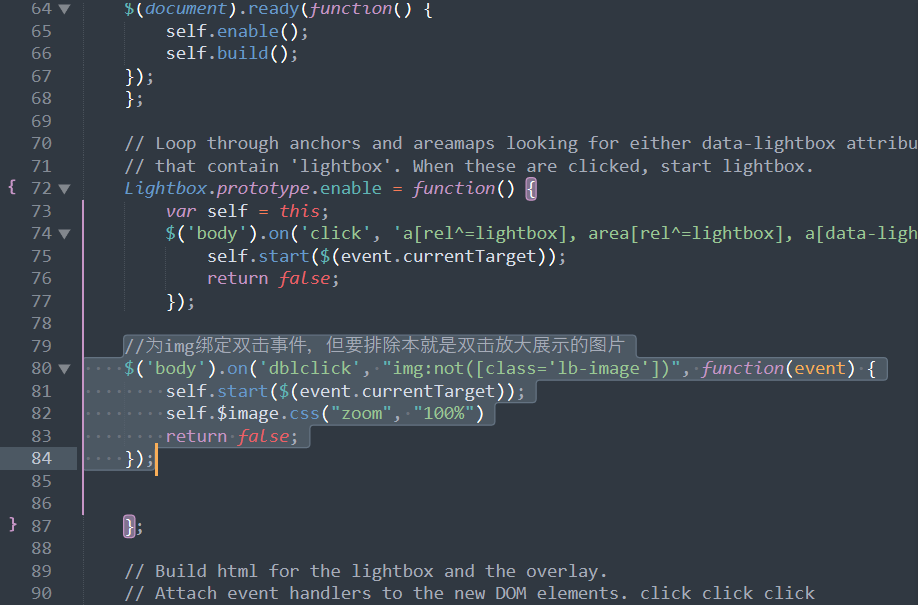
为img标签绑定双击事件
修改enable函数,添加代码:
//为img绑定双击事件,但要排除本就是双击放大展示的图片

$('body').on('dblclick', "img:not([class='lb-image'])" ,function(event){

    self.start($(event.currentTarget));

    return false;

});
修改属性值获取
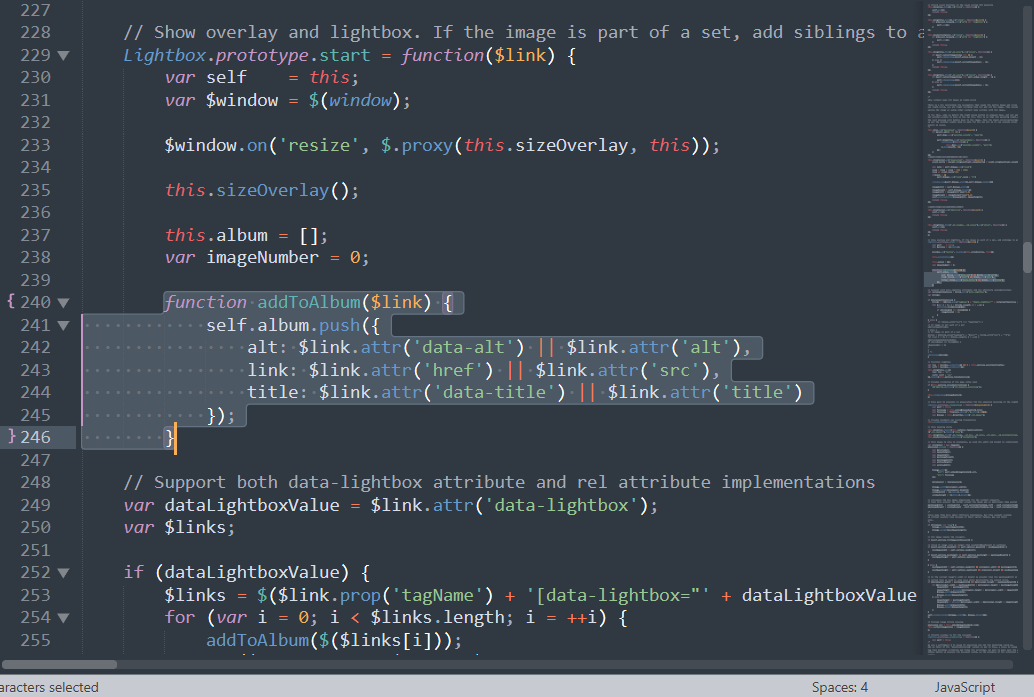
lightbox用到三个属性:alt、href 、title,这三个属性在img标签中均有对应的。
修改start函数,换成img对应属性:
function addToAlbum($link) {

    self.album.push({

        alt: $link.attr('data-alt')|| $link.attr('alt'),

        link: $link.attr('href')|| $link.attr('src'),

        title: $link.attr('data-title') || $link.attr('title')

    });

}
注释data-lightbox
还有另外一个属性data-lightbox,img没有该属性,因此这里不使用,lightbox中有一段判断是否有该属性的代码,修改不存在该属性时的逻辑代码(注释掉原有的,添加addToAlbum($link);):

修改完成,保存即可。
想要省事也可以直接复制下面的代码替换掉lightbox.js中的所有代码
(function (root, factory) {

    if (typeof define === 'function' && define.amd) {

        // AMD. Register as an anonymous module.

        define(['jquery'], factory);

    } else if (typeof exports === 'object') {

        // Node. Does not work with strict CommonJS, but

        // only CommonJS-like environments that support module.exports,

        // like Node.

        module.exports = factory(require('jquery'));

    } else {

        // Browser globals (root is window)

        root.lightbox = factory(root.jQuery);

    }

}(this, function ($) {

  function Lightbox(options) {

    this.album = [];

    this.currentImageIndex = void 0;

    this.init();

    // options

    this.options = $.extend({}, this.constructor.defaults);

    this.option(options);

  }

  // Descriptions of all options available on the demo site:

  // http://lokeshdhakar.com/projects/lightbox2/index.html#options

  Lightbox.defaults = {

    albumLabel: 'Image %1 of %2',

    alwaysShowNavOnTouchDevices: false,

    fadeDuration: 0,

    fitImagesInViewport: true,

    imageFadeDuration: 0,

    // maxWidth: 800,

    // maxHeight: 10,

    positionFromTop: 10,

    resizeDuration: 0,

    showImageNumberLabel: true,

    wrapAround: false,

    disableScrolling: false,

    /*

    Sanitize Title

    If the caption data is trusted, for example you are hardcoding it in, then leave this to false.

    This will free you to add html tags, such as links, in the caption.

    If the caption data is user submitted or from some other untrusted source, then set this to true

    to prevent xss and other injection attacks.

     */

    sanitizeTitle: false

  };

  Lightbox.prototype.option = function(options) {

    $.extend(this.options, options);

  };

  Lightbox.prototype.imageCountLabel = function(currentImageNum, totalImages) {

    return this.options.albumLabel.replace(/%1/g, currentImageNum).replace(/%2/g, totalImages);

  };

  Lightbox.prototype.init = function() {

    var self = this;

    // Both enable and build methods require the body tag to be in the DOM.

    $(document).ready(function() {

      self.enable();

      self.build();

    });

  };

  // Loop through anchors and areamaps looking for either data-lightbox attributes or rel attributes

  // that contain 'lightbox'. When these are clicked, start lightbox.

  Lightbox.prototype.enable = function() {

    var self = this;

    $('body').on('click', 'a[rel^=lightbox], area[rel^=lightbox], a[data-lightbox], area[data-lightbox]', function(event) {

      self.start($(event.currentTarget));

      return false;

    });

	//为img绑定双击事件,但要排除本就是双击放大展示的图片

	$('body').on('dblclick', "img:not([class='lb-image'])", function(event) {

      self.start($(event.currentTarget));

	  self.$image.css("zoom", "100%")

      return false;

    });

  };

  // Build html for the lightbox and the overlay.

  // Attach event handlers to the new DOM elements. click click click

  Lightbox.prototype.build = function() {

    if ($('#lightbox').length > 0) {

        // return;

    }

    var self = this;

    // The two root notes generated, #lightboxOverlay and #lightbox are given

    // tabindex attrs so they are focusable. We attach our keyboard event

    // listeners to these two elements, and not the document. Clicking anywhere

    // while Lightbox is opened will keep the focus on or inside one of these

    // two elements.

    //

    // We do this so we can prevent propogation of the Esc keypress when

    // Lightbox is open. This prevents it from intefering with other components

    // on the page below.

    //

    // Github issue: https://github.com/lokesh/lightbox2/issues/663

    $('<div id="lightboxOverlay" tabindex="-1" class="lightboxOverlay"></div><div id="lightbox" tabindex="-1" class="lightbox"><div class="lb-outerContainer" style="overflow:auto;"><div class="lb-container"><img class="lb-image" src="data:image/gif;base64,R0lGODlhAQABAIAAAP///wAAACH5BAEAAAAALAAAAAABAAEAAAICRAEAOw==" alt=""/><div class="lb-nav"><a class="lb-prev" aria-label="Previous image" href="" ></a><a class="lb-next" aria-label="Next image" href="" ></a></div><div class="lb-loader"><a class="lb-cancel"></a></div></div></div><div class="lb-dataContainer"><div class="lb-data"><div class="lb-details"><span class="lb-caption"></span><span class="lb-number"></span></div><div class="lb-closeContainer"><a class="lb-close"></a></div></div></div></div>').appendTo($('body'));

    // Cache jQuery objects

    this.$lightbox       = $('#lightbox');

    this.$overlay        = $('#lightboxOverlay');

    this.$outerContainer = this.$lightbox.find('.lb-outerContainer');

    this.$container      = this.$lightbox.find('.lb-container');

    this.$image          = this.$lightbox.find('.lb-image');

    this.$nav            = this.$lightbox.find('.lb-nav');

    // Store css values for future lookup

    this.containerPadding = {

      top: parseInt(this.$container.css('padding-top'), 10),

      right: parseInt(this.$container.css('padding-right'), 10),

      bottom: parseInt(this.$container.css('padding-bottom'), 10),

      left: parseInt(this.$container.css('padding-left'), 10)

    };

    this.imageBorderWidth = {

      top: parseInt(this.$image.css('border-top-width'), 10),

      right: parseInt(this.$image.css('border-right-width'), 10),

      bottom: parseInt(this.$image.css('border-bottom-width'), 10),

      left: parseInt(this.$image.css('border-left-width'), 10)

    };

    // Attach event handlers to the newly minted DOM elements

    this.$overlay.hide().on('click', function() {

      self.end();

      return false;

    });

    this.$lightbox.hide().on('click', function(event) {

      if ($(event.target).attr('id') === 'lightbox') {

        self.end();

      }

    });

    this.$outerContainer.on('click', function(event) {

      if ($(event.target).attr('id') === 'lightbox') {

        self.end();

      }

      return false;

    });

    this.$lightbox.find('.lb-prev').on('click', function() {

      if (self.currentImageIndex === 0) {

        self.changeImage(self.album.length - 1);

      } else {

        self.changeImage(self.currentImageIndex - 1);

      }

      return false;

    });

    this.$lightbox.find('.lb-next').on('click', function() {

      if (self.currentImageIndex === self.album.length - 1) {

        self.changeImage(0);

      } else {

        self.changeImage(self.currentImageIndex + 1);

      }

      return false;

    });

    /*

      Show context menu for image on right-click

      There is a div containing the navigation that spans the entire image and lives above of it. If

      you right-click, you are right clicking this div and not the image. This prevents users from

      saving the image or using other context menu actions with the image.

      To fix this, when we detect the right mouse button is pressed down, but not yet clicked, we

      set pointer-events to none on the nav div. This is so that the upcoming right-click event on

      the next mouseup will bubble down to the image. Once the right-click/contextmenu event occurs

      we set the pointer events back to auto for the nav div so it can capture hover and left-click

      events as usual.

     */

    this.$nav.on('mousedown', function(event) {

      if (event.which === 3) {

        self.$nav.css('pointer-events', 'none');

        self.$lightbox.one('contextmenu', function() {

          setTimeout(function() {

              this.$nav.css('pointer-events', 'auto');

          }.bind(self), 0);

        });

      }

    });

	//给放大的图片另外绑定滚轮放大缩小事件

	this.$container.on('mousewheel', function(event) {

		event.delta = (event.originalEvent.wheelDelta) ? event.originalEvent.wheelDelta / 120 : -(event.originalEvent.detail || 0) / 3;

		var zoom = self.$image.css("zoom")

		zoom = zoom ? zoom * 100 : 100;

		zoom += event.delta*10;

		if(zoom > 0)

			self.$image.css("zoom",zoom + "%")

		console.log(self.$image.width(),self.$image.height())

		imageWidth = self.$image.width()

		imageHeight = self.$image.height()

		imageWidth = imageWidth*zoom*0.01

		imageHeight = imageHeight*zoom*0.01

		self.sizeContainer(imageWidth, imageHeight);

      return false;

    });

	//给放大的图片另外绑定双击关闭事件

	this.$container.on('dblclick', function(event) {

		self.end();

		return false;

    });

    this.$lightbox.find('.lb-loader, .lb-close').on('click', function() {

      self.end();

      return false;

    });

  };

  // Show overlay and lightbox. If the image is part of a set, add siblings to album array.

  Lightbox.prototype.start = function($link) {

    var self    = this;

    var $window = $(window);

    $window.on('resize', $.proxy(this.sizeOverlay, this));

    this.sizeOverlay();

    this.album = [];

    var imageNumber = 0;

    function addToAlbum($link) {

      self.album.push({

        alt: $link.attr('data-alt') || $link.attr('alt'),

        link: $link.attr('href') || $link.attr('src'),

        title: $link.attr('data-title') || $link.attr('title')

      });

    }

    // Support both data-lightbox attribute and rel attribute implementations

    var dataLightboxValue = $link.attr('data-lightbox');

    var $links;

    if (dataLightboxValue) {

      $links = $($link.prop('tagName') + '[data-lightbox="' + dataLightboxValue + '"]');

      for (var i = 0; i < $links.length; i = ++i) {

        addToAlbum($($links[i]));

        if ($links[i] === $link[0]) {

          imageNumber = i;

        }

      }

    } else {

/*       if ($link.attr('rel') === 'lightbox') {

        // If image is not part of a set

        addToAlbum($link);

      } else {

        // If image is part of a set

        $links = $($link.prop('tagName') + '[rel="' + $link.attr('rel') + '"]');

        for (var j = 0; j < $links.length; j = ++j) {

          addToAlbum($($links[j]));

          if ($links[j] === $link[0]) {

            imageNumber = j;

          }

        }

      } */

	  addToAlbum($link);

    }

    // Position Lightbox

    var top  = $window.scrollTop() || 0 + this.options.positionFromTop;

    var left = $window.scrollLeft();

    this.$lightbox.css({

      top: top + 'px',

      left: left + 'px'

    }).fadeIn(this.options.fadeDuration);

    // Disable scrolling of the page while open

    if (this.options.disableScrolling) {

      $('body').addClass('lb-disable-scrolling');

    }

    this.changeImage(imageNumber);

  };

  // Hide most UI elements in preparation for the animated resizing of the lightbox.

  Lightbox.prototype.changeImage = function(imageNumber) {

    var self = this;

    var filename = this.album[imageNumber].link;

    var filetype = filename.split('.').slice(-1)[0];

    var $image = this.$lightbox.find('.lb-image');

    // Disable keyboard nav during transitions

    this.disableKeyboardNav();

    // Show loading state

    this.$overlay.fadeIn(this.options.fadeDuration);

    $('.lb-loader').fadeIn('slow');

    this.$lightbox.find('.lb-image, .lb-nav, .lb-prev, .lb-next, .lb-dataContainer, .lb-numbers, .lb-caption').hide();

    this.$outerContainer.addClass('animating');

    // When image to show is preloaded, we send the width and height to sizeContainer()

    var preloader = new Image();

    preloader.onload = function() {

      var $preloader;

      var imageHeight;

      var imageWidth;

      var maxImageHeight;

      var maxImageWidth;

      var windowHeight;

      var windowWidth;

      $image.attr({

        'alt': self.album[imageNumber].alt,

        'src': filename

      });

      $preloader = $(preloader);

      $image.width(preloader.width);

      $image.height(preloader.height);

      windowWidth = $(window).width();

      windowHeight = $(window).height();

      // Calculate the max image dimensions for the current viewport.

      // Take into account the border around the image and an additional 10px gutter on each side.

      maxImageWidth  = windowWidth - self.containerPadding.left - self.containerPadding.right - self.imageBorderWidth.left - self.imageBorderWidth.right - 20;

      maxImageHeight = windowHeight - self.containerPadding.top - self.containerPadding.bottom - self.imageBorderWidth.top - self.imageBorderWidth.bottom - self.options.positionFromTop - 70;

      /*

      Since many SVGs have small intrinsic dimensions, but they support scaling

      up without quality loss because of their vector format, max out their

      size.

      */

      if (filetype === 'svg') {

        $image.width(maxImageWidth);

        $image.height(maxImageHeight);

      }

      // Fit image inside the viewport.

      if (self.options.fitImagesInViewport) {

        // Check if image size is larger then maxWidth|maxHeight in settings

        if (self.options.maxWidth && self.options.maxWidth < maxImageWidth) {

          maxImageWidth = self.options.maxWidth;

        }

        if (self.options.maxHeight && self.options.maxHeight < maxImageHeight) {

          maxImageHeight = self.options.maxHeight;

        }

      } else {

        maxImageWidth = self.options.maxWidth || preloader.width || maxImageWidth;

        maxImageHeight = self.options.maxHeight || preloader.height || maxImageHeight;

      }

      // Is the current image's width or height is greater than the maxImageWidth or maxImageHeight

      // option than we need to size down while maintaining the aspect ratio.

      if ((preloader.width > maxImageWidth) || (preloader.height > maxImageHeight)) {

        if ((preloader.width / maxImageWidth) > (preloader.height / maxImageHeight)) {

          imageWidth  = maxImageWidth;

          imageHeight = parseInt(preloader.height / (preloader.width / imageWidth), 10);

          $image.width(imageWidth);

          $image.height(imageHeight);

        } else {

          imageHeight = maxImageHeight;

          imageWidth = parseInt(preloader.width / (preloader.height / imageHeight), 10);

          $image.width(imageWidth);

          $image.height(imageHeight);

        }

      }

      self.sizeContainer($image.width(), $image.height());

    };

    // Preload image before showing

    preloader.src = this.album[imageNumber].link;

    this.currentImageIndex = imageNumber;

  };

  // Stretch overlay to fit the viewport

  Lightbox.prototype.sizeOverlay = function() {

    var self = this;

    /*

    We use a setTimeout 0 to pause JS execution and let the rendering catch-up.

    Why do this? If the `disableScrolling` option is set to true, a class is added to the body

    tag that disables scrolling and hides the scrollbar. We want to make sure the scrollbar is

    hidden before we measure the document width, as the presence of the scrollbar will affect the

    number.

    */

    setTimeout(function() {

      self.$overlay

        .width($(document).width())

        .height($(document).height());

    }, 0);

  };

  // Animate the size of the lightbox to fit the image we are showing

  // This method also shows the the image.

  Lightbox.prototype.sizeContainer = function(imageWidth, imageHeight) {

    var self = this;

    var oldWidth  = this.$outerContainer.outerWidth();

    var oldHeight = this.$outerContainer.outerHeight();

    var newWidth  = imageWidth + this.containerPadding.left + this.containerPadding.right + this.imageBorderWidth.left + this.imageBorderWidth.right;

    var newHeight = imageHeight + this.containerPadding.top + this.containerPadding.bottom + this.imageBorderWidth.top + this.imageBorderWidth.bottom;

	//最大不超过屏幕宽高,若超过,滚动条出现

	windowWidth = $(window).width();

	windowHeight = $(window).height();

	if(newWidth > windowWidth){

		newWidth = windowWidth

	}

	if(newHeight+self.$lightbox.find('.lb-dataContainer').height() > windowHeight){

		newHeight = windowHeight - self.$lightbox.find('.lb-dataContainer').height()*2

	}

    function postResize() {

      self.$lightbox.find('.lb-dataContainer').width(newWidth);

      self.$lightbox.find('.lb-prevLink').height(newHeight);

      self.$lightbox.find('.lb-nextLink').height(newHeight);

      // Set focus on one of the two root nodes so keyboard events are captured.

      self.$overlay.focus();

      self.showImage();

    }

    if (oldWidth !== newWidth || oldHeight !== newHeight) {

      this.$outerContainer.animate({

        width: newWidth,

        height: newHeight

      }, this.options.resizeDuration, 'swing', function() {

        postResize();

      });

    } else {

      postResize();

    }

  };

  // Display the image and its details and begin preload neighboring images.

  Lightbox.prototype.showImage = function() {

    this.$lightbox.find('.lb-loader').stop(true).hide();

    this.$lightbox.find('.lb-image').fadeIn(this.options.imageFadeDuration);

    this.updateNav();

    this.updateDetails();

    this.preloadNeighboringImages();

    this.enableKeyboardNav();

  };

  // Display previous and next navigation if appropriate.

  Lightbox.prototype.updateNav = function() {

    // Check to see if the browser supports touch events. If so, we take the conservative approach

    // and assume that mouse hover events are not supported and always show prev/next navigation

    // arrows in image sets.

    var alwaysShowNav = false;

    try {

      document.createEvent('TouchEvent');

      alwaysShowNav = (this.options.alwaysShowNavOnTouchDevices) ? true : false;

    } catch (e) {}

    this.$lightbox.find('.lb-nav').show();

    if (this.album.length > 1) {

      if (this.options.wrapAround) {

        if (alwaysShowNav) {

          this.$lightbox.find('.lb-prev, .lb-next').css('opacity', '1');

        }

        this.$lightbox.find('.lb-prev, .lb-next').show();

      } else {

        if (this.currentImageIndex > 0) {

          this.$lightbox.find('.lb-prev').show();

          if (alwaysShowNav) {

            this.$lightbox.find('.lb-prev').css('opacity', '1');

          }

        }

        if (this.currentImageIndex < this.album.length - 1) {

          this.$lightbox.find('.lb-next').show();

          if (alwaysShowNav) {

            this.$lightbox.find('.lb-next').css('opacity', '1');

          }

        }

      }

    }

  };

  // Display caption, image number, and closing button.

  Lightbox.prototype.updateDetails = function() {

    var self = this;

    // Enable anchor clicks in the injected caption html.

    // Thanks Nate Wright for the fix. @https://github.com/NateWr

    if (typeof this.album[this.currentImageIndex].title !== 'undefined' &&

      this.album[this.currentImageIndex].title !== '') {

      var $caption = this.$lightbox.find('.lb-caption');

      if (this.options.sanitizeTitle) {

        $caption.text(this.album[this.currentImageIndex].title);

      } else {

        $caption.html(this.album[this.currentImageIndex].title);

      }

      $caption.fadeIn('fast');

    }

    if (this.album.length > 1 && this.options.showImageNumberLabel) {

      var labelText = this.imageCountLabel(this.currentImageIndex + 1, this.album.length);

      this.$lightbox.find('.lb-number').text(labelText).fadeIn('fast');

    } else {

      this.$lightbox.find('.lb-number').hide();

    }

    this.$outerContainer.removeClass('animating');

    this.$lightbox.find('.lb-dataContainer').fadeIn(this.options.resizeDuration, function() {

      return self.sizeOverlay();

    });

  };

  // Preload previous and next images in set.

  Lightbox.prototype.preloadNeighboringImages = function() {

    if (this.album.length > this.currentImageIndex + 1) {

      var preloadNext = new Image();

      preloadNext.src = this.album[this.currentImageIndex + 1].link;

    }

    if (this.currentImageIndex > 0) {

      var preloadPrev = new Image();

      preloadPrev.src = this.album[this.currentImageIndex - 1].link;

    }

  };

  Lightbox.prototype.enableKeyboardNav = function() {

    this.$lightbox.on('keyup.keyboard', $.proxy(this.keyboardAction, this));

    this.$overlay.on('keyup.keyboard', $.proxy(this.keyboardAction, this));

  };

  Lightbox.prototype.disableKeyboardNav = function() {

    this.$lightbox.off('.keyboard');

    this.$overlay.off('.keyboard');

  };

  Lightbox.prototype.keyboardAction = function(event) {

    var KEYCODE_ESC        = 27;

    var KEYCODE_LEFTARROW  = 37;

    var KEYCODE_RIGHTARROW = 39;

    var keycode = event.keyCode;

    if (keycode === KEYCODE_ESC) {

      // Prevent bubbling so as to not affect other components on the page.

      event.stopPropagation();

      this.end();

    } else if (keycode === KEYCODE_LEFTARROW) {

      if (this.currentImageIndex !== 0) {

        this.changeImage(this.currentImageIndex - 1);

      } else if (this.options.wrapAround && this.album.length > 1) {

        this.changeImage(this.album.length - 1);

      }

    } else if (keycode === KEYCODE_RIGHTARROW) {

      if (this.currentImageIndex !== this.album.length - 1) {

        this.changeImage(this.currentImageIndex + 1);

      } else if (this.options.wrapAround && this.album.length > 1) {

        this.changeImage(0);

      }

    }

  };

  // Closing time. :-(

  Lightbox.prototype.end = function() {

    this.disableKeyboardNav();

    $(window).off('resize', this.sizeOverlay);

    this.$lightbox.fadeOut(this.options.fadeDuration);

    this.$overlay.fadeOut(this.options.fadeDuration);

    if (this.options.disableScrolling) {

      $('body').removeClass('lb-disable-scrolling');

    }

  };

  return new Lightbox();

}));
启动Typora,验证
双击要放到查看的图片,即可。
参考
https://blog.csdn.net/wu_zeqin/article/details/113942617
Typora配置双击图片放大功能的更多相关文章
- jQuery.YesShow - 图片轮播插件(带图片放大功能)
jQuery.YesShow - 图片轮播插件(带图片放大功能) 使用简单,原文件只要这样就可以了:<div id="yes"> <ul> ...
- 图片放大功能如何做?jquery实现
花了很长时间撸了个网站,观点,其中需要一个图片放大功能,网上找了半天发现都没有中意的,最后无奈之下自己写了一个,演示地址,演示图片: 自我感觉效果还不错,现在分享开来给大家看看,哪里不好还请多多指教, ...
- jqzoom插件图片放大功能的一些BUG
建议使用cloud-zoom插件,jqzoom插件就不要使用了 点击查看——图片放大镜——jQuery插件Cloud Zoom 刚开始使用的是jqzoom插件,但问题太多了,就不说插入到页面中使用了, ...
- 技术人的福音!教你如何使用Typora+PicGo实现图片自动上传功能
前言 写技术文章的小伙伴,对于 Typora 肯定不陌生,用来编写 Markdown 特别的方便. 但是,有个问题,就是当我们插入一个图片,并且使之可以在公网访问时,操作流程特别的麻烦. 首先,你需要 ...
- 图片放大功能插件及jquery.extend函数理解
前端时间,产品提出社区评论中的图片需要有放大功能.感觉可以共用,所以就想整合一个插件,过程中也借鉴了一些例子. 分析下自己的代码思路: var scaleImg = function(opts) { ...
- JavaScript 点击图片放大功能
<!doctype html> <html> <head> <meta charset="utf-8" /> <title&g ...
- jquery图片放大功能简单实现
图片放大在某些例如商品细节放大图比较常见,本文写了一个图片放大的示例适合日常应付,有需求的朋友可以参考下 <div class="jqzoom"> <img sr ...
- 使用Layer完成图片放大功能
序言:在写这个功能之前也用了zoom.js,zoom.js用起来简单引用js然后设置图片属性就可以放大.但是放大后的图片模糊.没有遮罩.在放大图片时其它图片布局会受到影响,当然如果觉得这些都是小问题的 ...
- html实现点击图片放大功能
话不多说,直接上代码 <html> <head> <style> .over {position: fixed; left:0; top:0; width:100% ...
随机推荐
- ORB_SLAM2 Tracking流程
- Spring笔记(1)
Spring快速入门 开发步骤 导入坐标 <dependency> <groupId>org.springframework</groupId> <artif ...
- GUI实现超简单的计算器
计算器样式 实现代码 //实现超简易的计算器 public class Test02 { public static void main(String[] args) { Counter counte ...
- msyql redo log和binlog
更新语句执行流程 下面是这个表的创建语句,这个表有一个主键 ID 和一个整型字段 c: create table T(ID int primary key, c int); 如果要将 ID=2 这一行 ...
- Java并发之锁升级:无锁->偏向锁->轻量级锁->重量级锁
Java并发之锁升级:无锁->偏向锁->轻量级锁->重量级锁 对象头markword 在lock_bits为01的大前提下,只有当是否偏向锁位值为1的时候,才表明当前对象处于偏向锁定 ...
- python 回归分析
一.线性回归 1 绘制散点图 import matplotlib.pyplot as plt x = [5,7,8,7,2,17,2,9,4,11,12,9,6] y = [99,86,87,88,1 ...
- Python - //和/的区别
/ 表示浮点数除法,返回浮点结果; // 表示整数除法,返回不大于结果的一个最大的整数 print("6 // 4 = " + str(6 // 4)) print("6 ...
- Hamcrest 断言框架
Hamcrest是一个为了测试为目的,能组合成灵活表达式的匹配器类库.用于编断言的框架,使用这个框架编写断言,提高可读性及开发测试的效率,提供了大量"匹配器"方法,每个匹配器用于执 ...
- Git--生成公钥和私钥并添加gitlab访问权限
Git配置 打开git bash 执行以下命令 git config --global user.name 用户名 git config --global user.email 邮箱 ssh-keyg ...
- jsp&mvc开发模式&jstl标签&三层架构
目录 jsp 概念 原理 jsp 的脚本 jsp的内置对象 指令 注释 mvc:开发模式 jsp演变历史 mvc 优缺点 El表达式 JSTL 标签 练习 三层架构:软件设计架构 案例:用户信息列表展 ...