
solr 在windows下的安装
安装环境
Windows 7 64bit
Apache-tomcat-8.0.9-windows-x64
Solr-4.9.0
JDK 1.8.0_05 64bit
安装步骤
Tomcat和JDk的安装在这里就略过。
注意:solr4.9要求jdk1.7+
步骤一:
解压solr-4.9.0到任意文件夹,我解压到D:\Installed Applications\solr-4.9.0\solr-4.9.0目录下。
步骤二:
将solr-4.9.0\dist\ solr-4.9.0.war复制到Tomcat webapp/目录下,最好重命名为solr.war。
步骤三:
启动Tomcat,会报错,这步只是为了将solr-4.9.0.war解压,所以手动解压放在webapp目录下面也是可行的。
步骤四:
方法一:
打开webapps\solr\WEB-INF\web.xml
找到:

<!--

<env-entry>

   <env-entry-name>solr/home</env-entry-name>

   <env-entry-value>/put/your/solr/home/here</env-entry-value>

   <env-entry-type>java.lang.String</env-entry-type>

</env-entry>

-->
这里是需要配置solr/home,只需要修改<env-entry-value>/put/your/solr/home/here</env-entry-value>
这个目录可以自定义,建议就用步骤一解压的目录,这里需要非常注意:在Solr官网的Tutorial里面有如下一段话:
How Solr Works with Tomcat
The two basic steps for running Solr in any Web application container are as follows:
- Make the Solr classes available to the container. In many cases, the Solr Web application archive (WAR) file can be placed into a special directory of the application container. In the case of Tomcat, you need to place the Solr WAR file in Tomcat's webapps directory. If you installed Tomcat with Solr, take a look in tomcat/webapps:you'll see the solr.war file is already there.
- Point Solr to the Solr home directory that contains conf/solrconfig.xml and conf/schema.xml. There are a few ways to get this done. One of the best is to define the solr.solr.home Java system property. With Tomcat, the best way to do this is via a shell environment variable, JAVA_OPTS. Tomcat puts the value of this variable on the command line upon startup
从这里可以看 出,<env-entry-value>指向的目录需要包含conf/solrconfig.xml和conf/schema.xml这两个 文件,也就意味着在<env-entry-value>所指向的目录中需要有conf子目录,我就是因为官网的这段解释,搞了半天没有成功, 其实是我理解错了,我认为在solr.solr.home目录下必须要有子目录conf,conf里面包含solrconfig.xml和 schema.xml。但是其实conf目录是放在collection1目录下面的,collection是solr的一个Instance实 例,solr中可以配置多个collection,可以有独立的配置文件。
我这边web.xml的配置为:
<env-entry>

<env-entry-name>solr/home</env-entry-name>

<env-entry-value>D:/Installed Applications/solr-4.9.0/solr-4.9.0/example</env-entry-value>

<env-entry-type>java.lang.String</env-entry-type>

</env-entry>
特别需要注意配置里面使用的是反斜杠"/",而不是windows下默认的"\"。
这里我是直接指向example文件夹。
方法二(个人推荐):
在$TOMCAT_HOME/conf/Catalina/localhost目录下新建solr.xml文件,内容为:
<Context path="/solr" docBase="… /tomcat/webapps/solr.war" debug="0" crossContext="true">

  <Environment name="solr/home" type="java.lang.String" value=" D:/Installed Applications/solr-4.9.0/solr-4.9.0/example " override="true"/>

  这边需要注意,override需要设置为false,否则每次启动tomcat都会重新解压war文件覆盖掉之前的配置,或者手动解压后,把context path直接指向文件夹
</Context>
步骤五:
将solr- 4.9.0\example\solr目录下的collection1目录整体copy到solr-4.9.0\example目录下。读者可以自己自定 义路径,web.xml中定义的<env-entry-value></env-entry-type>,这个指向的目录包含 collection1目录就好了。
步骤六:
将 D:\Installed Applications\solr-4.9.0\solr-4.9.0\example\lib\ext目录下的jar包copy到apache- tomcat-8.0.9\lib目录下,也可以copy到webapps\solr\WEB-INF\lib下,读者可以自行选择(全局和局部的问题而 已)。(如果启动还是报错,可以根据提示在solr-4.9.0\dist中找相应的jar包)。
步骤七:
打开Tomcat conf目录下的server.xml,找到下面一段代码添加URIEncoding="UTF-8",添加中文支持。
<Connector port="8080" protocol="HTTP/1.1"

           connectionTimeout="20000"

           redirectPort="8443"

           URIEncoding="UTF-8" />
步骤八:
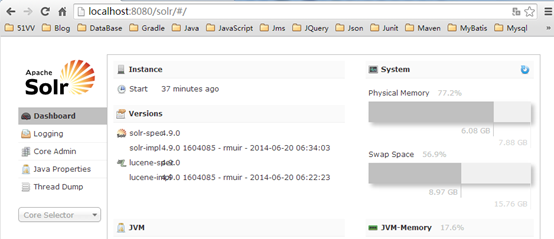
启动Tomcat,打开浏览器输入:http://localhost:8080/solr/admin/,看到启动画面就说明安装成功。
总结
由上面的安装步骤可以 看出来,其中步骤四是最核心的一步,这里面需要了解Solr的运行原理:Solr是类似于Http接口的一种服务,它需要在Web容器(这里是 Tomcat)中部署,运行后,应用程序用Http请求的方式和Solr交互,包括添加索引、查询等等。所以我们需要在Web容器中部署Solr,并且在 Tomcat配置中指明Solr配置的目录。
在Linux下的安装方法跟Windows下没有大的区别。
solr 在windows下的安装的更多相关文章
- solr在windows下的安装及配置
solr在windows下的安装及配置 首先,solr是基于Java开发的,所以使用的话需要先进行java环境的配置,在Java环境配置好之后就可以去http://www.apache.org/dyn ...
- memcache的windows下的安装和简单使用
原文:memcache的windows下的安装和简单使用 memcache是为了解决网站访问量大,数据库压力倍增的解决方案之一,由于其简单实用,很多站点现在都在使用memcache,但是memcach ...
- Windows下pry安装和配置
Windows下pry安装和配置 pry是一个增强型的交互式命令行工具,比irb强大. 有自动完成功能,自动缩进,有颜色.有更强大的调试功能. pry 安装很简单. 在终端输入: gem instal ...
- Windows下虚拟机安装Mac OS X ----- VM12安装Mac OS X 10.11
Windows下虚拟机安装Mac OS X -– VM12安装Mac OS X 10.11 随着Iphone在国内大行其道,越来越多的开发者涌入iOS开发大军 中,但都苦于没有苹果机,本文即将介绍WI ...
- Windows下memcache安装使用
Windows下Memcache安装 随着时间的推移,网上现在能找到的在 Windows下安装 Memcache 的文档大多已经过时.雪峰这里再简要介绍一下当下最新版的安装和配置方法. Memcach ...
- Windows 下如何安装配置Snort视频教程
Windows 下如何安装配置Snort视频教程: 第一步: http://www.tudou.com/programs/view/UUbIQCng360/ 第二部: http://www.tudou ...
- 在windows下完美安装GitHub
笔者最近在Windows下安装GitHub,过程中遇到不少问题.现在把安装的详细步骤分享给大家,免得大家走弯路. 笔者安装了GitHub for Windows程序,一切都运行顺利.但事情没有结束,首 ...
- windows下Eclipse安装Perl插件教程
windows下Eclipse安装Perl插件教程 想用eclipse编写perl.网上看了很多资料.但EPIC插件的下载连接都失效了.无奈,只好自己动手写个教程记录一下. 准备工作: 安装好Ecli ...
- Ruby入门--Linux/Windows下的安装、代码开发及Rails实战
Ruby入门--Linux/Windows下的安装.代码开发及Rails实战 http://www.linuxidc.com/Linux/2014-04/100242.htm Ubuntu 13.04 ...
随机推荐
- 【POJ1195】【二维树状数组】Mobile phones
Description Suppose that the fourth generation mobile phone base stations in the Tampere area operat ...
- PHPCMS(2)PHPCMS V9 环境搭建(转)
转自:http://www.cnblogs.com/Braveliu/p/5072920.html PHPCMS V9的学习总结分为以下几点: [1]PHPCMS 简介 PHP原始为Personal ...
- WebDriverWait 中 and, or, not用法
1. And 用法 wait.until(ExpectedConditions.and( ExpectedConditions.visibilityOfAllElementsLocatedBy(By. ...
- js事件练习--登录界面演示。
<!doctype html> <html lang="en"> <head> <meta charset="UTF-8&quo ...
- C#编程连接数据库,通过更改配置文件切换数据库功能。
该实例主要应用情景:假如某公司用mysql当做数据库服务器,由于发现mysql数据库在运行中出现不稳定情况,针对这情况,厂家要求更换连接数据库方式,改用SQL server数据库,来满足 ...
- 【Linux】vi编辑器命令
1)进入vi的命令 vi filename : 打开或新建文件,并将光标置于第一行首 vi +n filename : 打开文件,并将光标置于第n行首 ...
- Js冒泡事件和捕获事件
js中冒泡事件和捕获事件: 冒泡事件:冒泡事件是从里向外,即是从被绑定元素开始一直向外到达页面的所有祖先元素都会被触发,这 一过程被称为事件冒泡.这个事件从原始元素开始一直冒泡到DOM树的最上层 捕获 ...
- Asp.net MVC分页实例
分页是网页基本功能,这里主要讨论在Asp.net MVC环境下分页的前端实现,不涉及后台分页.实现效果如下图显示: Step 1.建立分页信息类 public class PagingInfo { p ...
- Linux下软件的安装
想必linux新手刚开始对于linux软件安装很茫然吧,不知到怎么安装,软件到底安装在哪里,如果我需要删除软件怎么删除,配置文件到哪里去找. 想学习linux的话,最快上手的应该是Ubuntu,它特有 ...
- hashCode() 和equals() 区别和作用
HashSet和HashMap一直都是JDK中最常用的两个类,HashSet要求不能存储相同的对象,HashMap要求不能存储相同的键. 那么Java运行时环境是如何判断HashSet中相同对象.Ha ...