
浅析WINFORM工具条的重用实现
一直以来,我都想看看别人家的工具栏重用(图1)到底是如何实现的,但在网上搜索了很久都没有找到过,即使找到一些程序,要么就是把这个工具栏写在具体的画面(图2),要么就是没有源代码的, 我在想,是否别人也有这个需求呢? 于是我决定把我自己的程序代码帖出来,一来可以分享给到需要的朋友,二来,希望有大侠经过,指点一二.
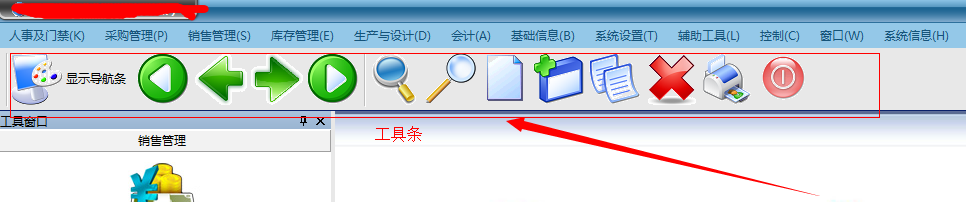 (图1)
(图1)
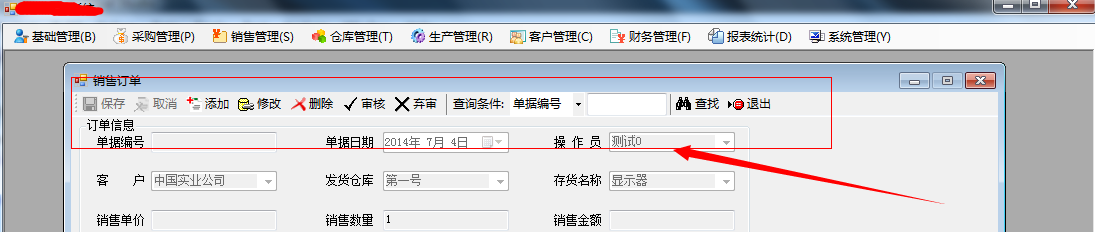
(图2).
对于图2, 当然好实现了, 只是对当前画面的功能实现. 相当于单独画面的一个按钮而已.
现在,我们主要讲一下图1的实现方法.
在首先,在讲工具栏之前,讲一下菜单栏的实现(图3),在设计的时候,我们的菜单都是没有权限的. 通过在数据库里设定权限做了控制.

(图3)
首先在frmMain_Load的时候,加载下面的代码,这里主要是调用递归函数.
            MenuStrip ms = (MenuStrip)this.Controls["menuStrip1"];

            ArrayList arr = new ArrayList();

            dsright = C_BaseInfo.UserRight(frmLogin.C_UserInfo);

            GetMenuAllName(arr, null, , ms);//调用递归函数
有一些每个用户都需要的菜单就直接置true了,如更改密码,报表工具等.(具体的报表权限还有地方控制了的.)
        private void GetMenuAllName(ArrayList arr, ToolStripMenuItem tsmi, int level, MenuStrip ms)

        {

            if (level == 0)//一级菜单

            {

                for (int i = 0; i < ms.Items.Count; i++)

                {

                    ToolStripMenuItem item = (ToolStripMenuItem)ms.Items[i];

                    string Group = item.Text + ";" + level.ToString();//item.Text 菜单项的名字  level 此菜单的的级别

                    arr.Add(Group);

                    // item.Enabled = false;

                    GetMenuAllName(arr, item, level + 1, ms);

                }

            }

            else//二级菜单

            {

                if (tsmi != null && tsmi.DropDownItems.Count > 0)

                {

                    for (int i = 0; i < tsmi.DropDownItems.Count; i++)

                    {

                        if (tsmi.DropDownItems[i].GetType().ToString() != "System.Windows.Forms.ToolStripSeparator")

                        {

                            if (tsmi.Name != "mnuTools" && tsmi.Name != "mnuControl" && tsmi.Name != "mnuWindows" && tsmi.Name != "mnuSystem")

                            {

                                ToolStripMenuItem item = (ToolStripMenuItem)tsmi.DropDownItems[i];

                                string Group = item.Text + ";" + level.ToString();

                                arr.Add(Group);

                                //item.Enabled = false;

                                if (item.Name == "mnuChgPwd")

                                {

                                    item.Enabled = true;

                                }

                                if (dsright.Tables[0].Rows.Count > 0)

                                {

                                    for (int j = 0; j < dsright.Tables[0].Rows.Count; j++)

                                    {

                                        if (item.Name == dsright.Tables[0].Rows[j]["MenuName"].ToString())

                                        {

                                            item.Enabled = true;

                                        }

                                        //ToolStripMenuItem a = (ToolStripMenuItem)dsright.Tables[0].Rows[j]["MenuName"].ToString();

                                        ////a.Enabled = true;

                                        //object a= (this.Controls.Find(dsright.Tables[0].Rows[j]["MenuName"].ToString(), true)[0]);

                                        //ToolStripMenuItem b = (ToolStripMenuItem)a;

                                    }

                                }

                                GetMenuAllName(arr, item, level + 1, ms);

                            }

                        }

                    }

                }

            }

        }
首先看一下, 工具栏按钮的定义.
 //

            // toolStripMenuItem32

            //

            this.toolStripMenuItem32.Image = ((System.Drawing.Image)(resources.GetObject("toolStripMenuItem32.Image")));

            this.toolStripMenuItem32.Name = "toolStripMenuItem32";

            this.toolStripMenuItem32.ShortcutKeys = System.Windows.Forms.Keys.F9;

            this.toolStripMenuItem32.Size = new System.Drawing.Size(211, 22);

            this.toolStripMenuItem32.Text = "查找";

            this.toolStripMenuItem32.Click += new System.EventHandler(this.toolStripMenuItem32_Click);

            //

            // toolStripMenuItem33

            //

            this.toolStripMenuItem33.Name = "toolStripMenuItem33";

            this.toolStripMenuItem33.ShortcutKeys = System.Windows.Forms.Keys.F5;

            this.toolStripMenuItem33.Size = new System.Drawing.Size(211, 22);

            this.toolStripMenuItem33.Text = "首笔";

            this.toolStripMenuItem33.Click += new System.EventHandler(this.toolStripMenuItem33_Click);

            //

            // toolStripMenuItem34

            //

            this.toolStripMenuItem34.Name = "toolStripMenuItem34";

            this.toolStripMenuItem34.ShortcutKeys = System.Windows.Forms.Keys.F6;

            this.toolStripMenuItem34.Size = new System.Drawing.Size(211, 22);

            this.toolStripMenuItem34.Text = "上一笔";

            this.toolStripMenuItem34.Click += new System.EventHandler(this.toolStripMenuItem34_Click);

            //

            // toolStripMenuItem35

            //

            this.toolStripMenuItem35.Name = "toolStripMenuItem35";

            this.toolStripMenuItem35.ShortcutKeys = System.Windows.Forms.Keys.F7;

            this.toolStripMenuItem35.Size = new System.Drawing.Size(211, 22);

            this.toolStripMenuItem35.Text = "下一笔";

            this.toolStripMenuItem35.Click += new System.EventHandler(this.toolStripMenuItem35_Click);

            //

            // toolStripMenuItem36

            //

            this.toolStripMenuItem36.Name = "toolStripMenuItem36";

            this.toolStripMenuItem36.ShortcutKeys = System.Windows.Forms.Keys.F8;

            this.toolStripMenuItem36.Size = new System.Drawing.Size(211, 22);

            this.toolStripMenuItem36.Text = "末笔";

            this.toolStripMenuItem36.Click += new System.EventHandler(this.toolStripMenuItem36_Click);

            //

            // toolStripMenuItem37

            //

            this.toolStripMenuItem37.Name = "toolStripMenuItem37";

            this.toolStripMenuItem37.ShortcutKeys = System.Windows.Forms.Keys.F11;

            this.toolStripMenuItem37.Size = new System.Drawing.Size(211, 22);

            this.toolStripMenuItem37.Text = "预备查询";

            this.toolStripMenuItem37.Click += new System.EventHandler(this.toolStripMenuItem37_Click);

            //

            // toolStripMenuItem38

            //

            this.toolStripMenuItem38.Name = "toolStripMenuItem38";

            this.toolStripMenuItem38.ShortcutKeys = System.Windows.Forms.Keys.F12;

            this.toolStripMenuItem38.Size = new System.Drawing.Size(211, 22);

            this.toolStripMenuItem38.Text = "新增记录";

            this.toolStripMenuItem38.Click += new System.EventHandler(this.toolStripMenuItem38_Click);

            //

            // toolStripMenuItem39

            //

            this.toolStripMenuItem39.Image = ((System.Drawing.Image)(resources.GetObject("toolStripMenuItem39.Image")));

            this.toolStripMenuItem39.Name = "toolStripMenuItem39";

            this.toolStripMenuItem39.ShortcutKeys = System.Windows.Forms.Keys.F2;

            this.toolStripMenuItem39.Size = new System.Drawing.Size(211, 22);

            this.toolStripMenuItem39.Text = "保存";

            this.toolStripMenuItem39.Click += new System.EventHandler(this.toolStripMenuItem39_Click);

            //

            // toolStripMenuItem40

            //

            this.toolStripMenuItem40.Image = ((System.Drawing.Image)(resources.GetObject("toolStripMenuItem40.Image")));

            this.toolStripMenuItem40.Name = "toolStripMenuItem40";

            this.toolStripMenuItem40.ShortcutKeys = ((System.Windows.Forms.Keys)((System.Windows.Forms.Keys.Control | System.Windows.Forms.Keys.O)));

            this.toolStripMenuItem40.Size = new System.Drawing.Size(211, 22);

            this.toolStripMenuItem40.Text = "复制";

            this.toolStripMenuItem40.Click += new System.EventHandler(this.toolStripMenuItem40_Click);

            //

            // toolStripMenuItem41

            //

            this.toolStripMenuItem41.Image = ((System.Drawing.Image)(resources.GetObject("toolStripMenuItem41.Image")));

            this.toolStripMenuItem41.Name = "toolStripMenuItem41";

            this.toolStripMenuItem41.ShortcutKeys = System.Windows.Forms.Keys.F4;

            this.toolStripMenuItem41.Size = new System.Drawing.Size(211, 22);

            this.toolStripMenuItem41.Text = "删除";

            this.toolStripMenuItem41.Click += new System.EventHandler(this.toolStripMenuItem41_Click);

            //

            // toolStripMenuItem42

            //

            this.toolStripMenuItem42.Image = ((System.Drawing.Image)(resources.GetObject("toolStripMenuItem42.Image")));

            this.toolStripMenuItem42.Name = "toolStripMenuItem42";

            this.toolStripMenuItem42.ShortcutKeys = ((System.Windows.Forms.Keys)((System.Windows.Forms.Keys.Control | System.Windows.Forms.Keys.P)));

            this.toolStripMenuItem42.Size = new System.Drawing.Size(211, 22);

            this.toolStripMenuItem42.Text = "打印";

            this.toolStripMenuItem42.Click += new System.EventHandler(this.toolStripMenuItem42_Click);

            //

            // toolStripMenuItem43

            //

            this.toolStripMenuItem43.Image = ((System.Drawing.Image)(resources.GetObject("toolStripMenuItem43.Image")));

            this.toolStripMenuItem43.Name = "toolStripMenuItem43";

            this.toolStripMenuItem43.ShortcutKeys = ((System.Windows.Forms.Keys)((System.Windows.Forms.Keys.Alt | System.Windows.Forms.Keys.Delete)));

            this.toolStripMenuItem43.Size = new System.Drawing.Size(211, 22);

            this.toolStripMenuItem43.Text = "关闭所有子窗口";

            this.toolStripMenuItem43.Click += new System.EventHandler(this.toolStripMenuItem43_Click);
具体到某一个画面时,它们的新增,删除,修改的权限时又做了控制.
 for (int i = ; i < pParentWin.dsright.Tables[].Rows.Count; i++)

            {

                if (pParentWin.dsright.Tables[].Rows[i]["FormName"].ToString() == this.Name)

                {

                    CanIns = Convert.ToBoolean(pParentWin.dsright.Tables[].Rows[i]["CanIns"]);

                    CanUpd = Convert.ToBoolean(pParentWin.dsright.Tables[].Rows[i]["CanUpd"]);

                    CanDel = Convert.ToBoolean(pParentWin.dsright.Tables[].Rows[i]["CanDel"]);

                }

            }

            InitializeTools();  // 这里是初始化
// 初始化分为多种情况.
  private void InitializeTools(int Type)

        {

            if (Type == 0) //主窗体加载时,主菜单完全不可用

            {

                pParentWin.toolStrip1.Enabled = false;

                ToolsStatue = 0;

            }

            else if (Type == 1) //加载子窗体后或点预备查询后,查找 预备查询 新增 打印可用其余都不可用

            {

                pParentWin.toolStrip1.Enabled = true;

                pParentWin.toolStripAddNew.Enabled = true;

                pParentWin.toolStripPreSearch.Enabled = true;

                pParentWin.toolStripSearch.Enabled = true;

                pParentWin.toolStripPrint.Enabled = true;

                pParentWin.toolStripFirst.Enabled = false;

                pParentWin.toolStripPre.Enabled = false;

                pParentWin.toolStripNext.Enabled = false;

                pParentWin.toolStripLast.Enabled = false;

                pParentWin.toolStripSave.Enabled = false;

                pParentWin.toolStripCopy.Enabled = false;

                pParentWin.toolStripDelete.Enabled = false;

                if (CanIns == false)

                {

                    pParentWin.toolStripAddNew.Enabled = false; //新增按钮失效

                }

                if (CanUpd == false)

                {

                    pParentWin.toolStripSave.Enabled = false;  //保存按钮失效

                }

                if (CanDel == false)

                {

                    pParentWin.toolStripDelete.Enabled = false;  //删除按钮失效

                }

                ToolsStatue = 1;

            }

            else if (Type == 2)//查询有结果后及保存后,所有工具条可用,如查询无结果,工具条状态为1

            {

                pParentWin.toolStrip1.Enabled = true;

                pParentWin.toolStripAddNew.Enabled = true;

                pParentWin.toolStripPreSearch.Enabled = true;

                pParentWin.toolStripSearch.Enabled = true;

                pParentWin.toolStripPrint.Enabled = true;

                pParentWin.toolStripFirst.Enabled = true;

                pParentWin.toolStripPre.Enabled = true;

                pParentWin.toolStripNext.Enabled = true;

                pParentWin.toolStripLast.Enabled = true;

                pParentWin.toolStripSave.Enabled = true;

                pParentWin.toolStripCopy.Enabled = true;

                pParentWin.toolStripDelete.Enabled = true;

                if (CanIns == false)

                {

                    pParentWin.toolStripAddNew.Enabled = false; //新增按钮失效

                }

                if (CanUpd == false)

                {

                    pParentWin.toolStripSave.Enabled = false;  //保存按钮失效

                }

                if (CanDel == false)

                {

                    pParentWin.toolStripDelete.Enabled = false;  //删除按钮失效

                }

                ToolsStatue = 2;

            }

            else if (Type == 3)//点新增后,除新增不可用。其余工具条全部可用

            {

                pParentWin.toolStrip1.Enabled = true;

                pParentWin.toolStripAddNew.Enabled = false;

                pParentWin.toolStripPreSearch.Enabled = true;

                pParentWin.toolStripSearch.Enabled = true;

                pParentWin.toolStripPrint.Enabled = true;

                pParentWin.toolStripFirst.Enabled = true;

                pParentWin.toolStripPre.Enabled = true;

                pParentWin.toolStripNext.Enabled = true;

                pParentWin.toolStripLast.Enabled = true;

                pParentWin.toolStripSave.Enabled = true;

                pParentWin.toolStripCopy.Enabled = true;

                pParentWin.toolStripDelete.Enabled = true;

                if (CanIns == false)

                {

                    pParentWin.toolStripAddNew.Enabled = false; //新增按钮失效

                }

                if (CanUpd == false)

                {

                    pParentWin.toolStripSave.Enabled = false;  //保存按钮失效

                }

                if (CanDel == false)

                {

                    pParentWin.toolStripDelete.Enabled = false;  //删除按钮失效

                }

                ToolsStatue = 3;

            }

        }
这里基本上就差不多了. 但如果打开多个画面之间,按钮是需要回到当时的状态的.
        private void frm_Activated(object sender, EventArgs e)

        {

            //自定义父窗口的工具栏

            InitializeToolsEvent();

            InitializeTools(ToolsStatue);

          }

        private void frm_Deactivate(object sender, EventArgs e)

        {

            //自定义父窗口的工具栏

            InitializeToolsEvent();

        }
InitializeTools(ToolsStatue) 就是当时的状态了. 而InitializeToolsEvent就是注册和释放工具栏按钮了.
 private void InitializeToolsEvent(int Type)

        {

            if (Type == ) //得到焦点

            {

                pParentWin.toolStripSearch.Click += new EventHandler(this.Search);

                pParentWin.toolStripPreSearch.Click += new EventHandler(this.PreSearch);

                pParentWin.toolStripAddNew.Click += new EventHandler(this.AddNew);

                pParentWin.toolStripSave.Click += new EventHandler(this.Save);

                pParentWin.toolStripFirst.Click += new EventHandler(this.First);

                pParentWin.toolStripPre.Click += new EventHandler(this.Pre);

                pParentWin.toolStripNext.Click += new EventHandler(this.Next);

                pParentWin.toolStripLast.Click += new EventHandler(this.Last);

                pParentWin.toolStripDelete.Click += new EventHandler(this.Delete);

                pParentWin.toolStripCopy.Click += new EventHandler(this.Copy);

                pParentWin.toolStripPrint.Click += new EventHandler(this.Print);

            }

            else

            {

                pParentWin.toolStripSearch.Click -= new EventHandler(this.Search);

                pParentWin.toolStripPreSearch.Click -= new EventHandler(this.PreSearch);

                pParentWin.toolStripAddNew.Click -= new EventHandler(this.AddNew);

                pParentWin.toolStripSave.Click -= new EventHandler(this.Save);

                pParentWin.toolStripFirst.Click -= new EventHandler(this.First);

                pParentWin.toolStripPre.Click -= new EventHandler(this.Pre);

                pParentWin.toolStripNext.Click -= new EventHandler(this.Next);

                pParentWin.toolStripLast.Click -= new EventHandler(this.Last);

                pParentWin.toolStripDelete.Click -= new EventHandler(this.Delete);

                pParentWin.toolStripCopy.Click -= new EventHandler(this.Copy);

                pParentWin.toolStripPrint.Click -= new EventHandler(this.Print);

            }

        }
然后这里再对每一个功能进行重写就可以了.
想法很简单, 基本代码也有了. 希望对大家有用,如有不明白的地方,请留言, 有更好的实现方法也请指点一二. 本人不胜感激.
(原创作品)转载请注明出处...
浅析WINFORM工具条的重用实现的更多相关文章
- Winform开发中另一种样式的OutLookBar工具条
很早的时候,曾经写了一篇随笔<WinForm界面开发之“OutLookBar”工具条>介绍了OutLookBar样式的工具条,得到很多同行的热烈反馈,我个人也比较喜欢这样的工具条布局,因此 ...
- 如何往IE工具条添加按钮(转载)
如何往IE工具条添加按钮 问题提出:金山词霸.网络蚂蚁等软件安装后会向IE的工具条添加自己的按钮.按下按钮后还会作出相应的动作,这种功能是如何实现的呢?读完本文,您也可以将自己应用程序的按钮添加到IE ...
- Navisworks API 简单二次开发 (自定义工具条)
在Navisworks软件运行的时候界面右侧有个工具条.比较方便.但是在二次开发的时候我不知道在Api那里调用.如果有网友知道请告诉我.谢谢. 我用就自己设置一个工具.界面比较丑!没有美工. 代码: ...
- arcengine中自定义工具和自带工具条(ICommand)点击后和其他工具使用的冲突
自己系统中本身对于放大缩小等功能直接是单独重写的,但是如果在加一个工具条具有相同功能的话两者之间会有一些冲突,为解决该冲突可以重写工具条的OnItemClick事件 该工具条命名为axTool 我本身 ...
- 【代码笔记】iOS-页面调的时候隐藏工具条
代码: - (void)viewDidLoad { [super viewDidLoad]; // Do any additional setup after loading the view. se ...
- iOS开发小技巧--微博项目中的键盘工具条
微博项目中的键盘工具条 项目中的键盘工具条不能使用inputAccessoryView,因为inputAccessoryView不能实现键盘隐藏的时候,工具条还显示在眼前,如图: 所以,果断决定将工具 ...
- 为Autodesk Viewer添加自定义工具条的更好方法
上一篇文章中我介绍了使用Autodesk Viewer的UI API来给viewer添加自定义工具条的方法,看起来很简单是吧.不过有个问题,就是关于自定义工具条的信息(包括按钮的文本.图标.样式.ca ...
- 为Autodesk Viewer添加自定义工具条
如果你参加过我们近期的活动,你就会频繁的听到我们现在正在做的Autodesk Viewer大模型浏览器,这是一个不需要下载任何插件,基于WebGL技术的浏览器,可以支持几十种数据格式.同时viewer ...
- QT学习之路--菜单、工具条、状态栏
下面一些是 Menu Bar,用于显示菜单;再下面一点事 Toolbar areas,用于显示工具条,Status Bar,就是状态栏. Qt 提供了一个 QStatusBar 类来实现状态栏. Qt ...
随机推荐
- loadrunner ---<三>循环输出关联数组
web_reg_save_param,将Ord参数值设定为ALL,则关联函数将自动把符合条件的关联值保存到参数数组里.在本例中,假设关联值返回三条记录,则LR分别将值保存到sor_1,sor_2,so ...
- js浮点数运算需要注意的问题
最近在js运算浮点数时发现了一个问题.问题是这样的:js函数中处理两个浮点数的相加,为了防止出现0.1+0.2=0.30000000000000004的问题,两个数都先乘以10000后再相加,得到结果 ...
- C#循环声明一个类
宗旨就是把实例化的类循环放到字典里面 Dictionary<string, Data> dic = new Dictionary<string, Data>(); ; i &l ...
- DB2死锁解决办法
db2 命令行,1.用管理员用户登录:db2 connect to 你的数据库名 user 用户名 using 密码 2.db2 "get snapshot for locks on 数据库 ...
- Drupal如何更新注册表?
Drupal的注册表是指registry和registry_file两个数据表.前一个表保存所有可用的类和接口以及它们所对应的文件,后一个表保存每个文件的hash码. 1. 将所有需要更新的文件都汇总 ...
- mysql存贮过程编写
这篇并不是说如何去写存贮过程,只是自己以前在测试过程中主要是查看,获取数据库里的数据,偶尔删除一些脏数据.然后这次因为手动测试组想做一个批量审批的测试,因为流程繁杂,因此想用一种快速的方式去做,于是就 ...
- CentOS7 安装 swoole
sudo pecl install swoole 即可安装.安装完后修改php.ini,加入extension=swoole.so 重启 sudo systemctl restart php-fpm ...
- DOM笔记(六):怎么进行JQuery扩展?
一.全局函数的扩展 全局函数是将独立的函数添加到JQuery的命名空间中区.在使用的时候,可以通过$.fucnName(param)或者jQuery.funcName(param)方式进行调用. 1. ...
- 开扒php内核函数,第一篇 bin2hex
这段时间真的比较有时间,所以自己用c写一下bin2hex啦 写个php的人都知道,这是个比较熟悉的函数吧,没有什么高深,只是把输入的东西以16进制输出吧了 先分析一下,这个函数要怎么写吧,他会有一定的 ...
- java开发eclipse常见问题(一)The superclass "javax.servlet.http.HttpServlet" was not found on the Java Build Path
最近刚开始用Eclipse开发,刚开始都是按教程一步一步的新建web工程也没出现什么问题. 今天选了一个新的workspace,建了个web工程发现最简单的jsp页面都报错:The superclas ...