
Android第五六周作业
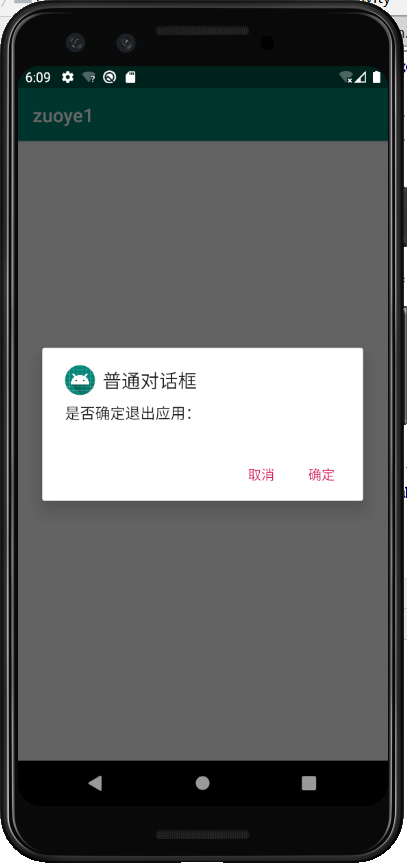
1.返回键实现对话框弹出是否退出应用程序
package com.example.zuoye1;

import androidx.appcompat.app.AlertDialog;

import androidx.appcompat.app.AppCompatActivity;

import android.annotation.SuppressLint;

import android.content.DialogInterface;

import android.os.Bundle;

public class MainActivity extends AppCompatActivity {

    @Override

    protected void onCreate(Bundle savedInstanceState) {

        super.onCreate(savedInstanceState);

        setContentView(R.layout.activity_main);

    }

    @Override

    public void onBackPressed(){

        //声明对象

        AlertDialog dialog;

        AlertDialog.Builder builder=new AlertDialog.Builder(this)

                .setTitle("普通对话框")//设置对话框的标题

        .setIcon(R.mipmap.ic_launcher)//设置设置标题图标

        .setMessage("是否确定退出应用:")//设置对话框的提示信息

        //添加‘确定’按钮

        .setPositiveButton("确定", new DialogInterface.OnClickListener() {

            @Override

            public void onClick(DialogInterface dialog, int which) {

                dialog.dismiss();//关闭对话框

                MainActivity.this.finish();//关闭MainActivity

            }

        })//添加“取消”按钮

        .setNegativeButton("取消", new DialogInterface.OnClickListener() {

            @Override

            public void onClick(DialogInterface dialog, int which) {

                dialog.dismiss();

            }

        });

        dialog =builder.create();

        dialog.show();

    }

}
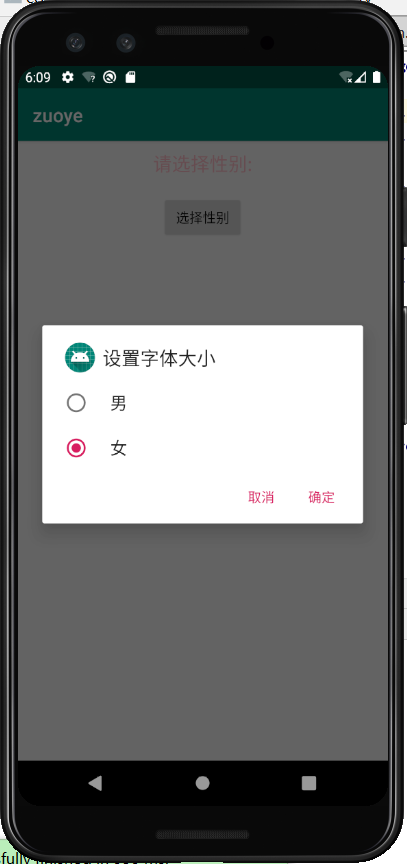
2.实现以下场景:从一个activity中点击一个按钮后,弹出一个单选按钮对话框,上面有“男”“女”两个选项,选定后,TOAST弹出 你选择了男,或你选择了女(参考书上改字体)
<?xml version="1.0" encoding="utf-8"?>

<LinearLayout xmlns:android="http://schemas.android.com/apk/res/android"

    xmlns:app="http://schemas.android.com/apk/res-auto"

    xmlns:tools="http://schemas.android.com/tools"

    android:layout_width="match_parent"

    android:layout_height="match_parent"

    android:orientation="vertical"

    tools:ignore="MissingConstraints"

    >

    <TextView

        android:id="@+id/v1"

        android:layout_width="match_parent"

        android:layout_height="wrap_content"

        android:gravity="center"

        android:text="请选择性别:"

        android:layout_marginTop="10dp"

        android:textSize="20sp"

        android:textColor="#FFC0CB"/>

    <Button

        android:id="@+id/v2"

        android:layout_width="wrap_content"

        android:layout_height="wrap_content"

        android:text="选择性别"

        android:layout_marginTop="20dp"

        android:layout_gravity="center" />

</LinearLayout>
package com.example.zuoye;

import androidx.appcompat.app.AlertDialog;

import androidx.appcompat.app.AppCompatActivity;

import android.content.DialogInterface;

import android.net.Uri;

import android.os.Bundle;

import android.view.View;

import android.widget.TextView;

public class MainActivity extends AppCompatActivity implements View.OnClickListener{

private TextView textView;

private int[] textSizeArr = {10,20};

int textSize =1;

    @Override

    protected void onCreate(Bundle savedInstanceState) {

        super.onCreate(savedInstanceState);

        setContentView(R.layout.activity_main);

        //设置Button监听事件

        findViewById(R.id.v2).setOnClickListener(this);

        textView=(TextView) findViewById(R.id.v1);

    }

    @Override

    public void onClick(View v){

        AlertDialog dialog;

        AlertDialog.Builder builder=new AlertDialog.Builder(this)

                .setTitle("设置字体大小")//设置标题

        .setIcon(R.mipmap.ic_launcher)

                .setSingleChoiceItems(new String[]{"男","女"},textSize,new DialogInterface.OnClickListener(){

            public void onClick(DialogInterface dialog,int which){

                textSize =which;

            }

        })

                .setPositiveButton("确定", new DialogInterface.OnClickListener() {

                    @Override

                    public void onClick(DialogInterface dialog, int which) {

                        //为textview设置在单选对话框中选择的字体大小

                        textView.setTextSize(textSizeArr[textSize]);

                        dialog.dismiss();//关闭对话框

                    }

                })//添加“确定”按钮

        .setNegativeButton("取消", new DialogInterface.OnClickListener() {

            @Override

            public void onClick(DialogInterface dialog, int which) {

                dialog.dismiss();

            }

        });

        dialog=builder.create();

        dialog.show();

    }

}
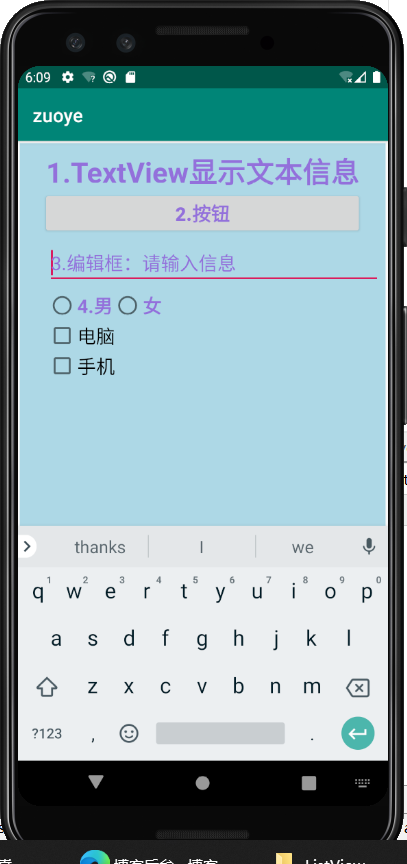
3.布局(详见:Android第五周上机word文档)
<?xml version="1.0" encoding="utf-8"?>

<RelativeLayout

    xmlns:android="http://schemas.android.com/apk/res/android"

    xmlns:app="http://schemas.android.com/apk/res-auto"

    xmlns:tools="http://schemas.android.com/tools"

    android:layout_width="match_parent"

    android:layout_height="match_parent"

    android:background="#ADD8E6"

    android:layout_margin="2dp"

    tools:context=".MainActivity">

    <TextView

        android:id="@+id/v1"

        android:layout_width="match_parent"

        android:layout_height="wrap_content"

        android:text="1.TextView显示文本信息"

        android:textSize="30sp"

        android:textColor="#9370DB"

        android:textStyle="bold"

        android:gravity="center"

        android:layout_marginTop="10dp"

        />

    <Button

        android:id="@+id/v2"

        android:layout_width="340dp"

        android:layout_height="wrap_content"

        android:text="2.按钮"

        android:textSize="20sp"

        android:textColor="#9370DB"

        android:textStyle="bold"

        android:padding="5dp"

        android:layout_centerHorizontal="true"

        android:layout_below="@+id/v1"

        />

    <EditText

        android:id="@+id/v3"

        android:layout_width="match_parent"

        android:layout_height="wrap_content"

        android:hint="3.编辑框:请输入信息"

        android:textSize="20sp"

        android:textColorHint="#9370DB"

        android:layout_below="@id/v2"

        android:layout_alignStart="@id/v2"

        android:layout_margin="5dp"

        />

    <RadioGroup

        android:id="@+id/v4"

        android:layout_width="wrap_content"

        android:layout_height="wrap_content"

        android:orientation="horizontal"

        android:layout_below="@id/v3"

        android:layout_alignLeft="@id/v3"

        >

        <RadioButton

            android:id="@+id/v5"

            android:layout_width="wrap_content"

            android:layout_height="wrap_content"

            android:text="4.男"

            android:textColor="#9370DB"

            android:textSize="20sp"

            android:textStyle="bold"

            />

        <RadioButton

            android:id="@+id/v6"

            android:layout_width="wrap_content"

            android:layout_height="wrap_content"

            android:text="女"

            android:textColor="#9370DB"

            android:textSize="20sp"

            android:textStyle="bold"

            />

    </RadioGroup>

    <LinearLayout

        android:id="@+id/v7"

        android:layout_width="match_parent"

        android:layout_height="match_parent"

        android:orientation="vertical"

        android:layout_below="@id/v4"

        android:layout_alignLeft="@id/v4">

        <CheckBox

            android:id="@+id/v8"

            android:layout_width="wrap_content"

            android:layout_height="wrap_content"

            android:text="电脑"

            android:textSize="20sp"

            />

        <CheckBox

            android:id="@+id/v9"

            android:layout_width="wrap_content"

            android:layout_height="wrap_content"

            android:text="手机"

            android:textSize="20sp"/>

    </LinearLayout>

</RelativeLayout>
4.教材p76页 图3—17购物商城界面
<?xml version="1.0" encoding="utf-8"?>

<LinearLayout xmlns:android="http://schemas.android.com/apk/res/android"

    xmlns:app="http://schemas.android.com/apk/res-auto"

    xmlns:tools="http://schemas.android.com/tools"

    android:layout_width="match_parent"

    android:layout_height="match_parent"

    android:orientation="vertical"

    tools:context=".MainActivity">

    <TextView

        android:layout_width="match_parent"

        android:layout_height="45dp"

        android:text="购物商城"

        android:textSize="18sp"

        android:textColor="#87CEEB"

        android:background="#FFC0CB"

        android:gravity="center"

 />

    <ListView

        android:id="@+id/lv"

        android:layout_width="match_parent"

        android:layout_height="wrap_content"/>

</LinearLayout>
<?xml version="1.0" encoding="utf-8"?>

<RelativeLayout xmlns:android="http://schemas.android.com/apk/res/android"

    android:orientation="vertical"

    android:layout_width="match_parent"

    android:layout_height="match_parent"

    android:padding="16dp">

    <ImageView

        android:id="@+id/iv"

        android:layout_width="120dp"

        android:layout_height="90dp"

        android:layout_centerVertical="true"/>

    <RelativeLayout

        android:layout_width="wrap_content"

        android:layout_height="wrap_content"

        android:layout_marginLeft="10dp"

        android:layout_toRightOf="@+id/iv"

        android:layout_centerVertical="true">

        <TextView

            android:id="@+id/title"

            android:layout_width="wrap_content"

            android:layout_height="wrap_content"

            android:text="桌子"

            android:textSize="20sp"

            android:textColor="#000000"/>

        <TextView

            android:id="@+id/tv_price"

            android:layout_width="wrap_content"

            android:layout_height="wrap_content"

            android:text="价格"

            android:textSize="20sp"

            android:layout_marginTop="10dp"

            android:layout_below="@+id/title"

            android:textColor="#DDA0DD"/>

        <TextView

            android:id="@+id/price"

            android:layout_width="wrap_content"

            android:layout_height="wrap_content"

            android:text="1000"

            android:textSize="20sp"

            android:layout_below="@+id/title"

            android:layout_toRightOf="@+id/tv_price"

            android:textColor="#DDA0DD"

            android:layout_marginTop="10dp"/>

</RelativeLayout>

</RelativeLayout>
package com.example.cnitcastlistview;

import androidx.appcompat.app.AppCompatActivity;

import android.annotation.SuppressLint;

import android.app.Activity;

import android.os.Bundle;

import android.view.View;

import android.view.ViewGroup;

import android.widget.BaseAdapter;

import android.widget.ImageView;

import android.widget.ListView;

import android.widget.TextView;

public class MainActivity extends Activity {

    private ListView mListView;

    //商品名称与价格数据集合

    public String[] titles ={"桌子","苹果","蛋糕","毛衣"};

    private String[] prices ={"1800元","10元/kg","300元","350元"};

//图片数据集合

    private int [] icons ={R.drawable.table,R.drawable.apple,R.drawable.cake,R.drawable.wireclotes};

    @SuppressLint("WrongViewCast")

    protected  void onCreate(Bundle savedInstanceState){

        super.onCreate(savedInstanceState);

        setContentView(R.layout.activity_main);

        mListView =(ListView) findViewById(R.id.iv);//初始化ListView控件

        MyBaseAdapter mAdapter =new MyBaseAdapter();//创建一个Adapter实例

        mListView.setAdapter(mAdapter);//设置Adapter

    }

    class MyBaseAdapter extends BaseAdapter{

        @Override

        public int getCount() {//获取item的总数

            return titles.length;//返回ListView Item条目的总数

        }

        @Override

        public Object getItem(int position) {

            return titles[position];//返回Item的数据对象

        }

        @Override

        public long getItemId(int position) {

            return position;//返回Item的id

        }

//得到Item的View视图

        @Override

        public View getView(int position, View convertView, ViewGroup parent) {

            //加载List—item。xml布局文件

            View view =View.inflate(MainActivity.this,R.layout.list_item,null);

            TextView title =(TextView) view.findViewById(R.id.title);

            TextView price =(TextView) view.findViewById(R.id.price);

            ImageView iv=(ImageView) view.findViewById(R.id.iv);

            title.setText(titles[position]);

            price.setText(prices[position]);

            iv.setBackgroundResource(icons[position]);

            return view;

        }

    }

}
Android第五六周作业的更多相关文章
- 2018-2019-1 20189221 《Linux内核原理与分析》第六周作业
2018-2019-1 20189221 <Linux内核原理与分析>第六周作业 实验五 实验过程 将Fork函数移植到Linux的MenuOS fork()函数通过系统调用创建一个与原来 ...
- 1903021116—吉琛—Java第六周作业—类的定义
项目 内容 课程班级博客链接 19信计班 这个作业要求链接 第六周作业链接 java面向对象的概念和定义 博客名称 学号-姓名-Java第六周作业-题目自拟 要求 每道题要有题目,代码(使用插入代码, ...
- 201621123080《java程序设计》第六周作业总结
201621123080<java程序设计>第六周作业总结 1. 本周学习总结 2. 书面作业 clone方法 1.1 在test1包中编写Employee类,在test2包中新建一个Te ...
- 2019-2020-1 20199329《Linux内核原理与分析》第六周作业
<Linux内核原理与分析>第六周作业 一.本周内容概述: 学习系统调用的相关理论知识,并使用库函数API和C代码中嵌入汇编代码两种方式使用getpid()系统调用 学习系统调用syste ...
- 2020-2021-1 20209307《Linux内核原理与分析》第六周作业
这个作业属于哪个课程 <2020-2021-1Linux内核原理与分析)> 这个作业要求在哪里 <2020-2021-1Linux内核原理与分析第六周作业> 这个作业的目标 & ...
- C语言--第六周作业评分和总结(5班)
作业链接:https://edu.cnblogs.com/campus/hljkj/CS2017-5/homework/1250 一.评分要求 要求1 完成PTA第六周所有题,若存在抄袭现象,倒扣此题 ...
- 1903021121—刘明伟—Java第六周作业—java类
项目 内容 课程班级博客链接 19信计班(本) 作业要求链接 第6周作业 扩展阅读 java面向对象的概念和定义 作业要求 每道题要有题目,代码,截图(只截运行结果). 题目1: 一个Phone ...
- 201621123062《java程序设计》第六周作业总结
1. 本周学习总结 1.1 面向对象学习暂告一段落,请使用思维导图,以封装.继承.多态为核心概念画一张思维导图或相关笔记,对面向对象思想进行一个总结. 注1:关键词与内容不求多,但概念之间的联系要清晰 ...
- 2019春第六周作业Compile Summarize
这个作业属于那个课程 C语言程序设计II 这个作业要求在哪里 在这里 我在这个课程的目标是 能够熟练掌握指针的用法 这个作业在那个具体方面帮助我实现目标 对指针的使用更加得心应手 参考文献与网址 C语 ...
随机推荐
- python练习册 每天一个小程序 第0013题
# -*-coding:utf-8-*- ''' 题目描述: 用 Python 写一个爬图片的程序,爬 这个链接里的日本妹子图片 :-) 地址: http://tieba.baidu.com/p/21 ...
- 文字图片在wps中清晰化方法
在wps中双击图片出属性,然后再选择文字增强.选择对比增加即可.
- Rabbit MQ 怎么保证可靠性、幂等性、消费顺序?
RabbitMQ如何保证消息的可靠性 RabbitMQ消息丢失的三种情况 生产者弄丢消息时的解决方法 方法一:生产者在发送数据之前开启RabbitMQ的事务(采用该种方法由于事务机制,会导致吞吐量下降 ...
- 什么是SpringCloudConfig?
在分布式系统中,由于服务数量巨多,为了方便服务配置文件统一管理,实时更新,所以需要分布式配置中心组件.在Spring Cloud中,有分布式配置中心组件spring cloud config ,它支持 ...
- MyBatis Plus 2.3 个人笔记-03-Active Record
AR 语法糖 是一种领域模型模式,特点就是一个模型类对应关系型数据库中的一个表,而模型类的一个实例对应表中的一条记录 实现AR [在代码生成器中可以添加配置] import com.baomidou ...
- Netty学习摘记 —— 心跳机制 / 基于分隔符和长度的协议
本文参考 本篇文章是对<Netty In Action>一书第十一章"预置的ChannelHandler和编解码器"的学习摘记,主要内容为通过 SSL/TLS 保护 N ...
- C++重载输入流、输出流运算符
在c++中类的私有成员是不能被直接访问的,需要通过类中提供的成员函数简介的操作这些数据.同时C++ 能够使用流提取运算符 >> 和流插入运算符 << 来输入和输出内置的数据类型 ...
- html5系列:form 2.0 新结构
以往的一个form表单,结构比较死板,所有的form元素都必须处在<form>和</form>之间才有效,这会造成一些麻烦,比如说:像bootstrap这种使用<div& ...
- 手把手教你从零写一个简单的 VUE--模板篇
教程目录1.手把手教你从零写一个简单的 VUE2.手把手教你从零写一个简单的 VUE--模板篇 Hello,我又回来了,上一次的文章教会了大家如何书写一个简单 VUE,里面实现了VUE 的数据驱动视图 ...
- EF框架基础
ORM概述: ORM全称是"对象 - 关系映射" . ORM是将关系数据库中的数据用对象的形式表现出来,并通过面向对象的方式将这些对象组织起来,实现系统业务逻辑的过程. Entit ...