
iOS: FFmpeg的使用一
现状:现在视频直播非常的火,所以在视频直播开发中,使用的对视频进行遍解码的框架显得尤为重要了,其实,这种框架蛮多的,这次主要介绍一下FFmpeg视频播放器的集成和使用,FFmpeg是视频编解码的利器。
介绍:视频播放过程
首先简单介绍以下视频文件的相关知识。我们平时看到的视频文件有许多格式,比如 avi, mkv, rmvb, mov, mp4等等,这些被称为容器(Container), 不同的容器格式规定了其中音视频数据的组织方式(也包括其他数据,比如字幕等)。容器中一般会封装有视频和音频轨,也称为视频流(stream)和音频 流,播放视频文件的第一步就是根据视频文件的格式,解析(demux)出其中封装的视频流、音频流以及字幕(如果有的话),解析的数据读到包 (packet)中,每个包里保存的是视频帧(frame)或音频帧,然后分别对视频帧和音频帧调用相应的解码器(decoder)进行解码,比如使用 H.264编码的视频和MP3编码的音频,会相应的调用H.264解码器和MP3解码器,解码之后得到的就是原始的图像(YUV or RGB)和声音(PCM)数据,然后根据同步好的时间将图像显示到屏幕上,将声音输出到声卡,最终就是我们看到的视频。
FFmpeg的API就是根据这个过程设计的,因此使用FFmpeg来处理视频文件的方法非常直观简单。下面就一步一步介绍从视频文件中解码出图片的过程。
属性:声明变量
AVFormatContext:保存需要读入的文件的格式信息,比如流的个数以及流数据等
AVCodecCotext:保存了相应流的详细编码信息,比如视频的宽、高,编码类型等。
pCodec:真正的编解码器,其中有编解码需要调用的函数
AVFrame:用于保存数据帧的数据结构,这里的两个帧分别是保存颜色转换前后的两帧图像
AVPacket:解析文件时会将音/视频帧读入到packet中
一 本播放器原理:
通过
ffmpeg对视频进行解码,解码出每一帧图片,然后根据一定时间播放每一帧图
二 如何集成 ffmpeg
下载脚本 ffmpeg脚本
- 根据上面链接的 README 进行编译
大致步骤:
1. 下载脚本:https://github.com/kewlbear/FFmpeg-iOS-build-script
2. 解压,找到文件 build-ffmpeg.sh
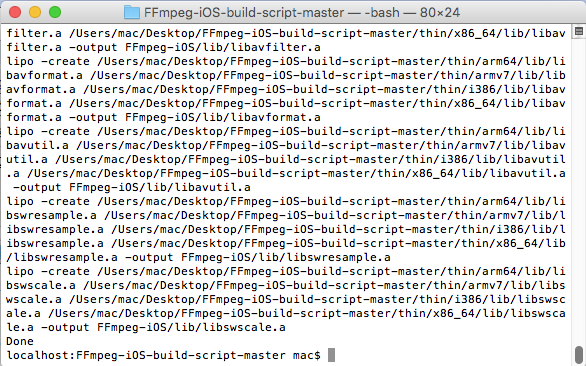
3. 进入终端,执行服本文件:./build-ffmpeg.sh, 由于本人没有事先安装Yasm,执行脚本文件会出错,提示Homebrew not found,Trying 头install.....如图:
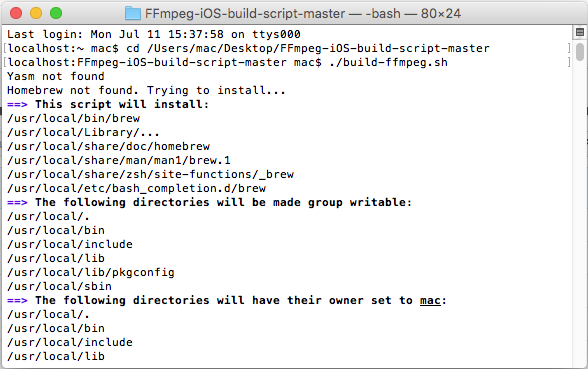
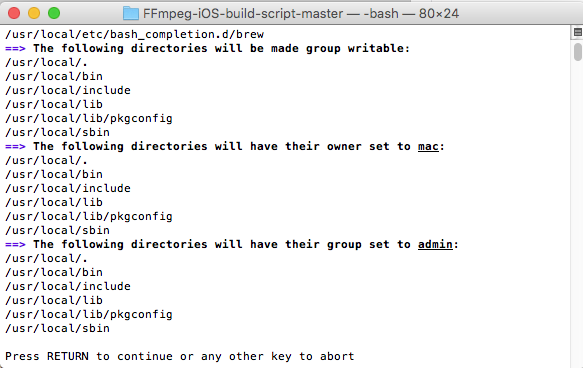
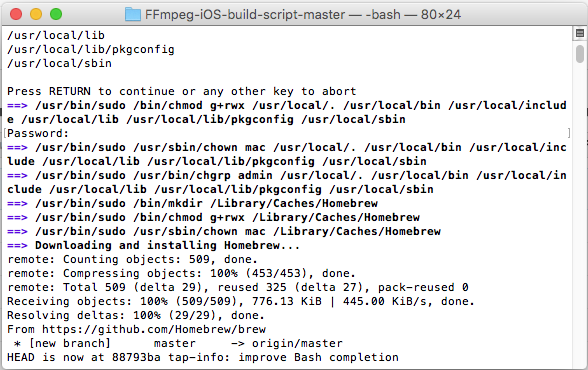
根据提示,按下enter键进行安装并编译静态库FFmpeg,如下图:
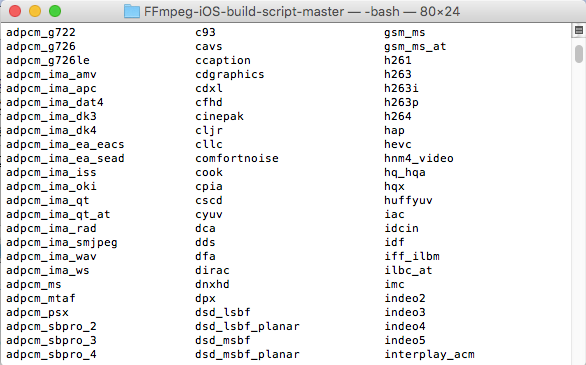
这是编译后的静态库,截图如下:
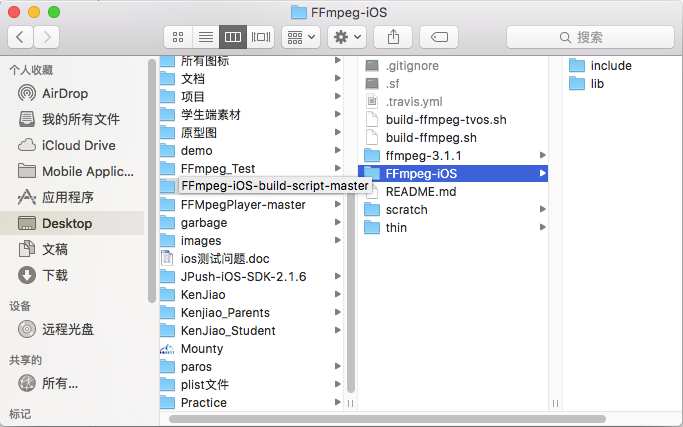
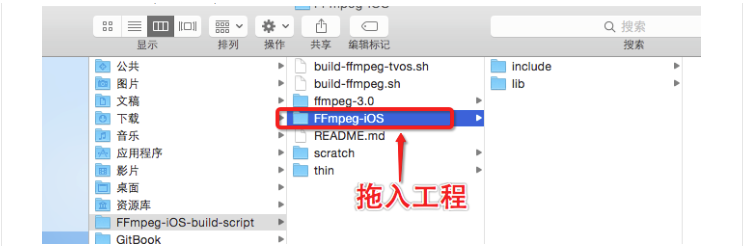
集成到项目,新建工程,将编译好的静态库以及头文件导入工程(demo)
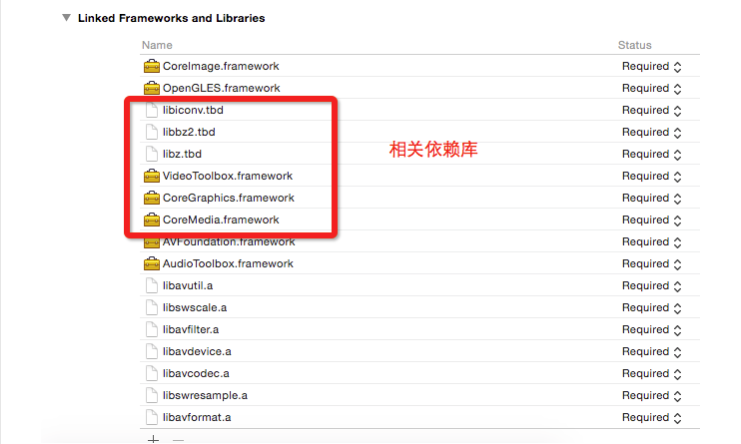
导入依赖库
设置头文件路径,路径一定要对,不然胡找不到头文件
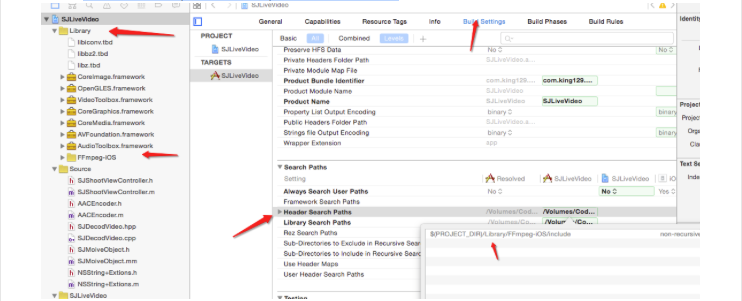
我设置路径如下图:
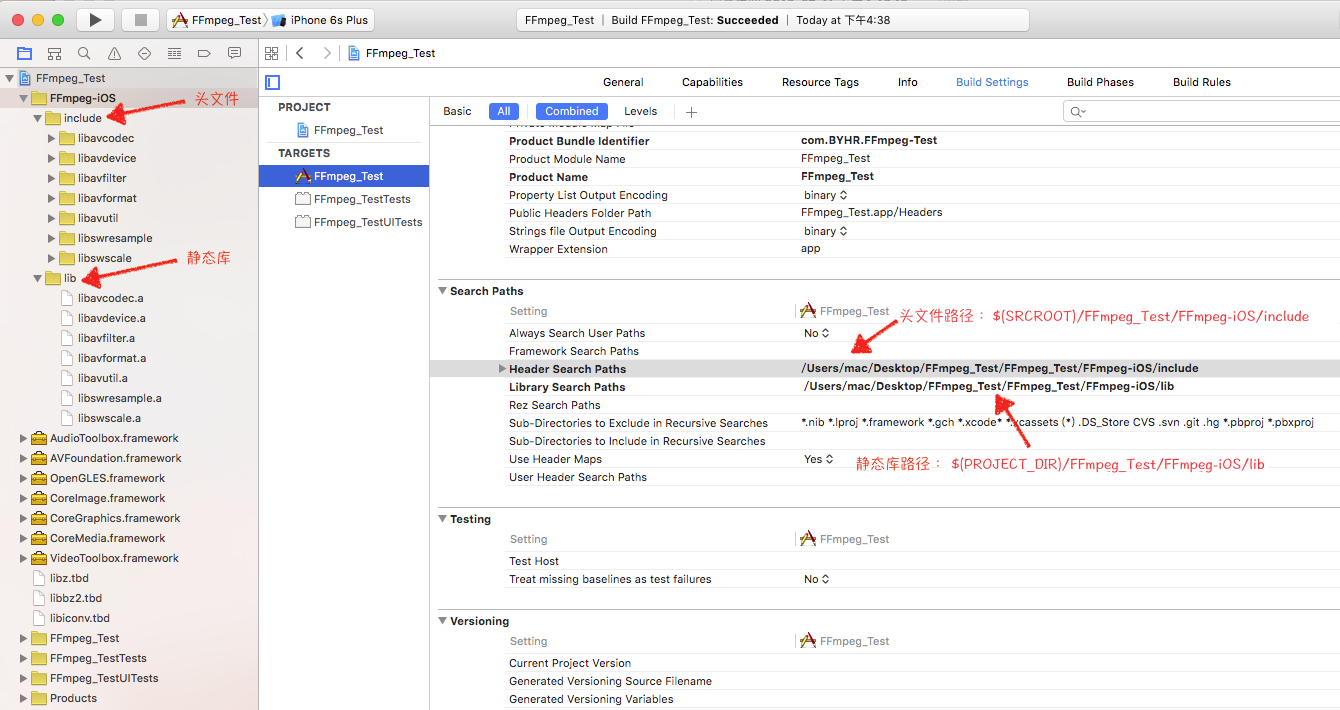
先 command + B 编译一下,确保能编译成功
三 开始编写代码
新建一个OC文件
//

//  SJMoiveObject.h

//  SJLiveVideo

//

//  Created by king on 16/6/16.

//  Copyright © 2016年 king. All rights reserved.

//

#import "Common.h"

#import <UIKit/UIKit.h>

#import "NSString+Extions.h"

#include <libavcodec/avcodec.h>

#include <libavformat/avformat.h>

#include <libswscale//swscale.h>

@interface SJMoiveObject : NSObject

/* 解码后的UIImage */

@property (nonatomic, strong, readonly) UIImage *currentImage;

/* 视频的frame高度 */

@property (nonatomic, assign, readonly) int sourceWidth, sourceHeight;

/* 输出图像大小。默认设置为源大小。 */

@property (nonatomic,assign) int outputWidth, outputHeight;

/* 视频的长度,秒为单位 */

@property (nonatomic, assign, readonly) double duration;

/* 视频的当前秒数 */

@property (nonatomic, assign, readonly) double currentTime;

/* 视频的帧率 */

@property (nonatomic, assign, readonly) double fps;

/* 视频路径。 */

- (instancetype)initWithVideo:(NSString *)moviePath;

/* 切换资源 */

- (void)replaceTheResources:(NSString *)moviePath;

/* 重拨 */

- (void)redialPaly;

/* 从视频流中读取下一帧。返回假,如果没有帧读取(视频)。 */

- (BOOL)stepFrame;

/* 寻求最近的关键帧在指定的时间 */

- (void)seekTime:(double)seconds;

@end

开始实现API

//

//  SJMoiveObject.m

//  SJLiveVideo

//

//  Created by king on 16/6/16.

//  Copyright © 2016年 king. All rights reserved.

//

#import "SJMoiveObject.h"

@interface SJMoiveObject ()

@property (nonatomic, copy) NSString *cruutenPath;

@end

@implementation SJMoiveObject

{

    AVFormatContext     *SJFormatCtx;

    AVCodecContext      *SJCodecCtx;

    AVFrame             *SJFrame;

    AVStream            *stream;

    AVPacket            packet;

    AVPicture           picture;

    int                 videoStream;

    double              fps;

    BOOL                isReleaseResources;

}

#pragma mark ------------------------------------

#pragma mark  初始化

- (instancetype)initWithVideo:(NSString *)moviePath {

    if (!(self=[super init])) return nil;

    if ([self initializeResources:[moviePath UTF8String]]) {

        self.cruutenPath = [moviePath copy];

        return self;

    } else {

        return nil;

    }

}

- (BOOL)initializeResources:(const char *)filePath {

    isReleaseResources = NO;

    AVCodec *pCodec;

    // 注册所有解码器

    avcodec_register_all();

    av_register_all();

    avformat_network_init();

    // 打开视频文件

    if (avformat_open_input(&SJFormatCtx, filePath, NULL, NULL) != ) {

        SJLog(@"打开文件失败");

        goto initError;

    }

    // 检查数据流

    if (avformat_find_stream_info(SJFormatCtx, NULL) < ) {

        SJLog(@"检查数据流失败");

        goto initError;

    }

    // 根据数据流,找到第一个视频流

    if ((videoStream =  av_find_best_stream(SJFormatCtx, AVMEDIA_TYPE_VIDEO, -, -, &pCodec, )) < ) {

        SJLog(@"没有找到第一个视频流");

        goto initError;

    }

    // 获取视频流的编解码上下文的指针

    stream      = SJFormatCtx->streams[videoStream];

    SJCodecCtx  = stream->codec;

#if DEBUG

    // 打印视频流的详细信息

    av_dump_format(SJFormatCtx, videoStream, filePath, );

#endif

    if(stream->avg_frame_rate.den && stream->avg_frame_rate.num) {

        fps = av_q2d(stream->avg_frame_rate);

    } else { fps = ; }

    // 查找解码器

    pCodec = avcodec_find_decoder(SJCodecCtx->codec_id);

    if (pCodec == NULL) {

        SJLog(@"没有找到解码器");

        goto initError;

    }

    // 打开解码器

    if(avcodec_open2(SJCodecCtx, pCodec, NULL) < ) {

        SJLog(@"打开解码器失败");

        goto initError;

    }

    // 分配视频帧

    SJFrame = av_frame_alloc();

    _outputWidth = SJCodecCtx->width;

    _outputHeight = SJCodecCtx->height;

    return YES;

initError:

    return NO;

}

- (void)seekTime:(double)seconds {

    AVRational timeBase = SJFormatCtx->streams[videoStream]->time_base;

    int64_t targetFrame = (int64_t)((double)timeBase.den / timeBase.num * seconds);

    avformat_seek_file(SJFormatCtx,

                       videoStream,

                       ,

                       targetFrame,

                       targetFrame,

                       AVSEEK_FLAG_FRAME);

    avcodec_flush_buffers(SJCodecCtx);

}

- (BOOL)stepFrame {

    int frameFinished = ;

    while (!frameFinished && av_read_frame(SJFormatCtx, &packet) >= ) {

        if (packet.stream_index == videoStream) {

            avcodec_decode_video2(SJCodecCtx,

                                  SJFrame,

                                  &frameFinished,

                                  &packet);

        }

    }

    if (frameFinished ==  && isReleaseResources == NO) {

        [self releaseResources];

    }

    return frameFinished != ;

}

- (void)replaceTheResources:(NSString *)moviePath {

    if (!isReleaseResources) {

        [self releaseResources];

    }

    self.cruutenPath = [moviePath copy];

    [self initializeResources:[moviePath UTF8String]];

}

- (void)redialPaly {

    [self initializeResources:[self.cruutenPath UTF8String]];

}

#pragma mark ------------------------------------

#pragma mark  重写属性访问方法

-(void)setOutputWidth:(int)newValue {

    if (_outputWidth == newValue) return;

    _outputWidth = newValue;

}

-(void)setOutputHeight:(int)newValue {

    if (_outputHeight == newValue) return;

    _outputHeight = newValue;

}

-(UIImage *)currentImage {

    if (!SJFrame->data[]) return nil;

    return [self imageFromAVPicture];

}

-(double)duration {

    return (double)SJFormatCtx->duration / AV_TIME_BASE;

}

- (double)currentTime {

    AVRational timeBase = SJFormatCtx->streams[videoStream]->time_base;

    return packet.pts * (double)timeBase.num / timeBase.den;

}

- (int)sourceWidth {

    return SJCodecCtx->width;

}

- (int)sourceHeight {

    return SJCodecCtx->height;

}

- (double)fps {

    return fps;

}

#pragma mark --------------------------

#pragma mark - 内部方法

- (UIImage *)imageFromAVPicture

{

    avpicture_free(&picture);

    avpicture_alloc(&picture, AV_PIX_FMT_RGB24, _outputWidth, _outputHeight);

    struct SwsContext * imgConvertCtx = sws_getContext(SJFrame->width,

                                                       SJFrame->height,

                                                       AV_PIX_FMT_YUV420P,

                                                       _outputWidth,

                                                       _outputHeight,

                                                       AV_PIX_FMT_RGB24,

                                                       SWS_FAST_BILINEAR,

                                                       NULL,

                                                       NULL,

                                                       NULL);

    if(imgConvertCtx == nil) return nil;

    sws_scale(imgConvertCtx,

              SJFrame->data,

              SJFrame->linesize,

              ,

              SJFrame->height,

              picture.data,

              picture.linesize);

    sws_freeContext(imgConvertCtx);

    CGBitmapInfo bitmapInfo = kCGBitmapByteOrderDefault;

    CFDataRef data = CFDataCreate(kCFAllocatorDefault,

                                  picture.data[],

                                  picture.linesize[] * _outputHeight);

    CGDataProviderRef provider = CGDataProviderCreateWithCFData(data);

    CGColorSpaceRef colorSpace = CGColorSpaceCreateDeviceRGB();

    CGImageRef cgImage = CGImageCreate(_outputWidth,

                                       _outputHeight,

                                       ,

                                       ,

                                       picture.linesize[],

                                       colorSpace,

                                       bitmapInfo,

                                       provider,

                                       NULL,

                                       NO,

                                       kCGRenderingIntentDefault);

    UIImage *image = [UIImage imageWithCGImage:cgImage];

    CGImageRelease(cgImage);

    CGColorSpaceRelease(colorSpace);

    CGDataProviderRelease(provider);

    CFRelease(data);

    return image;

}

#pragma mark --------------------------

#pragma mark - 释放资源

- (void)releaseResources {

    SJLog(@"释放资源");

    SJLogFunc

    isReleaseResources = YES;

    // 释放RGB

    avpicture_free(&picture);

    // 释放frame

    av_packet_unref(&packet);

    // 释放YUV frame

    av_free(SJFrame);

    // 关闭解码器

    if (SJCodecCtx) avcodec_close(SJCodecCtx);

    // 关闭文件

    if (SJFormatCtx) avformat_close_input(&SJFormatCtx);

    avformat_network_deinit();

}

@end
为了方便,在SB 拖一个 UIImageView 控件 和按钮 并连好线
//

//  ViewController.m

//  SJLiveVideo

//

//  Created by king on 16/6/14.

//  Copyright © 2016年 king. All rights reserved.

//

#import "ViewController.h"

#import "SJMoiveObject.h"

#import <AVFoundation/AVFoundation.h>

#import "SJAudioObject.h"

#import "SJAudioQueuPlay.h"

#define LERP(A,B,C) ((A)*(1.0-C)+(B)*C)

@interface ViewController ()

@property (weak, nonatomic) IBOutlet UIImageView *ImageView;

@property (weak, nonatomic) IBOutlet UILabel *fps;

@property (weak, nonatomic) IBOutlet UIButton *playBtn;

@property (weak, nonatomic) IBOutlet UIButton *TimerBtn;

@property (weak, nonatomic) IBOutlet UILabel *TimerLabel;

@property (nonatomic, strong) SJMoiveObject *video;

@property (nonatomic, strong) SJAudioObject *audio;

@property (nonatomic, strong) SJAudioQueuPlay *audioPlay;

@property (nonatomic, assign) float lastFrameTime;

@end

@implementation ViewController

@synthesize ImageView, fps, playBtn, video;

- (void)viewDidLoad {

    [super viewDidLoad];

    self.video = [[SJMoiveObject alloc] initWithVideo:[NSString bundlePath:@"Dalshabet.mp4"]];

//    self.video = [[SJMoiveObject alloc] initWithVideo:@"/Users/king/Desktop/Stellar.mp4"];

//    self.video = [[SJMoiveObject alloc] initWithVideo:@"/Users/king/Downloads/Worth it - Fifth Harmony ft.Kid Ink - May J Lee Choreography.mp4"];

//    self.video = [[SJMoiveObject alloc] initWithVideo:@"/Users/king/Downloads/4K.mp4"];

//    self.video = [[SJMoiveObject alloc] initWithVideo:@"http://wvideo.spriteapp.cn/video/2016/0328/56f8ec01d9bfe_wpd.mp4"];

//    video.outputWidth = 800;

//    video.outputHeight = 600;

   self.audio = [[SJAudioObject alloc] initWithVideo:@"/Users/king/Desktop/Stellar.mp4"];

    NSLog(@"视频总时长>>>video duration: %f",video.duration);

    NSLog(@"源尺寸>>>video size: %d x %d", video.sourceWidth, video.sourceHeight);

    NSLog(@"输出尺寸>>>video size: %d x %d", video.outputWidth, video.outputHeight);

//

//    [self.audio seekTime:0.0];

//    SJLog(@"%f", [self.audio duration])

//    AVPacket *packet = [self.audio readPacket];

//    SJLog(@"%ld", [self.audio decode])

    int tns, thh, tmm, tss;

    tns = video.duration;

    thh = tns / ;

    tmm = (tns % ) / ;

    tss = tns % ;

//    NSLog(@"fps --> %.2f", video.fps);

////        [ImageView setTransform:CGAffineTransformMakeRotation(M_PI)];

//    NSLog(@"%02d:%02d:%02d",thh,tmm,tss);

}

- (IBAction)PlayClick:(UIButton *)sender {

    [playBtn setEnabled:NO];

    _lastFrameTime = -;

    // seek to 0.0 seconds

    [video seekTime:0.0];

    [NSTimer scheduledTimerWithTimeInterval:  / video.fps

                                     target:self

                                   selector:@selector(displayNextFrame:)

                                   userInfo:nil

                                    repeats:YES];

}

- (IBAction)TimerCilick:(id)sender {

//    NSLog(@"current time: %f s",video.currentTime);

//    [video seekTime:150.0];

//    [video replaceTheResources:@"/Users/king/Desktop/Stellar.mp4"];

    if (playBtn.enabled) {

        [video redialPaly];

        [self PlayClick:playBtn];

    }

}

-(void)displayNextFrame:(NSTimer *)timer {

    NSTimeInterval startTime = [NSDate timeIntervalSinceReferenceDate];

//    self.TimerLabel.text = [NSString stringWithFormat:@"%f s",video.currentTime];

    self.TimerLabel.text  = [self dealTime:video.currentTime];

    if (![video stepFrame]) {

        [timer invalidate];

        [playBtn setEnabled:YES];

        return;

    }

    ImageView.image = video.currentImage;

    float frameTime = 1.0 / ([NSDate timeIntervalSinceReferenceDate] - startTime);

    if (_lastFrameTime < ) {

        _lastFrameTime = frameTime;

    } else {

        _lastFrameTime = LERP(frameTime, _lastFrameTime, 0.8);

    }

    [fps setText:[NSString stringWithFormat:@"fps %.0f",_lastFrameTime]];

}

- (NSString *)dealTime:(double)time {

    int tns, thh, tmm, tss;

    tns = time;

    thh = tns / ;

    tmm = (tns % ) / ;

    tss = tns % ;

    // [ImageView setTransform:CGAffineTransformMakeRotation(M_PI)];

    return [NSString stringWithFormat:@"%02d:%02d:%02d",thh,tmm,tss];

}

@end
运程序 ,点击播放
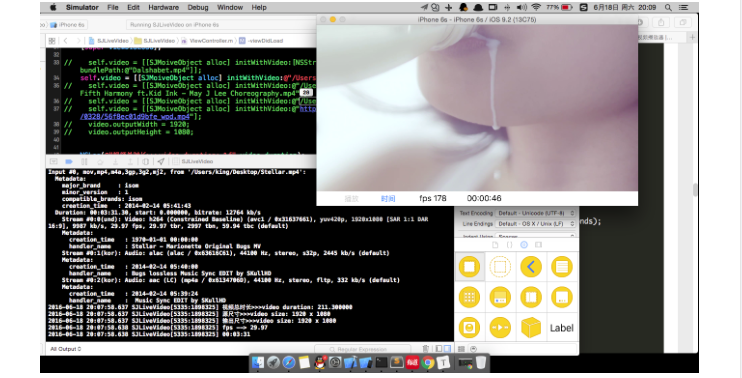
我的测试结果如下:
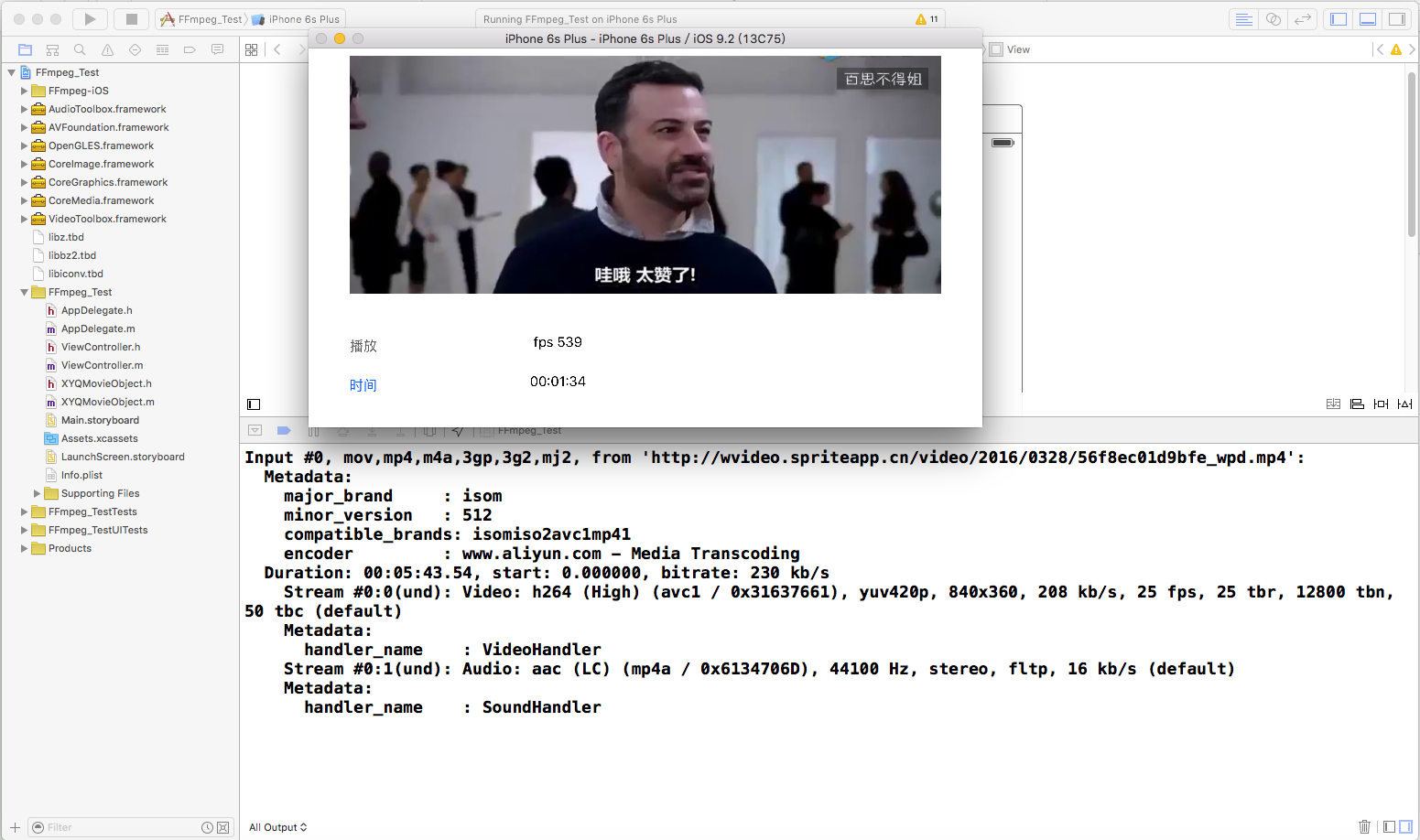
原文地址:http://bbs.520it.com/forum.php?mod=viewthread&tid=707&page=1&extra=#pid3821
我集成后的demo:github源码下载:https://github.com/xiayuanquan/FFmpegDemo
iOS: FFmpeg的使用一的更多相关文章
- iOS FFmpeg 优秀博客(资源)集锦
iOS FFmpeg 优秀博客(资源)集锦 这篇博客没有我自己写的内容: 主要是对FFmpeg一些优秀博客的记录 随时更新 1>iOS编译FFmpeg,kxmovie实现视频播放 2>视音 ...
- iOS: FFMpeg编译和使用问题总结
iOS: FFmpeg编译和使用问题总结 折磨了我近一周多时间的FFmpeg库编译问题终于解决了,必须得把这一段时间来遇到过的坑全写出来.如果急着解决问题,编译最新版本的FFmpeg库请直接看第二部分 ...
- iOS: FFmpeg编译和使用 学习
ffmpeg是一个多平台多媒体处理工具,处理视频和音频的功能非常强大.目前在网上搜到的iOS上使用FFMPEG的资料都比较陈旧,而FFMPEG更新迭代比较快: 且网上的讲解不够详细,对于初次接触FFM ...
- iOS: FFmpeg的使用二
1.下载并编译FFMPEG. https://github.com/kewlbear/FFmpeg-iOS-build-script 下载后有一个build-ffmpeg.sh文件.终端执行即可自动下 ...
- iOS下编译ffmpeg
网络上搜索“ios ffmpeg 编译”,文章一大把,但我编译还是费了很大的功夫才编译成功.很多文章只是把步骤列了出来,但是每个人的系统环境,或者程序版本都不一样,结果出现各种的错误.我把自己编译过程 ...
- ffmpeg for iOS
链接: ios ffmpeg 实时视频压缩(主要是H264) 最简单的基于FFmpeg的移动端例子:IOS 视频转码器 iOS下使用FFMPEG的一些总结 iOS配置FFmpeg框架 iOS上使用高大 ...
- Xcode编译ffmpeg(2)
iOS: FFmpeg编译和使用问题总结 折磨了我近一周多时间的FFmpeg库编译问题终于解决了,必须得把这一段时间来遇到过的坑全写出来.如果急着解决问题,编译最新版本的FFmpeg库请直接看第二部分 ...
- How to decode a H.264 frame on iOS by hardware decoding?
来源:http://stackoverflow.com/questions/25197169/how-to-decode-a-h-264-frame-on-ios-by-hardware-decodi ...
- iOS编译FFmpeg、kxmovie实现视频播放 (转载)
由于FFmpeg开源框架的功能非常强大,可以播放的视频种类很多,同时添加第三方库kxmovie,实现视频播放,真的是爽爆了,因此今天来说一下关于FFmpeg在iOS手机上的一些配置过程,配置工具,还有 ...
随机推荐
- 获取对象的key【键】和分别获取数组的key【键】和值
一.先说对象,如何获取key[键]: var obj={ name:"websong", qq:289483936 } 想要获取这个obj对象的键“name”和"qq&q ...
- Node JVM
Yaroslav Gaponov发布到Github的一个开源项目.用纯Node.js写的JVM.具体的实例和编译.运行过程,请直接看Node JVM在GitHub的主页. GitHub的主页:http ...
- 通过 JS 实现错误页面在指定的时间跳到主页
通过 JS 实现错误页面在指定的时间跳到主页 <!DOCTYPE html> <html> <head> <title>浏览器对象</title& ...
- java基础小测试
1.JDK,JRE,JVM三者的区别 jdk:java 开发工具包 jre:运行环境 jvm:虚拟机 2.javac的作用 ,反编译工具的作用 javac:将java文件编译成class文件 反编译: ...
- FastReport.Net使用:[11]公共对象属性介绍
公共对象属性介绍 1.Left(左),Top(上),Height(高度),Width(宽度) Left和Top,用来控制对象的位置:Height和Width用来控制对象的大小. 2.Anchor(基准 ...
- vmware12中centos7以NAT连接网络
1.第一步当然是安装VM和安装CentOS,我用的是VM12和64位的CentOS7,怎么安装在我的其他文中有写到: http://www.cnblogs.com/wuyx/p/7246675.htm ...
- 【BZOJ 4104】 4104: [Thu Summer Camp 2015]解密运算 (智商)
4104: [Thu Summer Camp 2015]解密运算 Time Limit: 10 Sec Memory Limit: 512 MBSubmit: 370 Solved: 237 De ...
- [转]php-fpm - 启动参数及重要配置详解
约定几个目录/usr/local/php/sbin/php-fpm/usr/local/php/etc/php-fpm.conf/usr/local/php/etc/php.ini 一,php-fpm ...
- adroid swipeRefreshLayout无法显示进度条的问题
一句话经验:必须嵌套scrollerview或者listview
- [CodeForces-708E]Student's Camp
题目大意: 一个n*m的墙,被吹k天风,每块靠边的砖都有p的概率被吹掉. 如果上下两行没有直接相连的地方,我们则认为这一堵墙已经倒塌. 问最后墙不倒塌的概率(模意义). 思路: 动态规划. 用f[i] ...