
初探PApplet窗口打开方式(Processing程序)
使用Processing快6年了,是时候回过头来看看它的"main"方法了,也就是它从哪出生的?~~~
源码学习
//////////////////////////////////////////////////////////////
// MAIN
/**
* main() method for running this class from the command line.
* <p>
* Usage: PApplet [options] <class name> [sketch args]
* <ul>
* <li>The [options] are one or several of the parameters seen below.
* <li>The class name is required. If you're running outside the PDE and
* your class is in a package, this should include the full name. That means
* that if the class is called Sketchy and the package is com.sketchycompany
* then com.sketchycompany.Sketchy should be used as the class name.
* <li>The [sketch args] are any command line parameters you want to send to
* the sketch itself. These will be passed into the args[] array in PApplet.
* <p>
* The simplest way to turn and sketch into an application is to
* add the following code to your program:
* <PRE>static public void main(String args[]) {
* PApplet.main("YourSketchName");
* }</PRE>
* That will properly launch your code from a double-clickable .jar
* or from the command line.
* <PRE>
* Parameters useful for launching or also used by the PDE:
*
* --location=x,y Upper-lefthand corner of where the applet
* should appear on screen. If not used,
* the default is to center on the main screen.
*
* --present Presentation mode: blanks the entire screen and
* shows the sketch by itself. If the sketch is
* smaller than the screen, the background around it
* will use the --window-color setting.
*
* --hide-stop Use to hide the stop button in situations where
* you don't want to allow users to exit. also
* see the FAQ on information for capturing the ESC
* key when running in presentation mode.
*
* --stop-color=#xxxxxx Color of the 'stop' text used to quit an
* sketch when it's in present mode.
*
* --window-color=#xxxxxx Background color of the window. The color used
* around the sketch when it's smaller than the
* minimum window size for the OS, and the matte
* color when using 'present' mode.
*
* --sketch-path Location of where to save files from functions
* like saveStrings() or saveFrame(). defaults to
* the folder that the java application was
* launched from, which means if this isn't set by
* the pde, everything goes into the same folder
* as processing.exe.
*
* --display=n Set what display should be used by this sketch.
* Displays are numbered starting from 1. This will
* be overridden by fullScreen() calls that specify
* a display. Omitting this option will cause the
* default display to be used.
*
* Parameters used by Processing when running via the PDE
*
* --external set when the applet is being used by the PDE
*
* --editor-location=x,y position of the upper-lefthand corner of the
* editor window, for placement of applet window
*
* All parameters *after* the sketch class name are passed to the sketch
* itself and available from its 'args' array while the sketch is running.
*
* @see PApplet#args
* </PRE>
*/
static public void main(final String[] args) {
runSketch(args, null);
}
/**
* Convenience method so that PApplet.main(YourSketch.class)
* launches a sketch, rather than having to call getName() on it.
*/
static public void main(final Class<?> mainClass, String... args) {
main(mainClass.getName(), args);
}
/**
* Convenience method so that PApplet.main("YourSketch") launches a sketch,
* rather than having to wrap it into a single element String array.
* @param mainClass name of the class to load (with package if any)
*/
static public void main(final String mainClass) {
main(mainClass, null);
}
/**
* Convenience method so that PApplet.main("YourSketch", args) launches a
* sketch, rather than having to wrap it into a String array, and appending
* the 'args' array when not null.
* @param mainClass name of the class to load (with package if any)
* @param sketchArgs command line arguments to pass to the sketch's 'args'
* array. Note that this is <i>not</i> the same as the args passed
* to (and understood by) PApplet such as --display.
*/
static public void main(final String mainClass, final String[] sketchArgs) {
String[] args = new String[] { mainClass };
if (sketchArgs != null) {
args = concat(args, sketchArgs);
}
runSketch(args, null);
}
还有一个超长,也是最重要的runSketch()我这就不贴了。。。
可以看到,主要有两种方法运行PApplet对象,即JFrame窗口。如下:
PApplet.main()
下面是默认的pde输出程序自动生成的.java文件中的main方法:
  static public void main(String[] passedArgs) {

    String[] appletArgs = new String[] { "test4run" };

    if (passedArgs != null) {

      PApplet.main(concat(appletArgs, passedArgs));

    } else {

      PApplet.main(appletArgs);

    }

  }
一般只需调用PApplet.main()即可,参数为一个字符串数组,如果只填一个也可,填类名,必须一致,不然会报错!如果标准填法,如下:
String[] appletArgs = new String[] { "--present", "--window-color=#FFFFFF", "--stop-color=#cccccc", "Appname" };
这些字符串都是作为参数传给runSketch(),把相应的开关打开配置参数,简单看一下:
/*

   * --location=x,y         窗口的悬浮位置,相对于桌面窗口坐标系,默认是居中

   *

   * --present              展示模式,全屏,有个底色,即window-color,只要size尺寸小于屏幕大小未填充区域则显示底色

   *

   * --hide-stop            展示模式中是否隐藏stop按钮,当然即使隐藏ESC仍旧有效

   *

   * --stop-color=#xxxxxx   stop按钮颜色,主要是防止和底色相近难以辨别

   *

   * --window-color=#xxxxxx 底色

   *

   * --sketch-path          项目目录,针对保存帧等写操作的路径参数

   *

   * --display=n            显示的窗口索引,这和实际的显示设备和系统标定的显示标号相挂钩

   *

   * --external             扩展的一些方法判断依据(一般作为一个布尔值使用)[待研究]

   *

   * --editor-location=x,y  编辑器窗口位置,方便定义应用窗口位置[待研究]

*/
PApplet.runSketch()
这一种方法比较灵活,入口函数启动如下(kotlin):
fun main(args: Array<String>) {

    var app = ShowApp()

    PApplet.runSketch(arrayOf("show"),app)

}
注意需要new一个PApplet对象,然后作为第二参数传入,第一参数类型为String[]。当然也可以在此拓展,我们可以任意创建窗口,实现多窗口开发或展示(kotlin):
    var bsapp = BoardShowApp()

    var bsapp2 = BoardShowApp()

    PApplet.runSketch(arrayOf("BoardShow1"),bsapp)

    PApplet.runSketch(arrayOf("BoardShow2"),bsapp2)
如果读者细心学习Processing官方示例,有个多窗口应用的范例(MultipleWindows):
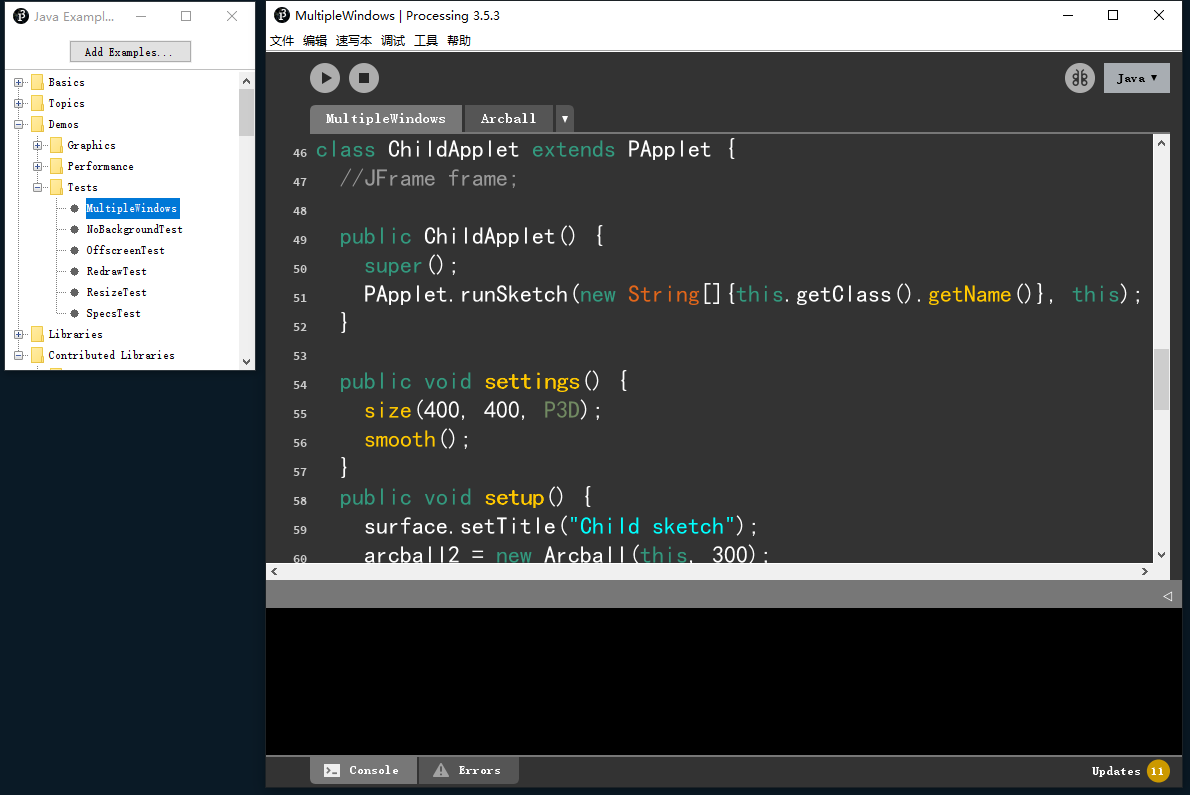
你会发现它就创建了一个PApplet类ChildApplet,作为子窗口,然后在构造器中使用了上述开启窗口的方法----PApplet.runSketch()。
笔者发现不再构造器中运行runSketch是无效的,因此如果在运行时想要打开第二个或多个窗口,必须在子类构造时执行这个方法。至于子窗口的种种参数那么跟surface对象有关了,我们往后再聊。
附件
下面是完整代码的参考:
import processing.core.*;

import processing.data.*;

import processing.event.*;

import processing.opengl.*;

import java.util.HashMap;

import java.util.ArrayList;

import java.io.File;

import java.io.BufferedReader;

import java.io.PrintWriter;

import java.io.InputStream;

import java.io.OutputStream;

import java.io.IOException;

public class Test4run extends PApplet {

public void setup() {

}

public void draw() {

}

public void settings() {

     size(400, 400);

}

  static public void main(String[] passedArgs) {

    String[] appletArgs = new String[] { "Test4run" };

    if (passedArgs != null) {

      PApplet.main(concat(appletArgs, passedArgs));

    } else {

      PApplet.main(appletArgs);

    }

  }

}
import processing.core.PApplet

class ChildApp : PApplet() {

    override fun settings() {

        size(400, 400)

        smooth()

    }

    override fun setup() {

        surface.setTitle("Child sketch")

    }

    override fun draw() {

        background(0)

    }

    override fun mousePressed() {

    }

    override fun mouseDragged() {

    }

    //JFrame frame;

    init {

        runSketch(arrayOf(this.javaClass.name), this)

    }

}

class ShowApp : PApplet(){

    val childapp = ChildApp()

    override fun settings() {

        size(800,400)

    }

    override fun setup() {

    }

    override fun draw() {

        background(20)

    }

}

fun main(args: Array<String>) {

    var sapp = ShowApp()

    var sapp2 = ShowApp()

    PApplet.runSketch(arrayOf("Show1"),sapp)

    PApplet.runSketch(arrayOf("Show2"),sapp2)

}
有哪里出现遗漏的或是错误的讲解,请指正,感谢您的阅读!
初探PApplet窗口打开方式(Processing程序)的更多相关文章
- Xcode 的正确打开方式——Debugging(转载)
Xcode 的正确打开方式——Debugging 程序员日常开发中有大量时间都会花费在 debug 上,从事 iOS 开发不可避免地需要使用 Xcode.这篇博客就主要介绍了 Xcode 中几种能 ...
- 添加/删除/修改Windows 7右键的“打开方式”
右键菜单添加/删除"打开方式" 此"打开方式"非系统的"打开方式",二者可以并存. 右键菜单添加"打开方式" 在HKEY ...
- 解决:win7右键打开方式添加应用程序无法设置和删除多余的打开方式
win7右键打开方式添加应用程序无法设置 点击“开始”—“运行”,输入“regedit”打开注册表,在“HKEY_CLASSES_ROOT\Applications\”中找到无法添加的程序 ( 比如“ ...
- windows右键打开方式里面添加新的应用程序
1.打开注册表编辑器.打开运行窗口,快捷键,开始+R.输入“regedit”,回车确定. 2.进入注册表编辑器的HKEY_CLASSES_ROOT文件夹下的*子文件夹下的shell文件夹. 3.右键s ...
- 关于无法把程序(Adobe Fireworks CS5)添加到打开方式的解决办法
关于无法把程序(Adobe Fireworks CS5)添加到打开方式的解决办法 最近换了新版的Adobe Fireworks CS5,发现打开图片文件时在右键“打开方式”里仍然是以前的Firewor ...
- 删除 Mac OS X 中“打开方式”里重复或无用的程序列表
如果右键菜单的「打开方式」里出现了已不存在的应用程序或者重复的项目,打开终端,执行以下命令: /System/Library/Frameworks/CoreServices.framework/Ver ...
- python实现应用程序在右键菜单中添加打开方式
最近项目组开发的一个小工具想要在右键菜单中添加打开方式,以有道云笔记为例进行了需求拆解和代码编写 1.需求拆解: 如何实现手动添加右键菜单的打开方式: Step1:打开注册表编辑器,Win+R-> ...
- ubuntu 添加右键打开方式,无法添加程序打开方式
最近把工作环境迁移到ubuntu,装了WPS for Linux ,说实话确实是十分良心啊!运行效率奇高,绿色无广告,并且和windows版本无异,感觉就可以抛弃自带的libreoffice了. 但是 ...
- 【转载】win10解决设置默认打开方式不生效问题(双击每次都要选择默认打开程序)
win10解决设置默认打开方式不生效问题(双击每次都要选择默认打开程序) 以下文章 部分选自 https://blog.csdn.net/shan165310175/article/details/8 ...
- ppt标签打开文件 word标签打开文件 窗口打开文件 粘贴默认方式
ppt标签打开文件 word标签打开文件 word窗口打开文件 ppt粘贴默认方式 word粘贴默认方式 ppt粘贴默认方式 只保留文本 == 通过 视图 切换窗口. == 层叠 样式 如下. == ...
随机推荐
- 通过本地私有的镜像仓库harbor解决网络原因导致的jdk无法加载而造成的docker打包错误
各种网络原因,或是docker.io无法访问,或是阿里的镜像源故障,导致java打包发布的时候报错,很影响代码发布的质量. 解决思路:墙出去把jdk下载下来,代码使用本地的harbor库进行引用,一 ...
- ES6 面试题
新增了哪些属性? 新增块级作用域:let.const 新增数据类型:Symbol 表示独一无二的值 新增数据结构: Set,类似数组,所有数据是唯一的: Map,键值对的结合,传统的 Object 只 ...
- AlainConfig
核心配置对象. 一个配置对象 AlainConfig, 它有一个默认的 一个配置服务:AlainConfigService https://github.com/ng-alain/delon/blob ...
- [转载] 十问 TiDB :关于架构设计的一些思考 TiDB
做 TiDB 的缘起是从思考一个问题开始的:为什么在数据库领域有这么多永远也躲不开的坑?从 2015 年我们写下第一行代码,3 年以来我们迎面遇到无数个问题,一边思考一边做,尽量用最小的代价来快速奔跑 ...
- 从英库(Engkoo)输入法吐槽
今天整理文件的时候发现在 OneDrive 的根目录还有一个 EngkooPinyin 的文件夹,看配置文件更新已经是 2014 年 3 月了.当时微软出这个输入法的时候,感觉非常好用,然后满怀热情给 ...
- Qt数据库应用3-数据打印到pdf
一.前言 自从数据可以导出到xls,又有客户提出了不同的需求,比如既然可以将数据导出到xls,那是否可以导出到pdf文件呢?因为xls打开以后用户可以修改数据造假之类的,而pdf默认是不可编辑的,除非 ...
- Mac系统Obsidian和Typora更换霞鹜文楷字体
在github上发现了一款非常好看的字体LXGW WenKai / 霞鹜文楷,这里记录下Mac电脑如何安装这个字体,以及我用到的笔记软件更换字体的过程. Mac安装字体 # 增加代理,不加代理下载速度 ...
- 连接Redis 错误的解决方法: It was not possible to connect to the redis server(s); to create a disconnected multiplexer
The error you are getting is usually a sign that you have not set abortConnect=false in your connect ...
- git与svn的对比-copy
SVN与Git比较的优缺点差异 目录: SVN与Git比较(一)集中式vs分布式 SVN与Git比较(二)版本库与工作区 SVN与Git比较(三)全局版本号和全球版本号 SVN与Git比较(四)部 ...
- 1. Calcite元数据创建
1. 简介 Calcite 是一款来自 Apache 的开源动态数据管理框架,核心功能是提供 SQL 查询解析.优化及执行等基础能力,以灵活支持多种数据源,广泛应用于各类数据处理系统.以下从其功能特性 ...