
C#Windows Service服务程序的安装/卸载、启动/停止 桌面客户端管理程序设计
C#Windows Service服务程序的安装/卸载、启动/停止 桌面客户端管理程序设计
关于Windows Service程序的安装与卸载如果每次使用命令行操作,那简直要奔溃了,太麻烦而且还容易出错
那么如果你只是用一次就不用了那么命令行业无所谓
关于Windows Service程序的创建可以参考上一篇
C#Windows Service程序的创建安装与卸载
一、命令行安装与卸载
安装服务:
installutil.exe filename
卸载服务:
installutil.exe /u filename
安装服务程序
因为Installutil.exe程序在 C:\Windows\Microsoft.NET\Framework64\v4.0.30319\ 目录下,需要通过cmd命令 "cd" 切换目录。v4.0.30319是编译该Windows Service程序的版本(自己选择对应的版本)
二、开发环境
操作系统:Windows7x64 sp1 专业版
开发环境:Visual studio 2013
编程语言:C#
.NET版本: .NET Frmework 4.0
三、新建一个客户端程序进行安装/卸载、启动/停止
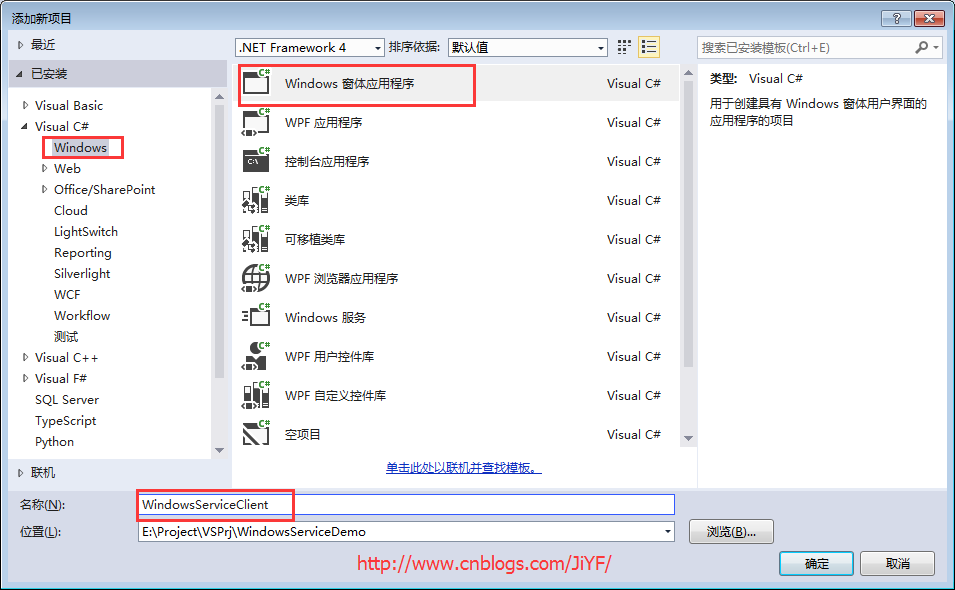
1.新建一个WinForm窗体应用程序起名为Windows Service Client
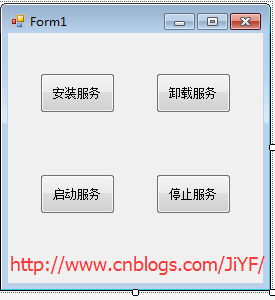
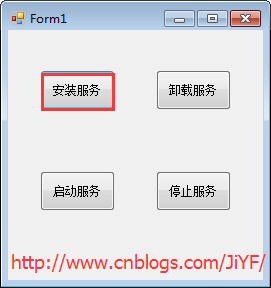
2.添加四个按钮分别为安装服务/卸载服务、启动服务/停止服务
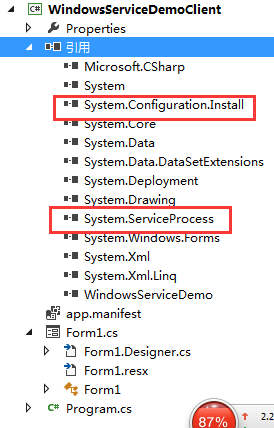
3.引入俩个命名空间引用“System.ServiceProcess”及“System.Configuration.Install”
4.编写代码如下
         string serviceFilePath = Environment.CurrentDirectory + "\\WindowsServiceDemo.exe";

         //string serviceFilePath = $"{Application.StartupPath}\\MyWindowsService.exe";

         string serviceName = "ServiceDemo";

         public Form1()

         {

             InitializeComponent();

         }

         /// <summary>

         /// 安装服务

         /// </summary>

         /// <param name="sender"></param>

         /// <param name="e"></param>

         private void button1_Click(object sender, EventArgs e)

         {

             if (this.IsServiceExisted(serviceName))

             {

                 this.UninstallService(serviceName);

             }

             this.InstallService(serviceFilePath);

         }

         /// <summary>

         /// 卸载服务

         /// </summary>

         /// <param name="sender"></param>

         /// <param name="e"></param>

         private void button2_Click(object sender, EventArgs e)

         {

             if (this.IsServiceExisted(serviceName))

             {

                 this.ServiceStop(serviceName);

                 this.UninstallService(serviceFilePath);

             }

         }

         /// <summary>

         /// 启动服务程序

         /// </summary>

         /// <param name="sender"></param>

         /// <param name="e"></param>

         private void button3_Click(object sender, EventArgs e)

         {

             if (this.IsServiceExisted(serviceName))

             {

                 this.ServiceStart(serviceName);

             }

         }

         /// <summary>

         /// 停止服务程序

         /// </summary>

         /// <param name="sender"></param>

         /// <param name="e"></param>

         private void button4_Click(object sender, EventArgs e)

         {

             if (this.IsServiceExisted(serviceName))

             {

                 this.ServiceStop(serviceName);

             }

         }

         /// <summary>

         /// 判断服务是否存在

         /// </summary>

         /// <param name="serviceName"></param>

         /// <returns></returns>

         private bool IsServiceExisted(string serviceName)

         {

             ServiceController[] services = ServiceController.GetServices();

             foreach (ServiceController sc in services)

             {

                 if (sc.ServiceName.ToLower() == serviceName.ToLower())

                 {

                     return true;

                 }

             }

             return false;

         }

         /// <summary>

         /// 安装服务

         /// </summary>

         /// <param name="serviceFilePath"></param>

         private void InstallService(string serviceFilePath)

         {

             using (AssemblyInstaller installer = new AssemblyInstaller())

             {

                 installer.UseNewContext = true;

                 installer.Path = serviceFilePath;

                 IDictionary savedState = new Hashtable();

                 installer.Install(savedState);

                 installer.Commit(savedState);

             }

         }

         /// <summary>

         /// 卸载服务

         /// </summary>

         /// <param name="serviceFilePath"></param>

         private void UninstallService(string serviceFilePath)

         {

             using (AssemblyInstaller installer = new AssemblyInstaller())

             {

                 installer.UseNewContext = true;

                 installer.Path = serviceFilePath;

                 installer.Uninstall(null);

             }

         }

         /// <summary>

         /// 启动服务

         /// </summary>

         /// <param name="serviceName"></param>

         private void ServiceStart(string serviceName)

         {

             using (ServiceController control = new ServiceController(serviceName))

             {

                 if (control.Status == ServiceControllerStatus.Stopped)

                 {

                     control.Start();

                 }

             }

         }

         /// <summary>

         /// 停止服务

         /// </summary>

         /// <param name="serviceName"></param>

         private void ServiceStop(string serviceName)

         {

             using (ServiceController control = new ServiceController(serviceName))

             {

                 if (control.Status == ServiceControllerStatus.Running)

                 {

                     control.Stop();

                 }

             }

         }
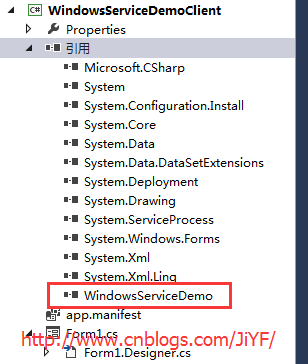
5.引入WindowsServerDemo程序到本项目中便于安装等
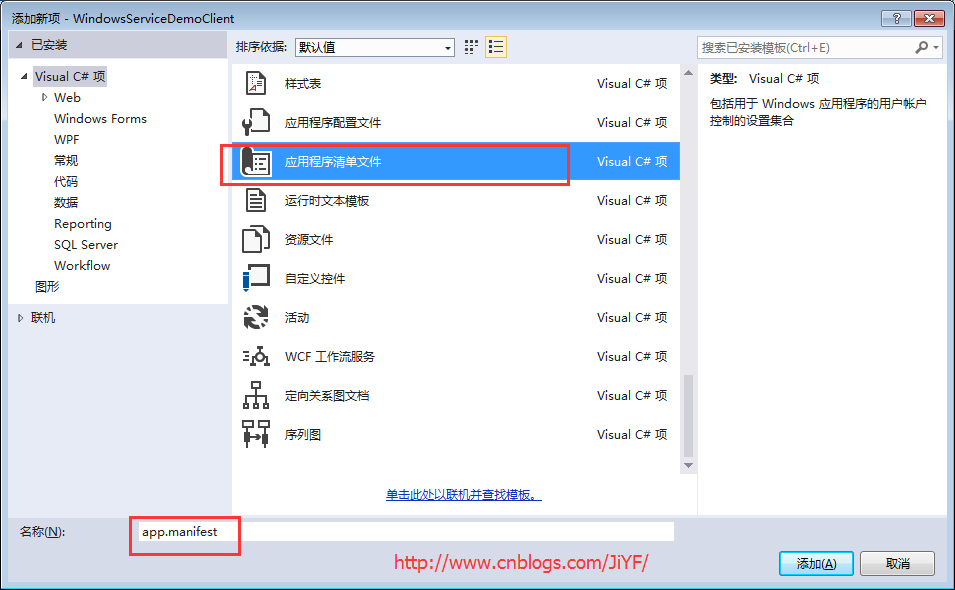
6.由于需要安装服务,故需要使用UAC中Administrator的权限,鼠标右击项目“WindowsServiceClient”,在弹出的上下文菜单中选择“添加”->“新建项”,在弹出的选择窗体中选择“应用程序清单文件”并单击确定,如下图所示:
7.打开该文件,并将<requestedExecutionLevel level="asInvoker" uiAccess="false" />改为<requestedExecutionLevel level="requireAdministrator" uiAccess="false" />
         <!--修改前

         <requestedExecutionLevel level="asInvoker" uiAccess="false" />

         -->

         <!--修改后-->

         <requestedExecutionLevel level="requireAdministrator" uiAccess="false" />
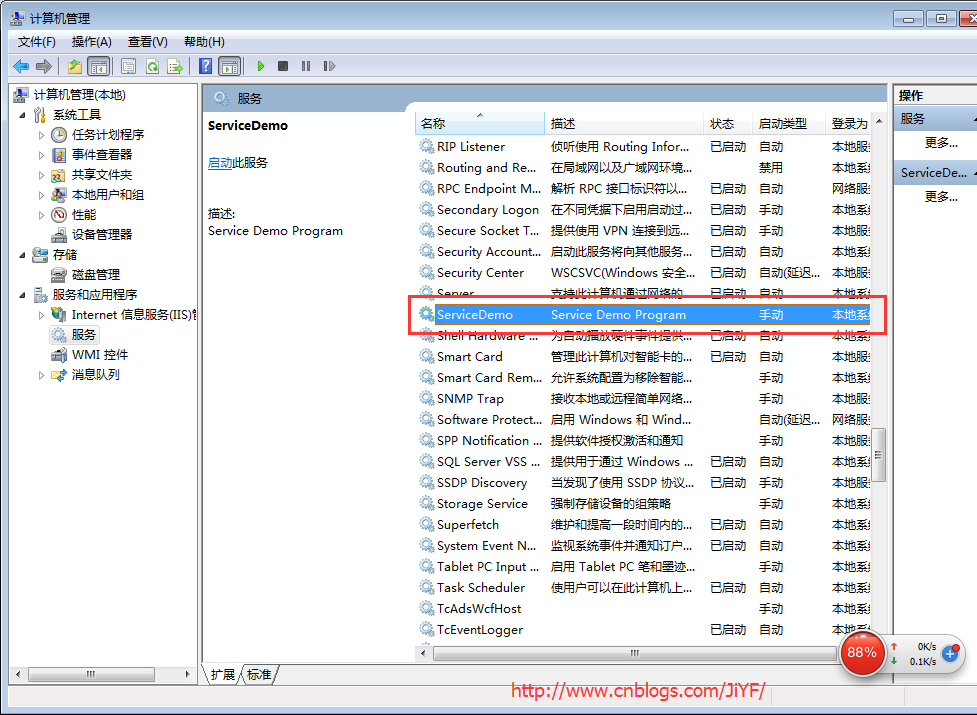
8.启动程序记住(Visual studio 2013也得用管理员身份运行),顺便开启计算机->管理-->服务来查看
分别单击测试安装服务,启动服务,停止服务,卸载服务,分别查看服务列表
服务列表
源代码工程文件下载
参考博客:https://www.cnblogs.com/mq0036/p/7875864.html
C#Windows Service服务程序的安装/卸载、启动/停止 桌面客户端管理程序设计的更多相关文章
- windows Service程序的安装、启动、卸载命令
安装:%SystemRoot%\Microsoft.NET\Framework\v4.0.30319\installutil.exe ServiceTest.exe 启动:Net Start serv ...
- 通过批处理进行Windows服务的安装/卸载&启动/停止
安装服务 @echo off set checked=2 set PATHS=%~sdp0 echo 按任意键执行安装……? pause>nul if %checked% EQU 2 ( %PA ...
- python实现windows Service服务程序
python实现windows Service服务程序 win32serviceutil.ServiceFramework是封装得很好的Windows服务框架,本文通过继承它来实现. 通过SvcDoR ...
- 使用Advanced Installer 13.1打包发布 Windows Service服务程序
原文: 使用Advanced Installer 13.1打包发布 Windows Service服务程序 项目中需要用到一个定时推送案件状态的需求,本人小菜一只,在同事建议下要写成一个windows ...
- Windows下的Nessus安装与启动
Windows下的Nessus安装与启动 一.安装 在https://www.tenable.com/downloads/nessus下载对应windows版本 双击安装,完成后,访问 https:/ ...
- windows service 2008 R2 安装net4.6环境失败,windows service 2008 R2 升级sp1问题
一.错误 1.因为我的程序是以vs2017开发的,在windows service 2008 R2 IIS部署项目文件报出错误,因此要安装net4.6的环境. 2.windows service 2 ...
- redis的安装部署启动停止<17.3.21已更新>
--------------------------------------------------------- 启动redis时使用下面两条命令: redis-server /etc/redis. ...
- 使用Python写Windows Service服务程序
1.背景 如果你想用Python开发Windows程序,并让其开机启动等,就必须写成windows的服务程序Windows Service,用Python来做这个事情必须要借助第三方模块pywin32 ...
- mariaDB 安装/卸载+启动/关闭 服务
1.设置环境变量 无论是用户环境变量还是系统环境变量 2.启动服务 进入根目录 名字根据 --install 后的 参数来决定 叫MariaDB,MySQL 都可以 mysqld.exe --inst ...
随机推荐
- USE " cc.exports.* = value " INSTEAD OF SET GLOBAL VARIABLE"
Cocos2d-x 3.5的lua项目生成后,变成了MVC模式,并且,加入了一个全局变量的检测功能.也就是说,你不小心用了全局变量,他会提示你出错! 比如 local temp = 1 temp = ...
- Spring Aop——给Advice传递参数
给Advice传递参数 Advice除了可以接收JoinPoint(非Around Advice)或ProceedingJoinPoint(Around Advice)参数外,还可以直接接收与切入点方 ...
- SQLite在.NET中自适应32位/64位系统
如果一个.NET应用要自适应32位/64位系统,只需要在项目的“目标平台”设置为“Any CPU”.但是如果应用中使用了SQLite,情况就不同了. SQLite的.NET开发包来自是System.D ...
- float 浮点数与零值0比较大小 ZZ
float x: 千万不要写x==0; 写出float x 与“零值”比较的if语句——一道面试题分析 写出float x 与“零值”比较的if语句 请写出 float x 与“零值”比较的 if ...
- 在 System.Web.Mvc.DefaultModelBinder.ConvertProviderRe
在 System.Web.Mvc.ValueProviderResult.ConvertSimpleType(CultureInfo culture, Object value, Type desti ...
- Mongodb系列- java客户端简单使用(CRUD)
Mongodb提供了很多的客户端: shell,python, java, node.js...等等. 以 java 为例实现简单的增删改查 pom文件: <dependencies> & ...
- 【CFD之道】2017年原创文章汇总
1 Fluent案例(21篇) [Fluent案例]01 空气流经障碍物 [Fluent案例]02:Tesla阀 [Fluent案例]03:RAE2822翼型外流场计算 [Fluent案例]04:多孔 ...
- 【原创 Hadoop&Spark 动手实践 11】Spark Streaming 应用与动手实践
[原创 Hadoop&Spark 动手实践 11]Spark Streaming 应用与动手实践 目标: 1. 掌握Spark Streaming的基本原理 2. 完成Spark Stream ...
- [HDFS Manual] CH8 HDFS Snapshots
HDFS Snapshots HDFS Snapshots 1. 概述 1.1 Snapshottable目录 1.2 快照路径 2. 带快照的更新 3. 快照操作 3.1 管理操作 3.2 用户操作 ...
- js判断移动端是否安装某软软件,安装直接打开相应的链接,否则跳转到下载商店方法
<!DOCTYPE html> <html> <head> <meta http-equiv="Content-Type" content ...