
gitlab-centos的安装
一:gitlab-CentOS的安装
1. 环境准备
 1 [root@1-231 ~]# cat /etc/redhat-release

 2 CentOS Linux release 7.4.1708 (Core)

 3 [root@1-231 ~]# uname -r

 4 3.10.0-693.5.2.el7.x86_64

 5

 6 下载epel源

 7 [root@1-231 ~]# wget http://mirrors.aliyun.com/epel/epel-release-latest-7.noarch.rpm

 8 [root@1-231 ~]# rpm -ivh epel-release-latest-7.noarch.rpm

 9 [root@1-231 ~]# wget -O /etc/yum.repos.d/CentOS-Base.repo http://mirrors.aliyun.com/repo/Centos-7.repo

10

11 关闭networkmanager和防火墙

12 [root@1-231 ~]# systemctl stop firewalld.service

13 [root@1-231 ~]# systemctl disable firewalld

14 [root@1-231 ~]# systemctl disable NetworkManager

15

16 关闭selinux并确认处于关闭状态

17 [root@1-231 ~]# sed -i 's/SELINUX=enforcing/SELINUX=disabled/' /etc/selinux/config

18 [root@1-231 ~]# grep SELINUX=disabled /etc/selinux/config

19 SELINUX=disabled

20 [root@1-231 ~]# setenforce 0

21 setenforce: SELinux is disabled

22

23 更新系统并重启

24 [root@1-231 ~]# yum update -y && reboot
2. 安装gitlab
 1 [root@1-231 ~]# yum install curl policycoreutils openssh-server openssh-clients postfix -y

 2 [root@1-231 ~]# systemctl start postfix

 3 [root@1-231 ~]# curl -sS https://packages.gitlab.com/install/repositories/gitlab/gitlab-ce/script.rpm.sh | sudo bash

 4 [root@1-231 ~]# yum install -y gitlab-ce

 5

 6 由于网络问题,连接国外镜像连接超时,国内用户,建议使用清华大学的镜像源进行安装

 7 [root@1-231 ~]# cat /etc/yum.repos.d/gitlab-ce.repo

 8 [gitlab-ce]

 9 name=gitlab-ce

10 baseurl=http://mirrors.tuna.tsinghua.edu.cn/gitlab-ce/yum/el7

11 repo_gpgcheck=0

12 gpgcheck=0

13 enabled=1

14 gpgkey=https://packages.gitlab.com/gpg.key

15 [root@1-231 ~]# yum makecache

16 [root@1-231 ~]# yum install -y gitlab-ce
3. 在安装一个git客户端
1 [root@1-231 ~]# yum install -y git
4. 配置并启动gitlab-ce
 1 [root@1-231 ~]# gitlab-ctl reconfigure

 2 #时间可能比较长,耐心你等待即可

 3

 4 gitlab常用命令:

 5 关闭gitlab:[root@1-231 ~]# gitlab-ctl stop

 6 启动gitlab:[root@1-231 ~]# gitlab-ctl start

 7 重启gitlab:[root@1-231 ~]# gitlab-ctl restart

 8 重载配置文件: gitlab-ctl reconfigure

 9

10 可以使用gitlab-ctl管理gitlab,例如查看gitlab状态:

11 [root@1-231 ~]# gitlab-ctl status

12     run: gitaly: (pid 13265) 2545s; run: log: (pid 12780) 2590s

13     run: gitlab-monitor: (pid 13310) 2544s; run: log: (pid 12989) 2572s

14     run: gitlab-workhorse: (pid 13286) 2544s; run: log: (pid 12851) 2584s

15     run: logrotate: (pid 13155) 2547s; run: log: (pid 12896) 2580s

16     run: nginx: (pid 13198) 2547s; run: log: (pid 12874) 2582s

17     run: node-exporter: (pid 13205) 2546s; run: log: (pid 12967) 2574s

18     run: postgres-exporter: (pid 13367) 2543s; run: log: (pid 13066) 2558s

19     run: postgresql: (pid 13238) 2545s; run: log: (pid 12593) 2633s

20     run: prometheus: (pid 13354) 2543s; run: log: (pid 13025) 2564s

21     run: redis: (pid 13274) 2545s; run: log: (pid 12533) 2639s

22     run: redis-exporter: (pid 13293) 2544s; run: log: (pid 13008) 2566s

23     run: sidekiq: (pid 13386) 2542s; run: log: (pid 12760) 2596s

24     run: unicorn: (pid 13410) 2541s; run: log: (pid 12711) 2602s

25

26 提示:我们要保证80端口不被占用

27 我们可以查看一下端口

28 [root@1-231 ~]# gitlab-ctl restart

29     ok: run: gitaly: (pid 32816) 0s

30     ok: run: gitlab-monitor: (pid 32831) 1s

31     ok: run: gitlab-workhorse: (pid 32841) 0s

32     ok: run: logrotate: (pid 32850) 1s

33     ok: run: nginx: (pid 32892) 0s

34     ok: run: node-exporter: (pid 32898) 0s

35     ok: run: postgres-exporter: (pid 32906) 1s

36     ok: run: postgresql: (pid 32917) 0s

37     ok: run: prometheus: (pid 32926) 1s

38     ok: run: redis: (pid 32934) 0s

39     ok: run: redis-exporter: (pid 32938) 1s

40     ok: run: sidekiq: (pid 32946) 0s

41     ok: run: unicorn: (pid 32955) 0s

42

43 [root@1-231 ~]# lsof -i :80

44     COMMAND   PID       USER   FD   TYPE DEVICE SIZE/OFF NODE NAME

45     nginx   32892       root    7u  IPv4  81927      0t0  TCP *:http (LISTEN)

46     nginx   32893 gitlab-www    7u  IPv4  81927      0t0  TCP *:http (LISTEN)

47     nginx   32894 gitlab-www    7u  IPv4  81927      0t0  TCP *:http (LISTEN)
5. web:浏览器进行访问测试:192.168.1.231
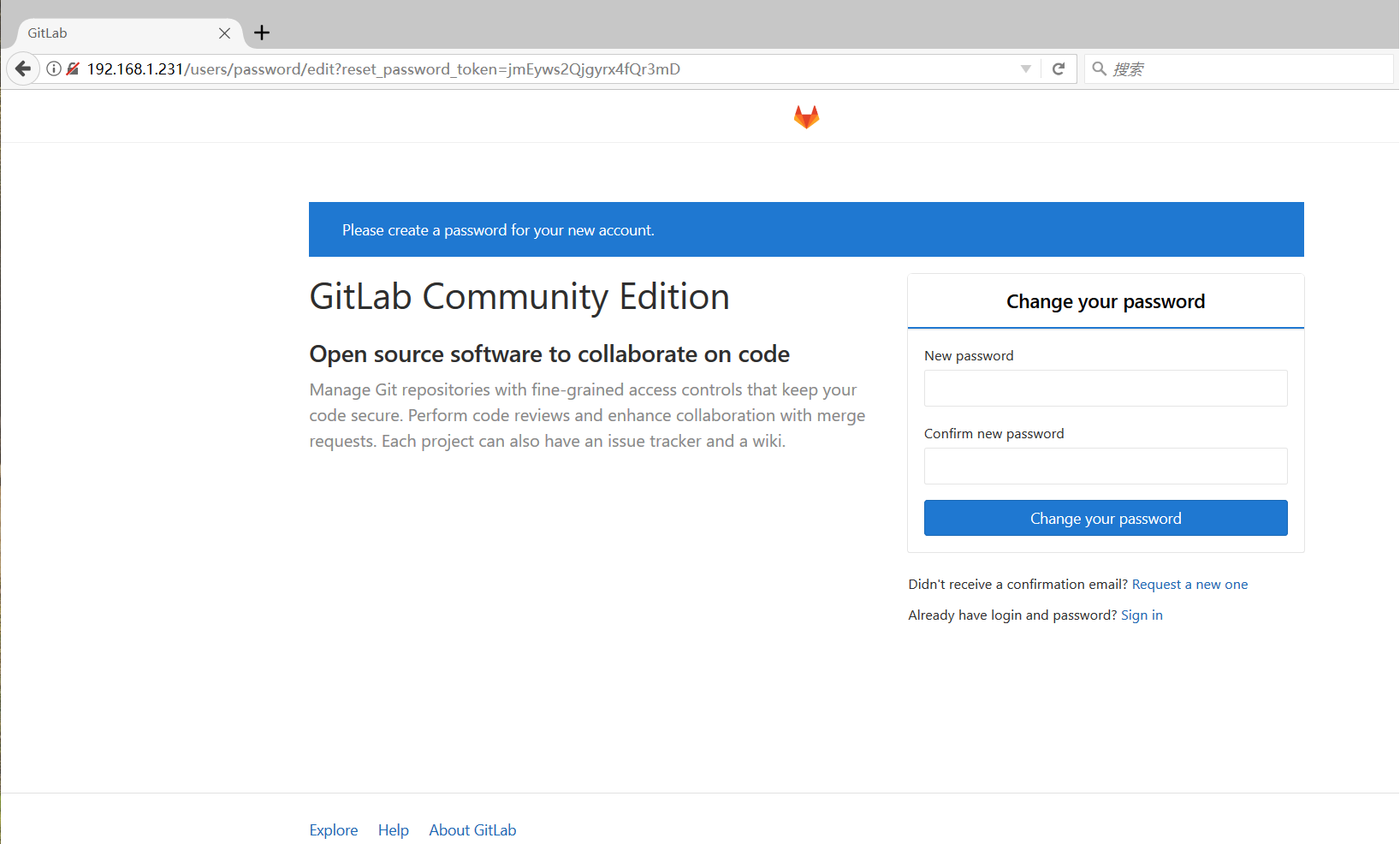
提示:启动gitlab需要时间!
Web页面提示我们需要设置一个账号密码(我们要设置最少8位数的一个账号密码)我们设置密码为:12345678
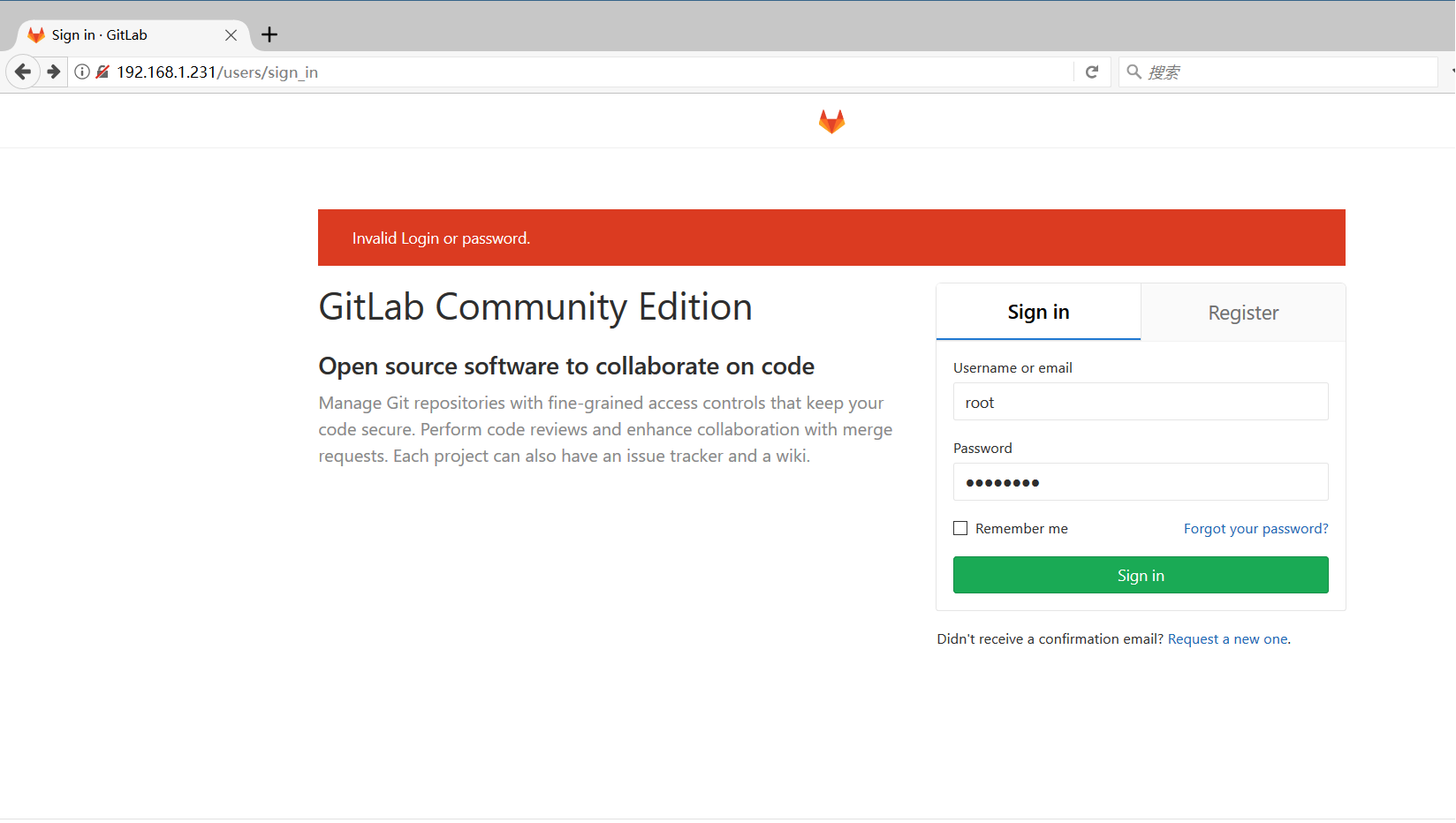
默认用户是:root
密码是:12345678
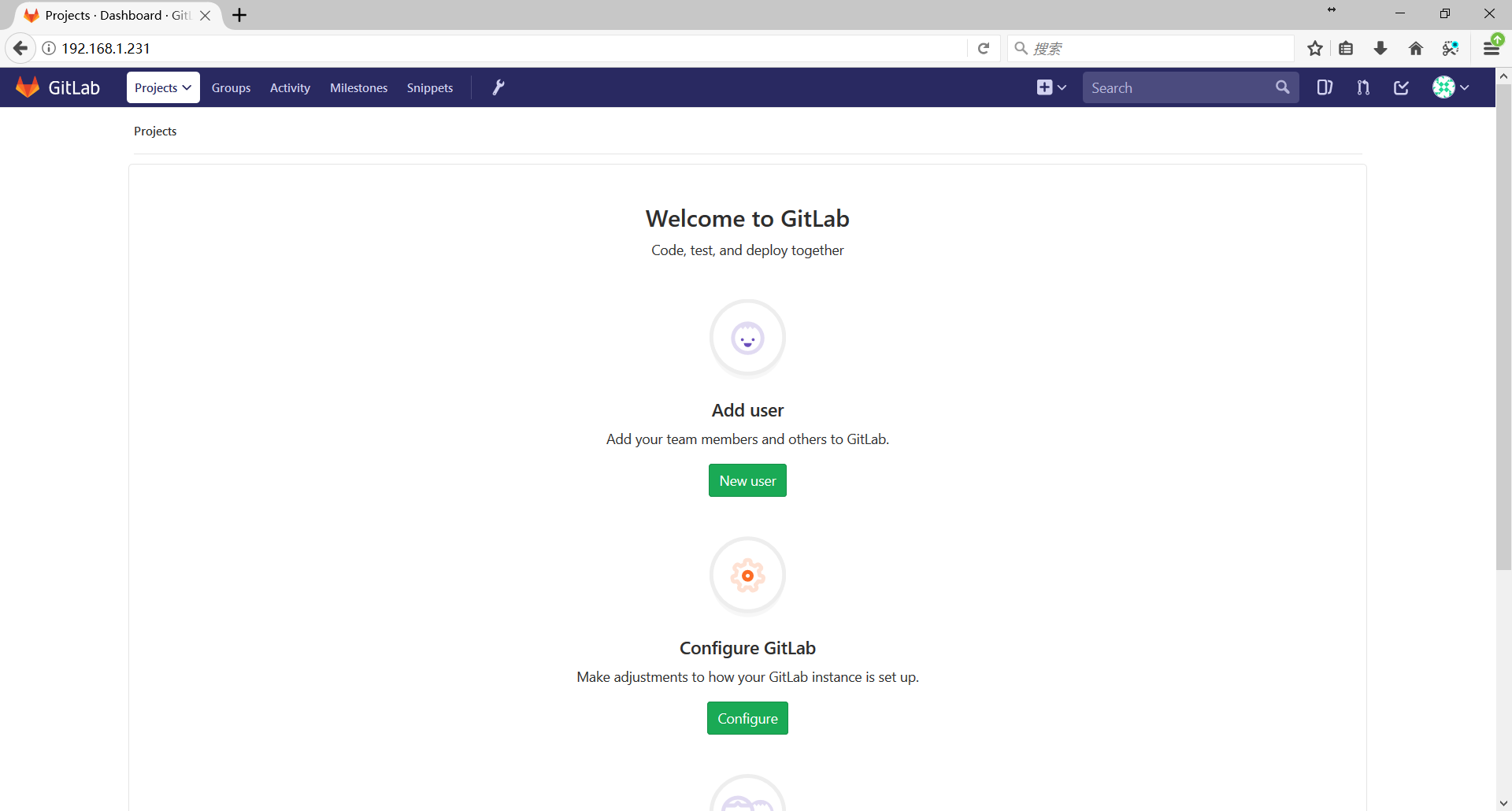
我们在后面的页面设置用户名
gitlab-centos的安装的更多相关文章
- [转]Centos 7 安装部署 GitLab 服务器
Centos 7 安装部署 GitLab 服务器 转自:https://www.jianshu.com/p/79bfded68899 文前说明 作为码农中的一员,需要不断的学习,我工作之余将一些分析总 ...
- CentOS 7 安装GitLab
CentOS 安装GitLab CentOS 安装GitLab GitLab是一个利用Ruby on Rails开发的开源应用程序,实现一个自托管的Git项目仓库,可通过Web界面进行访问公开的或者私 ...
- centos下gitlab私服完整安装部署(nginx+MySQL+redis+gitlab-ce+gitlab-shell+)
系统环境cat /etc/redhat-release CentOS release 6.8 (Final) nginx -vnginx version: nginx/1.9.15 redis-cli ...
- 1、CentOS 6 安装GitLab
1.安装和配置必需的依赖项 在CentOS上将系统防火墙打开HTTP和SSH访问. sudo yum install -y curl policycoreutils-python openssh-se ...
- 一、CentOS 7安装部署GitLab服务器
一.CentOS 7安装部署GitLab服务器 1.安装依赖软件 yum -y install policycoreutils policycoreutils-python openssh-serve ...
- Centos中安装gitlab
安装依赖: sudo yum install curl openssh-server openssh-clients postfix cronie sudo service postfix start ...
- CentOS 7安装GitLab、汉化、配置邮件发送
1.更换国内yum源 1.1 备份 mv /etc/yum.repos.d/CentOS-Base.repo /etc/yum.repos.d/CentOS-Base.repo.backup 1.2 ...
- 在RedHat/CentOS下安装Docker(不升级内核)
由于内核版本问题,最初仅Ubuntu可以较好的支持Docker.不过,由于RedHat系列OS(REHL.CentOS)是目前主流的Linux服务器操作系统,所以令RedHat系列OS支持Docker ...
- Gitlab 社区版安装部署和维护指南
因为我的个人网站 restran.net 已经启用,博客园的内容已经不再更新.这篇文章是在 Gitlab 7.4 的环境下配置的,相关内容可能已经过时. 后续做了一次迁移,将 Gitlab 升级到了 ...
- NoSql1 在Linux(CentOS)上安装memcached及使用
前言: 今天是初五,生活基本要从过年的节奏中回归到正常的生活了,所以想想也该想想与工作有关的事情了.我之前在工作中会经常使用memcached和redis,但是自己一直没有时间系统的好好看 ...
随机推荐
- 笔记 | 第一个量子算法:Deutsch-Jozsa算法,非常好懂!
<关于胡小兔的博客又诈尸了这件事> 信息物理真是难啊!上节课讲了量子计算的最基础的概念和Deutsch-Jozsa算法,我看了好几天才看懂-- 等考完试估计我就忘了,所以今天先写个博客给未 ...
- 使用IDEA写Python之pytest环境搭建及第一个程序编写
一.准备篇 Python环境:3.8.3 开发工具:IDEA,对你没有看错 二.IDEA下安装开发环境 1. python的下载 https://www.python.org/downloads/ P ...
- 使用Built-in formatting来创建log字符串
在一次哦测试中,sonar-qube总是报Use the built-in formatting to contruct this argument, 在网上查了一下,原来它是推荐这样做: log.i ...
- python基础三(集合、文件)
1.集合定义 集合天生能去重,且与字典一样,无序.集合用大括号括起来,里面的元素之间用逗号分隔,要跟字典区分开. 集合定义方法:s=set() #定义一个空集合 s={'1','a','b','c', ...
- Unit3:控件\布局
控件 TextView <TextView android:layout_width="match_parent" android:layout_height="w ...
- 常用的Websocket技术一览
1. 前言 Websocket是 HTML5 开始提供的一种在单个 TCP 连接上进行全双工通讯的协议.WebSocket 使得客户端和服务器之间的数据交换变得更加简单,允许服务端主动向客户端推送数据 ...
- tomact在windows系统下安装
一.下载 下载地址: https://tomcat.apache.org/download-90.cgi 7,8,9的版本都可以下,这里下载最新版本 注意:Binary是编译好的,可以直接使用的版本, ...
- 企业项目实战 .Net Core + Vue/Angular 分库分表日志系统三 | 控制反转搭配简单业务
教程预览 01 | 前言 02 | 简单的分库分表设计 03 | 控制反转搭配简单业务 04 | 强化设计方案 05 | 完善业务自动创建数据库 06 | 最终篇-通过AOP自动连接数据库-完成日志业 ...
- Unity 如何在窗口大小可以随意改变的情况下让游戏世界完整的显示在镜头中
当我们开发游戏时,如果是开发手机游戏,屏幕窗口的比例是固定的,不会说在运行时改变的. 但是,PC端的游戏就不一定,我希望它能被用户随意拉扯,但完整的内容还是能显示出来,这里我直接放例子: 请注意黑色的 ...
- 关于sqlmap当中tamper脚本编码绕过原理的一些总结(学习python没多久有些地方肯定理解有些小问题)
sqlmap中tamper脚本分析编写 置十对一些编码实现的脚本,很多sqlmap里面需要引用的无法实现,所以有一部分例如keywords就只写写了几个引用了一下,其实这里很多脚本运用是可以绕过安全狗 ...