
一文教你快速修改ubuntu终端显示的主机名和用户名
为了让终端的显示更加简洁,清爽,改掉显示的用户名和主机名,改成你喜欢的名字。
创作不易,如果本文帮到了您;
如果本文帮到了您,请帮忙点个赞 ;
如果本文帮到了您,请帮忙点个赞 ;
如果本文帮到了您,请帮忙点个赞 ;
1 前言
为了让终端的显示更加简洁,清爽,在此记录一下。心急的读者可以直接跳到第四节。
快捷键 alt+ctrl+t 打开终端,首先它是这样的,如下图所示;
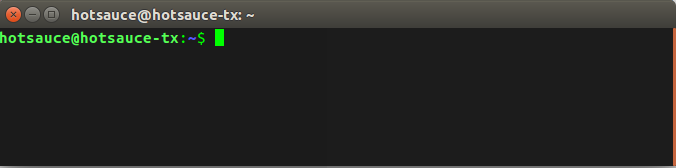
大概格式是这样子的:
用户名@主机名
hotsauce@hotsauce-tx
现在如何这些花里胡哨的字符串消失呢?
2 开始动手
首先,在系统启动bash终端的时候,会为用户读取一个文件名为.bashrc的文件,这个文件保存了用户一些个性化的设置,包括终端颜色,显示的用户名之类的东西;
现在打开.bashrc文件,具体如下:
# ~/.bashrc: executed by bash(1) for non-login shells.

# see /usr/share/doc/bash/examples/startup-files (in the package bash-doc)

# for examples

# If not running interactively, don't do anything

case $- in

    *i*) ;;

      *) return;;

esac

# don't put duplicate lines or lines starting with space in the history.

# See bash(1) for more options

HISTCONTROL=ignoreboth

# append to the history file, don't overwrite it

shopt -s histappend

# for setting history length see HISTSIZE and HISTFILESIZE in bash(1)

HISTSIZE=1000

HISTFILESIZE=2000

# check the window size after each command and, if necessary,

# update the values of LINES and COLUMNS.

shopt -s checkwinsize

# If set, the pattern "**" used in a pathname expansion context will

# match all files and zero or more directories and subdirectories.

#shopt -s globstar

# make less more friendly for non-text input files, see lesspipe(1)

[ -x /usr/bin/lesspipe ] && eval "$(SHELL=/bin/sh lesspipe)"

# set variable identifying the chroot you work in (used in the prompt below)

if [ -z "${debian_chroot:-}" ] && [ -r /etc/debian_chroot ]; then

    debian_chroot=$(cat /etc/debian_chroot)

fi

# set a fancy prompt (non-c阿里通olor, unless we know we "want" color)

case "$TERM" in

    xterm-color|*-256color) color_prompt=yes;;

esac

# uncomment for a colored prompt, if the terminal has the capability; turned

# off by default to not distract the user: the focus in a terminal window

# should be on the output of commands, not on the prompt

#force_color_prompt=yes

if [ -n "$force_color_prompt" ]; then

    if [ -x /usr/bin/tput ] && tput setaf 1 >&/dev/null; then

    # We have color support; assume it's compliant with Ecma-48

    # (ISO/IEC-6429). (Lack of such support is extremely rare, and such

    # a case would tend to support setf rather than setaf.)

    color_prompt=yes

    else

    color_prompt=

    fi

fi

if [ "$color_prompt" = yes ]; then

    PS1='${debian_chroot:+($debian_chroot)}\[\033[01;32m\]\u@\h\[\033[00m\]:\[\033[01;34m\]\w\[\033[00m\]\$ '

else

    PS1='${debian_chroot:+($debian_chroot)}\u@\h:\w\$ '

fi

unset color_prompt force_color_prompt

# If this is an xterm set the title to user@host:dir

case "$TERM" in

xterm*|rxvt*)

    PS1="\[\e]0;${debian_chroot:+($debian_chroot)}\u@\h: \w\a\]$PS1"

    ;;

*)

    ;;

esac

# enable color support of ls and also add handy aliases

if [ -x /usr/bin/dircolors ]; then

    test -r ~/.dircolors && eval "$(dircolors -b ~/.dircolors)" || eval "$(dircolors -b)"

    alias ls='ls --color=auto'

    #alias dir='dir --color=auto'

    #alias vdir='vdir --color=auto'

    alias grep='grep --color=auto'

    alias fgrep='fgrep --color=auto'

    alias egrep='egrep --color=auto'

fi

# colored GCC warnings and errors

#export GCC_COLORS='error=01;31:warning=01;35:note=01;36:caret=01;32:locus=01:quote=01'

# some more ls aliases

alias ll='ls -alF'

alias la='ls -A'

alias l='ls -CF'

# Add an "alert" alias for long running commands.  Use like so:

#   sleep 10; alert

alias alert='notify-send --urgency=low -i "$([ $? = 0 ] && echo terminal || echo error)" "$(history|tail -n1|sed -e '\''s/^\s*[0-9]\+\s*//;s/[;&|]\s*alert$//'\'')"'

# Alias definitions.

# You may want to put all your additions into a separate file like

# ~/.bash_aliases, instead of adding them here directly.

# See /usr/share/doc/bash-doc/examples in the bash-doc package.

if [ -f ~/.bash_aliases ]; then

    . ~/.bash_aliases

fi

# enable programmable completion features (you don't need to enable

# this, if it's already enabled in /etc/bash.bashrc and /etc/profile

# sources /etc/bash.bashrc).

if ! shopt -oq posix; then

  if [ -f /usr/share/bash-completion/bash_completion ]; then

    . /usr/share/bash-completion/bash_completion

  elif [ -f /etc/bash_completion ]; then

    . /etc/bash_completion

  fi

fi
3 PS1变量
这里暂时不分析这个脚本了,因为我们要快速解决问题;
直接搜索PS1找到关键代码如下:
if [ "$color_prompt" = yes ]; then

    PS1='${debian_chroot:+($debian_chroot)}\[\033[01;32m\]\u@\h\[\033[00m\]:\[\033[01;34m\]\w\[\033[00m\]\$ '

else

    PS1='${debian_chroot:+($debian_chroot)}\u@\h:\w\$ '

fi

unset color_prompt force_color_prompt

# If this is an xterm set the title to user@host:dir

case "$TERM" in

xterm*|rxvt*)

    PS1="\[\e]0;${debian_chroot:+($debian_chroot)}\u@\h: \w\a\]$PS1"

    ;;

*)

    ;;

esac
解释一下,这里的
PS1是一个全局变量,用于显示用户主机名称工作目录,所以只要修改这个变量即可;
再打开一个终端,输入以下指令;
echo $PS1
具体输出如下所示;

这样我们大概知道具体是脚本里哪句代码生效了,下面是这些参数的作用,可以看一下,如下表所示;
| 参数 | 作用 |
|---|---|
| \d | 代表日期,格式为weekday month date,例如:“Mon Aug 1” |
| \H | 完整的主机名称 |
| \h | 仅取主机的第一个名字,如上例,则为fc4,.linux则被省略 |
| \t | 显示时间为24小时格式,如:HH:MM:SS |
| \T | 显示时间为12小时格式 |
| \A | 显示时间为24小时格式:HH:MM |
| \u | 当前用户的账号名称 |
| \v | BASH的版本信息 |
| \w | 完整的工作目录名称。家目录会以 ~代替 |
| \W | 利用basename取得工作目录名称,所以只会列出最后一个目录 |
| # | 下达的第几个命令 |
| $ | 提示字符,如果是root时,提示符为:# ,普通用户则为:$ |
4 解决办法
4.1 主机名和用户名消失
打开文件;
sudo vi ~/.bashrc
如果单纯只是消失的话,在.bashrc的最后一行加上
PS1='\[\e]0;#: \w\a\]${debian_chroot:+($debian_chroot)}\[\033[01;32m\]#\[\033[00m\]:\[\033[01;34m\]\w\[\033[00m\]\$'
直接删除\u和\h,另外我不喜欢@,所以这里加了一个#。
输入以下指令让修改生效;
sudo source ~/.bashrc
再次启动终端;
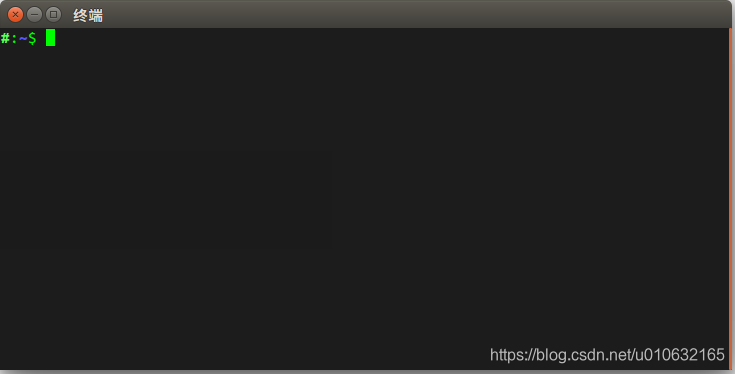
4.2 修改显示的主机名和用户名
那如果我们没有那么残忍,只是希望修改显示的主机名和用户名,又该怎么做呢?
OK!!!
sudo vi /etc/hostname
这里将hostname改成unclemac,并且需要重启一下电脑;
然后打开.bashrc,在文件最后添加下面这行代码;
PS1='\[\e]0;\h@\h: \w\a\]${debian_chroot:+($debian_chroot)}\[\033[01;32m\]\h@\h\[\033[00m\]:\[\033[01;34m\]\w\[\033[00m\]\$'
这里已经将\u全都替换为\h,所以最终会显示新的主机名@主机名的格式;
打开终端,发现,生效了;
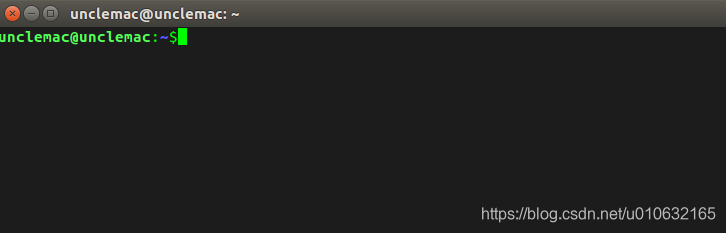
笔者能力和水平有限,文中难免有错误和纰漏之处,请大佬们不吝赐教;
创作不易,如果本文帮到了您;
如果本文帮到了您,请帮忙点个赞 ;
如果本文帮到了您,请帮忙点个赞 ;
如果本文帮到了您,请帮忙点个赞 ;
一文教你快速修改ubuntu终端显示的主机名和用户名的更多相关文章
- Ubuntu修改终端显示的主机名、用户名、目录不同颜色
打开终端输入:echo $PS1 输入:gedit ~/.bashrc #定位到如下代码: if [ "$color_prompt" = yes ]; then PS1='${de ...
- 修改ubuntu终端显示目录和计算机名称(转)
注意:使用方法:# PS1='自定义内容' 注意两边的单引号 示例: PS1='(\u@\H \d \t)\$' ------------------------------------------- ...
- Mac终端中主机名与用户名的修改
Mac终端的主机名称+用户名全部显示出来的话会可能显得特别长,影响整体美观,可以切换至root用户后 修改.bashrc文件进行格式化. 1. 终端中切换root用户 su - root 2. 修改/ ...
- ubuntu下如何设置主机名
方法如下: 在终端输入 hostname 查看主机名主机名存放在/etc/hostname中 ,sudo gedit /etc/hostname 修改后保存/etc/hosts 还有一份 , sudo ...
- 阿里云修改CentOS Linux服务器的主机名
阿里云主机的默认主机名是为AY开头的随机名称,如何修改为易于区分的友好名称呢?请看下面的操作步骤: 1. vi /etc/hosts i键,修改主机名,esc键,:wq键保存退出 2. vi /etc ...
- 改变ubuntu终端显示语言(桌面系统是中文,终端提示是英文)
打开终端: $ vi .bashrc 最后添加 if [ "$TERM"="linux" ] ;then export LANGUAGE=en_US expor ...
- 设置ubuntu 终端显示路径长度
~/.bashrc 这个文件记录了用户终端配置. 打开~/.bashrc 这个文件 $: sudo vim ~/.bashrc 找到 将蓝色的w由小写改成大写,可以表示只显示当前目录名称.
- 修改oracle服务器所在linux主机名
1.修改/etc/hosts 2.修改 /etc/sysconfig/network 3.修改oracle的 listener.ora 4.修改 tnsnames.ora
- ubuntu如何修改terminal终端的主机名(修改/etc/hostname文件)
有时候安装完Ubuntu系统后,打开命令终端,终端显示的主机名格式比较难看,例如 我最近买的国内某云的VPS. xxx@VM-1560-ubuntu$ xxx@VM-1560-ubuntu$ 对于有洁 ...
随机推荐
- SpringBoot 集成 Elasticsearch
前面在 ubuntu 完成安装 elasticsearch,现在我们SpringBoot将集成elasticsearch. 1.创建SpringBoot项目 我们这边直接引入NoSql中Spring ...
- golang方法详解
Go 语言 类型方法是一种对类型行为的封装 .Go 语言的方法非常纯粹, 可以看作特殊类型的函数,其显式地将对象实例或指针作为函数的第一个参数,并且参数可以自己指定,而不强制要求一定是 this或se ...
- MergeSort归并排序和利用归并排序计算出数组中的逆序对
首先先上LeetCode今天的每日一题(面试题51. 数组中的逆序对): 在数组中的两个数字,如果前面一个数字大于后面的数字,则这两个数字组成一个逆序对.输入一个数组,求出这个数组中的逆序对的总数. ...
- Nacos - 阿里开源配置中心
配置中心相信大家都有听过,zookeeper.apollo等等都是配置中心的代表,但大部分都是JAVA系为主的,笔者主要开发语言使用的是Golang当然也有类似于ETCD这样的组件,但是并不方便管理也 ...
- Python神库分享之geoip2 IP定位库
先安装这两个 pip install python-geoip-geolite2 -i https://pypi.douban.com/simple pip install geoip2 然后下载资源 ...
- 让所有网站都提供API的Python库:Toapi
这是一个让所有网站都提供API的Python库.以前,我们爬取数据,然后把数据存起来,再创造一个api服务以便其他人可以访问.为此,我们还要定期更新我们的数据.这个库让这一切变得容易起来.你要做的就是 ...
- 数据源管理 | PostgreSQL环境整合,JSON类型应用
本文源码:GitHub·点这里 || GitEE·点这里 一.PostgreSQL简介 1.和MySQL的比较 PostgreSQL是一个功能强大的且开源关系型数据库系统,在网上PostgreSQL和 ...
- 一、Go语言由来与关键时间线
Go语言,又称作Golang,是Google在2009年11月开源的开发语言.是一门静态强类型.编译型.并发型,并具有垃圾回收功能的编程语言. Go是罗伯特·格瑞史莫(Robert Griesemer ...
- 不是广告--如何学Java,我说点不太一样的学习方式
首先声明,这篇文章不是卖课程.介绍培训班的广告. 最近有不少读者通过微信问我:小白应该怎么学好 Java? 提问的人里有在校大学生.有刚参加工作的.有想转行做程序员的,还有一部分是最近找工作不顺的. ...
- Python爬取全球疫情数据,实现可视化显示地图数据(附代码)
前言 本文的文字及图片来源于网络,仅供学习.交流使用,不具有任何商业用途,版权归原作者所有,如有问题请及时联系我们以作处理. 武汉地区,目前已经实现住院患者清零了,国内疫情已经稳定,然而中国以外新冠确 ...