
Windows Phone 8.1 新特性 - 控件之列表选择控件
本篇我们来介绍Windows Phone 8.1 新特性中的列表选择控件。
在Windows Phone 8 时代,大家都会使用 LongListSelector 来实现列表选择控件,对数据进行分组显示。比如通讯录中,按照名字首字母进行分组,点击分组标题后跳转到该标题对应的分组。
而Windows Phone 8.1 中会利用 ListView 和 SemanticZoom 来实现,下面我们来看看实现过程。
首先我们来认识一下ListView 和 SemanticZoom:
ListView 从字面上并不难理解,一个列表视图控件,而它实际的作用也和字面表现的差不多,它是一个在一个列表中滚动显示项目的集合控件。
SemanticZoom 可能看起来有些陌生,语义缩放。它是允许用户在集合项目的两个视图之间缩放的一个容器控件。简单来说,当我们对一个联系人集合进行了按首字母分组后,我们可以通过语义缩放控件完成联系人列表和字母列表两种视图的缩放,通过选择字母来导航到该字母分组。
下面我们来看看代码实现,首先是XAML:
<SemanticZoom x:Name="semanticZoom" IsZoomOutButtonEnabled="True" CanChangeViews="True">

    <SemanticZoom.ZoomedInView>

        <ListView x:Name="listViewDetail" IsSwipeEnabled="True" IsTapEnabled="True" IsItemClickEnabled="True" IsZoomedInView="True">

            <ListView.ItemTemplate>

                <DataTemplate>

                    <Grid Height="40">

                        <Grid.ColumnDefinitions>

                            <ColumnDefinition Width="50"/>

                            <ColumnDefinition Width="*"/>

                        </Grid.ColumnDefinitions>

                        <Border Background="AliceBlue" Grid.Column="0"/>

                        <TextBlock Grid.Column="1" Text="{Binding ContactName}" FontSize="30"/>

                    </Grid>

                </DataTemplate>

            </ListView.ItemTemplate>

            <ListView.GroupStyle>

                <GroupStyle>

                    <GroupStyle.HeaderTemplate>

                        <DataTemplate>

                            <Border Background="Blue" Height="50" Width="50" HorizontalAlignment="Left" Margin="0,20,0,20" Tapped="Border_Tapped">

                                <TextBlock Text="{Binding Title}" FontSize="30"/>

                            </Border>

                        </DataTemplate>

                    </GroupStyle.HeaderTemplate>

                    <GroupStyle.Panel>

                        <ItemsPanelTemplate>

                            <VariableSizedWrapGrid Orientation="Vertical" Margin="0 0 0 20" ItemHeight="75"/>

                        </ItemsPanelTemplate>

                    </GroupStyle.Panel>

                </GroupStyle>

            </ListView.GroupStyle>

            <ListView.ItemsPanel>

                <ItemsPanelTemplate>

                    <StackPanel Orientation="Vertical" />

                </ItemsPanelTemplate>

            </ListView.ItemsPanel>

        </ListView>

    </SemanticZoom.ZoomedInView>

    <SemanticZoom.ZoomedOutView>

        <ListView x:Name="listViewSummary" Background="Black" IsZoomedInView="False">

            <ListView.ItemTemplate>

                <DataTemplate>

                    <Border Height="70" Width="400" Background="Blue" Margin="10,10,10,10">

                        <TextBlock Text="{Binding Group.Title}" FontSize="30"/>

                    </Border>

                </DataTemplate>

            </ListView.ItemTemplate>

            <ListView.ItemsPanel>

                <ItemsPanelTemplate>

                    <StackPanel Orientation="Vertical"/>

                </ItemsPanelTemplate>

            </ListView.ItemsPanel>

        </ListView>

    </SemanticZoom.ZoomedOutView>

</SemanticZoom>
代码中我们为SemanticZoom 定义了两种视图,ZoomedInView 和 ZoomedOutView,分别代表元素列表视图和概要(分组名)视图。为这两种视图分别定义了内容,即 ListView。ZoomedInView 中我们定义了一个联系人列表,每个元素包括了一个Border 和一个代表人名的文本控件,这些元素按照首字母分组,点击首字母时进入ZoomedOutView。ZoomedOutView 是一个字母列表,选择某个字母后,列表回到ZoomedInView,且导航到该字母的分组。
下面我们看看数据的绑定过程:
protected override void OnNavigatedTo(NavigationEventArgs e)

{

    CollectionViewSource listViewSource = new CollectionViewSource();

    listViewSource.IsSourceGrouped = true;

    listViewSource.Source = GetContactGroups();

    listViewSource.ItemsPath = new PropertyPath("Contacts");

    listViewDetail.ItemsSource = listViewSource.View;

    listViewSummary.ItemsSource = listViewSource.View.CollectionGroups;

}

private List<ContactGroup> GetContactGroups()

{

    List<ContactGroup> groups = new List<ContactGroup>();

    ContactGroup groupA = new ContactGroup() { Title = "A", Contacts = new List<Contact>() { new Contact("Alan"), new Contact("Allen"), new Contact("Azar") } };

    ContactGroup groupB = new ContactGroup() { Title = "B", Contacts = new List<Contact>() { new Contact("Ben"), new Contact("Benzema") } };

    ContactGroup groupC = new ContactGroup() { Title = "C", Contacts = new List<Contact>() { new Contact("Cat"), new Contact("Canby"), new Contact("Candy") } };

    ContactGroup groupJ = new ContactGroup() { Title = "J", Contacts = new List<Contact>() { new Contact("James"), new Contact("Jim"), new Contact("Jimmy") } };

    ContactGroup groupK = new ContactGroup() { Title = "K", Contacts = new List<Contact>() { new Contact("Kevin"), new Contact("King") } };

    ContactGroup groupO = new ContactGroup() { Title = "O", Contacts = new List<Contact>() { new Contact("Oscar"), new Contact("Owen") } };

    ContactGroup groupP = new ContactGroup() { Title = "P", Contacts = new List<Contact>() { new Contact("Pendy") } };

    ContactGroup groupY = new ContactGroup() { Title = "Y", Contacts = new List<Contact>() { new Contact("Yark"), new Contact("York")} };

    ContactGroup groupZ = new ContactGroup() { Title = "Z", Contacts = new List<Contact>() { new Contact("Zend"), new Contact("Zin")} };

    groups.Add(groupA);

    groups.Add(groupB);

    groups.Add(groupC);

    groups.Add(groupJ);

    groups.Add(groupK);

    groups.Add(groupO);

    groups.Add(groupP);

    groups.Add(groupY);

    groups.Add(groupZ);

    return groups;

}

private void Border_Tapped(object sender, TappedRoutedEventArgs e)

{

    semanticZoom.IsZoomedInViewActive = false;

}
public class Contact

{

    public string ContactName { get; set; }

    public Contact(string name)

    {

        ContactName = name;

    }

}

public class ContactGroup

{

    public string Title { get; set; }

    public List<Contact> Contacts { get; set; }

}
这里我们演示了数据结构的定义,示例数据的生成和绑定。我们重点来看一下数据绑定的过程,这个过程在 OnNavigatedTo 方法中。
我们定义了一个 CollectionViewSource 类型的实例,它可以向集合类添加分组支持的数据源。把它的Source设置为我们定义的数据分组集合。
ItemsPath 代表在组内查找组的属性路径。然后把listViewDetail 和 listViewSummary 的数据源分别设置为 CollectionViewSource 的视图对象和视图的集合组。
这样我们的示例就完成了,来看一下运行效果:

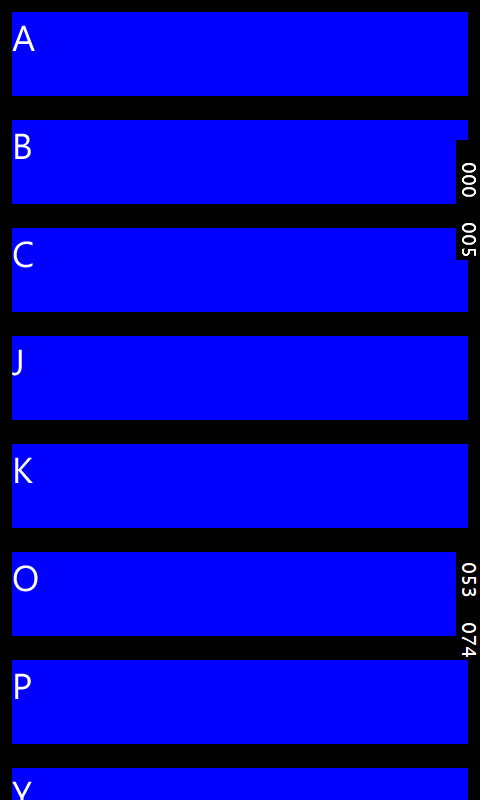

上图1 中,我们点击某个分组名后,出现图2 的视图,在图2 中点击“K” 后,回到列表视图,且导航到“K”分组。
到了,到这里我们对列表选择控件的介绍就完成了,接下来会继续介绍Windows Phone 8.1中的其他新控件,谢谢大家。
Windows Phone 8.1 新特性 - 控件之列表选择控件的更多相关文章
- Windows Phone 8.1新特性 - 应用商店启动协议
Windows Phone 8.1 Preview SDK 发布也有几个月了,之前断断续续也写过几篇 Windows Phone 8.1 新特性的文章,今天给大家介绍一下应用商店启动协议相关的知识. ...
- VS2010/MFC编程入门之二十八(常用控件:列表视图控件List Control 上)
前面一节中,鸡啄米讲了图片控件Picture Control,本节为大家详解列表视图控件List Control的使用. 列表视图控件简介 列表视图控件List Control同样比较常见, ...
- VS2010-MFC(常用控件:列表视图控件List Control 上)
转自:http://www.jizhuomi.com/software/195.html 列表视图控件简介 列表视图控件List Control同样比较常见,它能够把任何字符串内容以列表的方 ...
- MFC常用控件之列表视图控件(List Control)
近期学习了鸡啄米大神的博客,对其中的一些知识点做了一些自己的总结.不过,博客内容大部分来自鸡啄米.因此,这个博客算是转载博客,只是加了一些我自己的理解而已.若想学习鸡啄米大神的博客总结,请点击连接:h ...
- Windows Phone 8.1 新特性 - 控件之应用程序栏
2014年4月3日的微软Build 2014 大会上,Windows Phone 8.1 正式发布.相较于Windows Phone 8,不论从用户还是开发者的角度,都产生了很大的变化.接下来我们会用 ...
- Windows Phone 8.1SDK新特性预览
前言 Windows Phone 8.1的预览版将在近期推送,WP 8.1的SDK也已经进入到RC阶段,可以从这里安装.本次更新的SDK被直接集成到了VS2013Update2里面,不再是单独的 ...
- Windows Phone8.1系统新特性
Windows Phone 8.1 beta SDK已经为大家透露了不少WP8.1系统的新特性,不过这些新特性还不能保证在最终的消费者版本中都有所体现,毕竟它还仅是SDK版本.日前,国外媒体WPCen ...
- 微软架构师解读Windows Server 2008 R2新特性
目前众多企业都开始为自己寻找一个更加适合自身发展的服务器操作平台.微软的Windows Server 2008 R2就是可以为大家解决服务器平台问题.微软最新的服务器平台Windows Server ...
- Windows Embedded Compact 7新特性
Windows® Embedded Compact 7是Windows Embedded CE的下一代产品,而Windows Embedded CE这款操作系统面向占用资源少的新颖设备.Windows ...
随机推荐
- jquery版本清单
PM> Install-Package jQuery -Version 1.11.2 jQuery 2.1.3 (latest stable) 315444 Wednesday, Decembe ...
- Java 零基础之作业小练习
[练习1] 需求:输入学员的名称及总科目数并显示每项科目成绩的分数,算出总成绩. package demo2; import java.util.Scanner; //先import Scanner语 ...
- (转载)HTML5 LocalStorage 本地存储
原文地址:http://www.cnblogs.com/xiaowei0705/archive/2011/04/19/2021372.html HTML5 LocalStorage 本地存储 说到本地 ...
- 【Python全栈笔记】01 [模块二] 14-15 Oct 运算符和字符串 4-1
编码的问题 中文版 Windows 终端是默认GBK编码格式,python2默认为ASCII编码,虽然我们注释了需要用UTF-8,但是通过命令行运行的文件如果print中文内容还是会出现乱码. Uni ...
- M站开发规范——By Klax
M站开发的规范,根据具体情况,涉及代码组织的模式,代码编码风格,模块化等,经...研究...决定: 1.采用AMD 规范(RequireJS)实现js模块化. 2.单个文件尽量采用面向对象编程和模块化 ...
- h5弹框去掉ip地址
<script> window.alert = function(name){ var iframe = document.createElement("IFRAME" ...
- 用js将从后台得到的时间戳(毫秒数)转换为想要的日期格式
得到后台从数据库中拿到的数据我们希望格式是 2016年10月25日 17时37分30秒 或者 2016/10/25 17:37:30 然而我们前台得到的却是一段数字(时间戳,毫秒数) 14773860 ...
- Haproxy+Keepalived高可用负载均衡详细配置
本文所使用的环境: 10.6.2.128 centos6.5 10.6.2.129 centos6.5 VIP 为10.6.2.150 要实现的目标: 实现10.6.2.128和10.6 ...
- MongoDB的TruncationException异常解决方法
近期由于DB4O的一些无解的BUG,导致现行的项目查询效率底下,于是愤而迁移到了MongoDB. MongoDB虽然比DB4O的用户要多一些,但是文档依然极度匮乏,遇到问题不是那么容易就能搜到解决办法 ...
- 把文件打成zip或然rar下载 (详询请加qq:2085920154)
//文件打包下载 public static HttpServletResponse downLoadFiles(List<File> files, HttpServletRequest ...