
主窗口QMainWindow和启动画面
在较为大型复杂,功能较多的应用程序中,我们通常继承QMainWindow类来进行开发。该主窗口为搭建应用用户界面提供了非常好的框架,请看下图:
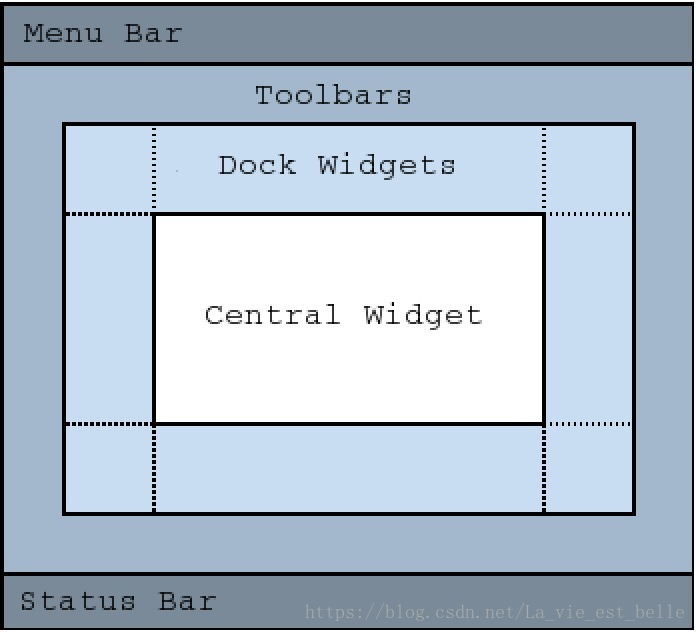
可以看出该主窗口类为我们提供了菜单栏(Menu Bar)、工具栏(Tool Bar)、控件停靠区域(Dock Widgets)和状态栏(Status Bar),我们可以往其中加入很多自己想要的东西,这也使得我们可以快速地开发一个功能复杂并且界面友好的应用程序
例子一记事本应用
接下来我们完成一个简易的记事本应用来了解一下QMainWindow的用法
 #资料  https://blog.csdn.net/La_vie_est_belle/article/details/82819766

 import sys

 from PyQt5.QtGui import QIcon

 from PyQt5.QtCore import QMimeData

 from PyQt5.QtWidgets import QApplication, QMainWindow, QTextEdit, QAction, QFileDialog, QMessageBox,\

                             QFontDialog, QColorDialog

 class Demo(QMainWindow):

     is_saved = True

     is_saved_first = True

     path = ''

     def __init__(self):

         super(Demo, self).__init__()

         self.file_menu = self.menuBar().addMenu('File') #给菜单栏添加一个菜单

         self.edit_menu = self.menuBar().addMenu('Edit')

         self.help_menu = self.menuBar().addMenu('Help')

         self.file_toolbar = self.addToolBar('File')  #给工具栏添加一个按钮

         self.edit_toolbar = self.addToolBar('Edit')

         self.status_bar = self.statusBar()  #设置一个状态栏

         #接下来我们只需要往菜单栏和工具栏上面添加各种动作——也就是QAction,该类通常与菜单栏和工具栏搭配使用。可以将一个动作看作一种命令,每当用户点击某个动作时,就会触发某种命令,程序从而执行相应的命令

         self.new_action = QAction('New', self) #实例化一个动作

         self.open_action = QAction('Open', self)

         self.save_action = QAction('Save', self)

         self.save_as_action = QAction('Save As', self)

         self.close_action = QAction('Close', self)

         self.cut_action = QAction('Cut', self)

         self.copy_action = QAction('Copy', self)

         self.paste_action = QAction('Paste', self)

         self.font_action = QAction('Font', self)

         self.color_action = QAction('Color', self)

         self.about_action = QAction('Qt', self)

         self.text_edit = QTextEdit(self)

         self.mime_data = QMimeData()

         self.clipboard = QApplication.clipboard()

         self.setCentralWidget(self.text_edit)  # 设置中央控件

         self.resize(450, 600)

         self.menu_init()

         self.toolbar_init()

         self.status_bar_init()

         self.action_init()  #执行动作函数

         self.text_edit_int()

     def action_init(self): #动作函数

         #图片下载地址:链接: https://pan.baidu.com/s/1Rp2-G_8PdvFfDIoIesMNEg 提取码: ag8w

         self.new_action.setIcon(QIcon('images/f1.ico'))  # 给动作设置图标(菜单项的左侧显示,按钮显示)

         self.new_action.setShortcut('Ctrl+N')  #给动作设置快捷键

         self.new_action.setToolTip('创建新文件')  #设置气泡提示【鼠标在工具栏按钮上时提示的内容】

         self.new_action.setStatusTip('Create a new file')#设置在状态栏提示的信息。当鼠标停留在该动作上时,状态栏会显示相应的信息

         self.new_action.triggered.connect(self.new_func)  #动作的触发信号

         #

         #self.open_action.setIcon(QIcon('images/open.ico'))

         self.open_action.setShortcut('Ctrl+O')

         self.open_action.setToolTip('Open an existing file')

         self.open_action.setStatusTip('Open an existing file')

         self.open_action.triggered.connect(self.open_file_func)

         #

         #self.save_action.setIcon(QIcon('images/save.ico'))

         self.save_action.setShortcut('Ctrl+S')

         self.save_action.setToolTip('Save the file')

         self.save_action.setStatusTip('Save the file')

         self.save_action.triggered.connect(lambda: self.save_func(self.text_edit.toHtml()))

         #

         #self.save_as_action.setIcon(QIcon('images/save_as.ico'))

         self.save_as_action.setShortcut('Ctrl+A')

         self.save_as_action.setToolTip('Save the file to a specified location')

         self.save_as_action.setStatusTip('Save the file to a specified location')

         self.save_as_action.triggered.connect(lambda: self.save_as_func(self.text_edit.toHtml()))

         #

         #self.close_action.setIcon(QIcon('images/close.ico'))

         self.close_action.setShortcut('Ctrl+E')

         self.close_action.setToolTip('Close the window')

         self.close_action.setStatusTip('Close the window')

         self.close_action.triggered.connect(self.close_func)

         #

         #self.cut_action.setIcon(QIcon('images/cut.ico'))

         self.cut_action.setShortcut('Ctrl+X')

         self.cut_action.setToolTip('Cut the text to clipboard')

         self.cut_action.setStatusTip('Cut the text')

         self.cut_action.triggered.connect(self.cut_func)

         #

         # self.copy_action.setIcon(QIcon('images/copy.ico'))

         self.copy_action.setShortcut('Ctrl+C')

         self.copy_action.setToolTip('Copy the text')

         self.copy_action.setStatusTip('Copy the text')

         self.copy_action.triggered.connect(self.copy_func)

         #

         # self.paste_action.setIcon(QIcon('images/paste.ico'))

         self.paste_action.setShortcut('Ctrl+V')

         self.paste_action.setToolTip('Paste the text')

         self.paste_action.setStatusTip('Paste the text')

         self.paste_action.triggered.connect(self.paste_func)

         #

         # self.font_action.setIcon(QIcon('images/font.ico'))

         self.font_action.setShortcut('Ctrl+T')

         self.font_action.setToolTip('Change the font')

         self.font_action.setStatusTip('Change the font')

         self.font_action.triggered.connect(self.font_func)

         #

         self.color_action.setIcon(QIcon('images/color.ico'))

         self.color_action.setShortcut('Ctrl+R')

         self.color_action.setToolTip('Change the color')

         self.color_action.setStatusTip('Change the color')

         self.color_action.triggered.connect(self.color_func)

         #

         # self.about_action.setIcon(QIcon('images/about.ico'))

         # self.about_action.setShortcut('Ctrl+Q')

         # self.about_action.setToolTip('What is Qt?')

         # self.about_action.setStatusTip('What is Qt?')

         # self.about_action.triggered.connect(self.about_func)

     def text_edit_int(self):

         self.text_edit.textChanged.connect(self.text_changed_func)

     def text_changed_func(self):

         if self.text_edit.toPlainText():

             self.is_saved = False

         else:

             self.is_saved = True

     def font_func(self):

         font, ok = QFontDialog.getFont()

         if ok:

             self.text_edit.setFont(font)

     def color_func(self):

         color = QColorDialog.getColor()

         if color.isValid():

             self.text_edit.setTextColor(color)

     def paste_func(self):

         self.text_edit.insertHtml(self.clipboard.mimeData().html())

     def copy_func(self):

         self.mime_data.setHtml(self.text_edit.textCursor().selection().toHtml())

         self.clipboard.setMimeData(self.mime_data)

     def cut_func(self):

         self.mime_data.setHtml(self.text_edit.textCursor().selection().toHtml())

         self.clipboard.setMimeData(self.mime_data)

         self.text_edit.textCursor().removeSelectedText()

     def close_func(self):

         if not self.is_saved:

             choice = QMessageBox.question(self, 'Save File', 'Do you want to save the text?',

                                           QMessageBox.Yes | QMessageBox.No | QMessageBox.Cancel)

             if choice == QMessageBox.Yes:

                 self.save_func(self.text_edit.toHtml())

                 self.close()

             elif choice == QMessageBox.No:

                 self.close()

             else:

                 pass

     def closeEvent(self, QCloseEvent):

         if not self.is_saved:

             choice = QMessageBox.question(self, 'Save File', 'Do you want to save the text?',

                                           QMessageBox.Yes | QMessageBox.No | QMessageBox.Cancel)

             if choice == QMessageBox.Yes:

                 self.save_func(self.text_edit.toHtml())

                 QCloseEvent.accept()

             elif choice == QMessageBox.No:

                 QCloseEvent.accept()

             else:

                 QCloseEvent.ignore()

     def save_as_func(self, text):

         self.path, _ = QFileDialog.getSaveFileName(self, 'Save File', './', 'Files (*.html *.txt *.log)')

         if self.path:

             with open(self.path, 'w') as f:

                 f.write(text)

             self.is_saved = True

             self.is_saved_first = False

     def open_file_func(self):

         if not self.is_saved:

             choice = QMessageBox.question(self, '', 'Do you want to save the text?',

                                           QMessageBox.Yes | QMessageBox.No | QMessageBox.Cancel)

             if choice == QMessageBox.Yes:

                 self.save_func()

                 file, _ = QFileDialog.getOpenFileName(self, 'Open File', './', 'Files (*.html *.txt *.log)')

                 if file:

                     with open(file, 'r') as f:

                         self.text_edit.clear()

                         self.text_edit.setText(f.read())

                         self.is_saved = True

             elif choice == QMessageBox.No:

                 file, _ = QFileDialog.getOpenFileName(self, 'Open File', './', 'Files (*.html *.txt *.log)')

                 if file:

                     with open(file, 'r') as f:

                         self.text_edit.clear()

                         self.text_edit.setText(f.read())

                         self.is_saved = True

             else:

                 pass

         else:

             file, _ = QFileDialog.getOpenFileName(self, 'Open File', './', 'Files (*.html *.txt *.log)')

             if file:

                 with open(file, 'r') as f:

                     self.text_edit.clear()

                     self.text_edit.setText(f.read())

                     self.is_saved = True

     def new_func(self):

         if not self.is_saved:

             choice = QMessageBox.question(self, '', 'Do you want to save the text?',

                                           QMessageBox.Yes | QMessageBox.No | QMessageBox.Cancel)

             if choice == QMessageBox.Yes:

                 self.save_func()

                 self.text_edit.clear()

             elif choice == QMessageBox.No:

                 self.text_edit.clear()

             else:

                 pass

         else:

             self.text_edit.clear()

     def save_func(self, text):

         if self.is_saved_first:

             self.save_as_func(text)

         else:

             with open(self.path, 'w') as f:

                 f.write(text)

             self.is_saved = True

     def save_as_func(self, text):

         self.path, _ = QFileDialog.getSaveFileName(self, 'Save File', './', 'Files (*.html *.txt *.log)')

         if self.path:

             with open(self.path, 'w') as f:

                 f.write(text)

             self.is_saved = True

             self.is_saved_first = False

     def status_bar_init(self):

         self.status_bar.showMessage('Ready to compose') #设置状态栏显示的内容

     def toolbar_init(self):

         self.file_toolbar.addAction(self.new_action)  #给工具栏添加按钮动作

         #注意:菜单栏、工具栏相同动作是同一个QAction对象

         self.file_toolbar.addAction(self.open_action)

         self.file_toolbar.addAction(self.save_action)

         self.file_toolbar.addAction(self.save_as_action)

         self.edit_toolbar.addAction(self.cut_action)

         self.edit_toolbar.addAction(self.copy_action)

         self.edit_toolbar.addAction(self.paste_action)

         self.edit_toolbar.addAction(self.font_action)

         self.edit_toolbar.addAction(self.color_action)

     def save_func(self, text):

         if self.is_saved_first:

             self.save_as_func(text)

         else:

             with open(self.path, 'w') as f:

                 f.write(text)

             self.is_saved = True

     def menu_init(self):

         self.file_menu.addAction(self.new_action) #给菜单添加一个动作

         self.file_menu.addAction(self.open_action)

         self.file_menu.addAction(self.save_action)

         self.file_menu.addAction(self.save_as_action)

         self.file_menu.addSeparator()    #加一个分割条

         self.file_menu.addAction(self.close_action)

         self.edit_menu.addAction(self.cut_action)

         self.edit_menu.addAction(self.copy_action)

         self.edit_menu.addAction(self.paste_action)

         self.edit_menu.addSeparator()

         self.edit_menu.addAction(self.font_action)

         self.edit_menu.addAction(self.color_action)

         self.help_menu.addAction(self.about_action)

 if __name__ == '__main__':

     app = QApplication(sys.argv)

     demo = Demo()

     demo.show()

     sys.exit(app.exec_())
启动画面QSplashScreen
 #资料  https://blog.csdn.net/La_vie_est_belle/article/details/82819766

 import sys

 import time

 from PyQt5.QtGui import QIcon, QPixmap

 from PyQt5.QtCore import QMimeData, Qt

 from PyQt5.QtWidgets import QApplication, QMainWindow, QTextEdit, QAction, QFileDialog, QMessageBox,\

                             QFontDialog, QColorDialog, QSplashScreen

 class Demo(QMainWindow):

     is_saved = True

     is_saved_first = True

     path = ''

     def __init__(self):

         super(Demo, self).__init__()

         self.file_menu = self.menuBar().addMenu('File') #给菜单栏添加一个菜单

         self.edit_menu = self.menuBar().addMenu('Edit')

         self.help_menu = self.menuBar().addMenu('Help')

         self.file_toolbar = self.addToolBar('File')  #给工具栏添加一个按钮

         self.edit_toolbar = self.addToolBar('Edit')

         self.status_bar = self.statusBar()  #设置一个状态栏

         #接下来我们只需要往菜单栏和工具栏上面添加各种动作——也就是QAction,该类通常与菜单栏和工具栏搭配使用。可以将一个动作看作一种命令,每当用户点击某个动作时,就会触发某种命令,程序从而执行相应的命令

         self.new_action = QAction('New', self) #实例化一个动作

         self.open_action = QAction('Open', self)

         self.save_action = QAction('Save', self)

         self.save_as_action = QAction('Save As', self)

         self.close_action = QAction('Close', self)

         self.cut_action = QAction('Cut', self)

         self.copy_action = QAction('Copy', self)

         self.paste_action = QAction('Paste', self)

         self.font_action = QAction('Font', self)

         self.color_action = QAction('Color', self)

         self.about_action = QAction('Qt', self)

         self.text_edit = QTextEdit(self)

         self.mime_data = QMimeData()

         self.clipboard = QApplication.clipboard()

         self.setCentralWidget(self.text_edit)  # 设置中央控件

         self.resize(450, 600)

         self.menu_init()

         self.toolbar_init()

         self.status_bar_init()

         self.action_init()  #执行动作函数

         self.text_edit_int()

     def action_init(self): #动作函数

         #图片下载地址:链接: https://pan.baidu.com/s/1Rp2-G_8PdvFfDIoIesMNEg 提取码: ag8w

         self.new_action.setIcon(QIcon('images/f1.ico'))  # 给动作设置图标

         self.new_action.setShortcut('Ctrl+N')  #给动作设置快捷键

         self.new_action.setToolTip('创建新文件')  #设置气泡提示【鼠标在工具栏按钮上时提示的内容】

         self.new_action.setStatusTip('Create a new file')#设置在状态栏提示的信息。当鼠标停留在该动作上时,状态栏会显示相应的信息

         self.new_action.triggered.connect(self.new_func)  #动作的触发信号

         #

         #self.open_action.setIcon(QIcon('images/open.ico'))

         self.open_action.setShortcut('Ctrl+O')

         self.open_action.setToolTip('Open an existing file')

         self.open_action.setStatusTip('Open an existing file')

         self.open_action.triggered.connect(self.open_file_func)

         #

         #self.save_action.setIcon(QIcon('images/save.ico'))

         self.save_action.setShortcut('Ctrl+S')

         self.save_action.setToolTip('Save the file')

         self.save_action.setStatusTip('Save the file')

         self.save_action.triggered.connect(lambda: self.save_func(self.text_edit.toHtml()))

         #

         #self.save_as_action.setIcon(QIcon('images/save_as.ico'))

         self.save_as_action.setShortcut('Ctrl+A')

         self.save_as_action.setToolTip('Save the file to a specified location')

         self.save_as_action.setStatusTip('Save the file to a specified location')

         self.save_as_action.triggered.connect(lambda: self.save_as_func(self.text_edit.toHtml()))

         #

         #self.close_action.setIcon(QIcon('images/close.ico'))

         self.close_action.setShortcut('Ctrl+E')

         self.close_action.setToolTip('Close the window')

         self.close_action.setStatusTip('Close the window')

         self.close_action.triggered.connect(self.close_func)

         #

         #self.cut_action.setIcon(QIcon('images/cut.ico'))

         self.cut_action.setShortcut('Ctrl+X')

         self.cut_action.setToolTip('Cut the text to clipboard')

         self.cut_action.setStatusTip('Cut the text')

         self.cut_action.triggered.connect(self.cut_func)

         #

         # self.copy_action.setIcon(QIcon('images/copy.ico'))

         self.copy_action.setShortcut('Ctrl+C')

         self.copy_action.setToolTip('Copy the text')

         self.copy_action.setStatusTip('Copy the text')

         self.copy_action.triggered.connect(self.copy_func)

         #

         # self.paste_action.setIcon(QIcon('images/paste.ico'))

         self.paste_action.setShortcut('Ctrl+V')

         self.paste_action.setToolTip('Paste the text')

         self.paste_action.setStatusTip('Paste the text')

         self.paste_action.triggered.connect(self.paste_func)

         #

         # self.font_action.setIcon(QIcon('images/font.ico'))

         self.font_action.setShortcut('Ctrl+T')

         self.font_action.setToolTip('Change the font')

         self.font_action.setStatusTip('Change the font')

         self.font_action.triggered.connect(self.font_func)

         #

         self.color_action.setIcon(QIcon('images/color.ico'))

         self.color_action.setShortcut('Ctrl+R')

         self.color_action.setToolTip('Change the color')

         self.color_action.setStatusTip('Change the color')

         self.color_action.triggered.connect(self.color_func)

         #

         # self.about_action.setIcon(QIcon('images/about.ico'))

         # self.about_action.setShortcut('Ctrl+Q')

         # self.about_action.setToolTip('What is Qt?')

         # self.about_action.setStatusTip('What is Qt?')

         # self.about_action.triggered.connect(self.about_func)

     def text_edit_int(self):

         self.text_edit.textChanged.connect(self.text_changed_func)

     def text_changed_func(self):

         if self.text_edit.toPlainText():

             self.is_saved = False

         else:

             self.is_saved = True

     def font_func(self):

         font, ok = QFontDialog.getFont()

         if ok:

             self.text_edit.setFont(font)

     def color_func(self):

         color = QColorDialog.getColor()

         if color.isValid():

             self.text_edit.setTextColor(color)

     def paste_func(self):

         self.text_edit.insertHtml(self.clipboard.mimeData().html())

     def copy_func(self):

         self.mime_data.setHtml(self.text_edit.textCursor().selection().toHtml())

         self.clipboard.setMimeData(self.mime_data)

     def cut_func(self):

         self.mime_data.setHtml(self.text_edit.textCursor().selection().toHtml())

         self.clipboard.setMimeData(self.mime_data)

         self.text_edit.textCursor().removeSelectedText()

     def close_func(self):

         if not self.is_saved:

             choice = QMessageBox.question(self, 'Save File', 'Do you want to save the text?',

                                           QMessageBox.Yes | QMessageBox.No | QMessageBox.Cancel)

             if choice == QMessageBox.Yes:

                 self.save_func(self.text_edit.toHtml())

                 self.close()

             elif choice == QMessageBox.No:

                 self.close()

             else:

                 pass

     def closeEvent(self, QCloseEvent):

         if not self.is_saved:

             choice = QMessageBox.question(self, 'Save File', 'Do you want to save the text?',

                                           QMessageBox.Yes | QMessageBox.No | QMessageBox.Cancel)

             if choice == QMessageBox.Yes:

                 self.save_func(self.text_edit.toHtml())

                 QCloseEvent.accept()

             elif choice == QMessageBox.No:

                 QCloseEvent.accept()

             else:

                 QCloseEvent.ignore()

     def save_as_func(self, text):

         self.path, _ = QFileDialog.getSaveFileName(self, 'Save File', './', 'Files (*.html *.txt *.log)')

         if self.path:

             with open(self.path, 'w') as f:

                 f.write(text)

             self.is_saved = True

             self.is_saved_first = False

     def open_file_func(self):

         if not self.is_saved:

             choice = QMessageBox.question(self, '', 'Do you want to save the text?',

                                           QMessageBox.Yes | QMessageBox.No | QMessageBox.Cancel)

             if choice == QMessageBox.Yes:

                 self.save_func()

                 file, _ = QFileDialog.getOpenFileName(self, 'Open File', './', 'Files (*.html *.txt *.log)')

                 if file:

                     with open(file, 'r') as f:

                         self.text_edit.clear()

                         self.text_edit.setText(f.read())

                         self.is_saved = True

             elif choice == QMessageBox.No:

                 file, _ = QFileDialog.getOpenFileName(self, 'Open File', './', 'Files (*.html *.txt *.log)')

                 if file:

                     with open(file, 'r') as f:

                         self.text_edit.clear()

                         self.text_edit.setText(f.read())

                         self.is_saved = True

             else:

                 pass

         else:

             file, _ = QFileDialog.getOpenFileName(self, 'Open File', './', 'Files (*.html *.txt *.log)')

             if file:

                 with open(file, 'r') as f:

                     self.text_edit.clear()

                     self.text_edit.setText(f.read())

                     self.is_saved = True

     def new_func(self):

         if not self.is_saved:

             choice = QMessageBox.question(self, '', 'Do you want to save the text?',

                                           QMessageBox.Yes | QMessageBox.No | QMessageBox.Cancel)

             if choice == QMessageBox.Yes:

                 self.save_func()

                 self.text_edit.clear()

             elif choice == QMessageBox.No:

                 self.text_edit.clear()

             else:

                 pass

         else:

             self.text_edit.clear()

     def save_func(self, text):

         if self.is_saved_first:

             self.save_as_func(text)

         else:

             with open(self.path, 'w') as f:

                 f.write(text)

             self.is_saved = True

     def save_as_func(self, text):

         self.path, _ = QFileDialog.getSaveFileName(self, 'Save File', './', 'Files (*.html *.txt *.log)')

         if self.path:

             with open(self.path, 'w') as f:

                 f.write(text)

             self.is_saved = True

             self.is_saved_first = False

     def status_bar_init(self):

         self.status_bar.showMessage('Ready to compose') #设置状态栏显示的内容

     def toolbar_init(self):

         self.file_toolbar.addAction(self.new_action)  #给工具栏添加按钮动作

         #注意:菜单栏、工具栏相同动作是同一个QAction对象

         self.file_toolbar.addAction(self.open_action)

         self.file_toolbar.addAction(self.save_action)

         self.file_toolbar.addAction(self.save_as_action)

         self.edit_toolbar.addAction(self.cut_action)

         self.edit_toolbar.addAction(self.copy_action)

         self.edit_toolbar.addAction(self.paste_action)

         self.edit_toolbar.addAction(self.font_action)

         self.edit_toolbar.addAction(self.color_action)

     def save_func(self, text):

         if self.is_saved_first:

             self.save_as_func(text)

         else:

             with open(self.path, 'w') as f:

                 f.write(text)

             self.is_saved = True

     def menu_init(self):

         self.file_menu.addAction(self.new_action) #给菜单添加一个动作

         self.file_menu.addAction(self.open_action)

         self.file_menu.addAction(self.save_action)

         self.file_menu.addAction(self.save_as_action)

         self.file_menu.addSeparator()    #加一个分割条

         self.file_menu.addAction(self.close_action)

         self.edit_menu.addAction(self.cut_action)

         self.edit_menu.addAction(self.copy_action)

         self.edit_menu.addAction(self.paste_action)

         self.edit_menu.addSeparator()

         self.edit_menu.addAction(self.font_action)

         self.edit_menu.addAction(self.color_action)

         self.help_menu.addAction(self.about_action)

 if __name__ == '__main__':

     app = QApplication(sys.argv)

     splash = QSplashScreen()   #实例化启动画面对象

     splash.setPixmap(QPixmap('images/splash.jpg'))  #设置启动画面的图片

     splash.show()  #显示启动画面

     splash.showMessage('欢迎使用PYQT5',

                        Qt.AlignBottom | Qt.AlignCenter, Qt.white)

     #设置在启动画面上要显示的文字

     #参数1:要显示的文本

     #参数2:显示的位置。Qt.AlignBottom(垂直方向的位置)  底部;Qt.AlignCenter(水平方向的位置) 居中

     #参数3:文字的颜色

     time.sleep(2)

     demo = Demo()

     demo.show()

     splash.finish(demo)#把显示画面切换到主窗口

     sys.exit(app.exec_())
self.statusbar.addWidget(self.labviewcorrd) #给状态栏添加控件
天子骄龙
主窗口QMainWindow和启动画面的更多相关文章
- iOS中为网站添加图标到主屏幕以及增加启动画面
虽然没有能力开发Native App,但还是可以利用iOS中Safari浏览器的特性小小的折腾一下,做一个伪Web App满足下小小的虚荣心的. 既然是在iOS中的Safari折腾的,那么代码中利用到 ...
- 第十一章、Designer中主窗口QMainWindow类
老猿Python博文目录 专栏:使用PyQt开发图形界面Python应用 老猿Python博客地址 一.概述 主窗口对象是在新建窗口对象时,选择main window类型的模板时创建的窗口对象,如图: ...
- 第15.11节 PyQt(Python+Qt)入门学习:Qt Designer(设计师)组件Property Editor(属性编辑)界面中主窗口QMainWindow类相关属性详解
概述 主窗口对象是在新建窗口对象时,选择main window类型的模板时创建的窗口对象,如图: 在属性编辑界面中,主窗口对象与QMainWindow相关的属性包括:iconSize.toolButt ...
- Electron实用技巧-开机启动时隐藏主窗口,只显示系统托盘
# 1 在桌面软件中,开机自启动是很常见的功能,在electron中也提供了很好的支持,以下是主要代码: //应用是否打包if (app.isPackaged) { //设置开机启动 app.se ...
- setCentralWidget就可以把Qwidget设置为QMainWindow的主窗口
前面说的return app.exec() 这句话是用来使程序进入事件循环,除了直接递交的事件外,所有的事件都要在这个循环中被一层一层的分发,最后找到相应的处理函数来处理事件. 顶级窗口和顶级窗口是存 ...
- Qt实现基本QMainWindow主窗口程序
这个实验用Qt实现基本QMainWindow主窗口 先上实验效果图 打开一个文件,读取文件类容 详细步骤: 1.打开Qt creator新建MainWindow工程 右键工程名添加新文件,mai ...
- Qt__主窗口、菜单和工具条(QMainWindow,QMenu,QToolBar)
转自豆子空间 主窗口 Qt的GUI程序有一个常用的顶层窗口,叫做MainWindow.MainWindow继承自QMainWindow.QMainWindow窗口分成几个主要的区域: 最上面是Wind ...
- 【VC编程技巧】窗口☞3.5对单文档或者多文档程序制作启动画面
(一)概要: 文章描写叙述了如何通过Visual C++ 2012或者Visual C++ .NET,为单文档或者多文档程序制作启动画面.在Microsoft Visual Studio 6.0中对于 ...
- PyQt(Python+Qt)学习随笔:QMainWindow的addDockWidget方法增加QDockWidget停靠窗到主窗口
专栏:Python基础教程目录 专栏:使用PyQt开发图形界面Python应用 专栏:PyQt入门学习 老猿Python博文目录 DockWidget除了放在QMainWindow窗口内外,也可以放在 ...
随机推荐
- awk、sed、grep三大shell文本处理工具之sed的应用
sed 流编辑器 对文本中的行,逐行处理 非交互式的编辑器 是一个编辑器 1.工作流程 1)将文件的第一行读入到自己的缓存空间(模式空间--pattern space),删除掉换行符 2)匹配,看一下 ...
- text/css什麼意思
text/css用在style的type屬性中,表示style的標簽里的文本內容要當做層疊樣式表(css)來解析,放在html的頁面內部,是HTML的內部樣式表: text/html用在style的t ...
- 无返回值的异步方法能否不用await
1.无返回值的异步方法能否不用await? 如果你不需要等待加一的操作完成,那就可以直接执行后面的操作.那要看你的需求了,如果你后面的操作必须在加一的操作后执行,那就要await了 2.请问C#中如何 ...
- solr string类型表示不支持分词
solr string类型表示不支持分词
- BZOJ1861[Zjoi2006]书架——非旋转treap
题目描述 小T有一个很大的书柜.这个书柜的构造有些独特,即书柜里的书是从上至下堆放成一列.她用1到n的正整数给每本书都编了号. 小T在看书的时候,每次取出一本书,看完后放回书柜然后再拿下一本.由于这些 ...
- AC自动机-HDU2222-模板题
http://acm.hdu.edu.cn/showproblem.php?pid=2222 一个AC自动机的模板题.用的kuangbin的模板,静态建Trie树.可能遇到MLE的情况要转动态建树. ...
- [ctsc2018] 混合果汁 【可持久化线段树】【二分答案】
题目分析 首先考虑到最小值最大,二分答案.假设答案为k,显然这满足单调性.如果某个k使得这个情况下选不出.那么比k大的一定也选不出,所以二分答案. 接着我们可以贪心,当我们确认了k以后,一定会优先选费 ...
- The Unique MST POJ - 1679 (次小生成树)
Given a connected undirected graph, tell if its minimum spanning tree is unique. Definition 1 (Spann ...
- day12-13 文件操作b模式
为什么需要用到二进制的形式?我们默认的r w a 其实是rt wt at 即txt模式如果是图片,视频,音频,是无法用txt打开的,只能用b模式处理 b 模式是以字节形式打开 f = open(&qu ...
- Python面向对象编程和模块
在面向对象编程中,你编写表示现实世界中的事物和情景的类,并基于这些类来创建对象. 编写类时,你定义一大类对象都有的通用行为.基于类创建对象时,每个对象都自动具备这种通用行为,然后根据需要赋予每个对象独 ...