
Power BI 实现实时更新Streaming Dataset
一、在PowerBI portal端需要准备的操作:
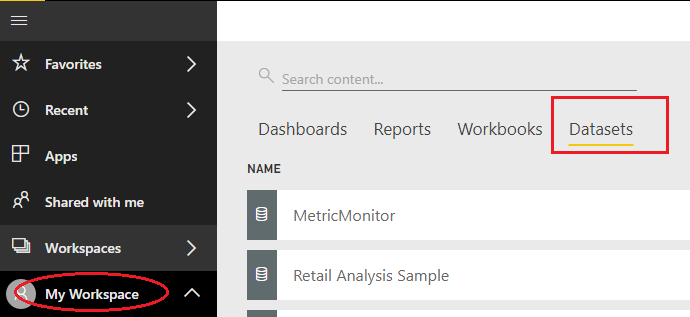
1. https://app.powerbi.cn 登陆,点击左侧My Workspace,你需要有一个账号
2. 选入Datasets,点击页面右上角的Creat,添加Streaming dataset

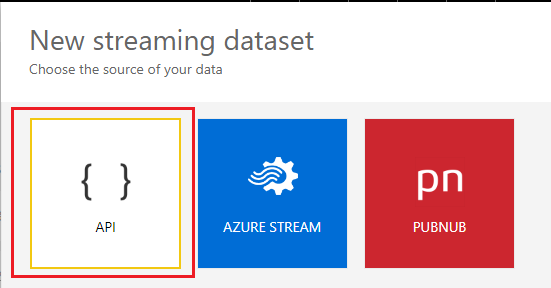
3.添加API{ }

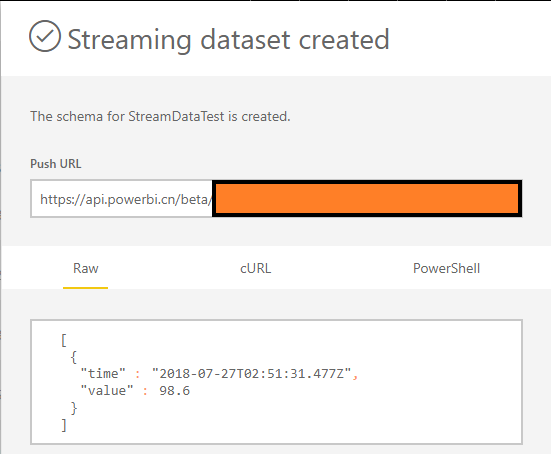
4.记录Push URL , 这个后续作为post data的URL
二、在c#代码中的操作:
- realTimePushURL 改成上文你的Push URL
- 一定要注意数据结构 那个postData变量的结构要和streaming dataset的结构一致
using System;

using System.Collections.Generic;

using System.Linq;

using System.Net;

using System.Text;

using System.Threading.Tasks;

using System.IO;

namespace StreamDataToPowerBI

{

    class Program

    {

        // Paste your own push URL below

        // e.g. https://api.powerbi.com/beta/2b958e42-b81e-441d-af13-801621ce8401/datasets/a5a15fd1-8cb6-4527-b2e6-f22f2a274d4d/rows?key=apsBX1ef%2F8a7ToL2xxxxxxxxxxxZeGATSyRYerZKpnu%2FbE2g2yDM0%2Bs4cDW9mqu5zKoGcQ27vJuh0Huw%3D%3D

        private static string realTimePushURL = "** paste your push URL here **";

        static void Main(string[] args)

        {

            while (true) {

                try

                {

                    // Declare values that we're about to send

                                        String currentTime = DateTime.UtcNow.ToString("yyyy-MM-ddTHH:mm:ss.fffZ");  //2017-11-03T06:23:35.521Z

                    Random r = new Random();

                    int currentValue = r.Next(, );

                    // Send POST request to the push URL

                    // Uses the WebRequest sample code as documented here: https://msdn.microsoft.com/en-us/library/debx8sh9(v=vs.110).aspx

                    WebRequest request = WebRequest.Create(this.PostUri);

                    request.Method = "POST";

                    string postData = String.Format("[{{ \"time\": \"{0}\", \"value\": {1}}}]", currentTime, currentValue);

                    Console.WriteLine(String.Format("Making POST request with data: {0}", postData));

                    // Prepare request for sending

                    byte[] byteArray = Encoding.UTF8.GetBytes(postData);

                    request.ContentLength = byteArray.Length;

                    // Get the request stream.

                    Stream dataStream = request.GetRequestStream();

                    // Write the data to the request stream.

                    dataStream.Write(byteArray, , byteArray.Length);

                    // Close the Stream object.

                    dataStream.Close();

                    // Get the response.

                    WebResponse response = request.GetResponse();

                    // Display the status.

                    Console.WriteLine(String.Format("Service response: {0}", ((HttpWebResponse)response).StatusCode));

                    // Get the stream containing content returned by the server.

                    dataStream = response.GetResponseStream();

                    // Open the stream using a StreamReader for easy access.

                    StreamReader reader = new StreamReader(dataStream);

                    // Read the content.

                    string responseFromServer = reader.ReadToEnd();

                    // Display the content.

                    Console.WriteLine(responseFromServer);

                    // Clean up the streams.

                    reader.Close();

                    dataStream.Close();

                    response.Close();

                }

                catch (Exception ex)

                {

                    Console.WriteLine(ex);

                }

                // Wait 1 second before sending

                System.Threading.Thread.Sleep();

            }

        }

    }

}
三、在portal中设置展示结果,大致实现过程:
1. 先创建一个dashboard
2. 点击右上角的Add tile
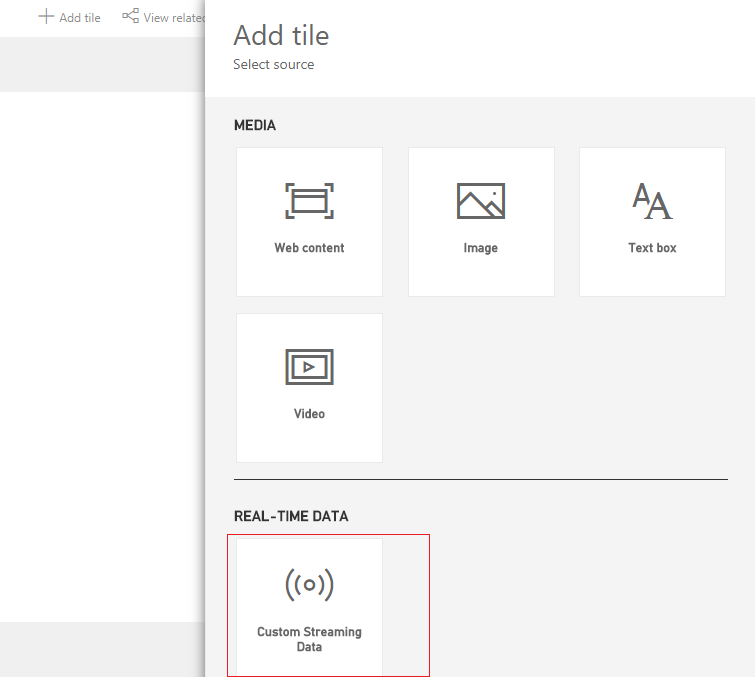
3. 选定我们的streaming data tile
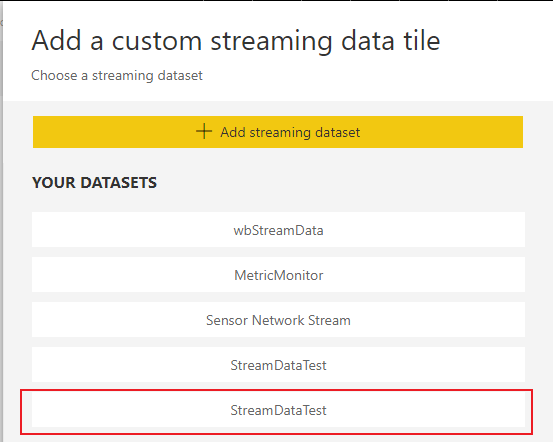
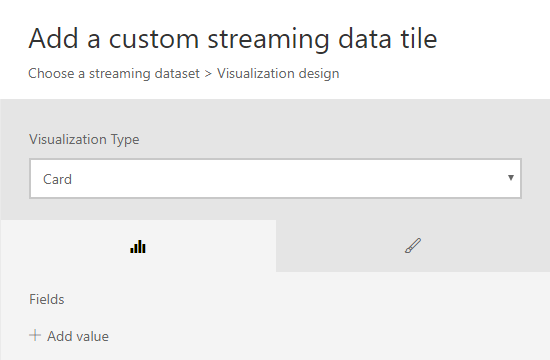
4. 执行相应的添加即可
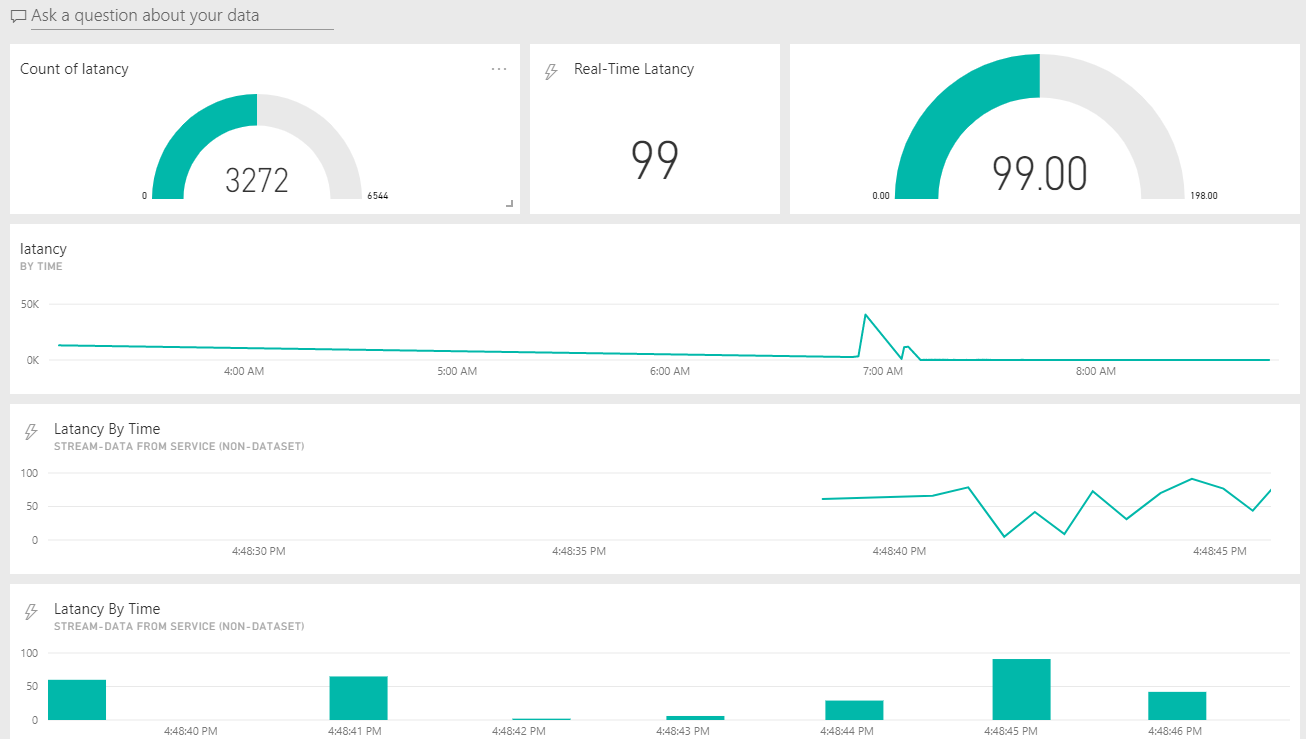
5.实时展示结果:(实时更新显示C#代码发来的random数据)
Power BI 实现实时更新Streaming Dataset的更多相关文章
- 微软Power BI 每月功能更新系列——12月Power BI 新功能学习
Power BI Desktop12月产品功能摘要 Power BI 作为实力宠粉达人每月更新不来点新花样,怎么对得起翘首期待的实力铁粉您嘞!一起来看看这一次的Power BI版本的更新又给我们带来了 ...
- 微软Power BI 每月功能更新系列——4月Power BI 新功能学习
本月Power BI Desktop的更新,除了常规的视觉和数据连接器改进之外,还有两个非常大的功能改进,交互式的报表.问答,用户直接在Desktop可以询问有关的数据问题,面对层出不穷的用户需求,这 ...
- 微软Power BI 每月功能更新系列——10月Power BI 新功能学习
Power BI Desktop10月产品功能摘要 本月Power Plus Desktop的更新充满了整个产品的小型和大型改进.一个巨大的更新是Power BI服务支持我们的复合模型和聚合预览.这实 ...
- 微软Power BI 每月功能更新系列——6月Power BI 新功能学习
Power BI Desktop 6月产品功能摘要 本月Power BI Desktop的更新,专注于图表格式化的灵活性调整,通过过滤和排序选项,数据视图现在更加强大.多个连接器也获得重大更新,其中包 ...
- 微软Power BI 每月功能更新系列——7月Power BI 新功能学习
Power BI Desktop 7月产品功能摘要 7月是Power BI Desktop团队的重要发布!但由于官方延迟更新,我们的讲述也就更晚了一点,也许大家觉得没有必要了,都8月了,谁还看7月的? ...
- 微软Power BI 每月功能更新系列——9月Power BI 新功能学习
Power BI Desktop 9月新功能摘要 Power BI 9月更新如期而至,这一次Power BI 又推出了新功能——聚合预览,它可在内存中无缝地存储汇总值,大大提高报告的性能.另外本月还包 ...
- 2019微软Power BI 每月功能更新系列——3月Power BI 新功能学习
Power BI3月产品功能更新发布啦!本次新功能新增了热图和单选切片器:完善了新的DAX功能和对现有功能的改进(例如按钮和选择窗格):同时官方表示建模视图的全面改进也正在进行中~Woo~那么,本月更 ...
- 2019微软Power BI 每月功能更新系列——2月Power BI 新功能学习
哈喽,小伙伴们,我是小悦悦,好久不见~ 春节假期结束,新一轮的工作开始,祝大家猪年如意,开工大吉! 今天小悦悦带你走入猪年学习的正确打开方式——Power BI新一年的持续更新学习! Power ...
- 2019微软Power BI 每月功能更新系列——Power BI 4月版本功能完整解读
Power BI4月份的更新对整个产品进行了重大更新.此版本增加了基于DAX表达式定义视觉效果标题和按钮URL的功能.本月Power BI也新增了许多新的连接器,现在可以使用几种预览连接器,包括Pow ...
随机推荐
- 微信小程序:java后台获取openId
一.功能描述 openId是某个微信账户对应某个小程序或者公众号的唯一标识,但openId必须经过后台解密才能获取(之前实现过前台解密,可是由于微信小程序的种种限制,前台解密无法在小程序发布后使用) ...
- Centos6.9下RocketMQ3.4.6高可用集群部署记录(双主双从+Nameserver+Console)
之前的文章已对RocketMQ做了详细介绍,这里就不再赘述了,下面是本人在测试和生产环境下RocketMQ3.4.6高可用集群的部署手册,在此分享下: 1) 基础环境 ip地址 主机名 角色 192. ...
- linux下expect环境安装以及简单脚本测试
expect是交互性很强的脚本语言,可以帮助运维人员实现批量管理成千上百台服务器操作,是一款很实用的批量部署工具!expect依赖于tcl,而linux系统里一般不自带安装tcl,所以需要手动安装 下 ...
- Command Analyze failed with a nonzero exit code
在运行RN项目的时候,报 Command Analyze failed with a nonzero exit code ,试着将build System 修改下
- C. Ehab and a 2-operation task
链接 [https://codeforces.com/contest/1088/problem/C] 题意 n个数,最多n+1操作,要么前i个数加x,要么前i个数对x取余,最后使得严格递增 分析 直接 ...
- 20135316王剑桥Linux内核学习记笔记第七周
20135316王剑桥<Linux内核分析>MOOC课程http://mooc.study.163.com/course/USTC 1000029000 一.可执行程序是怎么得来的? 编译 ...
- 软件工程——HelloWorld
#include main(){ printf("Hello World\n"); }
- 【转】CSS颜色代码大全
转自http://www.cnblogs.com/axing/archive/2011/04/09/CSS.html FFFFFF #DDDDDD #AAAAAA #888888 #666666 #4 ...
- 牛客OI周赛7-普及组
https://ac.nowcoder.com/acm/contest/372#question A.救救猫咪 #include <bits/stdc++.h> using namespa ...
- PAT 甲级 1044 Shopping in Mars
https://pintia.cn/problem-sets/994805342720868352/problems/994805439202443264 Shopping in Mars is qu ...