
Android SeekBar自定义使用图片和颜色显示
案例使用的图片如下:


1.在res/drawable目录下新增一个xml风格文件,seekbar_define_style.xml
|
1
2
3
4
5
6
7
8
9
10
11
12
13
14
15
|
<?xml version="1.0" encoding="utf-8"?><layer-list xmlns:android="http://schemas.android.com/apk/res/android"> <!-- 未选中 --> <item android:id="@android:id/background" android:drawable="@drawable/hou"/> <!-- 中 --> <item android:id="@android:id/progress" android:drawable="@drawable/qian"/> <item android:id="@android:id/secondaryProgress" android:drawable="@drawable/qian"/></layer-list> |
2.在res/drawable下定义个seekbar_thumb.xml文件
|
1
2
3
4
5
6
7
8
9
10
11
12
13
14
15
16
17
18
19
20
21
22
23
|
<?xml version="1.0" encoding="utf-8"?><selector xmlns:android="http://schemas.android.com/apk/res/android"> <!-- 按下状态--> <item android:state_focused="true" android:state_pressed="true" android:drawable="@drawable/ic_launcher" /> <!-- 普通无焦点状态 -拖动按钮--> <item android:state_focused="false" android:state_pressed="false" android:drawable="@drawable/orbino_icon_pack_006" /> <!-- 有焦点状态--> <item android:state_focused="true" android:state_pressed="false" android:drawable="@drawable/ios" /> <!-- 有焦点 --> <item android:state_focused="true" android:drawable="@drawable/ios"/></selector> |
3.在res/layut下定义布局资源文件seekbar_define.xml
|
1
2
3
4
5
6
7
8
9
10
11
12
13
14
15
16
17
18
19
20
21
22
23
24
25
26
27
28
29
30
31
32
33
34
35
36
|
<?xml version="1.0" encoding="utf-8"?><ScrollView xmlns:android="<a href="http://schemas.android.com/apk/res/android" rel="nofollow">http://schemas.android.com/apk/res/android</a>" android:layout_width="fill_parent" android:layout_height="fill_parent" > <LinearLayout android:layout_width="fill_parent" android:layout_height="fill_parent" android:orientation="vertical" > <TextView android:id="@+id/seekbar_tetview_one" android:layout_width="wrap_content" android:layout_height="wrap_content" android:text="SeekBar自定义" /> <TextView android:id="@+id/seekbar_tetview_two" android:layout_width="wrap_content" android:layout_height="wrap_content" android:text="SeekBar拖动时信息提示" /> <SeekBar android:layout_width="321px" android:layout_height="wrap_content" android:layout_centerInParent="true" android:maxHeight="20px" android:minHeight="20px" android:paddingLeft="18px" android:paddingRight="18px" android:max="100" android:progressDrawable="@drawable/seekbar_define_style" android:thumb="@drawable/seekbar_thumb" android:id="@+id/seekBar"/> </LinearLayout></ScrollView> |
4.定义java文件通过 引用布局文件:
|
1
2
3
4
5
6
7
8
9
10
11
12
13
14
15
16
17
18
19
20
21
22
23
24
25
26
27
28
29
30
31
32
33
34
35
36
37
38
39
40
41
42
43
44
45
46
47
48
49
50
51
52
53
54
55
56
57
58
59
60
61
62
63
64
65
66
67
68
69
70
71
72
73
74
75
76
77
78
79
80
81
82
83
84
85
86
|
package com.test;import android.R.integer;import android.app.Activity;import android.os.Bundle;import android.os.Handler;import android.os.Message;import android.widget.SeekBar;import android.widget.SeekBar.OnSeekBarChangeListener;import android.widget.TextView;public class SeekBarDemo_DefineDemo extends Activity { private SeekBar seekBar; private TextView textView_one, textView_two; @Override protected void onCreate(Bundle savedInstanceState) { super.onCreate(savedInstanceState); setContentView(R.layout.seekbar_define); seekBar = (SeekBar) findViewById(R.id.seekBar); textView_one = (TextView) findViewById(R.id.seekbar_tetview_one); textView_two = (TextView) findViewById(R.id.seekbar_tetview_two); seekBar.setOnSeekBarChangeListener(seekbarChangeListener); } private OnSeekBarChangeListener seekbarChangeListener = new OnSeekBarChangeListener() { // 停止拖动时执行 @Override public void onStopTrackingTouch(SeekBar seekBar) { // TODO Auto-generated method stub textView_two.setText("停止拖动了!"); } // 在进度开始改变时执行 @Override public void onStartTrackingTouch(SeekBar seekBar) { // TODO Auto-generated method stub textView_two.setText("进度开始改变"); } // 当进度发生改变时执行 @Override public void onProgressChanged(SeekBar seekBar, int progress, boolean fromUser) { textView_two.setText("正在进行拖动操作,还没有停下来一直再拖动"); Message message = new Message(); Bundle bundle = new Bundle();// 存放数据 float pro = seekBar.getProgress(); float num = seekBar.getMax(); float result = (pro / num) * 100; bundle.putFloat("key", result); message.setData(bundle); message.what = 0; handler.sendMessage(message); } }; /** * 用Handler来更新UI */ private Handler handler = new Handler() { @Override public void handleMessage(Message msg) { textView_one.setText("当前拖动位置占 : " + msg.getData().getFloat("key") + "/100"); } };} |
最后执行效果:
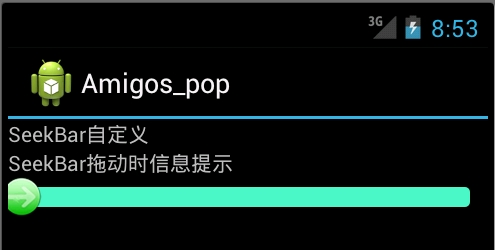

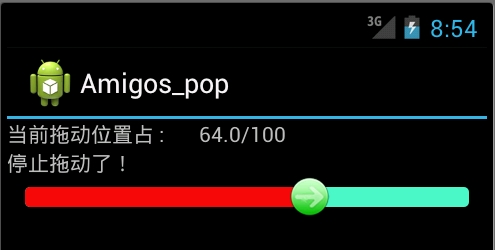
二:使用颜色显示,和尚面是一样的,只有我们定义颜色资源来替代图片资源文件seekbar_define_color_style.xml:如下:
|
1
2
3
4
5
6
7
8
9
10
11
12
13
14
15
16
17
18
19
20
21
22
23
24
25
26
27
28
29
30
31
32
33
|
<?xml version="1.0" encoding="UTF-8"?> <layer-list xmlns:android="http://schemas.android.com/apk/res/android"> <item android:id="@android:id/background" android:paddingTop="3px" android:paddingBottom="3px"> <shape> <corners android:radius="10dip" /> <gradient android:startColor="#ffffffff" android:centerColor="#ff000000" android:endColor="#ff808A87" android:centerY="0.45" android:angle="270"/> </shape> </item> <item android:id="@android:id/progress" android:paddingTop="3px" android:paddingBottom="3px" > <clip> <shape> <corners android:radius="10dip" /> <gradient android:startColor="#ffffffff" android:centerColor="#ffFFFF00" android:endColor="#ffAABD00" android:centerY="0.45" android:angle="270"/> </shape> </clip> </item> </layer-list> |
之后再SeekBar标签使用如下属性进行引入:其他保持不变
|
1
|
android:progressDrawable="@drawable/seekbar_define_color_style" |
执行效果:
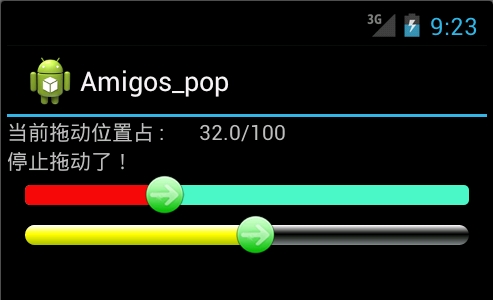
由于SeekBar的属性thumb引入了自定义的seekbar_thumb.xml文件,拖动图标是我们自定义的图片:除去这个属性
|
1
|
android:thumb="@drawable/seekbar_thumb" |
就回复系统默认状态效果最后效果如下:

我们可以通过颜色值再次休息seekbar_thumb.xml文件,使拖动按钮设置成自定义颜色:
Android SeekBar自定义使用图片和颜色显示的更多相关文章
- Android SeekBar 自定义thumb,thumb旋转动画效果
简介 某些音乐播放或者视频播放的界面上,资源还在加载时,进度条的原点(thumb)会显示一个转圈的效果. 资源加载完成后,又切换回静态效果.这个效果增强了用户体验. 一般来说有美术人员负责设计和切图. ...
- Android——SeekBar(拖动条)相关知识总结贴
Android进度条(ProgressBar)拖动条(SeekBar)星级滑块(RatingBar)的例子 http://www.apkbus.com/android-51326-1-1.html A ...
- Android 三档自定义滑动开关,禁止点击功能的实现,用默认的seekbar组件实现
android三档自定义滑动开关,禁止点击功能的实现,普通开关网上有很多例子,三档滑动开关的则找了整天都没有相关例子,开始用普通开关的源码修改了自己实现了一个类,但效果不如人意,各种边界情况的算法很难 ...
- Android实现自定义带文字和图片的Button
Android实现自定义带文字和图片的Button 在Android开发中经常会需要用到带文字和图片的button,下面来讲解一下常用的实现办法. 一.用系统自带的Button实现 最简单的一种办法就 ...
- 自定义漂亮的Android SeekBar样式
系统自带的SeekBar真是太难看了,不能容忍! 只能自己做了,先来张效果图 第1个Seekbar 背景是颜色,thumb是图片,上代码: <SeekBar android:id="@ ...
- Android 自定义圆形图片 CircleImageView
1.效果预览 1.1.布局中写自定义圆形图片的路径即可 1.2.然后看一看图片效果 1.3.原图是这样的 @mipmap/ic_launcher 2.使用过程 2.1.CircleImageView源 ...
- android progressbar 自定义图片匀速旋转
项目中需要使用圆形进度条进行数据加载的显示,所以需要两个步骤 1:自定义progressbar滚动图片 2:匀速旋转图片 步骤一:自定义progressbar图片 <ProgressBar an ...
- Android RatingBar 自定义样式
Android RatingBar 自定义样式 1.先定义Style: <style name="RadingStyle" parent="@android:sty ...
- 【转】Android之自定义Adapter的ListView
http://www.cnblogs.com/topcoderliu/archive/2011/05/07/2039862.html 在开发中,我们经常使用到ListView这个控件.Android的 ...
随机推荐
- quick-cocos2d-x学习笔记—定时器
定时器用的地方还是比较多的,游戏中的逻辑判断很多都是采用每帧执行.quick对于schedule的封装在scheduler这个lua文件中.如果是第一次接触quick的话,可能按照官方的api来写一个 ...
- 多线程 or 多进程 (转强力推荐)
在Unix上编程采用多线程还是多进程的争执由来已久,这种争执最常见到在C/S通讯中服务端并发技术 的选型上,比如WEB服务器技术中,Apache是采用多进程的(perfork模式,每客户连接对应一个进 ...
- [Effective JavaScript 笔记]第58条:区分数组对象和类数组对象
示例 设想有两个不同类的API.第一个是位向量:有序的位集合 var bits=new BitVector(); bits.enable(4); bits.enable([1,3,8,17]); bi ...
- 对target="framename"的理解(实现分页的demo)
先上图,说明一下我主要想实现什么功能. 一.演示图 演示首页: 演示内容页(包括按钮切换页+模板内容页): 演示首页到演示内容页的一个演变过程:
- mysql将int 时间类型格式化
摘要 DATE_FORMAT(date,format) 根据format字符串安排date值的格式. DATE_FORMAT(date,format) 根据format字符串安排date值的格式. ...
- Ubuntu14.04server开放rootssh登录权限
刚安装了Ubuntu 14.04 server的虚拟机,普通帐号可以远程登录,但是root不行,输入密码后一直报错: permission denied 最后发现ssh的配置(/etc/ssh/ssh ...
- poj 1318
http://poj.org/problem?id=1318 这个题目还是比较水的,不过也可以提升你对字符串的熟悉度以及对一些排序函数和字符函数的使用. 大概的题意就是给你一个字典,这个字典有一些单词 ...
- Windows命令行提取日期时间
参考: http://elicecn.blog.163.com/blog/static/174017473200931910320556/ SET str="%date:~0,4%%date ...
- Apple Swift中英文开发资源集锦[apple swift resources]
找到的一些Apple Swift中英文资源原文链接,希望对大家有所帮助.欢迎大家补充,原始资源链接最好! The Swift Programming Language https://develope ...
- IE8 不支持html5 placeholder的解决方案
IE8不支持html5 placeholder的解决方法. /** * jQuery EnPlaceholder plug * version 1.0 2014.07.01戈志刚 * by Frans ...