
Drawer实现侧边栏布局
import 'package:flutter/material.dart';

import 'tabs/Home.dart';

import 'tabs/Category.dart';

import 'tabs/Setting.dart';

class Tabs extends StatefulWidget {

   final index;

  Tabs({Key key,this.index=0}) : super(key: key);

  _TabsState createState() => _TabsState(this.index);

}

class _TabsState extends State<Tabs> {

  // int _currentIndex=0;

   int _currentIndex;

  _TabsState(index){

    this._currentIndex=index;

  }

  List _pageList=[

    HomePage(),

    CategoryPage(),

    SettingPage(),

  ];

  @override

  Widget build(BuildContext context) {

    return Scaffold(

        appBar: AppBar(

          title: Text("Flutter Demo"),

        ),

        body: this._pageList[this._currentIndex],

        bottomNavigationBar: BottomNavigationBar(

          currentIndex: this._currentIndex,

          onTap: (int index){

              setState(() {

                  this._currentIndex=index;

              });

          },

          iconSize:36.0,      //icon的大小

          fixedColor:Colors.red,  //选中的颜色

          type:BottomNavigationBarType.fixed,   //配置底部tabs可以有多个按钮

          items: [

            BottomNavigationBarItem(

              icon: Icon(Icons.home),

              title: Text("首页")

            ),

             BottomNavigationBarItem(

              icon: Icon(Icons.category),

              title: Text("分类")

            ),

             BottomNavigationBarItem(

              icon: Icon(Icons.settings),

              title: Text("设置")

            )

          ],

        ),

        drawer: Drawer(

          child:Text('这里是测边栏')

        ),

      );

  }

}
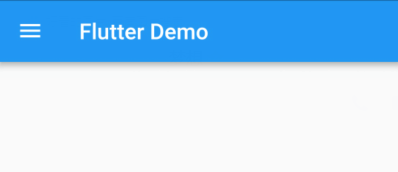
此时在顶部会出现一个可点击的图标按钮,不管是点击这个按钮还是滑动屏幕,都会出现侧边栏:

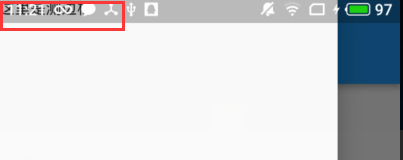
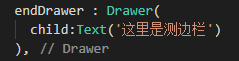
如果要实现右边的侧边栏,只需要使用endDrawer就可以了:
上面的样式太丑了,所以,可以稍微调整一下了:
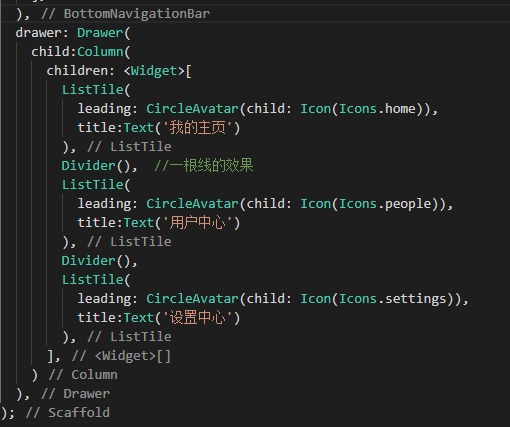
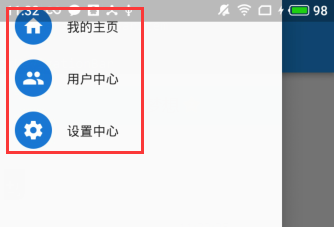
现在,虽然侧边栏里面多了一下内容,但是顶部还是出现了遮盖的现象,因此,可以借助DrawerHeader 组件来设置一下侧边栏顶部的样式。
DrawerHeader
在flutter中,DrawerHeader 有以下一些常用的属性:
- decoration :设置顶部背景颜色
- child :配置子元素
- padding :内边距
- margin :外边距
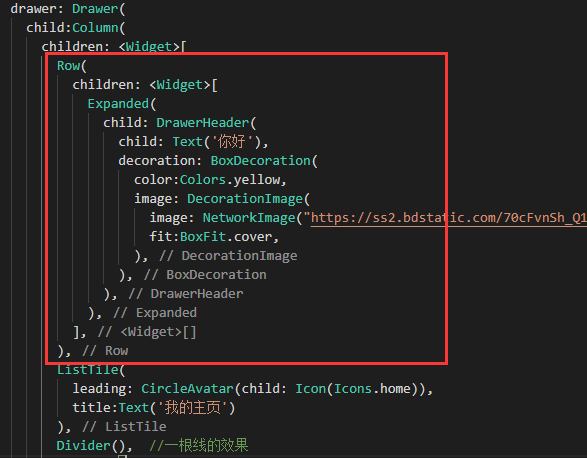
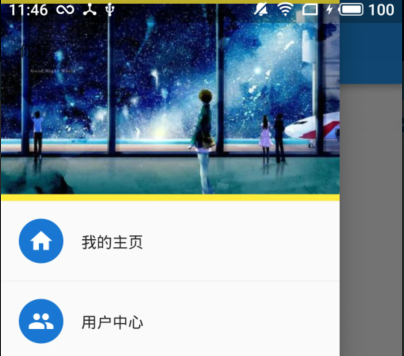
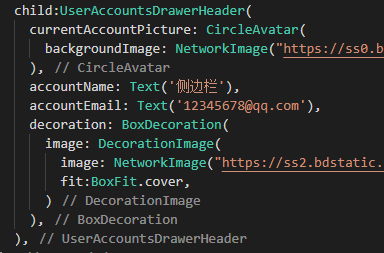
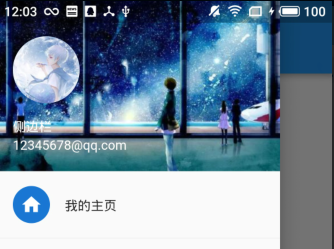
现在,借助了DrawerHeader实现了侧边栏的头部样式,除此之外,还可以借助UserAccountsDrawerHeader实现侧边栏头部的布局。
UserAccountsDrawerHeader
在flutter中,UserAccountsDrawerHeader有以下一些常用的属性:
- decoration :设置顶部背景颜色
- accountName:账户名称
- accountEmail :账户邮箱
- currentAccountPicture :用户头像
- otherAccountsPictures :用来设置当前账户其他账户头像
- margin :
侧边栏中的路由跳转
要实现路由跳转,首先需要有供跳转的页面:
User.dart
import 'package:flutter/material.dart';

class UserPage extends StatelessWidget {

  const UserPage({Key key}) : super(key: key);

  @override

  Widget build(BuildContext context) {

    return Scaffold(

      appBar: AppBar(

        title: Text("用户中心"),

      ),

    );

  }

}
然后配置路由:
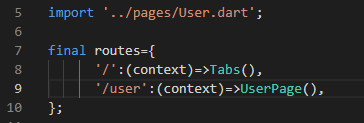
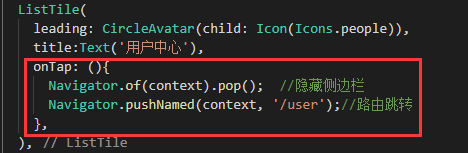
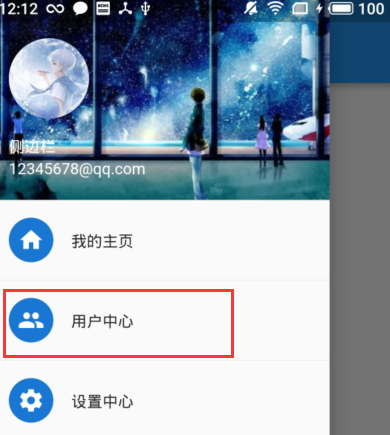
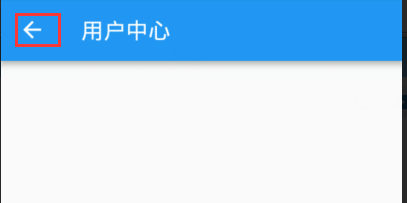
最后,在用户中心处添加路由跳转按钮就可以了。但是有一个问题:在侧边栏进行路由跳转,那么侧边栏是开启的,这样,页面跳转后再返回,侧边栏还是存在的,并且动画上面还会出现不流畅性,因此,在路由跳转前,需要先隐藏侧边栏:
Tabs.dart
import 'package:flutter/material.dart';

import 'tabs/Home.dart';

import 'tabs/Category.dart';

import 'tabs/Setting.dart';

class Tabs extends StatefulWidget {

  // Tabs({Key key}) : super(key: key);

  // _TabsState createState() => _TabsState();

   final index;

  Tabs({Key key,this.index=0}) : super(key: key);

  _TabsState createState() => _TabsState(this.index);

}

class _TabsState extends State<Tabs> {

  // int _currentIndex=0;

   int _currentIndex;

  _TabsState(index){

    this._currentIndex=index;

  }

  List _pageList=[

    HomePage(),

    CategoryPage(),

    SettingPage(),

  ];

  @override

  Widget build(BuildContext context) {

    return Scaffold(

        appBar: AppBar(

          title: Text("Flutter Demo"),

        ),

        body: this._pageList[this._currentIndex],

        bottomNavigationBar: BottomNavigationBar(

          currentIndex: this._currentIndex,   //配置对应的索引值选中

          onTap: (int index){

              setState(() {  //改变状态

                  this._currentIndex=index;

              });

          },

          iconSize:36.0,      //icon的大小

          fixedColor:Colors.red,  //选中的颜色

          type:BottomNavigationBarType.fixed,   //配置底部tabs可以有多个按钮

          items: [

            BottomNavigationBarItem(

              icon: Icon(Icons.home),

              title: Text("首页")

            ),

             BottomNavigationBarItem(

              icon: Icon(Icons.category),

              title: Text("分类")

            ),

             BottomNavigationBarItem(

              icon: Icon(Icons.settings),

              title: Text("设置")

            )

          ],

        ),

        drawer: Drawer(

          child:Column(

            children: <Widget>[

              Row(

                children: <Widget>[

                  Expanded(

                    // child: DrawerHeader(

                    //   child: Text('你好'),

                    //   decoration: BoxDecoration(

                    //     color:Colors.yellow,

                    //     image: DecorationImage(

                    //       image: NetworkImage("https://ss2.bdstatic.com/70cFvnSh_Q1YnxGkpoWK1HF6hhy/it/u=3230740943,2194698121&fm=27&gp=0.jpg"),

                    //       fit:BoxFit.cover,

                    //     ),

                    //   ),

                    // ),

                    child:UserAccountsDrawerHeader(

                      currentAccountPicture: CircleAvatar(

                        backgroundImage: NetworkImage("https://ss0.bdstatic.com/70cFvHSh_Q1YnxGkpoWK1HF6hhy/it/u=1547205045,3791549413&fm=27&gp=0.jpg"),

                      ),

                      accountName: Text('侧边栏'),

                      accountEmail: Text('12345678@qq.com'),

                      decoration: BoxDecoration(

                        image: DecorationImage(

                          image: NetworkImage("https://ss2.bdstatic.com/70cFvnSh_Q1YnxGkpoWK1HF6hhy/it/u=3230740943,2194698121&fm=27&gp=0.jpg"),

                          fit:BoxFit.cover,

                        )

                      ),

                    ),

                  ),

                ],

              ),

              ListTile(

                leading: CircleAvatar(child: Icon(Icons.home)),

                title:Text('我的主页')

              ),

              Divider(),  //一根线的效果

              ListTile(

                leading: CircleAvatar(child: Icon(Icons.people)),

                title:Text('用户中心'),

                onTap: (){

                  Navigator.of(context).pop();  //隐藏侧边栏

                  Navigator.pushNamed(context, '/user');//路由跳转

                },

              ),

              Divider(),

              ListTile(

                leading: CircleAvatar(child: Icon(Icons.settings)),

                title:Text('设置中心')

              ),

            ],

          )

        ),

      );

  }

}
代码下载:点这里(提取码:ukur)
Drawer实现侧边栏布局的更多相关文章
- Flutter常用布局组件
Flutter控件本身通常由许多小型.单用途的控件组成,结合起来产生强大的效果,例如,Container是一种常用的控件,由负责布局.绘画.定位和大小调整的几个控件组成,具体来说,Container是 ...
- Android实现侧边栏SlidingPaneLayout
//主布局 1 <?xml version="1.0" encoding="utf-8"?> <android.support.v4.widg ...
- android121 zhihuibeijing SlidingMenu(侧边栏效果,使用开源库)
## Splash ## - 旋转 RotateAnimation - 缩放 ScaleAnimation - 渐变 AlphaAnimation 工程可以作为一个库被其他工程当成一个Library使 ...
- Android 侧边栏(使用Support Library 4提供的扩展组件)
本文转自:http://www.apkbus.com/android-117148-1-1.html 写在前面的话:接触Android已经有一段时间了,自己积累的东西也算蛮多的.总结以往的经验,凡是关 ...
- ToolBar+Drawable实现一个好用的侧滑栏(侧边栏)和工具栏
先参考下ToolBar的使用和DrawableLayout的使用: 1.主界面布局,主要结构包含一个ToolBar和一个DrawableLayout,DrawableLayout里面有左侧边栏布局和主 ...
- 2.SlidingMenu(侧边栏效果)
> 使用步骤库:别的程序可以用它的方法.图片. 下载的其中一个框架的例子是没有actionBar的,example_update 引入出错可能是俩个v4包冲突了,删掉工程里的一个,不要删了库里的 ...
- div+css网页标准布局实例教程(一)
今天学习<十天学会web标准(div+css)>的最后一个章节,本章节把前面学习的零碎内容串联起来,组织成一个网站,将根据本人这些年来的从业经验,从建立站点到一个完整的div+css网页的 ...
- Android开发——布局性能优化的一些技巧(一)
0. 前言 上一篇我们分析了为什么LinearLayout会比RelativeLayout性能更高,意义在于分析了这两种布局的实现源码,算是对一个小结论的证明过程,但是对布局性能的优化效果,对这两种布 ...
- 抽屉效果的实现(DrawerLayout和SlidingMenu的对比)
在做谷歌电子市场的时候用的是DrawerLayout实现的抽屉效果,在新闻客户端的时候用的是开源框架SlidingMenu来实现的,总的来说,各有个的优点,侧滑(开源框架)实现的效果更好,但是Draw ...
随机推荐
- 测开之路一百零三:jquery元素和标签的插入与删除
标签内插入 标签外插入 给标签加标签 !DOCTYPE html><html lang="en"><head> <meta charset=&q ...
- LDA提取信息
文本主题模型提取 如下程序将句子主题提取后,将权重值存入dataframe. #!/usr/bin/python # -*- coding:utf-8 -*- import pandas as pd ...
- unique()函数
unique()函数可输出列表,元组和series中的不同元素. 且只能输出dataframe的某一列series中的不同元素,不能同时输出. 返回的都是一个ndarry,但不能输出ndarry中的不 ...
- Node.js 的环境配置
1.安装node.js 官网上面最新版本的nodejs 都是自带npm的.http://nodejs.cn/至于安装过程选择默认下载就行 2.安装淘宝镜像,也就是将国外的一些资源代理到国内. 步骤:1 ...
- python基础-5 冒泡排序、递归
上节总结 一.上节内容补充回顾 1.lambda func = lambda x,y: 9+x 参数: x,y 函数体:9+x ==> return 9+x func: 函数名 def func ...
- [Git] 010 对 [Git 008] 的补充:实现 commit 不计次数
回顾:[Git] 008 status 与 commit 命令的补充 的 "2.4" [Git 008] 的 "2.4" 使用 git commit --ame ...
- CentOS7 iptables安装及操作
添加规则时的考量点: (1)要实现哪种功能:判断添加在哪张表上: (2)报文流经的路径:判断添加在哪个链上: 链上规则的次序: (1)同类规则(访问同一应用),匹配范围小的放上面: (2)不同类规则( ...
- Tunnel Warfare HDU 1540 区间合并+最大最小值
Tunnel Warfare HDU 1540 区间合并+最大最小值 题意 D x是破坏这个点,Q x是表示查询以x所在的最长的连续的点的个数,R是恢复上一次破坏的点. 题解思路 参考的大佬博客 这里 ...
- selenium的常见异常
selenium的常见异常 Exceptions(异常)Python 自带的异常,所有异常的基类. 异常: selenium.common.exceptions.ElementNotSelectabl ...
- 洛谷 - P4114 - Qtree1 - 重链剖分
https://www.luogu.org/problem/P4114 维护边权的话,用深度大的点表示这条边(可以遍历一边边询问两端深度,这样不需要修改dfs1,也可以在dfs1的时候向下走的同时把边 ...