
杨其菊201771010134《面向对象程序设计(java)》第十四周学习总结
第十四周学习总结
第一部分:理论知识
理论知识:本周学习Swing用户界面
内容:Swing与模型-视图-控制器设计模式;布局管理概述;文本输入 ;选择组件;菜单;复杂的布局管理;对话框;
第二部分:实验部分
实验十四 Swing图形界面组件
实验时间 20178-11-29
1、实验目的与要求
(1) 掌握GUI布局管理器用法;
(2) 掌握各类Java Swing组件用途及常用API;
2、实验内容和步骤
实验1: 导入第12章示例程序,测试程序并进行组内讨论。
测试程序1
l 在elipse IDE中运行教材479页程序12-1,结合运行结果理解程序;
l 掌握各种布局管理器的用法;
l 理解GUI界面中事件处理技术的用途。
l 在布局管理应用代码处添加注释;
 package First;

 import java.awt.*;

 import javax.swing.*;

 /**

  * @version 1.34 2015-06-12

  * @author Cay Horstmann

  */

 public class Calculator

 {

    public static void main(String[] args)

    {

       EventQueue.invokeLater(() -> {

          CalculatorFrame frame = new CalculatorFrame();

          frame.setTitle("Calculator");

          frame.setDefaultCloseOperation(JFrame.EXIT_ON_CLOSE);

          frame.setVisible(true);

       });

    }

 }
Calculator
 package First;

 import javax.swing.*;

 /**

  * A frame with a calculator panel.

  */

 public class CalculatorFrame extends JFrame

 {

    public CalculatorFrame()

    {

       add(new CalculatorPanel());

       pack();

    }

 }
CalculatorFrame
 package  First;

 import java.awt.*;

 import java.awt.event.*;

 import javax.swing.*;

 /**

  * A panel with calculator buttons and a result display.

  */

 public class CalculatorPanel extends JPanel

 {

    private JButton display;

    private JButton increase;

    private JPanel panel,panel2;

    private double result;

    private String lastCommand;

    private boolean start;

    public CalculatorPanel()

    {

       setLayout(new BorderLayout());

       result = 0;

       lastCommand = "=";

       start = true;

       // add the display

       display = new JButton("0");//显示结果;

       display.setEnabled(false);//使得显示结果不能更改,与按钮区别开来;使得上面只起到显示作用;

       add(display, BorderLayout.NORTH);//将结果显示屏放在上面;

       ActionListener insert = new InsertAction();

       ActionListener command = new CommandAction();

       // add the buttons in a 4 x 4 grid

       panel = new JPanel();

       panel.setLayout(new GridLayout(4, 4));

       addButton("7", insert);

       addButton("8", insert);

       addButton("9", insert);

       addButton("/", command);

       addButton("4", insert);

       addButton("5", insert);

       addButton("6", insert);

       addButton("*", command);

       addButton("1", insert);

       addButton("2", insert);

       addButton("3", insert);

       addButton("-", command);

       addButton("0", insert);

       addButton(".", insert);

       addButton("=", command);

       addButton("+", command);

       add(panel, BorderLayout.CENTER);//将按键放在中间;

        JButton b1 = new JButton("验证");

       add(b1, BorderLayout.SOUTH);

        JButton bright = new JButton("验证1");

       add(bright, BorderLayout.EAST);

       JButton bleft=new JButton("验证2");

       add(bleft, BorderLayout.WEST);

    }

    /**

     * Adds a button to the center panel.

     * @param label the button label

     * @param listener the button listener

     */

    private void addButton(String label, ActionListener listener)

    {

       JButton button = new JButton(label);//生成按钮对象;

       button.addActionListener(listener);//注册监听器对象;

       panel.add(button);//将按钮添加到面板上去;

    }

    /**

     * This action inserts the button action string to the end of the display text.

     */

    private class InsertAction implements ActionListener

    {

       public void actionPerformed(ActionEvent event)

       {

          String input = event.getActionCommand();

          if (start)

          {

             display.setText("");

             start = false;

          }

          display.setText(display.getText() + input);

       }

    }

    /**

     * This action executes the command that the button action string denotes.

     */

    private class CommandAction implements ActionListener

    {

       public void actionPerformed(ActionEvent event)

       {

          String command = event.getActionCommand();

          if (start)

          {

             if (command.equals("-"))

             {

                display.setText(command);

                start = false;

             }

             else lastCommand = command;

          }

          else

          {

             //将字符串类型数字符号转化为基本类型的数据;

             calculate(Double.parseDouble(display.getText()));

             lastCommand = command;

             start = true;

          }

       }

    }

    /**

     * Carries out the pending calculation.

     * @param x the value to be accumulated with the prior result.

     */

    public void calculate(double x)

    {

       if (lastCommand.equals("+")) result += x;

       else if (lastCommand.equals("-")) result -= x;

       else if (lastCommand.equals("*")) result *= x;

       else if (lastCommand.equals("/")) result /= x;

       else if (lastCommand.equals("=")) result = x;

       display.setText("" + result);

    }

 }
CalculatorPanel

测试程序2
l 在elipse IDE中调试运行教材486页程序12-2,结合运行结果理解程序;
l 掌握各种文本组件的用法;
l 记录示例代码阅读理解中存在的问题与疑惑。
 package Forth;

 import java.awt.*;

 import javax.swing.*;

 /**

  * @version 1.41 2015-06-12

  * @author Cay Horstmann

  */

 public class TextComponentTest

 {

    public static void main(String[] args)

    {

       EventQueue.invokeLater(() -> {

          JFrame frame = new TextComponentFrame();

          frame.setTitle("TextComponentTest");

          frame.setDefaultCloseOperation(JFrame.EXIT_ON_CLOSE);

          frame.setVisible(true);

       });

    }

 }
TextComponentTest
 package Forth;

 import java.awt.BorderLayout;

 import java.awt.GridLayout;

 import javax.swing.JButton;

 import javax.swing.JFrame;

 import javax.swing.JLabel;

 import javax.swing.JPanel;

 import javax.swing.JPasswordField;

 import javax.swing.JScrollPane;

 import javax.swing.JTextArea;

 import javax.swing.JTextField;

 import javax.swing.SwingConstants;

 /**

  * A frame with sample text components.

  */

 public class TextComponentFrame extends JFrame

 {

    public static final int TEXTAREA_ROWS = 8;

    public static final int TEXTAREA_COLUMNS = 20;

    public TextComponentFrame()

    {

        //本窗口有文本域和密码域

       JTextField textField = new JTextField();

       JPasswordField passwordField = new JPasswordField();

       //定义一个Panel,设置了表格布局管理器并指定行与列

       JPanel northPanel = new JPanel();

       northPanel.setLayout(new GridLayout(2, 2));

      // 添加文本域的标签

       northPanel.add(new JLabel("User name: ", SwingConstants.RIGHT));

       northPanel.add(textField);//将文本域添加到panel

       northPanel.add(new JLabel("Password: ", SwingConstants.RIGHT));

       northPanel.add(passwordField);

       add(northPanel, BorderLayout.NORTH);//将pannel添加到frame

       JTextArea textArea = new JTextArea(TEXTAREA_ROWS, TEXTAREA_COLUMNS);

       JScrollPane scrollPane = new JScrollPane(textArea);

       add(scrollPane, BorderLayout.CENTER);

       // 添加按钮以将文本附加到文本区域

       JPanel southPanel = new JPanel();

       //定义一个按钮,添加到frame下方,并定义监听事件,点击按钮,文本区显示用户名与密码

       JButton insertButton = new JButton("Insert");

       southPanel.add(insertButton);

       insertButton.addActionListener(event ->

          textArea.append("User name: " + textField.getText() + " Password: "

             + new String(passwordField.getPassword()) + "\n"));

       add(southPanel, BorderLayout.SOUTH);

       pack();

    }

 }
TextComponentFrame
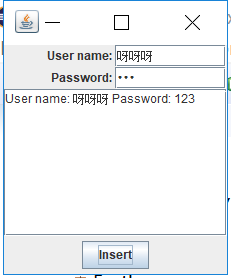
测试程序3
l 在elipse IDE中调试运行教材489页程序12-3,结合运行结果理解程序;
l 掌握复选框组件的用法;
l 记录示例代码阅读理解中存在的问题与疑惑。
 package practise;

 import java.awt.*;

 import javax.swing.*;

 /**

  * @version 1.34 2015-06-12

  * @author Cay Horstmann

  */

 public class CheckBoxTest

 {

    public static void main(String[] args)

    {

       EventQueue.invokeLater(() -> {

          JFrame frame = new CheckBoxFrame();

          frame.setTitle("CheckBoxTest");

          frame.setDefaultCloseOperation(JFrame.EXIT_ON_CLOSE);

          frame.setVisible(true);

       });

    }

 }
CheckBoxTest
 package practise;

 import java.awt.*;

 import java.awt.event.*;

 import javax.swing.*;

 /**

  * A frame with a sample text label and check boxes for selecting font

  * attributes.

  */

 public class CheckBoxFrame extends JFrame

 {

    private JLabel label;

    private JCheckBox bold;

    private JCheckBox italic;

    private static final int FONTSIZE = 24;

    public CheckBoxFrame()

    {

       // add the sample text label

        //添加示例文本标签;

       label = new JLabel("The quick brown fox jumps over the lazy dog.");

       label.setFont(new Font("Serif", Font.BOLD, FONTSIZE));

       add(label, BorderLayout.CENTER);

       //此侦听器将标签的字体属性设置为复选框状态;

       ActionListener listener = event -> {

          int mode = 0;

          if (bold.isSelected()) mode += Font.BOLD;

          if (italic.isSelected()) mode += Font.ITALIC;

          label.setFont(new Font("Serif", mode, FONTSIZE));

       };

       // 添加复选框

       JPanel buttonPanel = new JPanel();

       bold = new JCheckBox("Bold");

       bold.addActionListener(listener);

       bold.setSelected(true);

       buttonPanel.add(bold);

       italic = new JCheckBox("Italic");

       italic.addActionListener(listener);

       buttonPanel.add(italic);

       add(buttonPanel, BorderLayout.SOUTH);

       pack();

    }

 }
CheckBoxFrame
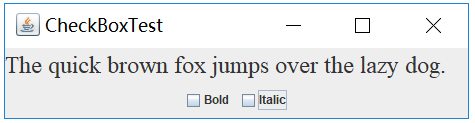
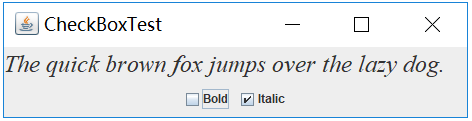
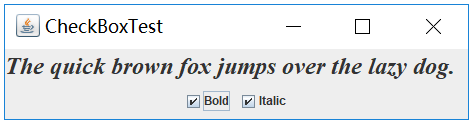
测试程序4
l 在elipse IDE中调试运行教材491页程序12-4,运行结果理解程序;
l 掌握单选按钮组件的用法;
l 记录示例代码阅读理解中存在的问题与疑惑。
 package Second;

 import java.awt.*;

 import javax.swing.*;

 /**

  * @version 1.34 2015-06-12

  * @author Cay Horstmann

  */

 public class RadioButtonTest

 {

    public static void main(String[] args)

    {

       EventQueue.invokeLater(() -> {

          JFrame frame = new RadioButtonFrame();

          frame.setTitle("RadioButtonTest");

          frame.setDefaultCloseOperation(JFrame.EXIT_ON_CLOSE);

          frame.setVisible(true);

       });

    }

 }
RadioButtonTest
 package Second;

 import java.awt.*;

 import java.awt.event.*;

 import javax.swing.*;

 /**

  * A frame with a sample text label and radio buttons for selecting font sizes.

  */

 public class RadioButtonFrame extends JFrame

 {

    private JPanel buttonPanel;

    private ButtonGroup group;

    private JLabel label;

    private static final int DEFAULT_SIZE = 36;

    public RadioButtonFrame()

    {

       // 添加示例文本标签

       label = new JLabel("The quick brown fox jumps over the lazy dog.");

       label.setFont(new Font("Serif", Font.PLAIN, DEFAULT_SIZE));

       add(label, BorderLayout.CENTER);

       // 添加单选按钮;

       buttonPanel = new JPanel();

       group = new ButtonGroup();

       addRadioButton("Small", 8);

       addRadioButton("Medium", 12);

       addRadioButton("Large", 18);

       addRadioButton("Extra large", 36);

       add(buttonPanel, BorderLayout.SOUTH);

       pack();

    }

    /**

     * Adds a radio button that sets the font size of the sample text.

     * @param name the string to appear on the button

     * @param size the font size that this button sets

     */

    public void addRadioButton(String name, int size)

    {

       boolean selected = size == DEFAULT_SIZE;

       JRadioButton button = new JRadioButton(name, selected);

       group.add(button);

       buttonPanel.add(button);

       // 此监听器设定标签字型大小

       ActionListener listener = event -> label.setFont(new Font("Serif", Font.PLAIN, size));

       button.addActionListener(listener);

    }

 }
RadioButtonFrame
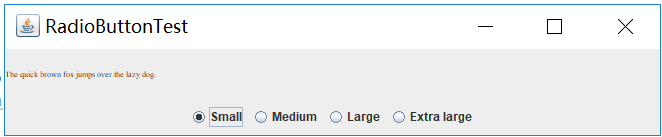
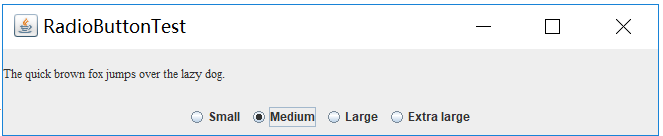
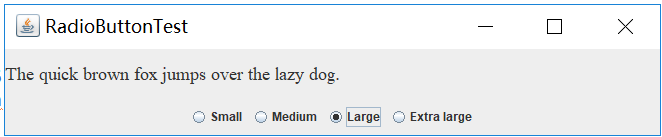
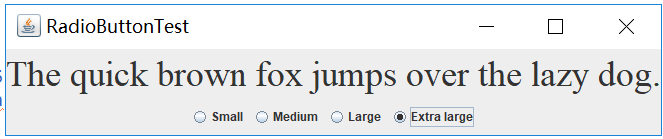
测试程序5
l 在elipse IDE中调试运行教材494页程序12-5,结合运行结果理解程序;
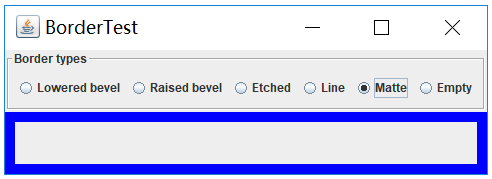
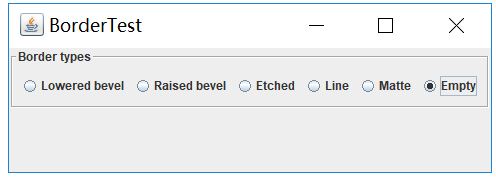
l 掌握边框的用法;
l 记录示例代码阅读理解中存在的问题与疑惑。
 package Third;

 import java.awt.*;

 import javax.swing.*;

 /**

  * @version 1.34 2015-06-13

  * @author Cay Horstmann

  */

 public class BorderTest

 {

    public static void main(String[] args)

    {

       EventQueue.invokeLater(() -> {

          JFrame frame = new BorderFrame();

          frame.setTitle("BorderTest");

          frame.setDefaultCloseOperation(JFrame.EXIT_ON_CLOSE);

          frame.setVisible(true);

       });

    }

 }
BorderTest
 package Third;

 import java.awt.*;

 import javax.swing.*;

 import javax.swing.border.*;

 /**

  * A frame with radio buttons to pick a border style.

  */

 public class BorderFrame extends JFrame

 {

    private JPanel demoPanel;

    private JPanel buttonPanel;

    private ButtonGroup group;

    public BorderFrame()

    {

       demoPanel = new JPanel();

       buttonPanel = new JPanel();

       group = new ButtonGroup();

       addRadioButton("Lowered bevel", BorderFactory.createLoweredBevelBorder());//创建一个具有凹面效果的边框;

       addRadioButton("Raised bevel", BorderFactory.createRaisedBevelBorder());//创建一个具有凸面效果的边框;

       addRadioButton("Etched", BorderFactory.createEtchedBorder());//创建一个具有3D效果的直线边框;

       addRadioButton("Line", BorderFactory.createLineBorder(Color.BLUE));//创建一个具有3D效果的蓝色直线边框;

       addRadioButton("Matte", BorderFactory.createMatteBorder(10, 10, 10, 10, Color.BLUE));//创建一个用蓝色填充的粗边框;

       addRadioButton("Empty", BorderFactory.createEmptyBorder());//创建一个空边框;

      //将一个带有标题的蚀刻边框添加到面板;

       Border etched = BorderFactory.createEtchedBorder();

       Border titled = BorderFactory.createTitledBorder(etched, "Border types");

       buttonPanel.setBorder(titled);

       setLayout(new GridLayout(2, 1));//设置了表格布局管理器并指定行与列

       add(buttonPanel);

       add(demoPanel);

       pack();

    }

    public void addRadioButton(String buttonName, Border b)

    {

       JRadioButton button = new JRadioButton(buttonName);

       button.addActionListener(event -> demoPanel.setBorder(b));

       group.add(button);

       buttonPanel.add(button);

    }

 }
BorderFrame
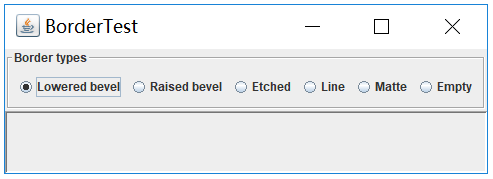
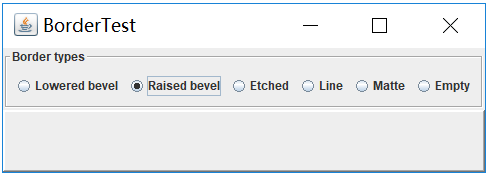
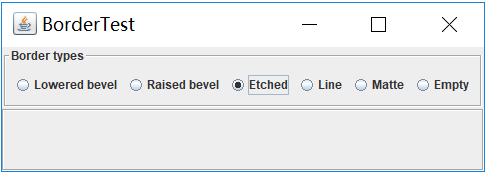
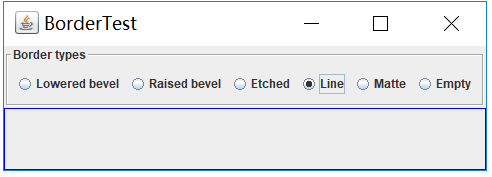
测试程序6
l 在elipse IDE中调试运行教材498页程序12-6,结合运行结果理解程序;
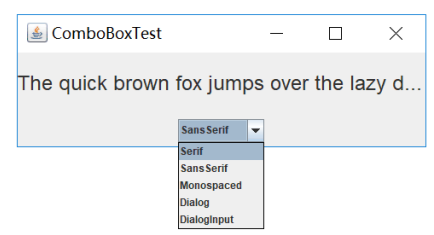
l 掌握组合框组件的用法;
l 记录示例代码阅读理解中存在的问题与疑惑。
 package Fifth;

 import java.awt.*;

 import javax.swing.*;

 /**

  * @version 1.35 2015-06-12

  * @author Cay Horstmann

  */

 public class ComboBoxTest

 {

    public static void main(String[] args)

    {

       EventQueue.invokeLater(() -> {

          JFrame frame = new ComboBoxFrame();

          frame.setTitle("ComboBoxTest");

          frame.setDefaultCloseOperation(JFrame.EXIT_ON_CLOSE);

          frame.setVisible(true);

       });

    }

 }
ComboBoxTest
 package Fifth;

 import java.awt.BorderLayout;

 import java.awt.Font;

 import javax.swing.JComboBox;

 import javax.swing.JFrame;

 import javax.swing.JLabel;

 import javax.swing.JPanel;

 /**

  * A frame with a sample text label and a combo box for selecting font faces.

  */

 public class ComboBoxFrame extends JFrame

 {

    private JComboBox<String> faceCombo;

    private JLabel label;

    private static final int DEFAULT_SIZE = 24;

    public ComboBoxFrame()

    {

       //添加示例文本标签

       label = new JLabel("The quick brown fox jumps over the lazy dog.");

       label.setFont(new Font("Serif", Font.PLAIN, DEFAULT_SIZE));

       add(label, BorderLayout.CENTER);

       // 创建组合框并添加人脸名称

       faceCombo = new JComboBox<>();

       faceCombo.addItem("Serif");

       faceCombo.addItem("SansSerif");

       faceCombo.addItem("Monospaced");

       faceCombo.addItem("Dialog");

       faceCombo.addItem("DialogInput");

       // 组合框侦听器将标签字体更改为选定的人脸名

       faceCombo.addActionListener(event ->

          label.setFont(

             new Font(faceCombo.getItemAt(faceCombo.getSelectedIndex()),

                Font.PLAIN, DEFAULT_SIZE)));

       // 添加组合框到框架南部边框的面板

       JPanel comboPanel = new JPanel();

       comboPanel.add(faceCombo);

       add(comboPanel, BorderLayout.SOUTH);

       pack();

    }

 }
ComboBoxFrame

测试程序7
l 在elipse IDE中调试运行教材501页程序12-7,结合运行结果理解程序;
l 掌握滑动条组件的用法;
l 记录示例代码阅读理解中存在的问题与疑惑。
 package Fifth;

 import java.awt.*;

 import javax.swing.*;

 /**

  * @version 1.15 2015-06-12

  * @author Cay Horstmann

  */

 public class SliderTest

 {

    public static void main(String[] args)

    {

       EventQueue.invokeLater(() -> {

          SliderFrame frame = new SliderFrame();

          frame.setTitle("SliderTest");

          frame.setDefaultCloseOperation(JFrame.EXIT_ON_CLOSE);

          frame.setVisible(true);

       });

    }

 }
SliderTest
 package Fifth;

 import java.awt.*;

 import java.util.*;

 import javax.swing.*;

 import javax.swing.event.*;

 /**

  * A frame with many sliders and a text field to show slider values.

  */

 public class SliderFrame extends JFrame

 {

    private JPanel sliderPanel;

    private JTextField textField;

    private ChangeListener listener;

    public SliderFrame()

    {

       sliderPanel = new JPanel();

       sliderPanel.setLayout(new GridBagLayout());

       // 所有滑动条的常见监听器

       listener = event -> {

          // update text field when the slider value changes

          JSlider source = (JSlider) event.getSource();

          textField.setText("" + source.getValue());

       };

       //添加普通滑动条;

       JSlider slider = new JSlider();

       addSlider(slider, "Plain");

       // 加入一个滑动条,

       slider = new JSlider();

       slider.setPaintTicks(true);

       slider.setMajorTickSpacing(20);

       slider.setMinorTickSpacing(5);

       addSlider(slider, "Ticks");

       //添加一个滑块,该滑块可以扣在滴答上

       slider = new JSlider();

       slider.setPaintTicks(true);

       slider.setSnapToTicks(true);

       slider.setMajorTickSpacing(20);

       slider.setMinorTickSpacing(5);

       addSlider(slider, "Snap to ticks");

       // 添加无轨迹的滑块

       slider = new JSlider();

       slider.setPaintTicks(true);

       slider.setMajorTickSpacing(20);

       slider.setMinorTickSpacing(5);

       slider.setPaintTrack(false);

       addSlider(slider, "No track");

       slider = new JSlider();

       slider.setPaintTicks(true);

       slider.setMajorTickSpacing(20);

       slider.setMinorTickSpacing(5);

       slider.setInverted(true);

       addSlider(slider, "Inverted");

       // add a slider with numeric labels

       slider = new JSlider();

       slider.setPaintTicks(true);

       slider.setPaintLabels(true);

       slider.setMajorTickSpacing(20);

       slider.setMinorTickSpacing(5);

       addSlider(slider, "Labels");

       // add a slider with alphabetic labels

       slider = new JSlider();

       slider.setPaintLabels(true);

       slider.setPaintTicks(true);

       slider.setMajorTickSpacing(20);

       slider.setMinorTickSpacing(5);

       Dictionary<Integer, Component> labelTable = new Hashtable<>();

       labelTable.put(0, new JLabel("A"));

       labelTable.put(20, new JLabel("B"));

       labelTable.put(40, new JLabel("C"));

       labelTable.put(60, new JLabel("D"));

       labelTable.put(80, new JLabel("E"));

       labelTable.put(100, new JLabel("F"));

       slider.setLabelTable(labelTable);

       addSlider(slider, "Custom labels");

       // add a slider with icon labels

       slider = new JSlider();

       slider.setPaintTicks(true);

       slider.setPaintLabels(true);

       slider.setSnapToTicks(true);

       slider.setMajorTickSpacing(20);

       slider.setMinorTickSpacing(20);

       labelTable = new Hashtable<Integer, Component>();

       // add card images

       labelTable.put(0, new JLabel(new ImageIcon("nine.gif")));

       labelTable.put(20, new JLabel(new ImageIcon("ten.gif")));

       labelTable.put(40, new JLabel(new ImageIcon("jack.gif")));

       labelTable.put(60, new JLabel(new ImageIcon("queen.gif")));

       labelTable.put(80, new JLabel(new ImageIcon("king.gif")));

       labelTable.put(100, new JLabel(new ImageIcon("ace.gif")));

       slider.setLabelTable(labelTable);

       addSlider(slider, "Icon labels");

       // add the text field that displays the slider value

       textField = new JTextField();

       add(sliderPanel, BorderLayout.CENTER);

       add(textField, BorderLayout.SOUTH);

       pack();

    }

    /**

     * Adds a slider to the slider panel and hooks up the listener

     * @param s the slider

     * @param description the slider description

     */

    public void addSlider(JSlider s, String description)

    {

       s.addChangeListener(listener);

       JPanel panel = new JPanel();

       panel.add(s);

       panel.add(new JLabel(description));

       panel.setAlignmentX(Component.LEFT_ALIGNMENT);

       GridBagConstraints gbc = new GridBagConstraints();

       gbc.gridy = sliderPanel.getComponentCount();

       gbc.anchor = GridBagConstraints.WEST;

       sliderPanel.add(panel, gbc);

    }

 }
SliderFrame

测试程序8
l 在elipse IDE中调试运行教材512页程序12-8,结合运行结果理解程序;
l 掌握菜单的创建、菜单事件监听器、复选框和单选按钮菜单项、弹出菜单以及快捷键和加速器的用法。
l 记录示例代码阅读理解中存在的问题与疑惑。
 package Fifth;

 import java.awt.*;

 import javax.swing.*;

 /**

  * @version 1.24 2012-06-12

  * @author Cay Horstmann

  */

 public class MenuTest

 {

    public static void main(String[] args)

    {

       EventQueue.invokeLater(() -> {

          JFrame frame = new MenuFrame();

          frame.setTitle("MenuTest");

          frame.setDefaultCloseOperation(JFrame.EXIT_ON_CLOSE);

          frame.setVisible(true);

       });

    }

 }
MenuTest
 package Fifth;

 import java.awt.event.*;

 import javax.swing.*;

 /**

  * A frame with a sample menu bar.

  */

 public class MenuFrame extends JFrame

 {

    private static final int DEFAULT_WIDTH = 300;

    private static final int DEFAULT_HEIGHT = 200;

    private Action saveAction;

    private Action saveAsAction;

    private JCheckBoxMenuItem readonlyItem;

    private JPopupMenu popup;

    /**

     * A sample action that prints the action name to System.out

     */

    class TestAction extends AbstractAction

    {

       public TestAction(String name)

       {

          super(name);

       }

       public void actionPerformed(ActionEvent event)

       {

          System.out.println(getValue(Action.NAME) + " selected.");

       }

    }

    public MenuFrame()

    {

       setSize(DEFAULT_WIDTH, DEFAULT_HEIGHT);

       JMenu fileMenu = new JMenu("File");

       fileMenu.add(new TestAction("New"));

       // demonstrate accelerators

       JMenuItem openItem = fileMenu.add(new TestAction("Open"));

       openItem.setAccelerator(KeyStroke.getKeyStroke("ctrl O"));

       fileMenu.addSeparator();

       saveAction = new TestAction("Save");

       JMenuItem saveItem = fileMenu.add(saveAction);

       saveItem.setAccelerator(KeyStroke.getKeyStroke("ctrl S"));

       saveAsAction = new TestAction("Save As");

       fileMenu.add(saveAsAction);

       fileMenu.addSeparator();

       fileMenu.add(new AbstractAction("Exit")

          {

             public void actionPerformed(ActionEvent event)

             {

                System.exit(0);

             }

          });

       // demonstrate checkbox and radio button menus

       readonlyItem = new JCheckBoxMenuItem("Read-only");

       readonlyItem.addActionListener(new ActionListener()

          {

             public void actionPerformed(ActionEvent event)

             {

                boolean saveOk = !readonlyItem.isSelected();

                saveAction.setEnabled(saveOk);

                saveAsAction.setEnabled(saveOk);

             }

          });

       ButtonGroup group = new ButtonGroup();

       JRadioButtonMenuItem insertItem = new JRadioButtonMenuItem("Insert");

       insertItem.setSelected(true);

       JRadioButtonMenuItem overtypeItem = new JRadioButtonMenuItem("Overtype");

       group.add(insertItem);

       group.add(overtypeItem);

       // demonstrate icons

       Action cutAction = new TestAction("Cut");

       cutAction.putValue(Action.SMALL_ICON, new ImageIcon("cut.gif"));

       Action copyAction = new TestAction("Copy");

       copyAction.putValue(Action.SMALL_ICON, new ImageIcon("copy.gif"));

       Action pasteAction = new TestAction("Paste");

       pasteAction.putValue(Action.SMALL_ICON, new ImageIcon("paste.gif"));

       JMenu editMenu = new JMenu("Edit");

       editMenu.add(cutAction);

       editMenu.add(copyAction);

       editMenu.add(pasteAction);

       // demonstrate nested menus

       JMenu optionMenu = new JMenu("Options");

       optionMenu.add(readonlyItem);

       optionMenu.addSeparator();

       optionMenu.add(insertItem);

       optionMenu.add(overtypeItem);

       editMenu.addSeparator();

       editMenu.add(optionMenu);

       // demonstrate mnemonics

       JMenu helpMenu = new JMenu("Help");

       helpMenu.setMnemonic('H');

       JMenuItem indexItem = new JMenuItem("Index");

       indexItem.setMnemonic('I');

       helpMenu.add(indexItem);

       // you can also add the mnemonic key to an action

       Action aboutAction = new TestAction("About");

       aboutAction.putValue(Action.MNEMONIC_KEY, new Integer('A'));

       helpMenu.add(aboutAction);

       // add all top-level menus to menu bar

       JMenuBar menuBar = new JMenuBar();

       setJMenuBar(menuBar);

       menuBar.add(fileMenu);

       menuBar.add(editMenu);

       menuBar.add(helpMenu);

       // demonstrate pop-ups

       popup = new JPopupMenu();

       popup.add(cutAction);

       popup.add(copyAction);

       popup.add(pasteAction);

       JPanel panel = new JPanel();

       panel.setComponentPopupMenu(popup);

       add(panel);

    }

 }
MenuFrame
测试程序9
l 在elipse IDE中调试运行教材517页程序12-9,结合运行结果理解程序;
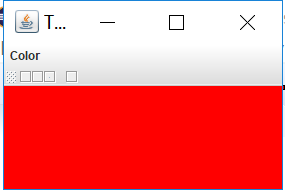
l 掌握工具栏和工具提示的用法;
l 记录示例代码阅读理解中存在的问题与疑惑。
 package First;

 import java.awt.*;

 import javax.swing.*;

 /**

  * @version 1.14 2015-06-12

  * @author Cay Horstmann

  */

 public class ToolBarTest

 {

    public static void main(String[] args)

    {

       EventQueue.invokeLater(() -> {

          ToolBarFrame frame = new ToolBarFrame();

          frame.setTitle("ToolBarTest");

          frame.setDefaultCloseOperation(JFrame.EXIT_ON_CLOSE);

          frame.setVisible(true);

       });

    }

 }
ToolBarTest
 package First;

 import java.awt.*;

 import java.awt.event.*;

 import javax.swing.*;

 /**

  * A frame with a toolbar and menu for color changes.

  */

 public class ToolBarFrame extends JFrame

 {

    private static final int DEFAULT_WIDTH = 300;

    private static final int DEFAULT_HEIGHT = 200;

    private JPanel panel;

    public ToolBarFrame()

    {

       setSize(DEFAULT_WIDTH, DEFAULT_HEIGHT);

       // 添加颜色更改面板

       panel = new JPanel();

       add(panel, BorderLayout.CENTER);

       // 设定动作

       Action blueAction = new ColorAction("Blue", new ImageIcon("blue.png"), Color.BLUE);

       Action yellowAction = new ColorAction("Yellow", new ImageIcon("yellow.png"),

             Color.YELLOW);

       Action redAction = new ColorAction("Red", new ImageIcon("red.png"), Color.RED);

       Action exitAction = new AbstractAction("Exit", new ImageIcon("exit.gif"))

          {

             public void actionPerformed(ActionEvent event)

             {

                System.exit(0);

             }

          };

       exitAction.putValue(Action.SHORT_DESCRIPTION, "Exit");

       // 填充工具栏

       JToolBar bar = new JToolBar();

       bar.add(blueAction);

       bar.add(yellowAction);

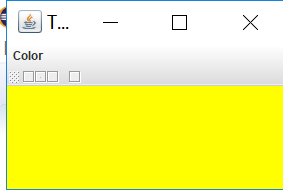
       bar.add(redAction);

       bar.addSeparator();

       bar.add(exitAction);

       add(bar, BorderLayout.NORTH);

       // 填充菜单

       JMenu menu = new JMenu("Color");

       menu.add(yellowAction);

       menu.add(blueAction);

       menu.add(redAction);

       menu.add(exitAction);

       JMenuBar menuBar = new JMenuBar();

       menuBar.add(menu);

       setJMenuBar(menuBar);

    }

    /**

     * The color action sets the background of the frame to a given color.

     */

    class ColorAction extends AbstractAction

    {

       public ColorAction(String name, Icon icon, Color c)

       {

          putValue(Action.NAME, name);

          putValue(Action.SMALL_ICON, icon);

          putValue(Action.SHORT_DESCRIPTION, name + " background");

          putValue("Color", c);

       }

       public void actionPerformed(ActionEvent event)

       {

          Color c = (Color) getValue("Color");

          panel.setBackground(c);

       }

    }

 }
ToolBarFrame

测试程序10
l 在elipse IDE中调试运行教材524页程序12-10、12-11,结合运行结果理解程序,了解GridbagLayout的用法。
l 在elipse IDE中调试运行教材533页程序12-12,结合程序运行结果理解程序,了解GroupLayout的用法。
l 记录示例代码阅读理解中存在的问题与疑惑。
 package Forth;

 import java.awt.EventQueue;

 import javax.swing.JFrame;

 /**

  * @version 1.35 2015-06-12

  * @author Cay Horstmann

  */

 public class GridBagLayoutTest

 {

    public static void main(String[] args)

    {

       EventQueue.invokeLater(() ->           {

                JFrame frame = new FontFrame();

                frame.setTitle("GridBagLayoutTest");

                frame.setDefaultCloseOperation(JFrame.EXIT_ON_CLOSE);

                frame.setVisible(true);

          });

    }

 }
GridBagLayoutTest
 package Forth;

 import java.awt.*;

 /**

  * This class simplifies the use of the GridBagConstraints class.

  * @version 1.01 2004-05-06

  * @author Cay Horstmann

  */

 public class GBC extends GridBagConstraints

 {

    /**

     * Constructs a GBC with a given gridx and gridy position and all other grid

     * bag constraint values set to the default.

     * @param gridx the gridx position

     * @param gridy the gridy position

     */

    public GBC(int gridx, int gridy)

    {

       this.gridx = gridx;

       this.gridy = gridy;

    }

    /**

     * Constructs a GBC with given gridx, gridy, gridwidth, gridheight and all

     * other grid bag constraint values set to the default.

     * @param gridx the gridx position

     * @param gridy the gridy position

     * @param gridwidth the cell span in x-direction

     * @param gridheight the cell span in y-direction

     */

    public GBC(int gridx, int gridy, int gridwidth, int gridheight)

    {

       this.gridx = gridx;

       this.gridy = gridy;

       this.gridwidth = gridwidth;

       this.gridheight = gridheight;

    }

    /**

     * Sets the anchor.

     * @param anchor the anchor value

     * @return this object for further modification

     */

    public GBC setAnchor(int anchor)

    {

       this.anchor = anchor;

       return this;

    }

    /**

     * Sets the fill direction.

     * @param fill the fill direction

     * @return this object for further modification

     */

    public GBC setFill(int fill)

    {

       this.fill = fill;

       return this;

    }

    /**

     * Sets the cell weights.

     * @param weightx the cell weight in x-direction

     * @param weighty the cell weight in y-direction

     * @return this object for further modification

     */

    public GBC setWeight(double weightx, double weighty)

    {

       this.weightx = weightx;

       this.weighty = weighty;

       return this;

    }

    /**

     * Sets the insets of this cell.

     * @param distance the spacing to use in all directions

     * @return this object for further modification

     */

    public GBC setInsets(int distance)

    {

       this.insets = new Insets(distance, distance, distance, distance);

       return this;

    }

    /**

     * Sets the insets of this cell.

     * @param top the spacing to use on top

     * @param left the spacing to use to the left

     * @param bottom the spacing to use on the bottom

     * @param right the spacing to use to the right

     * @return this object for further modification

     */

    public GBC setInsets(int top, int left, int bottom, int right)

    {

       this.insets = new Insets(top, left, bottom, right);

       return this;

    }

    /**

     * Sets the internal padding

     * @param ipadx the internal padding in x-direction

     * @param ipady the internal padding in y-direction

     * @return this object for further modification

     */

    public GBC setIpad(int ipadx, int ipady)

    {

       this.ipadx = ipadx;

       this.ipady = ipady;

       return this;

    }

 }
GBC
 package Forth;

 import java.awt.Font;

 import java.awt.GridBagLayout;

 import java.awt.event.ActionListener;

 import javax.swing.BorderFactory;

 import javax.swing.JCheckBox;

 import javax.swing.JComboBox;

 import javax.swing.JFrame;

 import javax.swing.JLabel;

 import javax.swing.JTextArea;

 /**

  * A frame that uses a grid bag layout to arrange font selection components.

  */

 public class FontFrame extends JFrame

 {

    public static final int TEXT_ROWS = 10;

    public static final int TEXT_COLUMNS = 20;

    private JComboBox<String> face;

    private JComboBox<Integer> size;

    private JCheckBox bold;

    private JCheckBox italic;

    private JTextArea sample;

    public FontFrame()

    {

       GridBagLayout layout = new GridBagLayout();

       setLayout(layout);

       ActionListener listener = event -> updateSample();

       // 构造组件

       JLabel faceLabel = new JLabel("Face: ");

       face = new JComboBox<>(new String[] { "Serif", "SansSerif", "Monospaced",

             "Dialog", "DialogInput" });

       face.addActionListener(listener);

       JLabel sizeLabel = new JLabel("Size: ");

       size = new JComboBox<>(new Integer[] { 8, 10, 12, 15, 18, 24, 36, 48 });

       size.addActionListener(listener);

       bold = new JCheckBox("Bold");

       bold.addActionListener(listener);

       italic = new JCheckBox("Italic");

       italic.addActionListener(listener);

       sample = new JTextArea(TEXT_ROWS, TEXT_COLUMNS);

       sample.setText("The quick brown fox jumps over the lazy dog");

       sample.setEditable(false);

       sample.setLineWrap(true);

       sample.setBorder(BorderFactory.createEtchedBorder());

       // 使用GBC方便类向网格中添加组件

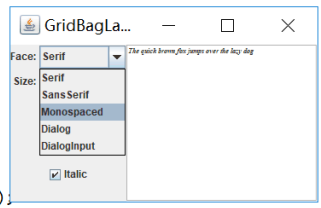
       add(faceLabel, new GBC(0, 0).setAnchor(GBC.EAST));

       add(face, new GBC(1, 0).setFill(GBC.HORIZONTAL).setWeight(100, 0)

             .setInsets(1));

       add(sizeLabel, new GBC(0, 1).setAnchor(GBC.EAST));

       add(size, new GBC(1, 1).setFill(GBC.HORIZONTAL).setWeight(100, 0)

             .setInsets(1));

       add(bold, new GBC(0, 2, 2, 1).setAnchor(GBC.CENTER).setWeight(100, 100));

       add(italic, new GBC(0, 3, 2, 1).setAnchor(GBC.CENTER).setWeight(100, 100));

       add(sample, new GBC(2, 0, 1, 4).setFill(GBC.BOTH).setWeight(100, 100));

       pack();

       updateSample();

    }

    public void updateSample()

    {

       String fontFace = (String) face.getSelectedItem();

       int fontStyle = (bold.isSelected() ? Font.BOLD : 0)

             + (italic.isSelected() ? Font.ITALIC : 0);

       int fontSize = size.getItemAt(size.getSelectedIndex());

       Font font = new Font(fontFace, fontStyle, fontSize);

       sample.setFont(font);

       sample.repaint();

    }

 }
FontFrame
测试程序11
l 在elipse IDE中调试运行教材539页程序12-13、12-14,结合运行结果理解程序;
l 掌握定制布局管理器的用法。
l 记录示例代码阅读理解中存在的问题与疑惑。
 package Forth;

 import java.awt.*;

 import javax.swing.*;

 /**

  * @version 1.33 2015-06-12

  * @author Cay Horstmann

  */

 public class CircleLayoutTest

 {

    public static void main(String[] args)

    {

       EventQueue.invokeLater(() -> {

          JFrame frame = new CircleLayoutFrame();

          frame.setTitle("CircleLayoutTest");

          frame.setDefaultCloseOperation(JFrame.EXIT_ON_CLOSE);

          frame.setVisible(true);

       });

    }

 }
CircleLayoutTest
 package Forth;

 import javax.swing.*;

 /**

  * A frame that shows buttons arranged along a circle.

  */

 public class CircleLayoutFrame extends JFrame

 {

    public CircleLayoutFrame()

    {

       setLayout(new CircleLayout());

       add(new JButton("Yellow"));

       add(new JButton("Blue"));

       add(new JButton("Red"));

       add(new JButton("Green"));

       add(new JButton("Orange"));

       add(new JButton("Fuchsia"));

       add(new JButton("Indigo"));

       pack();

    }

 }
CircleLayoutFrame
 package Forth;

 import java.awt.*;

 /**

  * A layout manager that lays out components along a circle.

  */

 public class CircleLayout implements LayoutManager

 {

    private int minWidth = 0;

    private int minHeight = 0;

    private int preferredWidth = 0;

    private int preferredHeight = 0;

    private boolean sizesSet = false;

    private int maxComponentWidth = 0;

    private int maxComponentHeight = 0;

    public void addLayoutComponent(String name, Component comp)

    {

    }

    public void removeLayoutComponent(Component comp)

    {

    }

    public void setSizes(Container parent)

    {

       if (sizesSet) return;

       int n = parent.getComponentCount();

       preferredWidth = 0;

       preferredHeight = 0;

       minWidth = 0;

       minHeight = 0;

       maxComponentWidth = 0;

       maxComponentHeight = 0;

       // 计算最大组件宽度和高度

       // 并根据组件大小之和设置首选大小。

       for (int i = 0; i < n; i++)

       {

          Component c = parent.getComponent(i);

          if (c.isVisible())

          {

             Dimension d = c.getPreferredSize();

             maxComponentWidth = Math.max(maxComponentWidth, d.width);

             maxComponentHeight = Math.max(maxComponentHeight, d.height);

             preferredWidth += d.width;

             preferredHeight += d.height;

          }

       }

       minWidth = preferredWidth / 2;

       minHeight = preferredHeight / 2;

       sizesSet = true;

    }

    public Dimension preferredLayoutSize(Container parent)

    {

       setSizes(parent);

       Insets insets = parent.getInsets();

       int width = preferredWidth + insets.left + insets.right;

       int height = preferredHeight + insets.top + insets.bottom;

       return new Dimension(width, height);

    }

    public Dimension minimumLayoutSize(Container parent)

    {

       setSizes(parent);

       Insets insets = parent.getInsets();

       int width = minWidth + insets.left + insets.right;

       int height = minHeight + insets.top + insets.bottom;

       return new Dimension(width, height);

    }

    public void layoutContainer(Container parent)

    {

       setSizes(parent);

       // 计算圆的中心

       Insets insets = parent.getInsets();

       int containerWidth = parent.getSize().width - insets.left - insets.right;

       int containerHeight = parent.getSize().height - insets.top - insets.bottom;

       int xcenter = insets.left + containerWidth / 2;

       int ycenter = insets.top + containerHeight / 2;

       // 计算圆的半径

       int xradius = (containerWidth - maxComponentWidth) / 2;

       int yradius = (containerHeight - maxComponentHeight) / 2;

       int radius = Math.min(xradius, yradius);

       // 沿圆圈展开组件

       int n = parent.getComponentCount();

       for (int i = 0; i < n; i++)

       {

          Component c = parent.getComponent(i);

          if (c.isVisible())

          {

             double angle = 2 * Math.PI * i / n;

             // 组件的中心点

             int x = xcenter + (int) (Math.cos(angle) * radius);

             int y = ycenter + (int) (Math.sin(angle) * radius);

             // 移动组件至(x,y)

             // 它的大小时适合的大小;

             Dimension d = c.getPreferredSize();

             c.setBounds(x - d.width / 2, y - d.height / 2, d.width, d.height);

          }

       }

    }

 }
CircleLayout

测试程序13
l 在elipse IDE中调试运行教材552页程序12-17、12-18,结合运行结果理解程序;
l 掌握对话框的创建方法;
l 记录示例代码阅读理解中存在的问题与疑惑。
 package First;

 import java.awt.*;

 import javax.swing.*;

 /**

  * @version 1.34 2012-06-12

  * @author Cay Horstmann

  */

 public class DialogTest

 {

    public static void main(String[] args)

    {

       EventQueue.invokeLater(() -> {

          JFrame frame = new DialogFrame();

          frame.setTitle("DialogTest");

          frame.setDefaultCloseOperation(JFrame.EXIT_ON_CLOSE);

          frame.setVisible(true);

       });

    }

 }
DialogTest
 package First;

 import javax.swing.JFrame;

 import javax.swing.JMenu;

 import javax.swing.JMenuBar;

 import javax.swing.JMenuItem;

 /**

  * A frame with a menu whose File->About action shows a dialog.

  */

 public class DialogFrame extends JFrame

 {

    private static final int DEFAULT_WIDTH = 300;

    private static final int DEFAULT_HEIGHT = 200;

    private AboutDialog dialog;

    public DialogFrame()

    {

       setSize(DEFAULT_WIDTH, DEFAULT_HEIGHT);

       // 构造一个文件菜单。

       JMenuBar menuBar = new JMenuBar();

       setJMenuBar(menuBar);

       JMenu fileMenu = new JMenu("File");

       menuBar.add(fileMenu);

       // 添加和退出菜单项。

       // 有关项目显示有关对话框.

       JMenuItem aboutItem = new JMenuItem("About");

       aboutItem.addActionListener(event -> {

          if (dialog == null) // first time

             dialog = new AboutDialog(DialogFrame.this);

          dialog.setVisible(true); // 弹出对话框

       });

       fileMenu.add(aboutItem);

       //退出项退出程序。

       JMenuItem exitItem = new JMenuItem("Exit");

       exitItem.addActionListener(event -> System.exit(0));

       fileMenu.add(exitItem);

    }

 }
DialogFrame
 package  First;

 import java.awt.BorderLayout;

 import javax.swing.JButton;

 import javax.swing.JDialog;

 import javax.swing.JFrame;

 import javax.swing.JLabel;

 import javax.swing.JPanel;

 /**

  * A sample modal dialog that displays a message and waits for the user to click the OK button.

  */

 public class AboutDialog extends JDialog

 {

    public AboutDialog(JFrame owner)

    {

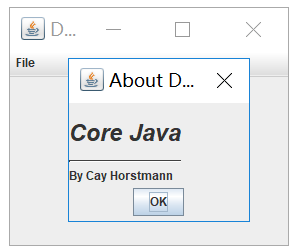
       super(owner, "About DialogTest", true);

       // 添加HTML标签到中心

       add(

             new JLabel(

                   "<html><h1><i>Core Java</i></h1><hr>By Cay Horstmann</html>"),

             BorderLayout.CENTER);

       // OK按钮关闭对话框

       JButton ok = new JButton("OK");

       ok.addActionListener(event -> setVisible(false));

       // 添加OK按钮到南部边框

       JPanel panel = new JPanel();

       panel.add(ok);

       add(panel, BorderLayout.SOUTH);

       pack();

    }

 }
AboutDialog
测试程序14
l 在elipse IDE中调试运行教材556页程序12-19、12-20,结合运行结果理解程序;
l 掌握对话框的数据交换用法;
l 记录示例代码阅读理解中存在的问题与疑惑。
 package First;

 import java.awt.*;

 import javax.swing.*;

 /**

  * @version 1.34 2015-06-12

  * @author Cay Horstmann

  */

 public class DataExchangeTest

 {

    public static void main(String[] args)

    {

       EventQueue.invokeLater(() -> {

          JFrame frame = new DataExchangeFrame();

          frame.setTitle("DataExchangeTest");

          frame.setDefaultCloseOperation(JFrame.EXIT_ON_CLOSE);

          frame.setVisible(true);

       });

    }

 }
DataExchangeTest
 package First;

 import java.awt.*;

 import java.awt.event.*;

 import javax.swing.*;

 /**

  * A frame with a menu whose File->Connect action shows a password dialog.

  */

 public class DataExchangeFrame extends JFrame

 {

    public static final int TEXT_ROWS = 20;

    public static final int TEXT_COLUMNS = 40;

    private PasswordChooser dialog = null;

    private JTextArea textArea;

    public DataExchangeFrame()

    {

       // 创建一个文件菜单

       JMenuBar mbar = new JMenuBar();

       setJMenuBar(mbar);

       JMenu fileMenu = new JMenu("File");

       mbar.add(fileMenu);

       // 添加连接和退出菜单项

       JMenuItem connectItem = new JMenuItem("Connect");

       connectItem.addActionListener(new ConnectAction());

       fileMenu.add(connectItem);

       // 退出项退出程序

       JMenuItem exitItem = new JMenuItem("Exit");

       exitItem.addActionListener(event -> System.exit(0));

       fileMenu.add(exitItem);

       textArea = new JTextArea(TEXT_ROWS, TEXT_COLUMNS);

       add(new JScrollPane(textArea), BorderLayout.CENTER);

       pack();

    }

    /**

     * The Connect action pops up the password dialog.

     */

    private class ConnectAction implements ActionListener

    {

       public void actionPerformed(ActionEvent event)

       {

          // 如果第一次,构造对话框

          if (dialog == null) dialog = new PasswordChooser();

          //设定预设值

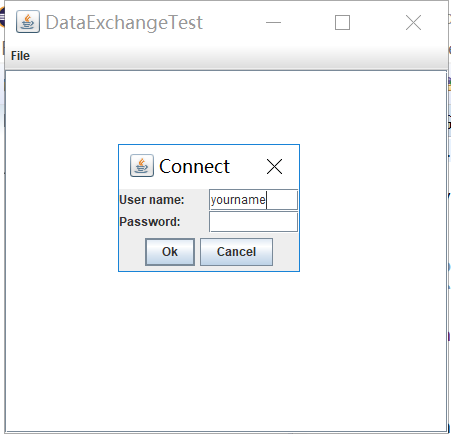
          dialog.setUser(new User("yourname", null));

          // 弹出对话框

          if (dialog.showDialog(DataExchangeFrame.this, "Connect"))

          {

             // 如果接受,则检索用户输入

             User u = dialog.getUser();

             textArea.append("user name = " + u.getName() + ", password = "

                   + (new String(u.getPassword())) + "\n");

          }

       }

    }

 }
DataExchangeFrame
 package First;

 import java.awt.BorderLayout;

 import java.awt.Component;

 import java.awt.Frame;

 import java.awt.GridLayout;

 import javax.swing.JButton;

 import javax.swing.JDialog;

 import javax.swing.JLabel;

 import javax.swing.JPanel;

 import javax.swing.JPasswordField;

 import javax.swing.JTextField;

 import javax.swing.SwingUtilities;

 /**

  * A password chooser that is shown inside a dialog

  */

 public class PasswordChooser extends JPanel

 {

    private JTextField username;

    private JPasswordField password;

    private JButton okButton;

    private boolean ok;

    private JDialog dialog;

    public PasswordChooser()

    {

       setLayout(new BorderLayout());

       // 构造带有用户名和密码字段的面板

       JPanel panel = new JPanel();

       panel.setLayout(new GridLayout(2, 2));

       panel.add(new JLabel("User name:"));

       panel.add(username = new JTextField(""));

       panel.add(new JLabel("Password:"));

       panel.add(password = new JPasswordField(""));

       add(panel, BorderLayout.CENTER);

       // 创建“确定”并取消终止对话框的按钮

       okButton = new JButton("Ok");

       okButton.addActionListener(event -> {

          ok = true;

          dialog.setVisible(false);

       });

       JButton cancelButton = new JButton("Cancel");

       cancelButton.addActionListener(event -> dialog.setVisible(false));

       // add buttons to southern border

       JPanel buttonPanel = new JPanel();

       buttonPanel.add(okButton);

       buttonPanel.add(cancelButton);

       add(buttonPanel, BorderLayout.SOUTH);

    }

    /**

     * Sets the dialog defaults.

     * @param u the default user information

     */

    public void setUser(User u)

    {

       username.setText(u.getName());

    }

    /**

     * Gets the dialog entries.

     * @return a User object whose state represents the dialog entries

     */

    public User getUser()

    {

       return new User(username.getText(), password.getPassword());

    }

    /**

     * Show the chooser panel in a dialog

     * @param parent a component in the owner frame or null

     * @param title the dialog window title

     */

    public boolean showDialog(Component parent, String title)

    {

       ok = false;

       // locate the owner frame

       Frame owner = null;

       if (parent instanceof Frame)

          owner = (Frame) parent;

       else

          owner = (Frame) SwingUtilities.getAncestorOfClass(Frame.class, parent);

       // if first time, or if owner has changed, make new dialog

       if (dialog == null || dialog.getOwner() != owner)

       {

          dialog = new JDialog(owner, true);

          dialog.add(this);

          dialog.getRootPane().setDefaultButton(okButton);

          dialog.pack();

       }

       // set title and show dialog

       dialog.setTitle(title);

       dialog.setVisible(true);

       return ok;

    }

 }
PasswordChooser
测试程序15
l 在elipse IDE中调试运行教材556页程序12-21、12-2212-23,结合程序运行结果理解程序;
l 掌握文件对话框的用法;
l 记录示例代码阅读理解中存在的问题与疑
 package Third;

 import java.awt.*;

 import javax.swing.*;

 /**

  * @version 1.25 2015-06-12

  * @author Cay Horstmann

  */

 public class FileChooserTest

 {

    public static void main(String[] args)

    {

       EventQueue.invokeLater(() -> {

          JFrame frame = new ImageViewerFrame();

          frame.setTitle("FileChooserTest");

          frame.setDefaultCloseOperation(JFrame.EXIT_ON_CLOSE);

          frame.setVisible(true);

       });

    }

 }
FileChooserTest
 package Third;

 import java.io.*;

 import javax.swing.*;

 import javax.swing.filechooser.*;

 import javax.swing.filechooser.FileFilter;

 /**

  * A file view that displays an icon for all files that match a file filter.

  */

 public class FileIconView extends FileView

 {

    private FileFilter filter;

    private Icon icon;

    /**

     * Constructs a FileIconView.

     * @param aFilter a file filter--all files that this filter accepts will be shown

     * with the icon.

     * @param anIcon--the icon shown with all accepted files.

     */

    public FileIconView(FileFilter aFilter, Icon anIcon)

    {

       filter = aFilter;

       icon = anIcon;

    }

    public Icon getIcon(File f)

    {

       if (!f.isDirectory() && filter.accept(f)) return icon;

       else return null;

    }

 }
FileIconView
 package Third;

 import java.awt.*;

 import java.io.*;

 import javax.swing.*;

 /**

  * A file chooser accessory that previews images.

  */

 public class ImagePreviewer extends JLabel

 {

    /**

     * Constructs an ImagePreviewer.

     * @param chooser the file chooser whose property changes trigger an image

     *        change in this previewer

     */

    public ImagePreviewer(JFileChooser chooser)

    {

       setPreferredSize(new Dimension(100, 100));

       setBorder(BorderFactory.createEtchedBorder());

       chooser.addPropertyChangeListener(event -> {

          if (event.getPropertyName() == JFileChooser.SELECTED_FILE_CHANGED_PROPERTY)

          {

             // 用户选择了一个新文件

             File f = (File) event.getNewValue();

             if (f == null)

             {

                setIcon(null);

                return;

             }

             // 将影像读取成图示

             ImageIcon icon = new ImageIcon(f.getPath());

             // 如果图标太大,无法安装,请缩放

             if (icon.getIconWidth() > getWidth())

                icon = new ImageIcon(icon.getImage().getScaledInstance(

                      getWidth(), -1, Image.SCALE_DEFAULT));

             setIcon(icon);

          }

       });

    }

 }
ImagePreviewer
 package Third;

 import java.io.*;

 import javax.swing.*;

 import javax.swing.filechooser.*;

 import javax.swing.filechooser.FileFilter;

 /**

  * A frame that has a menu for loading an image and a display area for the

  * loaded image.

  */

 public class ImageViewerFrame extends JFrame

 {

    private static final int DEFAULT_WIDTH = 300;

    private static final int DEFAULT_HEIGHT = 400;

    private JLabel label;

    private JFileChooser chooser;

    public ImageViewerFrame()

    {

       setSize(DEFAULT_WIDTH, DEFAULT_HEIGHT);

       // set up menu bar

       JMenuBar menuBar = new JMenuBar();

       setJMenuBar(menuBar);

       JMenu menu = new JMenu("File");

       menuBar.add(menu);

       JMenuItem openItem = new JMenuItem("Open");

       menu.add(openItem);

       openItem.addActionListener(event -> {

          chooser.setCurrentDirectory(new File("."));

          // show file chooser dialog

             int result = chooser.showOpenDialog(ImageViewerFrame.this);

             // if image file accepted, set it as icon of the label

             if (result == JFileChooser.APPROVE_OPTION)

             {

                String name = chooser.getSelectedFile().getPath();

                label.setIcon(new ImageIcon(name));

                pack();

             }

          });

       JMenuItem exitItem = new JMenuItem("Exit");

       menu.add(exitItem);

       exitItem.addActionListener(event -> System.exit(0));

       // 使用标签显示影像

       label = new JLabel();

       add(label);

       // 设置文件选择器

       chooser = new JFileChooser();

       // accept all image files ending with接受所有以之结尾的影像档案jpg, .jpeg, .gif图形交换格式 .

       FileFilter filter = new FileNameExtensionFilter(

             "Image files", "jpg", "jpeg", "gif");

       chooser.setFileFilter(filter);

       chooser.setAccessory(new ImagePreviewer(chooser));

       chooser.setFileView(new FileIconView(filter, new ImageIcon("121.jpg")));

    }

 }
ImageViewerFrame

测试程序16
l 在elipse IDE中调试运行教材570页程序12-24,结合运行结果理解程序;
l 了解颜色选择器的用法。
l 记录示例代码阅读理解中存在的问题与疑惑。
 package Third;

 import java.awt.*;

 import javax.swing.*;

 /**

  * @version 1.04 2015-06-12

  * @author Cay Horstmann

  */

 public class ColorChooserTest

 {

    public static void main(String[] args)

    {

       EventQueue.invokeLater(() -> {

          JFrame frame = new ColorChooserFrame();

          frame.setTitle("ColorChooserTest");

          frame.setDefaultCloseOperation(JFrame.EXIT_ON_CLOSE);

          frame.setVisible(true);

       });

    }

 }
ColorChooserTest
 package Third;

 import javax.swing.*;

 /**

  * A frame with a color chooser panel

  */

 public class ColorChooserFrame extends JFrame

 {

    private static final int DEFAULT_WIDTH = 300;

    private static final int DEFAULT_HEIGHT = 200;

    public ColorChooserFrame()

    {

       setSize(DEFAULT_WIDTH, DEFAULT_HEIGHT);

       // 添加颜色选择器面板到框架

       ColorChooserPanel panel = new ColorChooserPanel();

       add(panel);

    }

 }
ColorChooserFrame
 package Third;

 import java.awt.Color;

 import java.awt.Frame;

 import java.awt.event.ActionEvent;

 import java.awt.event.ActionListener;

 import javax.swing.JButton;

 import javax.swing.JColorChooser;

 import javax.swing.JDialog;

 import javax.swing.JPanel;

 /**

  * A panel with buttons to pop up three types of color choosers

  */

 public class ColorChooserPanel extends JPanel

 {

    public ColorChooserPanel()

    {

       JButton modalButton = new JButton("Modal");

       modalButton.addActionListener(new ModalListener());

       add(modalButton);

       JButton modelessButton = new JButton("Modeless");

       modelessButton.addActionListener(new ModelessListener());

       add(modelessButton);

       JButton immediateButton = new JButton("Immediate");

       immediateButton.addActionListener(new ImmediateListener());

       add(immediateButton);

    }

    /**

     * This listener pops up a modal color chooser

     */

    private class ModalListener implements ActionListener

    {

       public void actionPerformed(ActionEvent event)

       {

          Color defaultColor = getBackground();

          Color selected = JColorChooser.showDialog(ColorChooserPanel.this, "Set background",

                defaultColor);

          if (selected != null) setBackground(selected);

       }

    }

    /**

     * This listener pops up a modeless color chooser. The panel color is changed when the user

     * clicks the OK button.

     */

    private class ModelessListener implements ActionListener

    {

       private JDialog dialog;

       private JColorChooser chooser;

       public ModelessListener()

       {

          chooser = new JColorChooser();

          dialog = JColorChooser.createDialog(ColorChooserPanel.this, "Background Color",

                false /* 非模态 */, chooser,

                event -> setBackground(chooser.getColor()),

                null /* 没有取消按钮侦听器 */);

       }

       public void actionPerformed(ActionEvent event)

       {

          chooser.setColor(getBackground());

          dialog.setVisible(true);

       }

    }

    /**

     * This listener pops up a modeless color chooser. The panel color is changed immediately when

     * the user picks a new color.

     */

    private class ImmediateListener implements ActionListener

    {

       private JDialog dialog;

       private JColorChooser chooser;

       public ImmediateListener()

       {

          chooser = new JColorChooser();

          chooser.getSelectionModel().addChangeListener(

                event -> setBackground(chooser.getColor()));

          dialog = new JDialog((Frame) null, false /* 非模态 */);

          dialog.add(chooser);

          dialog.pack();

       }

       public void actionPerformed(ActionEvent event)

       {

          chooser.setColor(getBackground());

          dialog.setVisible(true);

       }

    }

 }
实验2:组内讨论反思本组负责程序,理解程序总体结构,梳理程序GUI设计中应用的相关组件,整理相关组件的API,对程序中组件应用的相关代码添加注释。
测试程序12: 在elipse IDE中调试运行教材544页程序12-15、12-16,结合运行结果理解程序;l 掌握选项对话框的用法;l 记录示例代码阅读理解中存在的问题与疑惑。
  package optionDialog;

 import java.awt.*;

 import javax.swing.*;

 /**

  * @version 1.34 2015-06-12

  * @author Cay Horstmann

  */

 public class OptionDialogTest

 {

    public static void main(String[] args)

    {

       EventQueue.invokeLater(() -> {

          JFrame frame = new OptionDialogFrame();

          frame.setTitle("OptionDialogTest");

          frame.setDefaultCloseOperation(JFrame.EXIT_ON_CLOSE);

          frame.setVisible(true);

       });

    }

 }
OptionDialogTest
 package optionDialog;

 import javax.swing.*;

 /**

  * A panel with radio buttons inside a titled border.

  */

 public class ButtonPanel extends JPanel

 {

    private ButtonGroup group;

    /**

     * Constructs a button panel.

     * @param title the title shown in the border

     * @param options an array of radio button labels

     */

    public ButtonPanel(String title, String... options)//该函数可以接收完第一个title后,还可以接受多个String类型的参数.

    {

       setBorder(BorderFactory.createTitledBorder(BorderFactory.createEtchedBorder(), title));//设置边框;

       setLayout(new BoxLayout(this, BoxLayout.Y_AXIS));//this表示的是BoxLayout t = new BoxLayout(this,BoxLayout.Y_AXIS)) 这个当前对象(即 t);

       group = new ButtonGroup();

       // 为每个选项做一个单选按钮

       for (String option : options)

       {

          JRadioButton b = new JRadioButton(option);

          b.setActionCommand(option);

          add(b);

          group.add(b);

          b.setSelected(option == options[0]);

       }

    }

    /**

     * Gets the currently selected option.

     * @return the label of the currently selected radio button.

     */

    public String getSelection()

    {

       return group.getSelection().getActionCommand();

    }

 }
ButtonPanel
 package optionDialog;

 import java.awt.*;

 import java.awt.event.*;

 import java.awt.geom.*;

 import java.util.*;

 import javax.swing.*;

 /**

  * A frame that contains settings for selecting various option dialogs.

  */

 public class OptionDialogFrame extends JFrame

 {

      //设置私有属性;

    private ButtonPanel typePanel;

    private ButtonPanel messagePanel;

    private ButtonPanel messageTypePanel;

    private ButtonPanel optionTypePanel;

    private ButtonPanel optionsPanel;

    private ButtonPanel inputPanel;

    private String messageString = "Message";

    private Icon messageIcon = new ImageIcon("blue-ball.gif");

    private Object messageObject = new Date();

    private Component messageComponent = new SampleComponent();

    public OptionDialogFrame()

    {

       JPanel gridPanel = new JPanel();

       gridPanel.setLayout(new GridLayout(2, 3));////创建2行3列的网格布局;

      //创建各个按钮;

       typePanel = new ButtonPanel("Type", "Message", "Confirm", "Option", "Input");

       messageTypePanel = new ButtonPanel("Message Type", "ERROR_MESSAGE", "INFORMATION_MESSAGE",

             "WARNING_MESSAGE", "QUESTION_MESSAGE", "PLAIN_MESSAGE");

       messagePanel = new ButtonPanel("Message", "String", "Icon", "Component", "Other",

             "Object[]");

       optionTypePanel = new ButtonPanel("Confirm", "DEFAULT_OPTION", "YES_NO_OPTION",

             "YES_NO_CANCEL_OPTION", "OK_CANCEL_OPTION");

       optionsPanel = new ButtonPanel("Option", "String[]", "Icon[]", "Object[]");

       inputPanel = new ButtonPanel("Input", "Text field", "Combo box");

       //将按钮添加到网格面板;

       gridPanel.add(typePanel);

       gridPanel.add(messageTypePanel);

       gridPanel.add(messagePanel);

       gridPanel.add(optionTypePanel);

       gridPanel.add(optionsPanel);

       gridPanel.add(inputPanel);

       //添加带有"Show"按钮的面板

       JPanel showPanel = new JPanel();

       JButton showButton = new JButton("Show");

       showButton.addActionListener(new ShowAction());//关联监听器;

       showPanel.add(showButton);//将按钮添加到面板;

       add(gridPanel, BorderLayout.CENTER);//设置位置;

       add(showPanel, BorderLayout.SOUTH);

       pack();

    }

    /**

     * Gets the currently selected message.

     * @return a string, icon, component, or object array, depending on the Message panel selection

     */

    public Object getMessage()

    {

       String s = messagePanel.getSelection();

       if (s.equals("String")) return messageString;

       else if (s.equals("Icon")) return messageIcon;

       else if (s.equals("Component")) return messageComponent;

       else if (s.equals("Object[]")) return new Object[] { messageString, messageIcon,

             messageComponent, messageObject };

       else if (s.equals("Other")) return messageObject;

       else return null;

    }

    /**

     * Gets the currently selected options.

     * @return an array of strings, icons, or objects, depending on the Option panel selection

     */

    public Object[] getOptions()

    {

       String s = optionsPanel.getSelection();

       if (s.equals("String[]")) return new String[] { "Yellow", "Blue", "Red" };

       else if (s.equals("Icon[]")) return new Icon[] { new ImageIcon("yellow-ball.gif"),

             new ImageIcon("blue-ball.gif"), new ImageIcon("red-ball.gif") };

       else if (s.equals("Object[]")) return new Object[] { messageString, messageIcon,

             messageComponent, messageObject };

       else return null;

    }

    /**

     * Gets the selected message or option type

     * @param panel the Message Type or Confirm panel

     * @return the selected XXX_MESSAGE or XXX_OPTION constant from the JOptionPane class

     */

    public int getType(ButtonPanel panel)

    {

       String s = panel.getSelection();

       try

       {

          return JOptionPane.class.getField(s).getInt(null);

       }

       catch (Exception e)

       {

          return -1;

       }

    }

    /**

     * The action listener for the Show button shows a Confirm, Input, Message, or Option dialog

     * depending on the Type panel selection.

     */

    private class ShowAction implements ActionListener

    {

       public void actionPerformed(ActionEvent event)

       {

          if (typePanel.getSelection().equals("Confirm")) JOptionPane.showConfirmDialog(

                OptionDialogFrame.this, getMessage(), "Title", getType(optionTypePanel),

                getType(messageTypePanel));

          else if (typePanel.getSelection().equals("Input"))

          {

             if (inputPanel.getSelection().equals("Text field")) JOptionPane.showInputDialog(

                   OptionDialogFrame.this, getMessage(), "Title", getType(messageTypePanel));

             else JOptionPane.showInputDialog(OptionDialogFrame.this, getMessage(), "Title",

                   getType(messageTypePanel), null, new String[] { "Yellow", "Blue", "Red" },

                   "Blue");

          }

          else if (typePanel.getSelection().equals("Message")) JOptionPane.showMessageDialog(

                OptionDialogFrame.this, getMessage(), "Title", getType(messageTypePanel));

          else if (typePanel.getSelection().equals("Option")) JOptionPane.showOptionDialog(

                OptionDialogFrame.this, getMessage(), "Title", getType(optionTypePanel),

                getType(messageTypePanel), null, getOptions(), getOptions()[0]);

       }

    }

 }

 /**

  * A component with a painted surface

  */

 class SampleComponent extends JComponent

 {

    public void paintComponent(Graphics g)

    {

       Graphics2D g2 = (Graphics2D) g;

       Rectangle2D rect = new Rectangle2D.Double(0, 0, getWidth() - 1, getHeight() - 1);

       g2.setPaint(Color.YELLOW);

       g2.fill(rect);

       g2.setPaint(Color.BLUE);

       g2.draw(rect);

    }

    public Dimension getPreferredSize()

    {

       return new Dimension(10, 10);

    }

 }
OptionDialogFrame
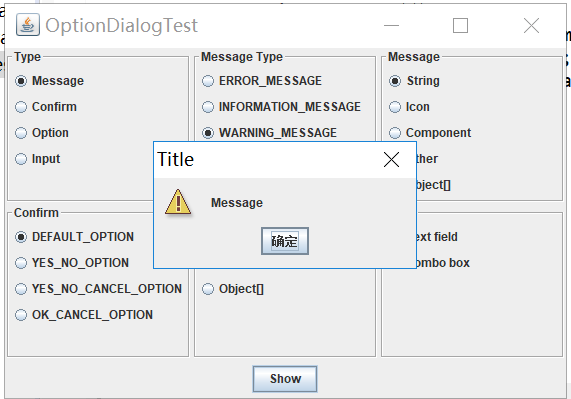
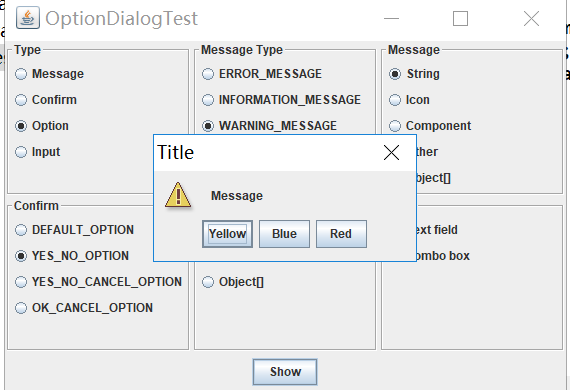
利用JOptionPane类中的各个static方法来生成各种标准的对话框,实现显示出信息、提出问题、警告、用户输入参数等功能。这些对话框都是模式对话框。
ConfirmDialog --- 确认对话框,提出问题,然后由用户自己来确认(按"Yes"或"No"按钮)
InputDialog --- 提示输入文本
MessageDialog --- 显示信息
OptionDialog -- 组合其它三个对话框类型。
这四个对话框可以采用showXXXDialog()来显示,如showConfirmDialog()显示确认对话框、showInputDialog()显示输入文本对话框、showMessageDialog()显示信息对话框、showOptionDialog()显示选择性的对话框。它们所使用的参数说明如下:
① ParentComponent:指示对话框的父窗口对象,一般为当前窗口。也可以为null即采用缺省的Frame作为父窗口,此时对话框将设置在屏幕的正中。
② message:指示要在对话框内显示的描述性的文字
③ String title:标题条文字串。
④ Component:在对话框内要显示的组件(如按钮)
⑤ Icon:在对话框内要显示的图标
⑥ messageType:一般可以为如下的值ERROR_MESSAGE、INFORMATION_MESSAGE、WARNING_MESSAGE、QUESTION_MESSAGE、PLAIN_MESSAGE、
⑦ optionType:它决定在对话框的底部所要显示的按钮选项。一般可以为DEFAULT_OPTION、YES_NO_OPTION、YES_NO_CANCEL_OPTION、OK_CANCEL_OPTION。
使用实例:
(1)显示MessageDialog
JOptionPane.showMessageDialog(null, "在对话框内显示的描述性的文字", "标题条文字串", JOptionPane.ERROR_MESSAGE);
(2)显示ConfirmDialog
JOptionPane.showConfirmDialog(null, "choose one", "choose one", JOptionPane.YES_NO_OPTION);
(3)显示OptionDialog:该种对话框可以由用户自己来设置各个按钮的个数并返回用户点击各个按钮的序号(从0开始计数)
Object[] options = {"确定","取消","帮助"};
int response=JOptionPane.showOptionDialog(this, "这是个选项对话框,用户可以选择自己的按钮的个数", "选项对话框标题",JOptionPane.YES_OPTION, JOptionPane.QUESTION_MESSAGE, null, options, options[0]);
if(response==0)
{ this.setTitle("您按下了第OK按钮 ");
}
else if(response==1)
{ this.setTitle("您按下了第Cancel按钮 ");
}
else if(response==2)
{ this.setTitle("您按下了第Help按钮 ");
}
(4)显示InputDialog 以便让用户进行输入
String inputValue = JOptionPane.showInputDialog("Please input a value");
(5)显示InputDialog 以便让用户进行选择地输入
Object[] possibleValues = { "First", "Second", "Third" }; //用户的选择项目
Object selectedValue = JOptionPane.showInputDialog(null, "Choose one", "Input",JOptionPane.INFORMATION_MESSAGE, null, possibleValues, possibleValues[0]);
setTitle("您按下了"+(String)selectedValue+"项目");
实验3:组间协同学习:在本班课程QQ群内,各位同学对实验1中存在的问题进行提问,提问时注明实验1中的测试程序编号,负责对应程序的小组需及时对群内提问进行回答。
第三部分:总结
本周继续学习Swing用户界面设计!
杨其菊201771010134《面向对象程序设计(java)》第十四周学习总结的更多相关文章
- 201771010134杨其菊《面向对象程序设计java》第九周学习总结
第九周学习总结 第一部分:理论知识 异常.断言和调试.日志 1.捕获 ...
- 201771010134杨其菊《面向对象程序设计java》第十周学习总结
第8章泛型程序设计学习总结 第一部分:理论知识 主要内容: 什么是泛型程序设计 泛型类的声明及实例化的方法 泛型方法的定义 ...
- 201771010134杨其菊《面向对象程序设计java》第八周学习总结
第八周学习总结 第一部分:理论知识 一.接口.lambda和内部类: Comparator与comparable接口: 1.comparable接口的方法是compareTo,只有一个参数:comp ...
- 201771010134杨其菊《面向对象程序设计java》第十二周学习总结
第十二周学习总结 第一部分:理论知识 内容概要: AWT与Swing简介:框架的创建:图形程序设计: 显示图像: 1.AWT组件: 2.Swing 组件层次关系 3 .AWT与Swing的关系:大部分 ...
- 201771010134杨其菊《面向对象程序设计java》第七周学习总结
第七周学习总结 第一部分:理论知识 1.继承是面向对象程序设计(Object Oriented Programming-OOP)中软件重用的关键技术.继承机制使用已经定义的类作为基础建立新的类定义,新 ...
- 201771010134杨其菊《面向对象程序设计(java)》第十六周学习总结
第十六周学习总结 第一部分:理论知识 1. 程序是一段静态的代码,它是应用程序执行的蓝本.进程是程序的一次动态执行,它对应了从代码加载.执行至执行完毕的一个完整过程.操作系统为每个进程分配一段独立的内 ...
- 201521123061 《Java程序设计》第十四周学习总结
201521123061 <Java程序设计>第十四周学习总结 1. 本周学习总结 1.1 以你喜欢的方式(思维导图或其他)归纳总结多数据库相关内容. 2. 书面作业 1. MySQL数据 ...
- 201521123072《java程序设计》第十四周学习总结
201521123072<java程序设计>第十四周学习总结 1. 本周学习总结 1.1 以你喜欢的方式(思维导图或其他)归纳总结多数据库相关内容. 2. 书面作业 1. MySQL数据库 ...
- 201521123038 《Java程序设计》 第十四周学习总结
201521123038 <Java程序设计> 第十四周学习总结 1. 本周学习总结 1.1 以你喜欢的方式(思维导图或其他)归纳总结多数据库相关内容. 接口: DriverManager ...
- 201521123122 《java程序设计》第十四周学习总结
## 201521123122 <java程序设计>第十四周实验总结 ## 1. 本周学习总结 1.1 以你喜欢的方式(思维导图或其他)归纳总结多数据库相关内容. 2. 书面作业 1. M ...
随机推荐
- Jupyter 常用快捷键
Command Mode Y : change cell to code M : change cell to markdown R : change cell to raw K : select c ...
- IntelliJ IDEA 关闭多余项目
在开发中 一个项目中可能会有多个子项目,切换起来比较麻烦,需要将用不到的项目关掉 1.就是关闭一个Project中多个module的一个 2.右击要关闭项目,选中弹出窗口中的 Load/Unload ...
- Swoft 容器使用
可以借助Swoft下的Bean类操作容器 示例: 将类绑定至容器 use Swoft\Bean\Annotation\Bean; /** * @Bean("imageLogic") ...
- pyqt5-数据库加载错误解决
1.无法连接postgresql 直接在pycharm上安装pyqt5没有QT这个文件夹, 在ancanda中装好使用. 切换加载环境,或者将第二个ptqt5拷贝替换第一个环境中的pyqt5
- Chrome 插件PPAPI 开发(一)环境搭建
前言:本文参考了其他已有的文章,在其基础上简化了一些没有必要的操作. 同时也记录一下chrome 插件ppapi环境的基础搭建.并且感谢已有文章作者的大无畏的分享精神! 在这附上参考文章链接:http ...
- ios模拟器命令
xcrun simctl list //显示模拟器列表 xcrun simctl boot [模拟器id] //启动模拟器
- Helm介绍
1.为什么要用Helm? 首先在原来项目中都是基于yaml文件来进行部署发布的,而目前项目大部分微服务化或者模块化,会分成很多个组件来部署,每个组件可能对应一个deployment.yaml,一个se ...
- zabbix添加自定义监控项目
在zabbix里添加一个自定义监控项目,简单做个笔记,怕忘了 首先需要定义 zabbix_agentd.conf 中的 UnsafeUserParameters 修改为 UnsafeUserPara ...
- Kickstart自动化安装平台
PXE(preboot execute environment,预启动执行环境)是由Intel公司开发的最新技术,工作于Client/Server的网络模式,支持工作站通过网络从远端服务器下载映像,并 ...
- 开源虚拟化KVM(三)管理虚拟网络
六,管理虚拟网络 [x] Linux网桥基本概念 [x] qemu-kvm支持的网络 [x] 向虚拟机添加虚拟网络连接 [x] 基于NAT的虚拟网络 [x] 基于网桥的虚拟网络 [x] 用户自定义的隔 ...