
201871010104-陈园园 《面向对象程序设计(java)》第十四周学习总结
201871010104-陈园园 《面向对象程序设计(java)》第十四周学习总结
| 项目 | 内容 |
| 这个作业属于哪个课程 | https://www.cnblogs.com/nwnu-daizh/ |
| 这个作业要求在哪里 | https://www.cnblogs.com/lily-2018/p/11441372.html |
| 作业学习目标 |
(1)掌握GUI布局管理器用法; (2)掌握Java Swing文本输入组件用途及常用API; (3)掌握Java Swing选择输入组件用途及常用API; |
第一部分:总结理论知识
一、Swing和MVC设计模式
1. MVC模式可应用于Java的GUI组件设计中
2.MVC模式GUI组件设计的唯一的模式,还有很多设计的模式
二、布局管理器
1. 布局管理器是一组类。
– 实现 java.awt.LayoutManager 接口
– 决定容器中组件的位置和大小
2.每个容器都有与之相关的默认布局管理器。
3. (1)FlowLayout: 流布局(Applet和Panel的默认布局管理器)
组件采用从左到右,从上到下逐行摆放
setLayout(new FlowLayout(int align,int hgap, int vgap))
(2)BorderLayout:边框布局( Window、Frame和Dialog的默认布局管理器)
(3)GridLayout: 网格布局
1、GridLayout():生成一个单行单列的网格布局
2、GridLayout(int rows,int cols):生成一个设定行数 和列数的网格布局
3、GridLayout(int rows,int columns,int hgap,int vgap): 可以设置组件之间的水平和垂直间隔
(4)GridBagLayout: 网格组布局
不需要组件的尺寸一致,容许组件扩展到多行、多列。
(5)CardLayout :卡片布局
通过setLayout( )方法为容器设置新的布局。
容器组件名.setLayout( 布局类对象名)。
新学内容:
三、文本输入
文本域(JTextField): 用于获取单行文本输入。
文本域的使用方法: JPanelpanel = new JPanel();
JTextFieldtextField= new JTextField("Default input", 20);
panel.add(textField); –第一个参数“Default input”:
将文本域的缺省 显示值为Default input –第二个参数20:表示文本域显示宽度为20列。
–若要重新设置列数,可使用setColumns方法。
(5)选择组件
标签是容纳文本的组件。它们没有任何修饰(如没有边界 ),也不响应用户输入。
1.bold = new JCheckBox("Bold"); 复选框自动地带有表示标签。
2. JCheckBox(String label,Icon icon); 构造带有标签与图标的复选框,默认初始未被选择。
3.JCheckBox(String label,boolean state); 用指定的标签和初始化选择状态构造一个复选框。
第二部分:实验部分
实验1: 导入第12章示例程序,测试程序并进行组内讨论。
测试程序1
1) 在elipse IDE中运行教材479页程序12-1,结合运行结果理解程序;
2)掌握布局管理器的用法;
3)理解GUI界面中事件处理技术的用途。
4) 在布局管理应用代码处添加注释;
package calculator;

import java.awt.*;

import javax.swing.*;

/**

 * @version 1.35 2018-04-10

 * @author Cay Horstmann

 */

public class Calculator

{

   public static void main(String[] args)

   {

      EventQueue.invokeLater(() -> {//lambda表达式

         CalculatorFrame frame = new CalculatorFrame();

         frame.setTitle("Calculator");//设置标题

         frame.setDefaultCloseOperation(JFrame.EXIT_ON_CLOSE);//设置关闭窗口

         frame.setVisible(true);//设置可见性

      });

   }

}
package calculator;

import javax.swing.*;

/**

 * A frame with a calculator panel.

 */

public class CalculatorFrame extends JFrame

{

   public CalculatorFrame()

   {

      add(new CalculatorPanel());

      pack();

   }

}
package calculator;

import java.awt.*;

import java.awt.event.*;

import javax.swing.*;

/**

 * A panel with calculator buttons and a result display.

 */

public class CalculatorPanel extends JPanel

{

   private JButton display;//定义显示Button组件对象

   private JPanel panel;

   private double result;//定义基本数据对象

   private String lastCommand;

   private boolean start;//布尔型:开始启动为ture

   public CalculatorPanel()//构造器

   {

      setLayout(new BorderLayout());//边框布局管理器

      result = 0;

      lastCommand = "=";

      start = true;

   // 添加显示

      display = new JButton("0");

      display.setEnabled(false);

      add(display, BorderLayout.NORTH);//显示在窗口上方

      InsertAction insert = new InsertAction();

      CommandAction command = new CommandAction();

    //在一个4×4的网格中添加按钮

      panel = new JPanel();

      panel.setLayout(new GridLayout(4, 4));//网格布局管理器:4行4列

      addButton("7", insert);

      addButton("8", insert);

      addButton("9", insert);

      addButton("/", command);

      addButton("4", insert);

      addButton("5", insert);

      addButton("6", insert);

      addButton("*", command);

      addButton("1", insert);

      addButton("2", insert);

      addButton("3", insert);

      addButton("-", command);

      addButton("0", insert);

      addButton(".", insert);

      addButton("=", command);

      addButton("+", command);

      add(panel, BorderLayout.CENTER);//显示在窗口中心位置

   }

   /**

    * Adds a button to the center panel.

    * @param label the button label

    * @param listener the button listener

    */

   private void addButton(String label, ActionListener listener)//普通方法

   {

      JButton button = new JButton(label);

      button.addActionListener(listener);

      panel.add(button);

   }

   /**

    * This action inserts the button action string to the end of the display text.

    */

   private class InsertAction implements ActionListener

   {

      public void actionPerformed(ActionEvent event)

      {

         String input = event.getActionCommand();

         if (start)

         {

            display.setText("");

            start = false;

         }

         display.setText(display.getText() + input);

      }

   }

   /**

    * This action executes the command that the button action string denotes.

    */

   private class CommandAction implements ActionListener

   {

      public void actionPerformed(ActionEvent event)

      {

         String command = event.getActionCommand();

         if (start)

         {

            if (command.equals("-"))

            {

               display.setText(command);

               start = false;

            }

            else lastCommand = command;

         }

         else

         {

            calculate(Double.parseDouble(display.getText()));

            lastCommand = command;

            start = true;

         }

      }

   }

   /**

    * Carries out the pending calculation.

    * @param x the value to be accumulated with the prior result.

    */

   public void calculate(double x)//普通方法:计算数值

   {

      if (lastCommand.equals("+")) result += x;

      else if (lastCommand.equals("-")) result -= x;

      else if (lastCommand.equals("*")) result *= x;

      else if (lastCommand.equals("/")) result /= x;

      else if (lastCommand.equals("=")) result = x;

      display.setText("" + result);

   }

}
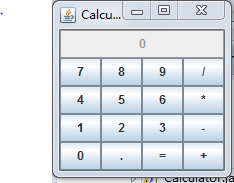
运行结果:
测试程序2
1) 在elipse IDE中调试运行教材486页程序12-2,结合运行结果理解程序;
2)掌握文本组件的用法;
记录示例代码阅读理解中存在的问题与疑惑
package text;

import java.awt.*;

import javax.swing.*;

/**

 * @version 1.42 2018-04-10

 * @author Cay Horstmann

 */

public class TextComponentTest

{

   public static void main(String[] args)

   {

      EventQueue.invokeLater(() -> {//lambda表达式

         var frame = new TextComponentFrame();

         frame.setTitle("TextComponentTest");//设置标题

         frame.setDefaultCloseOperation(JFrame.EXIT_ON_CLOSE);//设置关闭操作

         frame.setVisible(true);//设置可见性

      });

   }

}
package text;

import java.awt.BorderLayout;

import java.awt.GridLayout;

import javax.swing.JButton;

import javax.swing.JFrame;

import javax.swing.JLabel;

import javax.swing.JPanel;

import javax.swing.JPasswordField;

import javax.swing.JScrollPane;

import javax.swing.JTextArea;

import javax.swing.JTextField;

import javax.swing.SwingConstants;

/**

 * A frame with sample text components.

 */

public class TextComponentFrame extends JFrame

{

   public static final int TEXTAREA_ROWS = 8;//定义行

   public static final int TEXTAREA_COLUMNS = 20;//定义列

   public TextComponentFrame()//构造器

   {

      var textField = new JTextField();

      var passwordField = new JPasswordField();

      var northPanel = new JPanel();

      northPanel.setLayout(new GridLayout(2, 2));//设置网格布局管理器:2行2列

      northPanel.add(new JLabel("User name: ", SwingConstants.RIGHT));

      northPanel.add(textField);//将文本域添加到窗口

      northPanel.add(new JLabel("Password: ", SwingConstants.RIGHT));

      northPanel.add(passwordField);//将密码输入框添加到窗口

      add(northPanel, BorderLayout.NORTH);//显示在窗口的上方

      var textArea = new JTextArea(TEXTAREA_ROWS, TEXTAREA_COLUMNS);

      var scrollPane = new JScrollPane(textArea);

      add(scrollPane, BorderLayout.CENTER);//显示在窗口中心

   // 添加按钮,将文本追加到文本区域

      var southPanel = new JPanel();

      var insertButton = new JButton("Insert");//定义Button按钮:insert

      southPanel.add(insertButton);//添加insert按钮

      insertButton.addActionListener(event ->

         textArea.append("User name: " + textField.getText() + " Password: "

            + new String(passwordField.getPassword()) + "\n"));

      add(southPanel, BorderLayout.SOUTH);//显示在窗口下方

      pack();

   }

}
运行结果:
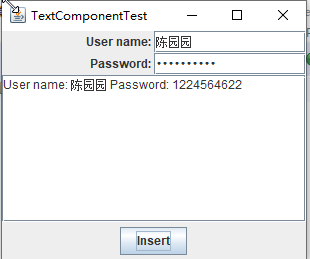
存在的问题:如果在文本框中输入的密码过长,就显示不了,只能通过放大窗口来显示。
测试程序3
1) 在elipse IDE中调试运行教材489页程序12-3,结合运行结果理解程序;
2)掌握复选框组件的用法;
记录示例代码阅读理解中存在的问题与疑惑。
package checkBox;

import java.awt.*;

import javax.swing.*;

/**

 * @version 1.35 2018-04-10

 * @author Cay Horstmann

 */

public class CheckBoxTest

{

   public static void main(String[] args)

   {

      EventQueue.invokeLater(() -> {

         var frame = new CheckBoxFrame();

         frame.setTitle("CheckBoxTest");

         frame.setDefaultCloseOperation(JFrame.EXIT_ON_CLOSE);

         frame.setVisible(true);

      });

   }

}
package checkBox;

import java.awt.*;

import java.awt.event.*;

import javax.swing.*;

/**

 * A frame with a sample text label and check boxes for selecting font

 * attributes.

 */

public class CheckBoxFrame extends JFrame

{//设置标签和两个复选框以及字体大小

   private JLabel label;

   private JCheckBox bold;

   private JCheckBox italic;

   private static final int FONTSIZE = 24;

   public CheckBoxFrame()//设置一个构造器

   {

      // 给标签加上文本

      label = new JLabel("The quick brown fox jumps over the lazy dog.");

      label.setFont(new Font("Serif", Font.BOLD, FONTSIZE));

      add(label, BorderLayout.CENTER);//边框布局管理器:显示在窗口中心位置

      // this listener sets the font attribute of

      // the label to the check box state

      ActionListener listener = event -> {//设置字体为常规、加粗或斜体等

         int mode = 0;

         if (bold.isSelected()) mode += Font.BOLD;

         if (italic.isSelected()) mode += Font.ITALIC;

         label.setFont(new Font("Serif", mode, FONTSIZE));

      };

    //添加复选框

      var buttonPanel = new JPanel();

      bold = new JCheckBox("Bold");

      bold.addActionListener(listener);

      bold.setSelected(true);

      buttonPanel.add(bold);

      italic = new JCheckBox("Italic");

      italic.addActionListener(listener);

      buttonPanel.add(italic);

      add(buttonPanel, BorderLayout.SOUTH);

      pack();

   }

}
运行结果:
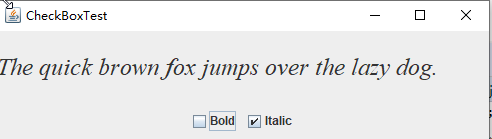
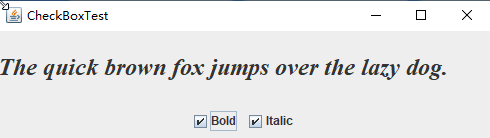
存在的问题:看不懂字体设置代码。
测试程序4
1) 在elipse IDE中调试运行教材491页程序12-4,运行结果理解程序;
2)掌握单选按钮组件的用法;
3)记录示例代码阅读理解中存在的问题与疑惑。
package radioButton;

import java.awt.*;

import javax.swing.*;

/**

 * @version 1.35 2018-04-10

 * @author Cay Horstmann

 */

public class RadioButtonTest

{

   public static void main(String[] args)

   {

      EventQueue.invokeLater(() -> {

         var frame = new RadioButtonFrame();

         frame.setTitle("RadioButtonTest");

         frame.setDefaultCloseOperation(JFrame.EXIT_ON_CLOSE);

         frame.setVisible(true);

      });

   }

}
package radioButton;

import java.awt.*;

import java.awt.event.*;

import javax.swing.*;

/**

 * A frame with a sample text label and radio buttons for selecting font sizes.

 */

public class RadioButtonFrame extends JFrame

{

   private JPanel buttonPanel;

   private ButtonGroup group;

   private JLabel label;

   private static final int DEFAULT_SIZE = 36;

   public RadioButtonFrame()//构造器

   {

	// 给标签加上文本

      label = new JLabel("The quick brown fox jumps over the lazy dog.");

      label.setFont(new Font("Serif", Font.PLAIN, DEFAULT_SIZE));

      add(label, BorderLayout.CENTER);

      // 加上单选框

      buttonPanel = new JPanel();

      group = new ButtonGroup();

      addRadioButton("Small", 8);

      addRadioButton("Medium", 12);

      addRadioButton("Large", 18);

      addRadioButton("Extra large", 36);

      add(buttonPanel, BorderLayout.SOUTH);//四个按钮显示在窗口下方

      pack();

   }

   /**

    * 添加一个单选按钮,用于设置示例文本的字体大小.

    * @param name the string to appear on the button

    * @param size the font size that this button sets

    */

   public void addRadioButton(String name, int size)

   {

      boolean selected = size == DEFAULT_SIZE;

      var button = new JRadioButton(name, selected);

      group.add(button);

      buttonPanel.add(button);

      // 监听器设置标签大小为一个特定值

      ActionListener listener = event -> label.setFont(new Font("Serif", Font.PLAIN, size));

      button.addActionListener(listener);

   }

}
运行结果:
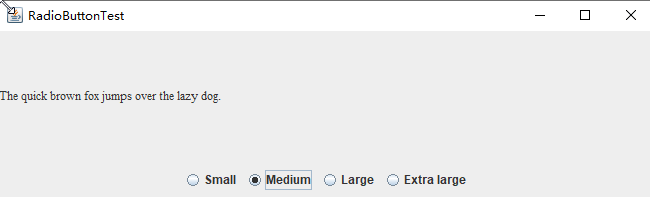
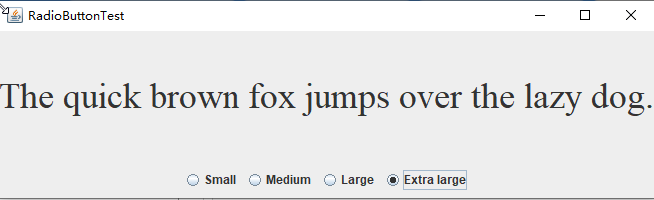
测试程序5
1) 在elipse IDE中调试运行教材494页程序12-5,结合运行结果理解程序;
2)掌握边框的用法;
记录示例代码阅读理解中存在的问题与疑惑。
package border;

import java.awt.*;

import javax.swing.*;

/**

 * @version 1.35 2018-04-10

 * @author Cay Horstmann

 */

public class BorderTest

{

   public static void main(String[] args)

   {

      EventQueue.invokeLater(() -> {

         var frame = new BorderFrame();

         frame.setTitle("BorderTest");

         frame.setDefaultCloseOperation(JFrame.EXIT_ON_CLOSE);

         frame.setVisible(true);

      });

   }

}
package border;

import java.awt.*;

import javax.swing.*;

import javax.swing.border.*;

/**

 * A frame with radio buttons to pick a border style.

 */

public class BorderFrame extends JFrame

{

   private JPanel demoPanel;

   private JPanel buttonPanel;

   private ButtonGroup group;

   public BorderFrame()

   {

      demoPanel = new JPanel();

      buttonPanel = new JPanel();

      group = new ButtonGroup();

      addRadioButton("Lowered bevel", BorderFactory.createLoweredBevelBorder());

      addRadioButton("Raised bevel", BorderFactory.createRaisedBevelBorder());

      addRadioButton("Etched", BorderFactory.createEtchedBorder());

      addRadioButton("Line", BorderFactory.createLineBorder(Color.BLUE));

      addRadioButton("Matte", BorderFactory.createMatteBorder(10, 10, 10, 10, Color.BLUE));

      addRadioButton("Empty", BorderFactory.createEmptyBorder());

      Border etched = BorderFactory.createEtchedBorder();

      Border titled = BorderFactory.createTitledBorder(etched, "Border types");

      buttonPanel.setBorder(titled);

      setLayout(new GridLayout(2, 1));

      add(buttonPanel);

      add(demoPanel);

      pack();

   }

   public void addRadioButton(String buttonName, Border b)

   {

      var button = new JRadioButton(buttonName);

      button.addActionListener(event -> demoPanel.setBorder(b));

      group.add(button);

      buttonPanel.add(button);

   }

}
运行结果:

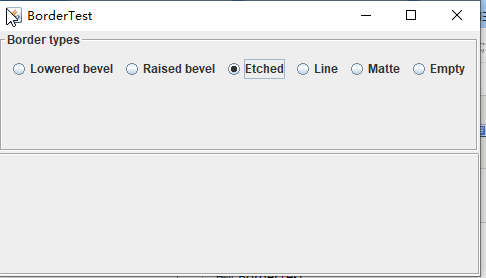
测试程序6
1)在elipse IDE中调试运行教材498页程序12-6,结合运行结果理解程序;
2) 掌握组合框组件的用法;
记录示例代码阅读理解中存在的问题与疑惑。
package comboBox;

import java.awt.*;

import javax.swing.*;

/**

 * @version 1.36 2018-04-10

 * @author Cay Horstmann

 */

public class ComboBoxTest

{

   public static void main(String[] args)

   {

      EventQueue.invokeLater(() -> {

         var frame = new ComboBoxFrame();

         frame.setTitle("ComboBoxTest");

         frame.setDefaultCloseOperation(JFrame.EXIT_ON_CLOSE);

         frame.setVisible(true);

      });

   }

}
package comboBox;

import java.awt.BorderLayout;

import java.awt.Font;

import javax.swing.JComboBox;

import javax.swing.JFrame;

import javax.swing.JLabel;

import javax.swing.JPanel;

/**

 * A frame with a sample text label and a combo box for selecting font faces.

 */

public class ComboBoxFrame extends JFrame

{

   private JComboBox<String> faceCombo;

   private JLabel label;

   private static final int DEFAULT_SIZE = 24;

   public ComboBoxFrame()//构造器

   {

      //加上标签文本

      label = new JLabel("The quick brown fox jumps over the lazy dog.");

      label.setFont(new Font("Serif", Font.PLAIN, DEFAULT_SIZE));

      add(label, BorderLayout.CENTER);

      // 制作组合框并加上名字

      faceCombo = new JComboBox<>();

      faceCombo.addItem("Serif");

      faceCombo.addItem("SansSerif");

      faceCombo.addItem("Monospaced");

      faceCombo.addItem("Dialog");

      faceCombo.addItem("DialogInput");

      // the combo box listener changes the label font to the selected face name

      faceCombo.addActionListener(event ->

         label.setFont(

            new Font(faceCombo.getItemAt(faceCombo.getSelectedIndex()),

               Font.PLAIN, DEFAULT_SIZE)));

      // add combo box to a panel at the frame's southern border

      var comboPanel = new JPanel();

      comboPanel.add(faceCombo);

      add(comboPanel, BorderLayout.SOUTH);

      pack();

   }

}
运行结果:
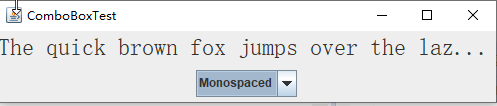
实验2:结对编程练习
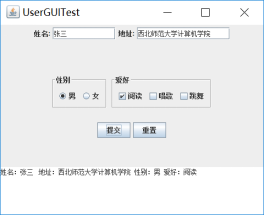
利用所掌握的GUI技术,设计一个用户信息采集程序,要求如下:
(1) 用户信息输入界面如下图所示:

(2) 用户点击提交按钮时,用户输入信息显示在录入信息显示区,格式如下:
(3) 用户点击重置按钮后,清空用户已输入信息;
(4) 点击窗口关闭,程序退出。
代码如下:
package comboBox;

import java.awt.*;

import java.awt.event.ActionEvent;

import java.awt.event.ActionListener;

import java.util.*;

import javax.swing.*;

public class 十四周结对编程

{

   public static void main(String[] args)

   {

      EventQueue.invokeLater(() -> {

         JFrame frame = new FrameTest();

         frame.setTitle("陈园园");

         frame.setDefaultCloseOperation(JFrame.EXIT_ON_CLOSE);

         frame.setVisible(true);

      });

   }

}

class FrameTest extends JFrame

{

    private JPanel panel;

    private JTextArea text,text2;

    private JRadioButton JRadioButton1,JRadioButton2;

    private ButtonGroup ButtonGroup;

    private JLabel JLabel;

    private JCheckBox h1,h2,h3;

    private JComboBox<String> JComboBox;

    private JButton Button,Button2;

   public FrameTest()

   {

      setSize(700,500);

      panel=new JPanel();

      panel.setLayout(null);

      ButtonGroup=new ButtonGroup();

      JRadioButton1=new JRadioButton("男",false);   JRadioButton1.setBounds(150,330, 80, 50);

      JRadioButton2=new JRadioButton("女",false); JRadioButton2.setBounds(150,300, 80,50);

      ButtonGroup.add(JRadioButton1);

      ButtonGroup.add(JRadioButton2);

      addJLabel("性别:",100,300);

      addJLabel("姓名:",100,50);

      addJLabel("地址:",100,150);

      addJLabel("年级:",400,50);

      addJLabel("爱好:",400,150);

      text=new JTextArea(1,1);text.setBounds(150,70, 120, 30);text.setLineWrap(true);

      text2=new JTextArea(5,3);text2.setBounds(150,160, 130, 100);text2.setLineWrap(true);

      h1=new JCheckBox("阅读");h1.setBounds(450,160,100,30);

      h2=new JCheckBox("跳舞");h2.setBounds(450,180,100,30);

      h3=new JCheckBox("唱歌");h3.setBounds(450,200,100,30);

      JComboBox=new JComboBox<>();

      JComboBox.addItem("大一");

      JComboBox.addItem("大二");

      JComboBox.addItem("大三");

      JComboBox.setBounds(500,65, 100, 20);

      Button = new JButton("提交");Button.setBounds(200, 400, 100, 35);

      Button2 = new JButton("重置");Button2.setBounds(400, 400, 100, 35);

      Button.addActionListener(new Action1());

      Button2.addActionListener(new Action2());

      panel.add(h1);

      panel.add(h2);

      panel.add(h3);

      panel.add(Button);

      panel.add(Button2);

      panel.add(JComboBox);

      panel.add(text);

      panel.add(text2);

      panel.add(JRadioButton1);

      panel.add(JRadioButton2);

      add(panel);

   }

   public void addJLabel(String n,int a,int b)

   {

       JLabel = new JLabel(n);

       JLabel.setBounds(a,b,100,50);

       panel.add(JLabel);

   }

   private class Action1 implements ActionListener

   {

   public void actionPerformed(ActionEvent event)

       {

       System.out.println("姓名:"+text.getText()+"\n"+"地址:"+text2.getText());

       System.out.println("年级:"+JComboBox.getSelectedItem());

       System.out.println("爱好:");

       if(h1.isSelected()==true)System.out.print(h1.getText());

       if(h2.isSelected()==true)System.out.print(h2.getText());

       if(h3.isSelected()==true)System.out.print(h3.getText());

       System.out.println("\n"+"性别:");

       if(JRadioButton1.isSelected()==true)System.out.println(JRadioButton1.getText());

       if(JRadioButton2.isSelected()==true)System.out.println(JRadioButton2.getText());

       System.out.println("\n");

       }

   }

   private class Action2 implements ActionListener

   {

   public void actionPerformed(ActionEvent event)

       {

       text.setText(null);

       text2.setText(null);

       h1.setSelected(false);

       h2.setSelected(false);

       h3.setSelected(false);

       ButtonGroup.clearSelection();

       JComboBox.setSelectedIndex(0);

       }

   }

}
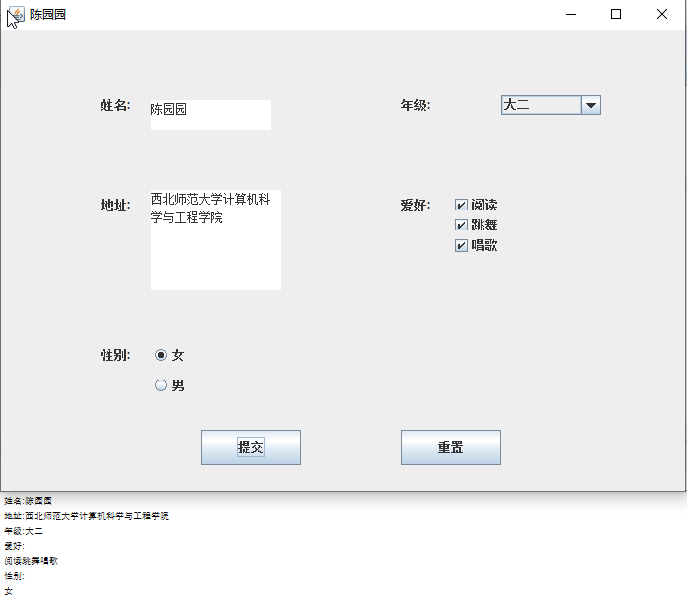
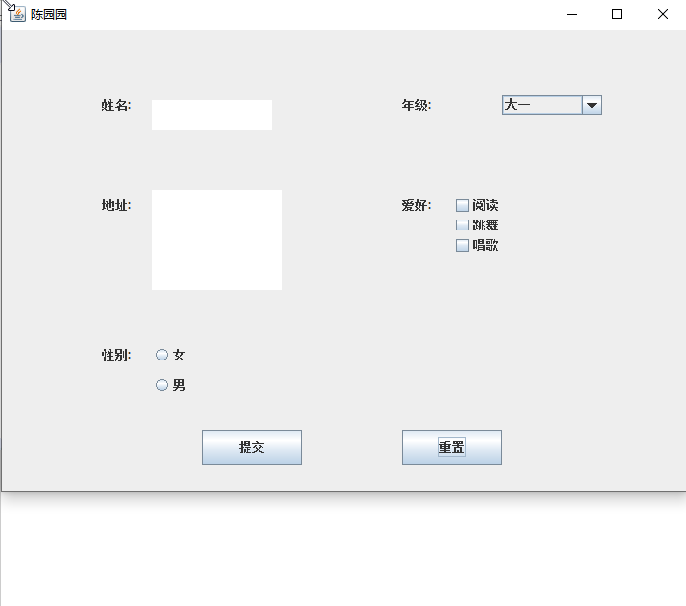
运行结果:
结对编程照片:
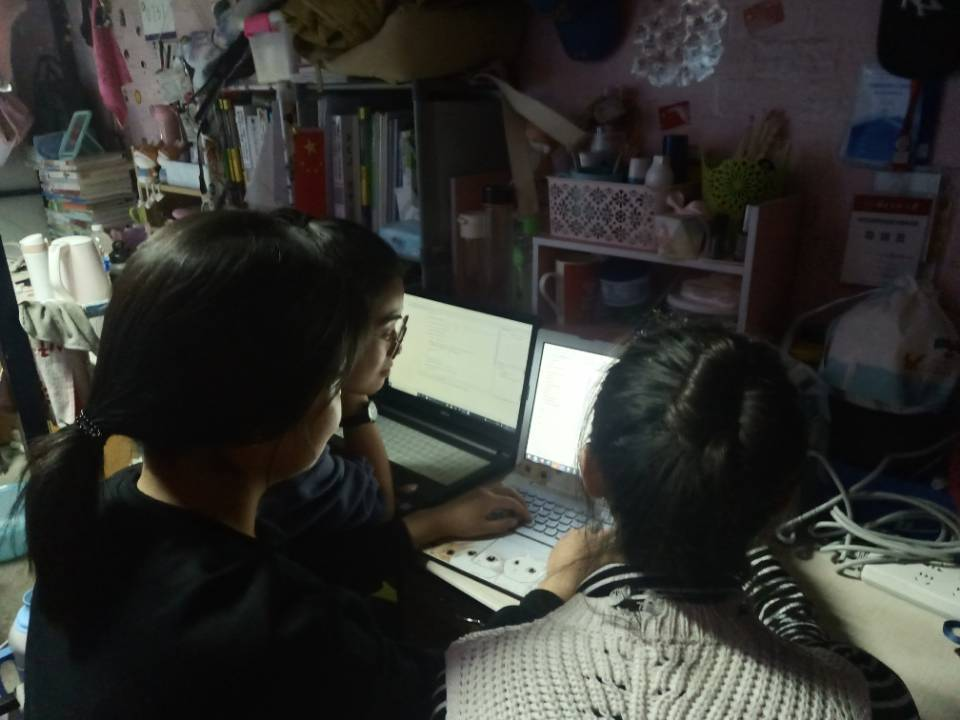
实验总结:
通过本次的学习,了解了各种组件的制作,在理论课上,老师的讲解之下对程序以及各个概念的了解。如:复选框,单选框,边框和组合框,还有关于文本输入的文本域,标签和标签组件,密码域等。除了个别程序看不懂之外,其它都可以理解。还有就是在实验课上,学长讲解的关于上节课没有掌握完全的知识,与lambda表达式的类似的另外三种编程写法。本节课的学习,感觉很有意思也很充实,以后也会继续努力。结对编程方面,就是将这节课所学的代码进行了一个综合,创建一个新的GUI界面。
201871010104-陈园园 《面向对象程序设计(java)》第十四周学习总结的更多相关文章
- 201521123061 《Java程序设计》第十四周学习总结
201521123061 <Java程序设计>第十四周学习总结 1. 本周学习总结 1.1 以你喜欢的方式(思维导图或其他)归纳总结多数据库相关内容. 2. 书面作业 1. MySQL数据 ...
- 201521123072《java程序设计》第十四周学习总结
201521123072<java程序设计>第十四周学习总结 1. 本周学习总结 1.1 以你喜欢的方式(思维导图或其他)归纳总结多数据库相关内容. 2. 书面作业 1. MySQL数据库 ...
- 201521123038 《Java程序设计》 第十四周学习总结
201521123038 <Java程序设计> 第十四周学习总结 1. 本周学习总结 1.1 以你喜欢的方式(思维导图或其他)归纳总结多数据库相关内容. 接口: DriverManager ...
- 201771010134杨其菊《面向对象程序设计java》第九周学习总结
第九周学习总结 第一部分:理论知识 异常.断言和调试.日志 1.捕获 ...
- 201521123122 《java程序设计》第十四周学习总结
## 201521123122 <java程序设计>第十四周实验总结 ## 1. 本周学习总结 1.1 以你喜欢的方式(思维导图或其他)归纳总结多数据库相关内容. 2. 书面作业 1. M ...
- 201871010132-张潇潇《面向对象程序设计(java)》第一周学习总结
面向对象程序设计(Java) 博文正文开头 项目 内容 这个作业属于哪个课程 https://www.cnblogs.com/nwnu-daizh/ 这个作业的要求在哪里 https://www.cn ...
- 扎西平措 201571030332《面向对象程序设计 Java 》第一周学习总结
<面向对象程序设计(java)>第一周学习总结 正文开头: 项目 内容 这个作业属于哪个课程 https://www.cnblogs.com/nwnu-daizh/ 这个作业的要求在哪里 ...
- 201777010217-金云馨《面向对象程序设计Java》第四周总结学习
2019面向对象程序设计(Java)第4周学习指导及要求 项目 内容 这个作业属于哪个课程 <任课教师博客主页链接>https://www.cnblogs.com/nwnu-daizh/ ...
- 汪慧和201771010123《面向对象程序设计JAVA》第四周实验总结
第一部分:理论知识学习部分 1.类 类(class)是具有相同属性和行为的一组对象的集合,是构造程序的基本单元,是构造对象的模板或蓝图. 2.对象 对象:即数据,对象有三个特性——1.行为 2.状态 ...
- 201871010124 王生涛《面向对象程序设计JAVA》第一周学习总结
项目 内容 这个作业属于哪个课程 https://www.cnblogs.com/nwnu-daizh/ 这个作业的要求在哪里 https://edu.cnblogs.com/campus/xbsf/ ...
随机推荐
- 洛谷 P5595 【XR-4】歌唱比赛
洛谷 P5595 [XR-4]歌唱比赛 题目传送门 题目描述 小 X 参加了一场歌唱比赛. 经过一路鏖战,小 X 终于挺进了决赛,他的对手是小 Y. 这场歌唱比赛的冠军是由点赞数决定的,谁的点赞数高, ...
- 小程序setData()使用和注意事项
注意: 直接修改this.data,而不调用this.setData(),是无法改变当前页面的状态的,会导致数据不一致 仅支持可以JSON化的数据 单次设置的数据不能超过1024KB,尽量避免一次设置 ...
- polyfll方案优化
polyfill 在es6风靡的时候,babel给了我们一个有力的转换方案,可以在低版本浏览器上写一些新语法而不用考虑兼容问题 polyfill的诞生 语法和API区分 语法是用来产生特殊效果的一些符 ...
- ClassLoader.getSystemResourceAsStream("a.txt")获取不到资源文件
一.解决方案 换成XXX.class.getClassLoader().getResourceAsStream("a.txt")即可. 二.场景复现 src/main/resour ...
- Chrome保存整个网页为图片
打开需要保存为图片的网页 然后按F12,接着按Ctrl+Shift+P 在红框内输入full 点击下面的“Capture full size screenshot”就可以保存整个网页为图片了 原文出处 ...
- 安装pip-9.0.1-py2.py3-none-any.whl
pip的安装 1.从https://pypi.python.org/pypi/pip#downloads下载所需的.whl文件 2.将下载的文件放入Python的根目录 我的根目录是F:\Python ...
- linux 用du查看硬盘信息
linux 用du查看硬盘信息 <pre>[root@iZ238qupob7Z web]# df -hFilesystem Size Used Avail Use% Mounted on/ ...
- logical函数
logical函数(逻辑函数) logical(x):x ~=0时,logical(x)=1:x = 0时,logical(x)=0
- JSTL+EL表达式+JSP自定义框架案例
不会框架不要紧,我带你自定义框架 前言:这标题说的有点大了,当一回标题党,之前在学JSP的时候提到了JSTL和EL表达式,由于一直钟情于Servlet,迟迟没有更新别的,这回算是跳出来了.这回放个大招 ...
- EntityUtils.toString(entity)处理字符集问题解决
爬取51Job和猎聘网的信息,想处理字符集问题(51job为gbk,猎聘为utf-8), 找到两个网站字符集信息都在同一标签下 就想先把网页保存成String,解析一遍获取字符集,然后将网页转换成对应 ...