
python的easygui
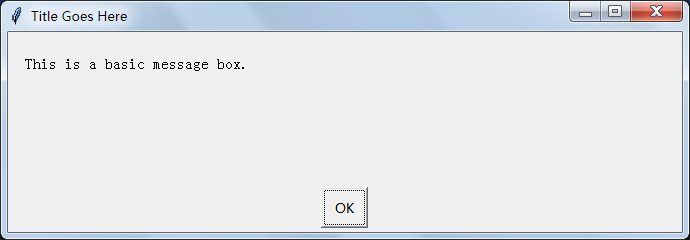
1.利用msgbox(单词messagebox的缩写)给出一个提示信息:
import easygui as g

reply=g.msgbox('This is a basic message box.', 'Title Goes Here')

print(reply)

#http://easygui.sourceforge.net/
运行结果:
import easygui

easygui.msgbox('Hello, world!')
运行结果:
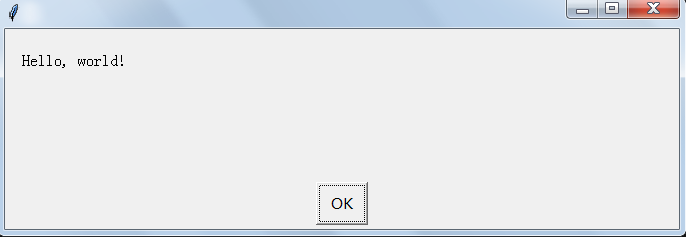
说明:easygui.msgbox('Hello, world!')这一句有个返回值,就是字符'OK'。这个特点是:只能点击OK,返回值确定。

利用ynbox给出yes or no 对话框:
import easygui as g

reply=g.ynbox('Shall I continue?', 'Title', ('Yes', 'No'))

print(reply)

#http://easygui.sourceforge.net/
运行结果:
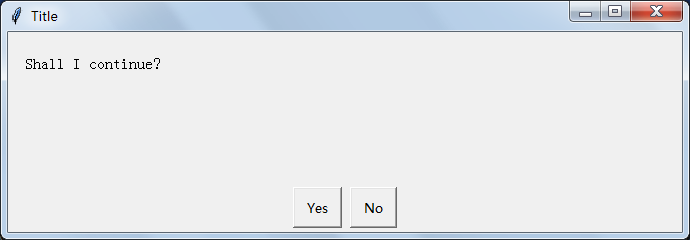
说明:点'Yes',返回True,点'No',返回False。

导入easygui时起个别名:
import easygui

easygui.msgbox('Hello EasyGui!')

#但是,直接使用import导入,之后使用其中的方法时需要加上easygui的前缀,例如easygui.msgbox()。这样比较麻烦,我们还可以选择导入整个EasyGui的包:

from easygui import *

msgbox('Hello EasyGui!')

#上面的方法效果时一样的。我们还有第三种方法:

import easygui as g

g.msgbox('Hello EasyGui!')

#这个方法的好处是保留了EasyGui的命名空间,且调用时不用写出完整的包名。同时避免了第二种方法导致的函数覆盖的可能
#https://www.zybuluo.com/kingwhite/note/128328
2.给出一个提示信息,并且OK按钮的内容可以更改:
from easygui import *

msgbox('您选的序号是未知序号!',ok_button = '关闭程序')
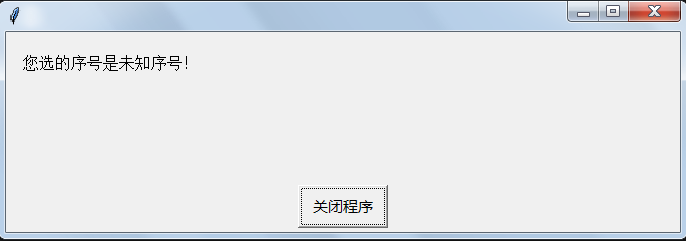
和第一个一样,返回值是字符串,只是出现的返回值的内容可以修改。
3.打开文件对话框:
import easygui

path = easygui.fileopenbox()
如果选择打开文件,则返回值是所打开文件的全路径,如果选择取消,则返回'None'。
4.选择多个字符串列表中的某个字符串,并返回显示在对话框上面:
import easygui as g

import sys

while True:

    g.msgbox('嗨,欢迎进入第一个GUI制作的小游戏~')

    msg = '你希望学习到什么知识呢?'

    title = '互动小游戏'

    choices = ['琴棋书画', '四书五经', '程序编写', '逆向分析']

    choice = g.choicebox(msg, title, choices)

    # note that we convert the choice to string, in case the user

    # cancelled the choice, and we got None.

    g.msgbox('你的选择是:' + str(choice), '结果')

    msg = '你希望重新开始小游戏么?'

    title = '请选择'

    if g.ccbox(msg, title):     # Show a Continue/Cancel dialog

        pass                    # user choose Continue

    else:

        sys.exit(0)             # user choose Cancel

#https://i.cnblogs.com/EditPosts.aspx?postid=9914202&update=1
5.和4相似的例子:
import easygui as g

import sys

while 1:

    g.msgbox("Hello, world!")

    msg ="What is your favorite flavor?"

    title = "Ice Cream Survey"

    choices = ["Vanilla", "Chocolate", "Strawberry", "Rocky Road"]

    choice = g.choicebox(msg, title, choices)

    # note that we convert choice to string, in case

    # the user cancelled the choice, and we got None.

    g.msgbox("You chose: " + str(choice), "Survey Result")

    msg = "Do you want to continue?"

    title = "Please Confirm"

    if g.ccbox(msg, title):     # show a Continue/Cancel dialog

        pass  # user chose Continue

    else:

        sys.exit(0)           # user chose Cancel

#http://easygui.sourceforge.net/tutorial.html
6.easygui的buttonbox:
import easygui as g

reply=g.buttonbox('Click on your favorite flavor.', 'Favorite Flavor', ('Chocolate', 'Vanilla', 'Strawberry'))

print(reply)

#http://easygui.sourceforge.net/
7.返回选择的文件夹的名字:
import easygui as g

reply=g.diropenbox()

print(reply)
运行结果:

8.另存为对话框:
import easygui as g

reply=g.filesavebox()

print(reply)
9.输入内容对话框:
import easygui as g

reply=g.enterbox("shuru:")

print(reply)
python的easygui的更多相关文章
- Python 模块EasyGui详细介绍
转载:无知小德 Python 模块EasyGui详细介绍 EasyGui 官网: http://easygui.sourceforge.net 官方的教学文档:http://easygui-docs- ...
- 【Python】easygui小甲鱼
翻译改编自官方文档:http://easygui.sourceforge.net/tutorial/index.html 翻译改编者:小甲鱼,本文欢迎转载,转载请保证原文的完整性! 演示使用 Pyth ...
- 一、Python 模块EasyGui详细介绍
Python 模块EasyGui详细介绍 EasyGui 官网: -http://easygui.sourceforge.net 官方的教学文档: -easygui-docs-0.96\tutoria ...
- Python模块 | EasyGui
(Python模块 | EasyGui | 2021/04/08) 目录 什么是 EasyGUI? [EasyGui中的函数] msbox | 使用示例 ynbox | 使用示例 ccbox | 使用 ...
- python使用easygui写图形界面程序
我 们首先下载一个类库easygui,它是一个Python用于简单开发图形化界面的类库,打开easygui的下载网页 http://sourceforge.net/projects/easygui/? ...
- Python 模块EasyGui
1.msgBox msgbox(msg='(Your message goes here)', title=' ', ok_button='OK', image=None, root=None) ms ...
- Python:easygui的安装、导入、使用、设置
转于:https://blog.csdn.net/sinat_37390744/article/details/55211652 博主:钏的博客 一.下载安装 1)下载0.96的easygui.htt ...
- python 模块-easygui.buttonbox
2018-03-0315:43:11 ): Yes_or_No = easygui.buttonbox("是否良品?", choices=['Yes', 'No', '退出']) ...
- centos下python中添加easygui模块
前提:python中要集成Tkinter,Tkinter模块("Tk 接口")是Python的标准Tk GUI工具包的接口.Tk和Tkinter可以在大多数的Unix平台下使用,同 ...
随机推荐
- 【Excle数据透视表】如何隐藏数据透视表中行字段的”+/-”按钮
如下图:新建的数据透视表中有存在"+/-"符号,导致数据透视图不太美观,那么怎么处理呢? 解决方案 单击"显示"组中的"+/-"按钮显示或隐 ...
- C++一元多项式相加
实验名称:一元多项式相加 // multiply.cpp : 定义控制台应用程序的入口点. // #include "stdafx.h" #include<iostream& ...
- memcpy( )的使用以及迭代器的使用
memcpy() -- 拷贝内存内容 相关函数: bcopy(), memccpy(), memmove(), strcpy(), strncpy() 表头文件: #include <strin ...
- 阿里云数据库RDS迁移,DTS 迁移过程中,是否会锁表,对源数据库是否有影响?
阿里云数据库RDS迁移,DTS 迁移过程中,是否会锁表,对源数据库是否有影响? DTS 在进行全量数据迁移和增量数据迁移的过程中,均不会对源端数据库进行锁表,因此在全量数据迁移和增量数据迁移的过程中, ...
- Android常用资源
Eclipse ADT http://developer.android.com/sdk/installing/installing-adt.html https://dl-ssl.google.co ...
- centos6.6安装mysql5.5
在mysql官网下载mysql-5.5.54-linux2.6-x86_64.tar.gz解压:tar -zxvf mysql-5.5.54-linux2.6-x86_64.tar.gz修改名字mv ...
- 转:DDR中端接技术基本概念
DDR中端接技术基本概念 版权声明:转载请注明出处:http://blog.csdn.net/lg2lh https://blog.csdn.net/lg2lh/article/details/90 ...
- Xenomai 3 migration
Xenomai 3 的rtdm驱动更像一般的Linux驱动,named device会在/dev/rtdm/xxx创建一个设备文件.而用户空间使用时,写得来也和Linux的一般char设备相似,ope ...
- ubuntu 安装时遇到 hash sum mismatch 处理方法
ubuntu安装大软件时,下载经常容易出错,hash sum mismatch是其中一种,说到底还是网络不好,重试很多遍都是这个错误,最后的解决方案是把mismatch说的那个链接用firefox打开 ...
- 【WPF学习笔记】[转]周银辉之WPF中的动画 && 晓风影天之wpf动画——new PropertyPath属性链
(一)WPF中的动画 动画无疑是WPF中最吸引人的特色之一,其可以像Flash一样平滑地播放并与程序逻辑进行很好的交互.这里我们讨论一下故事板. 在WPF中我们采用Storyboard(故事板)的方式 ...