
[WPF]原生TabControl控件实现拖拽排序功能
在UI交互中,拖拽操作是一种非常简单友好的交互。尤其是在ListBox,TabControl,ListView这类列表控件中更为常见。通常要实现拖拽排序功能的做法是自定义控件。本文将分享一种在原生控件上设置附加属性的方式实现拖拽排序功能。
该方法的使用非常简单,仅需增加一个附加属性就行。
<TabControl

    assist:SelectorDragDropAttach.IsItemsDragDropEnabled="True"

    AlternationCount="{Binding ClassInfos.Count}"

    ContentTemplate="{StaticResource contentTemplate}"

    ItemContainerStyle="{StaticResource TabItemStyle}"

    ItemsSource="{Binding ClassInfos}"

    SelectedIndex="0" />
实现效果如下:
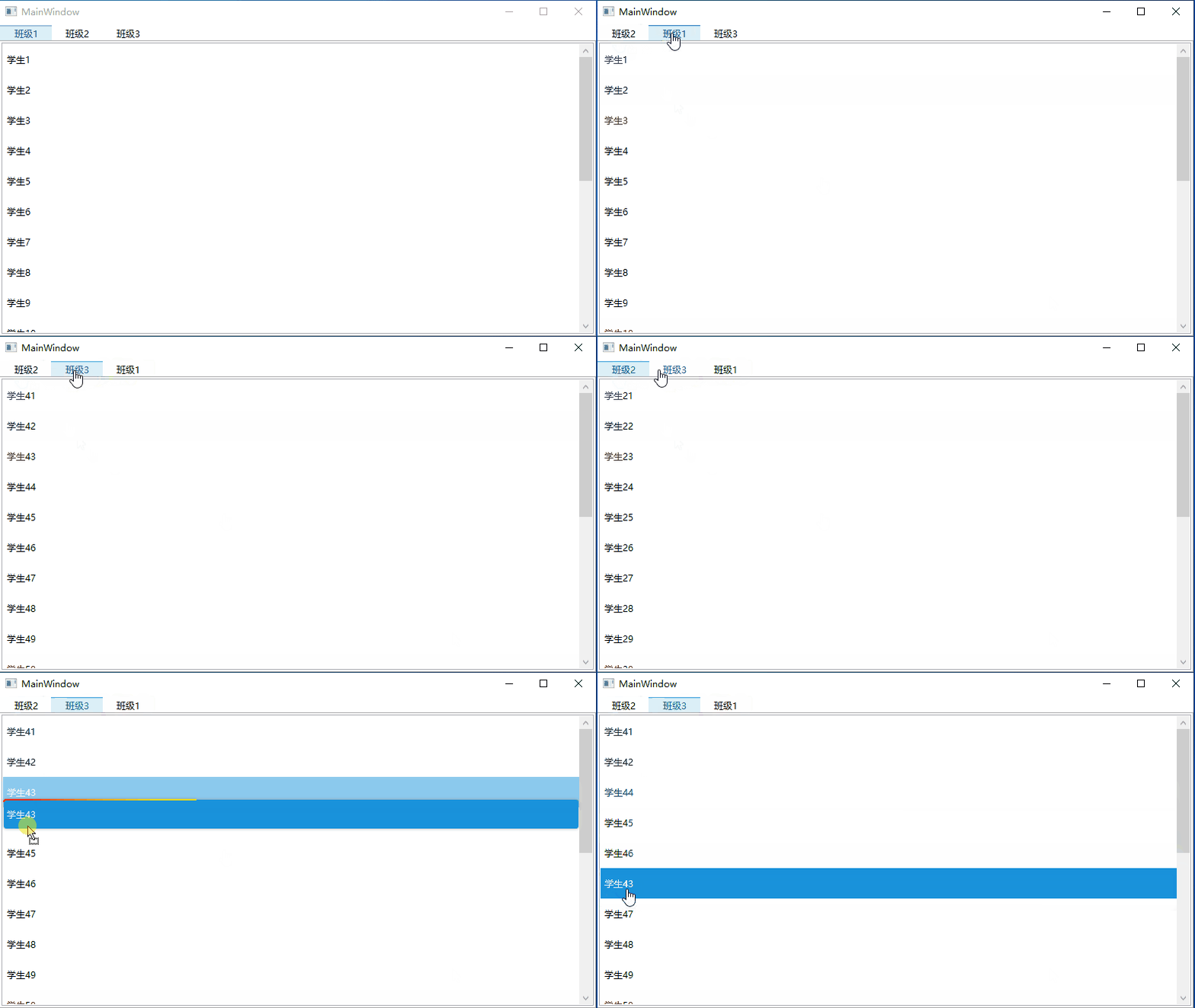
主要思路
WPF中核心基类UIElement包含了DragEnter,DragLeave,DragEnter,Drop等拖拽相关的事件,因此只需对这几个事件进行监听并做相应的处理就可以实现WPF中的UI元素拖拽操作。
另外,WPF的一大特点是支持数据驱动,即由数据模型来推动UI的呈现。因此,可以通过通过拖拽事件处理拖拽的源位置以及目标位置,并获取到对应位置渲染的数据,然后操作数据集中数据的位置,从而实现数据和UI界面上的顺序更新。
首先定义一个附加属性类SelectorDragDropAttach,通过附加属性IsItemsDragDropEnabled控制是否允许拖拽排序。
public static class SelectorDragDropAttach

{

    public static bool GetIsItemsDragDropEnabled(Selector scrollViewer)

    {

        return (bool)scrollViewer.GetValue(IsItemsDragDropEnabledProperty);

    }

    public static void SetIsItemsDragDropEnabled(Selector scrollViewer, bool value)

    {

        scrollViewer.SetValue(IsItemsDragDropEnabledProperty, value);

    }

    public static readonly DependencyProperty IsItemsDragDropEnabledProperty =

        DependencyProperty.RegisterAttached("IsItemsDragDropEnabled", typeof(bool), typeof(SelectorDragDropAttach), new PropertyMetadata(false, OnIsItemsDragDropEnabledChanged));

    private static readonly DependencyProperty SelectorDragDropProperty =

        DependencyProperty.RegisterAttached("SelectorDragDrop", typeof(SelectorDragDrop), typeof(SelectorDragDropAttach), new PropertyMetadata(null));

    private static void OnIsItemsDragDropEnabledChanged(DependencyObject d, DependencyPropertyChangedEventArgs e)

    {

        bool b = (bool)e.NewValue;

        Selector selector = d as Selector;

        var selectorDragDrop = selector?.GetValue(SelectorDragDropProperty) as SelectorDragDrop;

        if (selectorDragDrop != null)

            selectorDragDrop.Selector = null;

        if (b == false)

        {

            selector?.SetValue(SelectorDragDropProperty, null);

            return;

        }

        selector?.SetValue(SelectorDragDropProperty, new SelectorDragDrop(selector));

    }

}
其中SelectorDragDrop就是处理拖拽排序的对象,接下来看下几个主要事件的处理逻辑。
通过PreviewMouseLeftButtonDown确定选中的需要拖拽操作的元素的索引
void selector_PreviewMouseLeftButtonDown(object sender, MouseButtonEventArgs e)

{

    if (this.IsMouseOverScrollbar)

    {

        //Set the flag to false when cursor is over scrollbar.

        this.canInitiateDrag = false;

        return;

    }

    int index = this.IndexUnderDragCursor;

    this.canInitiateDrag = index > -1;

    if (this.canInitiateDrag)

    {

        // Remember the location and index of the SelectorItem the user clicked on for later.

        this.ptMouseDown = GetMousePosition(this.selector);

        this.indexToSelect = index;

    }

    else

    {

        this.ptMouseDown = new Point(-10000, -10000);

        this.indexToSelect = -1;

    }

}
在PreviewMouseMove事件中根据需要拖拽操作的元素创建一个AdornerLayer,实现鼠标拖着元素移动的效果。其实拖拽移动的只是这个AdornerLayer,真实的元素并未移动。
void selector_PreviewMouseMove(object sender, MouseEventArgs e)

{

    if (!this.CanStartDragOperation)

        return;

    // Select the item the user clicked on.

    if (this.selector.SelectedIndex != this.indexToSelect)

        this.selector.SelectedIndex = this.indexToSelect;

    // If the item at the selected index is null, there's nothing

    // we can do, so just return;

    if (this.selector.SelectedItem == null)

        return;

    UIElement itemToDrag = this.GetSelectorItem(this.selector.SelectedIndex);

    if (itemToDrag == null)

        return;

    AdornerLayer adornerLayer = this.ShowDragAdornerResolved ? this.InitializeAdornerLayer(itemToDrag) : null;

    this.InitializeDragOperation(itemToDrag);

    this.PerformDragOperation();

    this.FinishDragOperation(itemToDrag, adornerLayer);

}
DragEnter,DragLeave,DragEnter事件中处理AdornerLayer的位置以及是否显示。
Drop事件中确定了拖拽操作目标位置以及渲染的数据元素,然后移动元数据,通过数据顺序的变化更新界面的排序。从代码中可以看到列表控件的ItemsSource不能为空,否则拖拽无效。这也是后边将提到的一个缺点。
void selector_Drop(object sender, DragEventArgs e)

{

    if (this.ItemUnderDragCursor != null)

        this.ItemUnderDragCursor = null;

    e.Effects = DragDropEffects.None;

    var itemsSource = this.selector.ItemsSource;

    if (itemsSource == null) return;

    int itemsCount = 0;

    Type type = null;

    foreach (object obj in itemsSource)

    {

        type = obj.GetType();

        itemsCount++;

    }

    if (itemsCount < 1) return;

    if (!e.Data.GetDataPresent(type))

        return;

    object data = e.Data.GetData(type);

    if (data == null)

        return;

    int oldIndex = -1;

    int index = 0;

    foreach (object obj in itemsSource)

    {

        if (obj == data)

        {

            oldIndex = index;

            break;

        }

        index++;

    }

    int newIndex = this.IndexUnderDragCursor;

    if (newIndex < 0)

    {

        if (itemsCount == 0)

            newIndex = 0;

        else if (oldIndex < 0)

            newIndex = itemsCount;

        else

            return;

    }

    if (oldIndex == newIndex)

        return;

    if (this.ProcessDrop != null)

    {

        // Let the client code process the drop.

        ProcessDropEventArgs args = new ProcessDropEventArgs(itemsSource, data, oldIndex, newIndex, e.AllowedEffects);

        this.ProcessDrop(this, args);

        e.Effects = args.Effects;

    }

    else

    {

        dynamic dItemsSource = itemsSource;

        if (oldIndex > -1)

            dItemsSource.Move(oldIndex, newIndex);

        else

            dItemsSource.Insert(newIndex, data);

        e.Effects = DragDropEffects.Move;

    }

}
优点与缺点
优点:
- 用法简单,封装好拖拽操作的附加属性后,只需一行代码实现拖拽功能。
- 对现有项目友好,对于已有项目需要扩展拖拽操作排序功能,无需替换控件。
- 支持多种列表控件扩展。派生自
Selector的ListBox,TabControl,ListView,ComboBox都可使用该方法。
缺点:
- 仅支持通过数据绑定动态渲染的列表控件,XAML硬编码或者后台代码循环添加列表元素创建的列表控件不适用该方法。
- 仅支持列表控件内的元素拖拽,不支持穿梭框拖拽效果。
- 不支持同时拖拽多个元素。
小结
本文介绍列表拖拽操作的解决方案不算完美,功能简单但轻量,并且很好的体现了WPF的数据驱动的思想。个人非常喜欢这种方式,它能让我们轻松的实现列表数据的增删以及排序操作,而不是耗费时间和精力去自定义可增删数据的控件。
参考
https://www.codeproject.com/Articles/17266/Drag-and-Drop-Items-in-a-WPF-ListView#xx1911611xx
代码示例
[WPF]原生TabControl控件实现拖拽排序功能的更多相关文章
- 【C#/WPF】UI控件的拖拽/拉伸
需求①:控件拖拽——按住鼠标,可自由拖拽控件. 方法:目前看到的办法有两种. 使用ZoomableCanvas:http://www.cnblogs.com/gnielee/archive/2011/ ...
- ToolStrip控件左右拖拽移动效果实现
1.主窗体下部添加一个Panel乘放ToolStrip控件以实现ToolStrip在窗体下部定位.2.当ToolStrip控件中子控件超出屏幕时,拖动控件可以实现滑动效果.拖动到控件边缘距窗体边缘1/ ...
- PyQt5控件支持拖拽方法
让控件支持拖拽动作A.setDragEnable(True) 设置A可以拖动B.setAcceptDrops(True) 设置B可以接受拖动B需要满足两个事件1.dragEnterEvent 将A拖到 ...
- RecyclerViewItemTouchHelperDemo【使用ItemTouchHelper进行拖拽排序功能】
版权声明:本文为HaiyuKing原创文章,转载请注明出处! 前言 记录使用ItemTouchHelper对Recyclerview进行拖拽排序功能的实现. 效果图 代码分析 ItemTouchHel ...
- WPF 自定义TabControl控件样式
一.前言 程序中经常会用到TabControl控件,默认的控件样式很普通.而且样式或功能不一定符合我们的要求.比如:我们需要TabControl的标题能够居中.或平均分布:或者我们希望TabContr ...
- WPF之TabControl控件用法
先创建实体基类:NotificationObject(用来被实体类继承) 实现属性更改通知接口: using System; using System.Collections.Generic; usi ...
- php接口实现拖拽排序功能
列表拖拽排序是一个很常见的功能,但是后端接口如何处理却是一个令人纠结的问题 如何实现才能达到效率最高呢 先分析一个场景,假如有一个页面有十条数据,所谓的拖拽就是在这十条数据来来回回的拖,但是每次拖动都 ...
- vue列表拖拽排序功能实现
1.实现目标:目标是输入一个数组,生成一个列表:通过拖拽排序,拖拽结束后输出一个经过排序的数组. 2.实现思路: 2.1是使用HTML5的drag功能来实现,每次拖拽时直接操作Dom节点排序,拖拽结束 ...
- vue el-transfer新增拖拽排序功能---sortablejs插件
<template> <!-- target-order="unshift"必须设置,如果不设置的话后台穿的value值得顺序会被data重置 - --> ...
- WPF 实现控件间拖拽内容
想实现这样一个常用功能:在ListBox的一个Item上点住左键,然后拖拽到另外一个控件(如ListView中),松开左键,数据已经拖拽过来. 步骤如下: 1. 设置ListBox 的AllowDro ...
随机推荐
- LocalTime转String类型,如下图
- 了解web网络基础
TCP/IP 协议:一种规则,规定不同计算机操作系统,硬件之间怎么通信的一种规则 像这样把互联网相关联的协议集合起来总称为TCP/IP协议. TCP/IP分层管理 按照组层次分为以下四层: 应用层:决 ...
- 二、GCC编译器工作过程
从更直观的角度来说,编译器是一种工具,将高级语言转化为机器语言.举个例子,我们可以使用编译器将用C++语言编写的程序转换为机器可执行的指令和数据.之前提到过,用机器指令或汇编语言编写程序非常繁琐和乏味 ...
- Swithch反汇编(四种)
------------恢复内容开始------------ Switch语法格式 Switch(表达式) { case 常量表达式1: 语句; break; case 常量表达式2: 语句; bre ...
- 探索Java通信面试的奥秘:揭秘IO模型、选择器和网络协议,了解面试中的必备知识点!
了解常见的TCP/UDP TCP(Transmission Control Protocol)是一种面向连接的可靠的传输协议.类似于打电话,它通过建立一个连接和保证数据的可靠传输来提高通信的可靠性.然 ...
- 2021-4-19 vs加速启动小技巧之intellitrace
在选项界面中将intellitrace的启用关闭后对于程序的打开有加速作用.
- 重返照片的原始世界:我为.NET打造的RAW照片解析利器
重返照片的原始世界:我为.NET打造的RAW照片解析利器 如果你是我的老读者,你可能还记得,在2019年,我冒险进入了一片神秘的领域--用C#解析RAW格式的照片: 20191208 - 用.NET解 ...
- PHPstudy+Xdebug动态调试代码过程中遇到一分钟就超时问题的解决办法
环境是PhpStorm+Xdebug+WAMP 在实际调试的过程中 碰到了调试还没走完就自动结束的情况 很尴尬 查阅了相关文档资料 找到了解决方法 首先在php.ini中进行修改 我的配置文件地址在 ...
- jmeter对请求响应结果进行整段内容提取方法
通过正则表达式提取器,将上一个请求(A请求)响应数据中的整段内容提取,传给下一个需要该提取数据的请求(B请求). 1. 请求接口响应结果 2. 添加正则表达式提取器 设置变量名为"tt&qu ...
- 记一次MySql灾难性事件
2023年8月8日,本来系一个风和日丽的夏天中的平凡一天,但这种平凡,注定住佢一定唔平凡,唉...现在回忆起都阵阵咁痛!!! 重要嘅事情讲三次,唔好手贱,唔好手贱,唔好手贱 事日,如常上班,本人系一名 ...