
WPF之TabControl控件用法
先创建实体基类:NotificationObject(用来被实体类继承) 实现属性更改通知接口:
using System;

using System.Collections.Generic;

using System.Linq;

using System.Text;

using System.ComponentModel;

namespace TabControlDemo

{

    public class NotificationObject:INotifyPropertyChanged

    {

        public event PropertyChangedEventHandler PropertyChanged;

        public void OnPropertyChanged(string propertyName)

        {

            if (this.PropertyChanged!=null)

            {

                this.PropertyChanged.Invoke(this, new PropertyChangedEventArgs(propertyName));

            }

        }

    }

}
创建员工类Employee继承NotificationObject类:
using System;

using System.Collections.Generic;

using System.Linq;

using System.Text;

namespace TabControlDemo

{

    public class Employee:NotificationObject

    {

        private string employeeName;

        public string EmployeeName

        {

            get { return employeeName; }

            set

            {

                if (value!=employeeName)

                {

                    employeeName = value;

                    OnPropertyChanged("EmployeeName");

                }

            }

        }

        private string sex;

        public string Sex

        {

            get { return sex; }

            set

            {

                if (value != sex)

                {

                    sex = value;

                    OnPropertyChanged("Sex");

                }

            }

        }

        private int age;

        public int Age

        {

            get { return age; }

            set

            {

                if (value != age)

                {

                    age = value;

                    OnPropertyChanged("Age");

                }

            }

        }

        private string title;

        public string Title

        {

            get { return title; }

            set

            {

                if (value != title)

                {

                    title = value;

                    OnPropertyChanged("Title");

                }

            }

        }

    }

}
创建部门类Department继承NotificationObject类:
using System;

using System.Collections.Generic;

using System.Linq;

using System.Text;

using System.Collections.ObjectModel;

namespace TabControlDemo

{

   public class Department:NotificationObject

    {

        private string name;

        public string Name

        {

            get { return name; }

            set

            {

                if (value!=name)

                {

                    name = value;

                    OnPropertyChanged("Name");

                }

            }

        }

        private ObservableCollection<Employee> employees;

        public ObservableCollection<Employee> Employees

        {

            get

            {

                if (employees==null)

                {

                    employees = new ObservableCollection<Employee>();

                }

                return employees;

            }

        }

    }

}
主窗口的XAML头部引用名称空间:
xmlns:local="clr-namespace:TabControlDemo"
本例中TabControl控件中的TabItem用DataGrid控件来显示数据,
主窗口的资源中定义DataGridCell的样式资源:Key为dgCellStyle,使数据在单元格中居中显示:
 <Style x:Key="dgCellStyle" TargetType="{x:Type DataGridCell}">

            <Setter Property="Template">

                <Setter.Value>

                    <ControlTemplate TargetType="{x:Type DataGridCell}">

                        <Grid Background="{TemplateBinding Background}">

                            <ContentPresenter HorizontalAlignment="Center" VerticalAlignment="Center"></ContentPresenter>

                        </Grid>

                    </ControlTemplate>

                </Setter.Value>

            </Setter>

        </Style>
主窗口的资源中定义TabControl控件中的TabItem的样式:
 <DataTemplate DataType="{x:Type local:Department}">

            <Grid>

                <DataGrid ItemsSource="{Binding Path=Employees}"   AutoGenerateColumns="False" GridLinesVisibility="All"    SelectionMode="Single" IsReadOnly="True" CanUserAddRows="False" CanUserDeleteRows="False">

                    <DataGrid.Columns>

                        <DataGridTextColumn Header="姓名" Binding="{Binding Path=EmployeeName}" CellStyle="{StaticResource ResourceKey=dgCellStyle}" />

                        <DataGridTextColumn Header="性别" Binding="{Binding Sex}" CellStyle="{StaticResource ResourceKey=dgCellStyle}" />

                        <DataGridTextColumn Header="年龄" Binding="{Binding Age}" CellStyle="{StaticResource ResourceKey=dgCellStyle}" />

                        <DataGridTextColumn Header="职位" Binding="{Binding Title}" CellStyle="{StaticResource ResourceKey=dgCellStyle}"/>

                    </DataGrid.Columns>

                </DataGrid>

            </Grid>

        </DataTemplate>
主窗口的XAML完整代码:
<Window x:Class="TabControlDemo.MainWindow"

        xmlns="http://schemas.microsoft.com/winfx/2006/xaml/presentation"

        xmlns:x="http://schemas.microsoft.com/winfx/2006/xaml"

        xmlns:local="clr-namespace:TabControlDemo"

        Title="MainWindow" Height="350" Width="525" DataContext="{Binding RelativeSource={RelativeSource Self}}" Loaded="Window_Loaded">

    <Window.Resources>

        <Style x:Key="dgCellStyle" TargetType="{x:Type DataGridCell}">

            <Setter Property="Template">

                <Setter.Value>

                    <ControlTemplate TargetType="{x:Type DataGridCell}">

                        <Grid Background="{TemplateBinding Background}">

                            <ContentPresenter HorizontalAlignment="Center" VerticalAlignment="Center"></ContentPresenter>

                        </Grid>

                    </ControlTemplate>

                </Setter.Value>

            </Setter>

        </Style>

        <DataTemplate DataType="{x:Type local:Department}">

            <Grid>

                <DataGrid ItemsSource="{Binding Path=Employees}"   AutoGenerateColumns="False" GridLinesVisibility="All"    SelectionMode="Single" IsReadOnly="True" CanUserAddRows="False" CanUserDeleteRows="False">

                    <DataGrid.Columns>

                        <DataGridTextColumn Header="姓名" Binding="{Binding Path=EmployeeName}" CellStyle="{StaticResource ResourceKey=dgCellStyle}" />

                        <DataGridTextColumn Header="性别" Binding="{Binding Sex}" CellStyle="{StaticResource ResourceKey=dgCellStyle}" />

                        <DataGridTextColumn Header="年龄" Binding="{Binding Age}" CellStyle="{StaticResource ResourceKey=dgCellStyle}" />

                        <DataGridTextColumn Header="职位" Binding="{Binding Title}" CellStyle="{StaticResource ResourceKey=dgCellStyle}"/>

                    </DataGrid.Columns>

                </DataGrid>

            </Grid>

        </DataTemplate>

    </Window.Resources>

    <Grid Margin="5">

        <TabControl ItemsSource="{Binding Path=Departments}">

            <TabControl.ItemTemplate>

                <DataTemplate>

                    <TextBlock Text="{Binding Name}"/>

                </DataTemplate>

            </TabControl.ItemTemplate>

        </TabControl>

    </Grid>

</Window>
C#代码:
using System;

using System.Collections.Generic;

using System.Linq;

using System.Text;

using System.Windows;

using System.Windows.Controls;

using System.Windows.Data;

using System.Windows.Documents;

using System.Windows.Input;

using System.Windows.Media;

using System.Windows.Media.Imaging;

using System.Windows.Navigation;

using System.Windows.Shapes;

using System.ComponentModel;

using System.Collections.ObjectModel;

namespace TabControlDemo

{

    /// <summary>

    /// MainWindow.xaml 的交互逻辑

    /// </summary>

    public partial class MainWindow : Window,INotifyPropertyChanged

    {

        public event PropertyChangedEventHandler PropertyChanged;

        public void OnPropertyChanged(string propertyName)

        {

            if (this.PropertyChanged != null)

            {

                this.PropertyChanged.Invoke(this, new PropertyChangedEventArgs(propertyName));

            }

        }

        private ObservableCollection<Department> departments;

        public ObservableCollection<Department> Departments

        {

            get

            {

                if (departments == null)

                {

                    departments = new ObservableCollection<Department>();

                }

                return departments;

            }

        }

        public MainWindow()

        {

            InitializeComponent();

        }

        private void Window_Loaded(object sender, RoutedEventArgs e)

        {

            Department d1 = new Department { Name="IT部"};

            d1.Employees.Add(new Employee() { EmployeeName="张三",Sex="男",Age=,Title="IT部部门经理"});

            d1.Employees.Add(new Employee() { EmployeeName = "李四", Sex = "男", Age = , Title = "高级工程师" });

            d1.Employees.Add(new Employee() { EmployeeName = "王五", Sex = "男", Age =, Title = "软件工程师" });

            d1.Employees.Add(new Employee() { EmployeeName = "小丽", Sex = "女", Age = , Title = "助理工程师" });

            Department d2 = new Department { Name = "采购部" };

            d2.Employees.Add(new Employee() { EmployeeName = "孙钱", Sex = "男", Age = , Title = "采购部部门经理" });

            d2.Employees.Add(new Employee() { EmployeeName = "胡言", Sex = "男", Age = , Title = "采购员" });

            d2.Employees.Add(new Employee() { EmployeeName = "梁雨", Sex = "女", Age = , Title = "采购员" });

            Department d3 = new Department { Name = "销售部" };

            d3.Employees.Add(new Employee() { EmployeeName = "刘明", Sex = "男", Age = , Title = "销售部部门经理" });

            d3.Employees.Add(new Employee() { EmployeeName = "霍奇", Sex = "男", Age = , Title = "销售员" });

            d3.Employees.Add(new Employee() { EmployeeName = "何军", Sex = "女", Age = , Title = "销售员" });

            this.Departments.Add(d1);

            this.Departments.Add(d2);

            this.Departments.Add(d3);

        }

    }

}
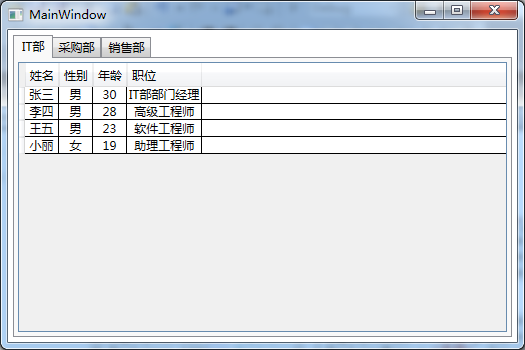
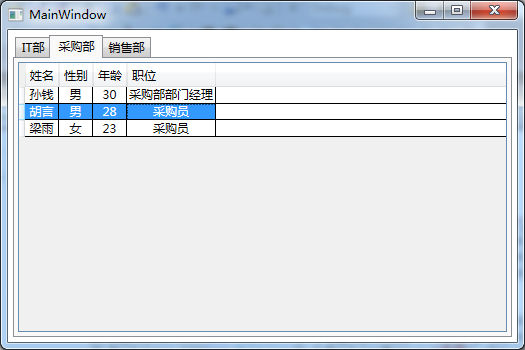
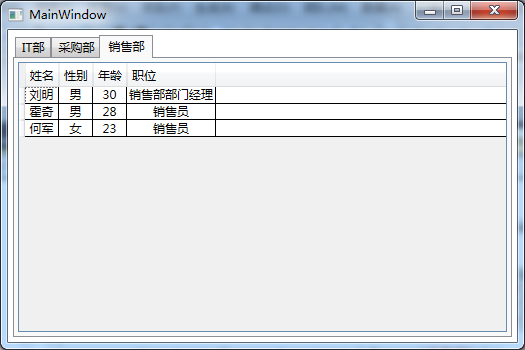
运行效果:
WPF之TabControl控件用法的更多相关文章
- WPF 自定义TabControl控件样式
一.前言 程序中经常会用到TabControl控件,默认的控件样式很普通.而且样式或功能不一定符合我们的要求.比如:我们需要TabControl的标题能够居中.或平均分布:或者我们希望TabContr ...
- TabControl控件用法图解
1.首先创建一个MFC对话框框架,在对话框资源上从工具箱中添加上一个TabControl控件 2.根据需要修改一下属性,然后右击控件,为这个控件添加一个变量,将此控件跟一个CTabCtrl类变量绑定在 ...
- WPF 中RichTextBox控件用法细讲
1. 取得已被选中的内容:(1)使用RichTextBox.Document.Selection属性(2)访问RichTextBox.Document.Blocks属性的“blocks”中的Text ...
- WPF中TabControl控件和ListBox控件的简单应用(MVVM)
本文主要实现下图所示的应用场景: 对于Class1页,会显示用户的age和address属性,对于Class2页,会显示用户的age,address和sex属性.在左边的ListBox中选择对应的用户 ...
- Visual Studio中的TabControl控件的用法
今天遇到了一个自己没遇到过的控件TabControl控件,所以找了点关于它的资料 TabControl属性 DisplayRect:只定该控件客户区的一个矩形 HotTrack:设置当鼠标经过页标签 ...
- WPF TabControl控件-事件相关问题
TabControl控件的TabItem的Content元素,例如:DataGrid控件,在对事件的处理时,需要对事件的源引起关注,当需要处理DataGrid的事件时,事件会传递到TabControl ...
- WPF 调用WinForm控件
WPF可以使用WindowsFormsHost控件做为容器去显示WinForm控件,类似的用法网上到处都是,就是拖一个WindowsFormsHost控件winHost1到WPF页面上,让后设置win ...
- WPF 滚动文字控件MarqueeControl
原文:WPF 滚动文字控件MarqueeControl WPF使用的滚动文字控件,支持上下左右滚动方式,支持设置滚动速度 XAML部分: <UserControl x:Class="U ...
- 深入探讨WPF的ListView控件
接上一篇博客初步探讨WPF的ListView控件(涉及模板.查找子控件) 我们继续探讨ListView的用法 一.实现排序功能 需求是这样的:假如我们把学生的分数放入ListView,当我 ...
随机推荐
- 第一百零七节,JavaScript基本包装类型,数据类型的方法
JavaScript基本包装类型,数据类型的方法 学习要点: 1.基本包装类型概述 2.Boolean类型 3.Number类型 4.String类型 为了便于操作基本类型值,ECMAScript提供 ...
- 第七十六节,css颜色和透明度,盒子阴影和轮廓,光标样式
css颜色和透明度,盒子阴影和轮廓,光标样式 学习要点: 1.颜色和透明度 2.盒子阴影和轮廓 3.光标样式 一.颜色和透明度 颜色我们之前其实已经用的很多了,比如字体颜色.背景颜色.边框颜色.但除了 ...
- html 超链接(a)详细讲解
a:link : http://www.cnblogs.com/yangfeng/archive/2009/07/25/1530962.html 超级链接 超级链接是网站中使用比较频繁的HTML元素, ...
- JavaScript的BOM(浏览器对象)基础语法总结
1.window对象是BOM的核心,window对象指当前的浏览器窗口. window对象方法: 2.history对象记录了用户曾经浏览过的页面(URL),并可以实现浏览器前进与后退相似导航的功能. ...
- Java 工具 JUnit单元测试
Java 工具 JUnit单元测试 @author ixenos 1.1. JUnit单元测试框架的基本使用 一.搭建环境: 导入junit.jar包(junit4) 二.写测试类: 0,一般一个 ...
- Cmake常用指令
1. cmake_minimum_required(VERSION 2.8) 检查cmake的版本,至少为2.8 2. project(helloworld) ...
- 深入浅出聊Unity3D项目优化:从Draw Calls到GC
前言: 刚开始写这篇文章的时候选了一个很土的题目...<Unity3D优化全解析>.因为这是一篇临时起意才写的文章,而且陈述的都是既有的事实,因而给自己“文(dou)学(bi)”加工留下的 ...
- 自己写的POIUtil,主要解决从不同的HSSFWorkbook复制sheet以及根据单元格插入图片等
复制sheet的原始代码网上找的,但是小问题很多,然后自己动手改了一下: 根据单元格信息动态插入图片,如果单元格有文字,图片的位置会在文字之后,如果同样的位置已有图片则会往下插入. import or ...
- winform实现矩形框截图
使用方法如下: private void button1_Click(object sender, EventArgs e) { s.GerScreenFormRectangle(); } priva ...
- ubuntu下安装BeyondCompare比较工具
在ubuntu12.04下使用比较工具,这里参考了网上的一个方法来安装BeyondCompare3 首先,下载相关软件: 这里选择了BCompare: http://www.scootersoftwa ...