
阿里云CentOS数据盘挂载(磁盘扩容)
1. df -h
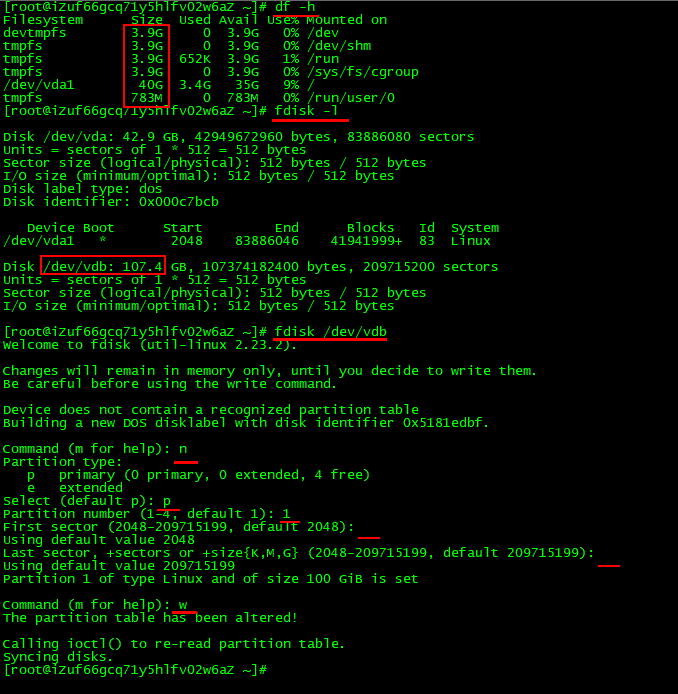
Disk label type 值为dos表示MBR分区,值为gpt表示GPT分区。
[root@iZuf66gcq71y5hlfv02w6aZ ~]# yum install -y parted

[root@iZuf66gcq71y5hlfv02w6aZ ~]# yum install -y e2fsprogs
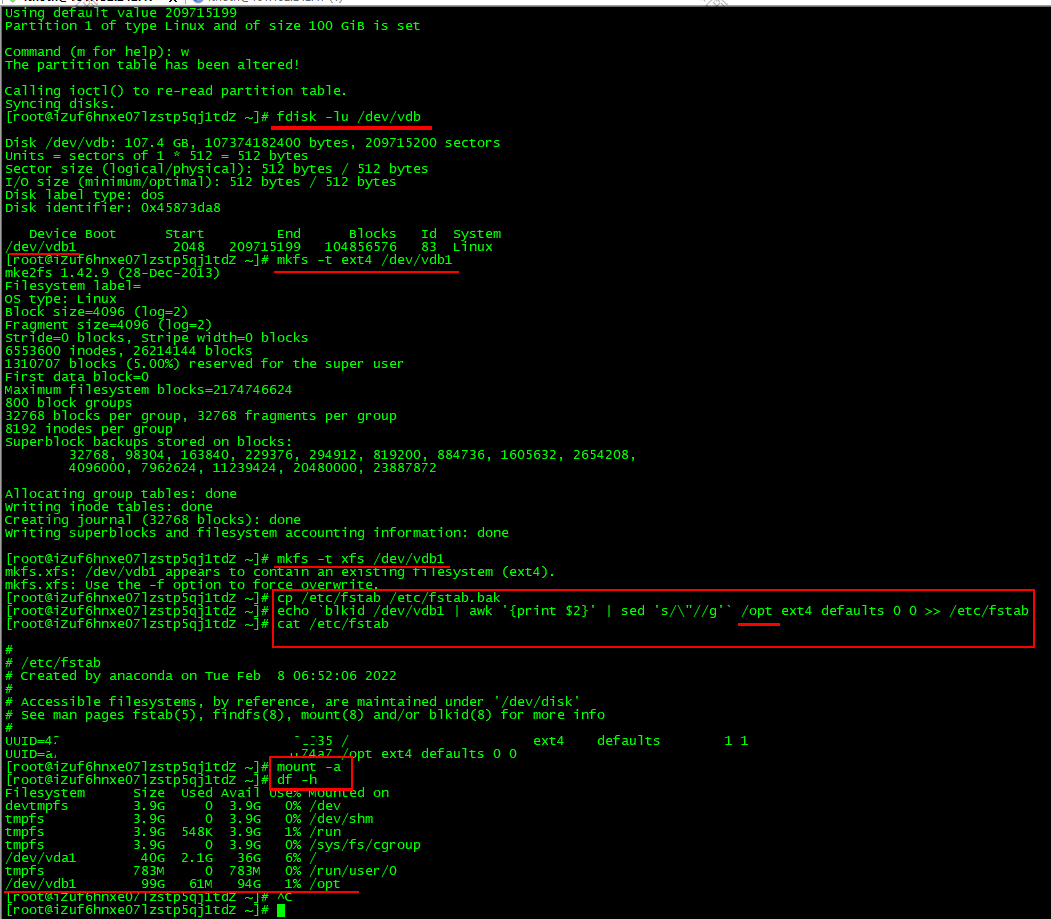
其中:
- /dev/vdb1:已创建好文件系统的数据盘分区,您需要根据实际情况修改对应的分区名称。
- /opt:挂载(mount)的目录节点,您需要根据实际情况修改。 /opt 不能改成 / 或已有盘符,这样就会和vda抢占根目录,这样的话会直接导致服务器崩溃,因为数据都在vda1那里
- ext4:分区的文件系统类型,您需要根据创建的文件系统类型修改。
[root@iZuf66gcq71y5hlfv02w6aZ ~]# df -h

Filesystem      Size  Used Avail Use% Mounted on

devtmpfs        3.9G     0  3.9G   0% /dev

tmpfs           3.9G     0  3.9G   0% /dev/shm

tmpfs           3.9G  652K  3.9G   1% /run

tmpfs           3.9G     0  3.9G   0% /sys/fs/cgroup

/dev/vda1        40G  3.4G   35G   9% /

tmpfs           783M     0  783M   0% /run/user/0

[root@iZuf66gcq71y5hlfv02w6aZ ~]# fdisk -l

Disk /dev/vda: 42.9 GB, 42949672960 bytes, 83886080 sectors

Units = sectors of 1 * 512 = 512 bytes

Sector size (logical/physical): 512 bytes / 512 bytes

I/O size (minimum/optimal): 512 bytes / 512 bytes

Disk label type: dos

Disk identifier: 0x000c7bcb

   Device Boot      Start         End      Blocks   Id  System

/dev/vda1   *        2048    83886046    41941999+  83  Linux

Disk /dev/vdb: 107.4 GB, 107374182400 bytes, 209715200 sectors

Units = sectors of 1 * 512 = 512 bytes

Sector size (logical/physical): 512 bytes / 512 bytes

I/O size (minimum/optimal): 512 bytes / 512 bytes

[root@iZuf66gcq71y5hlfv02w6aZ ~]# fdisk /dev/vdb

Welcome to fdisk (util-linux 2.23.2).

Changes will remain in memory only, until you decide to write them.

Be careful before using the write command.

Device does not contain a recognized partition table

Building a new DOS disklabel with disk identifier 0x5181edbf.

Command (m for help): n

Partition type:

   p   primary (0 primary, 0 extended, 4 free)

   e   extended

Select (default p): p

Partition number (1-4, default 1): 1

First sector (2048-209715199, default 2048):

Using default value 2048

Last sector, +sectors or +size{K,M,G} (2048-209715199, default 209715199):

Using default value 209715199

Partition 1 of type Linux and of size 100 GiB is set

Command (m for help): w

The partition table has been altered!

Calling ioctl() to re-read partition table.

Syncing disks.

[root@iZuf66gcq71y5hlfv02w6aZ ~]# fdisk -lu /dev/vdb

Disk /dev/vdb: 107.4 GB, 107374182400 bytes, 209715200 sectors

Units = sectors of 1 * 512 = 512 bytes

Sector size (logical/physical): 512 bytes / 512 bytes

I/O size (minimum/optimal): 512 bytes / 512 bytes

Disk label type: dos

Disk identifier: 0x5181edbf

   Device Boot      Start         End      Blocks   Id  System

/dev/vdb1            2048   209715199   104856576   83  Linux

[root@iZuf66gcq71y5hlfv02w6aZ ~]# mkfs -t ext4 /dev/vdb1

mke2fs 1.42.9 (28-Dec-2013)

Filesystem label=

OS type: Linux

Block size=4096 (log=2)

Fragment size=4096 (log=2)

Stride=0 blocks, Stripe width=0 blocks

6553600 inodes, 26214144 blocks

1310707 blocks (5.00%) reserved for the super user

First data block=0

Maximum filesystem blocks=2174746624

800 block groups

32768 blocks per group, 32768 fragments per group

8192 inodes per group

Superblock backups stored on blocks:

        32768, 98304, 163840, 229376, 294912, 819200, 884736, 1605632, 2654208,

        4096000, 7962624, 11239424, 20480000, 23887872

Allocating group tables: done

Writing inode tables: done

Creating journal (32768 blocks): done

Writing superblocks and filesystem accounting information: done

[root@iZuf66gcq71y5hlfv02w6aZ ~]# mkfs -t xfs /dev/vdb1

mkfs.xfs: /dev/vdb1 appears to contain an existing filesystem (ext4).

mkfs.xfs: Use the -f option to force overwrite.

[root@iZuf66gcq71y5hlfv02w6aZ ~]# cp /etc/fstab /etc/fstab.bak

[root@iZuf66gcq71y5hlfv02w6aZ ~]# echo `blkid /dev/vdb1 | awk '{print $2}' | sed 's/\"//g'` /opt ext4 defaults 0 0 >> /etc/fstab

[root@iZuf66gcq71y5hlfv02w6aZ ~]# cat /etc/fstab

#

# /etc/fstab

# Created by anaconda on Tue Feb  8 06:52:06 2022

#

# Accessible filesystems, by reference, are maintained under '/dev/disk'

# See man pages fstab(5), findfs(8), mount(8) and/or blkid(8) for more info

#

UUID=42616xxxxxxxxxxxxxxxxxxxxxxxxxd9e935 /                       ext4    defaults        1 1

UUID=5d371xxxxxxxxxxxxxxxxxxxxxxxxxx12055 /opt ext4 defaults 0 0

[root@iZuf66gcq71y5hlfv02w6aZ ~]# mount -a

[root@iZuf66gcq71y5hlfv02w6aZ ~]# df -h

Filesystem      Size  Used Avail Use% Mounted on

devtmpfs        3.9G     0  3.9G   0% /dev

tmpfs           3.9G     0  3.9G   0% /dev/shm

tmpfs           3.9G  692K  3.9G   1% /run

tmpfs           3.9G     0  3.9G   0% /sys/fs/cgroup

/dev/vda1        40G  3.4G   35G   9% /

tmpfs           783M     0  783M   0% /run/user/0

/dev/vdb1        99G   61M   94G   1% /opt

[root@iZuf66gcq71y5hlfv02w6aZ ~]#
[root@iZuf66gcq71y5hlfv02w6aZ ~]# mount -o remount,rw /
不执行 mount -o remount,rw / 可能会报 【Unable to create tempDir. java.io.tmpdir is set to /tmp】
https://help.aliyun.com/document_detail/25426.html#section-wq3-ius-0f0
阿里云CentOS数据盘挂载(磁盘扩容)的更多相关文章
- 阿里云ECS 实例Centos7系统磁盘扩容
需求:一台阿里云的数据盘磁盘空间不足,需要扩容,我这里只有一个主分区,ext4文件系统. 因为磁盘扩容场景不同,阿里云的文档比较全面一些,所以先奉上阿里云的文档,下面开始我的操作步骤: 1.登录控制台 ...
- 阿里云ECSLinux系统下挂载磁盘
最近公司服务器老是提示磁盘空间不足,原因是以前的业务负责人开了Tomcat的debug日志并且没有做日志轮询,所以日志量非常大.当我做了日志切割轮询后发现磁盘还是太小才40G,按理外网服务器怎么可能这 ...
- 阿里云CentOS 7服务器挂载数据盘
本次使用的是centOS 7.4 64位操作系统 第一步:查看磁盘情况 我们发现,我总共有三个磁盘,分别为/dev/vda(100G)./dev/vdb(200G)./dev/vdc(100G),而被 ...
- 阿里云CentOS 7系统挂载SSD云盘的教程_Linux
一.查看SSD云盘 sudo fdisk -l Disk /dev/vda: 42.9 GB, 42949672960 bytes, 83886080 sectors Units = sectors ...
- 阿里云CENTOS服务器挂载数据盘
阿里云Linux云服务器数据盘默认是未做分区和格式化的,使用前需要先挂载数据盘.步骤如下: 1.查看数据盘 在没有分区之前,使用 1 df -h 2.命令,是无法查看到数据盘的,可以使用 1 ...
- 阿里云Linux服务器,挂载硬盘并将系统盘数据迁移到数据盘
因为之前用宝塔上线,宝塔只挂载了系统盘50G,打开阿里云云盘列表发现系统盘无法直接升级,故另买一块数据盘挂载到Linux服务器下,下面根据网上教程再结合我实际情况讲解一下实际操作,其实非常easy l ...
- CentOS系统下的数据盘挂载
此教程适用系统:Linux(CentOS,Debian,Ubuntu,Fedora) 通常新开通的Linux云服务器数据盘都未做分区和格式化.在进行数据盘挂载之前我们要先进行分区以及格式化操作.注意, ...
- 阿里云Linux格式化数据盘,分区并挂载一个文件系统
阿里云一块全新的数据盘挂载到ECS实例后,您必须创建并挂载至少一个文件系统.本示例使用I/O优化实例,操作系统为CentOS 7.6,为一块新的300GiB数据盘(设备名为/dev/vdb)创建一个M ...
- 阿里云-CentOS如何挂载硬盘
阿里云CentOS挂载硬盘 查看当前未挂载的硬盘 # fdisk -l 创建硬盘分区 # fdisk /dev/vdb 根据提示,依次输入"n","p" &qu ...
- linux系统数据盘挂载教程
将数据盘挂载为/www命令:#mkdir /www & mount /dev/sdb1 /www ----------------------------------------------- ...
随机推荐
- CSS 单行/多行文本溢出显示省略号(...)的实现
作者:WangMin 格言:努力做好自己喜欢的每一件事 我们在项目开发的过程中也许都遇到过这样的问题:我们需要实现这样一个需求,在一个父级元素中隐藏一个可能过长的文本.而这个需求可以分解为两个,一个是 ...
- 模拟ASP.NET Core MVC设计与实现
前几天有人在我的<ASP.NET Core框架揭秘>读者群跟我留言说:"我最近在看ASP.NET Core MVC的源代码,发现整个系统太复杂,涉及的东西太多,完全找不到方向,你 ...
- shell 语法介绍
大家好,我是蓝胖子,在日常开发中或多或少都会接触到shell脚本,可以说会shell脚本是一位后端开发的基本功,今天我将会花上一篇文章总结下常见的shell的语法,学完本篇,相信简单的shell脚本就 ...
- iptables中limit 和 limit-burst 说明
Limit match 这个匹配操作必须由-m limit明确指定才能使用.有了他的帮助,就能对指定的规则的日志数量加以限制,以免你被信息的洪流淹没哦.比如,你能事先设定一个限定值,当符合条件的 ...
- 【scipy 基础】--空间计算
scipy.spatial子模块提供了一系列用于处理和计算空间数据和几何形状的算法和工具,在许多领域都有广泛的应用,例如计算机视觉.地理信息系统.机器人学.医学影像分析等. 下面,来具体看看scipy ...
- extern关键字的用法
extern关键字的理解 extern是C/C++语言中的一个关键字,用于声明一个变量或函数具有外部链接性(external linkage),即这些变量或函数可以被其他文件访问. 在C/C++中,如 ...
- 快速认识什么是:Kubernetes
每次谈到容器的时候,除了Docker之外,都会说起 Kubernetes,那么什么是 Kubernetes呢?今天就来一起学快速入门一下 Kubernetes 吧!希望本文对您有所帮助. Kubern ...
- 1、GO语言入门-环境准备
1.Windows开发环境准备 (1)Golang编译器下载 golang中文网:https://studygolang.com/dl 或者:https://go.dev/dl/ (2)下载解压,找到 ...
- transformer模型
Transformer由谷歌团队在论文<Attention is All You Need>提出,是基于attention机制的模型,最大的特点就是全部的主体结构均为attention. ...
- Selenium基本使用、过检测
import time from selenium import webdriver from selenium.webdriver.chrome.service import Service as ...