
[iOS UI进阶 - 0] Quiartz2D
- drawRect:方法的使用
- 常见图形的绘制:线条、多边形、圆
- 绘图状态的设置:文字颜色、线宽等
- 图形上下文状态的保存与恢复
- 图形上下文栈
* 线段(线宽、线段样式)
* 矩形(空心、实心、颜色)
* 三角形、梯形等形状
* 椭圆\圆
* 圆弧
* 文字绘制
* 图片绘制(pattern)
* 图形上下文栈
- 绘制图形 : 线条\三角形\矩形\圆\弧等
- 绘制文字
- 绘制\生成图片(图像)
- 读取\生成PDF
- 截图\裁剪图片
- 自定义UI控件
- … …
- 裁剪图片
- 涂鸦\画板
- 手势解锁
- 为了便于搭建美观的UI界面,iOS提供了UIKit框架,里面有各种各样的UI控件
- UILabel:显示文字
- UIImageView:显示图片
- UIButton:同时显示图片和文字(能点击)
- … …
但是,有些UI界面极其复杂、而且比较个性化,用普通的UI控件无法实现,这时可以利用Quartz2D技术将控件内部的结构画出来,自定义控件的样子
其实,iOS中大部分控件的内容都是通过Quartz2D画出来的
图形上下文(Graphics Context):是一个CGContextRef类型的数据
图形上下文的作用
保存绘图信息、绘图状态
决定绘制的输出目标(绘制到什么地方去?)
(输出目标可以是PDF文件、Bitmap或者显示器的窗口上)

Bitmap Graphics Context
PDF Graphics Context
Window Graphics Context
Layer Graphics Context
Printer Graphics Context
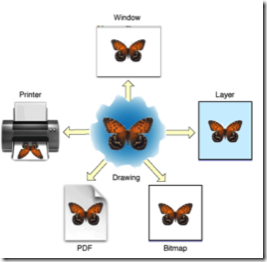
如何利用Quartz2D绘制东西到view上?
首先,得有图形上下文,因为它能保存绘图信息,并且决定着绘制到什么地方去
其次,那个图形上下文必须跟view相关联,才能将内容绘制到view上面
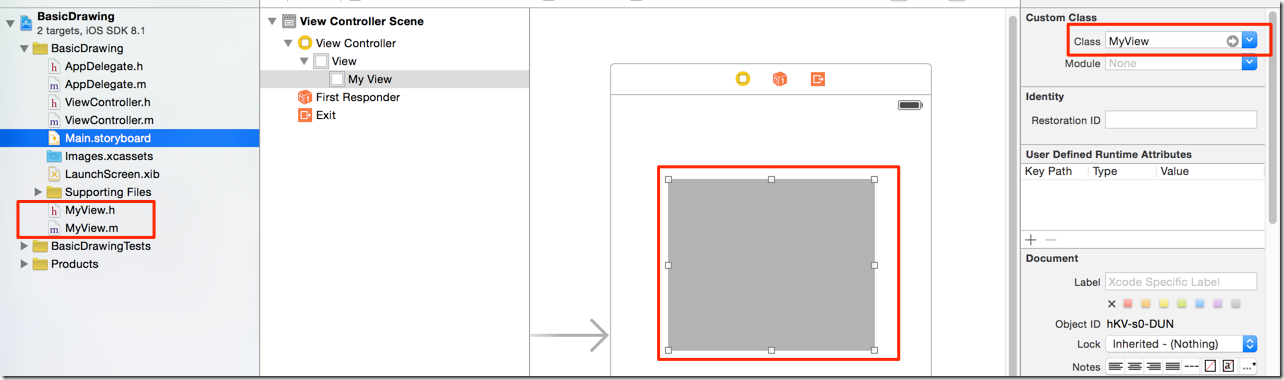
自定义view的步骤
新建一个类,继承自UIView
实现- (void)drawRect:(CGRect)rect方法,然后在这个方法中
取得跟当前view相关联的图形上下文
绘制相应的图形内容
利用图形上下文将绘制的所有内容渲染显示到view上面
为什么要实现drawRect:方法才能绘图到view上?
因为在drawRect:方法中才能取得跟view相关联的图形上下文
drawRect:方法在什么时候被调用?
当view第一次显示到屏幕上时(被加到UIWindow上显示出来)
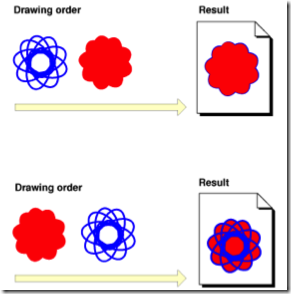
Quartz2D的API来自于Core Graphics框架
数据类型和函数基本都以CG作为前缀
CGContextRef
CGPathRef
CGContextStrokePath(ctx);
在drawRect:方法中取得上下文后,就可以绘制东西到view上
View内部有个layer(图层)属性,drawRect:方法中取得的是一个Layer Graphics Context,因此,绘制的东西其实是绘制到view的layer上去了
View之所以能显示东西,完全是因为它内部的layer
获得图形上下文
CGContextRef ctx = UIGraphicsGetCurrentContext();
拼接路径(下面代码是搞一条线段)
CGContextMoveToPoint(ctx, 10, 10);
CGContextAddLineToPoint(ctx, 100, 100);
绘制路径
CGContextStrokePath(ctx); // CGContextFillPath(ctx);
新建一个起点
void CGContextMoveToPoint(CGContextRef c, CGFloat x, CGFloat y)
添加新的线段到某个点
void CGContextAddLineToPoint(CGContextRef c, CGFloat x, CGFloat y)
添加一个矩形
void CGContextAddRect(CGContextRef c, CGRect rect)
添加一个椭圆
void CGContextAddEllipseInRect(CGContextRef context, CGRect rect)
添加一个圆弧
void CGContextAddArc(CGContextRef c, CGFloat x, CGFloat y,
CGFloat radius, CGFloat startAngle, CGFloat endAngle, int clockwise)
void CGContextDrawPath(CGContextRef c, CGPathDrawingMode mode)
绘制空心路径
void CGContextStrokePath(CGContextRef c)
绘制实心路径
void CGContextFillPath(CGContextRef c)
提示:一般以CGContextDraw、CGContextStroke、CGContextFill开头的函数,都是用来绘制路径的
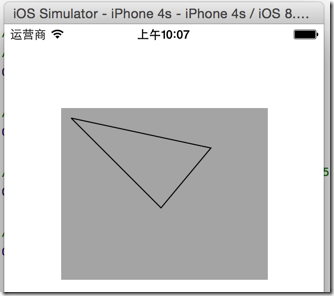
 //重写drawRect:

 - (void)drawRect:(CGRect)rect {

     // 1.获得图形上下文

     CGContextRef ctx = UIGraphicsGetCurrentContext();

     // 2.拼接图形

     // 2.1设置一个起点

     CGContextMoveToPoint(ctx, , );

     // 2.2添加一条线段,是从(10,10)到(100,100)

     CGContextAddLineToPoint(ctx, , );

     // 2.3从上次的位置开始再添加一条线段,是从(100,100)到(150,40)

     CGContextAddLineToPoint(ctx, , );

     // 2.4最后画一条直线连接会原处,形成一个三角形

 //    CGContextAddLineToPoint(ctx, 10, 10);

     CGContextClosePath(ctx); // 回到起点

     // 3.渲染显示到view上面

     CGContextStrokePath(ctx);

 }
 - (void)drawRect:(CGRect)rect {

     // 1.获得上下文

     CGContextRef ctx = UIGraphicsGetCurrentContext();

     // 2.画四边形

     CGContextAddRect(ctx, CGRectMake(, , , ));

     // 绘制空心图形

 //    CGContextStrokePath(ctx);

     // 绘制实心图形

     CGContextFillPath(ctx);

 }
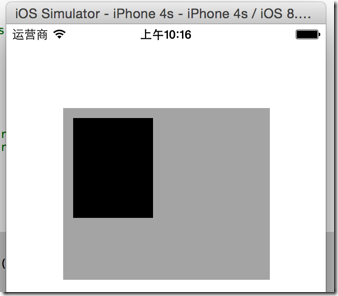
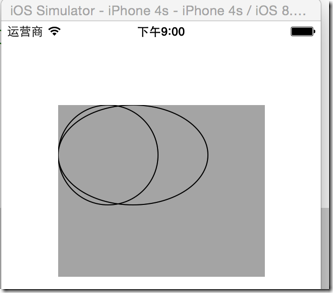
 - (void) drawRound {

     // 1.获得上下文

     CGContextRef ctx = UIGraphicsGetCurrentContext();

     // 2.1画圆

     CGContextAddEllipseInRect(ctx, CGRectMake(, , , ));

     // 2.2椭圆

     CGContextAddEllipseInRect(ctx, CGRectMake(, , , ));

     // 渲染

     CGContextStrokePath(ctx);

 }
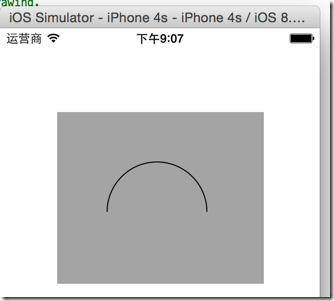
 - (void) drawArc {

     // 1.获得上下文

     CGContextRef ctx = UIGraphicsGetCurrentContext();

     // 2.圆弧

     // X轴正方向为0角度,最后一个参数1代表逆时针方向

     CGContextAddArc(ctx, , , , , -M_PI, );

     // 渲染

     CGContextStrokePath(ctx);

 }
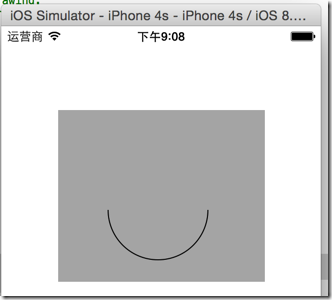
     // 2.圆弧

     // X轴正方向为0角度,最后一个参数1代表逆时针方向

     CGContextAddArc(ctx, , , , , -M_PI, );
 - (void) drawText {

     // 1.获得上下文

     CGContextRef ctx = UIGraphicsGetCurrentContext();

     // 2.画上文字

     /**

      * 如果使用已经过期的方法 CGContextShowText,由于CG画板是以左下角为零点,所以字会上下颠倒过来

      */

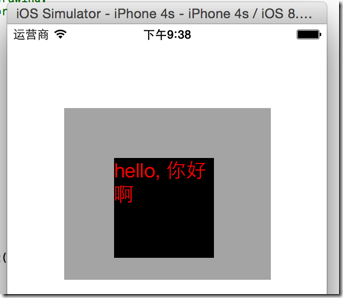
     NSString *text = @"hello, 你好啊";

 //    [text drawAtPoint:CGPointZero withAttributes:nil];

     CGRect r = CGRectMake(, , , );

     CGContextAddRect(ctx, r);

     CGContextFillPath(ctx);

     NSMutableDictionary *dict = [NSMutableDictionary dictionary];

     dict[NSForegroundColorAttributeName] = [UIColor redColor]; // 前景色,就是字体颜色

     dict[NSFontAttributeName] = [UIFont systemFontOfSize:]; // 字体

     [text drawInRect:r withAttributes:dict];

     // 渲染

     CGContextStrokePath(ctx);

 }
 - (void) drawImg {

     // 1.获得上下文

     CGContextRef ctx = UIGraphicsGetCurrentContext();

     // 取得图片

     UIImage *img = [UIImage imageNamed:@"M4"];

     // 画上图片

 //    [img drawAtPoint:CGPointZero]; // 原图大小,可能显示不全

     [img drawInRect:CGRectMake(, , , )]; // 填充方式默认是拉伸

     // 渲染

     CGContextStrokePath(ctx);

 }

 - (void) drawImg {

     // 1.获得上下文

     CGContextRef ctx = UIGraphicsGetCurrentContext();

     // 取得图片

     UIImage *img = [UIImage imageNamed:@"M4Mini"]; // 小图

     // 画上图片

     [img drawAsPatternInRect:CGRectMake(, , , )]; // 重复,可以用来做花纹

     // 渲染

     CGContextStrokePath(ctx);

 }
 - (void) drawImg {

     // 1.获得上下文

     CGContextRef ctx = UIGraphicsGetCurrentContext();

     // 取得图片

     UIImage *img = [UIImage imageNamed:@"M4"]; // 大图

 //    UIImage *img = [UIImage imageNamed:@"M4Mini"]; // 小图

     // 画上图片

 //    [img drawAtPoint:CGPointZero]; // 原图大小,可能显示不全

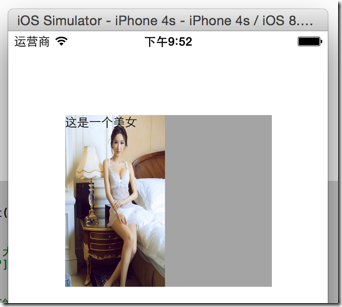
     [img drawInRect:CGRectMake(, , , )]; // 填充方式默认是拉伸

 //    [img drawAsPatternInRect:CGRectMake(0, 0, 200, 200)]; // 重复,可以用来做花纹

     // 文字

     NSString *text = @"这是一个美女";

     [text drawInRect:CGRectMake(, , , ) withAttributes:nil];

     // 渲染

     CGContextStrokePath(ctx);

 }
 - (void) contextStackDemo {

     // 1.获得上下文

     CGContextRef ctx = UIGraphicsGetCurrentContext();

     // 2.存储上下文

     CGContextSaveGState(ctx);

     // 3.设置上下文

     CGContextSetLineCap(ctx, kCGLineCapRound);

     CGContextSetLineWidth(ctx, );

     [[UIColor redColor] set];

     // 4.画第一条直线

     CGContextMoveToPoint(ctx, , );

     CGContextAddLineToPoint(ctx, , );

     // 渲染

     CGContextStrokePath(ctx);

     // 5.恢复上下文

     CGContextRestoreGState(ctx);

     // 6.第二条直线

     CGContextMoveToPoint(ctx, , );

     CGContextAddLineToPoint(ctx, , );

     // 渲染

     CGContextStrokePath(ctx);

 }

 - (void) testCTM {

     CGContextRef ctx = UIGraphicsGetCurrentContext();

     CGContextSaveGState(ctx);

     CGContextRotateCTM(ctx, M_PI_4 * 0.3); // 旋转

     CGContextScaleCTM(ctx, 0.5, 0.5); // 缩放

     CGContextTranslateCTM(ctx, , ); // 移动

     CGContextAddRect(ctx, CGRectMake(, , , ));

     CGContextAddEllipseInRect(ctx, CGRectMake(, , , ));

     CGContextMoveToPoint(ctx, , );

     CGContextAddLineToPoint(ctx, , );

     CGContextStrokePath(ctx);

 }

 - (void) testClip {

     CGContextRef ctx = UIGraphicsGetCurrentContext();

     // 画一个圆

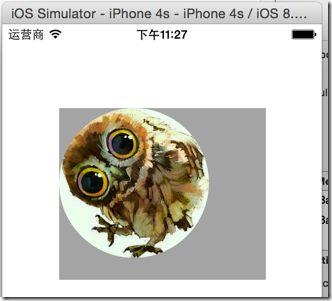
     CGContextAddEllipseInRect(ctx, CGRectMake(, , , ));

     // 裁剪

     CGContextClip(ctx);

     // 加上图片

     UIImage *img = [UIImage imageNamed:@"a9ec8a13632762d0092abc3ca2ec08fa513dc619"];

     [img drawInRect:CGRectMake(, , , )];

     CGContextStrokePath(ctx);

 }
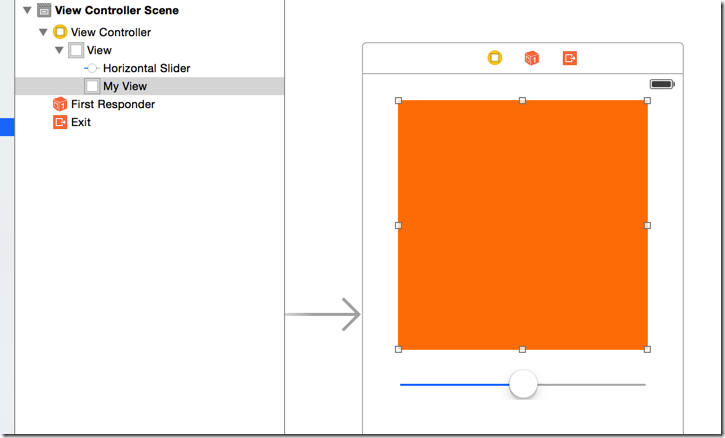
 - (void)setRadius:(CGFloat)radius {

     _radius = radius;

     // 调用重绘/刷帧方法

     [self setNeedsDisplay];

 }

 // 初始化控件的时候, drawRect只会调用一次

 - (void)drawRect:(CGRect)rect {

     CGContextRef ctx = UIGraphicsGetCurrentContext();

     CGContextAddArc(ctx, , , self.radius, M_PI * , , );

     CGContextFillPath(ctx); // 实心圆

 }
 @interface ViewController ()

 - (IBAction)onSlideChange:(UISlider *)sender;

 @property (weak, nonatomic) IBOutlet MyView *circleView;

 @end

 @implementation ViewController

 - (void)viewDidLoad {

     [super viewDidLoad];

     // Do any additional setup after loading the view, typically from a nib.

 }

 - (void)didReceiveMemoryWarning {

     [super didReceiveMemoryWarning];

     // Dispose of any resources that can be recreated.

 }

 - (IBAction)onSlideChange:(UISlider *)sender {

     self.circleView.radius = sender.value * ;

 }

 @end
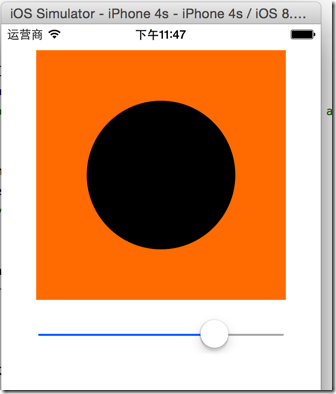
 - (void)awakeFromNib {

     // 添加定时器

 //    [NSTimer scheduledTimerWithTimeInterval:0.1 target:self selector:@selector(setNeedsDisplay) userInfo:nil repeats:YES];

     // 刷新更快的工具

     CADisplayLink *link = [CADisplayLink displayLinkWithTarget:self selector:@selector(setNeedsDisplay)]; // 创建

     // 添加到消息循环,启动

     [link addToRunLoop:[NSRunLoop mainRunLoop] forMode:NSDefaultRunLoopMode];

 }

 - (void)drawRect:(CGRect)rect {

     self.snowY += ;

     if (self.snowY >= self.frame.size.height) {

         self.snowY = -;

     }

     UIImage *image = [UIImage imageNamed:@"M2Mini"];

     [image drawAtPoint:CGPointMake(, self.snowY)];

 }

[iOS UI进阶 - 0] Quiartz2D的更多相关文章
- iOS UI进阶-1.0 Quartz2D
概述 Quartz 2D是一个二维绘图引擎,同时支持iOS和Mac系统.Quartz 2D能完成的工作: 绘制图形 : 线条\三角形\矩形\圆\弧等 绘制文字 绘制\生成图片(图像) 读取\生成PDF ...
- [iOS UI进阶 - 6.0] CALayer
A.基本知识 1.需要掌握的 CALayer的基本属性 CALayer和UIView的关系 position和anchorPoint的作用 2.概念 在iOS中,你能看得见摸得着的东西基本上都是U ...
- [iOS UI进阶 - 3.0] 触摸事件的基本处理
A.需要掌握和练习的 1.介绍事件类型2.通过按钮的事件处理引出view的事件处理3.响应者对象 --> UIResponder --> UIView4.view的拖拽* 实现触摸方法,打 ...
- [iOS UI进阶 - 2.0] 彩票Demo v1.0
A.需求 1.模仿“网易彩票”做出有5个导航页面和相应功能的Demo 2.v1.0 版本搭建基本框架 code source:https://github.com/hellovoidworld/H ...
- iOS UI进阶-4.0 地图与定位
在移动互联网时代,移动app能解决用户的很多生活琐事,比如 导航:去任意陌生的地方 周边:找餐馆.找酒店.找银行.找电影院 在上述应用中,都用到了地图和定位功能,在iOS开发中,要想加入这2大功能 ...
- [iOS UI进阶 - 4.0] 涂鸦app Demo
A.需求 1.超简易画图,只有一种画笔 2.清屏功能 3.回退功能 4.保存功能 5.使用了cocos2D code source: https://github.com/hellovoidwor ...
- iOS UI进阶-3.0 核心动画
Core Animation是一组非常强大的动画处理API,使用它能做出非常炫丽的动画效果,而且往往是事半功倍,使用它需要先添加QuartzCore.framework和引入对应的框架<Quar ...
- iOS UI进阶-2.0 CALayer
在iOS中,你能看得见摸得着的东西基本上都是UIView,比如一个按钮.一个文本标签.一个文本输入框.一个图标等等,这些都是UIView 其实UIView之所以能显示在屏幕上,完全是因为它内部的一个图 ...
- [iOS UI进阶 - 5.0] 手势解锁Demo
A.需求 1.九宫格手势解锁 2.使用了绘图和手势事件 code source: https://github.com/hellovoidworld/GestureUnlockDemo B ...
随机推荐
- Android开发之Android Context,上下文(Activity Context, Application Context)
转载:http://blog.csdn.net/lmj623565791/article/details/40481055 1.Context概念Context,相信不管是第一天开发Android,还 ...
- LA 3295 (计数 容斥原理) Counting Triangles
如果用容斥原理递推的办法,这道题确实和LA 3720 Highway很像. 看到大神们写的博客,什么乱搞啊,随便统计一下,这真的让小白很为难,于是我决定用比较严格的语言来写这篇题解. 整体思路很简单: ...
- WebService教程和分析
1.1.Web Service基本概念 Web Service也叫XML Web Service WebService是一种可以接收从Internet或者Intranet上的其它系统中传递过来的请求, ...
- Fatal NI connect error 12170
Fatal NI connect error 12170 转载:http://www.xifenfei.com/1812.html 今天在一台服务器的日志文件中,发现如下信息: Fatal NI co ...
- 封装Log工具类
public class LogUtil { public static final int VERBOSE = 1; public static final int DEBUG = 2; publi ...
- C语言深入学习系列 - 字节对齐&内存管理
用C语言写程序时需要知道是大端模式还是小端模式. 所谓的大端模式,是指数据的低位保存在内存的高地址中,而数据的高位,保存在内存的低地址中:所谓的小端模式,是指数据的低位保存在内存的低地址中,而数据的高 ...
- oracle中怎么查看存储过程的源码
今天想找几天前写的存储过程的源码看看,发现自己熟悉的命令怎么都不好使,要不提示标示符错误要不就是提示未选定行,通过baidu得知type跟name变量要弄成大写的.. select text from ...
- 【原】cocos2d-x 2.0.4 不支持https协议 CURLE_UNSUPPORTED_PROTOCOL
我们项目组用的cocos2d-x版本还比较老,各种好的功能不能用. 今天就让我遇到一个问题,使用CCHttpClient发送http请求的时候,https协议的不支持,返回失败信息如下 errorco ...
- vs 2005中解决找不到模板项
开始-->所有程序-->Microsoft Visual Studio 2005-->Visual Studio Tools-->Visual Studio 2005 Comm ...
- html5极速3D立体式图片相册切换效果
下载Demo